Website profiles · Technology insights · Alternatives

webvm.io

Linux virtual machine, running in the browser via HTML5/WebAssembly. Networking and graphics supported.

No paid content found
Visit website
Profile views 1 Outbound visits 9 Normal
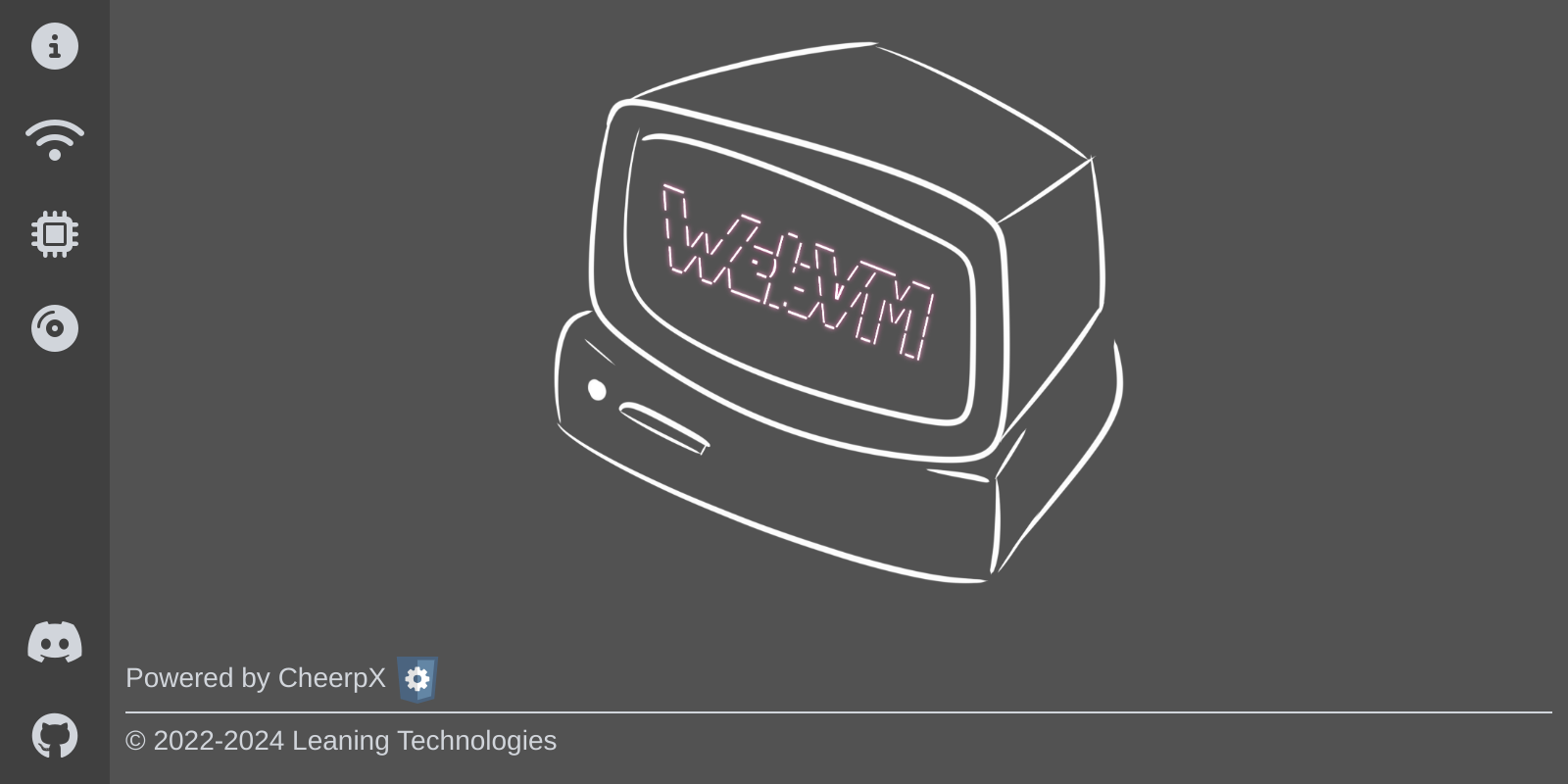
WebVM Full homepage screenshot

At a glance

Category
Development
Language
English
Paid-content signal
No paid content foundObserved
Registered
Unknown
Hosting
CloudflareInferred
HTTPS certificate trusted
PassedObserved
Last updated

Website review

This review may include AI-generated content and is not individually verified. Domain, certificate and other facts come from the observed data on this page.

What is WebVM?

WebVM is a Linux virtual machine that runs inside a web browser using HTML5 and WebAssembly, built on Leaning Technologies' CheerpX x86 virtualization engine. Rather than installing a VM or a local hypervisor, you open a page and get a Linux environment executing in the browser sandbox, with networking and graphics supported.

What that means in practice

  • Zero-install Linux: useful for quick experimentation, teaching, demos, or trying command-line tools on a machine where you cannot install software.
  • Sandboxed by the browser: the environment is contained by browser security boundaries, which suits untrusted code or throwaway sessions.
  • WebAssembly execution: x86 binaries are virtualized rather than run natively, so expect overhead compared with a local VM or container.
  • Networking via the browser stack: the page mentions networking support, including Tailscale, which points to browser-mediated connectivity rather than a full traditional network interface.

Trade-offs to weigh

Consideration WebVM suits A local VM/container suits
Setup effort Immediate, no install Requires tooling and disk space
Performance Adequate for light CLI work Better for sustained or heavy workloads
Isolation Browser sandbox Configurable but your responsibility
Persistence Session-oriented; check before relying on it Full control over storage

A concrete scenario

A developer on a locked-down work laptop wants to test a shell script or demonstrate a Linux command during a call. WebVM lets them do that in a tab without IT approval. For compiling large projects or running long-lived services, a local container is the better fit.

As a next step, open WebVM and try a simple command like uname -a to confirm the environment behaves as expected before depending on it for anything substantial.

How does WebVM run Linux in a browser without installing anything?

WebVM runs a Linux environment entirely inside the browser tab by using WebAssembly, so nothing is installed on your machine. The page describes it as a Linux virtual machine running via HTML5/WebAssembly, with networking and graphics supported, powered by CheerpX.

How it works, in practical terms

  • The CPU becomes WebAssembly. CheerpX is an x86 virtualization layer that executes Linux binaries as WebAssembly inside the browser's JavaScript engine. Your operating system sees a normal web page, not a virtual machine process.
  • A virtual filesystem replaces a disk. The Linux filesystem is presented to the guest through the browser rather than a partition or disk image you mount.
  • Networking is routed through the browser. WebVM supports networking, which is what makes it possible to reach services or connect tools like Tailscale from inside the session. The page lists networking and graphics as supported features, so terminal work and graphical output are both in scope.
  • Nothing touches your host system. Because execution happens in the browser sandbox, there is no installer, no admin rights and no local configuration.

What this is good for

A developer on a locked-down work laptop can open the page and get a Linux shell for quick experiments. A student can follow a tutorial that assumes Linux commands without dual-booting. Someone demoing a command-line tool can share a link instead of asking people to set up an environment.

The trade-offs follow from the design: performance depends on the browser's WebAssembly execution, and the environment is a sandboxed session rather than a full replacement for a local install. For heavy compilation or long-running workloads, a native VM or container is usually the better fit; WebVM suits short, self-contained tasks.

A useful next step

Decide by task length and isolation needs. If you need a five-minute Linux shell on a machine you don't control, open WebVM and try a few commands. If you need persistent state, GPU access or long builds, plan on a local or hosted VM instead.

Can I use WebVM to run x86 Linux applications on a device that isn't x86?

Yes. WebVM is built for exactly that case: it runs an x86 Linux environment in the browser using WebAssembly, so the host machine does not need to be x86. The page identifies CheerpX as the underlying engine, which is what makes x86 code execution possible inside a browser tab.

What this means in practice

  • On ARM laptops and tablets: you can open WebVM on an Apple Silicon Mac, a Windows-on-ARM device, or a Chromebook and work inside a Linux shell without installing a separate emulator or VM.
  • On locked-down machines: because it runs in the browser, it suits situations where you cannot install VirtualBox, VMware or WSL—for example a managed work laptop or a shared computer.
  • For quick, disposable testing: a browser tab is a low-commitment way to try Linux commands, compile something small, or check how a tool behaves before setting up a full local environment.

Trade-offs to weigh

Consideration What to expect
Performance Browser-based x86 execution carries overhead compared with native or a local hypervisor; light tasks feel fine, heavy builds will not.
Persistence A browser tab is not a durable workstation; treat it as temporary unless you have a clear way to keep files.
Hardware access Graphics and networking are described as supported, but direct access to local devices is limited compared with a native VM.
Fit Best for learning, demos and short experiments; less suited to long-running or resource-intensive workloads.

A sensible next step

Pick one small, concrete task—say, running a command-line utility or compiling a short C program—and try it in WebVM on your non-x86 device. If it completes comfortably, WebVM is a reasonable lightweight option for that kind of work; if it stalls, plan on a native VM or a remote Linux machine instead. For a fuller local Linux experience on ARM hardware, alternatives such as Docker containers or a native ARM Linux install may serve you better.

How do I get networking working in WebVM, for example with Tailscale?

Networking in WebVM depends on the browser build you use. The public demo at WebVM runs Linux via CheerpX in WebAssembly, and its page evidence confirms networking and graphics are supported features of the project. The practical path to a working network—especially for Tailscale—is to run your own WebVM build with a configured network backend rather than relying on the hosted demo.

What to expect

  • The hosted demo is for exploration. Treat it as a way to try the terminal and Linux environment; persistent or private networking is typically not something you can configure there.
  • Self-hosting unlocks networking. WebVM's source is designed to be built and deployed by you, which is where you can attach a network transport (for example, a Tailscale-backed connection) and control how traffic leaves the browser sandbox.
  • Tailscale needs a client inside the VM. Tailscale works by running its client (tailscaled) inside the Linux guest and authenticating it to your tailnet. That means you need a WebVM image with the Tailscale binary included, plus outbound connectivity from the browser session.

A concrete setup path

  1. Build WebVM from source using the official repository linked from WebVM, and confirm the basic terminal boots locally.
  2. Choose a network backend. WebVM's networking relies on a transport layer you provide; select one that supports outbound TCP/UDP so Tailscale can reach its coordination server.
  3. Add Tailscale to the disk image. Install the tailscale package into the guest filesystem, then run tailscaled and tailscale up from the WebVM terminal.
  4. Authenticate by visiting the login URL Tailscale prints, then verify with tailscale status and tailscale ping to another node.

Decision criteria

Goal Better fit
Quick look at Linux in the browser Hosted demo at WebVM
Private access to your own machines Self-hosted build with Tailscale in the guest
Learning how CheerpX virtualization works Source build, no networking first

If your aim is simply to reach a remote host from a browser-based Linux shell, a self-hosted WebVM with Tailscale installed and a working outbound transport is the realistic route; start by getting tailscale status to return cleanly before adding other services.

Is WebVM suitable for running a full desktop environment with graphics in the browser?

Yes, with qualifications. WebVM is built to run a Linux virtual machine inside the browser via HTML5 and WebAssembly, and its page evidence states that networking and graphics are supported, so a graphical Linux environment is within its intended scope rather than a workaround. What it is not positioned as is a polished remote desktop for everyday office use; it is a technical demonstration of x86 virtualization in the browser, powered by CheerpX.

Where it fits well

  • Trying or demonstrating Linux without installing anything. A developer who wants to show a colleague a Linux toolchain can open a browser tab instead of provisioning a machine.
  • Teaching and talks. Running a desktop, a terminal and a compiler in front of an audience from a single URL avoids setup risk on a borrowed laptop.
  • Client-side experimentation. Because the VM runs in the browser, the work happens on the viewer's machine rather than on a server you maintain.

Where it strains

  • Heavy graphical workloads. Browser sandboxes, WebAssembly execution and the absence of direct GPU access make compositing, video playback and 3D work less predictable than on native hardware or a conventional VDI.
  • Persistent daily use. A browser tab is a fragile home for a working desktop: closing it, a crash or a reload ends the session unless you have arranged storage and state carefully.
  • Peripheral and clipboard expectations. Users accustomed to USB devices, printing or seamless copy-paste across the host and guest should test those flows before relying on them.

A practical way to decide

Ask what "full desktop" means for your case. If it means "a window manager, a browser and a few GUI apps for a demo", WebVM is a reasonable first stop. If it means "my staff's daily workstation", compare it against a conventional remote desktop or a hosted Linux desktop, which are designed around persistence and administration. A quick test: boot the environment, open two or three of your actual applications at once, and check responsiveness and whether your session survives a reload.

For background on the underlying approach, the Leaning Technologies site covers CheerpX, and WebAssembly explains the runtime model that makes in-browser execution possible.

What are the limitations or performance trade-offs of WebVM compared with a native virtual machine?

WebVM trades raw performance and system-level fidelity for portability: it runs a Linux environment inside the browser via WebAssembly, so you get instant access with no install, but you should expect it to behave more like a lightweight sandbox than a full VM.

Where the trade-offs show up

  • CPU speed: x86 instructions are translated/JIT-compiled to WebAssembly rather than executed directly. Compute-heavy work (compiling large projects, video encoding, heavy numerical workloads) will generally feel slower than on a native VM, and performance depends on the browser's JavaScript/Wasm engine.
  • Memory ceiling: a browser tab is a constrained process. Large in-memory datasets or many parallel processes can hit limits that a native VM with configurable RAM would not.
  • I/O and persistence: files typically live in browser-managed storage rather than a real disk image. Expect weaker durability guarantees, no raw block-device access, and a need to export/back up work rather than rely on the tab surviving.
  • Hardware access: no direct GPU passthrough, USB, or kernel modules. Anything needing privileged kernel features or device drivers is out of scope.
  • Networking: supported, but mediated through browser networking (and options like Tailscale for private access), so it suits client-style connectivity rather than acting as a server or router on your LAN.
  • Graphics: graphical output works, but it is not a path to GPU-accelerated desktop workloads.
  • Lifecycle: closing the tab, clearing site data, or a browser crash can end the session; a native VM persists independently of any application.

Choosing between them

Need WebVM fits Native VM fits
Try Linux or run a CLI tool with zero install Yes Overkill
Share a reproducible environment via a URL Yes Awkward
Sustained CPU-heavy builds or benchmarks No Yes
Large memory, disks, snapshots, device access No Yes
Long-running services or kernel-level work No Yes

A concrete scenario: a developer who wants to demo a command-line tool to a colleague can send a WebVM link and have them running it in seconds—ideal. The same developer running a multi-hour test suite should use a native VM or container on their own machine.

Next step: benchmark your actual workload rather than assuming. Run a short, representative task (a small build, a script over sample data) in WebVM and time it against the same task on a native VM; if the gap is tolerable for occasional use, the convenience wins, and if not, keep WebVM for demos and quick checks. For the underlying technology, see Leaning Technologies and CheerpX.

Related questions

More questions →
What Is WebAssembly and How Does It Enable Linux Virtual Machines in the Browser?

WebAssembly (often shortened to Wasm) is a compact binary instruction format that web browsers can download and execute at near-native speed. It is the piece that makes it possible to run heavy native software — including a full Linux virtual machine — inside a browser tab without installing plugins. WebVM, hosted at webvm.io, is a concrete example: it describes itself as a "Linux virtual machine, running in the browser via HTML5/WebAssembly," with networking and graphics supported, powered by CheerpX. The sections below explain the mechanism, where the emulation layer fits, and what to expect in practice.

What WebAssembly actually is

WebAssembly is a target that compilers can emit and browsers can run. Instead of shipping JavaScript source, a toolchain compiles code (originally C, C++, Rust, and similar languages) into a binary module. The browser's engine validates and executes that module in a sandboxed environment, close to native performance.

Three properties matter for the browser-VM story:

  • Portability. The same module runs across browsers and operating systems, because the browser provides the execution environment.
  • Speed. Wasm is designed for efficient execution rather than interpretation, which is why demanding workloads are feasible in a tab.
  • Sandboxing. Modules run inside the browser's security model, so the page does not get arbitrary access to the host machine.

WebAssembly on its own is not an operating system, a Linux kernel, or a virtual machine. It is the execution substrate. Everything else — the OS, the filesystem, the networking — has to be supplied by something built on top of it.

How a Linux VM ends up running on WebAssembly

A Linux VM expects x86 machine instructions. A browser executes WebAssembly. Bridging those two requires an emulation and translation layer. In WebVM's case that layer is CheerpX, identified on the site as the technology powering the product ("Powered by CheerpX © 2022–2025 Leaning Technologies").

The pipeline looks like this:

  1. x86 instructions from the Linux guest are encountered at runtime.
  2. A JIT (just-in-time) compiler translates those instructions into WebAssembly.
  3. The browser executes the resulting Wasm, which produces the behavior the guest OS expects.
  4. Browser APIs (HTML5 facilities) supply the surrounding environment — display output, input, and networking.

The JIT is the key mechanism. Rather than pre-compiling an entire disk image, the translation happens as code runs, so the guest's instructions are converted on demand and cached for reuse. This is what allows a general-purpose Linux environment, rather than a single fixed application, to operate in the browser.

A useful analogy: think of WebAssembly as the engine and CheerpX as the transmission. The engine provides motion, but without a transmission that matches the engine to the wheels (x86 Linux to the browser), nothing moves.

WebAssembly vs. a browser-based VM product

These are frequently conflated, so keep the layers distinct:

Layer What it is Example
WebAssembly Binary instruction format executed by the browser The Wasm runtime in your browser
Emulation/JIT layer Translates guest instructions into Wasm CheerpX
VM product The user-facing Linux environment WebVM at webvm.io
Browser platform Provides display, input, networking APIs HTML5 features

WebAssembly is the foundation; WebVM is an application built on it. Saying "WebVM is WebAssembly" is like saying "a website is HTTP" — related, but not the same thing.

What this enables in practice

Because the guest runs through a JIT and the browser supplies the I/O, a browser VM can offer:

  • No installation. The environment loads as a web page.
  • Networking. WebVM's description states networking is supported; its keyword list includes Tailscale, which points to private-network connectivity as a use case.
  • Graphics. Display output is handled through the browser, so graphical Linux software can be shown in the page.

These capabilities come from the combination of Wasm execution plus browser APIs — not from WebAssembly alone.

Practical limits to expect

  • Performance overhead. Every guest instruction passes through translation. Expect a browser VM to feel slower than native Linux, especially for CPU-heavy work.
  • Networking depends on the product. The site states networking is supported, but the specific configuration (for example, connecting to a private network via Tailscale) is a product feature, not a property of WebAssembly.
  • Graphics are browser-mediated. Rendering happens through HTML5, so behavior depends on the browser and the page's implementation.
  • The sandbox cuts both ways. Isolation protects the host, but it also constrains what the guest can reach on your machine.

How to decide whether this matters to you

If you want to understand the technology, the takeaway is: WebAssembly provides fast, portable, sandboxed execution in the browser; a JIT-based emulation layer like CheerpX translates x86 Linux into that format; and products like WebVM package the two into a usable environment with networking and graphics.

If you want to try it, open webvm.io in a modern browser and treat it as a demonstration of what the stack can do — useful for learning, testing, or lightweight tasks, with the performance caveats above in mind. For workloads that need full native speed or deep host access, a conventional VM remains the better fit.

What Is WebVM and How Does It Run Linux in the Browser?

WebVM is a Linux virtual machine that runs inside a web browser using HTML5 and WebAssembly, with x86 virtualization handled by CheerpX. You can try it at webvm.io without installing a local hypervisor. It suits quick experiments with a Linux environment, browser-based demos, and situations where you cannot install software on the host. It is not a drop-in replacement for a traditional local VM when you need full hardware control, persistent local storage, or heavy workloads.

What WebVM actually is

WebVM is best understood as a Linux environment packaged to execute in the browser. The page describes it as a Linux virtual machine running via HTML5/WebAssembly, with networking and graphics supported. The underlying execution technology is CheerpX, identified on the site as the engine powering WebVM and credited to Leaning Technologies.

That combination matters. WebAssembly gives the browser a portable, sandboxed execution target, while CheerpX provides the x86 virtualization layer that lets Linux binaries run without a native hypervisor. The result is a VM-like experience delivered through a web page rather than through VirtualBox, VMware, or a cloud instance.

How Linux runs in the browser

The mechanism has three layers:

  1. The browser as host. The page loads in a standard browser tab. HTML5 provides the display and input surface, and WebAssembly provides the execution environment.
  2. CheerpX as the virtualization layer. CheerpX emulates x86 execution so that Linux and its programs can run on top of WebAssembly. The site lists JIT among its keywords, which points to just-in-time compilation: rather than interpreting every instruction slowly, the engine translates x86 code into a form the browser can execute more efficiently as the program runs.
  3. Linux as the guest. The Linux environment runs above that layer, using the browser for display and, where supported, networking.

A useful way to picture it: a traditional VM asks your operating system for virtualized hardware. WebVM asks the browser for a WebAssembly runtime and builds the x86 machine on top of it. The guest behaves like Linux, but the "hardware" beneath it is software running in a tab.

What it can do

The site's description supports these capabilities:

  • Networking. WebVM supports networking, and Tailscale is listed among the related keywords, indicating network connectivity is part of the intended feature set.
  • Graphics. Graphical output is supported through the browser, so the environment is not limited to a text console.
  • No local installation of a VM stack. Because execution happens in the browser via WebAssembly, you are not installing a hypervisor on your machine to get started.

Typical uses follow from those traits: trying Linux commands from a machine where you cannot install software, demonstrating a Linux workflow inside a browser tab, and exploring how x86 virtualization behaves when compiled to WebAssembly.

Limits and requirements to expect

WebVM differs from a local VM in ways that affect your decision:

Dimension WebVM in the browser Traditional local VM
Installation Runs from the web page; no local hypervisor install needed Requires hypervisor software and setup
Execution base WebAssembly with CheerpX x86 virtualization Native virtualization on your hardware
Display and input Delivered through the browser (HTML5) Native window or console
Networking Supported per the site description Configured by you in the hypervisor
Best fit Quick access, demos, constrained hosts Sustained workloads, full hardware control

Two cautions are reasonable. First, performance depends on the browser and the WebAssembly/JIT path, so expect it to feel different from a native VM. Second, the available page material does not document persistence, storage limits, or pricing; treat those as things to verify in the environment itself rather than assumptions.

Getting started

  1. Open webvm.io in a modern browser that supports WebAssembly.
  2. Wait for the Linux environment to initialize in the page.
  3. Use the provided terminal or graphical surface to run commands and test the capabilities you need.
  4. If your task depends on networking, confirm connectivity inside the environment before relying on it.

The practical test is simple: if your goal is to run a few Linux commands or demonstrate a workflow without installing anything, WebVM is a direct fit. If your goal is a long-running service or a VM you fully control at the hardware level, a traditional local VM remains the better choice.

What Is a Virtual Machine and How Do You Run One?

A virtual machine (VM) is a complete computer running as software inside another computer. It has its own virtual CPU, memory, storage, and network, and it boots its own operating system, isolated from the machine underneath it. You run one by installing a hypervisor on your laptop or desktop, creating a VM, and pointing it at an OS image to boot. This works on any reasonably modern laptop or desktop, provided the hardware supports virtualization. The Virtual OS Museum is one concrete example: it packages over 1,700 pre-installed operating systems spanning 1948 to today inside a single Linux VM for QEMU, VirtualBox, or UTM, with a custom launcher and a snapshot feature for reverting broken installations.

The core idea: a computer inside a computer

When you start a VM, the hypervisor carves out a slice of your real hardware and presents it to the guest as if it were a physical machine. The guest OS believes it is running on real hardware. It does not see your host files, your host processes, or your host OS unless you deliberately configure sharing.

Two terms matter throughout:

  • Host — the physical machine and its operating system.
  • Guest — the operating system running inside the VM.

Because the guest is isolated, a crash, a corrupted install, or a misconfigured setting inside the VM does not damage the host. That isolation is the main reason VMs are used for testing, legacy software, and safe experimentation.

VMs vs. emulators vs. containers vs. dual-booting

These four are often confused because they all let you run "another system." They differ in what is being simulated and how much isolation you get.

Approach What runs Isolation Typical use
Virtual machine A full guest OS on virtualized hardware Strong; separate kernel and filesystem Testing OSes, legacy software, snapshots
Emulator Software that reproduces a different CPU or machine architecture Strong, but usually slower Running software for hardware you don't own
Container Processes sharing the host kernel Weaker; shares the kernel Packaging and deploying apps
Dual-boot One OS at a time on real hardware Total, but exclusive Maximum performance for one OS

The distinction between a VM and an emulator is worth stating precisely. A VM typically runs guest code directly on the host CPU through hardware virtualization, so it is fast. An emulator translates instructions for a different architecture in software, so it is slower but can run systems your CPU could never execute natively. The Virtual OS Museum sits at the intersection: it is a Linux VM that itself contains emulators, which is how it can host platforms from the Manchester Baby of 1948 onward on ordinary hardware.

Containers are not VMs. They share the host kernel, so they cannot boot a different operating system. Dual-booting gives you full hardware performance but only one OS at a time, and switching means rebooting.

Hypervisors: Type 1 and Type 2

The software that creates and runs VMs is called a hypervisor.

  • Type 1 (bare-metal) runs directly on the hardware with no host OS underneath. Examples include VMware ESXi and Microsoft Hyper-V in its server role. These are common in data centers.
  • Type 2 (hosted) runs as an application on top of your normal desktop OS. VirtualBox, QEMU, and UTM fall into this category, and they are what most people use on a laptop.

For getting started on a personal machine, a Type 2 hypervisor is the practical choice. The Virtual OS Museum explicitly bundles QEMU, VirtualBox, and UTM and includes hypervisor installers and shortcuts for Windows, macOS, and Linux, so you do not have to assemble the stack yourself.

What VMs are actually good for

  • Testing operating systems you would not install on your main machine, including beta, obscure, or historical systems.
  • Running legacy software that needs an old OS version.
  • Safe experimentation where a mistake should not touch your real files.
  • Snapshots — capturing a known-good state and reverting to it instantly. The Virtual OS Museum's launcher includes a snapshot feature specifically to revert broken installations back to a working state, which is the single most useful VM habit to adopt.
  • Preservation and study — keeping historical systems runnable. The museum's stated goal is to have a working version of any OS that exists, in a form anyone can run.

How to run one: the basic steps

  1. Check hardware virtualization support. On Intel systems this is often labeled VT-x; on AMD it is AMD-V. It is usually enabled in firmware/UEFI settings. If it is off, Type 2 hypervisors will either refuse to start or run painfully slowly.
  2. Install a hypervisor. Download VirtualBox, QEMU, or UTM for your platform. The museum ships installers and shortcuts for Windows, macOS, and Linux if you want a pre-configured path.
  3. Obtain an OS image. This is typically an ISO or a pre-built disk image. The museum provides pre-installed, pre-configured OSes, which removes the install step entirely.
  4. Create the VM. Allocate virtual CPUs, memory, and disk. Give the guest enough to run but leave headroom for the host.
  5. Boot the guest. Point the VM at the image and start it. Expected result: the guest OS boots to its own desktop or prompt inside a window.
  6. Take a snapshot immediately after a successful boot. This is your recovery point. If you break the guest later, revert instead of reinstalling.

Common pitfalls

  • Virtualization disabled in firmware. The most frequent cause of "it won't start" or extreme slowness. Check UEFI settings first.
  • Over-allocating resources. Giving a guest most of your RAM or all your CPU cores starves the host and makes everything sluggish. Leave room for the host OS.
  • Skipping snapshots. Without one, a broken guest means a full reinstall. The museum's snapshot feature exists precisely because this happens often.
  • Confusing emulation with virtualization. If the guest architecture differs from your host, expect emulation-level speed, not native speed.
  • Assuming isolation is automatic for files. Isolation is the default, but shared folders and clipboard integration, once enabled, create a path between host and guest. Enable them deliberately.

If your goal is to explore historical and alternative operating systems without configuring emulators or risking corrupted installations, a pre-built VM like the Virtual OS Museum removes most of the setup work. If your goal is to run one modern OS alongside your own for testing, any Type 2 hypervisor plus an ISO is enough.

What Is x86 Virtualization and How Can It Run x86 Linux in a Browser?

x86 virtualization is the technique of running an x86 (Intel/AMD instruction set) operating system or program on top of another environment, either by emulating the x86 CPU in software or by sharing the real CPU through a hypervisor. It can run x86 Linux in a browser when the x86 instructions are translated in software (emulation/JIT) and executed inside a sandbox such as WebAssembly — this is the approach WebVM describes, using CheerpX to run a Linux virtual machine in the browser via HTML5/WebAssembly, with networking and graphics supported. This works for trying Linux, running command-line tools, or reaching a remote development environment, but it is not a substitute for hardware-assisted virtualization when you need near-native speed or full device access.

Two ways to virtualize x86

Dimension Hardware-assisted virtualization Software emulation / JIT translation
How the CPU is used Guest instructions run on the real CPU via a hypervisor (VT-x/AMD-V) Guest x86 instructions are decoded and translated to the host's instructions
Typical host A local machine with virtualization extensions enabled Any host that can run the translator — including a browser sandbox
Speed Near-native for CPU-bound work Overhead from decode/translate/cache; slower and variable
Guest OS support Broad, including unmodified OS installers Depends on what the translator implements
Device and kernel access Direct access to hardware, drivers, nested features Mediated by the runtime; limited to what the sandbox exposes

The distinction matters because "x86 virtualization in a browser" is almost always the second column: there is no hypervisor to hand the guest a real x86 CPU, so the x86 code must be translated.

How a browser-hosted x86 Linux VM works

The mechanism is a chain of translation rather than a hypervisor:

  1. The guest is an x86 Linux environment — its kernel and user programs are x86 machine code.
  2. A translator (in WebVM's case, CheerpX) decodes those x86 instructions and just-in-time (JIT) compiles them into code the browser can execute.
  3. WebAssembly provides the sandboxed execution target inside the browser, so the translated code runs under the browser's security model rather than with direct hardware access.
  4. The runtime layer supplies what the guest expects from hardware — virtual block storage for the filesystem, a virtual network interface, and a graphics path — mapped onto browser APIs.

The practical consequence: the guest "sees" an x86 Linux machine, but every privileged operation is intercepted and serviced by the runtime. That is why a browser VM can boot Linux without installing anything locally, and also why it cannot behave exactly like a machine with real hardware.

What a browser x86 Linux VM can and cannot do

Can do (per WebVM's description):

  • Run a Linux virtual machine inside the browser page, with no local installation.
  • Support networking — WebVM lists Tailscale among its keywords, which points to private-network access rather than only a sealed sandbox.
  • Support graphics, so graphical Linux programs are in scope, not just a terminal.
  • Serve as a scratch environment for trying Linux, running CLI tools, or reaching a remote development environment from a machine where you cannot install a VM.

Cannot do, or does with caveats:

  • Match native speed. JIT translation adds overhead on every translated instruction; CPU-heavy builds and large compiles will feel it.
  • Guarantee persistence. A browser tab is an ephemeral container. Unless the product explicitly provides durable storage, treat files as session-scoped and keep important work outside the VM.
  • Escape browser resource limits. Memory, CPU time, and background-tab throttling are set by the browser, not by the guest OS.
  • Provide full hardware or kernel access. Drivers, nested virtualization, and direct device passthrough are outside what a sandboxed translator can offer.

Choosing between the two approaches

  • Use hardware-assisted virtualization (a local hypervisor) when you need production-like performance, full OS installers, kernel modules, or device access.
  • Use browser-based x86 emulation when the constraint is the host: a locked-down machine, a Chromebook, a shared computer, or a quick look at Linux without touching the local system — and when your workload is interactive or I/O-light rather than compute-heavy.
  • Check persistence and networking explicitly before relying on a browser VM for real work: confirm whether storage survives a reload and whether the network path (for example, a Tailscale connection) reaches the hosts you need.

WebVM is one concrete implementation of the browser side of this trade-off: a Linux VM running in the browser via HTML5/WebAssembly, powered by CheerpX. If your goal is "run x86 Linux somewhere I can't install anything," it fits; if your goal is "run x86 Linux at full speed with real hardware," a local hypervisor is the right tool.

What Is CheerpX and How Does It Run Linux in the Browser?

CheerpX is a virtualization engine that runs x86 Linux binaries inside a web browser using WebAssembly, with no server-side execution of the guest code. It suits people who want a Linux environment reachable from a browser tab — for demos, teaching, or portable tooling — rather than a full replacement for a traditional VM. WebVM, the browser Linux machine at webvm.io, is the reference application built on CheerpX; the site credits it as "Powered by CheerpX."

The core mechanism

A normal virtual machine emulates or virtualizes a CPU so a guest OS can run on top. CheerpX takes a different route: it translates x86 machine instructions into WebAssembly, which the browser's own engine then compiles and executes on the host CPU.

The pieces that matter:

  • x86-to-WebAssembly translation. Guest instructions are decoded and rewritten as WebAssembly modules rather than interpreted one at a time.
  • JIT compilation. Blocks of translated code are compiled and cached as they are first executed, so repeated loops and hot paths run as native WebAssembly instead of being re-translated each time. This is what makes interactive use plausible rather than purely demonstrative.
  • Client-side execution. The guest runs in the browser sandbox. The page's own description of WebVM frames it as a Linux virtual machine running "in the browser via HTML5/WebAssembly," and the CheerpX credit confirms the engine underneath.

The practical consequence: nothing needs to be installed, and the machine travels with the URL. The trade-off is that every instruction passes through a translation layer, so expect slower execution than a native or hardware-virtualized VM.

What it can do in practice

WebVM's description lists networking and graphics as supported, which maps to the capabilities a browser-based Linux environment needs to be usable:

Capability What it means for you
Networking The guest can reach the network; WebVM's keywords include Tailscale, suggesting private-network access is part of the intended setup
Graphics A graphical environment is possible, not just a text console
Filesystem A Linux environment implies a working filesystem view for the guest; the site does not document its persistence model, so treat durability as something to verify before relying on it
Execution model x86 binaries run client-side via JIT-compiled WebAssembly

CheerpX vs. WebVM

These are often confused, so keep the layers separate:

  • CheerpX is the engine — the x86 virtualization and JIT layer.
  • WebVM is the application — a Linux VM experience in the browser, built on CheerpX.

If you want to use browser Linux, WebVM is the thing you open. If you want to build something that runs x86 Linux code in a page, CheerpX is the underlying technology. The site itself only states the dependency; it does not publish an integration guide, so treat "build your own" as a separate research task.

When to choose it — and when not to

CheerpX/WebVM fits when:

  • You need a Linux shell or environment on a machine where you cannot install software.
  • You want to share a reproducible environment as a link.
  • You are demonstrating or teaching Linux without provisioning servers.

A traditional VM fits better when:

  • You need near-native performance for compilation, heavy workloads, or latency-sensitive tools.
  • You need strong isolation guarantees or kernel-level control.
  • You need documented, durable storage and predictable resource limits.

The deciding question is usually performance and persistence, not features: the browser engine is genuinely capable, but the translation layer is a permanent tax, and the site does not spell out how guest state survives a reload.

Verifying it yourself

  1. Open webvm.io in a current desktop browser.
  2. Confirm the environment boots and you get a usable shell or desktop.
  3. Run a quick benchmark you care about — for example, time a small compile or a loop — and compare it against the same task on a local VM.
  4. Test the network path you actually need, including any private-network setup if that is your use case.
  5. Reload the page and check whether your files and settings persist.

Common snags: slow first execution of new code paths while the JIT warms up, and assumptions about storage that the site does not confirm. Check both before committing to it for real work.

Website Overview

Several search or sharing settings need attention. Together they may make snippets, preview images or preferred URLs less consistent across platforms.

Domain and Registration

Unknown

DNS and Email

Nameservers are provided by Cloudflare, indicating managed DNS hosting. No CNAME was found; the observed records resolve directly to addresses. No MX record was found. A conventional explicit inbound-mail route is not configured. The lowest observed DNS TTL is 300 seconds. No CAA record was found; there is no additional DNS-based restriction on certificate issuers.

TLS and Certificates

The public key uses EC with 256 bits. The server supplied a complete certificate chain. No organization name is present in the certificate; the available fields are consistent with domain validation. The certificate was issued within the Google Trust Services cloud or CDN ecosystem. The certificate's total validity is about 90 days, consistent with a short renewal cycle.

HTTP and Browser Security

The checked browser-security headers were not detected, leaving fewer explicit browser-side safeguards. No X-Powered-By header was found, reducing one common source of backend fingerprinting information. The cf-ray response header indicates a CDN or caching proxy in the delivery path. No obvious internal addresses or debug information were found in the headers. The Server header identifies cloudflare without an exact version.

Technology Stack Analysis

The public page identifies SvelteKit, Cloudflare without precise versions, leaving fewer clues for version-specific scanning.

Search and Social Sharing

No homepage canonical URL was detected. If duplicate URLs exist, consolidation may be less explicit. Open Graph is partially configured; og:description is missing. Twitter Card metadata is configured. The title has 43 characters, within a common display range. A meta description is present, with 103 characters.

Hosting and Email

DNSCloudflare
HostingCloudflare
EmailUnknown
Approximate IP geolocation (inferred; a CDN or proxy may differ from the origin server) Location unknown Inferred 104.21.82.171

Registration details

RDAP / WHOIS

Unknown

DNS records

DNS

TypeNameValueTTLPriority
Awebvm.io104.21.82.171300—
Awebvm.io172.67.160.60300—
AAAAwebvm.io2606:4700:3033::6815:52ab300—
AAAAwebvm.io2606:4700:3034::ac43:a03c300—
NSwebvm.iodawn.ns.cloudflare.com86400—
NSwebvm.ioray.ns.cloudflare.com86400—
TXTwebvm.iov=spf1 -all300—
DSwebvm.io2371 13 2 008086b2e655f56532a17e703b8e50d7225d8a6a3ebe26437100b02e98382ed53600—
DMARC_dmarc.webvm.iov=DMARC1; p=reject; sp=reject; adkim=s; aspf=s;300—

TLS and certificates

TLS / SSL

AssessmentNormal configuration
Supported protocolsTLSv1.2、TLSv1.3
Negotiated protocolTLSv1.3
Certificate subjectwebvm.io
IssuerGoogle Trust Services
Valid until2027-01-08T15:28 · Remaining when checked: 74 days
Verification detailsCertificate trust: Passed · Hostname match: Passed

HTTP response headers

HTTP

HeaderValue
content-typetext/html; charset=utf-8
cache-controlmax-age=14400
servercloudflare

Identified technologies

SvelteKitCloudflare

Pages, Search and Sharing

Meta descriptionLinux virtual machine, running in the browser via HTML5/WebAssembly. Networking and graphics supported.
Canonical URLNot detected
LanguageEnglish (default)
Twitter Cardsummary_large_image

No rules found

No sitemaps found

User reviews (0)

  • No reviews yet.