
 简体中文
简体中文 English
Website review
This review may include AI-generated content and is not individually verified. Domain, certificate and other facts come from the observed data on this page.
What is xbar?
xbar is a macOS utility that places the output of any script or program in your menu bar. You write a small script in whatever language you prefer, and xbar runs it on a schedule and displays the result as a menu-bar item; clicking it can show more detail or actions. The site describes it as "the BitBar reboot" and lists hundreds of pre-built plugins across categories such as network, finance, weather, system, email, and cryptocurrency.
What it is good for
- Glanceable status: internal and external IP addresses, battery levels, crypto or stock tickers, miner statistics.
- Personal dashboards: RSS headlines, service health, or any metric your own scripts can fetch.
- Quick actions: menu items that run commands or open links without leaving the menu bar.
Who it suits
It fits developers and technical macOS users who are comfortable editing a script or installing a community plugin. Non-technical users can still use pre-built plugins, but customizing beyond that requires some scripting. The trade-off is flexibility versus setup: you get exactly the information you choose, but you maintain the scripts and any API keys or dependencies they rely on.
Next step
Browse the plugin categories on xbar for something close to what you need, install it, then adapt its script rather than starting from scratch. If you need richer always-visible panels rather than menu-bar text, a dedicated dashboard app may be a better fit.
How do I install xbar on macOS?
Install xbar from its official site, xbar, using the "Download xbar for macOS" link. Open the downloaded file, drag xbar into your Applications folder, then launch it. On first run macOS may warn that the app was downloaded from the internet—allow it in System Settings → Privacy & Security if prompted. xbar runs as a menu bar item, so after launch look for its icon in the menu bar rather than a normal window.
Next steps after installing
- Add plugins: xbar reads scripts from its plugin folder (typically
~/Library/Application Support/xbar/plugins). Browse the site's plugin categories—Network, Finance, Weather, System and others—and install one to see output appear in the menu bar. - Write your own: any executable script or program works, in any language, per the site's writing-plugins guide. This is the main reason to choose xbar over fixed-purpose menu bar apps: you control exactly what appears.
- Refresh behavior: plugin filenames encode refresh intervals, so decide how often each item should update (frequent for tickers, infrequent for weather).
Who it suits
xbar fits Mac users comfortable with scripts who want a single glanceable strip for status—IP addresses, battery levels, RSS headlines, price tickers. If you prefer a polished GUI with no scripting, a dedicated single-purpose app may be simpler. Also note the site lists a beta version number, so expect occasional rough edges and check the GitHub project for issues.
How do I write my own xbar plugin in a language like Python or Bash?
xbar runs any executable script or program and displays its output in the macOS menu bar, so a plugin is just a file that prints text in a format xbar understands. You can write it in Python, Bash, Ruby, Node, Swift, or anything else that can run on macOS. The page states this directly: "Write your own plugins —in any language."
The basic pattern
- Create a script and make it executable (
chmod +x myscript.pyormyscript.sh). xbar needs the executable bit and a shebang line (#!/usr/bin/env python3or#!/bin/bash) so it knows how to run it. - Print menu-bar lines to stdout. The first line or two appear in the menu bar itself; subsequent lines become dropdown items.
- Use the separator and parameters to control formatting. In BitBar-style plugins (xbar is the BitBar reboot), a line of
---separates the menu-bar title from the dropdown, and lines can carry parameters like| color=redor| href=...to style items or make them clickable. - Name the file with an interval so xbar knows how often to refresh, e.g.
weather.10m.pyfor every ten minutes, ordisk.1h.shfor hourly. A bare number means seconds. - Place it in the plugins folder and refresh from the xbar menu.
A minimal Bash example that shows the current time:
#!/bin/bash
echo "🕒 $(date +%H:%M)"
echo "---"
echo "Refresh | refresh=true"
A Python equivalent for disk space:
#!/usr/bin/env python3
import shutil
free = shutil.disk_usage("/").free // (1024**3)
print(f"💾 {free} GB free")
print("---")
print("Open Disk Utility | bash=/usr/bin/open param1=-a param2='Disk Utility' terminal=false")
Practical decisions
- Choose the language you can debug fastest. Bash is fine for wrapping command-line tools; Python is easier once you parse JSON from an API.
- Keep output small and fast. xbar runs the script on every refresh interval, so avoid slow network calls in a script set to run every few seconds.
- Test from the terminal first. Run the script directly and check its stdout before adding it to xbar; formatting bugs are much easier to spot there.
- Handle errors visibly. If an API fails, print a short fallback line rather than nothing, so the menu bar doesn't silently go blank.
The site's own documentation and the "Writing plugins guide" linked from the page are the authoritative reference for parameters and directory layout, and the plugin gallery is useful for reading working examples: Welcome to xbar. For general macOS scripting conventions, Apple's developer documentation is a reasonable companion.
Which xbar plugins are available for monitoring cryptocurrency prices or network status?
For cryptocurrency tickers, xbar’s plugin directory lists an OKX Ticker plugin that shows price tickers from OKX with configurable currencies. For network monitoring, it lists a Network Info plugin that provides internal and external IPv4 and IPv6 addresses, Whois information and Speedtest.net results. Both are presented as pre-built plugins on xbar.
What each is useful for
- OKX Ticker: best suited to someone who watches OKX markets and wants a compact, always-visible price readout in the menu bar. Its value depends on how much you rely on OKX specifically; the plugin description does not suggest support for other exchanges.
- Network Info: useful for troubleshooting connectivity, checking whether your public IP has changed, or quickly confirming IPv4/IPv6 addresses without opening System Settings or a terminal. Because it also mentions Whois and Speedtest results, it leans toward diagnostic use rather than continuous bandwidth monitoring.
Practical next step
Open the relevant plugin entry before installing and check what it requires, such as API access for the ticker or third-party tools for the network tests. If you need broader exchange coverage or ongoing latency graphs, compare those requirements against the plugin’s described scope rather than assuming it covers them.
How do I troubleshoot a plugin that isn't showing up in my menu bar?
Start by checking that the script itself runs correctly outside xbar, then confirm the plugin is in the right folder with a valid filename. Most "missing plugin" cases come down to a script error, a naming problem, or a permissions issue rather than xbar failing to load.
Work through these in order
- Run the script in a terminal first. Open Terminal and execute it directly (for example,
bash /path/to/plugin.5m.sh). If it errors or prints nothing, xbar has nothing to display. Fix the script before touching xbar. - Check the filename format. xbar plugins encode their refresh interval in the filename, such as
plugin.5m.shorplugin.1h.py. A missing or malformed interval suffix can prevent the plugin from appearing or refreshing. The naming rules are covered in the docs linked from xbar. - Confirm the plugin folder. Plugins must sit in the folder xbar is watching. If you changed the plugin directory in preferences, a plugin dropped into the default folder won't show. Verify the path in xbar's settings.
- Check the shebang and interpreter. A script needs a correct first line (e.g.
#!/usr/bin/env python3) and an executable bit if xbar runs it directly. Runchmod +xon the file if needed. - Refresh manually. Use xbar's "Refresh all" option from the menu, since a plugin with a long interval may simply not have run yet.
- Look at the error output. xbar surfaces script errors in the menu bar or its preferences; a plugin that runs but exits non-zero often shows a warning icon rather than its intended output.
A practical example
If a network-info plugin from the directory doesn't appear, run its script in Terminal. A common failure is a missing command-line tool (like speedtest) or a PATH difference: your shell finds the tool, but xbar's environment may not. Printing the full path to the tool inside the script, or setting PATH at the top of the script, usually resolves it.
When to suspect the plugin versus xbar
| Symptom | Likely cause | First check |
|---|---|---|
| Nothing appears at all | Script error or wrong folder | Run script in Terminal |
| Appears briefly, then vanishes | Script exits with an error | Exit code and stderr |
| Shows stale data | Refresh interval too long | Filename interval suffix |
| Works in Terminal, not in xbar | Environment or PATH difference | Hard-code tool paths |
If a pre-built plugin from the directory misbehaves, compare it against a minimal test plugin you write yourself (a one-line echo hello with a .1m.sh name). If the minimal plugin appears and the downloaded one doesn't, the problem is in that plugin's script or dependencies, not in xbar.
Is xbar free, and how can I sponsor the project?
Yes. xbar is free and open source: the site lists an MIT License and offers a download for macOS, with no paid tier described on the page. Sponsorship is optional and handled through the project's GitHub page, which the site links to as the way to support development.
What you actually get for free
xbar puts the output of any executable script or program into the macOS menu bar. The page describes hundreds of pre-built plugins across categories such as AWS, Cloud, Cryptocurrency, Dev, Email, Finance, Network, System, Time, Weather and Web, and it says you can write your own in any language.
A few examples from the page show the range:
- Network Info (Raymond Kuiper): internal and external IPv4/IPv6 addresses, Whois information and Speedtest.net results.
- YubiKey MFA (Bryan Dodd): TOTP codes from YubiKey OATH, with options for Nerd Font glyphs, grouping or hiding.
- Simple RSS reader (alesf): lists the latest feed items and links to them.
- Battery Apple Bluetooth Trackpad (Maxime Bertheau): battery percentage for the trackpad.
When sponsoring makes sense
Sponsorship is a voluntary contribution toward maintenance, not a purchase of features; the page frames it as support for the project rather than a subscription. It is most reasonable if xbar has become part of your daily menu bar and you want the maintainer's work to continue.
A practical next step: install xbar, try two or three plugins from the categories you care about, and only then decide whether to sponsor via the GitHub project link. If you want to compare approaches first, GitHub hosts the project and its plugin-writing guide.
 Cloudflare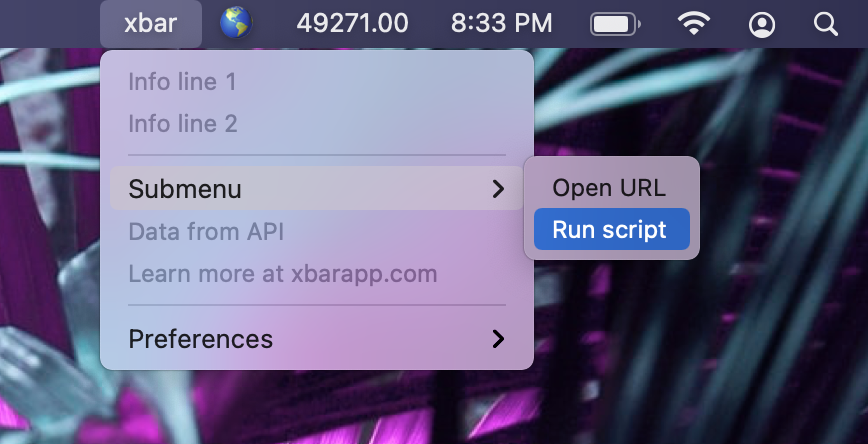

User reviews (0)