
 简体中文
简体中文 English
Website review
This review may include AI-generated content and is not individually verified. Domain, certificate and other facts come from the observed data on this page.
What is OpenMTP?
OpenMTP is a free, open-source file transfer app for macOS that moves files between a Mac and Android devices (plus other MTP-capable hardware like e-readers, watches, cameras and VR headsets) over a USB cable. You plug in the device, unlock it and select "File transfer" mode, then drag files between a split-pane view of your Mac and your phone. No Wi-Fi pairing, cloud account or companion app is needed — the connection is direct over USB.
What it actually does
According to the official site, OpenMTP is positioned as an alternative to Google's Android File Transfer, which many Mac users find dated and crash-prone. Its stated capabilities include:
- Large and multiple files — support for files over 4GB, copied several at a time.
- Speed — the site claims file copies run 5–6x faster than the default option over USB.
- File management on the device — renaming files and folders directly on the phone, which it says Android File Transfer cannot do.
- Two storage locations — switching between internal memory and an SD card from the toolbar.
- Interface options — grid or list view, dark mode, and keyboard shortcuts for navigating, copying and pasting.
- Privacy — no collection of personally identifiable information.
The site also notes a custom MTP implementation introduced in version 3.0, called Kalam Kernel, and lists macOS 10.14 (Mojave) or later as the requirement, with older systems needing an earlier release and a legacy mode.
Who it suits
It fits Mac owners with Android phones, Kindles, Garmin watches, Fujifilm cameras or Meta Quest headsets who want a cable-based transfer without installing phone-side software. If your workflow depends on wireless syncing, cloud services or iPhone-to-Mac transfers, this is not the tool for the job — it is specifically an MTP-over-USB utility.
Next step
Check the supported-devices list on OpenMTP before installing, since MTP support varies by manufacturer and model. If your device is listed, download the Apple Silicon or Intel build (or install via Homebrew) and confirm the transfer works with a small test file before moving anything large.
How do I transfer files from Android to Mac using OpenMTP?
Connect your Android phone to your Mac with a USB cable, unlock it, set the USB mode to File transfer, then drag files between the two panes in OpenMTP. The site describes this as a three-step process with no Wi-Fi setup or account needed.
The three steps
- Install OpenMTP. Download the Apple Silicon or Intel build from OpenMTP and drag it into your Applications folder, or install it with Homebrew using the cask command shown on the site. macOS 10.14 (Mojave) or later is the stated requirement; older systems need an earlier version with Legacy MTP mode.
- Connect and authorize. Plug the phone in with a USB cable, unlock it, tap the USB notification and choose File transfer. OpenMTP should detect the device immediately.
- Move the files. The Mac appears on the left and the phone on the right. Drag files across, or use ⌘C and ⌘V. You can switch between internal memory and SD card from the toolbar, and rename files and folders directly on the phone — something the site notes Android File Transfer cannot do.
Practical points worth knowing
- Large transfers: the site advertises support for files over 4GB and copying many at once, which is the main reason people move off Apple's own utility for big video or backup folders.
- Speed: OpenMTP claims copies 5–6x faster over USB than the alternative it compares itself against. Treat that as the developer's own benchmark rather than a guarantee; real speed depends on your cable, port and phone storage.
- Beyond phones: the same MTP connection is listed for Garmin watches, FujiFilm cameras, Kindle devices and Meta Quest headsets, so the workflow is similar for those.
- Privacy: the site states no personally identifiable information is collected, consistent with its open-source model.
If the phone doesn't appear
Unlock the screen first — MTP access is usually blocked on a locked device — and re-check the USB notification, since some phones default to charging only. Try a different cable or port if the device still doesn't show, and confirm your macOS version matches the build you installed.
Is OpenMTP compatible with Apple Silicon and older Intel Macs?
Yes. OpenMTP ships separate builds for Apple Silicon (M1 and later) and Intel Macs, so you pick the download that matches your machine rather than relying on Rosetta translation. The stated system requirement is macOS 10.14 (Mojave) or higher, with macOS 10.13 and earlier handled by OpenMTP v3.1.15 in Legacy MTP mode. The page also mentions support reaching back to macOS 10.12 (Sierra) for older hardware, so if you are on a pre-Mojave Mac, expect to install the older version and enable the legacy mode.
What this means in practice
- Apple Silicon Mac (M1 or newer): Use the Apple Silicon download. This is the native path and the one most current users will want.
- Intel Mac on Mojave or later: Use the Intel download; no compatibility workaround needed.
- Intel Mac on High Sierra or earlier: Install v3.1.15 and follow the legacy MTP instructions. Newer releases will not run there.
A quick way to decide
| Your Mac | What to install |
|---|---|
| Apple Silicon, macOS 10.14+ | Apple Silicon build |
| Intel, macOS 10.14+ | Intel build |
| Intel, macOS 10.13 or earlier | OpenMTP v3.1.15 with Legacy MTP mode |
If you are unsure which chip you have, open the Apple menu, choose About This Mac, and check whether the processor line says Apple M-series or Intel.
A practical next step: check your macOS version and chip first, then download the matching build. If you prefer package management, the site offers a Homebrew cask install, which keeps the app updated through your normal upgrade routine. For older Intel machines, confirm the legacy version is still available before you start, since that is the only supported route on those systems. OpenMTP is free and open source, so testing it costs nothing but a USB cable and a few minutes.
Which devices besides Android phones does OpenMTP support, such as Garmin, Kindle, or Meta Quest?
OpenMTP is built around MTP, the protocol many non-phone gadgets use to expose their storage over USB, so its device support extends well beyond Android phones. The site's own list highlights Samsung, Garmin, FujiFilm and Meta Quest VR, and the product name also calls out Kindle — alongside phone brands like Google Pixel, Xiaomi, Redmi and OnePlus.
In practice that means:
- Garmin watches and cycling computers — moving activity files, maps or music onto the device's storage.
- Kindle e-readers — side-loading ebooks, documents or fonts rather than relying on email delivery.
- Meta Quest VR headsets — pulling captured video and screenshots off the headset, or pushing media files on.
- Cameras such as FujiFilm — copying photos and video from a camera that mounts as an MTP device.
- Android phones and tablets — the core use case, including Samsung, Pixel, Xiaomi, Redmi and OnePlus.
The trade-off is that MTP support is per-device, not universal: some gadgets use proprietary protocols or require their own desktop software, and Apple devices don't appear over MTP at all. So a device merely having a USB port is not a guarantee.
Check the supported devices page on OpenMTP before you rely on it for a specific model, especially for cameras and wearables where a vendor tool may be the only officially supported route. If your device is listed, the workflow is the same three steps: install, connect over USB and choose File transfer mode on the device, then drag files across.
How does OpenMTP compare to Android File Transfer in speed, file size limits, and features?
OpenMTP positions itself as a faster, more feature-complete replacement for Google's Android File Transfer on macOS. On its own site, the headline claim is 5–6x faster file copies over USB, support for 4GB+ files (and many in one go), and a set of conveniences Android File Transfer lacks — most notably renaming files and folders directly on the phone, switching between internal memory and SD card from the toolbar, a split-pane drag-and-drop view, grid/list layouts, dark mode, and keyboard shortcuts. It is also open source and free, with builds for both Apple Silicon and Intel Macs.
Android File Transfer, by contrast, is the long-standing Google utility. It is generally described as slower and more prone to disconnects or refusing to launch, and it does not let you rename files on the device. It also has a reputation for struggling with very large files, which is where OpenMTP's 4GB+ claim matters most.
Where the differences matter
| Aspect | OpenMTP (per its site) | Android File Transfer |
|---|---|---|
| Speed | 5–6x faster USB copies claimed | Slower, more variable |
| Large files | 4GB+ files, multiple at once | Often unreliable with very large files |
| Rename on phone | Yes | No |
| Storage switching | Internal / SD card from toolbar | Limited |
| Interface | Split pane, drag-and-drop, grid/list, dark mode | Basic single view |
| Shortcuts | Keyboard navigation, copy/paste | Minimal |
| Cost / license | Free, open source | Free, closed source |
| Mac support | Apple Silicon and Intel, back to older macOS with legacy mode | Intel-oriented, aging |
Practical takeaway
If you regularly move large video files, work with an SD card, or want to rename and reorganize files without unplugging, OpenMTP is the more capable choice on paper. If you only occasionally pull a few photos and already have Android File Transfer working, switching may not be worth the effort.
A sensible next step: check the supported-devices list on OpenMTP against your exact phone, watch, camera, or headset before installing, since MTP behavior varies by manufacturer.
How do I install OpenMTP via Homebrew or download it for macOS?
Install OpenMTP either by downloading the build for your Mac from the official site or by installing it through Homebrew. Both routes give you the same app; pick based on how you prefer to manage software.
Option 1: Homebrew (fastest if you already use it)
Run this in Terminal:
brew install openmtp --cask
The --cask flag matters — it installs the graphical app into your Applications folder, not a command-line tool. After it finishes, launch OpenMTP from Applications or Spotlight. Later updates come through brew upgrade.
Option 2: Direct download
- Go to OpenMTP.
- Choose the build that matches your Mac: Apple Silicon (M1 and later) or Intel.
- Drag the downloaded app into your Applications folder.
- Open it and connect your phone over USB.
Which should you choose?
| Situation | Better route |
|---|---|
| You already use Homebrew and want easy updates | Homebrew |
| You don't use Terminal and want a one-time setup | Direct download |
| You're on a Mac you don't administer | Direct download |
| You want to track versions or reinstall cleanly | Homebrew |
A practical first-run check
Whichever route you take, confirm your macOS version before installing. The site states macOS 10.14 (Mojave) or higher for current versions, with macOS 10.13 and earlier limited to OpenMTP v3.1.15 using Legacy MTP mode. On Mojave or later, use the current release; on Sierra through High Sierra, download v3.1.15 instead and follow the legacy installation steps on the site.
Once installed, the workflow is the same: unlock your phone, tap the USB notification, choose File transfer, then drag files between the two panes. If the phone isn't detected, the usual culprits are a charge-only cable or a locked screen rather than the installation itself.
 Cloudflare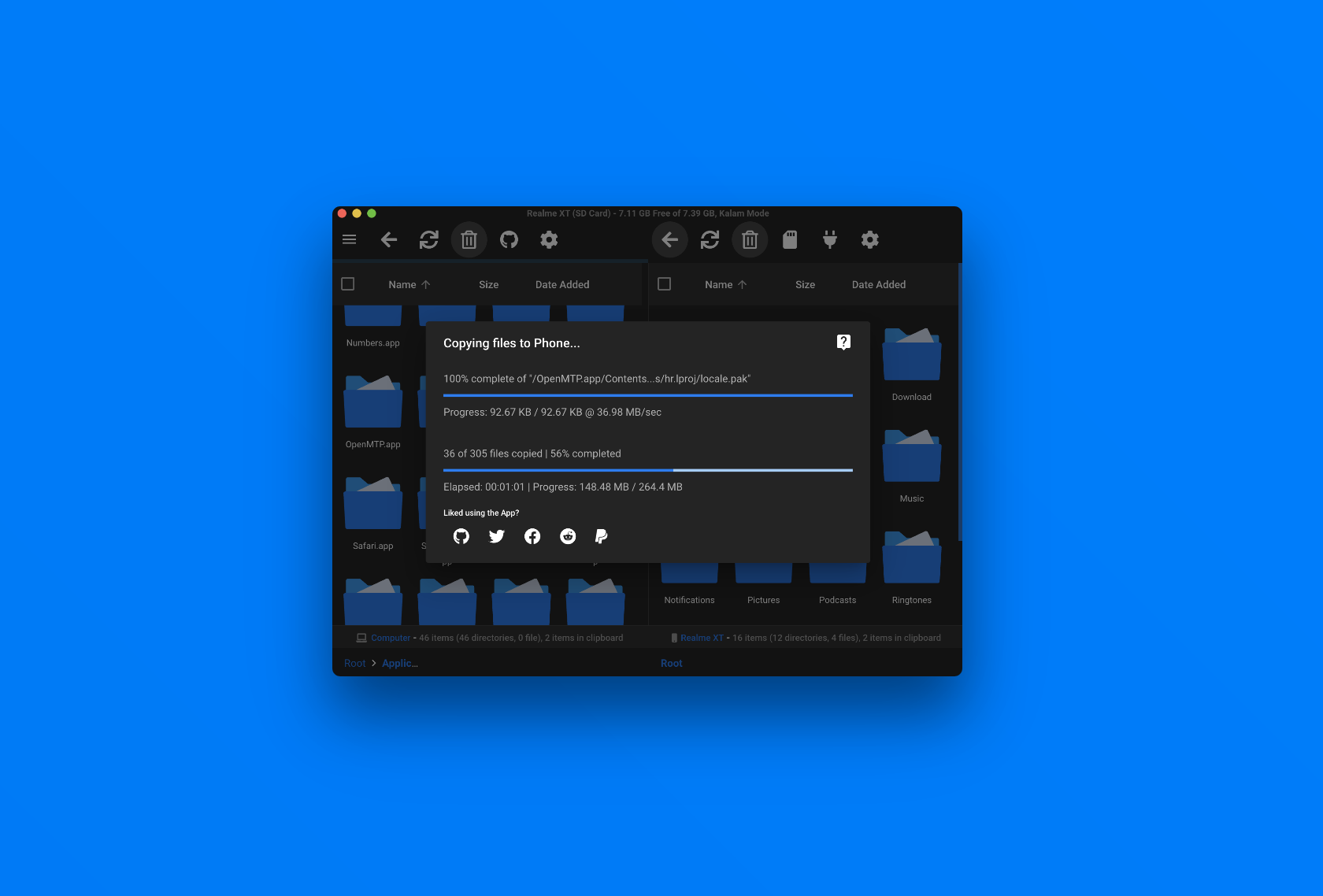

User reviews (0)