
 exif.tools
No paid content found
exif.tools
No paid content found
Categories: Image Tools
View EXIF and file metadata for photos, PDFs, documents, and more. Explore GPS, camera details, author, title, page count, and hashes privately in your browser.
 Visit website
 Updated: 2026-09-23 07:55
 Language: English (default)
 Access: Normal
 Profile views 8
 Outbound visits 2
Related questions
More questions →How to Compress Images for the Web Without Losing Visible Quality
You can cut most images to a fraction of their original file size without any visible quality loss by doing three things in the right order: resize the image to the dimensions it will actually display at, pick the right format for the content, then apply compression at a quality level that survives a side-by-side check. The single biggest mistake is skipping step one — an oversized image compressed at maximum quality is still far heavier than a correctly sized one.
Why file size and quality are a trade-off, not a fixed setting
Every compressed image is a negotiation between three variables: how many pixels you keep, how precisely each pixel is described, and how much the format is allowed to guess.
- Dimensions decide how many pixels exist at all. Halving width and height removes 75% of the pixel data before any compression happens.
- Quality level decides how aggressively the encoder discards detail it thinks you won't notice.
- Format decides the kind of discarding allowed — some formats throw away color precision, others only remove redundancy.
Because these interact, "quality 80" means something different on a 4000px photo than on a 600px thumbnail. Tune dimensions first, then quality.
Pick the format before you touch the quality slider
| Format | Best for | Compression type | Transparency | Notes |
|---|---|---|---|---|
| JPEG | Photographs, gradients, complex scenes | Lossy | No | Smallest for photos; artifacts appear around sharp edges and text |
| PNG | Logos, icons, screenshots, flat color, anything needing transparency | Lossless (or lossy via quantization) | Yes | Often 5–10× larger than JPEG for photos; excellent for flat graphics |
| WEBP | Almost everything, as a modern default | Both lossy and lossless | Yes | Typically 25–35% smaller than JPEG at comparable quality; broad browser support |
| SVG | Logos, icons, diagrams, charts | Vector (resolution-independent) | Yes | Stays crisp at any size; not suitable for photos |
| GIF | Short simple animations only | Lossless, 256 colors | Yes (1-bit) | Superseded by WEBP/MP4 for animation in nearly all cases |
Practical rule: photos → JPEG or lossy WEBP; flat graphics and transparency → PNG or lossless WEBP; anything vector → SVG.
The four levers, in the order you should pull them
1. Resize to display size (biggest win, zero quality cost)
If your layout renders an image at 800px wide, serving a 2400px original wastes roughly 89% of the pixels. Resize to the largest size it will ever be displayed at, and add a 2× version only if you need retina sharpness.
2. Choose the format
Match the format to the content type using the table above. Converting a photographic PNG to JPEG or WEBP alone can shrink it by 80% or more.
3. Set the quality level
For JPEG and lossy WEBP, most photographs hold up well between quality 70 and 85. Below ~60, banding appears in skies and blur around text. Above ~90, file size climbs steeply for gains nobody can see.
4. Strip metadata
EXIF data, camera info, and embedded thumbnails can add tens of kilobytes. Remove them unless you specifically need copyright or orientation data — and note that stripping orientation can rotate an image, so verify after export.
When lossy compression is fine, and when it isn't
Lossy is acceptable when:
- The image is a photograph or has natural texture.
- It's decorative or below the fold.
- Slight softening won't be noticed at final display size.
Use lossless or vector instead when:
- The image contains text, UI elements, or thin lines (lossy creates ringing artifacts).
- It's a logo, icon, or diagram — SVG or PNG keeps edges clean.
- It will be edited again later; repeated lossy saves compound degradation.
- It's a screenshot of code or a chart where color accuracy matters.
Compressing vs. resizing: don't confuse them
Compressing reduces the bytes needed to describe the same pixels. Resizing reduces the number of pixels. They're independent, and resizing usually delivers the larger saving. A 3000×2000 photo at quality 95 might be 2 MB; the same photo resized to 1200×800 at quality 80 might be 180 KB. Doing only the quality reduction gets you maybe 40% off; doing both gets you over 90%.
A repeatable workflow
- Determine the maximum display width in your layout (inspect the element or check your CSS).
- Export at that width (plus a 2× variant if needed).
- Convert to the right format — WEBP as a modern default, JPEG as a fallback, PNG/SVG for graphics.
- Apply quality 75–85 for lossy formats and compare against the original.
- Strip metadata and re-check orientation.
- Verify before publishing (see below).
- Serve the right file with
srcsetso small screens don't download the large variant.
How to verify quality before you publish
- View at 100% at final display size, not zoomed in — artifacts you can't see at real size don't matter.
- Toggle between original and compressed in a viewer or an online compressor's before/after preview.
- Check the worst-case areas: skies, smooth gradients, sharp edges, and any text.
- Compare file sizes and ask whether the extra kilobytes buy visible improvement. If not, go smaller.
- Test on a mid-range phone, where banding and blur are often more obvious than on a desktop monitor.
Common mistakes
- Compressing a full-resolution image and calling it optimized.
- Using PNG for photographs.
- Setting quality to 100 "to be safe" — it inflates size with no visible benefit.
- Re-saving a JPEG repeatedly, stacking artifacts each time.
- Forgetting that GIF animations are usually better as WEBP or video.
- Ignoring metadata, which can silently add weight.
Quick reference
| Goal | Do this |
|---|---|
| Photo on a webpage | Resize to display width → WEBP (fallback JPEG) → quality 75–85 |
| Logo or icon | SVG; fall back to PNG if vector isn't possible |
| Screenshot with text | PNG or lossless WEBP |
| Transparent photo cutout | Lossy WEBP or PNG |
| Short animation | WEBP or MP4, not GIF |
The order matters more than any single setting: resize, then choose format, then tune quality, then strip metadata, then verify at real display size. Follow that sequence and you'll routinely land at 10–20% of the original file size with no quality your visitors can detect.
What Is exif.tools? A Free In-Browser EXIF & Metadata Viewer
exif.tools is a free online EXIF and metadata viewer that reads the hidden data inside photos, PDFs, documents, audio, and video — and it processes your files locally in your browser rather than uploading them to a server. It fits anyone who wants to check camera settings, GPS coordinates, document details, or file hashes before sharing a file, and who would rather not hand that file to a third party. Because everything runs on your device, the tool works for sensitive material too, though you should still confirm what a given file actually contains before you rely on it.
What exif.tools can read
The site describes itself as covering "any file type · Images, PDFs, documents, audio, video & more." In practice, the metadata it surfaces falls into a few groups:
| Category | What you can see |
|---|---|
| Camera & lens | Camera and lens model, aperture, shutter speed, ISO, focal length |
| Location | Saved GPS coordinates, plotted on an OpenStreetMap view |
| File details | File size, image dimensions, file type, capture time |
| Document details | Author, title, page count, and similar PDF/document fields |
| Origin & signing | Recorded metadata claims about a file's origin, plus content credential notes |
The interface is organized into labeled sections — "Behind the lens," "Put it on the map," "Know your image," and "Photo overview" — so you can scan camera data, location, and file facts separately instead of wading through a raw tag dump.
How the local processing works
This is the part that distinguishes exif.tools from many metadata viewers. The site states plainly: "Your files stay on your device." You have three ways to load a file:
- Drop a file onto the page.
- Choose a file from your device.
- Paste a link to an image or file URL (Ctrl+V or ⌘V).
For dropped or chosen files, the reading happens in your browser, so the file itself never leaves your machine. For pasted links, the site notes that links load directly, "with a proxy fallback if needed" — meaning a remote file may be fetched through a proxy when a direct load isn't possible. That's a meaningful distinction: local files stay local, but a URL you paste is by definition fetched from somewhere else.
The viewer also labels your file as "ORIGINAL FILE · UNCHANGED," reinforcing that it reads metadata without altering the file.
What it can and can't tell you about authenticity
exif.tools is careful here, and so should you be. The origin and signing section shows "recorded metadata claims, not a verified signature." The site explicitly warns that these claims "do not establish that the final image is authentic or free of AI edits."
A concrete example of the limits: SynthID watermarks are embedded in image pixels, so ExifTool-style metadata reading cannot detect them. The site directs you to check a SynthID watermark separately by opening Gemini, attaching the image yourself, and asking it to verify. It also cautions that a missing watermark does not prove an image is real.
So treat exif.tools as a metadata reader, not an authenticity verdict. It tells you what a file claims about itself.
Privacy considerations before you share
The location section is where metadata most often bites people. If a photo has saved GPS coordinates, exif.tools plots them on a map and reminds you: "Location can reveal personal places. Remove it before sharing." If no coordinates are present, it says so plainly — "No location recorded" — rather than guessing.
Capture time is another subtle one: the tool shows the time "as saved, without guessing a time zone," so you won't get a misleading converted timestamp.
Who it's for
- Photographers checking the camera, lens, and exposure settings behind a shot.
- Anyone about to share a photo who wants to strip or at least be aware of GPS and personal location data first.
- People handling PDFs and documents who need author, title, or page-count details.
- Privacy-conscious users who prefer local processing over uploading files to a web service.
Quick answers
Is it free? The site presents itself as a "free EXIF and metadata viewer." No pricing or payment details appear in the available information.
Do I need an account? Nothing in the site material mentions sign-up or login.
Does it upload my files? Local files are processed in your browser and stay on your device. Pasted URLs are fetched, with a proxy fallback if a direct load fails.
Can it prove an image is real? No. It reads metadata claims, which can be incomplete or misleading, and it cannot detect pixel-embedded watermarks like SynthID.
If your goal is simply to see what's hidden inside a file before you send it onward, exif.tools gives you that view without moving the file off your machine — just remember that what it reports is what the file says, not independent proof of anything.
PDF Invoices in Legal Billing: What to Include and When to Use Them
A PDF invoice in legal billing is a fixed-format document that presents the fees and costs owed on a matter in a layout that looks the same on every device. It is the digital equivalent of a printed bill: readable, portable, and easy to attach to an email or upload to a client portal. Its main limitation is that it is not machine-readable in the way a LEDES file is, so a client's e-billing system cannot automatically ingest it. PDF works best for flat-fee matters, small or one-off engagements, and clients who do not run an automated billing platform.
What "PDF" means in a legal billing context
When a billing tool offers to send an invoice "in PDF," it is generating a rendered document rather than a structured data file. The distinction matters:
- PDF is a presentation format. A human reads it. Line items, totals, and matter details appear as text and tables on a page.
- LEDES (Legal Electronic Data Exchange Standard) is a structured, delimited text format. An e-billing system parses it, validates it against outside counsel guidelines, and routes it for review.
- Email delivery is a transport method, not a format. You can email a PDF, email a LEDES file, or email a link to an online invoice.
These three are often confused because a single invoice can combine them: a LEDES file delivered by email, or a PDF attached to an email. The format is what the client's systems can read; the delivery method is how it arrives.
When a PDF invoice is the right choice
PDF is usually appropriate when the client does not require electronic submission through a billing platform. Common scenarios:
- Flat-fee and fixed-price matters. When the invoice is one or two lines, a structured file adds no value.
- Small businesses and individuals. Clients without an accounts payable system can open a PDF and pay from it.
- Retainers and replenishment requests. A simple statement of the retainer balance is easy to read as a PDF.
- Pro bono or courtesy bills. Where no formal e-billing review applies.
- Backup documentation. Even when a LEDES file is submitted, a PDF is often attached for the reviewer's convenience.
If the client has outside counsel guidelines requiring LEDES submission, a PDF alone will typically be rejected or returned for manual entry. Check the client's billing requirements before choosing the format.
PDF versus LEDES versus emailed invoice: a quick comparison
| Factor | LEDES | Email (as delivery) | |
|---|---|---|---|
| Machine-readable | No | Yes | N/A |
| Accepted by e-billing platforms | Rarely | Yes | Depends on attachment |
| Setup effort | Low | Higher (mapping fields) | Low |
| Best for | Flat fees, small clients, backup | Corporate and insurer clients | Any format |
| Risk | Manual re-entry by client | Format rejection if fields are wrong | Lost or filtered messages |
Core elements of a compliant legal PDF invoice
A PDF invoice should stand on its own. If a client's AP department picks it up with no context, it should still answer who, what, when, and how much.
Firm and client identification
- Firm name, address, and contact details
- Tax or VAT identification number where applicable
- Client name and billing contact
- Invoice number and invoice date
- Client matter number or reference
Matter and timekeeper detail
- Matter name and description
- For each timekeeper: name, initials, and billing rate
- Time entries with date, narrative description, and time recorded in tenths of an hour
- Clear separation of fee earners if rates differ
Fees, expenses, and totals
- Fees subtotal
- Disbursements and expenses, itemized with dates
- Taxes applied
- Prior payments, credits, or trust retainer applied
- Total amount due and currency
Payment terms
- Due date and payment window
- Accepted payment methods
- Remittance details or a payment link
- Late-payment terms if the engagement letter specifies them
A useful test: hand the PDF to someone who has never seen the matter and ask them to confirm the amount due and the period covered. If they hesitate, the invoice is missing something.
Practical limitations to plan around
PDF invoices shift work to the recipient. Someone at the client has to read the document and key the data into their system, which introduces delay and transcription errors. PDFs also cannot be validated against billing guidelines automatically, so a reviewer may reject a line item that a LEDES rule would have caught before submission.
Two habits reduce the friction:
- Send a consistent template. Clients learn where to find the total, the matter number, and the payment terms.
- Keep a LEDES version in reserve. If a client later adopts an e-billing platform, you can convert rather than rebuild.
Choosing between PDF, LEDES, and email delivery
Work from the client's requirements backward:
- Does the client mandate LEDES submission? If yes, PDF is a supplement, not a substitute.
- Is the matter flat-fee or very small? PDF is usually sufficient.
- Does the client have no billing system? PDF delivered by email or portal is the simplest path.
- Is the invoice complex with many timekeepers and expenses? A structured format reduces disputes, even if the client accepts PDF.
When in doubt, ask the client's billing contact which format they prefer and whether a PDF attachment is acceptable alongside any required file. That one question prevents most rejected invoices.
Easy Legal Billing supports sending or scheduling invoices in LEDES, email, or PDF formats, which lets you match the format to each client's requirements rather than forcing one approach across every matter.
Does exif.tools Keep My Files Private, and How Do I Remove GPS Data Before Sharing?
exif.tools processes your files locally in your browser, so the file itself stays on your device rather than being uploaded to a server. That makes it a reasonable choice for inspecting a photo before you share it. The tool also flags when saved GPS coordinates are present and warns that location "can reveal personal places," advising you to remove it before sharing. What it does not do is delete the GPS data for you — you still need a separate step to strip the metadata. This guide covers how the privacy model works, what GPS data actually exposes, and how to remove it.
How the privacy model works
The site describes its processing as local: "Your files stay on your device," and files "stay local." When you drop a file in, the metadata is read in the browser rather than sent to a backend for analysis.
One nuance worth knowing: the tool also lets you paste a link to an image or file. In that case, "Links load directly, with a proxy fallback if needed." So if you inspect a remote URL instead of a local file, the fetch may route through a proxy — that is a different path from dropping a file from your own disk. For maximum privacy when checking a personal photo, use the file picker, drag-and-drop, or paste of the file itself.
The tool also notes that it shows capture time "as saved, without guessing a time zone," and that origin/signing tags are "recorded metadata claims, not a verified signature." In other words, it reports what the file says about itself — it does not authenticate the image.
What GPS metadata can expose
When a camera or phone saves location, the coordinates are written into the file's EXIF. Those coordinates typically resolve to a specific place — often a home, workplace, or a spot you visit regularly. The tool's own warning frames it plainly: "Location can reveal personal places. Remove it before sharing."
A single geotagged photo is usually enough to pinpoint a location. A series of them can reveal patterns — where you live, where you work, your daily route. This is why the location check matters most for photos taken at or near personal places.
If no coordinates were saved, the tool reports: "No location recorded — This file doesn't include GPS coordinates in the metadata read so far." That is the safe case for sharing.
Step-by-step: check a photo before sharing
- Open exif.tools in your browser.
- Load the file by dropping it onto the page, choosing a file, or pasting the file. (Pasting a link uses a different loading path — see above.)
- Read the Location section. If GPS coordinates are present, the tool displays them and renders a map using OpenStreetMap, with an "Open in OpenStreetMap" link.
- Decide. If the location is somewhere personal, do not share the original file. Remove the metadata first (below).
- Re-check after editing. Load the cleaned file back into exif.tools and confirm the Location section now reports no coordinates.
How to remove GPS data before sharing
exif.tools is a viewer — it shows you the metadata and warns you, but the removal happens elsewhere. Practical options:
- Your phone's share settings. Many phones let you strip location when sharing a photo (often an option in the share sheet or a "remove location" toggle). Check the result in exif.tools afterward.
- A dedicated metadata editor. Desktop tools that write EXIF can clear the GPS fields and re-save the file.
- Re-export or screenshot. Re-exporting through an app that doesn't carry location, or taking a fresh screenshot, often drops the original EXIF — but verify, since results vary.
Whichever route you take, the verification step is the same: reload the cleaned file in exif.tools and confirm the location is gone. Don't assume an edit removed it.
Quick reference
| Question | Answer |
|---|---|
| Are my files uploaded? | No — files are processed locally in the browser. |
| Does pasting a link behave the same? | Not exactly — links load directly with a proxy fallback. |
| Does the tool delete GPS data? | No — it detects and warns; removal is a separate step. |
| How do I confirm removal? | Reload the file and check the Location section. |
| Does it verify authenticity? | No — it reports metadata claims, not verified signatures. |
Common pitfalls
- Assuming an edit stripped the data. Always re-check the exported file; some editors preserve EXIF.
- Checking a link instead of the file. The proxy fallback means a linked file isn't handled purely locally.
- Trusting a "no location" result on a resized copy. If you only checked a downscaled version, check the original you actually plan to share.
- Confusing metadata with authenticity. Origin and signing tags are claims, not proof — the tool says so directly.
The short version: exif.tools keeps your file on your device while you inspect it, tells you clearly when GPS coordinates are present, and warns you to remove them — but the removal itself is on you, and you should verify it before sharing.
What Information Can I Find in a Photo's EXIF Metadata?
A photo's EXIF metadata can tell you the camera and lens that made the shot, the exposure settings (aperture, shutter speed, ISO, focal length), when it was captured, the file's size, dimensions and type, and — if the device saved it — the GPS coordinates of where the photo was taken. Document files carry a parallel set of details such as author, title and page count. exif.tools reads these fields in your browser and keeps the file on your device, so you can inspect a photo before deciding whether to share it.
Camera and lens details
This is the block most people are looking for. A typical photo records:
- Camera make and model — the device that captured the image.
- Lens — the lens or lens model used, when the camera writes it.
- Aperture — the f-number, e.g. f/1.8.
- Shutter speed — how long the sensor was exposed.
- ISO — the sensitivity setting.
- Focal length — the actual and, often, 35mm-equivalent length.
exif.tools groups these under a "Behind the lens" view and labels the panel "Camera & lens." If a field is empty, the camera simply didn't record it — a missing value is not the same as a zero.
Time, size and file facts
Under "File details" / "Know your image," the viewer reports:
| Field | What it shows |
|---|---|
| Captured | The capture timestamp as saved in the file |
| File size | Size of the file you loaded |
| Image size | Pixel dimensions |
| File type | Format of the file |
One caveat the site itself flags: capture time is shown as saved, without guessing a time zone. So a timestamp of 14:32 is exactly what the camera wrote — it doesn't tell you whether that was local time, UTC, or something else unless the file also carries an offset.
GPS location
If the device saved coordinates, the viewer places them on a map using OpenStreetMap and offers an "Open in OpenStreetMap" link. If nothing was saved, it says so plainly: "No location recorded."
This is the field with the most personal weight. A geotagged photo can point to your home, your child's school, or a client's address. exif.tools surfaces the coordinates and warns that location can reveal personal places — remove it before sharing.
Origin and signing information
Newer files may carry provenance claims. exif.tools shows an "Origin & signing information" section, but it is careful about what that means: these are recorded metadata claims, not a verified signature. They can include source ingredients and still not establish that the final image is authentic or free of AI edits.
The site also draws a line between metadata and pixel-level watermarks. SynthID, for example, is embedded in the image pixels, so ExifTool-style metadata reading cannot detect it. The suggested route is to open Gemini, attach the image, and ask it to check for a SynthID watermark. And a missing watermark does not prove an image is real.
Document metadata
The same viewer handles PDFs and other documents, where the useful fields shift to author, title and page count rather than aperture and ISO. If you're checking a contract, invoice or report, that's the section to read.
Why check at all
Two practical reasons:
- Privacy. Before posting a photo, confirm whether it carries GPS coordinates or a device serial-style identifier you'd rather not publish.
- Verification. Camera settings and timestamps can corroborate or contradict a claimed origin — though, as noted above, metadata claims alone don't prove authenticity.
How to read a file
- Open exif.tools.
- Drop a file onto the page, choose one, or paste an image/file URL (Ctrl+V or ⌘V).
- Read the panels: Photo overview, Camera & lens, File details, Photo location, Origin & signing.
- Export the metadata if you need a record, or start over with another file.
Files stay local — processing happens in your browser. Links load directly, with a proxy fallback if needed.
Website Overview
An established domain and managed infrastructure suggest continuity of operations and may support dependable delivery, although neither guarantees service quality. Page metadata, canonical configuration and social previews work together to provide more consistent search and sharing presentation.
Domain and Registration
Registered in 2017, this domain has about 8 years of history. That suggests continuity, although ownership and purpose may have changed. Transfer-protection status is present, helping reduce the risk of unauthorized domain transfers. The registrar is Cloudflare, Inc, a widely used domain service provider. The domain uses the common .tools extension, which is not an independent safety signal.
DNS and Email
Nameservers are provided by Cloudflare, indicating managed DNS hosting. No CNAME was found; the observed records resolve directly to addresses. No MX record was found. A conventional explicit inbound-mail route is not configured. TXT records include verification markers for Google. Such markers may also remain after a service stops being used. DNSSEC signatures were not detected, so this additional DNS authenticity protection is not confirmed.
TLS and Certificates
The public key uses EC with 256 bits. The server supplied a complete certificate chain. No organization name is present in the certificate; the available fields are consistent with domain validation. The certificate was issued within the Google Trust Services cloud or CDN ecosystem. The certificate's total validity is about 90 days, consistent with a short renewal cycle.
HTTP and Browser Security
No X-Powered-By header was found, reducing one common source of backend fingerprinting information. All six checked browser-security headers are present. Their effectiveness still depends on the policy values and application behavior. The cf-ray response header indicates a CDN or caching proxy in the delivery path. No obvious internal addresses or debug information were found in the headers. The Server header identifies cloudflare without an exact version.
Technology Stack Analysis
The public page identifies Cloudflare without precise versions, leaving fewer clues for version-specific scanning.
Search and Social Sharing
Twitter Card metadata is configured. JSON-LD includes Organization data, helping describe the organization as an entity. The title has 62 characters, within a common display range. A meta description is present, with 160 characters. The observed directives allow indexing and link following.
 Hosting and Email
 Cloudflare
 Hosting
 Location
 unknown
104.26.0.19
Location
Location unknown
104.26.0.19
 Pages, Search and Sharing
| Meta description | View EXIF and file metadata for photos, PDFs, documents, and more. Explore GPS, camera details, author, title, page count, and hashes privately in your browser. |
|---|---|
| Canonical URL | https://exif.tools/ |
| Language | English (default) |
| Twitter Card | summary_large_image |
Social Sharing Preview
16 fields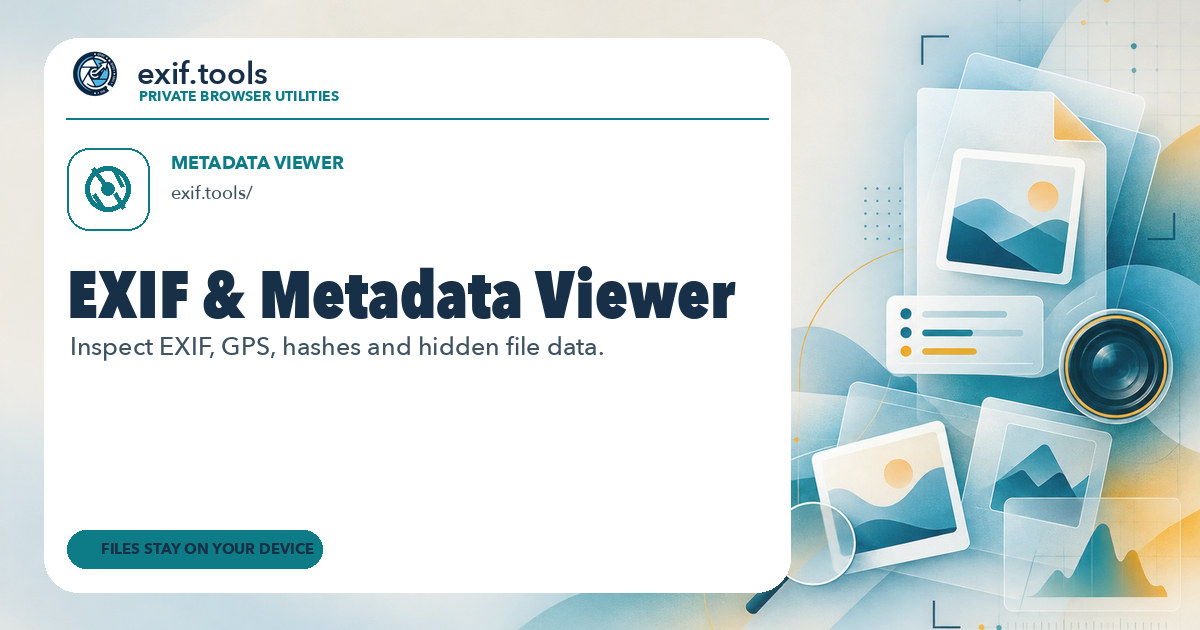

Sharing metadata
| og:url | https://exif.tools/ |
|---|---|
| og:type | website |
| og:image | https://exif.tools/og/metadata-viewer.jpg?v=20260903og1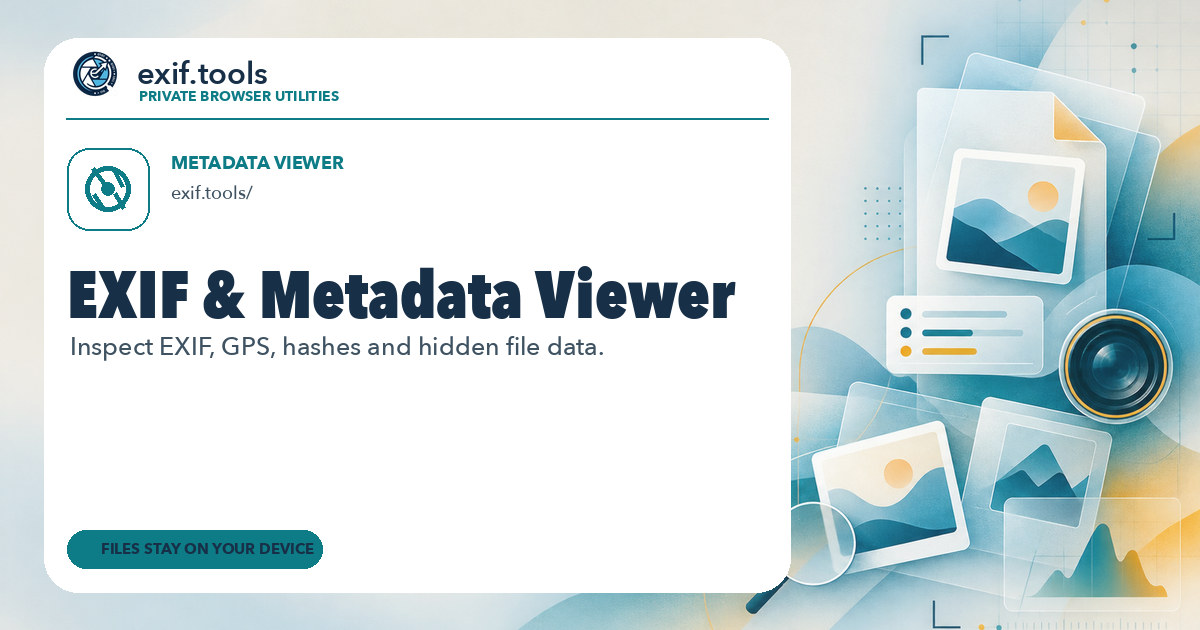 |
| og:title | EXIF & File Metadata Viewer — Photos, PDFs & More | exif.tools |
| og:image:alt | EXIF and metadata viewer browser tool by exif.tools |
| og:site_name | exif.tools |
| og:image:type | image/jpeg |
| og:description | Explore photos, PDFs, documents, and more. Read camera settings, GPS, author, title, page count, and file metadata locally in your browser. |
| og:image:width | 1200 |
| og:image:height | 630 |
| og:image:secure_url | https://exif.tools/og/metadata-viewer.jpg?v=20260903og1 |
| twitter:card | summary_large_image |
| twitter:image | https://exif.tools/og/metadata-viewer.jpg?v=20260903og1 |
| twitter:title | EXIF & File Metadata Viewer — Photos, PDFs & More |
| twitter:image:alt | EXIF and metadata viewer browser tool by exif.tools |
| twitter:description | View EXIF and file metadata locally in your browser without uploading your file. |
robots.txt (opens in a new tab)
1 rulesAll bots 1 allowed · 0 disallowed

 All bots

/
No matching rules.
Sitemaps
2 Registration details RDAP / WHOIS
| Registrar | Cloudflare, Inc |
|---|---|
| Registered | 2017-11-11 |
| Expires | 2026-11-11 |
| Domain status | client transfer prohibited |
| Nameservers | hugh.ns.cloudflare.com、uma.ns.cloudflare.com |
| DNSSEC | unsigned |
 DNS records
| Type | Name | Value | TTL | Priority |
|---|---|---|---|---|
| A | exif.tools | 104.26.0.19 | 300 | — |
| A | exif.tools | 104.26.1.19 | 300 | — |
| A | exif.tools | 172.67.68.177 | 300 | — |
| AAAA | exif.tools | 2606:4700:20::681a:113 | 300 | — |
| AAAA | exif.tools | 2606:4700:20::681a:13 | 300 | — |
| AAAA | exif.tools | 2606:4700:20::ac43:44b1 | 300 | — |
| NS | exif.tools | hugh.ns.cloudflare.com | 86400 | — |
| NS | exif.tools | uma.ns.cloudflare.com | 86400 | — |
| TXT | exif.tools | google-site-verification=LaTgoxkCYkOaPQwfhGEXHbXqOkd94Si7Nnd0Wdd9bD4 | 300 | — |
 TLS and certificates
| Assessment | Normal configuration |
|---|---|
| Supported protocols | TLSv1.2、TLSv1.3 |
| Negotiated protocol | TLSv1.3 |
| Certificate subject | exif.tools |
| Issuer | Google Trust Services |
| Valid until | 2026-10-28T05:43 · Remaining when checked: 34 days |
| Verification details | Certificate trust: Passed · Hostname match: Passed |
 HTTP response headers
| Header | Value |
|---|---|
| content-type | text/html |
| cache-control | public, max-age=0, must-revalidate |
| server | cloudflare |
| strict-transport-security | max-age=31536000; includeSubDomains; preload |
| content-security-policy | default-src 'self'; base-uri 'self'; object-src 'none'; frame-ancestors 'none'; form-action 'self'; script-src 'self' blob: 'wasm-unsafe-eval' https://static.cloudflareinsights.com/beacon.min.js https://static.cloudflareinsights.com/beacon.min.js/ https://cdn.jsdelivr.net; style-src 'self' 'unsafe-inline'; img-src 'self' blob: data: https:; font-src 'self' data:; connect-src 'self' blob: data: https:; worker-src 'self' blob:; frame-src https://www.openstreetmap.org |
| x-frame-options | DENY |
| x-content-type-options | nosniff |
| referrer-policy | same-origin |
| permissions-policy | camera=(), microphone=(), geolocation=(), payment=(), usb=() |
 Identified technologies
Recent Updates
- Website images
- Screenshots
- Network details
- Website Technologies
- Pages and Search Information
- HTTP Response Information
- TLS and certificates
- DNS Information
- Domain Registration
- Website profile
- Website Description
- Website profile
- Website Description
- Website Name
User reviews (0)