Website profiles · Technology insights · Alternatives

amadine.com

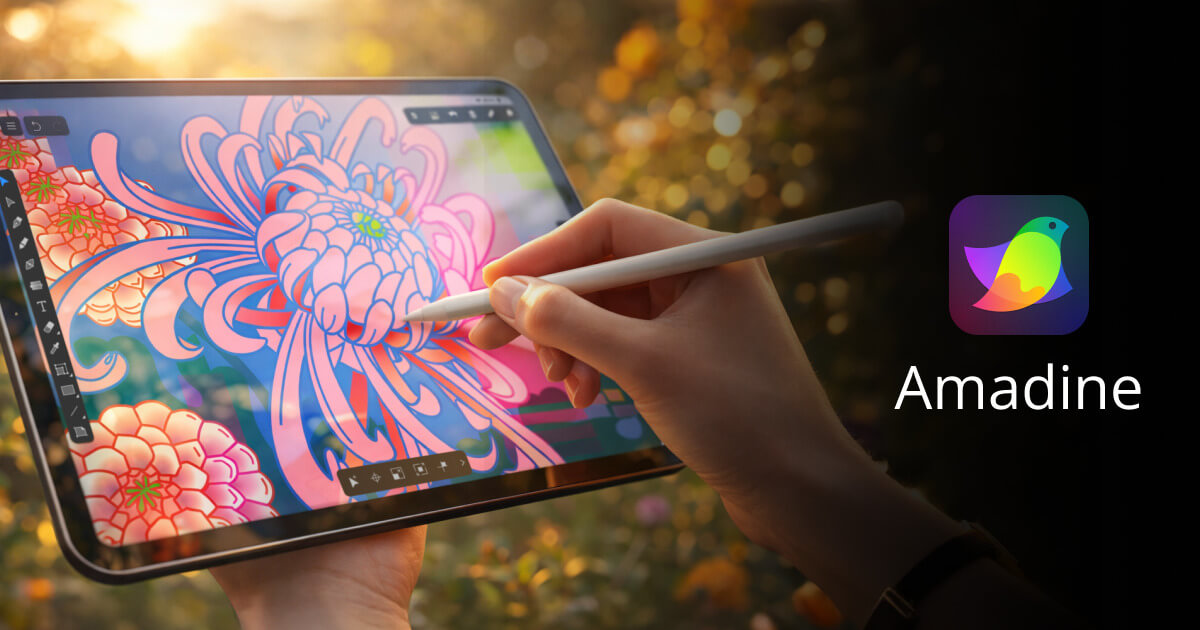
Amadine, intuitive vector graphic design software for Mac, iPad and iPhone–download free Trial now!

No paid content found
Visit website
Profile views 0 Outbound visits 0 Normal
Amadine Full homepage screenshot

At a glance

Category
Design & Creativity
Language
English
Paid-content signal
No paid content foundObserved
Registered
2005
Hosting
Google LLCInferred
HTTPS certificate trusted
PassedObserved
Last updated

Website review

This review may include AI-generated content and is not individually verified. Domain, certificate and other facts come from the observed data on this page.

What is Amadine?

Amadine is a vector graphic design app for Mac, iPad and iPhone, built around drawing illustrations, logos and lettering, web and UI layouts, and print-ready artwork. Its pitch is a clean, approachable interface that keeps professional vector tools within reach on Apple devices, with a free trial and a lifetime license option.

What you can do with it

  • Illustration: Draw and refine vector artwork with tools aimed at precision rather than complexity.
  • Branding and lettering: Circular text, text on a path and text inside shapes support logo and wordmark work; you can also draw custom lettering as scalable vector shapes.
  • Web and UI design: Pixel Preview, Snap to Grid and Snap to Pixel help align elements exactly; Smart Guides assist with spacing and positioning.
  • Print projects: CMYK colour mode and export to SVG, PDF, EPS, TIFF, PNG and JPEG cover typical print hand-off needs.
  • Export anywhere: The same export formats are available across devices, including on iPhone.

Features worth knowing

The Recolor Panel lets you shift an entire design or adjust single colours step by step. The Fusion Tool merges contours and lines into complex shapes, effectively offering an alternative to boolean operations. Rounded Corners can be tuned by radius and curvature for more natural shapes. Effects such as Inner Glow, Outer Glow, Shadow and Blur add depth, and an Isometric Grid suits isometric illustration or game art. Text can flow between columns, which helps with flyers and brochures. Stock imagery is available through integrations with Pexels, Pixabay and Unsplash.

Who it suits

A solo designer or small studio already working on a Mac, iPad or iPhone is the clearest fit: one toolchain across devices, straightforward enough for quick logo or social graphics, capable enough for UI mockups and print pieces. Anyone who needs heavy collaborative editing, Windows support or a large third-party plugin ecosystem should compare alternatives before committing.

A practical next step is to download the trial and test one real project end to end — for example, a logo with text on a path exported as both SVG and print-ready PDF — to see whether the workflow and export results match how you actually work.

Is Amadine a good alternative to Adobe Illustrator for Mac users?

Yes, for many Mac users Amadine is a credible alternative to Adobe Illustrator—especially if your work is illustration, logo and lettering, icon/UI design, or straightforward print and export tasks. It is a focused vector editor rather than a full Adobe-style ecosystem, so the right answer depends on how much you rely on Illustrator-specific workflows, plugin libraries, and cross-team file conventions.

Where Amadine fits well

  • Mac-native, multi-device workflow. Amadine is presented as vector design software for Mac, iPad and iPhone with a consistent interface, which suits designers who want to sketch or refine work on an iPad and finish on a Mac.
  • Illustration and shape building. The Fusion Tool merges contours and lines to create complex shapes, positioned as an alternative to boolean operations. Rounded Corners with adjustable radius and curvature helps produce softer, more natural forms.
  • Logo and lettering work. Circular text, text on path, and text in shape cover the common needs of logo and brand-mark design, and vector lettering stays scalable.
  • UI and web layout. Pixel Preview, Snap to Grid, Snap to Pixel, and Smart Guides are aimed at precise positioning—useful for interface mockups and web graphics.
  • Print and export. CMYK color mode supports accurate print color, and export covers SVG, PDF, EPS, TIFF, PNG and JPEG, including on iPhone.
  • Stylizing and color changes. Inner Glow, Outer Glow, Shadow and Blur add depth, while the Recolor Panel lets you shift a whole design or adjust individual colors step by step.
  • Layout and assets. Flowing text between columns helps with flyers and brochures, and stock image integration draws on Pexels, Pixabay and Unsplash.

Where Illustrator still has the edge

Illustrator remains the safer choice when you need deep plugin ecosystems, extensive third-party training and templates, or exact compatibility with agencies and printers that expect native .ai files and Illustrator-specific features. Amadine exports common formats, but exchanging editable native files with an Illustrator-based team can add friction.

A practical way to decide

Your situation Better fit
Solo Mac/iPad designer doing illustration, logos, icons, UI, small print jobs Amadine
Team standardized on Illustrator, .ai handoffs, plugins, large template libraries Illustrator
Occasional vector edits with simple export needs Amadine
Complex packaging, advanced typography, or heavy automation/scripting Illustrator

A useful next step: take one real project you would normally build in Illustrator—say a logo with text on a path plus a two-color print layout—and rebuild it in Amadine during the free trial. If the tools you reach for most exist and the export matches your printer's or client's requirements, Amadine can replace Illustrator for that class of work. If you keep hitting missing features or file-exchange problems, keep Illustrator for those projects and use Amadine alongside it.

Can I use Amadine on both Mac and iPad with the same license?

Amadine is presented as a single vector design app spanning Mac, iPad and iPhone, with a “Lifetime License” mentioned alongside a free trial. The page does not state how that license is scoped across devices, so cross-device use under one purchase is not confirmed.

What to check before buying

  • License terms at purchase: look for wording such as “per user”, “family”, “cross-platform” or device limits in the checkout or license agreement.
  • App Store vs. direct purchase: Mac apps are often sold directly while iPad/iPhone apps are distributed through the App Store, where purchases are tied to an Apple ID rather than a vendor account. If that is the case here, a Mac license would not automatically cover the iPad version.
  • Trial first: install the free trial on both a Mac and an iPad and confirm that files, tools and export options behave as expected before committing.

Practical scenario

A freelance illustrator who sketches on an iPad and finishes work on a Mac needs files to move cleanly between the two, ideally via iCloud Drive or a shared folder. Even where a license does cover both, plan for format compatibility: the page lists SVG, PDF, EPS, TIFF, PNG and JPEG export, which makes handoff to other tools straightforward.

For a definitive answer, compare the license text shown on Amadine at checkout with the App Store listing for the iPad version, since the two purchase paths may carry different terms.

How do I create a logo with custom lettering in Amadine?

Build the lettering as live text first, then convert only when you need to reshape curves. Amadine's page specifically lists circular text, text on path, and text in shape as its lettering features, alongside vector lettering for a scalable brand identity. That combination is what makes a logo workflow practical: keep words editable while you position them, and switch to outlines at the end so the mark scales without depending on installed fonts.

A workable sequence

  1. Set up the artboard at logo scale. Start small and square-ish, since logos get reused at favicon and app-icon sizes. Add an Isometric Grid only if the mark is geometric; it is not needed for script lettering.
  2. Type the wordmark as live text. Choose a starting typeface, then adjust tracking and baseline rather than redrawing letters immediately.
  3. Shape the text to the composition. Use text on path for an arc, text in shape to fill a badge or container, or circular text for a roundel-style mark.
  4. Refine with vector tools. The Fusion Tool merges contours and lines, which is the natural way to join letterforms or build a monogram from overlapping strokes. Rounded Corners softens terminals and joins, and you can tune curvature as well as radius.
  5. Control colour deliberately. The Recolor Panel lets you shift the whole mark at once or step through individual colours — useful when testing a one-colour version against a full-colour one.
  6. Convert to outlines and check. After converting, verify counters and thin strokes hold up when scaled down.
  7. Export per destination. SVG or PDF for vector handoff, PNG or JPEG for quick review, TIFF for print. The page also notes CMYK colour mode for accurate print rendering.

Choosing between text and outlines

Situation Keep as live text Convert to outlines
Still exploring typefaces Yes No
Client may request wording changes Yes No
Delivering final files to a printer No Yes
Mark must render without the font installed No Yes
Needing to reshape individual curves No Yes

Practical notes

The page describes working across Mac, iPad and iPhone with the same interface, and export is available even on iPhone. That matters for lettering specifically: sketching a wordmark on iPad and finishing it on a Mac is realistic, but be careful about font availability across devices before you convert anything.

Two trade-offs worth deciding early. Flowing text between columns and the Pexels, Pixabay and Unsplash image integration are layout and mood-board conveniences, not logo tools — use them for presentation sheets, not the mark itself. And effects such as Inner Glow, Outer Glow, Shadow and Blur add depth for a stylised or app-icon version, but a logo usually needs a flat, effect-free variant that survives embroidery, single-colour printing and small sizes.

A concrete test: export your finished mark at roughly 32 pixels wide and at billboard scale, then look at both. If the lettering only reads at one of those sizes, the curves need simplifying — usually fewer Fusion joins and less fine detail in the terminals.

If you want to see the intended toolset in motion before starting, Amadine's own tutorials and art samples are the most direct reference for how its text-on-path and shape controls behave.

What export formats does Amadine support for print projects?

Amadine supports SVG, PDF, EPS, TIFF, PNG and JPEG export, and its page pairs that format list with a CMYK color mode for print work. In practice, that means you can hand a printer a PDF or EPS with CMYK colors, keep a TIFF or PNG for raster placement, and use SVG for scalable vector output.

What each format is for

Format Typical print use
PDF Sending a finished layout to a print service or client
EPS Older print workflows and professional prepress handoff
TIFF High-quality raster images for placement in layouts
PNG Lossless raster images, useful for digital proofs
JPEG Quick proofs and smaller files where compression is acceptable
SVG Scalable vector artwork, often for web or further editing

A practical next step

If you are preparing a print job, export a PDF with CMYK enabled and check the result in a PDF viewer before sending it. Keep an editable SVG or native file as your master, and use JPEG or PNG only for proofs rather than final press output. For a broader look at the app, see Amadine.

Does Amadine offer a free trial and how much does it cost?

Amadine offers a free trial: the page presents a free download alongside a “Buy Now” option, so you can evaluate the app before paying. It also indicates a lifetime license is available, which matters if you prefer a one-time purchase over a subscription. The page does not state a specific price or trial length, so check the current figure in the Mac App Store or the developer’s store page for your region and device.

What to weigh before choosing

Consideration Why it matters
Free trial Lets you test the interface on real work before committing
Lifetime license Avoids recurring subscription costs if you keep the app long term
Device coverage One purchase may cover Mac, iPad and iPhone, depending on the license
Export formats SVG, PDF, EPS, TIFF, PNG and JPEG cover most print and web handoffs

A practical test: open a real project during the trial, build a logo with text on a path, then export it as both SVG and PDF. If the workflow feels quick and the output opens cleanly in your other tools, the license is easier to justify.

For comparison, Affinity Designer Affinity Designer and Inkscape Inkscape are common alternatives; Inkscape is free and open source, while Affinity Designer is a one-time purchase.

Related questions

More questions →
What Vector Design Features Does Amadine Offer for Illustration, Branding, and UI Work?

Amadine is a vector graphic design app for Mac, iPad, and iPhone that covers illustration, branding and lettering, web/UI layout, and print projects in one toolset. If your work involves drawing vector shapes, building logos or custom type, laying out pixel-accurate interfaces, or exporting print-ready files, the features below map directly to those tasks. A free trial download and a lifetime license option are both listed on the site.

Illustration features

Amadine's illustration toolset is built around shape construction and stylization rather than just basic pen drawing.

  • Fusion Tool — creates complex shapes by merging several contours and lines. The site describes it as an alternative to boolean operations in essence, so you can combine overlapping paths into a single form without running separate union/subtract steps.
  • Rounded Corners — beyond adjusting the corner radius, you can smoothly tune the curvature for softer, more natural shapes.
  • Distinct Effects — Inner Glow, Outer Glow, Shadow, and Blur add depth and stylization to vector graphics.
  • Isometric Grid — aimed at two-dimensional/isometric illustrations and game design, for precise angled work.
  • Recolor Panel — change an entire design in one action, or adjust a single color step by step.
  • Image Stocks — integration with Pexels, Pixabay, and Unsplash brings in high-quality photos and graphics.

For an illustration task like building a multi-part character or icon set, the Fusion Tool plus Rounded Corners covers the shape-building stage, while the effects handle the finishing pass.

Branding and lettering features

For logos and brand identity, the relevant capabilities are text-on-shape and scalable vector lettering:

  • Circular text — set type around a circle.
  • Text on path — attach text to any path.
  • Text in shape — flow text inside a shape.
  • Custom vector lettering — design your own lettering as vectors for a scalable brand identity.

The site frames these as "everything you need to create a distinctive and recognizable logo," with custom lettering as the fallback when preset text treatments aren't enough.

Web and UI features

Precision controls are the focus here:

  • Pixel Preview — see how the design renders at pixel level.
  • Snap to Grid and Snap to Pixel — align elements to the grid or to exact pixels.
  • Smart Guides — improve positioning precision for website or UI layouts.

If you're laying out an app screen or web page, Snap to Pixel plus Pixel Preview is the combination that keeps edges crisp; Smart Guides help with relative alignment between elements.

Print features

  • CMYK color mode for accurate color rendering in print.
  • Export formats: SVG, PDF, EPS, TIFF, PNG, and JPEG.

The site also notes that export works across formats "even on an iPhone," so raster (PNG, JPEG, TIFF) and vector (SVG, PDF) output are both available on mobile.

Feature-to-task summary

Task Relevant Amadine features
Illustration Fusion Tool, Rounded Corners, Inner/Outer Glow, Shadow, Blur, Isometric Grid, Recolor Panel, Image Stocks
Branding & lettering Circular text, text on path, text in shape, custom vector lettering
Web & UI Pixel Preview, Snap to Grid, Snap to Pixel, Smart Guides
Print CMYK color mode, export to SVG, PDF, EPS, TIFF, PNG, JPEG

What to check before deciding

The site lists a free trial and a "buy now" / lifetime license option, but does not publish specific prices or payment platforms in the available material — check the download and purchase pages directly for current terms. If your workflow depends on a feature not listed above (for example, specific collaboration or file-compatibility requirements), verify it against the full feature list before committing, since the summary here covers only what the site documents.

Which devices and platforms does Amadine support?

Amadine runs on Mac, iPad, and iPhone, so you can work in the same vector design app across Apple's desktop and mobile devices. That makes it a fit if you want to start or finish illustrations, logos, UI layouts, or print projects on whichever Apple device you have at hand, rather than being tied to a desktop-only tool. A free trial download is offered, and a lifetime license is available.

Supported platforms at a glance

Platform Supported Notes from the product page
Mac Yes Described as drawing software for Mac with the Amadine UI
iPad Yes Listed as part of the "all your devices" solution
iPhone Yes Export to multiple formats is stated to work even on an iPhone

The page frames this as a "Solution for All Your Devices," with a single interface intended to keep the workflow consistent whether you're on a Mac, iPad, or iPhone.

What you can do on each device

The feature set is presented as one app rather than separate device-limited editions:

  • Illustration — tools for drawing and realizing vector illustrations.
  • Branding & lettering — circular text, text on path, and text in shape for logos and custom lettering.
  • Web & UI design — Pixel Preview, Snap to Grid, Snap to Pixel, and Smart Guides for precise positioning.
  • Print projects — CMYK color mode for color rendering, with export to SVG, PDF, EPS, TIFF, PNG, and JPEG.

Export is described as all-purpose and available across formats including raster (PNG, JPEG, TIFF) and vector (SVG, PDF), with the page explicitly noting this works even on an iPhone.

Who this device coverage suits

Amadine is aimed at people inside the Apple ecosystem who want mobile vector work, not just desktop work. Concretely, it fits if you:

  • Use a Mac for main design work but want to sketch or adjust on an iPad or iPhone.
  • Need to export finished vector or raster files from a phone when away from a computer.
  • Want one consistent UI and workflow instead of switching between unrelated apps per device.

If you work primarily on Windows, Android, or in a browser, the page gives no indication of support for those platforms.

How to check it on your own device

  1. Go to amadine.com and choose the free trial download.
  2. Install it on the Apple device you plan to use (Mac, iPad, or iPhone).
  3. Open a sample or new document and confirm the tools you need — for example, text on path for a logo, or Pixel Preview for a UI layout.
  4. Test an export in the format your project requires (SVG or PDF for vector, PNG or JPEG for raster) to verify the output on that device.

The main thing to verify during the trial is that the specific features you rely on behave the same way on the device you'll actually use, since the page markets a unified experience but your workflow may lean on particular tools.

Where to Find Amadine Tutorials and Learning Resources

Amadine's official site provides three learning channels: Tutorials, How-to Articles, and Art Samples, all reachable from the "All You Need to Begin — Learn. Explore. Create." section of the homepage. If you want to start a first project, begin with the tutorials for guided walkthroughs, use the how-to articles when you hit a specific feature question, and open the art samples to see finished work you can study or adapt. A free trial download is offered on the same site, so you can follow along in the app while learning.

The three official learning resources

Resource What it is for When to use it
Tutorials Step-by-step guidance on using the app First, to get oriented and complete an initial design
How-to Articles Written instructions focused on specific tasks and features When you need to solve one concrete problem
Art Samples Example designs made in Amadine To study technique, style, and finished results

All three are linked directly from the homepage, so no account or separate portal is described as required to reach them.

What you can learn, mapped to features

The tutorials and articles cover the app's actual toolset, which is useful to know before you start so you can search for the right lesson:

  • Drawing and illustration — the site describes Amadine as built for realizing illustrations, with a toolset intended to bring ideas to life.
  • Branding and lettering — circular text, text on path, and text in shape for logos, plus vector lettering for scalable brand identity.
  • Web and UI layout — Pixel Preview, Snap to Grid, Snap to Pixel, and Smart Guides for precise positioning.
  • Print work — CMYK color mode and export to SVG, PDF, EPS, TIFF, PNG, and JPEG.
  • Shape and effect tools — Recolor Panel, Fusion Tool (merging contours and lines as an alternative to boolean operations), Rounded Corners with adjustable radius and curvature, and effects including Inner Glow, Outer Glow, Shadow, and Blur.
  • Layout text — flowing text between columns, aimed at flyers and brochures.
  • Grids and assets — Isometric Grid for 2D/isometric illustration and game design, plus image stock integration with Pexels, Pixabay, and Unsplash.

If a tutorial covers a feature you don't recognize, this list tells you what it does before you invest time in the lesson.

A practical way to start

  1. Download the free trial from the site so you can practice in the app rather than only reading.
  2. Work through the Tutorials section for a guided first project.
  3. Pick one real task you care about — for example, a simple logo using text on a path, or a UI layout using Snap to Pixel and Smart Guides.
  4. When you get stuck on a single feature, switch to the How-to Articles instead of re-watching a full tutorial.
  5. Open Art Samples to compare your result against finished work and identify what to practice next.

Common sticking points

  • Confusing tutorials with how-to articles. Tutorials teach workflow; articles answer one question. Going to the wrong one wastes time.
  • Skipping the trial. The resources assume you have the app open. Reading without practicing makes feature names like Fusion Tool or Pixel Preview hard to retain.
  • Ignoring export formats until the end. If your goal is print, note early that CMYK mode and vector/raster export options exist, so you design in the right mode from the start.
  • Assuming device parity. Amadine runs on Mac, iPad, and iPhone, and the site notes export works even on an iPhone — but check that a specific tutorial matches the device you're using.

Related questions

  • What vector design features does Amadine offer for illustration, branding, and UI work?
  • How to get Amadine and what licensing options are available
  • Which devices and platforms does Amadine support?
  • What is Amadine?
How to Get Amadine and What Licensing Options Are Available

Amadine is available as a free trial download, and you can buy a lifetime license when you're ready. The official site presents two clear paths: Free Download to try the software first, and Buy Now to purchase. The site also states that a Lifetime License is available, which means you pay once rather than committing to a recurring subscription. If you want to evaluate the app before spending money, start with the trial; if you already know it fits your workflow, go straight to the purchase option.

How to get Amadine

  1. Go to the Amadine website (amadine.com).
  2. Choose Free Download to get the trial, or Buy Now to purchase a license.
  3. Install the app on your device and, if you downloaded the trial, use it to test the tools and workflow before deciding on a purchase.

The site's own call to action is "Free Download" alongside "Buy Now," so both routes are presented on the main page rather than hidden behind a separate pricing page.

What the licensing model looks like

Option What it means When it makes sense
Free trial Download and use the software before paying You want to test drawing tools, export formats, or the interface first
Lifetime License A one-time purchase rather than a subscription You expect to use the app long-term and prefer not to pay repeatedly

The page explicitly advertises a Lifetime License Available, which is the key detail for anyone comparing this against subscription-based design tools. The available evidence does not list specific prices, so check the site's Buy Now flow for current figures.

What you're actually buying into

Before deciding, it helps to know what the license covers. Amadine is positioned as a vector graphic design app for Mac, iPad, and iPhone, so a single toolset spans desktop and mobile. The site highlights:

  • Illustration tools for drawing and shaping vector artwork
  • Branding and lettering features, including circular text, text on path, and text in shape
  • Web and UI design aids such as Pixel Preview, Snap to Grid, Snap to Pixel, and Smart Guides
  • Print support with CMYK color mode and export to SVG, PDF, EPS, TIFF, PNG, and JPEG
  • Export on iPhone, so files can leave the device in raster or vector formats
  • Image stock integration with Pexels, Pixabay, and Unsplash
  • Effects like Inner Glow, Outer Glow, Shadow, and Blur

If your work depends on any of these — especially CMYK print output or vector export from a phone — the trial is the fastest way to confirm the app handles your files the way you need.

A practical way to decide

Use the trial for a real task rather than a quick click-through. For example, if you design logos, try building one with circular text and text on a path, then export it as SVG and PDF to check the output. If you do print work, set a document to CMYK and export a TIFF. If you design UI, turn on Pixel Preview and Snap to Pixel and see whether alignment feels precise enough.

Once the trial confirms the workflow fits, the Lifetime License removes the question of ongoing payments. If it doesn't fit, you've lost nothing but the time spent testing.

Common sticking points

  • Trial vs. license confusion: the free download is for evaluation; continued use after the trial period requires a purchase.
  • Platform coverage: the app targets Mac, iPad, and iPhone, so check that your device is among them before downloading.
  • Pricing details: the page advertises a lifetime option but the supplied material doesn't list prices — confirm the current cost and any terms in the Buy Now flow.
  • Export expectations: vector formats (SVG, PDF, EPS) and raster formats (PNG, JPEG, TIFF) are both supported, but verify your specific export preset during the trial.

The site also points to tutorials, how-to articles, and art samples, which are useful during the trial to judge whether the learning curve matches your available time.

What Is Amadine? A Vector Design App for Mac, iPad, and iPhone

Amadine is a vector graphic design application for Mac, iPad, and iPhone, built for drawing illustrations, logos and lettering, web and UI layouts, and print projects. If you work across Apple devices and want one vector tool that covers drawing, layout, and export, it is worth evaluating. The site offers a free trial download and a "Buy Now" option, with a lifetime license mentioned. Exact prices, system requirements, and platform-specific feature differences are not stated in the available page content, so confirm those on the site before committing.

What Amadine is used for

The site groups its intended uses into four areas:

  • Illustrations — drawing and shaping vector artwork with precision.
  • Branding and lettering — circular text, text on a path, and text inside a shape for logos; custom vector lettering for scalable brand identity.
  • Web and user interface — Pixel Preview, Snap to Grid, Snap to Pixel, and Smart Guides for precise positioning of UI and website layouts.
  • Print projects — CMYK color mode for color rendering, plus export in SVG, PDF, EPS, TIFF, PNG, and JPEG.

Export works across formats including raster (PNG, JPEG, TIFF) and vector (SVG, PDF), and the site notes export is possible even on an iPhone.

Notable features

Feature What it does
Recolor Panel Change an entire design at once, or adjust one color step by step
Fusion Tool Build complex shapes by merging contours and lines — an alternative to boolean operations
Rounded Corners Adjust corner radius and smoothly tune curvature
Distinct Effects Inner Glow, Outer Glow, Shadow, and Blur for depth and stylization
Isometric Grid Precision drawing for 2D/isometric illustration and game design
Image Stocks Integrated access to photos and graphics from Pexels, Pixabay, and Unsplash
Flowing Text Text flows between columns, useful for flyers and brochures

Who it fits

Amadine suits designers who want a single vector workflow spanning Mac, iPad, and iPhone, and who need both screen and print output. The combination of pixel-precise alignment tools and CMYK support means the same app can serve UI mockups and print-ready artwork. If your work depends on collaboration features, plugin ecosystems, or non-Apple platforms, the page content does not address those, so verify before deciding.

How to evaluate it

  1. Download the free trial from the site.
  2. Test one real task in your own workflow — for example, a logo with text on a path, or a UI screen using Snap to Pixel.
  3. Export the result in the format you actually deliver (SVG or PDF for vector, PNG or TIFF for raster) and check the output.
  4. Compare the lifetime license option against your expected usage before buying.

Learning material is available on the site: tutorials, how-to articles, and art samples, which can help you judge the workflow before or during the trial.

Website Overview

An established domain and managed infrastructure suggest continuity of operations and may support dependable delivery, although neither guarantees service quality. Page metadata, canonical configuration and social previews work together to provide more consistent search and sharing presentation.

Domain and Registration

Registered in 2005, this domain has about 21 years of history. That suggests continuity, although ownership and purpose may have changed. Transfer-protection status is present, helping reduce the risk of unauthorized domain transfers. The domain uses the common .com extension, which is not an independent safety signal.

DNS and Email

Nameservers are provided by text.design, indicating managed DNS hosting. MX records point to the Google Workspace email service. No CNAME was found; the observed records resolve directly to addresses. SPF and DMARC are configured. DKIM status is unknown. DNSSEC signatures were not detected, so this additional DNS authenticity protection is not confirmed.

TLS and Certificates

The certificate uses an RSA 2048-bit public key, offering broad client compatibility. The server supplied a complete certificate chain. No organization name is present in the certificate; the available fields are consistent with domain validation. The certificate was issued by Let's Encrypt, commonly associated with automated certificate services. The certificate's total validity is about 89 days, consistent with a short renewal cycle.

HTTP and Browser Security

X-Powered-By exposes backend information: PHP/7.4.33, PleskLin. The checked browser-security headers were not detected, leaving fewer explicit browser-side safeguards. No obvious internal addresses or debug information were found in the headers. The Server header identifies nginx without an exact version. No explicit CDN or WAF marker was found in the response headers.

Technology Stack Analysis

The public page identifies Google Tag Manager, nginx, PHP without precise versions, leaving fewer clues for version-specific scanning.

Search and Social Sharing

JSON-LD includes Organization data, helping describe the organization as an entity. The title has 65 characters, within a common display range. A meta description is present, with 99 characters. The observed directives allow indexing and link following. No Generator meta tag is publicly exposed.

Hosting and Email

DNStext.design
HostingGoogle LLC
EmailGoogle Workspace
Approximate IP geolocation (inferred; a CDN or proxy may differ from the origin server) United States flagCouncil Bluffs, Iowa, United States Inferred 34.68.172.162

Registration details

RDAP / WHOIS

RegistrareNom, LLC
Registered2005-08-11
Expires2027-08-11
Domain statusclient transfer prohibited
Nameserversns1.text.design、ns2.text.design
DNSSECunsigned

DNS records

DNS

TypeNameValueTTLPriority
Aamadine.com34.68.172.16286400—
MXamadine.comASPMX.L.GOOGLE.com36001
MXamadine.comALT1.ASPMX.L.GOOGLE.com36005
MXamadine.comALT2.ASPMX.L.GOOGLE.com36005
MXamadine.comALT3.ASPMX.L.GOOGLE.com360010
MXamadine.comALT4.ASPMX.L.GOOGLE.com360010
NSamadine.comns1.text.design86400—
NSamadine.comns2.text.design86400—
TXTamadine.comv=spf1 ip4:34.68.172.162 +a +mx include:_spf.google.com ~all86400—
DMARC_dmarc.amadine.comv=DMARC1; p=quarantine; rua=mailto:[email protected]86400—

TLS and certificates

TLS / SSL

AssessmentNormal configuration
Supported protocolsTLSv1.2、TLSv1.3
Negotiated protocolTLSv1.3
Certificate subjectamadine.com
IssuerLet's Encrypt
Valid until2026-12-18T04:20 · Remaining when checked: 62 days
Verification detailsCertificate trust: Passed · Hostname match: Passed

HTTP response headers

HTTP

HeaderValue
content-typetext/html; charset=UTF-8
cache-controlmax-age=300, private, must-revalidate
servernginx

Identified technologies

Google Tag ManagernginxPHP

Pages, Search and Sharing

Meta descriptionAmadine, intuitive vector graphic design software for Mac, iPad and iPhone–download free Trial now!
Canonical URLhttps://amadine.com/
LanguageEnglish (default)
Twitter CardNot detected
All bots 1 allowed · 6 disallowed
  • Allow/sitemap.xml
  • Disallow/*.xml$
  • Disallow/*.txt$
  • Disallow/appsupport/
  • Disallow/assets/scripts/
  • Disallow/tmp/
  • Disallow/store/success-purchase

User reviews (0)

  • No reviews yet.