Website profiles · Technology insights · Alternatives

bleh.yuzu.pet No paid content found

Categories: Development

A fresh coat of paint for Last.fm bringing you closer to the music that defines you

Visit website

Updated: 2026-09-27 08:35 Language: English (default) Access: Normal

Profile views 1 Outbound visits 0
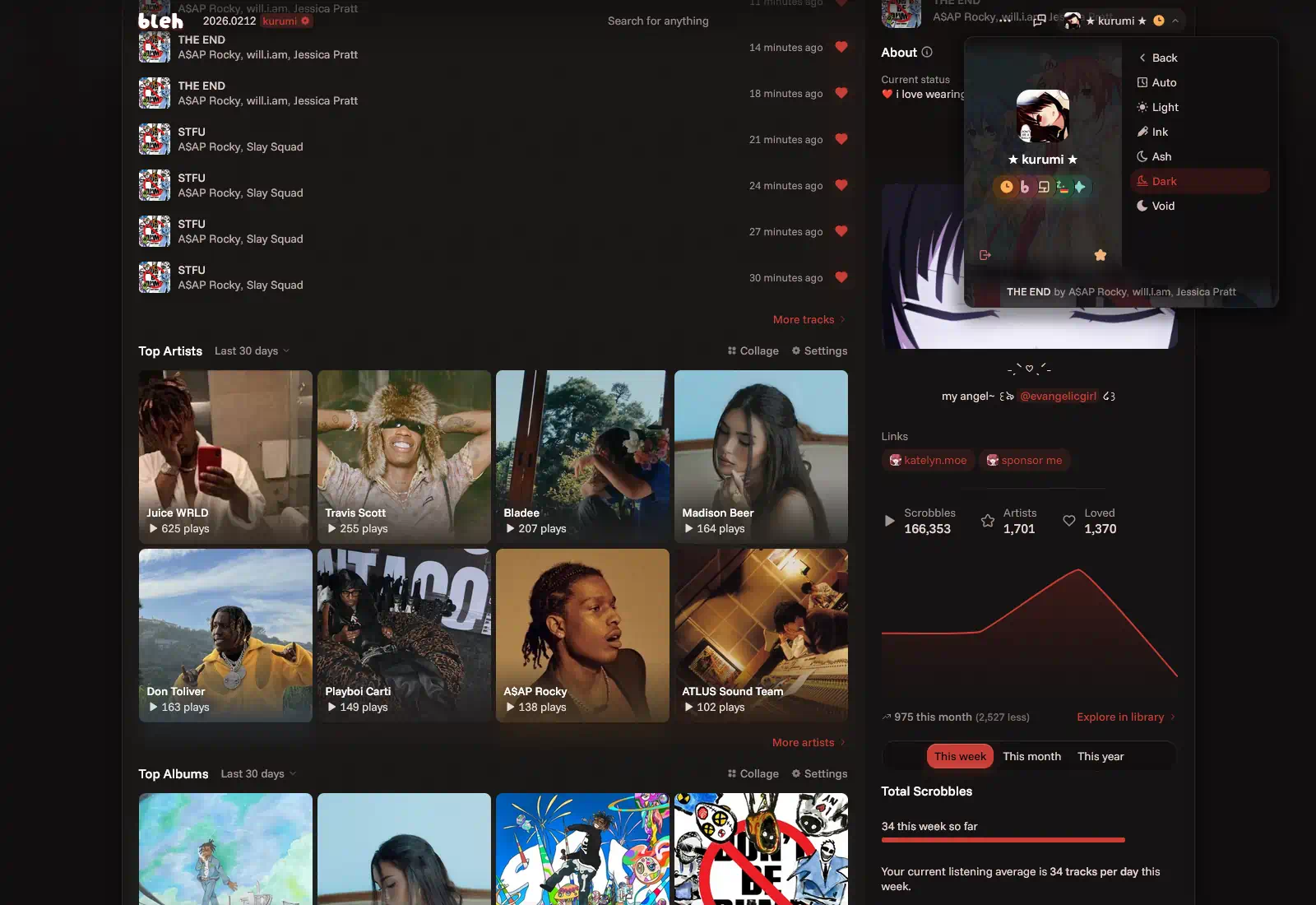
bleh, an extension for Last.fm Full homepage screenshot
Editorial Review

Website Review

What is bleh?

bleh is a browser extension that reshapes how Last.fm looks and works. Rather than replacing the service, it restyles and extends it: themes and accent colours, a profile banner, image galleries, album collages, Markdown in shoutboxes, and tools for tidying up scrobbled titles. It is aimed at people who already use Last.fm regularly and find the default interface cluttered or dated.

Its main selling point is consolidation. Several things people normally reach for separate tools to do — building an album collage, viewing galleries, formatting a shoutbox post — are handled inside the Last.fm pages themselves.

H3 What it changes

  • Appearance: five themes from brightest to darkest, presets, seasonal options, and a customiser for accent colours.
  • Profiles: a banner image visible to other bleh users, plus display name, accent colour and badges (some tied to sponsoring the project).
  • Shoutboxes and descriptions: native Markdown, including images, line breaks, timestamps and text formatting, with shoutbox previews back on music pages.
  • Collages: generate artist, album or track collages at a chosen width and height, without an external tool.
  • Library tidying: guest features and song tags detected automatically, and community-driven correction of title capitalisation.
  • Social: close friends for listening updates, and a "starred friend" whose scrobbles appear alongside your own.
  • Scrobbling: connect your account to scrobble on-site, and copy a scrobble from someone's page instead of retyping it.

H3 Who it suits, and the trade-offs

It fits a heavy Last.fm user who cares about presentation and small workflow annoyances. If you visit occasionally, or mostly consume your stats through another client, the benefit is thinner. Two things to weigh: it is a third-party layer, so Last.fm layout changes can break parts of it until an update lands (the extension includes an update checker and changelogs); and some profile customisation sits behind sponsoring the project, so the free experience is not the full one.

A quick way to judge it: install it, open your own profile and a busy shoutbox, and see whether the theme and Markdown tools feel like an improvement within a few minutes. If you want to compare against the unmodified experience, look at Last.fm side by side in another browser profile.

How do I install bleh for Last.fm?

Install bleh from its official page at bleh, an extension for Last.fm using the "Install now" option shown there. The extension is designed to work alongside your existing Last.fm account, so there is no separate Last.fm setup required beyond being logged in as usual.

What to expect after installing

  • Themes and accent colours: bleh offers five themes ranging from brightest to darkest, plus presets, seasonal options and a customiser.
  • Profile customisation: you can apply a banner image visible to other bleh users, and adjust display name, accent colour and badges (some customisation is tied to sponsoring the project).
  • Shoutbox improvements: native Markdown support in shoutboxes and profile descriptions, plus shoutbox previews on music pages.
  • Collages: generate album, artist or track collages inside bleh, with preset timestamps and custom width/height.
  • Social features: add close friends and a "starred friend" whose scrobbles appear alongside yours.
  • Scrobbling: connect your account to scrobble on-site, and use "copy" on someone's page to clone a scrobble.

A practical next step

If you use more than one browser or device, install bleh on each one where you browse Last.fm, since an extension only affects the browser it is installed in. After installing, open your Last.fm profile and check the theme and accent options first — that is the quickest way to confirm the extension is active.

How can I customize my Last.fm profile with bleh?

bleh is a browser extension that changes how Last.fm looks and adds profile and social features on top of it. Customization happens in layers: visual themes, your profile identity, and how you interact with music and other users. The headings on the site group these as reducing clutter, making a profile feel like home, keeping conversations going, collages, and staying connected.

H3 Visual themes and accent colors

  • Choose from a range of five themes, from bright to dark.
  • Pick a preset accent color, including seasonal options, or fine-tune with a customizer.
  • Adjust vibrancy if you want a more or less intense look.
  • The site says every page was restructured based on the developer’s own Last.fm experience, so expect layout changes beyond just color.

H3 Profile identity

  • Apply a banner image across the top of your profile; it is visible to other bleh users.
  • Customize your display name and profile accent color.
  • Add badges and other personal touches, which the site lists as sponsor features.

H3 Shoutboxes and descriptions

  • Use Markdown in shoutboxes and profile descriptions: images, line breaks, timestamps, and text formatting.
  • Shoutbox previews return on music pages, so you can see a snippet of current discussion before opening it.

H3 Music tools and collages

  • bleh detects guest features and song tags automatically, and can correct title capitalization through a community contribution system.
  • Generate album collages for artists, albums, or tracks without external tools.
  • Choose preset timestamps and set a specific width and height.

H3 Staying connected

  • Add close friends to follow their recent listening.
  • Mark one person as a “starred friend” to see their scrobbles alongside yours across the site.
  • Connect your account to scrobble on-site, and use “copy” on someone’s page to clone a scrobble without retyping.

A practical next step: install the extension, open your own Last.fm profile, and start with the theme and accent customizer. Then test one Markdown shoutbox post and one collage to see whether the workflow fits how you already use the site. If you mainly want fewer distractions while browsing stats, the clutter reduction and tag detection may matter more than banners or badges. If you use Last.fm socially, the shoutbox and friend features are likely the bigger draw. For the extension itself, see bleh, an extension for Last.fm.

Does bleh support Markdown in shoutboxes?

Yes. bleh adds native Markdown support to Last.fm shoutboxes, so you can format what you post instead of relying on plain text. According to the extension's own description, that includes images, line breaks, timestamps, and text formatting. The same Markdown handling applies to profile descriptions, and shoutbox previews return on music pages so you can see a snippet of the discussion before opening it.

What this looks like in practice

If you are the kind of Last.fm user who writes longer comments — reacting to an album, linking a track, quoting lyrics with a timestamp — this removes the usual workaround of pasting bare URLs and hoping people click. A typical shout might combine a bolded verdict, a line break, an embedded image, and a timestamped reference, which is much closer to how people already write on Discord or Reddit.

Worth knowing before you rely on it

  • Markdown renders for people using bleh. Anyone on the standard Last.fm interface may see raw syntax or a degraded version, so heavy formatting is best treated as a bonus rather than a guarantee for every reader.
  • Images and embeds depend on the source staying available; a removed image leaves a gap in an old shout.
  • The feature sits inside a broader reskin, so shoutbox improvements arrive alongside theme, profile and collage changes rather than as a standalone tool.

Next step

Install bleh, open any shoutbox you already use, and post one test comment with a bold word, a line break and an image. If it renders the way you expect, you have your answer for your own setup; if not, check that the extension is enabled on the Last.fm domain and that you are viewing the page as a logged-in user. For background on the site it modifies, see Last.fm.

How do I create album collages with bleh?

Open your Last.fm profile with the bleh extension installed, and look for the collage option in bleh's own interface — the page evidence lists "Collage your music" as a built-in feature, so you no longer need an external collage tool. From there you pick the type of item to collage (artists, albums or tracks), choose a time range from the presets, and set the width and height you want. bleh then generates the collage for you.

H3 What to expect

  • Built in, not bolted on: collages are generated inside bleh, so there's no exporting your listening data to another site.
  • Three scopes: artists, albums and tracks, so you can make a "top albums of the year" grid or an artist-focused one from the same tool.
  • Preset timestamps: the evidence describes time selection as preset-based "for now", so expect fixed periods rather than arbitrary date ranges.
  • Custom dimensions: you can specify width and height, which matters if you want something sized for a phone wallpaper, a forum signature or a square social post.

H3 A practical example Suppose you want a year-in-review image for a group chat. Open bleh's collage tool on your profile, choose albums, pick the yearly preset, set a square-ish size, and generate. If you'd rather highlight one artist's discography, switch the scope to tracks or albums and narrow the time range to that artist's active period.

H3 Trade-offs worth knowing Preset timestamps are the main limitation — handy for "last month" or "this year", less so if you need an exact custom window. Custom width and height give you layout control but also mean you should decide the destination before generating, since a tall skinny collage and a wide banner are different jobs.

For the extension itself and its install options, see bleh, an extension for Last.fm. If you want to compare how collages look against your raw listening history, your Last.fm profile at Last.fm is the source data.

How does bleh help me stay connected with friends on Last.fm?

bleh adds a few social features that Last.fm does not offer by default, so you can keep up with people you actually care about rather than scanning the whole site.

Close friends and a starred friend. You can add people as close friends to follow their recent listening more deliberately. One of them can be marked as a “starred friend,” which puts their scrobbles next to yours wherever you are on Last.fm, so their taste stays in view without extra clicks.

Shoutboxes that work better. bleh adds native Markdown support in shoutboxes and profile descriptions, so you can use images, line breaks, timestamps and text formatting. It also brings back shoutbox previews on music pages, letting you see a snippet of the current discussion before opening the thread. If your main way of staying connected is commenting on artists and albums, this is the part that changes daily use most.

A profile that feels like yours. You can apply a banner image visible to other bleh users, and customise your display name, accent colour and badges. That matters socially because friends recognise you by your profile, and a distinct look makes it easier to spot each other in shoutboxes and friend lists.

On-site scrobbling. You can connect your account and scrobble on-site without external tools, and copy someone’s scrobble from their page with a single click. When a friend recommends a track, that copy action turns it into a scrobble without retyping.

Who this suits: regular Last.fm users with a small circle of friends they actively follow, and people who discuss music in shoutboxes. It is less useful if you only track your own stats and never interact.

A practical next step: install bleh, add two or three people as close friends, then pick one as your starred friend. Check whether seeing their scrobbles beside yours actually changes what you listen to; if it does, you have found the feature worth keeping.

Related questions

More questions →
What Is GitHub and How Is It Used for Open-Source Projects?

GitHub is a web platform for hosting Git repositories and collaborating on code. For open-source projects like mailcow, it serves as the place where source code lives, releases are published, bugs are reported, and contributions are reviewed. You can use GitHub without writing any code — browsing a project's repository, reading its changelog, or filing a bug report are all legitimate uses. The one thing to keep straight up front: Git is the version-control tool that tracks changes to files, while GitHub is a hosting and collaboration service built around Git. You can use Git without GitHub, and GitHub hosts projects that use Git.

The core concepts you'll actually encounter

Concept What it is Why it matters to you
Repository ("repo") A project's folder plus its full change history The single place to find source, docs, and releases
Commit A saved snapshot of changes with a message Lets you see what changed and when
Branch A parallel line of development Where new work happens before it's merged
Pull request (PR) A proposed set of changes, open for review How outside contributors submit fixes or features
Issue A tracked bug report, question, or task Where problems get reported and discussed
Release A tagged, packaged version of the project What you download or upgrade to

A repository's history is a chain of commits. Branches let people work on changes without disturbing the main line. When a change is ready, it's proposed as a pull request, reviewed, and merged. Issues are the separate track for problems and discussion — they aren't code, but they often drive it.

Finding a project's source, releases, and changelog

For a project like mailcow, the repository is the authoritative source for what's in a given version. A practical path:

  1. Open the project's repository page. The file listing and README are the front door — the README usually states what the project is and how to install it.
  2. Check the Releases section (often a link in the sidebar) to see tagged versions. Release notes typically list component version bumps and security fixes. mailcow's own blog, for example, publishes entries such as "Mootember 2026 | Unbound 1.26.1, SOGo 5.12.11 & Redis 7.4.11" and "Mooly 2026 | Postfix 3.10.12, Rspamd 4.1.0 & Nginx 1.30.3," each tied to a dated update release.
  3. Look for a CHANGELOG file or a changelog link. This is where you confirm exactly which component versions and fixes landed in a release.
  4. Use the commits view when you need to know when something changed, not just that it changed.

This matters when you're deciding whether to upgrade. A release note that says it "addresses several security-related issues" and "strongly recommend[s] updating" is a different signal than a routine dependency bump.

Reporting a bug or contributing a change

The workflow is the same across most projects:

  • Before filing an issue, search existing issues. Duplicates get closed, and the answer may already be there.
  • When filing, include what you did, what you expected, and what happened — plus version numbers. For a Docker-based project, that means the image or release version and relevant logs.
  • To contribute code, the usual path is: fork the repository, create a branch, make commits, push, then open a pull request against the upstream project. Maintainers review, request changes, and merge.

You don't need commit access to any of this. Forking and pull requests exist precisely so outside contributors can propose changes without direct write access to the main repository.

GitHub vs. Git, in one example

Say you want to fix a typo in a project's documentation. Git, running on your machine, records your edit as a commit and tracks the branch you made it on. GitHub is where you push that branch and open a pull request so the maintainers can see and merge it. Git did the version tracking; GitHub did the hosting and the collaboration. If you only ever browse a project's releases or read its issues, you're using GitHub and never touching Git directly — which is fine.

Where this leaves you

If your goal is to use a project like mailcow, you mainly need the Releases and changelog views to pick and verify a version. If your goal is to report or fix something, you need issues and pull requests. And if you're trying to understand what changed between two versions, commits and release notes are the record — not the marketing page.

What Is the bleh Extension for Last.fm and What Does It Do?

bleh is a browser extension that restyles and extends Last.fm, described by its developer as "a fresh coat of paint for Last.fm bringing you closer to the music that defines you." It is aimed at people who already use Last.fm but want a less cluttered interface, deeper library views, and features Last.fm itself doesn't offer — custom themes, profile banners, Markdown in shoutboxes, and built-in album collages. It's worth considering if you spend real time on Last.fm and find the default site visually noisy or limited; if you only check your scrobbles occasionally, the standard site may be enough.

What bleh changes about Last.fm

bleh doesn't replace Last.fm or scrobble from a separate app. It sits on top of the existing site and rebuilds how pages are presented. According to the project, every page has been restructured based on the developer's own years of using Last.fm, so the layout should feel more focused on the music itself.

The main areas it touches:

  • Visual clutter — guest features and song tags are automatically detected and treated so they don't distract from the music.
  • Titles and capitalisation — title capitalisation can be corrected through bleh's own community-contributed system, and tags can be detected from music titles.
  • Themes — a range of five themes from brightest to darkest, plus accent colours, presets, seasonal event themes, and a customiser for fine-tuning.
  • Profile personalisation — a banner image across the top of your profile, visible to other bleh users, plus display name, profile accent colour, and badges.
  • Shoutboxes — native Markdown integration in shoutboxes and profile descriptions, including images, line breaks, timestamps, and text formatting. Shoutbox previews also return on music pages so you can see what's being discussed.
  • Collages — generate album collages without external tools, with preset timestamps (for now) for artists, albums, and tracks, and a chosen width and height.
  • Social features — add people as close friends to follow their recent listening, and pick a "starred friend" whose scrobbles appear alongside yours everywhere.
  • On-site scrobbling — connect your account to scrobble on-site with no external tools, and use "copy" on someone's page to clone a scrobble without retyping.

Free features vs. sponsoring the project

The site distinguishes between what every user gets and what requires sponsorship. Clutter reduction, tag detection, capitalisation fixes, Markdown shoutboxes, shoutbox previews, collages, close friends, starred friends, and on-site scrobbling are presented as general features. Profile-level personalisation — banner image, custom display name, profile accent colour, and badges — is tied to sponsoring the project. The site lists "Install now," "Sponsor," and "Discord" as its calls to action, but it does not publish prices or payment details, so check the sponsor page for current terms rather than assuming a cost.

Installation, updates, and translations

The site's primary call to action is "Install now," which is the entry point for adding the extension to your browser. It does not document specific browser support or menu paths, so treat the install link as the authoritative source for where it works.

Two maintenance features matter once it's installed:

  • Update checker — helps keep you on a bug-free, feature-full version, with changelogs included so you can follow what's changed.
  • In-built translations — bleh is built to support community-contributed translations and matches every language Last.fm offers as an option, so the interface can follow your Last.fm language setting.

Who should install it

Install bleh if you want Last.fm to look and feel like your own space — a darker or brighter theme, a profile banner, Markdown in shoutboxes, and collages without leaving the site — and you're comfortable with a third-party extension modifying how a site you use renders. Skip it if you want the plain Last.fm experience, or if you'd rather not depend on an extension for features like scrobbling and collages that you can otherwise handle with Last.fm's own tools and external collage makers.

What Is Last.fm and How Does It Work?

Last.fm is a music tracking and discovery service built around scrobbling — automatically logging the tracks you play so they build into a long-term listening history. You create a free account, connect a music player or streaming service, and from then on your profile, library, and stats update as you listen. It suits anyone who wants a personal record of their listening, year-over-year stats, and a way to find music through other people's taste. The service itself is web-based; much of what you see on a profile depends on which players and services you connect, and on optional browser extensions like bleh that restyle and extend the site.

What scrobbling actually means

A scrobble is one logged play of a track. When a song passes a service's threshold (commonly about half its length or a few minutes), the player sends the artist, track, and album to Last.fm, which files it under your account with a timestamp.

That timestamp is the important part. Because every scrobble is dated, Last.fm can build:

  • Your library — every artist, album, and track you've ever scrobbled, with play counts.
  • Listening reports — weekly and longer-range summaries of what you played most.
  • Per-artist and per-album pages — your personal play counts next to the global totals.

Scrobbling is passive once set up. You don't tag or rate anything to make it work; the data accumulates on its own.

Setting up an account and connecting a player

  1. Create an account on the Last.fm site. You need one before any scrobbles can be attributed to you.
  2. Connect a source. Two routes exist:
    • Built-in scrobbling in services that support it — you authorize Last.fm once inside the service's settings.
    • A scrobbler app or plugin for players that don't scrobble natively. You install it, log in with your Last.fm credentials, and it watches what the player is doing.
  3. Verify it works. Play a full track, then check your profile. If the scrobble appears, the connection is live. If nothing shows up after several tracks, the usual culprits are: you're not logged into the scrobbler, the track never passed the play threshold, or the player is offline-only and hasn't synced.

Some extensions add their own on-site scrobbling — bleh, for example, lets you connect your account and scrobble directly on the site, and offers a "copy" action on someone's page to clone a scrobble without retyping it.

What your profile and stats show

Your profile is the public face of your listening. It typically surfaces:

  • Recent tracks — a running feed of what you've played lately.
  • Top artists, albums, and tracks — over set time ranges (week, month, year, all time).
  • Total scrobble count — the headline number most users watch grow.
  • Listening reports — periodic recaps of your habits.

Beyond the default view, extensions change how this reads. bleh, for instance, restructures every page and adds a banner image across the top of your profile, custom display names, accent colours, and badges (some of these tied to sponsoring the project). It also detects guest features and song tags automatically and can correct title capitalisation through community contributions, so the clutter around the music is reduced.

Exploring artists, albums, and recommendations

Last.fm's discovery side works off the same data:

  • Artist and album pages combine your play counts with global ones, so you can see how your taste compares.
  • Similar artists and recommendations are generated from listening patterns across the user base.
  • Tags are community-applied labels (genre, mood, scene) that let you browse by theme rather than by name.

Tags are worth understanding because they're crowd-sourced: anyone can apply them, so they're useful for browsing but not authoritative. The same goes for the "similar artists" graph — it reflects collective behaviour, not a curated editorial list.

Community features: shoutboxes and tags

Each artist, album, and track page has a shoutbox — a public comment thread. It's where people react to a release, ask questions, or just post. Extensions can change how this works: bleh adds native Markdown support in shoutboxes and profile descriptions (images, line breaks, timestamps, text formatting) and brings back shoutbox previews on music pages, so you can see a snippet of the discussion without opening the thread.

Tags and shoutboxes are the two main ways Last.fm stays social. Neither requires you to post anything — you can use the site purely as a private log if you prefer.

Customising and extending the experience

The default Last.fm interface is functional but plain, and a lot of users extend it. Common additions include:

  • Themes and dark mode — bleh ships five themes from brightest to darkest, plus presets, seasonal event colours, and a customiser for accent colours and vibrancy.
  • Collage generation — album, artist, and track collages built in, with preset timestamps and a chosen width and height, so you don't need an external tool.
  • Friend tracking — add people as close friends to follow their recent listening, or mark one as a "starred friend" to see their scrobbles alongside yours everywhere.
  • Translations — bleh supports community-contributed translations matching the languages Last.fm offers.
  • Update checking — an update checker and changelogs keep the extension current.

If you only want the core tracking, none of this is required. If you spend a lot of time on the site, an extension is the difference between a database and something that feels like yours.

Choosing whether it's for you

If you want… Last.fm gives you…
A permanent record of what you listen to Scrobbles with timestamps, play counts, and yearly stats
To compare taste with others Public profiles, global play counts, similar-artist graphs
Passive setup Authorize once, then it logs automatically
A polished interface Requires an extension like bleh; the default is plain
Discovery by mood or genre Community tags — useful but not curated

The main condition to weigh: Last.fm is only as good as what you feed it. If your main player doesn't scrobble natively and you don't want to install a scrobbler, your history will be thin. And if you want the customised look, that's an extra install on top of the account.

How to Listen to Free Music, Radio, and Podcasts on iHeart

iHeart is a free streaming platform that combines live radio stations, customizable artist stations, playlists, and podcasts in one place. You can start listening without paying by opening iheart.com in a browser or using the iHeart app, then searching for a station, artist, song, or podcast. A subscription is only relevant for certain premium features; the core listening experience described on iHeart's site is available for free.

What you can listen to on iHeart

iHeart organizes its content into a few main types, and knowing the difference helps you find what you want faster.

Content type What it is Best for
Live radio stations Thousands of real-time broadcast stations Hearing a scheduled show, local station, or live event
Artist stations Stations built around a specific artist Continuous music in the style of an artist you like
Playlists Curated or self-made collections of songs A defined set of tracks for a mood or activity
Podcasts On-demand episodic shows Talk, news, storytelling, and interviews
Music and trending news Updates on artists, songs, and bands Discovering what's new

The key distinction is live versus on-demand. Live radio plays whatever is broadcasting right now, so you can't skip tracks. Artist stations and playlists behave more like on-demand listening, where you control the starting point.

How to start listening for free

You can begin on either the web or the app. The steps are similar.

  1. Open the platform. Go to iheart.com in a browser, or install the iHeart app on your phone or tablet.
  2. Search or browse. Use the search function to enter a station name, artist, song, or podcast. Alternatively, browse categories to see what's available.
  3. Select what you want to hear. Choosing a live station starts playback immediately. Choosing an artist creates or opens a station built around that artist.
  4. Press play and adjust. Use the player controls to pause, change volume, or move between stations. On live radio, expect no track skipping; on artist stations, you have more control over what plays next.
  5. Save what you like. Favoriting a station or artist makes it easier to return to later without searching again.

Expected result: audio begins playing shortly after you select content, and your favorites appear in your account for quick access next time.

Creating your own stations and playlists

  • Artist stations: Start from an artist you like, and the station plays music in that style. This is the fastest way to get continuous music without building a list yourself.
  • Playlists: Add individual songs to a playlist when you want a specific set of tracks rather than a continuous stream. This suits workouts, commutes, or a fixed party set.
  • Tip: Use artist stations for discovery and playlists for control. If a station drifts away from what you want, switch to a playlist instead of fighting the stream.

What's free versus what needs a subscription

iHeart's own description states that its music, podcasts, and radio stations are available for free, and that you can listen to thousands of live stations or create your own artist stations and playlists. The site also references a subscription, which indicates that some features sit behind a paid tier.

Because the exact free-versus-paid split isn't fully detailed in the available information, treat it this way:

  • Assume free: live radio stations, artist stations, playlists, podcasts, and general music/news browsing, based on iHeart's stated offering.
  • Check before assuming: any feature labeled as premium, ad-free, or subscription-only. If a paywall appears, that specific feature requires payment.
  • Don't assume: that a subscription is required to listen at all, or that everything is free. Verify at the point where you're asked to sign up or pay.

Common snags and how to handle them

  • A station won't play. Live stations can be unavailable due to regional restrictions or temporary outages. Try another station to confirm whether the issue is the station or your connection.
  • You can't skip a track. That's expected on live radio. Switch to an artist station or playlist if you want control.
  • Search returns too many results. Add the type of content to your search, such as the artist name plus "station," or search podcasts separately from music.
  • You lose your favorites. Sign in to an account so saved stations and playlists persist across sessions and devices.

Quick decision guide

  • Want background music with no effort? Open an artist station.
  • Want a specific set of songs? Build a playlist.
  • Want a live show or local broadcast? Pick a live radio station.
  • Want talk or storytelling? Go to podcasts.
  • Want to avoid paying? Stick to the free listening options above and check any prompt before entering payment details.
What Is a Browser Extension and How Do You Install One Safely?

A browser extension is a small software package that adds features or changes how your browser behaves — for example, blocking ads, managing passwords, or translating pages. You install one by adding it from your browser's official store (Chrome Web Store, Firefox Add-ons, or Safari Extensions), then reviewing the permissions it requests before confirming. The term "extension" is now the standard word across major browsers, though "addon" is still common in Firefox and "plugin" refers to something older and different.

Extension, addon, plugin: what's the difference?

These three words get used loosely, but they describe different things:

Term What it means Where you'll see it
Extension A package that adds features or modifies browser behavior Chrome, Edge, Safari, Firefox (also called add-ons)
Addon / add-on Firefox's umbrella term for extensions, themes, and similar add-ons Firefox Add-ons site
Plugin Older technology (like Flash or Java) that ran external content inside the browser Mostly obsolete; browsers have dropped support

The practical takeaway: when a site says "addon" or "extension," it usually means the same kind of installable package. When you see "plugin," it's often an outdated term — modern browsers have phased out the plugin model, so most things you install today are extensions.

MyBrowserAddon describes itself as a community for open-source projects, housing documentation, tutorials, FAQs, and bug-report forms for browser-based projects (add-ons, plug-ins, and similar). That makes it a useful reference point if you want to understand how these projects are documented and maintained — but it is not itself a browser store, so you still install extensions through your browser's official channel.

How to find and check an extension before installing

  1. Search the official store. Use your browser's built-in store — Chrome Web Store, Firefox Add-ons, Microsoft Edge Add-ons, or Safari Extensions. Avoid random download sites, which are a common source of bundled malware.
  2. Read the listing, not just the name. Check the developer, the number of users, the last-updated date, and the description. A popular extension that hasn't been updated in years is a risk.
  3. Look at the permissions. This is the most important step. The listing shows what the extension can access. Ask whether each permission makes sense for what it claims to do.
  4. Check reviews critically. Look for patterns in negative reviews (e.g., "started injecting ads," "slowed my browser") rather than trusting the star rating alone.

Reading permissions: what to watch for

  • "Read and change all your data on all websites" — very broad. Fine for an ad blocker or password manager, suspicious for a simple calculator or theme.
  • "Read your browsing history" — only some extensions genuinely need this.
  • Access to specific sites — narrower and generally safer than all-sites access.
  • Clipboard, downloads, or form data access — question whether the feature requires it.

If a permission seems unrelated to the extension's purpose, that's a reason to skip it.

Installing and managing an extension

The exact clicks differ by browser, but the flow is the same:

  1. Open the extension's page in your browser's official store.
  2. Click the install button (labeled "Add to Chrome," "Add to Firefox," etc.).
  3. A prompt appears listing the permissions. Read it, then confirm.
  4. The extension icon usually appears in your toolbar. Some run silently in the background.

To verify it's working: check the toolbar icon, or open the extension's own settings page. If nothing seems to happen, the extension may need you to configure it first, or it may only activate on certain sites.

To manage or remove it:

  • Chrome/Edge: go to the extensions page (chrome://extensions or edge://extensions), where you can toggle, update, or remove each one.
  • Firefox: open about:addons to enable, disable, or remove add-ons.
  • Safari: manage extensions in Safari's settings under the Extensions tab.

Disabling is a good first test if your browser slows down or behaves oddly — if the problem stops, the extension was likely the cause.

Warning signs of an unsafe extension

  • It asks for far more permissions than its purpose requires.
  • It was recently sold or changed owners (common with extensions that later turn malicious).
  • It injects ads, changes your search engine, or redirects you without asking.
  • It has no privacy policy, or the developer is anonymous with no track record.
  • It's only available from a third-party download site, not an official store.

If you suspect an extension is malicious, remove it immediately, then check your browser's search and homepage settings — some extensions change these and they can persist after removal.

A note on open-source extensions

Open-source extensions publish their source code, which means anyone can inspect what the code actually does. MyBrowserAddon frames this transparency as a core benefit: because the code is viewable, it can build trust and make it easier to understand how the software functions. If you're choosing between two extensions that do the same job, an open-source one with an active community is often the safer bet — not because closed-source is automatically unsafe, but because the code can be independently checked.

FAQ

Is an addon the same as an extension? In Firefox, "add-on" is the general term that includes extensions. In practice, when people say addon they usually mean extension.

Are browser extensions free? Many are, but not all — some require payment or a subscription. Check the store listing for pricing; don't assume free.

Can an extension see my passwords? Only if it has permission to read page data or form fields. That's why you should only grant such access to extensions you trust, ideally from known developers.

How do I know an extension is safe? Install from the official store, check the permissions against the stated purpose, prefer actively maintained and (ideally) open-source projects, and remove anything that starts behaving unexpectedly.

Website Overview

The available information shows a mix of normal operation and configuration gaps. Depending on how the website is used, these gaps may affect secure access or the consistency of its public presentation.

Domain and Registration

The domain was registered less than a year ago and has limited historical evidence to assess. Transfer-protection status is present, helping reduce the risk of unauthorized domain transfers. The registrar is NameCheap, Inc., a widely used domain service provider. The domain uses the common .pet extension, which is not an independent safety signal.

DNS and Email

Nameservers are provided by Cloudflare, indicating managed DNS hosting. No MX record was found. A conventional explicit inbound-mail route is not configured. DNSSEC signatures were not detected, so this additional DNS authenticity protection is not confirmed. The lowest observed DNS TTL is 300 seconds. No CAA record was found; there is no additional DNS-based restriction on certificate issuers.

TLS and Certificates

The certificate uses an RSA 2048-bit public key, offering broad client compatibility. The server supplied a complete certificate chain. No organization name is present in the certificate; the available fields are consistent with domain validation. The certificate was issued by Let's Encrypt, commonly associated with automated certificate services. The certificate's total validity is about 89 days, consistent with a short renewal cycle.

HTTP and Browser Security

The response lacks these common security headers: CSP, X-Content-Type-Options, Referrer-Policy, Permissions-Policy, clickjacking protection. CORS permits any origin to read this response. This is common for public resources; sensitive responses need narrower handling. No X-Powered-By header was found, reducing one common source of backend fingerprinting information. No obvious internal addresses or debug information were found in the headers. The Server header contains the custom value Vercel.

Technology Stack Analysis

The public page identifies Next.js, Vercel without precise versions, leaving fewer clues for version-specific scanning.

Search and Social Sharing

No homepage canonical URL was detected. If duplicate URLs exist, consolidation may be less explicit. Twitter Card metadata is configured. The title has 30 characters, within a common display range. A meta description is present, with 83 characters. The observed directives allow indexing and link following.

Hosting and Email

DNSCloudflare
HostingVercel
EmailUnknown
Location United States flagUnited States 216.198.79.65

User reviews (0)

  • No reviews yet.

Pages, Search and Sharing

Meta descriptionA fresh coat of paint for Last.fm bringing you closer to the music that defines you
Canonical URLNot detected
LanguageEnglish (default)
Twitter Cardsummary_large_image

No robots.txt found

No sitemaps found

Registration details RDAP / WHOIS

RegistrarNameCheap, Inc.
Registered2026-08-16
Expires2027-08-16
Domain statusclient transfer prohibited
Nameserversmaria.ns.cloudflare.com、tate.ns.cloudflare.com
DNSSECunsigned

DNS records

TypeNameValueTTLPriority
A325f5ca6fb5c9aa0.vercel-dns-017.com216.198.79.65300—
A325f5ca6fb5c9aa0.vercel-dns-017.com64.29.17.65300—
NSyuzu.petmaria.ns.cloudflare.com86400—
NSyuzu.pettate.ns.cloudflare.com86400—
CNAMEbleh.yuzu.pet325f5ca6fb5c9aa0.vercel-dns-017.com600—

TLS and certificates

AssessmentNormal configuration
Supported protocolsTLSv1.2、TLSv1.3
Negotiated protocolTLSv1.3
Certificate subjectbleh.yuzu.pet
IssuerLet's Encrypt
Valid until2026-11-14T13:44 · Remaining when checked: 48 days
Verification detailsCertificate trust: Passed · Hostname match: Passed

HTTP response headers

HeaderValue
content-typetext/html; charset=utf-8
cache-controlpublic, max-age=0, must-revalidate
serverVercel
strict-transport-securitymax-age=63072000
access-control-allow-origin*

Identified technologies

Next.jsVercel