Website profiles · Technology insights · Alternatives

boolean.method.ac

Learn how to use boolean operations in Adobe Illustrator, Sketch, Figma, and other vector editors

No paid content found
Visit website
Profile views 0 Outbound visits 0 Normal
The Boolean Game Full homepage screenshot

At a glance

Category
Games & Board Games
Language
English
Paid-content signal
No paid content foundObserved
Registered
Unknown
Hosting
Hetzner Online GmbHInferred
HTTPS certificate trusted
PassedObserved
Last updated

Website review

This review may include AI-generated content and is not individually verified. Domain, certificate and other facts come from the observed data on this page.

What is The Boolean Game?

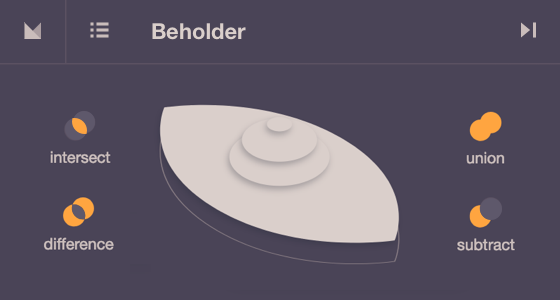
The Boolean Game is a browser-based puzzle game that teaches boolean operations in vector design tools. Each stage gives you two or more overlapping shapes, and you manipulate them using four operations — union, subtract, intersect and difference — until your result matches the target silhouette. It is made by Method of Action, the studio behind several short interactive design tutorials, and it runs directly at The Boolean Game with no installation.

What it actually teaches

The four operations map to the commands you find in Adobe Illustrator's Pathfinder panel, Sketch, Figma and other vector editors:

  • Union merges shapes into one.
  • Subtract removes the front shape from the one behind it.
  • Intersect keeps only the overlapping region.
  • Difference keeps everything except the overlap.

Because the underlying logic is identical across editors, the skill transfers. Someone who has memorised where the buttons live in Figma but still guesses at which one to press will get the most out of it; the game forces you to reason about the geometry rather than the menu.

How a session works

Stages are short — usually a handful of moves. The interface includes undo, a play-again control, a share option for individual stages, sound and animation-speed settings, and a stats panel. Difficulty comes from shape complexity and the order of operations, since subtracting before unioning produces a different result than the reverse.

Who it suits

Reader Value
Beginners in Figma, Sketch or Illustrator Builds intuition for what each operation does before you need it in real work
Self-taught designers Fills a gap that most video tutorials skip — the sequencing of operations
Experienced vector users Mostly a warm-up; the later stages are the only ones likely to slow you down

A practical next step

Work through the stages in order once, then open a real project file and rebuild one icon you already have — a bell, a magnifier, a settings gear — using only boolean operations instead of drawing freehand. If you want more structured practice afterward, Method of Action publishes other interactive exercises in the same style, and general vector-editing courses are widely available through Adobe's own help resources. The main trade-off is scope: this is a focused drill, not a full design curriculum, so treat it as one short session rather than a course.

How does The Boolean Game teach boolean operations for Adobe Illustrator, Sketch, and Figma?

The Boolean Game teaches boolean operations through short, hands-on shape puzzles rather than written lessons. Each stage gives you two or more overlapping shapes and asks you to reach a target silhouette by applying one operation at a time. The four operations it drills are union, subtract, intersect, and difference, and the interface names them directly, so you build the vocabulary while you manipulate the shapes.

What the practice loop looks like

The page evidence shows a stage-based structure with clear controls: a stage list, Undo, Start Over, and Play again, plus Share stage and Continue. That combination supports trial and error without penalty. You can attempt an operation, see the result, undo it, and try a different one. Because the target shape stays visible, the feedback is immediate and visual rather than explanatory.

The settings also matter for learning pace. Sound can be toggled, animation speed runs from 0.5× to 2×, and game data can be reset to factory settings. Slowing the animation helps when you are still mapping each operation to its visual outcome; speeding it up helps once the operations feel automatic.

How it maps to Illustrator, Sketch, and Figma

The underlying logic is the same across these editors, which is why one game can serve all three:

Operation What it does Illustrator Sketch Figma
Union Merges shapes into one Pathfinder Unite Union Union selection
Subtract Removes the top shape from the one below Pathfinder Minus Front Subtract Subtract selection
Intersect Keeps only the overlap Pathfinder Intersect Intersect Intersect selection
Difference Keeps everything except the overlap Pathfinder Exclude Difference Exclude selection

The names differ slightly, and the order of selection matters in real editors, but the mental model transfers. A practical next step: after finishing a stage, rebuild the same result in your actual editor using the corresponding command, then check whether the layer order changes the outcome. That is the gap the game cannot cover, and it is usually where beginners get stuck.

What is the difference between union, subtract, intersect, and difference in vector editing?

Union, subtract, intersect and difference are the four core boolean operations in vector editors. They all take two or more overlapping shapes and produce a single new shape, but each answers a different question about which areas survive.

The four operations at a glance

Operation What it keeps Typical use
Union Everything inside any selected shape Merging parts into one silhouette
Subtract The bottom shape minus the top shape(s) Cutting a notch, hole or bite out of a form
Intersect Only the region where all shapes overlap Extracting a shared area, like a lens or joint
Difference The areas covered by exactly one shape, not the overlap Creating an outline or hollow ring effect

The easiest way to remember them is by what happens to the overlap:

  • Union — overlap is included once.
  • Subtract — overlap is removed along with the top shape.
  • Intersect — only the overlap remains.
  • Difference — the overlap is removed but both shapes otherwise remain.

How they behave in practice

Union and intersect are commutative: swapping the order of the shapes gives the same result. Subtract and difference are not. In subtract, the shape on top (or the last one selected, depending on the editor) is the cutter, so reversing the selection order reverses the outcome. Difference, sometimes called "exclude" or XOR, is symmetrical in shape but still depends on selection for which objects are consumed.

A few consequences worth knowing before you commit:

  • Boolean operations usually destroy the original paths and replace them with a new compound path, so keep a duplicate if you may need to adjust the parts later.
  • Open paths and shapes with strokes can behave unpredictably; expand strokes to outlines first.
  • Self-intersecting shapes can produce odd results with difference and intersect.

A concrete scenario

Suppose you are drawing a crescent moon. Draw a large circle, then a second circle overlapping its right side.

  1. Union the two circles if you want a merged blob.
  2. Subtract the second circle from the first to carve out the crescent.
  3. Intersect them if you actually wanted the thin lens-shaped sliver where they overlap.
  4. Difference them to get the crescent plus the leftover sliver on the other side — the crescent with a detached piece.

The same four commands appear under slightly different names across editors, but the logic is identical. The Boolean Game turns this into a short interactive exercise where you drag shapes and pick the operation that matches a target result, which is a fast way to build intuition for which command to reach for. For reference material on the surrounding tools, Adobe Illustrator Help and Figma Help Center document how each application names and applies these operations.

Choosing between them

Ask what should happen to the shared region. If it should stay, use union. If it should disappear, use subtract or difference depending on whether you want the cutter shape gone as well. If it is the only thing you want, use intersect. When a result looks wrong, undo and swap the selection order before trying anything else — that resolves most subtract and difference surprises.

Can I use The Boolean Game without prior experience in graphic design or vector editing?

Yes. The Boolean Game is built as a hands-on way to learn boolean operations from scratch, so you do not need a graphic design or vector editing background to start. The page presents it as a stage-based game where the core actions are the four boolean operations: union, subtract, intersect and difference. You learn by doing — combining or cutting shapes — rather than by reading theory first.

What it actually teaches

The skills it drills are the same ones used in vector editors such as Adobe Illustrator, Sketch and Figma: adding shapes together, removing one shape from another, keeping only the overlap, and keeping only the non-overlapping parts. The value is that these operations are usually taught inside a complex application, where menus, layers and tools get in the way. Here they are isolated, so the concept is what you practise.

Who gets the most out of it

  • Complete beginners: you can start with no vocabulary. The interface names each operation, and the stage shows you the result immediately.
  • People switching tools: if you know one vector editor and are moving to another, the boolean logic transfers directly, even when the menus differ.
  • Designers who avoid booleans: if you have been hand-drawing shapes that should be combined or cut, this is a low-stakes way to build the habit.

It is less useful if you already use boolean operations fluently, or if you want a full course in vector design — it covers one family of operations, not drawing, typography, colour or file setup.

Practical notes for a first session

The page includes sound and animation-speed settings, and a slower animation speed can help you see exactly how one shape is being subtracted from another. There is also an Undo and a Start Over, so mistakes cost nothing. If you want to reset everything, the page notes that resetting erases all data as if you had never played.

A useful next step: after finishing a few stages, open a free vector tool such as Figma or Inkscape and rebuild one of the shapes you made in the game, using that app's boolean commands. That transfer step is what turns game familiarity into real editing skill.

Does The Boolean Game work on mobile devices or only on desktop computers?

The Boolean Game is built for a pointer-and-keyboard workflow, so it is best treated as a desktop browser tool rather than a mobile-first game. Its core loop is dragging vector shapes into precise positions, then applying boolean operations such as union, subtract, intersect and difference. That kind of precision is awkward on a phone, where a fingertip covers the shapes you are trying to align and there is no hover state to preview what a drag will do.

What works and what does not

  • Desktop or laptop: The natural fit. A mouse or trackpad gives you the control the puzzles assume, and a larger screen makes the before/after of each boolean operation easier to read.
  • Tablet: Workable on a larger tablet, especially with a stylus, though you are still fighting the absence of a physical pointer for fine adjustments.
  • Phone: Possible to load, but frustrating. Small targets, imprecise dragging and limited screen space make later stages tedious rather than instructive.

A practical way to decide

If your goal is to understand how Illustrator, Sketch, Figma or similar vector editors combine shapes, sit down at a computer for twenty minutes rather than trying to squeeze it into a commute. The lesson transfers directly: once you have internalised why subtract behaves differently from difference, you will reach for the right operation faster in real design work.

If you specifically want mobile-friendly vector practice, look at the official learning resources from the tools themselves, such as Adobe Illustrator tutorials or Figma's help centre, which include short exercises you can follow on a tablet.

How do I share my progress or a specific stage with others in The Boolean Game?

You can share a stage from inside the game itself. The interface includes a Share stage control, so the intended flow is: finish or reach the stage you want to highlight, then use that control to generate a shareable result. The game also exposes a Play again option and a Continue confirmation, which suggests sharing happens at a stage boundary rather than mid-puzzle.

What to expect when you share

The Boolean Game is a browser-based tutorial for boolean operations — union, subtract, intersect, and difference — used in vector editors like Adobe Illustrator, Sketch, and Figma. Its stages are short, self-contained puzzles, so a shared stage is most useful as a demonstration of one operation or one tricky shape interaction.

Because the page evidence does not describe a public profile, leaderboard, or account system, treat sharing as per-stage rather than a running total. If you want someone to see your overall progress, you would need to share the individual stages that represent it, or describe your results alongside the link.

Practical ways to use it

  • Teaching a colleague: Share the exact stage where the difference operation finally clicks, so they see the same puzzle rather than a general tutorial.
  • Comparing techniques: Two people can play the same stage and compare the shapes they produce, which is more concrete than discussing boolean rules abstractly.
  • Building a lesson: A design instructor can collect shared stage links as a set of exercises, each targeting one operation.

For broader vector-editing practice beyond this game, Adobe Illustrator tutorials and Figma's help center cover the same operations in production tools.

Related questions

More questions →
What Is The Boolean Game?

The Boolean Game is a browser-based puzzle game for practicing boolean operations — union, subtract, intersect, and difference — the same shape-combining commands used in Adobe Illustrator, Sketch, Figma, and other vector editors. It is hosted at boolean.method.ac and is part of Method of Action. If you already work in a vector tool but still guess at which boolean operation to pick, this is a low-stakes way to build that instinct.

What you actually practice

Each stage gives you a target shape and a set of source shapes. You apply boolean operations to the sources until they match the target. The four operations the game drills are:

  • Union — merges shapes into one combined outline.
  • Subtract — removes the overlapping area of one shape from another.
  • Intersect — keeps only the region where shapes overlap.
  • Difference — keeps the non-overlapping parts, excluding the shared region.

These are the same four operations you find in the pathfinder or boolean groups of mainstream vector editors, so the mental model transfers directly.

Who it is for

The game suits:

  • Designers who use Figma, Sketch, or Illustrator but reach for boolean tools only occasionally.
  • Beginners learning how paths combine before they touch a real project file.
  • Anyone who wants to reason about shape math without setting up a document.

It is not a tutorial for a specific app's interface. It teaches the operations themselves, so you still need to learn where your editor hides them.

How to start

  1. Open boolean.method.ac in a browser.
  2. Read the target shape for the stage.
  3. Apply union, subtract, intersect, or difference to the source shapes until the result matches.
  4. Use Undo to step back and Start Over to reset the stage.
  5. Move to the next stage once the shape matches.

Settings worth knowing

The game exposes a few controls that affect how you play:

Setting What it does
Sound Toggles sound on or off
Animation speed Slider from 0.5× to 2×, slower to faster
Game data Reset to factory settings erases all data as if you had never played
Share stage Generates a link to a specific stage

The reset option is destructive — it clears your progress completely, so use it only when you want a clean slate.

Practical notes

  • The game runs in the browser, so there is nothing to install.
  • Progress and settings live in the game itself; the reset control confirms data is stored locally to your play session.
  • The site lists a Sponsor a Stage option and a Buy me a coffee link, which indicates the project is independently supported rather than sold as a product.

If your goal is to stop second-guessing which boolean operation to use in Figma or Illustrator, working through the stages here builds that recognition faster than reading about the operations in the abstract.

How to Use Ahrefs for Your First SEO Audit: A Step-by-Step Tutorial

If you're new to Ahrefs and want to run your first SEO audit, the fastest path is: open Site Explorer, enter your target URL, review the Overview for a health snapshot, then dig into Organic Keywords, Top Pages, and Site Audit to find specific problems. From there, build a short prioritized to-do list instead of trying to fix everything at once.

This tutorial walks through that workflow using a realistic starting scenario, explains what the numbers mean, and shows how to turn findings into actions.

Before You Start: Pick a Narrow Scope

A common beginner mistake is auditing an entire large website on day one. The reports become overwhelming, and you can't tell which issues matter.

Instead, choose one of these starting points:

  • A single important page (your homepage or a key product/service page)
  • A small site (under ~50 pages, e.g., a personal blog or small business site)
  • One section of a bigger site (e.g., /blog/)

For this tutorial, assume you're auditing a small business site with about 30 pages. The same steps scale up later.

You'll need an Ahrefs account to follow along. Ahrefs offers paid plans, and pricing and feature limits change over time, so check the current Pricing page for what's included in each tier before committing.

Step 1: Enter Your Target in Site Explorer

Site Explorer is Ahrefs' core tool for analyzing any website or URL.

  1. Open Site Explorer from the top navigation.
  2. In the search box, paste your domain (e.g., example.com).
  3. Choose the Exact URL or Domain mode depending on scope. For a full-site view, use Domain or Prefix; for a single page, use Exact URL.
  4. Press Enter.

You'll land on the Overview report. Don't try to absorb everything — focus on four numbers first.

Reading the Overview Snapshot

Metric What it tells you How to use it
Ahrefs Rank (AR) Relative strength of the site's backlink profile vs. others in the database Useful for comparing against competitors, not as a standalone goal
Organic traffic Estimated monthly visits from search A rough trend indicator, not exact analytics
Organic keywords Estimated number of keywords the site ranks for Shows breadth of visibility
Backlinks / Referring domains Total links and unique sites linking to you Referring domains matter more than raw backlink count

Important caveat: Ahrefs' traffic and keyword numbers are estimates based on its own data. They won't match Google Search Console or your analytics exactly. Treat them as directional, not absolute.

Step 2: See What You Already Rank For

Go to Organic Keywords in the left sidebar. This shows queries where your site appears in search results.

Sort by Traffic (descending) to see which pages bring the most estimated visitors. Then look for:

  • Keywords ranking in positions 4–15 — these are often the easiest wins. A small content or on-page improvement can push them onto page one.
  • Keywords with high volume but low position — potential opportunities if the topic is relevant.
  • Irrelevant keywords — if you rank for something off-topic, it may signal thin or mismatched content.

Write down 5–10 of the position 4–15 keywords. These become your first optimization targets.

Step 3: Find Your Best and Weakest Pages

Open Top Pages. This ranks your URLs by estimated organic traffic.

Look for two things:

  1. Your top performers — understand what topics and formats work. Can you create more content like this?
  2. Pages with traffic but poor rankings — these may need on-page fixes (title, headings, internal links).

If a page gets zero traffic and targets a topic you care about, it's a candidate for a rewrite or consolidation.

Step 4: Run a Technical Site Audit

Now move to Site Audit. This crawls your site and flags technical and on-page issues.

  1. Click Site Audit → New project.
  2. Enter your domain and set crawl settings (default is usually fine for a small site).
  3. Start the crawl and wait for it to finish.

Once complete, you'll see a Health Score and a list of issues grouped by category.

Which Issues to Fix First

Not all issues are equal. Prioritize in this order:

Priority Issue type Why it matters
1 Broken links (404s) Bad for users and crawl efficiency
2 Pages blocked from indexing They can't rank at all
3 Missing or duplicate title tags Directly affects click-through and relevance
4 Slow-loading pages Affects experience and rankings
5 Thin content Low value to users and search engines

Ignore low-impact warnings (like minor meta description length) until the big items are handled.

Step 5: Turn Findings Into a To-Do List

You now have raw data. Convert it into a short, actionable list. Example:

  1. Fix 3 broken links found in Site Audit.
  2. Rewrite title tags on 5 pages with duplicate titles.
  3. Improve 4 pages ranking in positions 6–12 by adding missing subtopics and internal links.
  4. Remove or update 2 thin pages with no traffic.

Keep the list to 5–10 items max for your first audit. Finishing a short list beats starting a long one.

Common Beginner Mistakes

  • Chasing every red flag. Site Audit flags many minor issues. Fix what affects rankings and users first.
  • Trusting estimates as exact numbers. Ahrefs data is modeled, not measured from your analytics.
  • Auditing a huge site too early. Start small to learn the interface.
  • Ignoring search intent. A page can be technically perfect but still fail if it doesn't match what searchers want.
  • Forgetting to re-crawl. After fixes, run Site Audit again to confirm improvements.

Where to Go Next

Once your first audit is done:

  • Compare with competitors using Site Explorer's Competing Domains and Content Gap reports.
  • Track keyword rankings over time with Rank Tracker.
  • Explore backlink opportunities in the Backlinks and Link Intersect reports.
  • Set up recurring Site Audit crawls so new issues surface automatically.

Your first audit isn't about perfection — it's about building a repeatable habit: enter a target, read the key reports, pick the highest-impact fixes, and act. Do that once a month and your site's health compounds.

Which Boolean Operations Can You Practice in The Boolean Game?

The Boolean Game lets you practice four boolean operations: union, subtract, intersect, and difference. These are the same operations used in Adobe Illustrator, Sketch, Figma, and other vector editors, so the game works as a drill for the shape-combining logic you apply in real design tools.

The four operations and what each one does

Each operation takes two or more overlapping vector shapes and produces a different result based on how the shapes overlap.

Operation What it does Typical use
Union Merges all selected shapes into one combined shape Building a single silhouette from separate parts
Subtract Removes the overlapping area of one shape from another Cutting a hole or notch out of a shape
Intersect Keeps only the area where all shapes overlap Isolating a shared region
Difference Keeps the areas that do not overlap, removing the intersection Creating an outline or split effect

The exact edge behavior depends on the editor, but the underlying logic is the same across Illustrator, Sketch, and Figma.

How the game presents them

The Boolean Game organizes these operations into stages. Each stage gives you a target shape and a set of starting shapes, and you apply boolean operations until your result matches the target. The game tracks your progress and shows game stats, so you can see how you are doing across stages.

The interface exposes the four operations directly:

  • union
  • subtract
  • intersect
  • difference

You also get Undo, Start Over, and Play again controls, plus a Share stage option. That means you can experiment freely: try an operation, undo it, and try a different order without losing your place.

Why practicing here transfers to real editors

The operations map one-to-one onto the boolean tools in the editors named on the site. If you can predict the result of union, subtract, intersect, and difference in the game, you can predict it in Illustrator, Sketch, or Figma. The main difference is that desktop editors add options like pathfinder effects or non-destructive compound shapes, but the core four operations behave the same way.

A practical example: if you want a crescent moon, you draw two overlapping circles and apply subtract to remove the overlap from one circle. If you want the lens-shaped overlap instead, you apply intersect. The game gives you repeated reps at choosing the right operation for a target shape.

Settings that affect practice

The game includes a few settings worth knowing about:

  • Sound can be toggled on or off.
  • Animation speed can be set from 0.5× up to 2×, which helps if you want to watch how a shape transforms more slowly.
  • Game data can be reset to factory settings, which erases all progress as if you had never played. There is a confirmation step before this happens.

If you are using the game to learn rather than to compete, slowing the animation down makes it easier to see how each operation changes the shape.

Getting started

Open the site, pick a stage, and try each of the four operations on the shapes provided. Compare your result to the target, then use Undo or Start Over to try a different operation. The goal is to build the habit of asking which operation produces the overlap or removal you need before you reach for it in a real vector editor.

How to Manage Settings and Saved Data in The Boolean Game

The Boolean Game keeps its controls in a single settings area: you can toggle sound, adjust animation speed, turn tutorials on or off, and wipe your progress with Reset to factory settings. That reset is permanent — the game states it "will completely erase all data as if you had never played the game" — so use it only when you actually want a clean slate.

What you can change in Game Settings

The settings panel exposes four controls:

Setting What it does
Sound Turns sound on or off
Tutorials Turns tutorials on or off
Animation speed Sets playback speed to 0.5×, .75×, 1×, 1.5×, or 2×
Game data Contains the reset option

Animation speed is the one setting worth thinking about before you change it. The panel labels the low end "← slower" and the high end "faster →", so 0.5× gives you the most time to watch a boolean operation resolve, and 2× is for when you already understand the operation and just want to move through stages quickly.

Resetting your progress

Reset to factory settings is the destructive option. Per the game's own wording, it erases all data as if you had never played. If you only want to redo the stage in front of you, use Start Over or Undo instead — those act on the current attempt, not on your saved record.

The reset flow is guarded: choosing the reset option brings up a confirmation with Start Over, Undo, and OK, so you get a chance to back out before anything is deleted.

Where your stats and data live

The interface references Game Stats and Game data as separate items. Game Stats is where you review how you've done; Game data is the bucket that the factory reset clears. Both sit alongside the game's other pages — Sponsor a Stage, Acknowledgements, Privacy Policy, Method of Action, and Buy me a coffee — which are informational rather than play controls.

Practical notes

  • Reset is all-or-nothing. There is no per-stage or per-stat deletion described in the interface, so a factory reset takes your whole history with it.
  • Sound and tutorials are independent. Turning tutorials off doesn't affect sound, and vice versa.
  • Animation speed persists as a preference, so if a stage feels too fast or too slow, change the speed rather than fighting the timing.
  • After a reset, the game behaves like a first visit — you'd start from the beginning with no prior stats.

If your goal is simply to replay a stage, avoid the factory reset entirely and use Start Over or Undo within the stage.

What Pages and Sections Are Available on The Boolean Game Website?

The Boolean Game at boolean.method.ac is a single-page practice tool for vector boolean operations, and its interface is organized into a small set of named sections rather than a multi-page site. Based on the site's own interface text, you can reach the game stages, game settings, game stats, tutorials, a sponsorship section, acknowledgements, and a privacy policy, plus a "Buy me a coffee" link tied to Method of Action.

The main game area

The core of the site is the playable stage itself. The interface exposes the four boolean operations you practice:

  • union
  • subtract
  • intersect
  • difference

Alongside the stage, the controls include Start Over, Undo, Play again, Share stage, and Continue. These are the actions you use while working through a puzzle rather than separate pages.

Stages

Stages is the section that organizes the puzzles you move through. If you want to progress through the game's content rather than replay a single shape problem, this is the entry point. The site also offers Share stage, which lets you pass a specific stage to someone else.

Game settings

Game settings collects the adjustable options. The visible settings include:

Setting Options shown
Sound sound on
Tutorials tutorials on
Animation speed 0.5×, .75×, 1×, 1.5×, 2× (slower ← → faster)

Animation speed is presented as a slider-like range from slower to faster, so you can slow down a boolean operation to watch how the shapes combine.

Game data and reset options

Two related controls deal with your saved progress:

  • Game data — the area for your stored play information.
  • Reset to factory settings — described as erasing all data "as if you had never played the game."

If you want a clean slate, the reset option is the one that clears everything; Start Over is a stage-level action, not a full data wipe.

Game Stats

Game Stats is the section for viewing your performance data. It sits alongside the settings and stage controls as one of the site's named panels.

Tutorials

Tutorials is both a section and a toggle in Game settings ("tutorials on"). The site's stated purpose is teaching boolean operations in Adobe Illustrator, Sketch, Figma, and other vector editors, so the tutorial content is the instructional layer that supports the puzzles.

Sponsor a Stage and Acknowledgements

  • Sponsor a Stage — a section for supporting a specific stage.
  • Acknowledgements — credits for the people or resources behind the game.

Privacy Policy and external link

  • Privacy Policy — the site's privacy page.
  • Buy me a coffee — an external support link associated with Method of Action, the studio behind the game.

How to move between sections

The interface presents these as labels and buttons on the same screen rather than as a navigation bar of separate URLs. In practice: open the site, use Stages to pick a puzzle, adjust behavior through Game settings, check progress in Game Stats, and read Tutorials when you need the underlying method. Use Reset to factory settings only when you actually want to erase all saved data, since it is described as irreversible in effect.

Website Overview

Identifiable technologies and additional version or configuration signals make the service easier to fingerprint, which may help targeted scanners narrow their checks. Several search or sharing settings need attention. Together they may make snippets, preview images or preferred URLs less consistent across platforms.

Domain and Registration

Unknown

DNS and Email

The observed email authentication setup is incomplete: DMARC is missing. Nameservers are provided by hetzner.de, indicating managed DNS hosting. MX records point to the Apple iCloud Mail email service. No CNAME was found; the observed records resolve directly to addresses. TXT records include verification markers for Google. Such markers may also remain after a service stops being used.

TLS and Certificates

The public key uses EC with 256 bits. The server supplied a complete certificate chain. No organization name is present in the certificate; the available fields are consistent with domain validation. The certificate was issued by Let's Encrypt, commonly associated with automated certificate services. The certificate's total validity is about 89 days, consistent with a short renewal cycle.

HTTP and Browser Security

The Server header exposes the software version: nginx/1.28.3 (Ubuntu). This makes version-targeted checks easier, but is not proof of an exploitable vulnerability. The checked browser-security headers were not detected, leaving fewer explicit browser-side safeguards. No X-Powered-By header was found, reducing one common source of backend fingerprinting information. No obvious internal addresses or debug information were found in the headers. No explicit CDN or WAF marker was found in the response headers.

Technology Stack Analysis

The public page identifies nginx 1.28.3, with exact versions exposed for 1 technologies. These details can narrow vulnerability checks, although exposure alone is not a vulnerability.

Search and Social Sharing

No homepage canonical URL was detected. If duplicate URLs exist, consolidation may be less explicit. Open Graph is partially configured; og:type is missing. The title has 16 characters, within a common display range. A meta description is present, with 97 characters. The observed directives allow indexing and link following.

Hosting and Email

DNShetzner.de
HostingHetzner Online GmbH
EmailApple iCloud Mail
Approximate IP geolocation (inferred; a CDN or proxy may differ from the origin server) Germany flagGermany Inferred 204.168.194.45

Registration details

RDAP / WHOIS

Unknown

DNS records

DNS

TypeNameValueTTLPriority
Aboolean.method.ac204.168.194.453600—
MXmethod.acmx01.mail.icloud.com1440010
MXmethod.acmx02.mail.icloud.com1440010
NSmethod.achelium.ns.hetzner.de3600—
NSmethod.achydrogen.ns.hetzner.com3600—
NSmethod.acoxygen.ns.hetzner.com3600—
TXTmethod.acapple-domain=CounOaYxIw5G5x9z3600—
TXTmethod.acgoogle-site-verification=pz7ugl-MFyDgp5bc5RG9tmxO4ZsdJwAD6wF6abmm2M03600—
TXTmethod.acv=spf1 include:icloud.com ~all3600—

TLS and certificates

TLS / SSL

AssessmentNormal configuration
Supported protocolsTLSv1.2、TLSv1.3
Negotiated protocolTLSv1.3
Certificate subjectmethod.ac
IssuerLet's Encrypt
Valid until2026-12-02T22:41 · Remaining when checked: 48 days
Verification detailsCertificate trust: Passed · Hostname match: Passed

HTTP response headers

HTTP

HeaderValue
content-typetext/html
cache-controlno-cache
servernginx/1.28.3 (Ubuntu)

Identified technologies

nginx 1.28.3

Pages, Search and Sharing

Meta descriptionLearn how to use boolean operations in Adobe Illustrator, Sketch, Figma, and other vector editors
Canonical URLNot detected
LanguageEnglish (default)
Twitter CardNot detected

Unknown

No sitemaps found

User reviews (0)

  • No reviews yet.