Website profiles · Technology insights · Alternatives

breezepdf.com

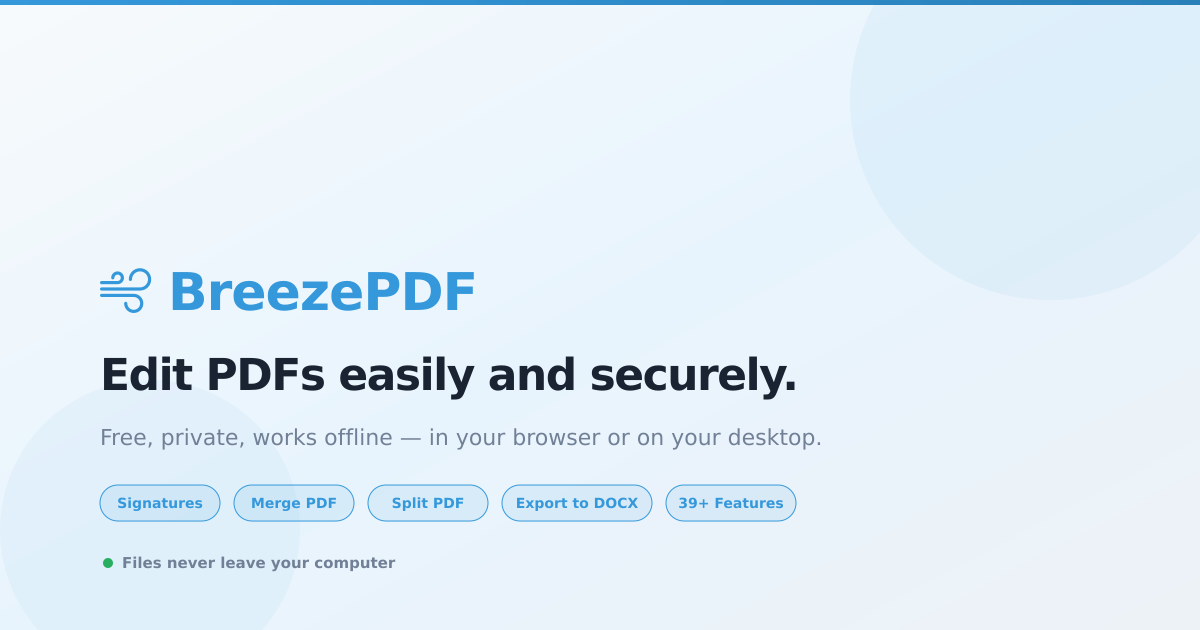
A powerful, privacy-first PDF editor that runs in your browser or locally on your computer. Add text, signatures, merge, split, export to DOCX — 39+ features, completely free and offline. Files never touch our servers.

No paid content found
Visit website
Profile views 4 Outbound visits 1 Normal
BreezePDF Full homepage screenshot

At a glance

Category
PDF Tools
Language
English
Paid-content signal
No paid content foundObserved
Registered
2025
Hosting
CloudflareInferred
HTTPS certificate trusted
PassedObserved
Last updated

Website review

This review may include AI-generated content and is not individually verified. Domain, certificate and other facts come from the observed data on this page.

What is BreezePDF?

BreezePDF is a browser-based PDF editor built around local, client-side processing. According to its own site, it runs entirely in your browser using JavaScript, and files are never uploaded to a server — the pitch is "100% client-side — zero uploads," with no signup required to open the editor.

What it does

The core is a full editing canvas rather than a single-purpose converter. From the site's feature list, you can add and style text anywhere on a page, insert JPG or PNG images, draw signatures or type them, build fillable form fields (text inputs, checkboxes, dropdowns, radio buttons), and annotate with highlights, strikethroughs, underlines, freehand drawing, shapes, arrows, sticky notes, and redaction or whiteout. Document-level tools cover merging, splitting, deleting and reordering pages, rotating, cropping, adding page numbers and watermarks, compressing, flattening, and editing metadata. Conversion and security features include export to DOCX and CSV, password protection, and digital certificates. The site also mentions find-and-replace, table insertion and extraction, image extraction, batch automation, and mail merge.

Who it suits

The privacy framing is the main differentiator. If you handle contracts, medical paperwork, financial statements, or anything under confidentiality obligations, a tool that never transmits the file is a meaningfully different proposition from an upload-based converter. The offline capability — no internet needed after the initial page load — also helps on locked-down networks or when working from a laptop without reliable connectivity. Students, freelancers, and small offices that need occasional merging, signing, or format conversion without a subscription fit the free tier well.

Free versus Pro

The site presents a two-tier structure. The free editor covers the bulk of the toolkit in the browser. BreezePDF Pro adds unlimited downloads without monthly caps, a desktop application for macOS, Windows, and Linux with auto-updates, command-line tools for batch processing, PDF signing, and OCR text recognition. OCR is listed as desktop-only, which matters if you need to make scanned documents searchable — that is a common reason people move off browser-only tools. The site lists Pro at $12 per month; check the current page before budgeting, since pricing changes.

Practical trade-offs

Client-side editing keeps your data local but puts the work on your machine. Very large PDFs, heavy OCR, or batch jobs across hundreds of files will feel slower in a browser tab than in a desktop or server-backed tool, and performance depends on your device's memory and CPU. Browser storage and session limits can also bite on long editing sessions, so save or download as you go. If your work is mostly a few pages at a time, the browser route is convenient; if you regularly process scans or large batches, the desktop and CLI options are the ones built for that.

Next step

Open the editor with a non-sensitive test file first — a two-page PDF you can afford to lose — and run through the operations you actually need: add text, sign, merge, then export to DOCX. That tells you in ten minutes whether the workflow fits before you commit real documents. If OCR or terminal-based batch processing is on your list, evaluate the Pro tier specifically, since those features are not in the free browser tool. For a second opinion on general PDF editing approaches, PDF24 and LibreOffice are established alternatives worth comparing on the same test file.

How does BreezePDF keep my PDF files private and off its servers?

BreezePDF keeps files private by doing the PDF processing inside your browser instead of uploading them to a server. According to its own description, the editor runs "100% client-side" using JavaScript: when you open a PDF, the file is read and modified locally on your device, and the page states files are never uploaded and there is no tracking or analytics on your documents. That is the core privacy claim, and it matters most for contracts, medical records, ID scans or financial statements you would rather not hand to an unknown server.

What that means in practice

  • The file stays on your machine. Editing text, adding images, signing, merging, splitting, reordering pages, password-protecting and converting to DOCX or CSV are described as running locally in the browser.
  • No account is required to start. The page says you can open the editor without signing up, which reduces the personal data you hand over before touching a document.
  • Offline use is possible after the first load. Once the page has loaded, the site says no internet connection is needed, which is consistent with browser-based processing rather than a server round-trip.
  • The desktop app goes further. BreezePDF Pro is described as an offline-first desktop app for macOS, Windows and Linux, with CLI tools for batch work. If your concern is the browser itself, a local app is the stronger option.

Where the trade-off sits

Client-side processing protects confidentiality, but it shifts the work onto your device. Very large PDFs, heavy OCR or big batch jobs can be slower or more memory-hungry than a cloud service, and features may vary by browser. The page lists OCR as a desktop feature, so if you need text recognition, plan on the Pro desktop app rather than the browser editor. It also advertises a Pro tier at $12/mo for unlimited downloads, desktop and CLI access, so check the current terms on the site before relying on a free tier for high-volume work.

A practical way to decide

If your goal is simply to avoid uploading sensitive files, the browser editor covers the common tasks — edit, sign, merge, split, protect, export. If you handle many documents or need OCR and terminal-based automation, compare the desktop route. As a next step, test it with a non-sensitive PDF first: open the editor, disconnect from the internet, and confirm your edits still work. That single check tells you whether the local-processing promise holds for your setup. For a second opinion on privacy-first PDF tools generally, PDF24 and Stirling PDF are known alternatives worth comparing.

Can I use BreezePDF to sign and password-protect a contract without installing anything?

Yes. BreezePDF is built for exactly that workflow: it runs client-side in your browser, so signing and password-protecting a contract requires no installation and no account. The page states that files are never uploaded to a server, and both the digital signature tool (draw, type, or upload a signature) and password protection (encrypt with a password before sharing) are listed among the free features.

What the browser workflow looks like

  1. Open the editor and load your contract PDF from your device.
  2. Add your signature by drawing it, typing it, or uploading an image of it, then place and resize it on the signature line.
  3. Use Password Protect to encrypt the file with a password before sending it back.
  4. Download the finished PDF. Because processing is local, the file stays on your machine throughout.

Practical things to check

  • A drawn or typed signature is a visual signature, not a certificate-backed one. The page separately lists "Digital Certificates" as a feature, so if the counterparty needs cryptographic signing, verify that path rather than assuming the signature tool covers it.
  • Password protection is only as strong as the password you choose and how you send it. Share the password through a different channel than the PDF itself.
  • Test the encrypted file before sending. Open it in a second viewer and confirm it prompts for the password and that your signature still renders correctly.
  • Offline use works after the first page load, which matters if you are signing on a laptop without reliable Wi-Fi.

When to consider the paid tier

The free editor covers signing and encryption. BreezePDF Pro adds a desktop app, CLI tools, unlimited downloads, PDF signing and OCR, which is aimed at people processing contracts in batches or needing offline-first desktop work. If you sign one contract occasionally, the browser version is enough; if you handle many agreements or want terminal automation, the Pro tier is the relevant comparison. For general PDF handling outside this tool, Adobe Acrobat and PDF24 are established alternatives, though their privacy models differ from a fully local editor.

What do I get with BreezePDF Pro that the free browser editor does not include?

BreezePDF Pro adds the things a browser-only editor cannot easily provide: a desktop application, command-line tools, OCR, and higher usage limits. The free editor already covers editing, signing, merging, splitting, form fields, conversions and page tools, so Pro is aimed at people who hit its ceilings or want automation.

What Pro adds over the free editor

Capability Free browser editor BreezePDF Pro
Downloads Standard use Unlimited, no monthly caps
Desktop app Not included macOS, Windows and Linux, offline-first with auto-updates
CLI tools Not included Batch processing from the terminal
OCR text recognition Listed as desktop-only Included
PDF signing Basic signing in the editor Included as a Pro capability

The page describes Pro as costing $12/mo, but treat that as the site's stated figure rather than a confirmed plan structure — check the current pricing page before subscribing.

Who each option suits

The free editor fits occasional, one-off jobs: signing a lease, merging scans, reordering pages, or converting a PDF to DOCX. Because everything runs client-side, your files stay on your device, which matters for contracts, medical records or financial documents you would rather not upload.

Pro fits repeat work. If you process batches of invoices, need searchable text from scanned documents, or want to script conversions across hundreds of files, the CLI and desktop app change the workflow from clicking through a browser tab to running a command. OCR is the clearest dividing line: without it, a scanned PDF stays an image, and you cannot reliably extract or search its text.

A practical way to decide

Start with the free editor on your real documents. If you find yourself converting files one at a time, needing text from scans, or wanting the same operation applied to a folder of PDFs, that is the signal Pro is worth its cost. If your needs are a handful of edits a month, the browser version likely covers them.

For alternatives with similar local-processing claims, Stirling PDF is worth comparing on desktop and batch features.

Can BreezePDF convert a PDF into an editable Word document or CSV file?

Yes. BreezePDF lists both Export to DOCX and Export to CSV among its tools, so it can turn a PDF into an editable Word document or a spreadsheet-ready CSV file. Both run in the browser as part of the same editor.

What each export is actually good for

  • PDF to DOCX — best when the PDF is mostly flowing text: reports, contracts, letters, articles. You get a Word file you can rewrite, restyle and re-share.
  • PDF to CSV — best when the PDF contains tables: invoices, bank statements, price lists, inventory sheets. You get rows and columns you can sort, filter or import into a spreadsheet.

What to expect in practice

Conversion quality depends on how the PDF was made, not on the tool alone. A PDF exported from Word or a spreadsheet usually converts cleanly. A scanned PDF is an image, so text extraction needs OCR — BreezePDF lists OCR as a desktop feature rather than a browser one, which matters if your documents are scans.

Tables are the other variable. Multi-page tables with merged cells or wrapped headers often need a quick cleanup after export, so budget a few minutes to check column alignment before using the CSV for anything important.

A sensible test

Pick one representative file rather than your hardest one. Export it both ways, open the results, and check three things: whether paragraphs stayed separate, whether numbers landed in the right columns, and whether anything silently disappeared. If that file comes through well, the rest of your batch probably will too.

Because processing happens locally in the browser, sensitive documents can be converted without uploading them anywhere — useful for financial or HR paperwork. If you need OCR or batch runs, that sits in the paid tier: the page lists Pro at $12/month with a desktop app and CLI tools. The free editor covers the single-file DOCX and CSV exports.

For a second opinion on a stubborn file, LibreOffice can open PDFs in Draw for manual repair, and Smallpdf offers comparable online conversions if you want to compare output on the same document.

Does BreezePDF work offline, and can I batch-process PDFs from the command line?

Yes to both, with a caveat on each. BreezePDF runs in your browser and processes files locally, so the editing itself does not depend on uploading your documents to a server. The page also states the tools work offline after the initial page load, meaning you need to load the site once, then can keep working without a connection. Batch processing from the command line is listed as part of BreezePDF Pro, not the free browser editor.

What each mode gives you

Capability Free browser editor BreezePDF Pro
Core editing (text, images, signatures, merge, split, forms) Yes Yes
Works offline After the first page load Desktop app described as offline-first
Command-line batch processing Not listed CLI tools included
Desktop app Not listed Included
OCR text recognition Listed as desktop Included
Download limits Not specified Unlimited, no monthly caps

The practical difference is where the processing happens. In the browser, everything runs in JavaScript on your machine, so your files stay with you, but you are still inside a browser tab and dependent on that session. The desktop app and CLI tools are aimed at people who want to script repetitive jobs, such as converting a folder of PDFs, running OCR over scanned documents, or processing files as part of a larger automated workflow.

A concrete scenario

Suppose you receive 200 scanned invoices each month. In the browser editor, you would open and handle them one at a time, which is fine for occasional work but tedious at volume. With CLI tools, you could point a script at the folder and have it OCR and convert each file without manual steps. If your work is a handful of documents a week, the free browser editor covers it; if it is a recurring pipeline, the command-line route is the one that saves time.

How to decide

  • Choose the free browser editor if your priority is privacy and you only need to edit, sign, merge, or convert files occasionally, with no installation.
  • Choose Pro if you need unattended batch runs, OCR on scanned documents, a desktop app for consistent offline use, or no download caps.
  • Check the current Pro terms before subscribing, since the page mentions a monthly price and the feature list may change.

A sensible next step is to open the editor with one real document and confirm the offline behaviour yourself: load the page, disconnect from the internet, and try a basic edit. That tells you quickly whether the browser workflow fits how you actually work.

Related questions

More questions →
How to Edit a PDF Online in Your Browser Without Uploading It

You can edit a PDF entirely in your browser without uploading it by using a client-side editor like BreezePDF, which processes files locally with JavaScript so they never reach a server. This works for adding text, images, and signatures, merging or splitting pages, and exporting the result — and per the site, no signup is required to open the editor. The main conditions: you need a modern browser, and for offline use the page must load once first.

Step 1: Open the editor and load your file

  1. Go to the BreezePDF site and choose Open Editor (the site also lists a Login option, but the editor is described as usable without signup).
  2. Select your PDF from your device. Because the tool runs client-side, the file is read into the browser rather than sent to a server — the site states files are "never uploaded to any server."
  3. Confirm the document appears in the workspace before editing.

Expected result: Your PDF renders in the browser and is ready for changes. If it doesn't load, check that the file isn't password-protected or corrupted.

Step 2: Add and edit text

Use the Add & Edit Text feature to type anywhere on the page.

  • Click where you want text, then type.
  • Resize, reposition, and restyle the text — the site describes "full control" over size, position, and style.
  • For corrections to existing content, use Find & Replace, Strikethrough, Underline, or Redact & Whiteout depending on whether you're editing, marking, or removing content.

Common snag: Text can look offset if you place it at a zoom level different from your final view. Zoom in to position precisely, then check at 100%.

Step 3: Insert images and signatures

  • Insert Images: Drop in JPG or PNG files, then resize and place them exactly where needed.
  • Digital Signatures: Sign by drawing, typing, or uploading a signature image, then position it on the signature line.

For forms, you can also add Form Fields — interactive text inputs, checkboxes, dropdowns, and radio buttons — so others can fill the document.

Step 4: Organize pages

To restructure the document:

Task Tool
Combine files Merge PDFs
Extract or break apart Split PDFs
Remove pages Delete & Reorder
Rearrange Drag-and-drop reordering

You can also rotate, crop, add page numbers, or apply watermarks from the wider tool set.

Step 5: Export or save

  • Export to DOCX converts PDF content to an editable Word file.
  • Export to CSV extracts tabular data into spreadsheet-ready format.
  • Compress PDF reduces file size before sharing.
  • Password Protect encrypts the PDF with a password.

Troubleshooting saving: If a save fails, try a different browser, reduce the file size, or reload the page and re-import. Since processing is local, a browser crash or tab close can lose unsaved work — export as soon as you're done.

What you can and can't do here

The free browser editor covers editing, signing, merging, splitting, converting, and securing — the site lists 39+ features. A BreezePDF Pro tier ($12/mo, per the site) adds a desktop app, CLI tools, unlimited downloads, PDF signing, and OCR text recognition, plus macOS, Windows, and Linux support. OCR is listed as a desktop feature, so scanned-document text recognition isn't part of the free browser flow.

Why "no upload" matters

Because everything runs in your browser, sensitive documents — contracts, invoices, IDs — stay on your device. The site states there's no tracking or analytics on your documents. This is the key reason to pick a client-side editor over one that requires uploading to a server, especially for confidential files.

Offline note: After the initial page load, the tool works without internet, so you can keep editing on a plane or with a spotty connection.

What Actually Happens When You Convert a Document to Another Format?

Converting a document is not a rename. Changing report.docx to report.pdf does nothing useful, because the file extension is just a label — the real content is stored in a structure that only the matching application understands. A genuine conversion reads that structure, interprets what each part means (a heading, a table cell, a page break, a formula), and then writes a new file in a different structure that another program can open. What survives that translation depends on how similar the two formats are and whether the target format is designed for editing or for fixed display.

The two families of document formats

Almost every document format falls into one of two categories, and the category determines what conversion can preserve.

Reflowable (editable) formats describe content and structure, not exact positions. DOCX, ODT, RTF, TXT, XLSX, ODS, PPTX, EPUB, and HTML work this way. A paragraph is "a paragraph with this style"; the software decides where lines break and pages end. These formats are built for editing, so they carry style definitions, formulas, and metadata.

Fixed-layout formats describe exactly where every character and image sits on a page. PDF is the main example, along with XPS and most image formats. A PDF does not inherently know that a line of text is a heading — it knows there are glyphs at certain coordinates in a certain font.

This distinction explains most conversion surprises:

Conversion direction What generally happens
Editable → PDF Usually clean. Layout is computed once and frozen.
PDF → editable Hard. The converter must guess structure from positions.
Editable → editable (DOCX → ODT) Good, since both store structure. Styles may be renamed.
Spreadsheet → PDF Layout depends on print settings, not screen view.
Presentation → PDF Each slide becomes a page; animations and transitions are lost.
Anything → TXT Only raw text survives; all formatting is discarded.

What actually changes during conversion

Even a well-behaved conversion alters things. The most common changes:

  • Fonts. If the target format or the receiving machine lacks a font, it gets substituted. Metrics differ, so line breaks and page counts shift.
  • Layout and pagination. A DOCX that fits 12 pages may become 13 in PDF if margins, hyphenation, or font substitution change.
  • Tables. Simple grids convert well. Merged cells, nested tables, and tables used for page layout often break or get flattened.
  • Embedded images. Usually preserved, but resolution may be resampled and transparency or color profiles can change.
  • Formulas. In spreadsheet conversions, formulas may be kept as live formulas, converted to cached values, or lost entirely — this is one of the riskiest areas.
  • Metadata. Author, title, creation date, tracked changes, and comments may be dropped, kept, or exposed. Comments in particular often vanish.
  • Interactive elements. Hyperlinks usually survive; form fields, macros, embedded audio/video, and animations usually do not.

Common format pairs and what to expect

DOCX to PDF. The most reliable conversion. Expect faithful output, with minor pagination drift if fonts are missing. Good for sharing, printing, and archiving.

PDF to DOCX. The hardest common conversion. Text-based PDFs convert reasonably well; scanned PDFs need OCR first, and even then results are rough. Expect to fix spacing, columns, headers/footers, and table structure manually. Treat the output as a starting draft, not a finished file.

XLSX to PDF or CSV. To PDF, set the print area first, or you may get dozens of pages of stray columns. To CSV, only the active sheet's values survive — formulas become their last calculated results, and formatting is gone.

PPTX to PDF. Reliable for static viewing. Speaker notes, transitions, and animations are dropped. Slides with heavy layering or unusual fonts may shift.

EPUB to PDF or DOCX. Reflowable to fixed or reflowable. Expect re-pagination; images and footnotes usually carry over, complex CSS often does not.

Choosing a target format by purpose

Ask what the file is for before picking a format:

  • Will it be edited again? Keep it in a native editable format (DOCX, ODT, XLSX, PPTX). Avoid converting to PDF and back.
  • Will it be printed or shared as-is? PDF, with fonts embedded.
  • Will it be archived long-term? PDF/A is designed for that; it embeds fonts and forbids features that break rendering over time.
  • Will it be read on an e-reader? EPUB, which reflows to any screen size.
  • Will it feed another program? Plain text, CSV, or JSON — machine-readable formats with no styling to misinterpret.

Practical steps before you rely on a converted file

  1. Convert a copy, never the original.
  2. Open the result and check the parts most likely to break: tables, formulas, footnotes, headers, and the last page.
  3. Compare page counts and search for a phrase you know appears near the end.
  4. For PDF → editable work, budget time for cleanup rather than expecting a perfect match.
  5. If the source is a scan, run OCR first; converting an image-only PDF to DOCX without OCR produces an empty or image-filled document.

Conversion is a translation between two different ways of describing a page. The closer the formats, the cleaner the result. When in doubt, convert to the format that matches how the document will be used, and always inspect the output before sending it on.

How to Sign a PDF Without Uploading It

You can sign a PDF entirely inside your browser without sending the file anywhere. In BreezePDF, the editor runs client-side using JavaScript, so the document stays on your device while you draw, type, or upload a signature image, place it on the page, and save the signed file. This works for most everyday signing needs — contracts, forms, approvals, and internal documents — as long as you only need a visual signature and not a certificate-backed digital signature.

Three ways to sign, and when to use each

BreezePDF supports three signature input methods. Pick based on how formal the document is and what tools you have.

Method Best for Trade-off
Draw with mouse, trackpad, or stylus Quick personal signing, casual agreements Hard to make consistent across devices; looks handwritten
Type your name Forms where a typed signature is accepted, fast repeat signing Usually rendered in a script-style font, not your real handwriting
Upload a signature image (JPG or PNG) Reusing a consistent signature, professional documents You need a clean image with a transparent or white background

If the recipient specifically requires a cryptographic digital signature (for example, some regulated filings), a visual signature is not enough — you would need a certificate-based tool. BreezePDF lists "Digital Certificates" and "PDF signing" among its features, with PDF signing noted under the Pro tier, so check whether your use case needs that before relying on a drawn or typed signature.

Step-by-step: sign a PDF in the browser

  1. Open the editor. Go to BreezePDF and open the PDF editor. No signup is required for the free editor, per the site.
  2. Load your PDF. Open the file from your device. Because processing is client-side, the file is read locally in the browser rather than uploaded.
  3. Choose the signature tool. Select the digital signature option from the toolbar. You will get the draw / type / upload choices described above.
  4. Create your signature.
    • Draw: use your mouse, trackpad, or a stylus to sign in the signature box.
    • Type: enter your name and let the tool render it.
    • Upload: select a JPG or PNG of your signature.
  5. Place and resize it. Drop the signature onto the signature line or the correct field, then drag to reposition and use the resize handles to match the line. BreezePDF lets you resize and reposition inserted elements with full control.
  6. Add anything else you need. If the document has date fields, checkboxes, or form fields, fill them in the same session so you export once.
  7. Save or export. Save the PDF so the signature is embedded in the file. Verify by reopening the saved file and confirming the signature sits in the right place.

Expected result: a PDF with your signature flattened into the page, ready to send. Because the file never left your device, there is no upload step to wait on and no server copy.

Keeping the file off any server

The privacy point is the reason many people search for this. BreezePDF states it processes everything locally using JavaScript in the browser, that files are never uploaded to any server, and that there is no tracking or analytics on your documents. It also says it works offline after the initial page load.

Practical implications:

  • No upload = no server-side copy. Nothing to delete afterward, and no third party holding your document.
  • Offline signing works once the page has loaded, which is useful on a plane or on a locked-down network.
  • You can verify the claim yourself. Open your browser's developer tools, watch the network tab while you load and sign a file, and confirm the document isn't being posted anywhere. This is a reasonable check for any "no upload" editor, not just this one.

One caveat: "no upload" describes how the tool processes your file, not a guarantee about your own device. If you are on a shared or managed computer, the file still lives in your local browser session and downloads folder.

Saving so the signature sticks

  • Export the PDF, don't just screenshot it. A screenshot flattens everything and loses text selectability; exporting keeps the document intact with the signature embedded.
  • Reopen to confirm. After saving, open the exported file in a fresh tab and check the signature position and size. This catches the most common failure — a signature that looked right in the editor but shifted on export.
  • Flatten if you want to prevent edits. BreezePDF includes a Flatten PDF feature. Flattening merges the signature into the page so it can't be easily moved or removed. Note this also makes the rest of the page less editable, so flatten only when you're done.
  • Password-protect before sharing if the signed document is sensitive. BreezePDF offers password protection to encrypt the PDF before you send it.

Common problems and fixes

Signature lands in the wrong spot. Zoom in before placing it, and align to the signature line rather than eyeballing at full-page view. Re-drag after zooming if needed.

Signature looks stretched or too small. Use the corner resize handles to scale proportionally instead of dragging an edge, which distorts the image.

The tool asks you to upload the file. If a site requires an upload to sign, it isn't a client-side editor. Switch to a browser-based tool that explicitly states local processing, or use a desktop app. BreezePDF also offers a desktop app on the Pro tier for offline-first work.

Signature won't save. Make sure you're exporting the PDF rather than closing the tab. If the file is large or the browser is low on memory, reload the page, reopen the PDF, and try again.

You need a legally binding digital signature, not a visual one. A drawn or typed signature is a visual mark. For certificate-based signing, look for digital certificate support — BreezePDF lists digital certificates and notes PDF signing under Pro, so confirm the tier covers what you need.

When free is enough, and when to consider Pro

For signing a handful of documents with a visual signature, the free browser editor covers it: draw, type, or upload a signature, place it, and export — no signup required. Consider the Pro tier ($12/mo, per the site) if you need unlimited downloads without monthly caps, the offline desktop app, CLI batch processing, PDF signing at the certificate level, or OCR. If you sign occasionally and privacy is the main concern, the free client-side editor already keeps your file on your device.

PDF Invoices in Legal Billing: What to Include and When to Use Them

A PDF invoice in legal billing is a fixed-format document that presents the fees and costs owed on a matter in a layout that looks the same on every device. It is the digital equivalent of a printed bill: readable, portable, and easy to attach to an email or upload to a client portal. Its main limitation is that it is not machine-readable in the way a LEDES file is, so a client's e-billing system cannot automatically ingest it. PDF works best for flat-fee matters, small or one-off engagements, and clients who do not run an automated billing platform.

What "PDF" means in a legal billing context

When a billing tool offers to send an invoice "in PDF," it is generating a rendered document rather than a structured data file. The distinction matters:

  • PDF is a presentation format. A human reads it. Line items, totals, and matter details appear as text and tables on a page.
  • LEDES (Legal Electronic Data Exchange Standard) is a structured, delimited text format. An e-billing system parses it, validates it against outside counsel guidelines, and routes it for review.
  • Email delivery is a transport method, not a format. You can email a PDF, email a LEDES file, or email a link to an online invoice.

These three are often confused because a single invoice can combine them: a LEDES file delivered by email, or a PDF attached to an email. The format is what the client's systems can read; the delivery method is how it arrives.

When a PDF invoice is the right choice

PDF is usually appropriate when the client does not require electronic submission through a billing platform. Common scenarios:

  • Flat-fee and fixed-price matters. When the invoice is one or two lines, a structured file adds no value.
  • Small businesses and individuals. Clients without an accounts payable system can open a PDF and pay from it.
  • Retainers and replenishment requests. A simple statement of the retainer balance is easy to read as a PDF.
  • Pro bono or courtesy bills. Where no formal e-billing review applies.
  • Backup documentation. Even when a LEDES file is submitted, a PDF is often attached for the reviewer's convenience.

If the client has outside counsel guidelines requiring LEDES submission, a PDF alone will typically be rejected or returned for manual entry. Check the client's billing requirements before choosing the format.

PDF versus LEDES versus emailed invoice: a quick comparison

Factor PDF LEDES Email (as delivery)
Machine-readable No Yes N/A
Accepted by e-billing platforms Rarely Yes Depends on attachment
Setup effort Low Higher (mapping fields) Low
Best for Flat fees, small clients, backup Corporate and insurer clients Any format
Risk Manual re-entry by client Format rejection if fields are wrong Lost or filtered messages

Core elements of a compliant legal PDF invoice

A PDF invoice should stand on its own. If a client's AP department picks it up with no context, it should still answer who, what, when, and how much.

Firm and client identification

  • Firm name, address, and contact details
  • Tax or VAT identification number where applicable
  • Client name and billing contact
  • Invoice number and invoice date
  • Client matter number or reference

Matter and timekeeper detail

  • Matter name and description
  • For each timekeeper: name, initials, and billing rate
  • Time entries with date, narrative description, and time recorded in tenths of an hour
  • Clear separation of fee earners if rates differ

Fees, expenses, and totals

  • Fees subtotal
  • Disbursements and expenses, itemized with dates
  • Taxes applied
  • Prior payments, credits, or trust retainer applied
  • Total amount due and currency

Payment terms

  • Due date and payment window
  • Accepted payment methods
  • Remittance details or a payment link
  • Late-payment terms if the engagement letter specifies them

A useful test: hand the PDF to someone who has never seen the matter and ask them to confirm the amount due and the period covered. If they hesitate, the invoice is missing something.

Practical limitations to plan around

PDF invoices shift work to the recipient. Someone at the client has to read the document and key the data into their system, which introduces delay and transcription errors. PDFs also cannot be validated against billing guidelines automatically, so a reviewer may reject a line item that a LEDES rule would have caught before submission.

Two habits reduce the friction:

  1. Send a consistent template. Clients learn where to find the total, the matter number, and the payment terms.
  2. Keep a LEDES version in reserve. If a client later adopts an e-billing platform, you can convert rather than rebuild.

Choosing between PDF, LEDES, and email delivery

Work from the client's requirements backward:

  • Does the client mandate LEDES submission? If yes, PDF is a supplement, not a substitute.
  • Is the matter flat-fee or very small? PDF is usually sufficient.
  • Does the client have no billing system? PDF delivered by email or portal is the simplest path.
  • Is the invoice complex with many timekeepers and expenses? A structured format reduces disputes, even if the client accepts PDF.

When in doubt, ask the client's billing contact which format they prefer and whether a PDF attachment is acceptable alongside any required file. That one question prevents most rejected invoices.

Easy Legal Billing supports sending or scheduling invoices in LEDES, email, or PDF formats, which lets you match the format to each client's requirements rather than forcing one approach across every matter.

What Should You Look for in a Free PDF Editor (and When Is Free Enough)?

A free PDF editor is enough when your work is occasional and page-by-page: adding text, signing, merging, splitting, compressing, or exporting a file. It stops being enough when you need batch automation, OCR on scanned documents, or command-line processing. On BreezePDF specifically, the browser editor covers 39+ tools with no signup and no uploads — files are processed locally in your browser — while the Pro tier ($12/mo) adds unlimited downloads, a desktop app, CLI tools, PDF signing, and OCR. The deciding factor is usually not features but volume and document type.

What a free PDF editor typically covers

Based on BreezePDF's feature list, the free browser editor handles the core editing and organizing tasks most people actually need:

  • Text and images — type anywhere on the page, resize and restyle text, drop in JPG or PNG images
  • Signatures — draw, type, or upload a signature
  • Page operations — merge, split, delete, reorder, rotate, crop, add page numbers
  • Markup — highlight, strikethrough, underline, sticky notes, freehand drawing, shapes, lines and arrows
  • Cleanup — redact and whiteout, compress, flatten
  • Conversion — export to DOCX, export to CSV, extract tables and images
  • Forms — create fillable fields, checkboxes, dropdowns, radio buttons
  • Security — password-protect a PDF before sharing

That list is broad enough that "free" here is not a stripped-down trial. The gaps show up in workflow, not in single-document editing.

Where free usually stops and paid begins

The common dividing line is repetition and automation, not basic capability. Compare the two tiers on the dimensions that matter:

Dimension Free browser editor Pro ($12/mo)
Editing, signing, merging, splitting Yes Yes
Downloads Capped (monthly limit) Unlimited
Desktop app No Yes (macOS, Windows, Linux)
CLI / batch processing No Yes
OCR (scanned text) Desktop only Yes
PDF signing Listed under Pro Yes
Offline use Works offline after first page load Offline-first desktop app

Two rows deserve attention. OCR is the one that decides many cases: if your PDF is a scan, a photo, or an image-only export, there is no text layer to edit, and OCR is what creates one. BreezePDF lists OCR as desktop-only, so a pure browser workflow won't recover text from scans. Download caps matter if you process files in bulk — a monthly limit is invisible when you edit one contract and painful when you process fifty invoices.

Privacy: how to tell whether your file is uploaded

This is the check most people skip, and it's the one with real consequences for contracts, IDs, and financial documents. "Free online PDF editor" often means the file is sent to a server, processed there, and stored for some period.

BreezePDF's stated model is the opposite: everything runs locally using JavaScript in the browser, files are never uploaded, and there's no tracking or analytics on your documents. You can verify the claim yourself rather than trusting the copy:

  1. Open the editor and load a test PDF.
  2. Open your browser's developer tools (F12) and switch to the Network tab.
  3. Perform an edit — add text, rotate a page, compress.
  4. Watch the request list. A local-only editor shows no upload request carrying your file; a server-based one shows a POST to an endpoint with the document in the payload.
  5. For a stronger test, disconnect from the internet after the page loads and try editing. BreezePDF states it works offline after the initial page load, so edits should still succeed.

If step 4 shows your file leaving the machine, treat the tool as a server-based service and judge it on its retention policy, not its "free" label.

Compatibility and limits to confirm before you commit

  • Signup — BreezePDF states no signup is required for the browser editor. Confirm this yourself; a login wall is a common way free tools gate usage.
  • Watermarks — check the exported file, not the preview. Some free editors only stamp a watermark on export.
  • Export formats — DOCX and CSV are listed. If you need a format that isn't offered, that's a hard stop regardless of price.
  • Offline behavior — "works offline" usually means after the first load, so the app assets are cached. It does not mean the first visit works without a connection.
  • Pricing terms — the Pro tier is listed at $12/mo. Treat that as the published figure and check the current page before subscribing; don't assume annual discounts or refund terms that aren't stated.

Choosing by scenario

Occasional, single-document work — free is enough. Editing one contract, signing a lease, merging a few scanned pages, or compressing a file to fit an email limit. These are one-pass tasks with no repetition, and the free browser editor covers all of them without an account.

Recurring, multi-file work — Pro earns its price. If you process batches weekly, hit download caps, or need to run the same operation across dozens of files, the CLI tools and unlimited downloads remove the friction that makes free tools slow. The $12/mo is justified by time saved, not by extra features.

Scanned or image-only documents — check OCR first. If your PDFs are scans, the free browser path can't extract editable text. Either use the desktop app's OCR or accept that you'll be annotating images rather than editing text.

Sensitive documents — verify the local-processing claim. Contracts, medical records, tax forms, and IDs are exactly the files you don't want sitting on someone else's server. Run the Network-tab test above before loading anything you wouldn't email to a stranger.

The short version: free is enough for one-off editing and organizing, and it's genuinely enough on BreezePDF because the browser editor isn't feature-limited. Pay when the constraint is volume, automation, or OCR — not when it's capability.

Website Overview

The available information shows a mix of normal operation and configuration gaps. Depending on how the website is used, these gaps may affect secure access or the consistency of its public presentation.

Domain and Registration

Transfer-protection status is present, helping reduce the risk of unauthorized domain transfers. The domain has about 1 years of registration history; its current configuration provides more context than age alone. The registrar is Cloudflare, Inc., a widely used domain service provider. The domain uses the common .com extension, which is not an independent safety signal.

DNS and Email

Nameservers are provided by Cloudflare, indicating managed DNS hosting. MX records point to the Google Workspace email service. No CNAME was found; the observed records resolve directly to addresses. SPF and DMARC are configured. DKIM status is unknown. TXT records include verification markers for Google. Such markers may also remain after a service stops being used.

TLS and Certificates

The public key uses EC with 256 bits. The server supplied a complete certificate chain. No organization name is present in the certificate; the available fields are consistent with domain validation. The certificate was issued within the Google Trust Services cloud or CDN ecosystem. The certificate's total validity is about 90 days, consistent with a short renewal cycle.

HTTP and Browser Security

The checked browser-security headers were not detected, leaving fewer explicit browser-side safeguards. No X-Powered-By header was found, reducing one common source of backend fingerprinting information. The cf-ray response header indicates a CDN or caching proxy in the delivery path. No obvious internal addresses or debug information were found in the headers. The Server header identifies cloudflare without an exact version.

Technology Stack Analysis

The public page identifies Cloudflare without precise versions, leaving fewer clues for version-specific scanning.

Search and Social Sharing

The meta description has 218 characters and may be shortened in search results. Twitter Card metadata is configured. The title has 41 characters, within a common display range. The observed directives allow indexing and link following. No Generator meta tag is publicly exposed.

Hosting and Email

DNSCloudflare
HostingCloudflare
EmailGoogle Workspace
Approximate IP geolocation (inferred; a CDN or proxy may differ from the origin server) Location unknown Inferred 104.21.11.40

Registration details

RDAP / WHOIS

RegistrarCloudflare, Inc.
Registered2025-03-22
Expires2027-03-22
Domain statusclient transfer prohibited
Nameserversandronicus.ns.cloudflare.com、meg.ns.cloudflare.com
DNSSECunsigned

DNS records

DNS

TypeNameValueTTLPriority
Abreezepdf.com104.21.11.40300—
Abreezepdf.com172.67.165.34300—
AAAAbreezepdf.com2606:4700:3033::ac43:a522300—
AAAAbreezepdf.com2606:4700:3037::6815:b28300—
MXbreezepdf.comaspmx.l.google.com36001
MXbreezepdf.comalt1.aspmx.l.google.com36005
MXbreezepdf.comalt2.aspmx.l.google.com36005
MXbreezepdf.comalt3.aspmx.l.google.com360010
MXbreezepdf.comalt4.aspmx.l.google.com360010
NSbreezepdf.comandronicus.ns.cloudflare.com86400—
NSbreezepdf.commeg.ns.cloudflare.com86400—
TXTbreezepdf.comgoogle-site-verification=HbkZSqfIMXnBPWGFpv93UUHQU3Znz1wdM3FurIcCxCQ300—
TXTbreezepdf.comgoogle-site-verification=u7dIdl71dgsH6b5dec3bS--RXREUd0T8EtQ_QY8quUs300—
TXTbreezepdf.comv=spf1 include:_spf.google.com include:amazonses.com -all300—
DMARC_dmarc.breezepdf.comv=DMARC1; p=none;300—

TLS and certificates

TLS / SSL

AssessmentNormal configuration
Supported protocolsTLSv1.2、TLSv1.3
Negotiated protocolTLSv1.3
Certificate subjectbreezepdf.com
IssuerGoogle Trust Services
Valid until2026-12-04T18:18 · Remaining when checked: 56 days
Verification detailsCertificate trust: Passed · Hostname match: Passed

HTTP response headers

HTTP

HeaderValue
content-typetext/html; charset=utf-8
servercloudflare

Identified technologies

Cloudflare

Pages, Search and Sharing

Meta descriptionA powerful, privacy-first PDF editor that runs in your browser or locally on your computer. Add text, signatures, merge, split, export to DOCX — 39+ features, completely free and offline. Files never touch our servers.
Canonical URLhttps://breezepdf.com/
LanguageEnglish (default)
Twitter Cardsummary_large_image

No rules found

User reviews (0)

  • No reviews yet.