

 Visit website
 Updated: 2026-09-27 10:15
 Language: English (default)
 Access: Normal
 Profile views 1
  Outbound visits 5
 Website Review
What is ihatepdf.cv?
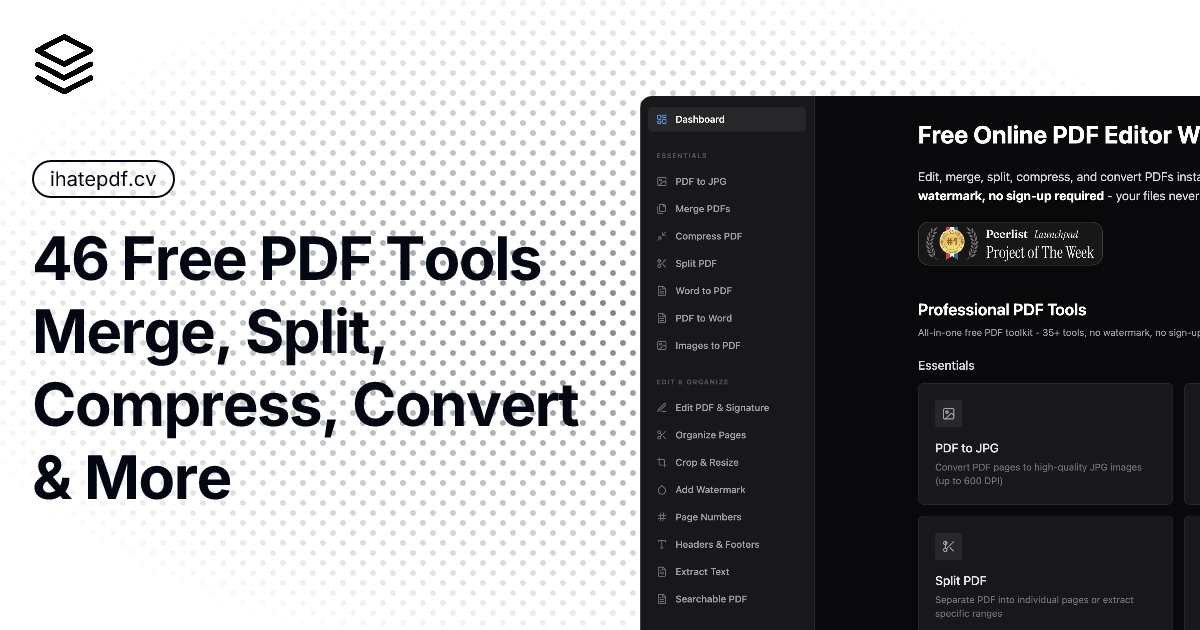
ihatepdf.cv is a browser-based PDF toolkit: a collection of free tools for editing, converting, organizing, and securing PDF files. Its defining pitch is that processing happens locally on your device rather than on a remote server, so files are not uploaded anywhere, no account is required, and outputs carry no watermark.
What it covers
The site groups its tools into four areas:
- Essentials — merge, compress, split, PDF-to-JPG, Word-to-PDF, PDF-to-Word, and images-to-PDF.
- Edit & Organize — in-place text editing, page rotation/deletion/reordering, crop and resize, watermarking, page numbers, headers and footers, text extraction, and OCR to make scanned PDFs searchable.
- Security & Privacy — AES-256 encryption, password removal, redaction of sensitive content, and flattening forms and annotations.
- Convert & Export and AI Tools — additional conversion and AI-assisted options listed on the page.
Why the local-processing claim matters
For anyone handling contracts, medical records, ID scans, or internal financials, the usual objection to free online PDF tools is that your document sits on someone else's server. Client-side processing removes that concern in principle, and it also means the tools keep working without a connection. The trade-off is that heavy jobs — OCR on a long scanned document, compressing a large file — depend on your own machine's speed and memory rather than a powerful server, so a low-end laptop or phone may struggle where a cloud service would not.
A practical scenario
A freelancer needs to send a signed contract to a client: merge the signed page with the original, redact a bank detail, add page numbers, then encrypt with a password. All of that can be done in one browser session without the file ever leaving the laptop — the kind of workflow this site is built for.
Next step
Open the site and try one small, non-sensitive file first — a two-page merge or a single-page split — to confirm the tools behave as expected in your browser. If that works, move to the sensitive documents. For comparison, established alternatives include Smallpdf and iLovePDF, both of which are server-based and typically gate heavier use behind paid tiers.
How can I edit a PDF without adding a watermark?
Use a browser-based editor that processes files locally, so no watermark is added and nothing is uploaded. ihatepdf.cv is built around exactly that model: it advertises 60+ tools, no watermark, no sign-up, and files that never leave your device.
H3 What "no watermark" usually means Most free editors add a watermark because they run on a server and need to monetise. Tools that run entirely in your browser (client-side) have no reason to stamp your file. When evaluating any option, check two things: whether the tool states files stay on your device, and whether the free tier mentions export restrictions.
H3 Typical edit-and-export workflow
- Open the PDF in the editor and make your changes — text edits, page rotation, reordering, cropping.
- If the document is a scan, run OCR first so the text becomes selectable and searchable.
- Apply security steps last: redaction, then encryption or flattening.
- Export and open the result to confirm no watermark and that edits stuck.
H3 Tools that fit common tasks
- Text and layout changes: Edit PDF Text, Crop & Resize, Add Page Numbers, Headers & Footers.
- Page management: Organize Pages, Rotate PDF, Split PDF, Merge PDFs.
- Scans and images: OCR for searchable PDFs, PDF to JPG, Images to PDF.
- Confidential documents: Redact PDF, Encrypt PDF, Remove Password, Flatten PDF.
H3 Trade-offs to weigh
- Browser-local editing is private and free, but very large files or heavy OCR can be limited by your device's memory and speed.
- Server-based editors may handle huge files more smoothly, but they upload your document and often watermark free exports.
- Local processing means you are responsible for keeping a backup; there is no cloud copy if something goes wrong.
H3 A quick decision rule If the PDF contains contracts, IDs, medical or financial records, choose a local, no-upload editor. If it is a large, non-sensitive file and you need advanced layout control, a desktop application such as LibreOffice Draw or a paid desktop suite may be more capable.
Next step: try one small edit on a copy of your file, export it, and check the pages for any added mark before you commit to the tool for important documents.
Is it safe to edit PDFs online without uploading my files?
Yes — in principle, browser-based editing can be safer than server-based editing, because the file never travels to someone else's computer. The catch is that "no upload" is a claim you have to verify, not a guarantee that comes automatically with a web address.
What "no upload" actually changes
With a traditional online PDF editor, your document is sent to a server, processed there, and returned. That creates three risks: the file is exposed in transit, it may be stored or logged, and it may be used for training or analytics. In-browser tools avoid the transit and storage steps by running the work in your own browser using JavaScript and WebAssembly.
ihatepdf.cv is built around exactly this model: it states that files never leave your device, that it works offline, and that no sign-up is required. That is the right architecture for sensitive documents. But architecture claims are not the same as audited behaviour.
How to check a tool before trusting it with a real document
- Load the page, then disconnect. Turn off Wi-Fi or unplug your network cable and try the tool. If merging, splitting, or rotating still works, the processing is genuinely local.
- Watch the network tab. Open your browser's developer tools, go to the Network panel, and perform an edit. If you see your file being POSTed to a remote endpoint, it is being uploaded regardless of what the page says.
- Test with a throwaway file first. Create a one-page PDF with fake data, run it through every tool you plan to use, and confirm the output is correct before trusting it with contracts, IDs, or medical records.
- Check what happens offline vs. on first load. Some tools download their engine on first visit and then work offline. That is fine — but it means the first load is a moment when code is fetched from the internet.
Where local processing genuinely helps
- Redaction. Removing sensitive text is one of the few operations where server processing is a real liability. Local redaction means the unredacted version never leaves your machine.
- Encryption and password removal. If decryption happens in the browser, your password is never transmitted. This is a meaningful difference from tools that ask you to type a password into a form.
- OCR on scanned documents. Scanned IDs, passports, and medical records are exactly the files you least want on a third-party server.
The trade-offs
Local processing has real limits. Very large files can exhaust browser memory, so a 500-page scan may fail where a server-based tool would succeed. Some advanced features — heavy AI analysis, complex form reconstruction, batch automation — often need server compute. And "works offline" usually means a smaller feature set than a cloud product.
There is also a subtler point: a page can be honest about not uploading your file while still loading analytics, fonts, or scripts from third parties. That does not expose your document, but it does expose your visit. A content blocker or a private window reduces that.
A practical decision rule
Use a browser-based tool when the document is sensitive and the operation is simple — merging, splitting, compressing, redacting, encrypting, rotating, or OCR. Verify it works offline before you rely on it. Use a well-known desktop application when you need guaranteed handling of very large files, complex forms, or repeatable batch workflows, since desktop software has no upload question at all.
For a broader set of file utilities beyond PDFs, ihatepdf.cv groups its PDF tools under Essentials, Edit & Organize, Security & Privacy, Convert & Export, and AI Tools, which makes it easy to see whether the specific operation you need is covered before you commit a sensitive file to it.
Next step: pick your most sensitive real document, duplicate it, and run the exact operation you need with your network disabled. If it completes and the output looks right, you have your answer for that tool and that task.
What tools does ihatepdf.cv offer for merging or splitting PDFs?
ihatepdf.cv offers a Merge PDFs tool and a Split PDF tool under its “Essentials” group.
- Merge PDFs combines multiple PDF files into one document. You can drag and drop files to reorder them before merging. The page states there is no file limit and no watermark.
- Split PDF separates a PDF into individual pages or extracts specific page ranges. It runs instantly in the browser, with no upload.
Both tools are presented as free, sign-up-free, and local: the site says files never leave your device and that the tools work offline. That matters if you handle contracts, medical records, or client documents and would rather not send them to a server. The trade-off is that browser-based processing depends on your own device’s memory and CPU, so very large or complex PDFs may be slower than a desktop application.
For a practical example: if you have ten scanned invoice PDFs and need one file for an accountant, use Merge PDFs and drag the files into the correct month order. If you only need pages 4–7 from a 60-page report, use Split PDF and extract that range instead of merging everything.
A useful decision rule: merge when you want one continuous document for sharing or archiving; split when you need to remove irrelevant pages, isolate a section, or reduce what you send to someone else. If your PDF is password-protected, handle that first with the site’s Remove Password tool before merging or splitting. For broader PDF work, ihatepdf.cv groups these tools alongside compress, convert, edit, OCR, and security options.
Can I use ihatepdf.cv offline or without an internet connection?
Yes. The site is built to run in your browser, and its own description states that it works offline — so once the tool has loaded, your files are processed on your device rather than uploaded to a server. That is the key reason offline use is plausible here: there is no round trip to a remote converter.
H3 Practical way to use it offline
- Load the site while you still have a connection and open the specific tool you need (for example, Merge or Compress), so the page and its scripts are cached.
- Keep the tab open. If you close it, you may need a connection again to reload the page.
- Disconnect and run your task. If it completes normally, you are working locally.
H3 What to expect
- Tools that fit offline best: merge, split, compress, rotate, organize pages, add page numbers, headers and footers, images to PDF, PDF to JPG, and basic text editing.
- OCR and Word conversions are heavier. They may still run locally, but they are the most likely to be slow or to need a reload.
- If a page fails to open while disconnected, that usually means it was not cached — reconnect once, reload, then try again.
H3 Decision criterion Choose this workflow when the document is confidential or you are somewhere with poor connectivity. If you need guaranteed repeatable offline access on a machine you use often, a desktop application is more reliable than any browser-based tool, because caching depends on your browser settings and cache state.
For a quick test, open ihatepdf.cv now, load the Compress tool, then switch off Wi-Fi and compress a single test PDF. If it finishes, you can trust it for the rest of your session.
How does ihatepdf.cv compare to paid PDF editors for features like OCR and encryption?
For OCR and encryption specifically, ihatepdf.cv covers the core operations most people actually need, but paid editors go further in accuracy, format control, and workflow integration. The trade-off is less about "can it do it" and more about how much polish and edge-case handling you require.
Where ihatepdf.cv holds up
- OCR: The site lists an OCR tool that turns scanned, image-based PDFs into searchable documents. That is the main thing most users want from OCR — being able to search, copy, and select text in a scan.
- Encryption: It offers AES-256 password protection, plus password removal and redaction. AES-256 is the same standard paid tools generally use, so the strength of the encryption itself is not the differentiator.
- Privacy model: Processing happens in the browser, and files are not uploaded. For confidential documents — contracts, medical records, ID scans — that is a meaningful advantage over tools that require a server round-trip.
- Cost and friction: No watermark, no sign-up, and no per-document limits on the operations described.
Where paid editors typically pull ahead
- OCR accuracy and language coverage: Paid suites usually support more languages, better handling of skewed or low-quality scans, and layout preservation (tables, columns, multi-column academic papers). Browser-based OCR can struggle with messy scans.
- Output fidelity: Paid tools often give finer control over exported DOCX formatting, font matching, and table reconstruction.
- Encryption granularity: Paid editors may offer permission-level controls — restricting printing, copying, or editing separately from opening the file — rather than a single open-password.
- Batch and automation: Large-volume processing, scripting, and integrations with cloud storage are usually paid-tier features.
Practical decision guide
| Need | ihatepdf.cv | Paid editors |
|---|---|---|
| Searchable scan of a clean document | Good fit | Good fit |
| Sensitive file you don't want uploaded | Strong fit | Depends on the tool |
| Messy scan, unusual language, complex tables | May fall short | Better fit |
| Permission-level restrictions (no-copy, no-print) | Limited | Better fit |
| Occasional one-off tasks | Strong fit | Overkill |
Next step
Test it on your hardest document first, not your easiest. Take one awkward scan — a photographed page at an angle, or a two-column report — and run it through the OCR, then check whether the extracted text is actually usable. If it is, you likely don't need a subscription for OCR. If the layout collapses, that is your signal to keep a paid tool for those cases and use ihatepdf.cv for everything routine. For encryption, verify that the recipient can open the protected file in their own reader before you rely on it for anything important.
If you want a paid alternative for comparison, Adobe Acrobat is the standard reference point at Adobe Acrobat, though its pricing and plan structure change often, so check the official page directly.
 Hosting and Email
 Namecheap
 Hosting
 Vercel
 Location
 United States
 Pages, Search and Sharing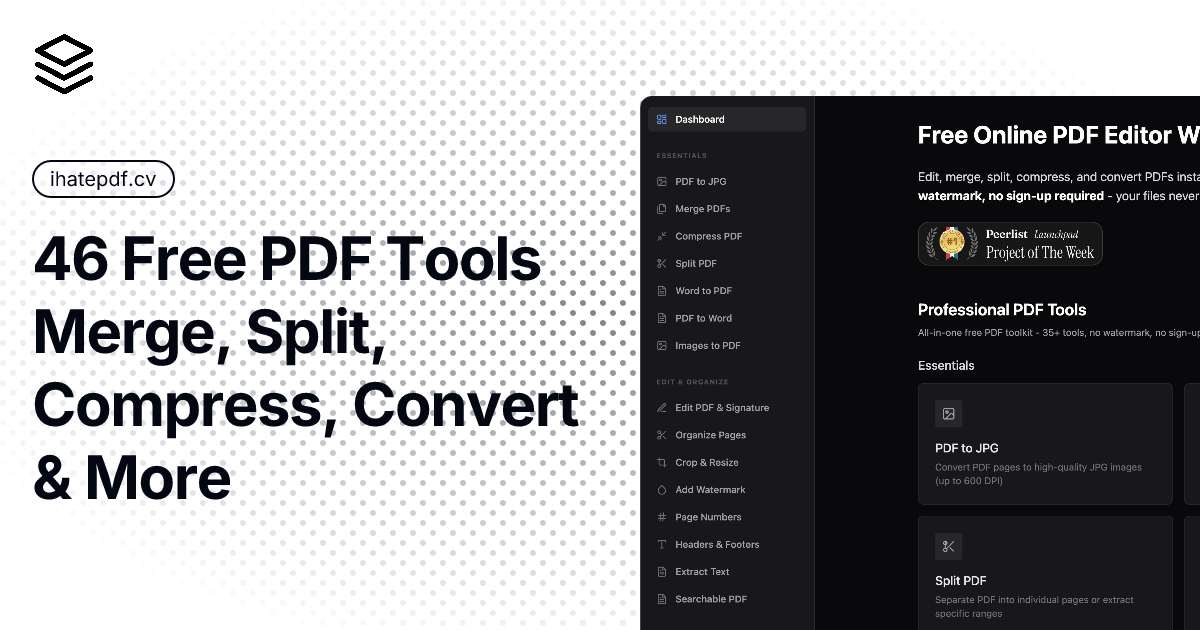



 All bots


 Registration details

 Identified technologies
User reviews (0)