Website profiles · Technology insights · Alternatives

cliamp.stream

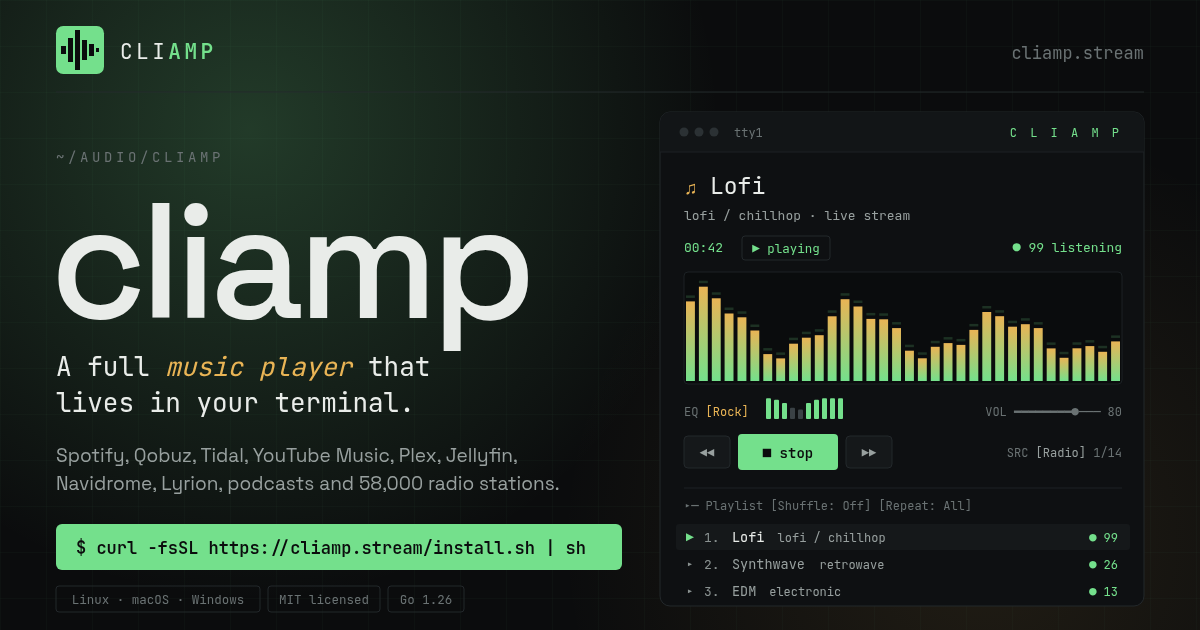
A full music player that lives in your terminal. Play local files, podcasts, Spotify, Qobuz, Tidal, YouTube Music, Plex, Jellyfin, Emby, Navidrome, Lyrion, SoundCloud, Mixcloud, NetEase, Yandex Music, and about 58,000 radio stations, with a 10-band equalizer, visualizers, synced lyrics, and Lua plugins.

No paid content found
Visit website
Profile views 0 Outbound visits 0 Normal
cliamp Full homepage screenshot

At a glance

Category
Music & Audio
Language
English
Paid-content signal
No paid content foundObserved
Registered
2026
Hosting
FastlyInferred
HTTPS certificate trusted
PassedObserved
Last updated

Website review

This review may include AI-generated content and is not individually verified. Domain, certificate and other facts come from the observed data on this page.

What is cliamp?

cliamp is a music player that runs entirely inside a terminal window. Instead of opening a browser tab or a desktop app, you launch it from the command line and get playlists, playback controls, a 10-band equalizer, 31 visualizers, synced lyrics and podcasts in a text-based interface. It is MIT-licensed and written in Go, with install paths for Linux, macOS and Windows (plus an Android build), and it is aimed at people who already spend their day in a shell and want their audio there too.

What it actually plays

The distinctive part is the breadth of sources behind one interface. According to the site, everything flows through the same playlist, EQ, visualizer and lyrics pipeline:

  • Streaming services: Spotify, Qobuz, Tidal, YouTube Music, SoundCloud, Mixcloud, NetEase and Yandex Music
  • Self-hosted libraries: Plex, Jellyfin, Emby, Navidrome and Lyrion
  • Local files and podcasts: local audio plus podcast feeds
  • Radio: roughly 58,000 internet radio stations, browsable by country or genre, with favorites saved by station URL so they survive restarts

Setup is handled by a cliamp setup walkthrough for services and media servers. Some formats and sources depend on external tools: ffmpeg is listed as optional for AAC, ALAC, Opus and WMA, and yt-dlp for YouTube, SoundCloud, Mixcloud, Bandcamp, Bilibili and NetEase.

Who it suits, and the trade-offs

It fits a developer or sysadmin with a mixed library — say, local FLAC files, a Jellyfin server at home, a Tidal subscription and a few radio stations for background listening — who wants one keyboard-driven player rather than four apps. The terminal constraint is the real trade-off: you get speed, low resource use and scriptability (Lua plugins, remote control, IPC clients for favorite IDs), but no album-art browsing or mouse-first polish, and source coverage depends on the helper tools above. If you want a graphical library manager, this is the wrong shape of tool.

A useful next step

Install with the one-liner for your platform (curl -fsSL https://cliamp.stream/install.sh | sh on Linux/macOS, Homebrew, AUR, Nix or go install), run cliamp setup, and connect just one source first — a local folder or your Jellyfin/Plex server — before adding streaming accounts. That tells you quickly whether the terminal workflow suits you. The project page is cliamp.

How do I install cliamp on my system?

Install cliamp with a one-line script on Linux or macOS, or pick the package manager that matches your setup:

System Command
Linux / macOS (script) curl -fsSL https://cliamp.stream/install.sh | sh
macOS / Linux (Homebrew) brew install bjarneo/cliamp/cliamp
Arch Linux (AUR) yay -S cliamp
Nix nix run github:bjarneo/cliamp
Any system with Go go install github.com/bjarneo/cliamp@latest

Windows builds are distributed through the project's Releases page rather than an installer command.

After installing, run cliamp once. The first launch starts cliamp setup, which walks you through connecting streaming services and media servers, so you don't need to hand-edit config files. Optional helpers extend format and source support: ffmpeg for AAC, ALAC, Opus and WMA playback, and yt-dlp for YouTube, SoundCloud, Mixcloud, Bandcamp, Bilibili and NetEase.

A quick way to confirm the install works before configuring anything is to play a radio stream directly, for example cliamp --provider radio or by passing a station URL. If audio starts, the player and its audio pipeline are in place; any remaining setup is just about which libraries or services you want to add.

For a concrete scenario: if you mainly listen to a self-hosted library such as Plex, Jellyfin, Emby or Navidrome, install via Homebrew or the script, run cliamp setup, and point it at your server — you can skip ffmpeg and yt-dlp unless you also play local files in those codecs or pull from YouTube-style sources. Full instructions and source are at cliamp.

Can cliamp stream from Spotify, Tidal, and my self-hosted Plex or Jellyfin library?

Yes. cliamp is built to play Spotify, Tidal, and self-hosted Plex or Jellyfin libraries through one terminal interface, alongside local files, podcasts, and radio. The site lists Plex, Jellyfin, Emby, and Navidrome among supported media servers, and Spotify, Qobuz, Tidal, and YouTube Music among streaming services — all sharing the same playlist, 10-band equalizer, visualizer, and synced-lyrics pipeline.

What that means in practice

  • One queue, mixed sources: you can keep a Tidal album, a Plex library track, and a podcast feed in the same playlist flow instead of switching apps or browser tabs.
  • Setup is guided: running cliamp setup walks you through connecting streaming services and media servers, so you don't hand-edit config for each provider.
  • Dependencies matter: the page notes ffmpeg is optional for AAC, ALAC, Opus, and WMA playback, and yt-dlp is needed for YouTube, SoundCloud, Mixcloud, Bandcamp, Bilibili, and NetEase. Those caveats apply to those sources, not necessarily to Spotify, Tidal, Plex, or Jellyfin.
  • Terminal-first audience: this suits people who already live in a shell — SSH sessions, headless machines, tiling-window setups — and want playback without a GUI player. If you expect a rich graphical library browser, a native app will feel more natural.

A quick decision check

If your main goal is "one player for my subscriptions and my own server," cliamp targets exactly that. Start with cliamp setup, connect Plex or Jellyfin first (self-hosted sources are the least likely to hit third-party dependency issues), then add Spotify and Tidal and confirm each plays before building mixed playlists. For comparison, Plex's own apps are at Plex and Jellyfin's at Jellyfin; those are the reference points if you want to judge how much you'd miss a graphical interface.

How do I save and manage favorite internet radio stations in cliamp?

Press f while browsing or playing a station to toggle it as a favorite. In cliamp, favorites are saved locally by station URL (not by the current song), so the station name and details like region persist after a restart. You can favorite from the Catalog, search results, or the playback playlist, and the header's star badge counts all starred rows, including ones scrolled offscreen.

Managing favorites in practice

  • Browse by country or genre, then press f on any station you want to keep. Favorited stations appear under Radio → Favorites.
  • M3U/PLS stations keep their original station URL after playback resolves, so the favorite points back to the source rather than a temporary stream link.
  • Toggling doesn't disrupt you: removing or adding a favorite keeps your selected station and any loaded catalog pages in place, even mid-load, and doesn't trigger extra catalog fetching.
  • Multiple instances: on Linux and macOS, favorite changes are protected by a shared file lock, so two cliamp windows won't overwrite each other's edits.

A concrete scenario

Say you're sampling stations across a few countries in the Catalog. Star a jazz station from Japan and a talk station from Ireland with f, then quit. Next session, open Radio → Favorites and both are there with their names and regions intact—no need to remember URLs or re-search.

Decision notes

Favorites are URL-based, so if a station changes its stream address, the old favorite will likely stop working and needs re-adding. There's no cloud sync mentioned, so expect favorites to live on the machine where you added them. For a large collection, the star badge helps you confirm how many you've saved without scrolling.

What do I need to install for YouTube, SoundCloud, and other formats to work in cliamp?

For YouTube, SoundCloud, Mixcloud, Bandcamp, Bilibili and NetEase playback, cliamp relies on yt-dlp being installed on your system. For AAC, ALAC, Opus and WMA audio, it relies on ffmpeg. Both are optional extras: cliamp itself installs with a single command (curl script, Homebrew, AUR, Nix, or go install), and cliamp setup then walks you through connecting streaming services and media servers.

Practical setup

  • Install yt-dlp if you plan to play YouTube, SoundCloud, Mixcloud, Bandcamp, Bilibili or NetEase content.
  • Install ffmpeg if your local files or streams use AAC, ALAC, Opus or WMA.
  • On Windows, cliamp builds are distributed through Releases, so check there rather than using the Linux/macOS install script.

A useful next step: run cliamp setup first, then test one source from each category you care about (a YouTube link, a SoundCloud track, a local ALAC file). If a source fails while others work, the missing helper is usually the cause—install yt-dlp or ffmpeg and retry before troubleshooting the player itself.

For reference, cliamp lists the exact install commands and helper requirements on its Install section.

Can I control cliamp remotely or extend it with plugins?

Yes. cliamp has both remote control and a plugin system, and they cover different needs: remote control is for driving playback from another device, while Lua plugins are for changing what the player itself does.

Remote control

cliamp's page lists "remote control" among its built-in features, alongside playlists, the 10-band equalizer, visualizers and synced lyrics. The practical use is a desktop or server running cliamp as your main player while you change tracks from a phone or another machine, without switching windows or opening a browser tab. The page also shows cliamp streaming to a browser at a local address, which fits the same "control it from elsewhere" idea. Details such as which protocols or ports are involved are not spelled out on the page, so check the project's documentation before relying on it across a network.

Lua plugins

Plugins are written in Lua. The page presents them as part of the player's core feature set rather than an afterthought, which suggests they are meant for extending behavior — for example customizing how sources or playback are handled. The page does not describe a plugin API, so treat "you can extend it" as confirmed and "here is exactly what you can hook into" as something to verify in the source or docs.

Which one fits

  • You want to skip tracks from the couch: remote control.
  • You want cliamp to behave differently — new logic, custom integrations: Lua plugins.
  • You want more music sources without writing code: neither; use the built-in providers (Spotify, Tidal, Qobuz, Plex, Jellyfin, Navidrome, podcasts, roughly 58,000 radio stations) and the cliamp setup walkthrough.

A concrete next step

If remote control matters most, install cliamp first (Homebrew, AUR, Nix, Go, or the install script on Linux/macOS) and confirm playback works locally, then test remote access on your own network before exposing anything beyond it. If plugins matter most, read the Lua plugin examples in the source repository — that is the fastest way to see what the API actually exposes.

For comparison, terminal players with plugin ecosystems include mpv, whose scripting support is well documented and a useful reference point for what a mature Lua API looks like.

Related questions

More questions →
What Is cliamp and What Can You Do With It?

cliamp is a full music player that runs inside your terminal instead of a browser tab or desktop app. It plays local files, podcasts, streaming services (Spotify, Qobuz, Tidal, YouTube Music, SoundCloud, Mixcloud, NetEase, Yandex Music), self-hosted libraries (Plex, Jellyfin, Emby, Navidrome, Lyrion), and roughly 58,000 internet radio stations — all through one playlist, equalizer, visualizer, and lyrics interface. It's MIT licensed, written in Go, and available for Linux, macOS, and Windows, plus an Android mobile app. It fits you if you already work in a terminal and want your music there too, or if you want a single player that unifies streaming services and self-hosted libraries without switching apps.

What you actually get

The core promise is one interface for every source. Instead of separate apps for Spotify, your Jellyfin library, and radio, cliamp routes them all through the same playback pipeline:

  • Playlists with shuffle and repeat modes
  • 10-band equalizer with presets (the demo shows an "EQ [Rock]" state)
  • 31 visualizers
  • Synced lyrics
  • Podcast feeds
  • Remote control and Lua plugins for extending behavior
  • Radio catalog browsable by country and genre, with favorites saved locally

The header shows playback state, source, volume, and playlist position, so you can see what's playing at a glance.

How to install it

Installation is one line, and the site offers several package-manager routes:

Platform Command
Linux / macOS curl -fsSL https://cliamp.stream/install.sh | sh
Homebrew brew install bjarneo/cliamp/cliamp
Arch (AUR) yay -S cliamp
Nix nix run github:bjarneo/cliamp
Go go install github.com/bjarneo/cliamp@latest

Windows builds are distributed through Releases. After installing, run cliamp — the cliamp setup flow walks you through connecting streaming services and media servers.

Optional dependencies matter here:

  • ffmpeg is needed for AAC, ALAC, Opus, and WMA playback.
  • yt-dlp is needed for YouTube, SoundCloud, Mixcloud, Bandcamp, Bilibili, and NetEase.

If a source won't play, check whether the matching optional tool is installed before troubleshooting anything else.

A concrete example: playing a radio station

The site's own demo shows the radio workflow:

$ cliamp --provider radio

Then pick a station from the catalog and press play. You can browse by country or genre, and press f in the Catalog, in search results, or in the playback playlist to favorite a station. Favorites are stored locally under Radio → Favorites by URL, keyed by station name rather than the current song, and station details (including region) survive a restart. If you have a direct stream URL, you can pass it too — the demo uses cliamp https://radio.cliamp.stream/lofi/stream.pls.

A few behaviors worth knowing if you favorite a lot of stations:

  • The header's star badge counts all starred rows, including ones scrolled offscreen.
  • Playlists with no favorited stations don't reserve a star column.
  • M3U/PLS wrappers keep their original station URL after playback resolution.
  • Toggling a favorite doesn't interrupt an in-progress station load or fetch more catalog pages.
  • On Linux and macOS, favorite changes from multiple cliamp instances are preserved through a shared file lock.

Who it's for — and when to look elsewhere

cliamp makes sense if you're comfortable in a terminal, want streaming services and self-hosted servers under one roof, and value keyboard-driven control over a graphical UI. The plugin system and remote control suggest it's aimed at people who like to tinker.

It's a weaker fit if you want a polished graphical interface, or if you'd rather not manage optional dependencies like ffmpeg and yt-dlp for certain formats and sources. The site doesn't publish pricing details, so check the install and source pages directly if licensing or cost matters to your decision — the project is listed as MIT licensed, but confirm current terms yourself.

To try it, install with one of the commands above, run cliamp setup to connect your sources, and start with a single provider (radio is the lowest-friction entry point) before wiring in streaming accounts.

How Radio Stations and Favorites Work in cliamp

cliamp treats internet radio as a first-class source: you can browse roughly 58,000 stations by country or genre, press f to favorite the highlighted station, and your favorites persist locally by station URL and name — including region details — across restarts. On Linux and macOS, favorite changes are also shared between running cliamp instances through a file lock, so two terminals won't overwrite each other's edits.

Browsing and playing radio

Radio is one of the providers cliamp ships with, alongside streaming services, self-hosted libraries, local files, and podcasts. The site's own example shows the direct route:

cliamp --provider radio

You can also pass a station playlist URL directly:

cliamp https://radio.cliamp.stream/lofi/stream.pls

Inside the app, the Catalog is where you browse stations by country or genre, and search results are another place stations appear. Once you pick a station and press play, it joins the same playback pipeline as everything else — playlist, 10-band EQ, visualizers, and synced lyrics — so radio isn't a separate mode with its own controls.

Favoriting a station

The action is a single key: press f while a station is selected in the Catalog, in search results, or in the playback playlist after browsing countries or genres. The page evidence describes this as "radio favorites follow the station," which matters for a live stream: what gets saved is the station itself, not whatever song happens to be playing at that moment.

A few behaviors worth knowing before you rely on it:

  • Saved by URL and name. Favorites live locally under Radio → Favorites, keyed by the station URL and labeled with the station name. Region and other station details are retained after a restart.
  • M3U/PLS wrappers keep the original station URL after playback resolution, so favoriting a wrapped stream doesn't save a temporary resolved link.
  • Toggling is non-destructive. Turning a favorite on or off preserves your selected station and any catalog pages you've already loaded, including while a page is still loading.
  • Favoriting doesn't trigger extra work. It won't fetch more catalog stations or interrupt a station load in progress.

The star badge and what it counts

The header's star badge counts all starred rows, including rows currently offscreen — so the number reflects your full set of favorites, not just what's visible in the current view. It uses the same meaning as the row markers next to individual stations.

One layout detail: radio favorites don't reserve a star column in playlists that contain no favorited stations, so a playlist with no favorites won't show an empty column.

Multiple instances and sync behavior

On Linux and macOS, favorite mutations preserve other cliamp instances' changes through a shared file lock. In practice, if you have cliamp open in two terminals and star a station in one, the other instance's write won't clobber it.

If you're scripting against cliamp rather than using the TUI, note the documented constraint: IPC clients use the stable URL-based favorite IDs returned by provider.playlists; positional favorite IDs are not supported. Build your integration around the URL ID, not the row position.

Practical checklist

Task How
Start in radio mode cliamp --provider radio
Play a specific station file cliamp <station .pls/.m3u URL>
Browse stations Catalog, by country or genre
Favorite / unfavorite Press f on the selected station
Find saved favorites Radio → Favorites
Confirm total favorites Star badge in the header

If a station won't play, the likely gap is a missing optional dependency rather than a favorites problem: the install notes list ffmpeg for AAC, ALAC, Opus, and WMA, and yt-dlp for sources like YouTube, SoundCloud, Mixcloud, Bandcamp, Bilibili, and NetEase. Install cliamp itself with the one-line script (curl -fsSL https://cliamp.stream/install.sh | sh), Homebrew, AUR, Nix, or go install; Windows builds are in Releases.

How to Install and Set Up cliamp

Install cliamp with the one-line script on Linux/macOS (curl -fsSL https://cliamp.stream/install.sh | sh), or use Homebrew, AUR, Nix, or Go. Windows users get builds from Releases. After installing, run cliamp setup to connect streaming services and media servers, and add ffmpeg and yt-dlp if you need the extra codecs and sources they unlock.

Install cliamp

Pick the method that matches your system. Each command below is the one published on cliamp.stream.

Platform / tool Command
Linux / macOS (script) curl -fsSL https://cliamp.stream/install.sh | sh
Homebrew brew install bjarneo/cliamp/cliamp
Arch (AUR) yay -S cliamp
Nix nix run github:bjarneo/cliamp
Go go install github.com/bjarneo/cliamp@latest
Windows Download a build from Releases

The site describes the install as "one line," and the script route is the shortest path on Linux and macOS. If you already manage packages with Homebrew, AUR, or Nix, use that instead so upgrades stay in your normal workflow. The Go route builds from source via the module path.

Expected result: the cliamp binary is on your PATH. Verify by running cliamp — the player should start in your terminal.

Run first-time setup

After install, run:

cliamp setup

The setup walkthrough guides you through configuring streaming services and media servers. This is where you connect the sources you actually use — for example Spotify, Qobuz, Tidal, YouTube Music, Plex, Jellyfin, Emby, Navidrome, Lyrion, or Yandex Music — rather than configuring everything at once.

What to expect: setup is interactive, so have your account details or server addresses ready for the services you plan to use. Sources you skip can be added later; setup is not a one-shot gate.

Add optional dependencies

Two external tools extend what cliamp can play. They are optional — install them only if you need the formats or sources they cover.

ffmpeg — extra audio codecs

Install ffmpeg if you play AAC, ALAC, Opus, or WMA files. Without it, those codecs are the gap; the rest of the player works normally.

yt-dlp — additional streaming sources

Install yt-dlp for YouTube, SoundCloud, Mixcloud, Bandcamp, Bilibili, and NetEase. If your library is local files plus a self-hosted server, you can skip this.

A quick check after installing either tool: start cliamp and play a file or source in the relevant format. If playback starts, the dependency is wired up correctly.

Try a first stream

Once setup is done, you can confirm everything works with a radio stream, which needs no account:

cliamp --provider radio

The site's own example uses a station playlist URL:

cliamp https://radio.cliamp.stream/lofi/stream.pls

Expected result: the terminal UI opens with a playlist, transport controls, EQ, and volume indicators, and the stream begins playing. From there, browse stations by country or genre in the Catalog and press f to favorite one — favorites are saved locally by station URL and keep the station name and region after a restart.

Common snags

  • Command not found after install: the binary's directory isn't on your PATH. With the Go route, that's usually $(go env GOPATH)/bin; with Homebrew or AUR, reopen your shell.
  • A file won't play: check whether it's AAC, ALAC, Opus, or WMA and install ffmpeg if so.
  • YouTube or SoundCloud fails: yt-dlp is missing or outdated — update it first.
  • A streaming service isn't listed: rerun cliamp setup and add it there rather than expecting it to appear automatically.
  • Windows: there is no script or package-manager line on the site; use the Releases page.

What you get once it's running

All sources — streaming services, self-hosted libraries, local files, podcasts, and roughly 58,000 radio stations — run through the same playlist, 10-band equalizer, 31 visualizers, synced lyrics, and Lua plugin pipeline. That single-interface design is the reason setup matters: connect your sources once, and the rest of the player behaves the same regardless of where the audio comes from.

Which Music Sources and Streaming Services Does cliamp Support?

cliamp connects to streaming services (Spotify, Qobuz, Tidal, YouTube Music, SoundCloud, Mixcloud, NetEase, Yandex Music), self-hosted media servers (Plex, Jellyfin, Emby, Navidrome, Lyrion), local audio files, podcast feeds, and roughly 58,000 internet radio stations. Every source feeds the same playlist, 10-band equalizer, visualizer, and synced-lyrics pipeline, so you don't learn a different interface per service. It runs on Linux, macOS, and Windows, with an Android build linked from the site, and is MIT licensed.

Streaming services

Service Notes from the site
Spotify Listed as a supported streaming provider
Qobuz Listed as a supported streaming provider
Tidal Listed as a supported streaming provider
YouTube Music Listed; YouTube playback needs yt-dlp installed
SoundCloud Listed; needs yt-dlp
Mixcloud Listed; needs yt-dlp
NetEase Listed; needs yt-dlp
Yandex Music Listed as a supported streaming provider

The site also names Bandcamp and Bilibili as sources that rely on yt-dlp. Running cliamp setup walks you through connecting streaming services and media servers, so credentials are handled there rather than through flags you have to memorize.

Self-hosted libraries

If you already run a media server, cliamp can act as a terminal front end for it:

  • Plex
  • Jellyfin
  • Emby
  • Navidrome
  • Lyrion

These are listed alongside the streaming services as first-class sources, meaning your own library gets the same playlist, EQ, and lyrics treatment as a commercial service.

Local files, podcasts, and radio

  • Local files: point cliamp at your own audio. The site notes that AAC, ALAC, Opus, and WMA playback requires ffmpeg installed.
  • Podcasts: podcast feeds are supported directly, so episodes sit in the same queue as music.
  • Internet radio: about 58,000 stations, browsable by country or genre. You can also pass a stream URL directly, e.g. cliamp https://radio.cliamp.stream/lofi/stream.pls, or launch straight into radio with cliamp --provider radio.

How radio favorites behave

Radio favorites are saved locally under Radio → Favorites, keyed by station URL and stored under the station name rather than the currently playing song. Station details, including region, survive a restart. Press f in the Catalog, in search results, or in the playback playlist to favorite a station. A few details worth knowing before you rely on them:

  • The header's star badge counts all starred rows, including ones scrolled offscreen.
  • Playlists with no favorited stations don't reserve a star column.
  • M3U/PLS wrappers keep their original station URL after playback resolution.
  • Toggling a favorite preserves your selected station and loaded catalog pages, even mid-load, and doesn't trigger extra catalog fetches.
  • On Linux and macOS, a shared file lock keeps favorite changes from multiple cliamp instances from clobbering each other.

What stays consistent across sources

The point of supporting this many sources is that the surrounding player doesn't change: one playlist model, a 10-band equalizer, 31 visualizers, synced lyrics, remote control, and Lua plugins. The site's own framing is "every source, one interface" — switching from a Tidal album to a Jellyfin track to a radio station doesn't change how you shuffle, EQ, or read lyrics.

Choosing based on your setup

  • You pay for a streaming service: connect it through cliamp setup and keep your existing library and playlists.
  • You self-host: Plex, Jellyfin, Emby, Navidrome, or Lyrion covers most home-server setups; pick whichever you already run.
  • You want zero accounts: local files plus the ~58,000-station radio catalog work without a streaming subscription.
  • You listen to YouTube-adjacent sources: install yt-dlp first, or YouTube Music, SoundCloud, Mixcloud, Bandcamp, Bilibili, and NetEase won't play.
  • You have lossless or niche codecs locally: install ffmpeg for AAC, ALAC, Opus, and WMA.

Install and verify

One-line install on Linux/macOS:

curl -fsSL https://cliamp.stream/install.sh | sh

Alternatives listed on the site: brew install bjarneo/cliamp/cliamp (Homebrew), yay -S cliamp (AUR), nix run github:bjarneo/cliamp, or go install github.com/bjarneo/cliamp@latest. Windows builds are in Releases.

After installing, run cliamp and let cliamp setup configure your services. To confirm a source works, start playback from it and check that the header shows the expected source (e.g. SRC [Radio]) and that the EQ and lyrics panels respond — if a yt-dlp-backed source fails, the missing dependency is the usual cause.

Website Overview

Several search or sharing settings need attention. Together they may make snippets, preview images or preferred URLs less consistent across platforms.

Domain and Registration

The domain was registered less than a year ago and has limited historical evidence to assess. Transfer-protection status is present, helping reduce the risk of unauthorized domain transfers. Registration contact information is publicly available through RDAP. The domain uses the common .stream extension, which is not an independent safety signal.

DNS and Email

Nameservers are provided by hyp.net, indicating managed DNS hosting. DNSSEC is enabled, allowing validating resolvers to authenticate signed DNS data. The CNAME points to bjarneo.github.io, associated with GitHub Pages. No MX record was found. A conventional explicit inbound-mail route is not configured. The lowest observed DNS TTL is 900 seconds.

TLS and Certificates

The certificate uses an RSA 2048-bit public key, offering broad client compatibility. The server supplied a complete certificate chain. No organization name is present in the certificate; the available fields are consistent with domain validation. The certificate was issued by Let's Encrypt, commonly associated with automated certificate services. The certificate's total validity is about 89 days, consistent with a short renewal cycle.

HTTP and Browser Security

The checked browser-security headers were not detected, leaving fewer explicit browser-side safeguards. CORS permits any origin to read this response. This is common for public resources; sensitive responses need narrower handling. No X-Powered-By header was found, reducing one common source of backend fingerprinting information. The x-cache, x-served-by, via response header indicates a CDN or caching proxy in the delivery path. No obvious internal addresses or debug information were found in the headers.

Technology Stack Analysis

The public page identifies Fastly without precise versions, leaving fewer clues for version-specific scanning.

Search and Social Sharing

The meta description has 304 characters and may be shortened in search results. No homepage canonical URL was detected. If duplicate URLs exist, consolidation may be less explicit. Twitter Card metadata is configured. The title has 30 characters, within a common display range. The observed directives allow indexing and link following.

Hosting and Email

DNShyp.net
HostingFastly
EmailUnknown
Approximate IP geolocation (inferred; a CDN or proxy may differ from the origin server) United States flagUnited States Inferred 185.199.108.153

Registration details

RDAP / WHOIS

RegistrarDomeneshop AS dba domainnameshop.com
Registered2026-03-01
Expires2027-03-01
Domain statusclient transfer prohibited
Nameserversns1.hyp.net、ns2.hyp.net、ns3.hyp.net
DNSSECsigned

DNS records

DNS

TypeNameValueTTLPriority
Abjarneo.github.io185.199.108.1533600—
Abjarneo.github.io185.199.109.1533600—
Abjarneo.github.io185.199.110.1533600—
Abjarneo.github.io185.199.111.1533600—
AAAAbjarneo.github.io2606:50c0:8000::1533600—
AAAAbjarneo.github.io2606:50c0:8001::1533600—
AAAAbjarneo.github.io2606:50c0:8002::1533600—
AAAAbjarneo.github.io2606:50c0:8003::1533600—
NScliamp.streamns1.hyp.net86400—
NScliamp.streamns2.hyp.net86400—
NScliamp.streamns3.hyp.net86400—
CNAMEwww.cliamp.streambjarneo.github.io900—
DScliamp.stream27667 15 2 a33ec125014dea8a65914e2fea8396447122031b9354c3d7fb22720730152e303600—
DScliamp.stream27667 15 4 309690ffa2c9516b8cd5936b4cbbe5a647cbfd48a2b5b4a25471fa41beeb02d2504de0157539e09a3411e8efc02bc7b43600—

TLS and certificates

TLS / SSL

AssessmentNormal configuration
Supported protocolsTLSv1.2、TLSv1.3
Negotiated protocolTLSv1.3
Certificate subjectwww.cliamp.stream
IssuerLet's Encrypt
Valid until2026-12-04T17:08 · Remaining when checked: 36 days
Verification detailsCertificate trust: Passed · Hostname match: Passed

HTTP response headers

HTTP

HeaderValue
content-typetext/html; charset=utf-8
cache-controlmax-age=600
serverGitHub.com
access-control-allow-origin*

Identified technologies

Fastly

Pages, Search and Sharing

Meta descriptionA full music player that lives in your terminal. Play local files, podcasts, Spotify, Qobuz, Tidal, YouTube Music, Plex, Jellyfin, Emby, Navidrome, Lyrion, SoundCloud, Mixcloud, NetEase, Yandex Music, and about 58,000 radio stations, with a 10-band equalizer, visualizers, synced lyrics, and Lua plugins.
Canonical URLNot detected
LanguageEnglish (default)
Twitter Cardsummary_large_image
All bots 1 allowed · 0 disallowed
  • Allow/

User reviews (0)

  • No reviews yet.