Website profiles · Technology insights · Alternatives

dinoswords.gg

Little Arms; Big Guns

No paid content found
Visit website
Profile views 0 Outbound visits 0 Normal
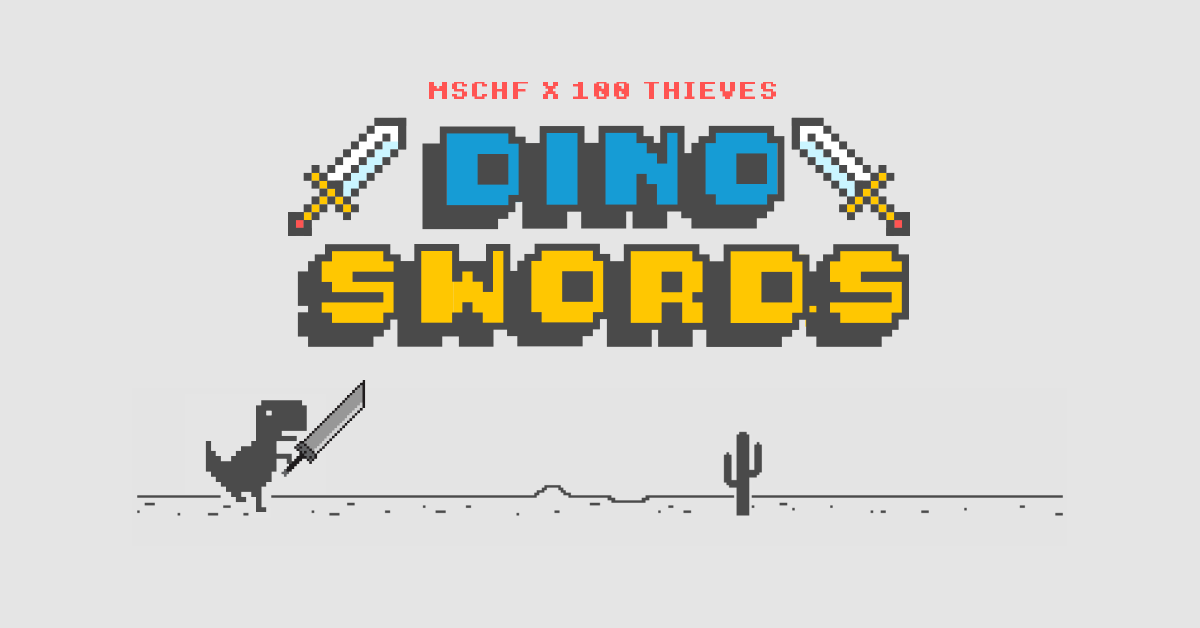
Dino Swords Full homepage screenshot

At a glance

Category
Games & Board Games
Language
English
Paid-content signal
No paid content foundObserved
Registered
Unknown
Hosting
CloudflareInferred
HTTPS certificate trusted
PassedObserved
Last updated

Website review

This review may include AI-generated content and is not individually verified. Domain, certificate and other facts come from the observed data on this page.

What is Dino Swords?

Dino Swords is a browser game from MSCHF made with 100 Thieves that remixes the Chrome offline dinosaur into an armed runner. Instead of just jumping cacti, you collect and fire up to 26 different weapons while competing for a global leaderboard; the highest score after one week wins a prize. It is portrait-only, so you need to rotate your phone or keep a narrow window.

It suits people who want a quick, absurd arcade break and enjoy score chasing rather than a deep game. The trade-off is intentional simplicity: the fun comes from weapon variety and leaderboard pressure, not progression or story. If you like that hook, open Dino Swords on a phone in portrait and play a few runs to see whether the weapon mix and daily competition hold your attention.

How do I play Dino Swords and find the 26 different weapons?

Play Dino Swords in portrait mode on your phone: the game is a weapon-filled version of the Chrome dinosaur runner, made by MSCHF with 100 Thieves. You run, jump and fire as you go, and the page lists three goals: find and use up to 26 different weapons, compete for a high score on the global leaderboard, and, in the launch contest described on the page, finish with the highest score after one week to win a prize.

Finding the 26 weapons

The page confirms there are up to 26 weapons but does not publish a list or say exactly how each one appears. Practical approach:

  • Play repeated runs and vary your inputs. Fire whenever a weapon is available rather than saving it, so you see more of the arsenal across runs.
  • Watch the weapon that spawns. Each pickup likely maps to a letter or icon; note which ones you have already tried so you can track the set.
  • Check the leaderboard screen. All-time and daily scores are shown separately, and scores are locked, so the leaderboard is the place to compare your best run rather than a place to unlock anything.

A concrete session

Open the site on a phone held upright, start a run, and treat the first few attempts as reconnaissance: fire every weapon you pick up and jot down its name or symbol. Once you know which weapons suit long runs (wide shots for clearing obstacles, fast shots for tight gaps), switch to chasing the leaderboard.

Decision criterion

If your goal is the prize, prioritise survival and consistent scoring over collecting every weapon; if your goal is completion, prioritise variety and keep a checklist. The official Chrome dinosaur game at Dino is not the same product; for the real thing, use Dino Swords.

Why does Dino Swords require portrait mode and how do I rotate my device?

Dino Swords is built as a portrait-only game. The page tells visitors to rotate their device and states that the game is only playable in portrait mode, so the warning is a compatibility gate rather than an optional tip: the play area and controls are laid out for a tall, narrow screen. On a phone held sideways, the game cannot present that layout and blocks play instead of stretching or cropping it.

Rotating your device

  • Phone or small tablet: hold it upright so the short edge is at the bottom. If it stays sideways, turn off orientation lock (on iPhone, the lock icon in Control Center; on Android, the rotation toggle in quick settings), then reopen the page.
  • Laptop or desktop: portrait mode means a tall, narrow browser window. Narrow the window until it is taller than it is wide, or use the browser's device-emulation mode to simulate a portrait phone. A maximized widescreen window will keep showing the rotate prompt.
  • If it still will not start: reload after rotating, since the check usually runs when the page loads.

What to expect once it loads

The game asks you to find and use up to 26 different weapons and to compete for a high score on a global leaderboard, with a prize for the highest score after one week. The page also notes that daily scores are locked, so a run counts toward the all-time board rather than a fresh daily one.

Plan your first session around the portrait constraint: play one-handed on a phone so the screen stays upright, and treat a desktop session as a narrow side window rather than a full-screen game. If you want a quick sense of the studio behind it, MSCHF publishes other small internet experiments at MSCHF.

How does the global leaderboard in Dino Swords work and how is the weekly prize awarded?

Dino Swords runs a single global leaderboard, and the page states that the highest score after one week wins a prize. Scores are tracked both all-time and daily, and the page shows a "scores are locked" state, which suggests submissions can close for a given period rather than staying open indefinitely.

What the page establishes

  • One global ranking. The leaderboard is shared across all players rather than split into friend groups or regions.
  • Two views. An all-time board sits alongside daily scores, so a strong single run can stand out even if it doesn't top the historical list.
  • Weekly prize rule. The winner is whoever holds the highest score after one week. The page marks the prize with a "🤫" hint, so the reward itself is intentionally undisclosed.
  • Locked scores. The "scores are locked" notice means entries stop counting at some point, so a late high score may not register for the period in question.

How the weekly award likely plays out

The page doesn't spell out whether "one week" means a fixed calendar cycle or seven days from launch, or whether the prize goes to the top of the daily board or the all-time board. Treat those as open questions and check the leaderboard itself for a visible reset or countdown before assuming a deadline.

A practical reading: the prize rewards the best single run within the week's window, not cumulative play. If you're chasing it, a high daily score matters as much as grinding for an all-time record.

A concrete approach

  1. Open Dino Swords in portrait mode on a phone, since the game only runs that way.
  2. Learn the 26 weapons first; variety is the stated core mechanic, and each weapon changes how a run plays.
  3. Check the leaderboard early to see the score to beat and whether a reset appears imminent.
  4. Submit your best run before scores lock, then verify it appears on the board.

For context on MSCHF's other internet experiments, see MSCHF.

Is Dino Swords free to play, and do I need to install anything?

Dino Swords is free to play and needs no installation. It runs in the browser at Dino Swords, so you open the page and start a run rather than downloading an app or creating an account. The page evidence shows no pricing or payment signals, and the only access condition it states is technical: the game is playable in portrait mode only, and it asks you to rotate your device if you are holding it the other way.

A few practical points follow from that:

  • Devices: Because of the portrait-mode requirement, it is built with phones and tablets in mind. On a desktop browser, expect a narrow portrait-shaped play area rather than a full-window game.
  • Setup: Nothing to install and nothing to sign up for. The page presents the game itself plus a leaderboard, with scores shown as locked outside the active scoring window.
  • What "free" covers here: This is a small MSCHF x 100 Thieves browser game, not a storefront. There are no tiers, purchases or subscriptions indicated on the page, so the whole experience — playing, using the weapons and checking the leaderboard — is the free product.

A useful next step: open the site on your phone in portrait orientation first. If you want to compare it with other browser-based time-wasters, the closest official reference point is MSCHF, the studio behind it, which hosts other small internet projects.

What is the connection between MSCHF, 100 Thieves, and Dino Swords?

MSCHF and 100 Thieves are the two collaborators credited with making Dino Swords: the page labels the game "DINO SWORDS BY MSCHF X 100 THIEVES." In other words, Dino Swords is a joint project between the art-and-prank collective MSCHF and the esports and lifestyle brand 100 Thieves, rather than a game from either group alone.

What each partner appears to contribute

The page evidence supports the credit line and the game's framing ("Little Arms; Big Guns") but doesn't break down who built what. A reasonable reading, offered as analysis rather than a documented fact:

  • MSCHF fits the role of the concept and internet-culture side—an outfit known for viral, satirical stunts, which matches a browser game that arms the Chrome offline dinosaur with 26 weapons.
  • 100 Thieves fits the role of the gaming and competitive audience—its esports and apparel following aligns with the game's global high-score leaderboard and a one-week prize for the top score.

A concrete example

Picture a 100 Thieves fan who follows the brand's drops and a casual player who remembers the Chrome dino from spotty Wi-Fi. The collaboration gives both a reason to open the same page: one for the brand tie-in, the other for the nostalgic joke. The leaderboard and one-week prize window add a shared competitive hook.

How to check the connection yourself

Open Dino Swords and look for the "BY MSCHF X 100 THIEVES" credit and the leaderboard rules. For context on the collective, see MSCHF, and for the brand, see 100 Thieves. If you're deciding whether the tie-in matters to you, the practical question is whether you care about the competitive leaderboard or just the weapon-gag novelty—the collaboration is mostly a framing device around a small portrait-mode browser game.

Related questions

More questions →
Can You Use CC0 Assets in Commercial Games? Licensing and Integration Basics

Yes. CC0 assets can be used in commercial games without paying royalties or crediting the creator. CC0 is a public-domain dedication: the creator has waived copyright and related rights to the fullest extent allowed by law. That means you can copy, modify, redistribute, and sell work built on those assets — including in a game you charge money for.

This article explains what CC0 actually covers, how it differs from other Creative Commons licenses, and how to bring CC0 assets into engines like Unreal and Unity and tools like Blender, Maya, and 3ds Max.

What CC0 actually means

CC0 is not a license in the traditional sense — it is a waiver. When a creator applies CC0 to their work, they give up their copyright and agree not to enforce related rights. You are free to:

  • Use the asset in personal, educational, or commercial projects
  • Modify, remix, and build derivative works
  • Distribute the asset or your derivative as part of a larger project
  • Do all of the above without attribution

There is no requirement to credit the creator, no share-alike clause forcing you to open-source your game, and no non-commercial restriction. For a studio shipping a paid title, that combination is unusually permissive.

One practical caveat: CC0 applies to the rights the creator holds. It cannot waive third-party rights the creator never owned. A scanned statue, a branded product, or a recognizable logo in a texture may still carry trademark or personality-rights issues. Treat CC0 as clearing copyright, not as clearing everything.

CC0 vs. other Creative Commons licenses

The differences matter most when you are choosing assets for a commercial build. The table below summarizes the common variants.

| License | Commercial use | Attribution required | Share-alike | Notes for games | |---|---|---|---|---|---| | CC0 | Yes | No | No | Closest to public domain; safest for closed-source commercial titles | | CC BY | Yes | Yes | No | Fine for commercial use, but you must credit — plan for a credits screen | | CC BY-SA | Yes | Yes | Yes | Derivatives may need to be shared under the same license; risky for proprietary code/assets | | CC BY-NC | No | Yes | No | Excludes commercial projects; avoid for any monetized game | | CC BY-ND | Yes | Yes | No | No derivatives — you cannot modify the asset, which limits integration |

If your goal is a commercial game with no legal overhead, CC0 is the simplest choice. CC BY is workable if you can maintain attribution. Avoid NC and ND for anything you intend to sell or heavily adapt.

How CC0 assets fit into game engines and pipelines

CC0 libraries typically provide HDRIs, PBR textures, and 3D models. Each type has a natural place in a game pipeline.

HDRIs

HDRIs are high-dynamic-range environment maps. In Unreal, they are commonly used for sky lighting via a Sky Light set to use an HDRI cubemap or a Sky Sphere material. In Unity, they feed the skybox and the environment lighting in the Lighting window. You can also use them as reflection probes or as the basis for image-based lighting in Blender, Maya, or 3ds Max for look development before export.

Textures

PBR texture sets usually ship as albedo (base color), roughness, metallic, normal, and sometimes ambient occlusion or height maps. These drop directly into Unreal's material system or Unity's Standard/URP/HDRP shaders. Keep the resolution appropriate: 4K textures are useful for hero assets, but 1K or 2K is often enough for background props and saves memory.

Models

Static meshes and props can be imported as FBX or OBJ. Check the scale and pivot before placing them in a level. If the asset was authored for offline rendering, it may have very high poly counts — decimate or LOD it before use in a real-time scene.

Practical steps for importing and adapting assets

  1. Download and verify the license. Confirm the asset page states CC0. Save a screenshot or the license text alongside the file.
  2. Organize by type. Keep HDRIs, textures, and models in separate folders. A consistent naming convention (for example, env_forest_01_4k.hdr) saves time later.
  3. Import into your engine. In Unreal, drag the FBX into the Content Browser and set up materials. In Unity, import the FBX and assign a PBR material, then wire the texture maps to the correct slots.
  4. Adapt scale and orientation. Real-world assets may be authored in meters or centimeters. Check against a reference cube of known size.
  5. Optimize. Reduce texture resolution where it will not be seen up close, generate LODs for models, and bake lighting where appropriate.
  6. Test in context. Place the asset in a representative scene and check lighting, reflections, and performance before committing it to the project.

What CC0 does not cover

CC0 clears copyright, but a few things still deserve a second look:

  • Trademarks and logos. A texture containing a recognizable brand mark is not automatically safe to ship.
  • Recognizable people or property. A model of a real person or a distinctive building may raise personality or property-rights questions.
  • Third-party content inside the asset. If a creator included someone else's work without permission, the CC0 dedication does not fix that.

For most generic assets — rocks, foliage, generic furniture, abstract HDRIs — these concerns are minimal. For anything depicting a real brand, person, or landmark, verify independently.

Documenting asset sources for teams and clients

Even though CC0 requires no attribution, keeping records is good practice. It protects you if a client or publisher asks for provenance, and it helps when a team member needs to know where a file came from.

A simple tracking sheet works:

Asset name Type Source License Date downloaded Notes
forest_01_4k.hdr HDRI Poly Haven CC0 2025-01-10 Used for level 2 sky
rock_cliff_a.fbx Model Poly Haven CC0 2025-01-10 Decimated to 8k tris

Store this alongside your project files. If you later combine CC0 assets with CC BY assets, the sheet makes it obvious which ones need credit.

Bottom line

CC0 assets are safe for commercial games, require no attribution, and impose no royalties or share-alike obligations. The main work is practical: verify the license, check for third-party rights, import and optimize the asset for your engine, and keep a record of where it came from. Do that, and a CC0 library becomes a legitimate, low-friction source for production assets in Unreal, Unity, Blender, Maya, and 3ds Max.

Fencing Weapons Explained: Foil, Epee, and Saber

In fencing, "weapons" refers to the three competitive sword types — foil, epee, and saber — not to gear in general. Each has a different blade, guard, valid target area, and scoring rule, and the weapon you buy must match the one you train in. If you are starting at a club, confirm which weapon your coach teaches before purchasing; the three are not interchangeable in competition.

The Three Weapons at a Glance

Feature Foil Epee Saber
Blade Light, flexible rectangular blade Heavier triangular blade with a stiffer feel Light, flat blade; scoring with the edge or flat
Guard Small, round bell guard Large bell guard covering the hand Curved guard protecting the hand and wrist
Valid target Torso only (plus the groin area on the jacket) Entire body, head to toe Waist up, including arms and head
Scoring action Thrust only; priority (right of way) rules apply Thrust only; no priority — first touch scores Cuts and thrusts; priority rules apply
Key quirk Off-target hits stop the action Double touches are possible Fast, close-range actions

The practical consequence: a foil fencer's hand and legs are not target, an epee fencer can be hit anywhere including the foot, and a saber bout is decided by who attacks first when both land.

What to Check Before Buying

Match the weapon to your training

A club typically starts beginners on one weapon and supplies club gear for the first sessions. Buying a different weapon than the one you fence wastes money, because blades, guards, and bodywires are weapon-specific.

Size and grip

Blades come in different lengths, and youth fencers usually need a shorter blade. Grips come in two families — pistol grips, which are molded to the hand, and French grips, which are straight. Grip choice is personal and often decided with a coach's input.

Electronic scoring compatibility

Competitive weapons connect to scoring machines through a bodywire and, for foil and saber, a lamé (the conductive jacket). Epee uses a bodywire but no lamé. When ordering, confirm the weapon is wired for electronic scoring if you intend to compete, and check the connector type matches your club's equipment.

Brand and budget

Leon Paul London, established in 1921 and describing itself as the only fencing company run by Olympic fencers, sells weapons alongside masks, clothing, and bags. Its site lists consumable spares such as LP tip screws (regular price £2.92, special price £2.63 for a bag of 10), a complete epee point wire (regular £2.00, special £1.80), and a 2-pin bodywire (regular £22.92, special £20.63). These are maintenance items — tips and wires wear out — so budget for them alongside the weapon itself.

Common Pitfalls for Beginners

  • Buying before the club decides. Many fencers switch weapon after a few months; a first weapon is often better borrowed.
  • Forgetting the lamé. Foil and saber need a conductive jacket to register hits; epee does not. This changes the total cost.
  • Ignoring spare parts. Tip screws and point wires are small, cheap, and frequently lost or broken — the Leon Paul listings above show typical prices.
  • Assuming one size fits all. Blade length and grip style vary by age and hand size.

A Simple Decision Path

  1. Ask your coach which weapon the club trains and whether club gear is available for beginners.
  2. If you must buy, order that weapon in the correct blade length and grip style, wired for electronic scoring.
  3. Add a bodywire with the right connector, plus a lamé if you fence foil or saber.
  4. Keep a small stock of tip screws and a spare point wire for repairs.

For a broader look at the sport, the question of what fencing is and how the three weapons differ for beginners is covered separately; this page focuses on the weapons themselves and what to verify at purchase.

What Is Dino Swords by MSCHF and How Do You Play It?

Dino Swords is a browser game made by MSCHF in collaboration with 100 Thieves, built around the tagline "Little Arms; Big Guns." It is playable only in portrait mode, so you need to rotate your phone or narrow your desktop window before the game will run. The goal is to find and use up to 26 different weapons, chase a high score, and compete on a global leaderboard — with a prize going to the highest score after one week.

Who Made It and What Makes It Distinctive

The game is credited on its site as "DINO SWORDS BY MSCHF X 100 THIEVES." MSCHF is the studio behind a string of internet-native stunts and browser toys, and 100 Thieves is the gaming and lifestyle brand co-founded by Nadeshot. That pairing explains the game's tone: a small, deliberately odd arcade concept with a competitive hook bolted on.

What sets it apart from a typical endless runner is the weapon system. Rather than one fixed attack, the game asks you to discover and cycle through as many as 26 different weapons. The "little arms, big guns" framing is the joke and the mechanic at once — a small character wielding an absurd arsenal.

The Portrait-Mode Requirement

The first thing you will see is a prompt to rotate your device. The site states plainly: "Dino Swords is only playable in portrait mode." This is a hard gate, not a suggestion.

  • On a phone or tablet: hold the device vertically. If you are in landscape, rotate it until the game loads.
  • On a desktop or laptop: a full-width browser window is landscape by default, so the game may refuse to start. Narrow the window into a tall, phone-like shape until the portrait prompt clears.

If the game appears stuck on the rotation screen, the usual cause is simply that the viewport is still wider than it is tall. Resizing is the fix; there is no separate setting to override it.

How to Play: The Core Loop

The site's own instructions are brief: "Find and use up to 26 different weapons" and "Compete for the highscore on the global leaderboard." From that, the loop breaks down into three habits:

  1. Find weapons. Part of the challenge is discovery — the arsenal is not handed to you up front. Expect to experiment as you play rather than reading a move list first.
  2. Use them. Each weapon presumably behaves differently, so the skill is knowing when to deploy which one rather than mashing a single button.
  3. Survive and score. Your run feeds a single high score, which is what the leaderboard tracks.

Because the site does not publish a full control scheme or weapon list, the practical advice is to start a run and treat the first few attempts as exploration. Note which weapons appear and how they change your options.

Scoring, the Leaderboard, and the One-Week Prize

The competitive structure is stated directly on the page:

  • Scores post to a global leaderboard.
  • The highest score after one week wins a prize. The site marks the prize itself with a "🤫" emoji, so the reward is intentionally undisclosed.
  • The leaderboard shows all-time standings alongside daily results, and the page notes that "daily scores are locked."

That last point matters for how you plan. If daily scores are locked, a given day's board is settled rather than live — so a strong run needs to land inside the window that still counts. Check the leaderboard state before assuming a score is still in play, and treat the one-week prize window as a deadline rather than an open-ended contest.

What to Expect Before You Start

  • It is a browser game. No install is described on the site; you load it and play.
  • Portrait is mandatory. Sort out your screen orientation first, or you will not get past the prompt.
  • The arsenal is the content. With 26 weapons to find, replay value comes from discovery, not from a long level structure.
  • The competition is time-boxed. The prize attaches to the top score within one week, and daily boards lock, so timing your best runs is part of the game.

If you want a quick, strange arcade distraction with a real leaderboard stake, rotate your screen and start hunting weapons. If you need a landscape-friendly or installable game, this one's portrait-only design will get in your way from the first second.

What Is Internet Radio and How Do You Listen to Free Live Stations Online?

Internet radio is audio streamed over the internet rather than broadcast over AM/FM airwaves or satellite. You can listen on a web player, a mobile app, a smart speaker, or a connected car system, and free ad-supported services such as iHeart let you start with live stations, artist stations, and playlists without paying. The trade-offs are the usual ones for streaming: you need a stable connection, some stations are limited by region, and certain features may prompt you to sign in or subscribe.

How internet radio differs from AM/FM and satellite

Dimension AM/FM Satellite Internet radio
Delivery Terrestrial broadcast towers Satellite signal to a receiver Audio streamed over the internet
Reach Local/regional coverage Wide coverage where signal is available Global where the stream is available and not region-blocked
Hardware Radio tuner Satellite receiver and subscription hardware Phone, computer, smart speaker, car head unit, web browser
Content model Scheduled broadcast Scheduled channels Live stations plus on-demand and personalized stations/playlists
Cost model Free with ads Typically subscription-based Free ad-supported tiers exist; subscriptions may add features

The practical difference is control. AM/FM and satellite give you a fixed lineup tuned by a broadcaster. Internet radio can combine live, scheduled stations with on-demand playback and stations built around a specific artist or song.

Ways to listen

  • Web player: open the service in a browser and press play. Good for desktop listening and quick checks.
  • Mobile app: install the app for background playback, lock-screen controls, and easier station switching.
  • Smart speakers: link your account or service and use voice commands to start a station.
  • Car systems: use Apple CarPlay, Android Auto, or a built-in app to stream while driving.

How free ad-supported services like iHeart work

iHeart describes its offering as free access to thousands of live radio stations, plus the ability to create your own artist stations and playlists, along with podcasts, music, and trending news. In practice, that means:

  • Live radio stations you can tune into as they broadcast.
  • Artist stations generated around a performer you choose.
  • Playlists you assemble or follow.
  • Podcasts and talk content alongside music.

The service is ad-supported at the free level. iHeart's site references a subscription option, so treat "free" as the default entry point rather than a guarantee that every feature is free. If a specific feature matters to you, check whether it sits behind a subscription before relying on it.

Steps to find a station and start playback

  1. Open the service. Use the website or install the app.
  2. Choose how to browse. Look for categories such as genre, city/location, or artist.
  3. Pick a station. Select a live station, an artist station, or a playlist.
  4. Press play. Playback should begin within a few seconds on a stable connection.
  5. Adjust if needed. If audio doesn't start, try another station to confirm whether the problem is the stream or your setup.
  6. Save what you like. Favorites or a library make it faster to return to a station later.

Expected result: audio plays continuously, and you can switch stations without reloading the whole app.

Common playback problems and quick fixes

  • Buffering or stuttering: check your connection speed, move closer to the router, or switch from Wi-Fi to mobile data (or the reverse).
  • Region blocks: some streams are only licensed for certain locations. If a station won't play, try a different one or a locally available station.
  • Login prompts: some features may ask you to sign in. If you only want free listening, try the live station or artist station path first.
  • No sound but the player shows playing: check device volume, output device selection, and whether another app has taken over the audio session.
  • App works, browser doesn't (or vice versa): switch to the other method to isolate whether the issue is the app, the browser, or the stream itself.

What to decide before you start

If you want background music with no commitment, start with a free ad-supported service and a live or artist station. If you need offline listening, ad-free playback, or specific premium features, check the subscription terms first. If you mainly listen in the car, confirm the service works with your car system before making it your default.

What Is Chrome and How Do You Use It?

Chrome is Google's free web browser: the program you open to visit websites, run web apps, and manage tabs, bookmarks, passwords, and extensions. You use it by installing it on a device, signing in with a Google account if you want your data synced across devices, and then browsing normally. The steps below cover installation, the features you will actually touch day to day, and the settings worth checking early.

What Chrome actually is

A browser sits between you and the web. It requests pages from servers, renders the HTML/CSS/JavaScript it receives, and gives you controls for navigation, storage, and security. Chrome is one implementation of that, made by Google and available on Windows, macOS, Linux, Android, and iOS.

Two things follow from that definition:

  • Chrome is not the web. If a site misbehaves, the problem may be the site, your network, or an extension — not the browser itself.
  • Chrome is extensible. Its add-on system is why a browser can gain features (ad blocking, password managers, developer tools) without Google shipping them. MyBrowserAddon, for example, describes itself as a community for open-source projects that hosts documentation, tutorials, FAQs, and bug-report forms for free browser-based projects such as add-ons and plug-ins.

Installing Chrome

Desktop (Windows, macOS, Linux)

  1. Go to Google's Chrome download page and download the installer for your operating system.
  2. Run the installer. On Windows and macOS this is a standard install; on Linux you typically install a .deb or .rpm package, or use your distribution's package manager.
  3. Open Chrome. On first launch you can choose to sign in, set Chrome as your default browser, and optionally send usage statistics.

Expected result: Chrome opens to a new tab page with the address bar (omnibox) at the top.

Mobile (Android, iOS)

  1. Install Chrome from Google Play (Android) or the App Store (iOS).
  2. Open the app. On Android you can set Chrome as the default browser in system settings; on iOS, default browser selection is handled in iOS Settings.
  3. Sign in with your Google account if you want bookmarks, history, and passwords to sync.

The features you will use most

Feature What it does Where to find it
Omnibox Address bar that also searches and autocompletes Top of the window
Tabs Separate pages in one window; can be grouped and pinned Tab strip
Bookmarks Saved pages, organized in folders Bookmark manager / star icon
Extensions Add-ons that modify browser behavior Extensions page
Sync Copies bookmarks, history, passwords, settings across signed-in devices Google account settings
Incognito A session that does not save local history or cookies after closing New Incognito window

Signing in and syncing

Signing in to Chrome with a Google account turns on sync for whatever categories you allow. This is the mechanism that makes a bookmark added on your phone appear on your laptop. You can control which categories sync (bookmarks, history, passwords, extensions, settings) and turn sync off entirely without signing out.

Extensions

Extensions are installed from the Chrome Web Store or, for development, loaded unpacked from a local folder. Once installed, they appear on the Extensions page, where you can enable, disable, remove, or restrict them to specific sites. Because extensions run with real permissions over your browsing, install only from sources you trust and review the permission prompt before accepting.

Privacy and security settings worth checking

  • Safe Browsing — warns you about dangerous sites and downloads.
  • Site settings — per-site control over camera, microphone, location, notifications, and cookies.
  • Clear browsing data — remove history, cookies, and cache on a schedule or on demand.
  • Password manager — stores and autofills credentials; check for compromised-password warnings.
  • Privacy controls — limits on tracking and third-party cookies, which Google has been changing over time.

Common problems and fixes

Chrome is slow. Close unused tabs, disable extensions you do not recognize, clear the cache, and check whether a single site is the culprit by opening it in Incognito (which disables extensions by default).

Chrome crashes or a tab keeps crashing. Update Chrome, then test in Incognito. If it works there, an extension is likely responsible — disable them one at a time. If it crashes everywhere, try a fresh profile.

Pages will not load. Check your connection, try another site, and confirm the date and time on your device are correct (certificate errors often come from a wrong clock).

Sync is not working. Confirm you are signed in on both devices, that sync is enabled for the category in question, and that neither device is paused.

Where open-source browser projects fit

Chrome itself is not open source, but its engine (Chromium) is, and many extensions and add-ons built for Chrome are open-source projects. Communities like MyBrowserAddon exist to host documentation, tutorials, FAQs, and bug reports for those projects, and to connect developers who want to contribute. If you are choosing an extension, open-source ones have a practical advantage: anyone can inspect the code to see what it does, which is exactly the transparency argument the site makes for open-source software generally.

Website Overview

The available information shows a mix of normal operation and configuration gaps. Depending on how the website is used, these gaps may affect secure access or the consistency of its public presentation.

Domain and Registration

The registrar is NameCheap, Inc (https://www.namecheap.com), a widely used domain service provider. The domain uses the common .gg extension, which is not an independent safety signal.

DNS and Email

Nameservers are provided by Cloudflare, indicating managed DNS hosting. No CNAME was found; the observed records resolve directly to addresses. No MX record was found. A conventional explicit inbound-mail route is not configured. The lowest observed DNS TTL is 300 seconds. No CAA record was found; there is no additional DNS-based restriction on certificate issuers.

TLS and Certificates

The public key uses EC with 256 bits. The server supplied a complete certificate chain. No organization name is present in the certificate; the available fields are consistent with domain validation. The certificate was issued within the Google Trust Services cloud or CDN ecosystem. The certificate's total validity is about 90 days, consistent with a short renewal cycle.

HTTP and Browser Security

The checked browser-security headers were not detected, leaving fewer explicit browser-side safeguards. No X-Powered-By header was found, reducing one common source of backend fingerprinting information. The cf-ray response header indicates a CDN or caching proxy in the delivery path. No obvious internal addresses or debug information were found in the headers. The Server header identifies cloudflare without an exact version.

Technology Stack Analysis

The public page identifies Nuxt, Cloudflare without precise versions, leaving fewer clues for version-specific scanning.

Search and Social Sharing

No homepage canonical URL was detected. If duplicate URLs exist, consolidation may be less explicit. Twitter Card metadata is configured. The title has 11 characters, within a common display range. A meta description is present, with 21 characters. The observed directives allow indexing and link following.

Hosting and Email

DNSCloudflare
HostingCloudflare
EmailUnknown
Approximate IP geolocation (inferred; a CDN or proxy may differ from the origin server) Location unknown Inferred 104.21.87.166

Registration details

RDAP / WHOIS

RegistrarNameCheap, Inc (https://www.namecheap.com)
RegisteredUnknown
ExpiresUnknown
Domain statusActive
NameserversUnknown
DNSSECunknown

DNS records

DNS

TypeNameValueTTLPriority
Adinoswords.gg104.21.87.166300—
Adinoswords.gg172.67.144.175300—
AAAAdinoswords.gg2606:4700:3035::6815:57a6300—
AAAAdinoswords.gg2606:4700:3036::ac43:90af300—
NSdinoswords.ggelaine.ns.cloudflare.com86400—
NSdinoswords.ggrocky.ns.cloudflare.com86400—

TLS and certificates

TLS / SSL

AssessmentNormal configuration
Supported protocolsTLSv1.2、TLSv1.3
Negotiated protocolTLSv1.3
Certificate subjectdinoswords.gg
IssuerGoogle Trust Services
Valid until2026-12-19T05:14 · Remaining when checked: 52 days
Verification detailsCertificate trust: Passed · Hostname match: Passed

HTTP response headers

HTTP

HeaderValue
content-typetext/html
servercloudflare

Identified technologies

NuxtCloudflare

Pages, Search and Sharing

Meta descriptionLittle Arms; Big Guns
Canonical URLNot detected
LanguageEnglish (default)
Twitter Cardsummary_large_image

No rules found

No sitemaps found

User reviews (0)

  • No reviews yet.