
 简体中文
简体中文 English
Website review
This review may include AI-generated content and is not individually verified. Domain, certificate and other facts come from the observed data on this page.
What is DocuGenerate?
DocuGenerate is a document automation service that turns a Word-style template plus a list of data into finished PDFs. You put tags such as [Name] or [InvoiceNumber] where variable content should appear, supply the values as JSON or a spreadsheet, and the service produces one document per data row—useful for invoices, contracts, letters, certificates and similar repeatable paperwork.
How the workflow fits together
- Templates: Upload DOCX, DOC, ODT, TXT or SQL files. Because templates remain ordinary Word files, the people who write them can keep working in an editor they already know and download the files at any time.
- Data: Provide JSON, XLSX, XLS, ODS or CSV. Each record generates one document.
- Tags: Merge tags are detected automatically after upload, and the delimiters can be changed—for example from
[Name]to«Name»or{Name}. Tags can drive more than plain text: images, tables, lists, conditions and QR codes are all supported. - Access routes: A web app for hands-on work, no-code integrations for automating a flow, and a REST API for developers building document generation into their own applications.
Who gets the most out of it
A small operations team that sends personalised contracts every week could keep a template in Word, export a CSV from its CRM, and generate the batch without writing code. A software team building a client portal would more likely call the API so documents are produced on demand inside the product. The no-code path suits people connecting DocuGenerate to tools such as Zapier, Make, n8n or Pipedream, or to app builders like Bubble and Power Apps, when they want an automated trigger rather than a manual upload.
Trade-offs worth weighing
The template-first approach is the main strength: non-developers stay in control of layout, and developers get an API when they need one. The cost is that complex, highly conditional layouts can become fiddly to express through tags, and the output is PDF rather than an editable document. Two billing details stand out from the page: documents are counted, not pages, so a long report still counts as one document; and generated files stay available until you delete them rather than expiring after a retention window. Plans also allow overage rather than forcing an upgrade mid-month, which matters if your volume spikes unpredictably.
Next step
Gather one real template and a small spreadsheet of sample records, then run that single batch through the free tier. If the tags resolve correctly and the layout survives real-world data—long names, missing fields, multi-line addresses—you have a fair test of whether it suits your documents. Compare current plan limits on DocuGenerate before committing to a volume.
How do I create a document template for DocuGenerate?
Create a Word file with merge tags where dynamic text should go, then upload it to DocuGenerate. The service detects tags automatically, so you can design in a familiar editor rather than learning a proprietary template language.
Basic workflow
- Open Word (or another supported editor) and write the document as usual.
- Insert tags such as
[Name]wherever customer-specific or row-specific text belongs. - Save the template in a supported format: DOCX, DOC, ODT, TXT or SQL.
- Upload it and let DocuGenerate auto-detect the tags.
- Supply the matching data as JSON or a spreadsheet file (JSON, XLSX, XLS, ODS or CSV). Each data item produces one document.
If the default bracket style conflicts with your content, change the delimiters to something like «Name» or {Name}.
Beyond plain text
Tags can drive more than word substitution. You can insert images, tables, lists, conditions and QR codes, which matters when one template has to cover invoices with variable line items or certificates with optional sections.
Practical example
A small agency billing 40 clients monthly could put [ClientName], [InvoiceNumber] and a repeating line-item table in one Word template, keep the client list in a CSV, and generate all 40 PDFs in a single run. The template stays a file the agency owns and can download.
Decision points
- Use the web app if you generate occasionally and want to upload a template and data by hand.
- Use no-code integrations such as Zapier, Make, n8n or Pipedream when documents should be triggered by another tool.
- Use the REST API when generation must happen inside your own application.
Two details from the product page are worth noting because they affect template design: documents are counted rather than pages, so a long report still counts as one document, and generated links do not expire unless you delete them. Both reduce the pressure to split a template artificially.
Next step
Start with the simplest possible template — one page, two or three tags — and confirm the generated PDF looks right before adding tables, conditions and images. That isolates formatting problems early, when they are easy to trace.
Can I integrate DocuGenerate with no-code tools like Zapier or Make?
Yes. DocuGenerate lists dedicated no-code integrations, including Zapier, Make, n8n, Pipedream, and app builders such as Bubble, Coda, and Power Apps. The intended workflow is straightforward: you keep a Word template with merge tags, the no-code tool supplies the data (for example from a form submission, spreadsheet row, or CRM record), and DocuGenerate produces the finished PDF.
What this looks like in practice
A typical setup for a small operations team:
- Build a DOCX template with tags where variable text belongs.
- Trigger the automation when a new row or record appears.
- Pass the record's fields as JSON into the DocuGenerate step.
- Deliver the generated PDF by email, file storage, or back into the same tool.
The page evidence also notes that images, tables, lists, conditions, and QR codes can be driven by merge tags, so templates are not limited to plain text substitution.
Zapier/Make versus the API
| Approach | Best for | Trade-off |
|---|---|---|
| Zapier, Make, n8n, Pipedream | Non-developers connecting existing SaaS tools | Less control over edge cases and formatting logic |
| REST API | Developers embedding generation in their own product | Requires coding and error handling |
A useful next step
Sketch your trigger and your template tags first, then test with a single record before scaling up. If your logic is mostly "new row in, PDF out," a no-code connector is the faster route; if you need conditional branching, batching, or tight control over output, the API is the better fit. You can compare options on the DocuGenerate integrations page.
What document types can I generate with DocuGenerate, such as invoices or contracts?
DocuGenerate is built for producing PDF documents from Word-style templates plus data, so the document types are essentially whatever you can lay out in a template. The site names invoices, letters, contracts, agreements, certificates, proposals and reports as typical examples.
What you can generate
- Business and finance documents — invoices, proposals, reports, statements.
- Legal and HR paperwork — contracts, agreements, letters, offer or confirmation documents.
- Credentials and records — certificates and similar personalised documents.
- Anything template-driven — the page describes the output as "any other type of document," so the real limit is whether the content can be expressed as a template with merge tags.
How the type of document affects the template
DocuGenerate templates are ordinary Word files you own and can download. That matters for document type, because layout complexity varies a lot:
| Document type | Template demands | Practical consideration |
|---|---|---|
| Invoice | Tables, line items, totals | Needs repeating rows driven by data |
| Contract or agreement | Long text, clauses, conditions | Conditions and optional clauses matter more than layout |
| Certificate | Images, names, QR codes | Design-heavy, low data complexity |
| Report | Multi-section, lists, tables | Document count, not page count, is what's billed |
The page notes that templates support images, tables, lists, conditions and QR codes, all driven by merge tags — useful for invoices and certificates in particular. It also states that documents are counted rather than pages, so a long report counts as one document, and generated documents stay available until you delete them.
A practical next step: pick your most repetitive document — usually an invoice or a contract — and build one Word template with tags for the fields that change. That single test tells you whether the tool fits your document type faster than reading a feature list.
How does DocuGenerate's pricing work and what does the free plan include?
DocuGenerate charges by documents generated, not pages, and its entry plan is free. Every plan, including the Free one, includes the standard feature set rather than reserving basics for higher tiers.
How pricing is structured
| Aspect | How it works |
|---|---|
| Unit of billing | Documents generated, not pages — a 100-page report counts as one document |
| Free plan | Included, with the same standard features as paid plans |
| Exceeding your limit | Overage is charged instead of forcing an upgrade |
| File retention | Generated documents stay available until you delete them, so links do not expire |
| Templates and data | DOCX, DOC, ODT, TXT or SQL templates; JSON, XLSX, XLS, ODS or CSV data |
The page does not state specific prices, document quotas or overage rates, so check the DocuGenerate pricing page for current numbers.
What the free plan gives you
The free plan is not a stripped-down trial. According to the site, all plans — Free included — get:
- The full document generation workflow: upload a Word template with merge tags, supply JSON or Excel data, and get one PDF per data row.
- Automatic tag detection after template upload, plus custom delimiters if you prefer
«Name»or{Name}over[Name]. - Merge tags that drive more than text: images, tables, lists, conditions and QR codes.
- Templates you own as ordinary Word files you can download anytime.
- Access to the REST API and no-code integrations, not just the web app.
A practical scenario
Say you run a small agency sending 40 client proposals a month. You build one Word proposal template with tags for client name, scope and fee, keep the client list in a spreadsheet, and generate all 40 PDFs in one pass. Because billing counts documents, a proposal with a long appendix costs the same as a one-pager. If a client asks for the proposal again six months later, the link still works unless you deleted the file.
Next step
Open the pricing page, note the free plan's monthly document allowance, and compare it with your real monthly volume — including re-issues and test runs. If your volume sits close to the limit, the overage rate matters more than the plan price.
How do I use the DocuGenerate API to generate PDFs from JSON or Excel data?
Use DocuGenerate's REST API when you already have structured data (JSON or Excel) and want each record turned into its own PDF from a Word template. The workflow has three parts: prepare a template with merge tags, send the template plus your data to the API, and collect the generated PDFs.
1. Build the template
Create an ordinary Word file (the site lists DOCX, DOC, ODT, TXT and SQL for templates) and place tags where dynamic text should appear. DocuGenerate auto-detects merge tags after upload, and you can change the delimiters from the default [Name] style to something like «Name» or {Name}. Templates can include images, tables, lists, conditions and QR codes, not just plain text.
2. Supply the data
Data can arrive as JSON, XLSX, XLS, ODS or CSV. One record produces one document: the engine replaces each merge tag with that record's value, so a 50-row spreadsheet yields 50 PDFs. This record-to-document mapping is the key mental model — if you want one PDF containing many rows, you need a different approach (a single record holding an array, or a template that loops).
3. Call the API
The site describes it as a simple, intuitive REST API with a Quick Start guide and API reference. Typical implementation steps:
- Authenticate and upload or reference your template.
- POST the data payload (JSON body, or an uploaded spreadsheet).
- Receive the generated PDFs and store or forward them.
- Optionally trigger generation from no-code tools (Zapier, Make, n8n, Pipedream) or app builders (Bubble, Coda, Power Apps) if you would rather not write code.
Practical scenario: a finance team keeps invoice line items in Excel, uploads a Word invoice template once, and runs a nightly script that posts each row to the API and files the resulting PDFs in cloud storage. A developer building a SaaS product would instead call the API at the moment a customer completes an order, passing a JSON object.
Trade-offs to weigh
| Approach | Best for | Watch out for |
|---|---|---|
| REST API | Developers, high volume, custom logic | You own error handling, retries and storage |
| No-code integrations | Ops teams, simple triggers | Less control over formatting edge cases |
| Web app | One-off or occasional batches | Manual steps don't scale |
Two billing details worth knowing before you design around the API: DocuGenerate counts documents, not pages, so a 100-page report counts as one; and generated documents stay available until you delete them rather than expiring after a retention window. The site also states that overage applies instead of forcing a plan upgrade, and that these are standard features on all plans including the free one — check the current Pricing page for the limits that apply to you.
Next step: open the API Quick Start guide from the site, generate one PDF from a two-record JSON sample, and confirm the tag replacement and file naming behave as your downstream system expects before wiring it into production.
 DigitalOcean
 Fastly
 Google Workspace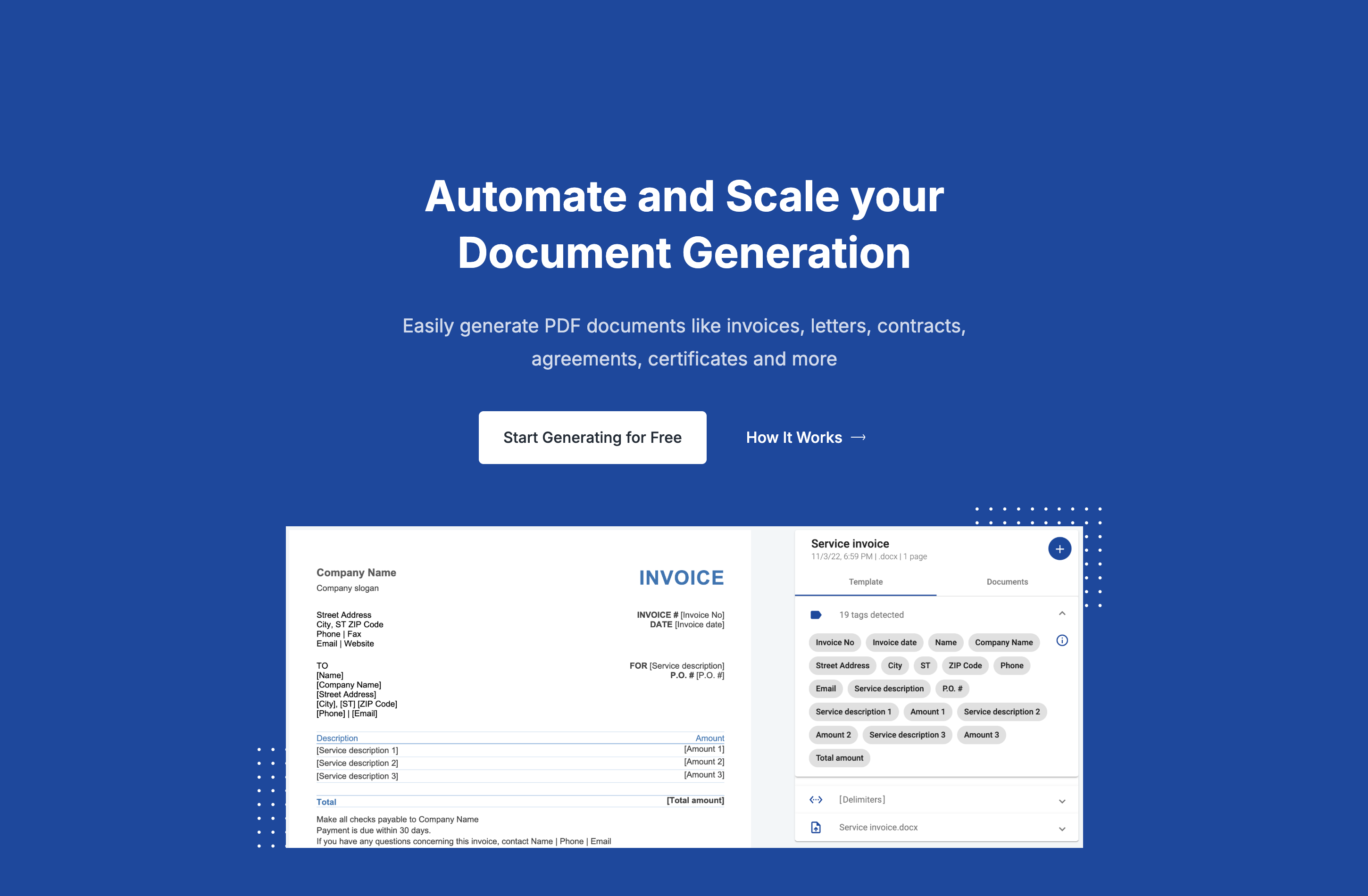

User reviews (0)