
 简体中文
简体中文 English
Website review
This review may include AI-generated content and is not individually verified. Domain, certificate and other facts come from the observed data on this page.
What is Kap?
Kap is an open-source screen recorder for macOS (version 12 or later), built with web technology and distributed through GitHub. It records your screen and exports as GIF, MP4, WebM or APNG, with optional audio, click highlighting and trimming. In short: a lightweight capture tool aimed at people who want quick, clean screen recordings rather than a full video-production suite.
Who it suits
- Designers and developers sharing short demos, bug reproductions or UI walkthroughs, where a GIF or short MP4 pasted into a chat or issue tracker works better than a full video file.
- Project managers and teammates who need a quick annotated clip without learning a complex editor.
- Anyone on macOS who prefers an open-source tool they can inspect, build on or contribute to.
Trade-offs to weigh
| Consideration | What it means for you |
|---|---|
| macOS only | Not an option if your team is on Windows or Linux. |
| Short-form focus | Good for clips and loops; not a replacement for long-form recording or editing software. |
| Open-source model | You get transparency and extensibility, but updates and support depend on the community rather than a vendor. |
| Export formats | GIF and APNG suit quick sharing; MP4 and WebM suit higher-quality video. |
A practical next step
If you're evaluating it, record one real task—say, a two-minute walkthrough of a feature—and export it both as GIF and MP4. Compare file size and legibility when the clip is viewed at normal size in Slack or a GitHub issue; that tells you quickly whether its output fits how your team shares work. For alternatives, compare against OBS Studio, which is cross-platform and geared toward longer recordings and streaming, if your needs go beyond short clips.
How do I install Kap on my Mac?
Kap is a Mac-only screen recorder, and the site requires macOS 12 or later. To install it, open Kap - Capture your screen and choose the download for your Mac: the Apple (M1) build for Apple Silicon Macs or the Apple (Intel) build for Intel Macs. Open the downloaded file and move Kap into your Applications folder, then launch it.
Before you download
- Check your macOS version: Apple menu → About This Mac. If you're below macOS 12, update first or Kap won't run.
- Pick the right build: Apple menu → About This Mac shows "Chip" (Apple Silicon) or "Processor" (Intel). Choosing the wrong one can mean slow performance or a refusal to launch.
- Expect a first-launch permission prompt: Screen recording on modern macOS requires granting access in System Settings → Privacy & Security → Screen Recording. Kap can't capture until you allow it, and you may need to restart the app afterward.
A practical first test
Record a short clip with audio and export it as MP4 to confirm both video and sound work. Kap's export options (GIF, MP4, WebM, APNG, with optional audio, click highlighting and trimming) are worth trying once so you know which format suits your audience—GIF for quick chat sharing, MP4 for presentations.
If you want to compare alternatives before committing, OBS Studio is the common choice for longer or more complex recordings, though it has a steeper learning curve than Kap's simple capture flow.
Can I record audio along with my screen using Kap?
Yes. Kap supports recording audio with your screen capture, and the audio is optional—you can toggle it on or off depending on whether you want narration or a silent clip. This makes Kap suitable for both narrated walkthroughs and quick silent demos.
When audio matters
- Narrated tutorials and bug reports: Turn audio on so viewers hear your explanation alongside what's on screen. Useful for designers, developers, and project managers walking teammates through an issue.
- Silent UI demos or GIFs: Leave audio off when the clip is meant to loop as a GIF or when background noise would distract.
Practical next step
Decide first whether your audience needs your voice. If yes, enable audio and do a short test recording to check microphone levels before a longer take. If the clip is destined for a GIF, audio won't carry over anyway, so record silently.
Kap also offers click highlighting and trimming, which pair well with narration: highlight clicks so viewers follow your actions while your voice explains the reasoning. The tool is open-source and requires macOS 12 or later, so it fits Mac-based workflows. For contributing or checking details, see the project on GitHub.
What export formats does Kap support for screen recordings?
Kap exports screen recordings as GIF, MP4, WebM, or APNG, with optional audio, click highlighting and trimming before you save.
Which format to choose
| Format | Good for | Trade-off to expect |
|---|---|---|
| GIF | Quick demos pasted into chats, wikis or issue trackers | Large files, limited colours; keep clips short |
| MP4 | Sharing walkthroughs with people on any device or player | Less convenient than GIF for inline embedding |
| WebM | Web pages and docs where file size matters | Playback depends on browser support |
| APNG | Looping, higher-quality animations than GIF | Bigger files and patchier app support |
A practical next step: record a 10–20 second clip of the exact interaction you want to show, then export it twice — GIF for a quick share and MP4 for anyone who needs to scrub through it. If the clip is longer than about half a minute, MP4 or WebM will usually serve your audience better than GIF.
Kap requires macOS 12 or later, so this workflow suits Mac users; the project is open source and developed on GitHub.
How does Kap compare to built-in macOS screen recording tools?
Kap is an open-source screen recorder for macOS 12 or later that exports to GIF, MP4, WebM or APNG, with optional audio, click highlighting and trimming. Built-in macOS recording (QuickTime Player or the screenshot toolbar) covers basic capture with almost no setup. The real difference is output and workflow: Kap is aimed at people who need editable, shareable clips in several formats, not just a one-off screen movie.
Where each fits
| Need | Kap | Built-in macOS tools |
|---|---|---|
| Quick one-off recording | Extra install step | Ready immediately |
| Format choice (GIF, WebM, APNG) | Yes, with optional audio and trimming | Mainly standard video output |
| Click highlighting | Listed feature | Not part of basic capture |
| Open-source/extensible | Yes, developed in the open | No |
| Zero-friction start | Requires download | Built in |
Practical scenarios
If you are a designer or developer making short demo clips for a README, bug report or chat thread, Kap's GIF and WebM exports and click highlighting save a separate conversion step. If you are a project manager recording a walkthrough for colleagues, the built-in tool is usually faster because it is already installed; use Kap when the clip needs trimming or a lighter format.
How to decide
Choose Kap when the output format, click visibility or trimming matters more than setup time. Stay with the built-in recorder for spontaneous captures or when you want no extra software. As a next step, record the same 30-second clip in both and compare file size and clarity where you will actually share it.
For related options, see OBS Studio for broader recording and streaming, and QuickTime Player for Apple's own playback and recording tool.
Can I upload my Kap recordings directly to Giphy or Streamable?
Yes. Kap's own page lists Giphy and Streamable as sharing destinations, so you can send a recording to either service from within the app rather than saving the file and uploading it manually in a browser. The page also lists Vercel as an integration, which points to a deployment-style workflow rather than simple clip sharing.
What that means in practice
- Giphy suits short, looping clips. A designer recording a small UI animation can export it as a GIF and publish it where teammates and clients already look for GIFs.
- Streamable suits longer walkthroughs. A developer demoing a bug or a feature can push an MP4-style clip to a video host and share a link instead of attaching a large file.
- Local export remains the fallback. Kap exports GIF, MP4, WebM and APNG with optional audio, click highlighting and trimming, so the same recording can go to a chat app, a ticket or a repository without any third-party service.
Decision criterion
Choose the direct upload when the clip is meant for a public or team-facing audience and you want a shareable link quickly. Choose a local export when the file needs editing, archiving, or attaching somewhere that doesn't accept hosted links.
One practical caveat: direct uploads depend on those services' accounts and terms, so confirm your Giphy or Streamable setup before relying on it for a deadline. As a next step, record a ten-second test clip and try both destinations once, so you know which one fits your usual sharing habits.
 vercel-dns.com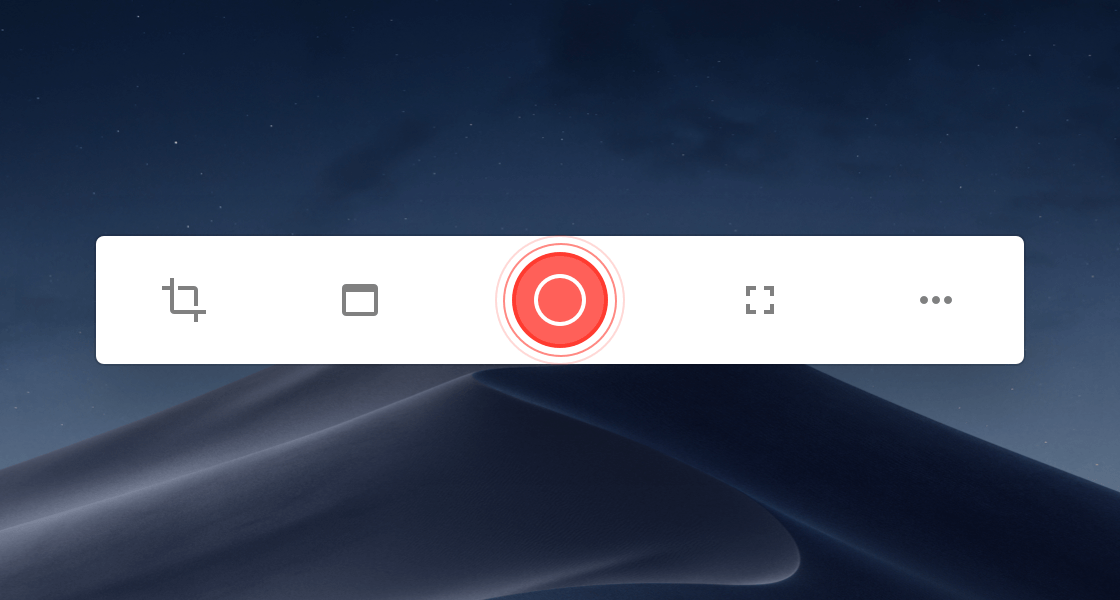

User reviews (0)