
 简体中文
简体中文 English
Website review
This review may include AI-generated content and is not individually verified. Domain, certificate and other facts come from the observed data on this page.
What is MagicPattern?
MagicPattern is a browser-based toolbox for generating background graphics: patterns, gradients, blobs and similar decorative assets you can drop into websites, social posts, presentations or brand materials. Its selling point is speed — pick a tool, set dimensions and colors, then export the result without opening a full design application.
What you can make with it
The site lists more than 30 tools, including:
- Geometric and seamless patterns
- Mesh gradients and a shader gradient editor
- Dither, halftone and CMYK halftone generators
- 3D perspective grids
- God rays and fractal glass effects
Who it suits
- Web designers and developers who need a hero background, section divider or subtle texture and want code rather than a flat image. MagicPattern exports SVG and CSS snippets alongside JPG, PNG and WebP, so a gradient or pattern can be pasted straight into a stylesheet.
- Social media and marketing generalists producing post graphics, thumbnails or campaign visuals on a deadline, where a repeatable pattern beats a one-off illustration.
- Agencies and freelancers who want a shared library of saved assets they can reopen and edit across devices, plus custom color palettes and uploaded brand elements (images, SVG) to keep output on-brand.
Trade-offs to weigh
| Strength | Limitation |
|---|---|
| Fast, no design skills required; free tier available | Best for backgrounds and decorative graphics, not layout or typography work |
| Code export (SVG, CSS) alongside image formats | Export options vary by tool, so check the specific generator you need |
| Saved, editable assets across desktop and mobile | Logo upload for one-click branding was described as coming soon, not yet available |
A practical example
Suppose you're building a SaaS landing page and need a distinctive hero background. Instead of commissioning artwork, you'd open a mesh gradient or geometric pattern tool, set the canvas to your hero dimensions, apply your brand palette, and export both a WebP for a fallback image and the CSS snippet for a lighter-weight version. If the gradient reads too busy behind your headline, you can dial back the contrast and re-export in under a minute.
How to decide if it's worth trying
Start with the free tier on a single real task — one background you actually need this week. If the export format matches your workflow (CSS/SVG for code, PNG/WebP for social) and the result needs only minor tweaking, the toolbox is likely to earn a place in your routine. If you need illustrations, icons or full page compositions, look elsewhere; MagicPattern is a specialist tool for generated graphics, not a general design suite.
For related free pattern and gradient resources, see CSS Gradient and Hero Patterns.
How can I export graphics from MagicPattern for use in web development?
Export from MagicPattern by choosing the format that matches how the graphic will be used: images (JPG, PNG, WebP) for raster use, SVG for scalable vector assets, or the CSS snippet when the graphic should be generated directly in code. The available options depend on which of the 30+ tools you are using.
Which export fits which job
| Use case | Better choice | Why |
|---|---|---|
| Hero background or section pattern in a site | CSS snippet | Embeds directly in your stylesheet, no extra file request |
| Icons, logos, simple geometric shapes | SVG | Stays sharp at any size and can be recolored or animated in code |
| Social posts, thumbnails, mockups | PNG or JPG | Broad compatibility with design and publishing tools |
| Modern web images where file size matters | WebP | Smaller files for the same visual result |
| Photography-style or complex mesh gradients | Raster (PNG/WebP) | Vector conversion can lose gradient subtlety |
A practical web workflow
- Set your canvas dimensions to match the target element, for example a 1440×600 hero or a 400×400 card background.
- Apply your brand colors using a custom palette, or upload brand elements such as images and SVGs so assets stay consistent across a project.
- Preview at the real display size before exporting; patterns that look good zoomed out can feel busy behind text.
- Export SVG or CSS for layout elements, and raster formats for anything that will be composited or shared outside the browser.
- If you pick CSS, paste the snippet into your stylesheet and test it against your existing background and z-index rules.
Decision criteria
Choose SVG or CSS when the graphic must scale, be themeable, or stay lightweight. Choose PNG, JPG or WebP when the graphic is decorative, photographic or destined for social media. If you work across a team, saving and editing graphics in the tool and accessing them from desktop or mobile keeps a shared library instead of scattered local files.
For a concrete example: a landing page hero can use a CSS mesh gradient behind the headline, while the same brand palette produces an SVG seamless pattern for section dividers — one stays in code, the other remains an editable asset.
If you are comparing options, MagicPattern focuses on generating backgrounds, patterns and gradients with code-friendly export, whereas general editors like Figma are stronger for full interface design and Coolors is useful for building the palettes you feed into either tool.
Can I use my own brand colors and logos in MagicPattern?
Yes — MagicPattern supports brand-specific customization, with one important caveat about logos.
Brand colors: You can create custom color palettes and apply them to the graphics you generate, so patterns, gradients, and similar assets can stay on-brand rather than defaulting to preset colors.
Brand elements: The site also lets you upload your own brand elements, such as images and SVGs, to use inside your graphics.
Logos: Logo upload is described as coming soon, not as a current feature. Until that ships, treat a logo as just another uploaded image/SVG asset and place it manually, rather than expecting a one-click "apply logo" option.
What this means in practice
A realistic workflow: a designer at a small agency builds a client's palette once, then generates a set of seamless patterns and mesh gradients for social posts and a landing page hero, exporting SVG or CSS for the site and PNG/JPG/WebP for the posts. The palette keeps everything visually consistent across those formats.
The trade-off is that color and asset reuse is well covered, while full identity management (logo placement, locked templates, multi-brand switching) is not yet fully there. If your need is mainly "keep colors consistent across many generated graphics," this fits well. If you need strict, repeatable logo lockups across dozens of assets, plan on extra manual steps.
Next step
Open the toolbox and check whether the specific tool you want (for example, mesh gradients versus halftone) exposes your custom palette and upload options — export formats and brand controls vary by tool. If logo automation is essential, verify current status on the site before committing to a paid plan: MagicPattern.
Is MagicPattern suitable for designers with no coding experience?
Yes. MagicPattern is built around visual generators rather than a code editor, so a designer with no coding background can produce finished graphics without writing anything. The page describes the workflow as choosing dimensions and colors, then letting the tool generate the pattern — one testimonial from product designer Hannah Milan notes it gives her flexibility to create different geometric patterns "in one go," and founder Kilian Valkhof describes picking dimensions and colors and refreshing until done. That matches a no-code, iterate-by-clicking experience.
Where coding does appear
Code is an optional output, not an input requirement. Export options include JPG, PNG, WebP and SVG images, plus a CSS snippet for embedding directly into a page. If you don't want the CSS, ignore it and download the image. The CSS route only matters if you're handing assets to a developer or pasting into a site builder yourself.
Practical trade-offs
- Image exports (PNG, JPG, WebP) are the safe default for social posts, thumbnails, slide decks and client mockups.
- SVG suits logos, icons and anything that must scale cleanly, and it can be opened in Figma or Illustrator like any other vector file.
- CSS is the one path that assumes some comfort with stylesheets — useful for crisp, resolution-independent web backgrounds, but skippable.
- Which formats you get depends on the tool, so check the export panel for the specific generator you're using.
A useful next step
Pick one real task — say, a set of seamless background patterns for a landing page hero — and run it through a pattern tool, then export both a PNG and an SVG of the same design. Compare them in your usual design app. If the SVG behaves like a normal vector asset, you can treat MagicPattern as a design tool rather than a developer tool. If you later want the CSS version, that's the moment to loop in whoever builds the site — or try the snippet yourself in a test page first.
For broader context on vector workflows, Figma and Adobe Illustrator both handle exported SVG files natively.
What are the pricing options for MagicPattern?
MagicPattern is a browser-based design toolbox for generating backgrounds, patterns and gradients, and it offers a free tier plus paid plans. The site states plainly that no credit card is required to start and that a free tier is included, but the specific prices and what each paid tier unlocks are not shown in the information available here. For exact figures, check the official pricing page: MagicPattern Pricing.
What the free tier tells you
- It is enough to test the workflow: pick a tool, set dimensions and colors, refresh variations, and export a result.
- It is the sensible starting point if you only need a handful of graphics, or if you want to confirm that the export formats fit your project before paying.
- The main trade-off is usually volume and asset management rather than the core generation tools. If you need many saved, editable graphics across devices, a paid plan is the more likely fit.
Who tends to need a paid plan
- Freelancers and agencies producing backgrounds for multiple clients, where saved and reusable assets matter.
- Developers who want SVG or CSS output they can drop straight into a codebase.
- Social and marketing teams creating recurring thumbnails, post backgrounds and landing-page visuals.
How to decide
- Open a tool you would actually use, such as Seamless Patterns or Mesh Gradients.
- Produce one real asset for a current project and export it.
- If the free limits block the way you work, compare the paid tiers on the pricing page against how many assets you expect to create and whether you need brand palettes or uploaded brand elements.
As a practical example: a web designer building a landing page can generate a mesh gradient, export the CSS snippet, and paste it directly into the stylesheet — a task that normally means hand-writing gradient code or exporting a heavy image. That single use case is often enough to judge whether the free tier suffices or a subscription is worth it.
How do I save and organize my designs in MagicPattern?
MagicPattern handles saving and organizing through its built-in asset library rather than through a file system. The site describes it as "Neatly Organize Your Assets": you create, save, and edit graphics in the tool, then access them from any device, desktop or mobile. In practice that means the work stays tied to your account, so a pattern you start on a laptop can be reopened later on a phone without exporting and re-importing files.
What "saving" means here
- Saved items are your editable graphics, not flat exports. You can return and adjust dimensions, colors, or tool settings.
- Because everything lives in one library, you don't need local naming conventions or folder structures to keep track of versions.
- Exporting is a separate step: JPG, PNG, WebP, and SVG for images, plus a CSS snippet you can paste into code. The available formats depend on which tool you used.
A practical workflow
- Create a graphic with the relevant tool (geometric patterns, seamless patterns, mesh gradients, halftone, and others in the toolbox).
- Save it to your library with a name that identifies the client or campaign, not just the tool.
- Set up a custom color palette and upload your own brand elements (images, SVG) so saved work follows brand guidelines from the start.
- Export only when a specific destination needs a file — social post, landing page, thumbnail — and keep the editable version in the library as the source of truth.
Trade-offs to weigh
The account-based library is convenient for solo designers and small teams, and the testimonial from James LePage, an agency founder, frames it as a shared agency toolkit used across social marketing and design projects. But that same design means organization depends on the platform's own structure. If you need deep folder hierarchies, version history, or handoff to developers outside the tool, plan a naming discipline and export cadence rather than assuming the library will do that work for you.
If you want to see how the library and export options actually behave before committing, start with the free tier and save a handful of test graphics across two or three different tools — that will quickly show whether the organization model fits how you work. More detail is on MagicPattern.
 Namecheap
 Vercel
 Google Workspace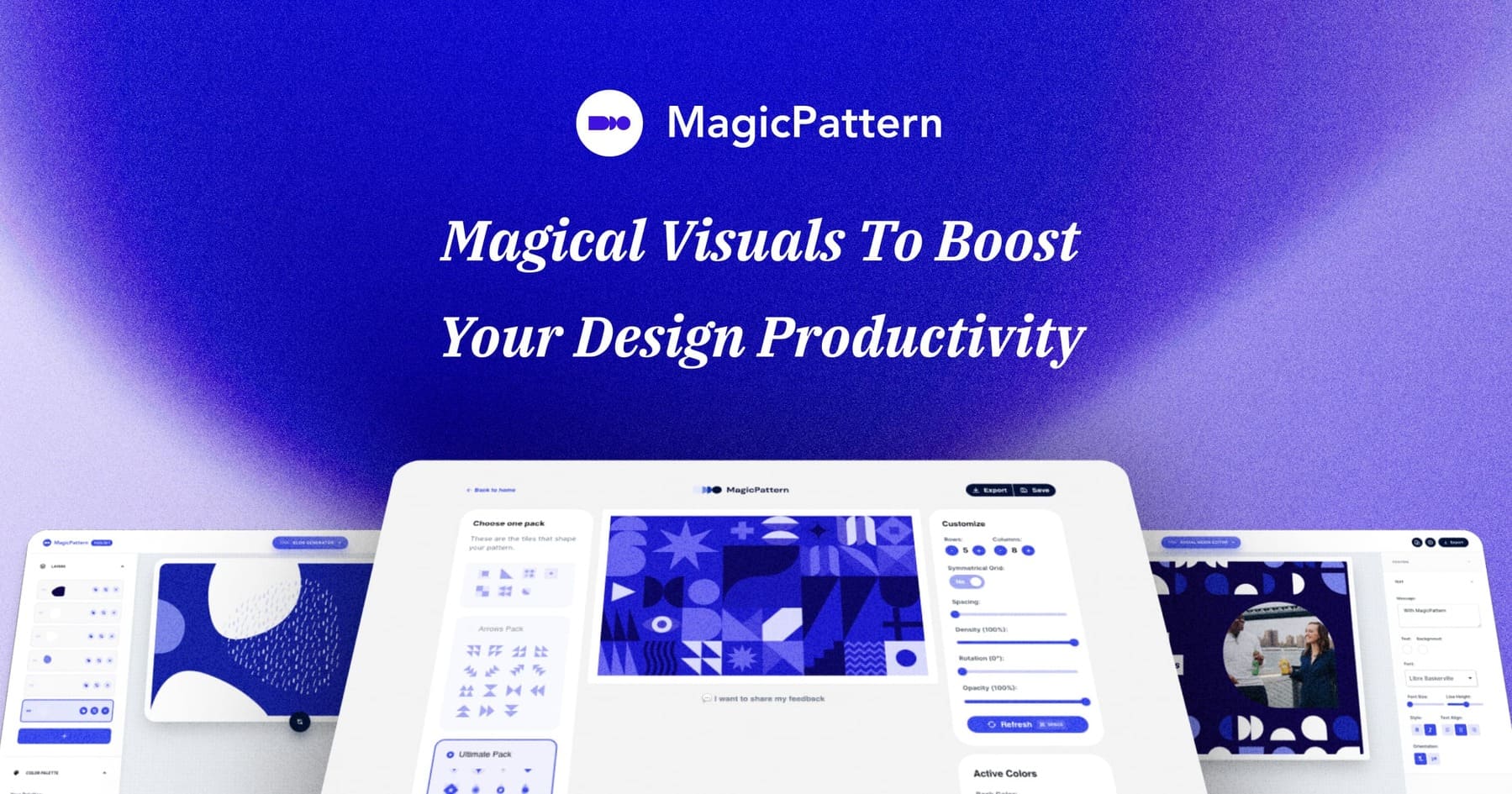
User reviews (0)