
 简体中文
简体中文 English
Website review
This review may include AI-generated content and is not individually verified. Domain, certificate and other facts come from the observed data on this page.
What is Medicat USB?
Medicat USB is a toolkit that bundles a curated selection of current computer diagnostic and recovery utilities into one bootable, easy-to-use package. Rather than collecting dozens of separate rescue discs and installers, you prepare a single USB drive and get a menu of tools for troubleshooting, testing and repairing PCs. The project presents itself as a compilation and launcher, not as a single proprietary diagnostic program. See Medicat USB.
H3 Who it is for
- Repair technicians and IT support staff who regularly image, test or clean up machines and want one drive that covers many situations.
- Enthusiasts and home users comfortable booting from USB and working outside their normal operating system.
- People maintaining older or unknown hardware who need to check disks, memory, boot records or malware without relying on the installed OS.
H3 Typical uses
- Booting a PC that will not start normally and running recovery or partition tools.
- Diagnosing failing drives, memory or boot configuration before deciding on repairs.
- Removing stubborn malware or resetting local passwords from a maintenance environment.
- Reusing one prepared USB across many different machines instead of carrying multiple discs.
H3 Trade-offs to weigh
- Convenience vs. trust: a compilation saves time, but you are relying on the maintainers to keep bundled tools current and correctly packaged. Check how recently it has been updated before using it on important systems.
- Breadth vs. learning curve: a large menu can be overwhelming if you only need one or two utilities.
- USB requirements: you need a suitable drive and a working computer to create it; the drive is typically dedicated to this purpose.
H3 A practical next step If you are considering it, first identify the two or three tasks you actually need — for example, disk testing and password recovery — then check the project's current tool list and last update date to confirm those are included and reasonably fresh. If they are, prepare a spare USB drive and test it on a non-critical machine before relying on it for real repairs.
How do I install Medicat USB on a USB drive?
Installing Medicat USB means putting its collection of diagnostic and recovery tools onto a USB drive and making that drive bootable. The project provides its own installer and download packages, so the normal path is: download the official package, run the installer, and point it at your USB drive. The site itself frames Medicat as a toolkit that compiles current diagnostic and recovery tools into one easy-to-use package, and its page lists an Installer alongside Main Downloads, which is the route to use rather than copying files manually.
A practical sequence for a typical reader:
- Use a USB drive you can erase completely. Medicat occupies a full drive, so back up anything on it first.
- Download the installer and main package from the official source: Medicat USB.
- Run the installer with administrator rights and select your USB drive as the target.
- Let it write and verify; don't unplug the drive mid-write.
- Reboot the target PC and open its boot menu (often F12, F10, Esc or Del) to boot from the USB.
Decisions that matter more than the click-through
- Drive size and speed: A larger, faster USB 3.x drive makes the multi-tool menu and larger recovery environments far less painful. A slow, small stick works but feels sluggish.
- One drive or two: If you rely on Medicat regularly, keep a dedicated drive for it rather than sharing with everyday files; the installer will wipe what's there.
- BIOS vs UEFI: Modern machines usually need the USB booted in UEFI mode, but older hardware may need legacy/CSM. If the drive doesn't appear in the boot menu, check this setting first.
- Secure Boot: Some recovery tools won't load with Secure Boot enabled; you may need to disable it temporarily.
Whose experience is this? The supplied page evidence contains no review or video notes, so the steps above are general advice for this class of toolkit, not a verified walkthrough of Medicat's installer. For exact menu labels, supported drive sizes, and any verification steps, follow the official installer instructions on Medicat USB and cross-check community discussion on GBAtemp, which the project links to.
A useful next step: before touching your main PC, test the finished drive on a spare or virtual machine to confirm it boots and that your most-needed tool (for example, a disk diagnostic or password reset utility) actually launches.
Which diagnostic and recovery tools are included in Medicat USB?
Medicat USB does not publish a fixed, itemised tool list on its landing page. Its own description is broader: it "helps compile a selection of the latest computer diagnostic and recovery tools into an easy to use toolkit." So the honest answer is that the exact contents vary by release, and you should check the current build rather than rely on a static list.
What the page actually tells you
- The toolkit bundles diagnostic and recovery utilities into one prepared package.
- There is an installer and a "Main Downloads" section, which implies the toolset is assembled and updated as builds rather than as a pick-your-own menu.
- Demo material exists, which is the fastest way to see the current menu before committing a USB drive.
How to find the current list
- Open Medicat USB and look at the demo and main download sections for the current build's contents.
- If you need a definitive inventory, the project's GitHub page is the authoritative place, since the landing page only summarises. The site links to GitHub directly.
- Community threads such as the GBAtemp post linked from the site often discuss what changed between versions, which is useful for spotting tools that were added or dropped.
Practical decision criterion
If your goal is a specific tool, for example a particular partition utility or memory tester, treat Medicat as a convenience wrapper and verify that tool is present in the build you download. If your goal is a general "one USB for many machines" kit, the bundled approach saves you assembling and updating tools individually.
A concrete scenario: a technician preparing one drive for mixed Windows and Linux machines can use Medicat as the base and add only the vendor-specific tools it lacks. Checking the demo first avoids downloading a large image that turns out to be missing the one utility you needed.
Can Medicat USB recover deleted files or repair a non-booting computer?
Medicat USB is best understood as a bootable toolkit that gathers many diagnostic and recovery utilities into one place, so the answer depends on which tool inside it you run.
Recovering deleted files: Yes, this is a realistic use. A bootable toolkit like this typically includes file-recovery utilities you can run from the USB environment, which matters when the operating system on the internal drive won't start and you can't install recovery software normally. The practical trade-off: recovery works best when you stop writing to the affected drive immediately. If you keep using that disk, new data can overwrite the files you're trying to get back. For a failing drive, image it first and run recovery against the image rather than the original.
Repairing a non-booting computer: Partly. It can help you diagnose and often fix common boot problems — repairing boot records, checking disk health, testing memory, scanning for malware, or rescuing data before a reinstall. It is not a guarantee: if the failure is physical (dead drive, failed controller, bad RAM), software tools can only tell you what's wrong, not replace the hardware. Think of it as a rescue and diagnosis kit, not a repair shop.
A concrete scenario: A laptop shows a boot error after a power cut. You boot Medicat from USB, check the drive's SMART health, repair the boot configuration, and if the drive looks unstable, copy important files off before doing anything else. That sequence — assess, rescue data, then attempt repair — is the safe order.
Decision criterion: Choose this route if the machine powers on and reaches BIOS/UEFI and you're comfortable booting from USB. If there's no power, no POST, or obvious hardware failure, diagnose the hardware first.
Next step: check the toolkit's current tool list on Medicat USB to confirm it includes the specific recovery and boot-repair utilities you need before relying on it.
Is Medicat USB free to download and use?
Yes. Medicat USB is presented as a downloadable toolkit, and the site provides Main Downloads and an Installer without showing any paid tiers, subscriptions, or checkout. In practice, that means you can obtain and use the toolkit without paying for the download itself.
What "free" does and doesn't cover
| Aspect | What to expect |
|---|---|
| Downloading Medicat | No payment indicated on the site |
| Using the toolkit | Free to run the bundled diagnostic and recovery tools |
| The tools inside | Many are themselves free/open-source, but each has its own license |
| Windows or other paid software | Not included; you still need your own valid licenses |
| Hardware | You supply a USB drive large enough to hold the toolkit |
A realistic scenario
You have a laptop that won't boot. You download Medicat, write it to a USB stick, boot the machine from that stick, and use the included diagnostics to test the drive and memory, then attempt recovery. Nothing in that workflow requires a purchase from Medicat.
Practical next step
Before downloading, check the size of the toolkit and confirm your USB drive has enough capacity, since the collection bundles many tools. Then start with Medicat USB for the official download and installer. If you want to compare approaches, Ventoy is a common way to boot multiple ISOs from one drive, and Hiren's BootCD PE is a similar recovery-focused option.
What are the system requirements for running Medicat USB?
Medicat USB is not a single program with one fixed hardware checklist. It is a toolkit that gathers many diagnostic and recovery utilities into one bootable environment, so its practical requirements depend on which tools you launch and on the machine you are trying to repair. The page itself focuses on what the toolkit contains and where to download it, not on published minimum specifications.
In practice, you need:
- A USB drive large enough to hold the toolkit and any extra tools or data you add.
- A computer that can boot from USB, with BIOS or UEFI settings that allow it.
- Enough RAM and storage for the individual utilities you choose, not for Medicat as a whole.
- A target machine that may be in any state, including one with a failing drive or no working operating system.
The bigger trade-off is compatibility versus simplicity. A multiboot toolkit gives you many recovery options in one place, but older machines may need legacy boot settings while newer ones may require UEFI, and some tools will not work on both. If you maintain computers regularly, that flexibility is worth the setup time. If you only need to recover one PC, a single-purpose rescue drive may be faster to prepare.
For a concrete test, plug the USB into the machine you intend to use, open its boot menu, and confirm the toolkit loads before you rely on it during an emergency. Check the official project page for current download and installation guidance: Medicat USB.
 Cloudflare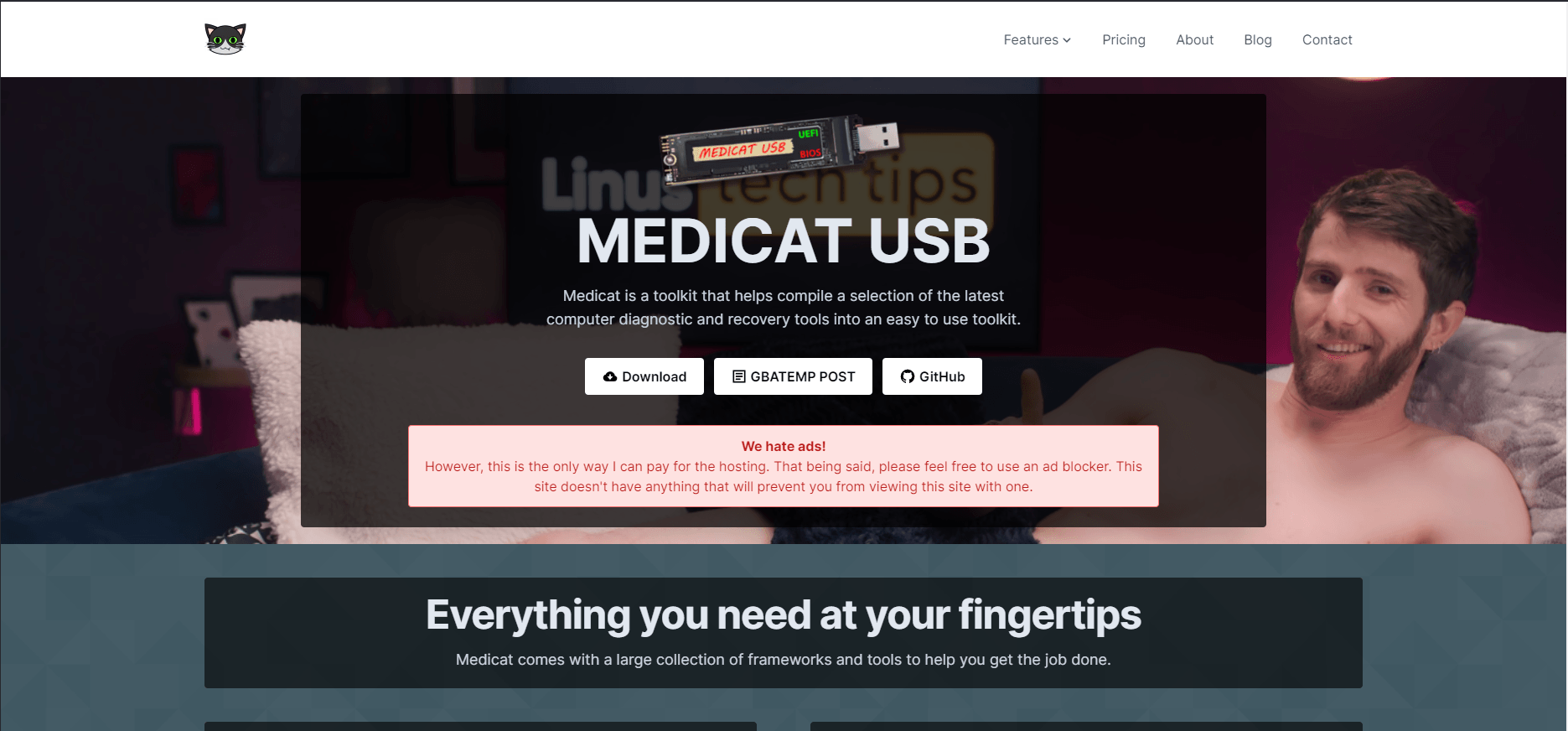
User reviews (0)