Website profiles · Technology insights · Alternatives

outwrite.com

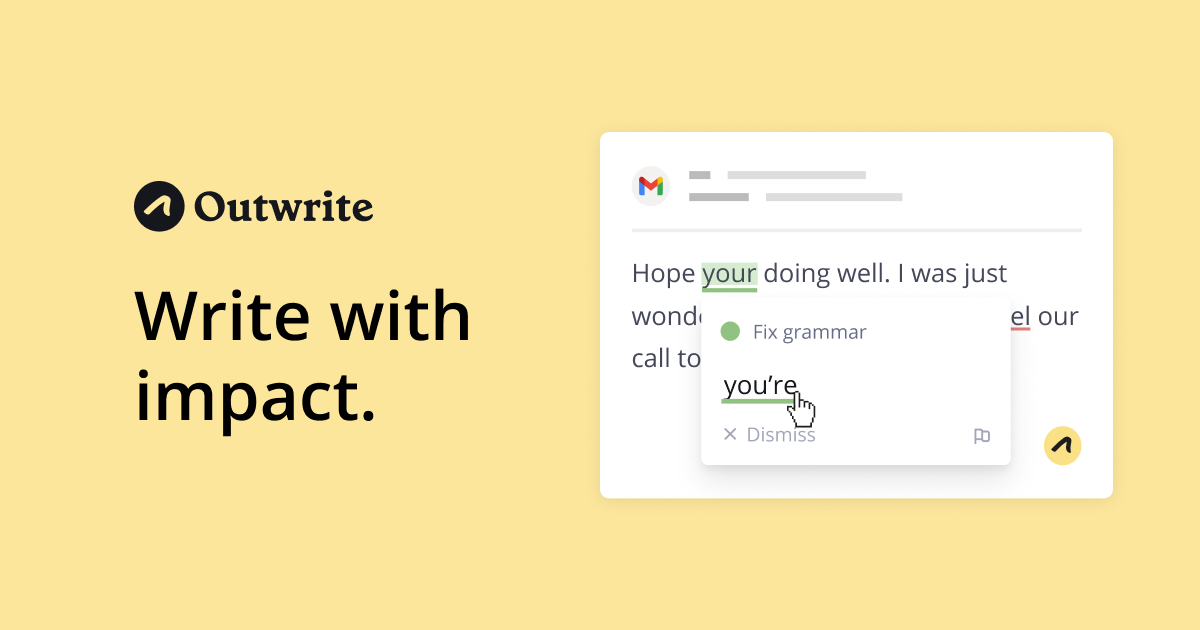
Become a better writer with Outwrite. Our AI writing assistant is more than a grammar checker—it helps turn your ideas into powerful sentences, anywhere online. Get started for free.

Paid content Multilingual
Visit website
Profile views 0 Outbound visits 0 Normal
Outwrite Full homepage screenshot

At a glance

Category
Artificial Intelligence
Language
English
Paid-content signal
Paid contentObserved
Registered
2003
Hosting
VercelInferred
HTTPS certificate trusted
PassedObserved
Last updated

Website review

This review may include AI-generated content and is not individually verified. Domain, certificate and other facts come from the observed data on this page.

What is Outwrite?

Outwrite is an AI writing assistant that works as a browser extension and add-in across the places people already write online, including Google Docs, Microsoft Word, Outlook, Gmail, LinkedIn and WordPress. Its core job is checking spelling, grammar and punctuation, with a premium tier adding style and structure improvements and a Teams plan aimed at keeping company communications consistent.

What it actually does

  • Accuracy checks: catches spelling, grammar and punctuation errors, described as free on the site.
  • Style and structure: premium features for improving flow and quality of writing.
  • Paraphrasing tool: rewrites sentences to be shorter, longer or worded differently.
  • Passive voice conversion: suggests turning passive phrases into active ones.
  • Writing statistics: readability and grade-level scores shown in real time.
  • Multilingual checking: English, French and Spanish.

Who it suits

The strongest fit is someone who writes in a browser all day—emails, documents, social posts—and wants one checker that follows them between tools rather than a separate app. The Teams plan points to marketing and communications groups that need a shared standard of clarity across many writers. A solo blogger or student would likely get most value from the free accuracy checks and treat style tools as optional.

A practical next step: open a typical document you've written and run it through the free tier. If the errors it catches are mostly typos, a basic checker may be enough; if you find yourself wanting rephrasing and readability feedback, the premium features are the differentiator. For comparison, Grammarly is the better-known general-purpose alternative, while LanguageTool is worth a look if multilingual checking matters to you.

How does Outwrite work inside Google Docs, Word, Gmail, and other platforms I already use?

Outwrite works as an extension layered onto the writing tools you already use, rather than as a separate editor you have to switch to. Per the site, it runs "wherever you write online," listing Google Docs, MS Word, Outlook, Gmail, LinkedIn, and WordPress, and is available as a Chrome or Edge extension plus integrations for Word and Google Docs. In practice, you keep drafting in Gmail or Docs and the assistant checks and suggests changes in place.

What it does while you write

The page describes these functions operating on your text inside those platforms:

  • Advanced grammar — corrects spelling, grammar, and punctuation instantly.
  • Style suggestions — improves quality and flow.
  • Paraphrasing tool — rewrites sentences shorter, longer, or differently.
  • Passive voice — converts passive phrasing to active.
  • Writing statistics — readability and grade-level scores in real time.
  • Multilingual support — checks English, French, and Spanish.

How the tiers change the experience

The free tier covers accuracy checking; style and structure improvements sit in the premium plan, and consistent company-wide communication is handled by the Teams plan. So a solo user mainly gets a grammar layer, while a marketing team standardizing tone across many writers is the audience for Teams.

A practical example

A support agent drafting replies in Gmail gets spelling and punctuation fixes as they type. If they also want tighter sentences, that leans on the premium style features. A bilingual team writing in French and Spanish can check all three supported languages without leaving their tools.

Decision criterion

If your work happens mostly in Google Docs, Word, Gmail, or a CMS like WordPress, an in-place assistant avoids copy-pasting between apps. If you need style and readability guidance rather than just error-catching, weigh the premium plan. For brand consistency across a team, the Teams plan is the relevant comparison.

As a next step, test it on one real document in your main tool to see whether the in-place suggestions fit your workflow. For a second opinion on grammar-focused tools, see Grammarly.

Is Outwrite Pro or the Teams plan worth paying for compared to the free version?

Outwrite Pro is worth paying for if you write in English, French or Spanish every day and want style and structure help, not just error correction. The Teams plan is worth it only if you need several colleagues to write in a consistent company voice. If you mainly need spelling and grammar checks, the free version covers that.

What each tier appears to cover

Tier What the page suggests you get Best for
Free Spelling, grammar and punctuation checking Occasional writers, students, anyone who mainly needs error correction
Pro Style and structure improvements, plus features such as paraphrasing, passive-to-active voice changes and readability statistics People who write regularly and want to improve how their text reads, not only whether it is correct
Teams Consistent, clear company communications across a team Marketing, communications and client-facing teams at one organisation

The page lists the writing statistics, paraphrasing tool and passive voice conversion under "Popular features" without saying which tier includes them. Treat the split above as the page's own framing rather than a confirmed feature list, and check the pricing page before committing.

How to decide

Think about the last few things you wrote for work. If your problem was typos and comma errors, the free checker solves it. If your problem was that emails felt long, passive or unclear, Pro targets exactly that. If your problem was that five colleagues each sound different in customer emails, Teams is the relevant tier.

Outwrite runs inside Google Docs, Word, Outlook, Gmail, LinkedIn and WordPress, so the practical cost of trying it is low: you keep writing where you already work rather than moving to a new editor.

A concrete scenario

A marketing coordinator at a small agency drafts client updates in Gmail and blog posts in WordPress. She already runs a free spellchecker, so the free tier adds little. Pro's style and paraphrasing tools would help her tighten drafts before a manager reviews them, which is the step where her time actually goes. Her colleague, who writes in French for one client, benefits from the same tool because the page lists French and Spanish support.

Whose experience this is

The page quotes users such as Andy Twomey, a director at Y&C Agency, who says Outwrite "keeps my writing consistent and effective," and Shantelle Isaaks from Laing + Simmons, who says the team's marketing and social content "benefited greatly" from the writing checks. These are the vendor's own testimonials, so read them as claims rather than independent evidence. My practical reading: consistency praise fits the Teams pitch, while individual writers are more likely to notice the style and rewriting tools.

A useful next step

Write one real email or post with the free tier, then compare it against a version you rewrite yourself. If the gap is mostly correctness, stay free. If you keep wanting help restructuring sentences, price Pro against how many writing hours it saves you each month. Compare with Grammarly if you want a second opinion on style-focused assistants before paying.

How can I use Outwrite to make my company's communications consistent across my team?

Use Outwrite's Teams plan as a shared writing layer rather than a single editor: it is designed to keep company communications "consistent and clear," and the assistant works inside tools your team already uses—Google Docs, MS Word, Outlook, Gmail, LinkedIn and WordPress—so consistency checks happen where drafts are actually written. The practical goal is to reduce variation in grammar, tone and phrasing without asking everyone to change software.

A workable rollout

  1. Agree on a small style baseline. Pick the handful of rules that matter most—tone, preferred terms, formality, active vs. passive voice—and write them down. Outwrite's grammar, style suggestions and passive-voice tools can then be used to check drafts against that baseline.
  2. Standardize the tools. Confirm which of the supported platforms your team uses for email, documents and web content, and have everyone enable the assistant there. Consistency improves when the same checks run in Outlook, Word and the CMS, not just in one place.
  3. Use the same features for the same jobs. Grammar and spelling checks for all outbound writing; style suggestions and paraphrasing for marketing copy; passive-to-active conversion for reports and announcements. Writing statistics (readability and grade level) give editors an objective way to compare drafts.
  4. Set a review step, not just a tool. Have one editor or team lead review high-stakes communications (press, customer emails, executive updates) using the same criteria. The tool flags issues; a person decides.
  5. Handle multilingual teams deliberately. Outwrite checks English, French and Spanish, which helps if your company communicates in those languages—but confirm coverage for any other languages your team uses before relying on it.

Where it helps most—and its limits

Situation Good fit Watch out for
Routine email and internal updates Grammar and clarity checks reduce errors and inconsistency Doesn't replace a shared style guide
Marketing and social copy Style suggestions and paraphrasing speed up editing Tone still needs human judgment
Multilingual offices English, French and Spanish support Other languages may need separate tools
Regulated or technical content Catches surface errors Terminology and compliance need expert review

Decision criterion

If your inconsistency problem is mainly spelling, grammar, tone and phrasing across common business writing, a Teams rollout is a sensible, low-friction fix. If it stems from conflicting terminology, brand voice or approval processes, treat Outwrite as one part of the solution and invest in a written style guide plus an editorial owner.

As a next step, run a two-week pilot with one team: collect ten representative emails and documents, check them with Outwrite against your baseline, and compare the edited versions. That shows whether the differences your team notices are the ones the tool actually addresses. For broader context on writing assistants, see Grammarly and LanguageTool.

Can Outwrite help me rewrite sentences, fix passive voice, and improve readability in real time?

Yes. Outwrite's page_evidence lists a paraphrasing tool (rewrite sentences shorter, longer or differently), passive-to-active voice conversion, and writing statistics that track readability and grade level in real time, plus grammar and style suggestions. So the three tasks you named are all covered, and they run inside Google Docs, Word, Outlook, Gmail, LinkedIn and WordPress rather than in a separate editor.

What each capability is for

  • Rewriting sentences: the paraphrasing tool is the closest fit for reworking a clunky line. It is most useful for drafts and email replies where the meaning is right but the phrasing isn't; treat output as a starting point, since rewrites can drift from your intended tone.
  • Passive voice: converting passive to active helps when you want direct, accountable phrasing—useful in customer emails, proposals and internal updates. Some passive constructions are correct and even preferable (e.g., when the actor is unknown), so review rather than accept every change.
  • Readability: live readability and grade-level scores suit writers producing material for broad audiences—marketing copy, help articles, onboarding docs. Use the score as a trend, not a target; chasing a low grade level can flatten technical content that needs precision.

A practical example

Suppose you write support replies in Gmail. You draft a response, accept the grammar fixes, run the passive-voice conversion on sentences like "the issue was resolved by our team," then check the readability score to confirm the reply reads at a level a frustrated customer can skim. The style suggestions handle flow, and the paraphrasing tool trims any sentence that ran long.

How it compares

Need Outwrite's listed feature Trade-off to weigh
Reworking a sentence Paraphrasing tool Rewrites may need a tone pass
Direct phrasing Passive-to-active conversion Not every passive clause should change
Audience fit Real-time readability and grade level Scores can push toward over-simplification
Consistency across a team Teams plan for shared communication standards Best value only if several people write publicly

Multilingual checking covers English, French and Spanish, which matters if your team writes in more than one language. If you mainly need deep grammar and style checking across many languages, Grammarly is the better-known alternative; if you want inline suggestions while coding-adjacent or in docs, LanguageTool is worth comparing.

Next step: pick one recurring writing task—say, weekly client emails—and run a single draft through all three features. If the readability score and passive-voice changes match how you'd edit by hand, the tool fits your workflow; if you find yourself reverting most suggestions, a grammar-only checker will serve you better.

Does Outwrite support languages other than English, and which ones?

Yes. Outwrite supports English, French and Spanish. The multilingual support feature is listed among its popular features, and the site itself is offered in those three languages.

This matters most for people who write in more than one language day to day: a bilingual marketing team drafting French and Spanish copy, a support agent answering customers in Spanish, or a student polishing essays in English and French. For a team that works in, say, German or Portuguese, Outwrite would not cover the grammar and style checks in those languages.

A useful next step is to test one real document in each language you need, since grammar and style suggestions vary in quality by language. If broader language coverage is essential, compare dedicated multilingual checkers such as LanguageTool before committing.

Related questions

More questions →
How Do Enterprise Teams Adopt Specialist AI Agents Without Disrupting Existing Workflows?

Enterprise teams can adopt specialist AI agents without disruption by starting with one narrow, high-volume workflow, running it as a bounded pilot with human review, measuring against a baseline, and only then expanding. The key is to treat agents as new team members with defined scopes rather than as a replacement for existing tools or a sweeping platform migration. This article explains what specialist agents are, where they fit across common team functions, and a phased approach you can follow.

What Makes an Agent "Specialist" Rather Than General-Purpose

A general-purpose assistant responds to open-ended prompts across many topics. A specialist agent is scoped to one job: it has a defined goal, a limited set of tools and data sources, and a clear definition of "done."

That scoping matters for enterprise teams for three practical reasons:

  • Predictability. A narrow agent produces more consistent outputs, which makes it easier to review and trust.
  • Permission control. You can grant access only to the systems that specific task needs, rather than broad data access.
  • Measurable value. When an agent owns one workflow, you can compare its output against a manual baseline.

A useful rule of thumb: if you cannot describe the agent's job in one sentence with a clear input and output, it is still too broad to deploy safely.

Mapping Team Functions to Agent Use Cases

Most enterprise teams have a handful of repetitive, rules-plus-judgment tasks that are good first candidates. The table below shows typical starting points.

Team Candidate agent task Why it fits
Sales Research and enrich inbound leads before handoff High volume, structured output, easy to verify
Customer success Draft responses to common account questions Repetitive, benefits from consistency
Marketing Repurpose long-form content into channel variants Clear brief, reviewable drafts
HR Screen and summarize applications against criteria High volume, needs audit trail
Operations Triage and route incoming requests Rule-based with clear routing logic

Notice that none of these replace a person's judgment. They compress the repetitive portion so the human spends time on exceptions and decisions.

A Phased Adoption Approach: Pilot, Measure, Expand

Phase 1: Pick one workflow and define success

Choose a task that is high-volume, low-risk, and currently a bottleneck. Write down:

  • The current process, step by step
  • The baseline metric (time per task, volume per week, error rate)
  • What "good output" looks like, with two or three examples
  • Who reviews the agent's work

Phase 2: Run a bounded pilot

Keep the agent inside the existing workflow rather than beside it. For example, the agent drafts; the human sends. Set a review gate so nothing leaves the team unreviewed. Run for a fixed period, such as four to six weeks, with a small group.

Phase 3: Measure against the baseline

Compare the same metrics you recorded in Phase 1. Look for time saved, consistency gained, and — importantly — where the agent failed. Failures tell you whether the scope was right.

Phase 4: Expand deliberately

Only widen scope after the pilot shows a clear, repeatable gain. Expand in one of two directions: more volume of the same task, or an adjacent task with the same data and review pattern. Avoid expanding into a new function and a new data source at the same time.

Handling Workflow Integration Concerns

Data access

Give each agent the minimum access its task requires. Prefer read access plus a single write action over broad permissions. Document which systems it touches so security and IT can review.

Handoffs

Define exactly where the agent stops and a human begins. A simple handoff rule works well: the agent completes the task and flags anything outside its defined scope for a person. Ambiguous handoffs are the most common source of friction.

Human oversight

Decide the review level up front:

  • Full review for anything customer-facing or high-stakes
  • Spot check for internal, low-risk outputs
  • Exception-only review once the agent has a track record

Start stricter than you think you need, then relax as evidence accumulates.

How Roles and Responsibilities Shift

Adopting agents rarely removes roles; it redistributes effort. Expect these shifts:

  • Reviewers become editors. People spend less time producing first drafts and more time improving and approving them.
  • Process owners become agent owners. Someone needs to maintain the agent's instructions, examples, and scope as the business changes.
  • New quality checks appear. Teams need a lightweight way to catch drift — for example, a weekly sample review.

Be explicit about who owns the agent after launch. An unowned agent degrades quietly.

Practical Criteria for Choosing Where to Start

Score candidate workflows against these questions:

  1. Volume: Does it happen often enough to matter?
  2. Risk: What is the cost of a wrong output, and can a human catch it?
  3. Structure: Is the input and output reasonably consistent?
  4. Baseline: Can you measure the current state today?
  5. Ownership: Is there a person who will own the agent after launch?

A workflow that scores well on all five is a strong first pilot. A high-volume task with no clear owner is a poor start, no matter how repetitive it is.

A Simple Pilot Template

You can copy this structure to scope your first agent:

  • Task: [one sentence]
  • Current baseline: [time/volume/error rate]
  • Agent scope: [what it does, what it does not do]
  • Data access: [systems, read/write]
  • Handoff rule: [when it escalates to a human]
  • Review level: [full / spot / exception]
  • Owner: [name]
  • Pilot length: [weeks]
  • Success metric: [target]

Bottom Line

Disruption comes from adopting too much at once, not from agents themselves. Start with one scoped task, keep humans in the loop, measure against a real baseline, and expand only when the evidence supports it. Platforms built around specialist agents — such as Relevance AI, which offers agents for sales, customer success, marketing, and HR — are designed for exactly this kind of task-by-task rollout, so you can add capability without rebuilding your team's existing processes.

Which Languages Does Outwrite Support for Writing Checks?

Outwrite checks writing in English, French, and Spanish. If you write in any of those three languages, Outwrite's grammar, spelling, punctuation, and style tools can review your text. If you write in another language, Outwrite is not the right fit for that work based on the information available on its site.

What “multilingual support” means on Outwrite

Outwrite lists multilingual support as a popular feature, and its site names English, French, and Spanish as the languages it checks. That means the same assistant that flags errors and suggests style improvements can be used across those three languages rather than only in English.

This matters most for people who write in more than one of these languages during a normal workday — for example, drafting an English email to a client, then a French message to a colleague, then a Spanish post for a regional audience.

Who benefits most

The clearest use case is non-native speakers polishing everyday writing. Outwrite's own reviews point in this direction: one Capterra reviewer says they use it daily “to make sure my English is spotless and my emails are very clear.” A tool that checks grammar and punctuation in your second (or third) language is useful for emails, documents, and messages where small errors affect how you come across.

Other groups who fit the three-language coverage:

  • Teams working across English, French, and Spanish markets, who want consistent checking without switching tools per language.
  • Bilingual professionals who move between these languages in the same document set.
  • Writers and marketers producing content for audiences in any of the three languages.

Where the language support applies

Outwrite works “wherever you write online,” and its site names Google Docs, MS Word, Outlook, Gmail, LinkedIn, and WordPress, with Chrome and Edge listed as platforms. In practice, that means the language check follows you into the apps where you already write, rather than requiring you to paste text into a separate editor.

For a concrete example: if you draft a Spanish client email in Gmail and an English proposal in Google Docs, the same assistant can review both, provided the text is in one of the supported languages.

Limits to keep in mind

  • Only three languages are named. The site does not list additional languages, so do not assume coverage for others.
  • Feature depth may vary by language. The site presents grammar, spelling, punctuation, style suggestions, paraphrasing, passive-voice changes, and writing statistics as general features, but it does not break down which of these work equally well in French and Spanish versus English. If your work depends on a specific feature in a specific language, test it on your own text before committing.
  • Plan differences exist. Outwrite separates free use from Pro and Teams plans, and style and structure improvements are described as part of the premium plan. The site does not state which languages each plan covers, so confirm that your language and the features you need sit on the plan you choose.

How to check it against your own writing

  1. Pick a real sample of your writing in the language you care about — an email, a report section, a social post.
  2. Run it through Outwrite in the app where you normally write (for example, Gmail or Google Docs via the browser extension).
  3. Review what gets flagged: spelling, grammar, and punctuation should be caught; note whether style suggestions and paraphrasing also appear in that language.
  4. Compare results across your languages if you write in more than one, so you know where the tool is strongest.

If your writing is in English, French, or Spanish, Outwrite's stated language coverage matches your needs. If you regularly write in other languages, look for a tool that explicitly lists them.

What Can AI Writing Tools Actually Do for Everyday Writing Tasks?

AI writing tools are best understood as fast, tireless assistants for the mechanical parts of writing: getting words on the page, reshaping existing text, and adjusting tone. They are genuinely useful for drafting emails, summarizing long documents, rewriting awkward sentences, and generating first-pass ideas. They are much weaker at guaranteeing factual accuracy, producing truly original insight, or understanding context they were never given. In practice, the more specific and well-fed your input, the more useful the output — and the more you treat the result as a draft to edit rather than a finished product, the better your results will be.

The Core Capabilities You Can Rely On

Most AI writing tools, including free online suites like TinyWow, cluster around a handful of repeatable tasks. These are the areas where the technology is most dependable.

Drafting from a prompt or outline

Give a tool a topic, a rough outline, or a few bullet points, and it will produce connected paragraphs. This is useful for overcoming the blank-page problem. The output is usually generic on the first pass, but it gives you something to react to and edit.

Rewriting and paraphrasing

You can paste a sentence or paragraph and ask for a clearer, shorter, more formal, or more casual version. This is one of the most reliable uses, because the tool is working with material you already know is accurate.

Summarizing

Long articles, meeting notes, and reports can be condensed into key points. Summarization works best when the source text is well-structured and not too long for the tool's input limit.

Adjusting tone and reading level

The same content can be shifted between professional, friendly, persuasive, or simple language. This is handy when you're writing for a different audience than usual.

Generating variations and ideas

Tools can produce multiple headline options, subject lines, or angles on a topic. Treat these as a brainstorm, not a shortlist of winners.

Basic proofreading and grammar

Catching typos, awkward phrasing, and inconsistent tense is a common and low-risk function.

Typical Everyday Use Cases

Task What the tool does well What still needs you
Work emails Drafts a polite, structured message from a few notes Confirming facts, names, dates, and tone fit your relationship
Social posts Generates hooks, captions, and hashtag ideas Choosing what actually represents you or your brand
Essays and schoolwork Helps outline and rephrase Original argument, citations, and checking your institution's rules
Summarizing reports Condenses long text into bullets Verifying nothing important was dropped or distorted
Product or service descriptions Produces multiple phrasing options Accuracy about features, pricing, and claims

What AI Writing Tools Genuinely Struggle With

Knowing the limits saves you from embarrassing or costly mistakes.

Factual accuracy

A tool can state something confidently that is simply wrong. It has no built-in way to verify a statistic, a date, a quote, or a legal detail. Anything factual needs independent checking.

Originality and genuine insight

Tools remix patterns from existing language. They can sound insightful without adding a new idea. If your task depends on a unique argument or firsthand experience, the tool can assist with phrasing but not supply the substance.

Context they weren't given

A tool doesn't know your company's history, your reader's mood, or the unwritten rules of your workplace. If that context matters, you have to supply it explicitly in your prompt.

Long or complex documents

Very long inputs may be truncated or lose coherence. Structure and consistency across a 20-page document are hard to maintain.

Nuance, humor, and cultural sensitivity

Tone can come out flat, overly formal, or accidentally off-key. Anything sensitive deserves a human read.

What Input a Tool Needs to Be Useful

The quality gap between a vague prompt and a detailed one is large. To get usable output, provide:

  • The goal: what the text should achieve (persuade, inform, apologize, sell).
  • The audience: who will read it and what they already know.
  • The format: email, list, paragraph, headline, 100 words, etc.
  • The tone: formal, warm, direct, playful.
  • The facts: names, dates, figures, and any must-include points.
  • Examples: a sample of your usual writing style helps match voice.

A reusable prompt template:

Write a [format] for [audience] about [topic]. The goal is to [goal]. Use a [tone] tone and keep it to [length]. Include these points: [list]. Avoid [things to avoid].

How to Judge Whether a Tool Fits Your Task

Ask three questions before you start:

  1. Is the task about language or about truth? If it's mainly reshaping words you already trust, a tool helps. If it hinges on facts, you'll need to verify everything.
  2. How costly is an error? A casual social post is low-risk. A contract, medical note, or financial claim is not — those need qualified human review.
  3. Do you have source material? Tools are far stronger when summarizing or rewriting existing text than when inventing content from nothing.

A Practical Workflow

  1. Write a one-line description of what you need.
  2. Feed the tool your goal, audience, tone, and key facts.
  3. Generate a draft.
  4. Edit for accuracy, voice, and anything the tool couldn't know.
  5. Fact-check every specific claim.
  6. Do a final human read before sending or publishing.

The Bottom Line

AI writing tools are excellent at acceleration and reshaping, and unreliable at verification and originality. Use them to draft, summarize, rephrase, and adjust tone — then apply your own judgment, facts, and voice. If you keep that division of labor clear, they can save real time on everyday writing without quietly introducing errors.

What Writing Features Does Outwrite Offer?

Outwrite is an AI writing assistant that works as a browser extension and integrates with platforms like Google Docs, MS Word, Outlook, Gmail, LinkedIn, and WordPress. Its core features include advanced grammar correction, real-time readability statistics, style suggestions, a paraphrasing tool, and passive-to-active voice conversion. It supports English, French, and Spanish. The site advertises a free tier to get started, with premium and Teams plans available for style/structure improvements and company-wide consistency.

Core Writing Features

Advanced Grammar and Accuracy Checks

Outwrite checks text for spelling, grammar, and punctuation errors instantly. This is the baseline feature available across supported platforms, helping catch mistakes as you write rather than requiring a separate proofreading pass.

Writing Statistics

The tool tracks readability and grade-level scores in real time. This gives you a quantitative view of how complex your text is — useful if you're writing for a specific audience or need to meet a readability target.

Style Suggestions (Premium)

Style suggestions aim to improve the quality and flow of your writing. According to the site, this feature is part of the premium plan, so it sits behind the paid tier rather than the free version.

Paraphrasing Tool

Outwrite includes a paraphrasing tool that rewrites sentences to make them shorter, longer, or phrased differently. This is useful for adjusting tone or length without rewriting from scratch.

Passive Voice Conversion

The tool can change phrases from passive voice to active voice, which generally makes writing more direct and engaging.

Multilingual Support

Outwrite checks writing in English, French, and Spanish — relevant if you or your team write across those languages.

Where It Works

Outwrite is designed to work "wherever you write online." The listed platforms are:

Platform Type
Google Docs Document editor
MS Word Document editor
Outlook Email
Gmail Email
LinkedIn Social/professional network
WordPress Content management
Chrome Browser extension
Edge Browser extension

The Chrome Web Store listing and Edge support mean the assistant can follow you across web-based writing surfaces, not just one app.

Free vs. Paid: What the Features Tell You

The site distinguishes three tiers by feature scope:

  • Free / Get started: grammar, spelling, and punctuation checking, plus access to the core assistant.
  • Pro (premium): adds style and structure improvements — the "Write like a Pro" tier.
  • Teams: aimed at keeping company communications consistent and clear across a team.

The exact feature split between free and Pro isn't fully detailed on the homepage; the pricing page is the place to confirm which features sit behind which plan before committing.

Practical Fit

If your main need is catching grammar and punctuation errors across email, docs, and social platforms, the free tier covers that core function. If you want help reshaping sentences — paraphrasing, converting passive voice, improving flow — the premium plan is where those capabilities live. For organizations standardizing tone across many writers, the Teams plan targets consistency.

One caveat: the homepage doesn't specify platform-by-platform feature parity (e.g., whether every feature works identically in WordPress vs. Gmail), so if a specific integration is critical, verify it on the pricing or support pages before relying on it.

Which platforms and apps does Outwrite work with?

Outwrite works across the tools where you already write: it runs as a browser extension for Chrome and Edge, integrates with Google Docs and MS Word, and operates inside web-based email and social platforms including Gmail, Outlook, LinkedIn, and WordPress. If your writing happens in a browser tab or in Word, Outwrite can check and improve it there rather than requiring you to move text into a separate editor.

Where Outwrite runs

The site lists these supported environments directly:

Platform / app How Outwrite fits in
Chrome Browser extension
Edge Browser extension
Google Docs Integration
MS Word Integration
Outlook Works while you write email
Gmail Works while you write email
LinkedIn Works while you write posts/messages
WordPress Works while you write content

The common thread is that Outwrite is designed to "work wherever you write online" — the checking and suggestion layer follows your cursor into the page or document instead of living in a standalone dashboard.

What you get in each environment

The same core feature set is described across platforms:

  • Advanced grammar — corrects spelling, grammar, and punctuation errors instantly.
  • Writing statistics — tracks readability and grade-level scores in real time.
  • Style suggestions — improves the quality and flow of your writing.
  • Paraphrasing tool — rewrites sentences to be shorter, longer, or different.
  • Passive voice conversion — changes phrases from passive to active voice.
  • Multilingual support — checks writing in English, French, and Spanish.

Two of these are worth planning around. First, the language coverage is limited to English, French, and Spanish, so writing in other languages falls outside what the site claims. Second, style suggestions and the "Write like a Pro" improvements are tied to the premium plan, while grammar checking is presented as the baseline capability — the site separates "Write with accuracy" (grammar) from "Write like a Pro" (style and structure, premium).

Choosing based on where you write

  • If you write mostly in a browser (Gmail, LinkedIn, WordPress, Google Docs), the Chrome or Edge extension is the path that covers all of them at once.
  • If your work lives in Word, the Word integration is the relevant entry point; the browser extension alone won't follow you into the desktop application.
  • If you need consistent style across a company, the Teams plan is the option the site positions for keeping communications "consistent and clear" — relevant when multiple people write in the same brand voice.

Practical notes before you start

  • The site offers a free account signup ("Get started for free"), and grammar checking is the capability described without a premium qualifier. Style and structure improvements are explicitly labeled premium, so expect an upgrade prompt if those are your main reason for trying it.
  • Pricing details sit on a separate pricing page; the homepage does not state amounts, so check that page before committing a team.
  • Outwrite reports over 1 million users and lists reviews from Chrome Web Store and Capterra, which is useful context but not a substitute for testing it against your own documents.

A reasonable way to decide: install the extension for your browser, open one document in Google Docs or Word and one email in Gmail or Outlook, and confirm that grammar corrections and readability scores appear where you expect. If style rewriting is what you need, verify whether your account surfaces those suggestions before relying on them.

Website Overview

An established domain and managed infrastructure suggest continuity of operations and may support dependable delivery, although neither guarantees service quality.

Domain and Registration

Registered in 2003, this domain has about 23 years of history. That suggests continuity, although ownership and purpose may have changed. Transfer-protection status is present, helping reduce the risk of unauthorized domain transfers. The registrar is GoDaddy.com, LLC, a widely used domain service provider. The domain uses the common .com extension, which is not an independent safety signal.

DNS and Email

Nameservers are provided by Amazon Route 53, indicating managed DNS hosting. MX records point to the Google Workspace email service. SPF and DMARC are configured. DKIM status is unknown. TXT records include verification markers for Google. Such markers may also remain after a service stops being used. DNSSEC signatures were not detected, so this additional DNS authenticity protection is not confirmed.

TLS and Certificates

The certificate uses an RSA 2048-bit public key, offering broad client compatibility. The server supplied a complete certificate chain. No organization name is present in the certificate; the available fields are consistent with domain validation. The certificate was issued by Let's Encrypt, commonly associated with automated certificate services. The certificate's total validity is about 89 days, consistent with a short renewal cycle.

HTTP and Browser Security

The response lacks these common security headers: CSP, X-Content-Type-Options, Referrer-Policy, Permissions-Policy, clickjacking protection. CORS permits any origin to read this response. This is common for public resources; sensitive responses need narrower handling. No X-Powered-By header was found, reducing one common source of backend fingerprinting information. No obvious internal addresses or debug information were found in the headers. The Server header contains the custom value Vercel.

Technology Stack Analysis

The public page identifies Next.js, Vercel without precise versions, leaving fewer clues for version-specific scanning.

Search and Social Sharing

The meta description has 182 characters and may be shortened in search results. Twitter Card metadata is configured. The page declares 3 language or regional alternatives using hreflang. The title has 28 characters, within a common display range. The observed directives allow indexing and link following.

Hosting and Email

DNSAmazon Route 53
HostingVercel
EmailGoogle Workspace
Approximate IP geolocation (inferred; a CDN or proxy may differ from the origin server) United States flagUnited States Inferred 66.33.60.193

Registration details

RDAP / WHOIS

RegistrarGoDaddy.com, LLC
Registered2003-07-18
Expires2028-07-18
Domain statusclient delete prohibited、client renew prohibited、client transfer prohibited、client update prohibited
Nameserversns-1297.awsdns-34.org、ns-1585.awsdns-06.co.uk、ns-238.awsdns-29.com、ns-605.awsdns-11.net
DNSSECunsigned

DNS records

DNS

TypeNameValueTTLPriority
Acname.vercel-dns.com66.33.60.193300—
Acname.vercel-dns.com76.76.21.241300—
MXoutwrite.comaspmx.l.google.com3001
MXoutwrite.comalt1.aspmx.l.google.com3005
MXoutwrite.comalt2.aspmx.l.google.com3005
MXoutwrite.comalt3.aspmx.l.google.com30010
MXoutwrite.comalt4.aspmx.l.google.com30010
NSoutwrite.comns-1297.awsdns-34.org172800—
NSoutwrite.comns-1585.awsdns-06.co.uk172800—
NSoutwrite.comns-238.awsdns-29.com172800—
NSoutwrite.comns-605.awsdns-11.net172800—
TXToutwrite.comSendinblue-code:bbcf311ee7acc9a89f98ee1125cd4553300—
TXToutwrite.comgoogle-site-verification=bYfZ5TvlEgejedIlGGhn48-dFxHOeQrVyO59jPa5XGA300—
TXToutwrite.comgoogle-site-verification=c31GAtmwookYDTO2K_dJLEkoydV5VakPTq961__GAKc300—
TXToutwrite.comgoogle-site-verification=k5l4hRe0tgoexB9ZYttAyL-p5hPG2ua-Z6DCQCbMTQw300—
TXToutwrite.comgoogle-site-verification=qnCQo71vrb2tjbjENIFD4JZ0MQM8Texss-vZ695Q_l4300—
TXToutwrite.comv=spf1 include:helpscoutemail.com include:_spf.google.com include:amazonses.com include:spf.sendinblue.com mx -all300—
CNAMEwww.outwrite.comcname.vercel-dns.com300—
DMARC_dmarc.outwrite.comv=DMARC1; p=none; sp=none; rua=mailto:[email protected]!10m; ruf=mailto:[email protected]!10m; rf=afrf; pct=100; ri=86400300—

TLS and certificates

TLS / SSL

AssessmentNormal configuration
Supported protocolsTLSv1.2、TLSv1.3
Negotiated protocolTLSv1.3
Certificate subjectwww.outwrite.com
IssuerLet's Encrypt
Valid until2026-12-27T06:42 · Remaining when checked: 59 days
Verification detailsCertificate trust: Passed · Hostname match: Passed

HTTP response headers

HTTP

HeaderValue
content-typetext/html; charset=utf-8
cache-controlpublic, max-age=0, must-revalidate
serverVercel
strict-transport-securitymax-age=63072000
access-control-allow-origin*

Identified technologies

Next.jsVercel

Pages, Search and Sharing

Meta descriptionBecome a better writer with Outwrite. Our AI writing assistant is more than a grammar checker—it helps turn your ideas into powerful sentences, anywhere online. Get started for free.
Canonical URLhttps://www.outwrite.com/
LanguageEnglish (default) · Multilingual
Twitter Cardsummary_large_image
All bots 0 allowed · 0 disallowed

User reviews (0)

  • No reviews yet.