
 简体中文
简体中文 English
pattern.monster
A simple online pattern generator to create repeatable SVG patterns. Perfect for website backgrounds, apparel, branding, packaging design and more.
At a glance
- Category
- Design & Creativity
- Language
- English
- Paid-content signal
- Paid contentObserved
- Registered
- 2020
- Hosting
- CloudflareInferred
- HTTPS certificate trusted
- PassedObserved
- Last updated
Related questions
More questions →How to Make a Seamless Pattern Online and Download It as a PNG
You can create a seamless pattern online for free with PatternIco's pattern generator, then download it as a .png file. The page describes the tool as a free online seamless pattern and background maker that runs in the browser, so the workflow below covers choosing a background color, adding shapes or icons, adjusting transparency and canvas size, previewing the tiled result, and downloading either the full background or a single tile.
What you need before starting
- A browser and an internet connection. The tool is described as online, so no desktop installation is mentioned.
- A rough idea of the look you want: solid background plus icons, line icons, emoji, or your own uploaded images.
- Optional: a custom image or custom background file if you want to replace the built-in assets.
Step-by-step: build the pattern
1. Open the pattern generator and set the base
Start on the PatternIco seamless pattern maker page. Set the Background color first, since it determines how the shapes and icons read against the canvas. The interface also exposes a Shapes transparency % control and a Canvas size field in pixels (shown as PX x), so you can decide the tile dimensions before or after placing elements.
2. Choose your pattern elements
The page lists several asset sources you can mix:
| Asset source | What it gives you |
|---|---|
| Font Awesome | 456 icons |
| Line icons | 456 icons |
| Emoji | Emoji patterns you create with emoji |
| Custom images | Your own uploads via UPLOAD + |
| Custom background | Your own background via UPLOAD add custom bg |
Pick one source or combine them. If you want an icon-based look, the two 456-icon libraries are the fastest starting point; if you want something personal, upload your own image instead.
3. Adjust transparency and canvas size
Use the Shapes transparency % slider to control how strongly the elements sit on the background. Lower transparency makes a subtler, more wallpaper-like pattern; higher transparency makes the icons the focus. Set the Canvas size in pixels to match where the pattern will be used — a larger canvas gives more room between repeats, a smaller one creates a denser tile.
4. Upload custom images or a custom background
If the built-in libraries don't fit, use UPLOAD + for custom images and UPLOAD add custom bg for a custom background. This is the step that turns a generic icon pattern into a branded or personal one.
5. Check the tiling before you download
The whole point of a seamless pattern is that the edges line up when repeated. Look at the preview and confirm there's no visible seam or misaligned repeat at the tile boundary. If the edges look off, adjust spacing, canvas size, or element placement and check again. The page also notes you can Right-click and choose "Save image as.." for the tile below — that tile is the repeating unit, so it's the clearest place to judge whether the seam works.
Downloading your pattern
The page provides two download paths:
- DOWNLOAD YOUR BACKGROUND — saves the full pattern as a .png.
- Download tile only — saves just the single repeating tile, which you can then tile yourself in another tool.
Both are .png outputs. The page also shows a Your pattern Url, which is the address of the generated pattern.
Common snags
- Visible seams after tiling. Almost always a canvas-size or element-placement issue. Re-check the tile preview rather than the full background, since the tile is what repeats.
- Pattern looks too busy or too empty. Change the Shapes transparency % or the Canvas size; both directly affect density.
- Icons don't match my brand. Switch to Custom images and upload your own assets instead of using the Font Awesome or line icon sets.
- I only want the repeating unit. Use Download tile only instead of the full background download.
Related tools on the same site
The page also links to an AI Photo Editor, an AI PFPMaker (profile picture maker), a Color Palette Generator, and Logopony (AI logo generator). If you need a matching color scheme before building the pattern, the palette generator is the logical first stop; if you need a logo to drop into the pattern, Logopony is the relevant one.
For questions, cooperation, or bug reports, the page lists the contact address [email protected].
What Are Photoshop Patterns and How Do You Use Free Pattern Downloads?
A Photoshop pattern is a small tileable image saved as a .pat file that Photoshop repeats across a layer or selection to fill it with a texture or design. You use free pattern downloads when you want a repeating background, a fabric or paper effect, or a quick way to fill shapes and text without painting by hand. This guide covers what patterns are, how they differ from brushes and textures, where to find free .pat files, and how to install and apply them.
What a Photoshop Pattern Actually Is
A pattern is defined by two things: the source image (the tile) and the way Photoshop repeats it. When you apply a pattern, Photoshop tiles that image edge to edge across the target area. If the tile's edges don't match, you see visible seams — which is why "seamless" is the key quality marker for a good pattern.
Patterns live in .pat files. Photoshop ships with a default set, and you can load additional .pat files at any time. Once loaded, a pattern becomes available anywhere Photoshop asks you to pick one: the Pattern Overlay layer style, a Pattern Fill layer, the Paint Bucket in pattern mode, the Healing Brush, and the Clone Stamp.
Patterns vs. brushes, textures, and custom shapes
These four resource types get mixed up constantly, so here's the practical difference:
| Resource | File type | How it works | Typical use |
|---|---|---|---|
| Pattern | .pat |
Repeats a tile across an area | Backgrounds, fills, overlays |
| Brush | .abr |
Stamps a shape along your cursor path | Painting, detailing, masking |
| Texture | Usually .jpg/.png |
A single image placed on a layer | Grain, grunge, paper overlays |
| Custom shape | .csh |
A vector path you can scale freely | Logos, icons, decorative elements |
The practical takeaway: a pattern is for filling, a brush is for painting, a texture is for overlaying a single image, and a custom shape is for scalable vector forms. If you want a repeating wallpaper effect, you want a pattern. If you want to stamp leaves one at a time, you want a brush.
Where to Find Free Pattern Downloads
MyPhotoshopBrushes (myphotoshopbrushes.com) offers free Photoshop resources including patterns, brushes, PSD files, custom shapes, styles, and textures aimed at graphic designers. It's a reasonable starting point when you want patterns bundled alongside other resource types.
Beyond any single site, free .pat files are commonly distributed through:
- Design resource sites that host
.patdownloads directly - Artist blogs and portfolio pages offering pattern packs
- DeviantArt and similar community galleries
- Pattern-generating tools that export a
.pator a seamless tile image
What to check before you download
- File format: Confirm it's a
.patfile if you want to load it directly into Photoshop. Some sites distribute patterns as seamless.pngor.jpgtiles instead — those work too, but you define them as patterns yourself (see below). - Seamlessness: Look for the word "seamless" or "tileable." A non-seamless pattern will show hard edges when repeated.
- Resolution: A small tile stretched across a large canvas looks blurry. Check the pixel dimensions if listed.
- License/usage terms: Free to download doesn't automatically mean free for commercial use. Check the terms on the page you download from.
- Preview accuracy: Make sure the preview shows the pattern repeating, not just a single tile, so you can judge how it looks tiled.
How to Install a .pat File
- Download the
.patfile and note where it saved on your computer. - In Photoshop, open the pattern picker. You can reach it from the Pattern Overlay layer style, a Pattern Fill layer, or the Paint Bucket tool options.
- In the pattern picker panel, open its menu and choose Import Patterns (or Load Patterns, depending on your Photoshop version).
- Select your
.patfile and confirm. - The new patterns appear at the end of the current pattern list.
Expected result: your downloaded patterns are now selectable anywhere Photoshop uses patterns, and they persist in that set until you reset or replace it.
If the patterns don't appear: check that you loaded them into the correct pattern set, scroll to the bottom of the list, and confirm the file was actually a .pat and not a renamed image. A corrupted or mismatched file will silently fail to load.
If you only have a seamless image, not a .pat
Open the seamless tile in Photoshop, then go to Edit → Define Pattern. Photoshop converts the open image into a pattern and adds it to your current set. This is the workaround for any pattern distributed as a .png or .jpg.
How to Apply a Pattern
There are two main methods, and they behave differently.
Pattern Overlay (non-destructive, layer style)
- Select the layer you want to fill.
- Open Layer → Layer Style → Pattern Overlay.
- Pick a pattern from the list.
- Adjust Scale to control how large the repeat appears, and Opacity to blend it.
- Optionally set a Blend Mode so the pattern interacts with what's underneath.
This keeps the pattern as a live effect you can edit or remove at any time. It's the better choice when you're still experimenting.
Pattern Fill layer (non-destructive, separate layer)
- Go to Layer → New Fill Layer → Pattern.
- Choose your pattern and set the scale.
- The pattern fills the entire layer, and you can mask it to limit where it shows.
This is cleaner when you want the pattern on its own layer, independent of any existing layer's styles.
Paint Bucket and other tools
Set the Paint Bucket to Pattern mode in its options bar, then click to fill a selection or a contiguous area. The Healing Brush and Clone Stamp can also sample from a pattern, which is useful for retouching with a texture.
Common Problems and How to Fix Them
Patterns don't show up after loading. You likely loaded them into a different pattern set than the one currently displayed, or the file wasn't a valid .pat. Re-check the file and the active set.
The pattern looks too big or too small. Adjust the Scale slider in the Pattern Overlay or Pattern Fill settings. Scale is the primary control for repeat size — you don't need to resize the source tile.
Visible seams between tiles. The pattern isn't seamless. There's no clean fix inside Photoshop for a badly tiled source; you need a seamless version. When choosing free patterns, prioritize ones explicitly labeled seamless.
The pattern looks blurry when scaled up. The source tile is too low-resolution for your canvas. Look for higher-resolution pattern files, or use the pattern at a smaller scale.
The pattern won't fill a selection the way you expect. Confirm you're using a Pattern Fill layer or Pattern Overlay rather than a solid color fill, and check that the layer isn't masked or clipped in a way that hides the fill.
Picking Patterns That Actually Work for Your Project
- Match the pattern's scale to your output size. A tile that looks fine on a 500px canvas may look coarse on a 4000px one.
- Prefer seamless patterns for anything that repeats across a large area.
- Check the license before using a free pattern in client or commercial work.
- Test the pattern at your real scale before committing — scale changes how a pattern reads more than almost any other setting.
- Keep your pattern sets organized. Loading dozens of packs into one set makes the picker unwieldy; load only what a project needs.
Patterns are one of the fastest ways to add texture and depth in Photoshop, and free .pat downloads make them easy to collect. The workflow is simple: find a seamless pattern, load or define it, then apply it through a Pattern Overlay or Pattern Fill layer and tune the scale until it fits your canvas.
How to Use an Online Pattern Generator to Create and Download a Seamless PNG Pattern
You can create a seamless pattern online in a few minutes with a browser-based pattern generator: pick icons, shapes, or your own uploaded images, set the background color, element color, transparency, and canvas size, then download the result as a .png. This works well when you need a repeating background or design asset and don't want to install desktop software. The steps below follow the toolset described on PatternIco (patternico.com), which offers emoji patterns, Font Awesome icons, line icons, custom image uploads, and a custom background upload.
What you need before starting
- A browser and an internet connection.
- A source image if you plan to use custom elements or a custom background (PNG or JPG usually works best for transparency control).
- A rough idea of the final use: a phone wallpaper, a website background, or a fabric-style tile all need different canvas sizes and element densities.
Step-by-step: generate the pattern
1. Choose your pattern elements
The generator gives you several element sources:
- Emoji patterns — start from an emoji-based set.
- Font Awesome icons — 456 icons available.
- Line icons — 456 icons available.
- Custom images — use the UPLOAD button to add your own graphics.
Select the icons or shapes you want repeated. If you upload custom images, check that they have clean edges or transparent backgrounds, since rough edges become obvious once the tile repeats.
2. Adjust background, color, and transparency
- Background color — set the base color behind your elements.
- Shape color — control the color of the icons or shapes.
- Transparency % — lower the opacity if you want a subtle, watermark-style pattern.
- Custom background — use "add custom bg" to upload your own background image instead of a flat color.
3. Set the canvas size
Enter the canvas size in pixels (PX x PX). This determines the dimensions of one tile. A larger canvas fits more elements before the pattern repeats; a smaller canvas repeats more often and can look busier.
4. Preview the seamless tiling
The tool is built for seamless patterns, so the preview shows how edges connect. Look at the boundaries between repeated tiles:
- Elements should continue across the seam without a visible gap or hard line.
- If an icon is cut awkwardly at the edge, move it or resize the canvas until the repeat looks natural.
5. Download as PNG
Use the download option to save your background. The page also notes you can download the tile only — right-click the tile and choose "Save image as…" if you want a single tile to repeat yourself in another program. A pattern URL is also provided.
Common problems and fixes
| Problem | Likely cause | Fix |
|---|---|---|
| Visible seam or broken edge | Element positioned across the tile boundary | Reposition the element or adjust canvas size, then regenerate |
| Pattern looks too crowded | Canvas too small for the number of elements | Increase the canvas size in pixels |
| Icons look blurry | Low-resolution custom upload | Use a higher-resolution source image |
| Background not transparent | Background color set instead of transparency | Set transparency % or use a transparent background option if available |
| Custom image has jagged edges | Image lacks a clean alpha channel | Clean up the image before uploading |
When to use this approach
Use an online pattern generator when you need a quick, free seamless background and your design doesn't require precise vector control. It's a good fit for social media backgrounds, presentation slides, and simple web textures. If you need exact color matching to a brand system or print-ready CMYK output, you'll likely need a dedicated design tool instead.
Website Overview
An established domain and managed infrastructure suggest continuity of operations and may support dependable delivery, although neither guarantees service quality. Page metadata, canonical configuration and social previews work together to provide more consistent search and sharing presentation.
Domain and Registration
Registered in 2020, this domain has about 6 years of history. That suggests continuity, although ownership and purpose may have changed. Transfer-protection status is present, helping reduce the risk of unauthorized domain transfers. The registrar is Porkbun LLC, a widely used domain service provider. The domain uses the common .monster extension, which is not an independent safety signal.
DNS and Email
The observed email authentication setup is incomplete: DMARC is missing. Nameservers are provided by Cloudflare, indicating managed DNS hosting. MX records point to the porkbun.com email service. No CNAME was found; the observed records resolve directly to addresses. TXT records include verification markers for Google. Such markers may also remain after a service stops being used.
TLS and Certificates
The public key uses EC with 256 bits. The server supplied a complete certificate chain. No organization name is present in the certificate; the available fields are consistent with domain validation. The certificate was issued within the Google Trust Services cloud or CDN ecosystem. The certificate's total validity is about 90 days, consistent with a short renewal cycle.
HTTP and Browser Security
The checked browser-security headers were not detected, leaving fewer explicit browser-side safeguards. No X-Powered-By header was found, reducing one common source of backend fingerprinting information. The cf-ray response header indicates a CDN or caching proxy in the delivery path. No obvious internal addresses or debug information were found in the headers. The Server header identifies cloudflare without an exact version.
Technology Stack Analysis
The public page identifies SvelteKit, Cloudflare without precise versions, leaving fewer clues for version-specific scanning.
Search and Social Sharing
Twitter Card metadata is configured. The page declares 31 language or regional alternatives using hreflang. The title has 39 characters, within a common display range. A meta description is present, with 147 characters. The observed directives allow indexing and link following.
Hosting and Email
 Cloudflare
Registration details
| Registrar | Porkbun LLC |
|---|---|
| Registered | 2020-08-09 |
| Expires | 2029-08-09 |
| Domain status | client transfer prohibited、client delete prohibited |
| Nameservers | demi.ns.cloudflare.com、gerald.ns.cloudflare.com |
| DNSSEC | unsigned |
DNS records
| Type | Name | Value | TTL | Priority |
|---|---|---|---|---|
| A | pattern.monster | 104.21.53.172 | 300 | — |
| A | pattern.monster | 172.67.215.209 | 300 | — |
| AAAA | pattern.monster | 2606:4700:3032::ac43:d7d1 | 300 | — |
| AAAA | pattern.monster | 2606:4700:3033::6815:35ac | 300 | — |
| MX | pattern.monster | fwd1.porkbun.com | 300 | 1 |
| MX | pattern.monster | fwd2.porkbun.com | 300 | 1 |
| NS | pattern.monster | demi.ns.cloudflare.com | 86400 | — |
| NS | pattern.monster | gerald.ns.cloudflare.com | 86400 | — |
| TXT | pattern.monster | google-site-verification=er9k9IalzhAIUhiOULKk-m8IATzllS0EUC4FEldV8n0 | 300 | — |
| TXT | pattern.monster | pinterest-site-verification=9b2612a2d60ace845a715b1d5acd0579 | 300 | — |
| TXT | pattern.monster | v=spf1 mx ~all | 300 | — |
| TXT | pattern.monster | yandex-verification: 1f9682b7c1ed365d | 300 | — |
TLS and certificates
HTTP response headers
| Header | Value |
|---|---|
| content-type | text/html |
| server | cloudflare |
Identified technologies
Pages, Search and Sharing
| Meta description | A simple online pattern generator to create repeatable SVG patterns. Perfect for website backgrounds, apparel, branding, packaging design and more. |
|---|---|
| Canonical URL | https://pattern.monster |
| Language | English (default) · Multilingual |
| Twitter Card | summary_large_image |
Social Sharing Preview
15 fields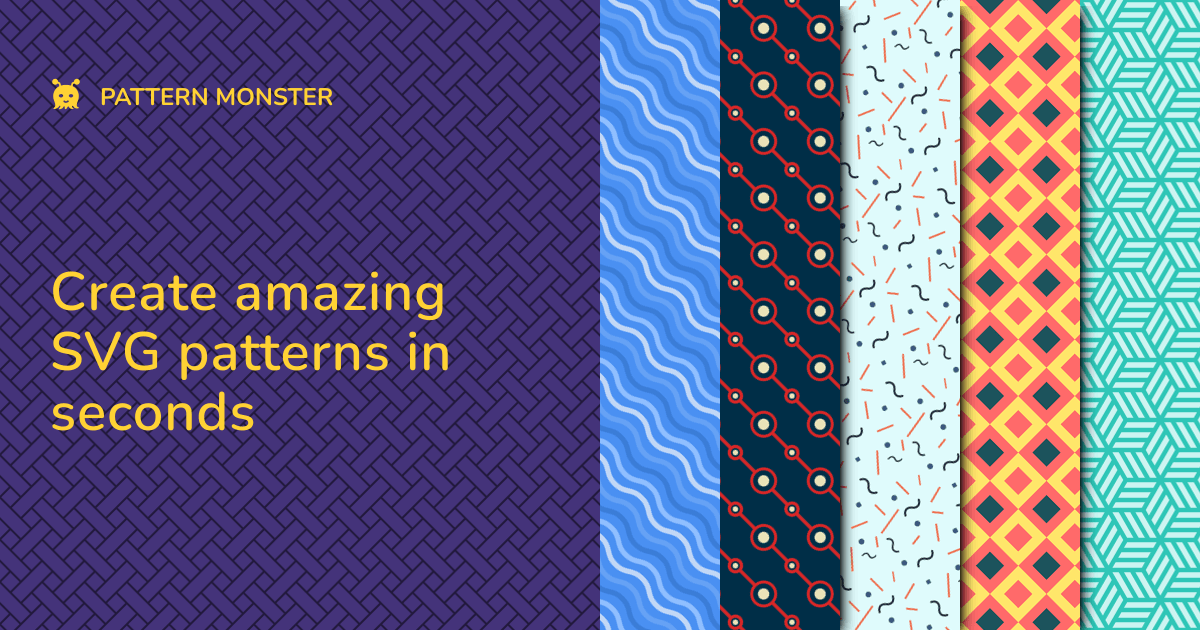

robots.txt (opens in a new tab)
0 rulesAll bots 0 allowed · 0 disallowed
No matching rules.
User reviews (0)