
 myphotoshopbrushes.com
No paid content found
myphotoshopbrushes.com
No paid content found
Categories: Design & Creativity
Download free Photoshop brushes, patterns, PSD files, custom shapes, styles and textures. High-quality resources for graphic designers.
 Visit website
 Updated: 2026-09-21 09:04
 Language: English (default)
 Access: Normal
 Profile views 4
 Outbound visits 1
Related questions
More questions →How to Install and Use Downloaded Photoshop Brush Files (.abr)
An .abr file is Adobe's brush preset format. To use one, open Photoshop, go to Window > Brushes (or press F5) to open the Brushes panel, click the small menu icon in the top-right corner, choose Import Brushes (older versions) or Load Brushes (CS6 and earlier), and select your .abr file. The brushes appear at the bottom of the current brush list. To keep them permanently, use Preset Manager and save them into your brush library so they survive a restart.
That's the short version. The rest of this guide explains the difference between loading and installing, how to find your new brushes after import, and how to fix the most common "my brush won't show up" problems.
What an .abr File Actually Is
An .abr file is a brush preset library. It can contain a single brush or hundreds, and it stores the brush tip shape plus settings like size, hardness, spacing, and sometimes dynamic behavior (scattering, shape dynamics, texture). It does not contain images you can open like a PSD — it only works inside Photoshop's brush engine.
Because it's a preset library, "installing" a brush really means one of two things:
- Loading it temporarily — the brushes appear in your current session but may not be there next time you open Photoshop.
- Saving it permanently — the brush set is added to your saved brushes and reloads automatically.
Most confusion comes from mixing these two up.
Method 1: Import Through the Brushes Panel (Fastest)
This is the quickest way to get brushes on screen and start painting.
- Open Photoshop and any document (or create a new one).
- Go to Window > Brushes, or press F5.
- In the Brushes panel, click the menu icon (four lines or a small gear) in the top-right corner.
- Choose Import Brushes (CC 2018 and later) or Load Brushes (older versions).
- Navigate to your
.abrfile and select it.
The new brushes are appended to the end of the current brush list. Scroll down in the Brush Picker to find them.
Important: In recent Photoshop versions, Import Brushes adds the set to your presets so it persists. Load Brushes in older versions only added it for the session. If you're on CS6 or earlier, use Method 2 to make it permanent.
Method 2: Install Permanently via Preset Manager
Use this when you want the brushes to stay available every time you open Photoshop.
- Go to Edit > Presets > Preset Manager.
- In the Preset Type dropdown, choose Brushes.
- Click Load.
- Select your
.abrfile and confirm. - The brushes now appear in the Preset Manager list. Click Done.
To keep them across sessions, make sure the set is saved into your brush presets. In modern Photoshop, imported brushes are stored in the Presets folder automatically. If you're managing many sets, you can also copy the .abr file directly into Photoshop's presets directory:
- Windows:
C:\Program Files\Adobe\Adobe Photoshop [version]\Presets\Brushes - macOS:
/Applications/Adobe Photoshop [version]/Presets/Brushes
Then restart Photoshop. The set appears in the Brushes panel menu under the list of installed sets.
Loading vs. Saving: Quick Comparison
| Action | Where | Persists after restart? | Best for |
|---|---|---|---|
| Import Brushes | Brushes panel menu | Yes (modern versions) | Quick daily use |
| Load Brushes | Brushes panel menu (CS6 and earlier) | No | Testing a set |
| Preset Manager > Load | Edit > Presets | Yes | Permanent install |
| Copy to Presets folder | File system | Yes | Bulk installs, clean setup |
Finding Your New Brushes After Import
After importing, the brushes don't always jump to the top. Here's how to locate them:
- Open the Brush Picker in the options bar (the brush thumbnail at the top-left).
- Scroll to the bottom of the list — imported sets are usually appended there.
- Or open the Brushes panel menu and look for your set name in the list; click it to load only that set.
- Use the search field in the Brush Picker (CC 2018+) and type part of the set name.
If you loaded a set that replaced your current view, you can restore the default brushes from the panel menu with Reset Brushes or Restore Default Brushes.
Organizing and Resetting Brush Sets
Once you've collected several .abr files, the list gets messy. A few habits help:
- Rename sets in Preset Manager so you can tell them apart.
- Group by purpose — sketching, texture, hair, grunge — and load only what you need.
- Reset when needed: Brushes panel menu > Reset Brushes returns to defaults. This does not delete imported sets; it just changes what's displayed.
- Delete a set: In Preset Manager, select the brushes and click Delete. This removes them from the preset list.
Common Reasons a New Brush Doesn't Appear
If you imported a file and see nothing new, check these in order:
- Wrong panel. You may be looking at the Brush Picker but the set loaded into the Brushes panel, or vice versa. Check both.
- Scrolled past it. Imported brushes are appended at the bottom — scroll all the way down.
- The file isn't a real .abr. Some downloads are ZIP archives containing the
.abr. Extract first. - Corrupted or incompatible file. Brushes made for very new Photoshop versions may not load in old ones. Try a different set to confirm.
- You used Load instead of Import. In older Photoshop, Load is temporary. Re-import via Preset Manager.
- Filter or search is active. Clear the search box in the Brush Picker.
- Tool mismatch. Some brushes only behave as expected with the Brush tool, not the Eraser or Clone Stamp, unless you load them there too.
A Practical Workflow
For a clean setup that scales:
- Download your
.abrfiles into one folder, e.g.Downloads/PS-Brushes. - Open Preset Manager > Brushes > Load and add each set.
- Rename sets clearly (e.g. "Ink Sketch 01").
- Restart Photoshop once to confirm they persist.
- Keep a backup of the original
.abrfiles — reinstalling is faster than rebuilding.
This keeps your brush library predictable and makes it easy to move to a new machine.
Wrapping Up
Installing a downloaded .abr is a two-minute task once you know the path: Brushes panel > Import, or Preset Manager > Load for a permanent install. The main thing to remember is the difference between loading a set for the moment and saving it into your presets. After that, finding the brushes is just a matter of scrolling to the bottom of the list or searching by set name. If something doesn't show up, work through the checklist above — nine times out of ten it's a zipped file, a scrolled-past set, or a temporary load that needs to be made permanent.
Website Overview
An established domain and managed infrastructure suggest continuity of operations and may support dependable delivery, although neither guarantees service quality. Page metadata, canonical configuration and social previews work together to provide more consistent search and sharing presentation.
Domain and Registration
Registered in 2007, this domain has about 18 years of history. That suggests continuity, although ownership and purpose may have changed. Transfer-protection status is present, helping reduce the risk of unauthorized domain transfers. The registrar is Cloudflare, Inc., a widely used domain service provider. The domain uses the common .com extension, which is not an independent safety signal.
DNS and Email
Nameservers are provided by Cloudflare, indicating managed DNS hosting. MX records point to the Google Workspace email service. No CNAME was found; the observed records resolve directly to addresses. SPF and DMARC are configured. DKIM status is unknown. TXT records include verification markers for Google. Such markers may also remain after a service stops being used.
TLS and Certificates
The public key uses EC with 256 bits. The server supplied a complete certificate chain. No organization name is present in the certificate; the available fields are consistent with domain validation. The certificate was issued within the Google Trust Services cloud or CDN ecosystem. The certificate's total validity is about 90 days, consistent with a short renewal cycle.
HTTP and Browser Security
X-Powered-By exposes backend information: Next.js. All six checked browser-security headers are present. Their effectiveness still depends on the policy values and application behavior. The cf-ray response header indicates a CDN or caching proxy in the delivery path. No obvious internal addresses or debug information were found in the headers. The Server header identifies cloudflare without an exact version.
Technology Stack Analysis
The public page identifies Next.js, Tailwind CSS, Cloudflare without precise versions, leaving fewer clues for version-specific scanning.
Search and Social Sharing
Twitter Card metadata is configured. JSON-LD includes Organization data, helping describe the organization as an entity. The title has 45 characters, within a common display range. A meta description is present, with 135 characters. The observed directives allow indexing and link following.
 Hosting and Email
 Cloudflare
 Hosting
 Google Workspace
 Location
 unknown
104.21.2.254
Location
Location unknown
104.21.2.254
 Pages, Search and Sharing
| Meta description | Download free Photoshop brushes, patterns, PSD files, custom shapes, styles and textures. High-quality resources for graphic designers. |
|---|---|
| Canonical URL | https://myphotoshopbrushes.com |
| Language | English (default) |
| Twitter Card | summary_large_image |
Social Sharing Preview
19 fields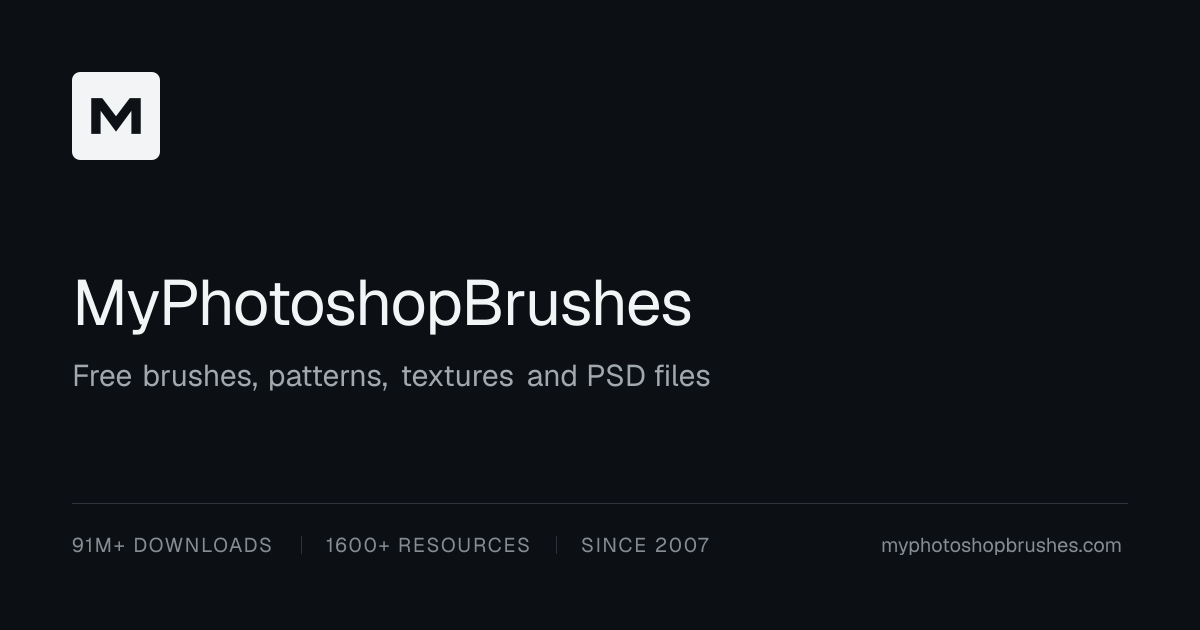

Sharing metadata
| og:url | https://myphotoshopbrushes.com |
|---|---|
| og:type | website |
| og:image | https://myphotoshopbrushes.com/opengraph-image?4354fb6126532d85 |
| og:title | MyPhotoshopBrushes - Free Photoshop Resources |
| og:locale | en_US |
| og:image:alt | MyPhotoshopBrushes - Free Photoshop Resources |
| og:site_name | MyPhotoshopBrushes |
| og:image:type | image/png |
| og:description | Download free Photoshop brushes, patterns, PSD files, custom shapes, styles and textures. |
| og:image:width | 1200 |
| og:image:height | 630 |
| twitter:card | summary_large_image |
| twitter:image | https://myphotoshopbrushes.com/twitter-image?4354fb6126532d85 |
| twitter:title | MyPhotoshopBrushes - Free Photoshop Resources |
| twitter:image:alt | MyPhotoshopBrushes - Free Photoshop Resources |
| twitter:image:type | image/png |
| twitter:description | Download free Photoshop brushes, patterns, PSD files, custom shapes, styles and textures. |
| twitter:image:width | 1200 |
| twitter:image:height | 630 |
robots.txt (opens in a new tab)
3 rulesAll bots 1 allowed · 2 disallowed

 All bots

/
/api//search
No matching rules.
Sitemaps
2 Registration details RDAP / WHOIS
| Registrar | Cloudflare, Inc. |
|---|---|
| Registered | 2007-12-24 |
| Expires | 2026-12-24 |
| Domain status | client transfer prohibited |
| Nameservers | may.ns.cloudflare.com、norm.ns.cloudflare.com |
| DNSSEC | unsigned |
 DNS records
| Type | Name | Value | TTL | Priority |
|---|---|---|---|---|
| A | myphotoshopbrushes.com | 104.21.2.254 | 300 | — |
| A | myphotoshopbrushes.com | 172.67.129.245 | 300 | — |
| AAAA | myphotoshopbrushes.com | 2606:4700:3032::ac43:81f5 | 300 | — |
| AAAA | myphotoshopbrushes.com | 2606:4700:3036::6815:2fe | 300 | — |
| MX | myphotoshopbrushes.com | aspmx.l.google.com | 300 | 1 |
| MX | myphotoshopbrushes.com | alt1.aspmx.l.google.com | 300 | 5 |
| MX | myphotoshopbrushes.com | alt2.aspmx.l.google.com | 300 | 5 |
| MX | myphotoshopbrushes.com | alt3.aspmx.l.google.com | 300 | 10 |
| MX | myphotoshopbrushes.com | alt4.aspmx.l.google.com | 300 | 10 |
| NS | myphotoshopbrushes.com | may.ns.cloudflare.com | 86400 | — |
| NS | myphotoshopbrushes.com | norm.ns.cloudflare.com | 86400 | — |
| TXT | myphotoshopbrushes.com | google-site-verification=0kd--3qIp-uGp9DgmcA875qYGZL4iROCO4-bMVGCHQc | 300 | — |
| TXT | myphotoshopbrushes.com | v=spf1 ip4:104.131.173.176 include:_spf.google.com ~all | 300 | — |
| DMARC | _dmarc.myphotoshopbrushes.com | v=DMARC1; p=reject; rua=mailto:[email protected] | 300 | — |
 TLS and certificates
| Assessment | Normal configuration |
|---|---|
| Supported protocols | TLSv1.2、TLSv1.3 |
| Negotiated protocol | TLSv1.3 |
| Certificate subject | myphotoshopbrushes.com |
| Issuer | Google Trust Services |
| Valid until | 2026-12-02T05:48 · Remaining when checked: 71 days |
| Verification details | Certificate trust: Passed · Hostname match: Passed |
 HTTP response headers
| Header | Value |
|---|---|
| content-type | text/html; charset=utf-8 |
| cache-control | s-maxage=7200, stale-while-revalidate=31528800 |
| server | cloudflare |
| strict-transport-security | max-age=63072000; includeSubDomains; preload |
| content-security-policy | default-src 'self'; script-src 'self' 'unsafe-inline' 'wasm-unsafe-eval' https://*.google.com https://*.googlesyndication.com https://*.doubleclick.net https://*.googleadservices.com https://*.googletagservices.com https://*.adtrafficquality.google https://fundingchoicesmessages.google.com https://challenges.cloudflare.com https://static.cloudflareinsights.com https://px.myphotoshopbrushes.com; style-src 'self' 'unsafe-inline' https://fonts.googleapis.com; img-src 'self' data: blob: https://files.myphotoshopbrushes.com https://*.google.com https://*.googlesyndication.com https://*.doubleclick.net https://*.googleadservices.com https://*.googletagservices.com https://*.adtrafficquality.google https://fundingchoicesmessages.google.com https://*.googleusercontent.com; font-src 'self' https://fonts.gstatic.com; frame-src 'self' https://challenges.cloudflare.com https://*.google.com https://*.googlesyndication.com https://*.doubleclick.net https://*.googleadservices.com https://*.googletagservices.com https://*.adtrafficquality.google https://fundingchoicesmessages.google.com; connect-src 'self' https://mypsb-files.3bdc2ad2a11f0ca983198096fb0a1ffb.r2.cloudflarestorage.com https://mypsb-downloads.3bdc2ad2a11f0ca983198096fb0a1ffb.r2.cloudflarestorage.com https://*.google.com https://*.googlesyndication.com https://*.doubleclick.net https://*.googleadservices.com https://*.googletagservices.com https://*.adtrafficquality.google https://fundingchoicesmessages.google.com https://challenges.cloudflare.com https://cloudflareinsights.com https://px.myphotoshopbrushes.com; object-src 'none'; base-uri 'self'; form-action 'self'; frame-ancestors 'none'; upgrade-insecure-requests |
| x-frame-options | DENY |
| x-content-type-options | nosniff |
| referrer-policy | strict-origin-when-cross-origin |
| permissions-policy | camera=(), microphone=(), geolocation=() |
 Identified technologies
Recent Updates
- Screenshots
- Website images
- Network details
- Website Technologies
- Pages and Search Information
- HTTP Response Information
- TLS and certificates
- DNS Information
- Domain Registration
- Website profile
- Website Description
- Website Name
- Website profile
- Website Description
- Website Name
User reviews (0)