

 Paid content
 Visit website
 Updated: 2026-09-27 10:41
 Language: English (default)
 Access: Normal
 Profile views 1
  Outbound visits 6
 Website Review
What is PDFCrowd?
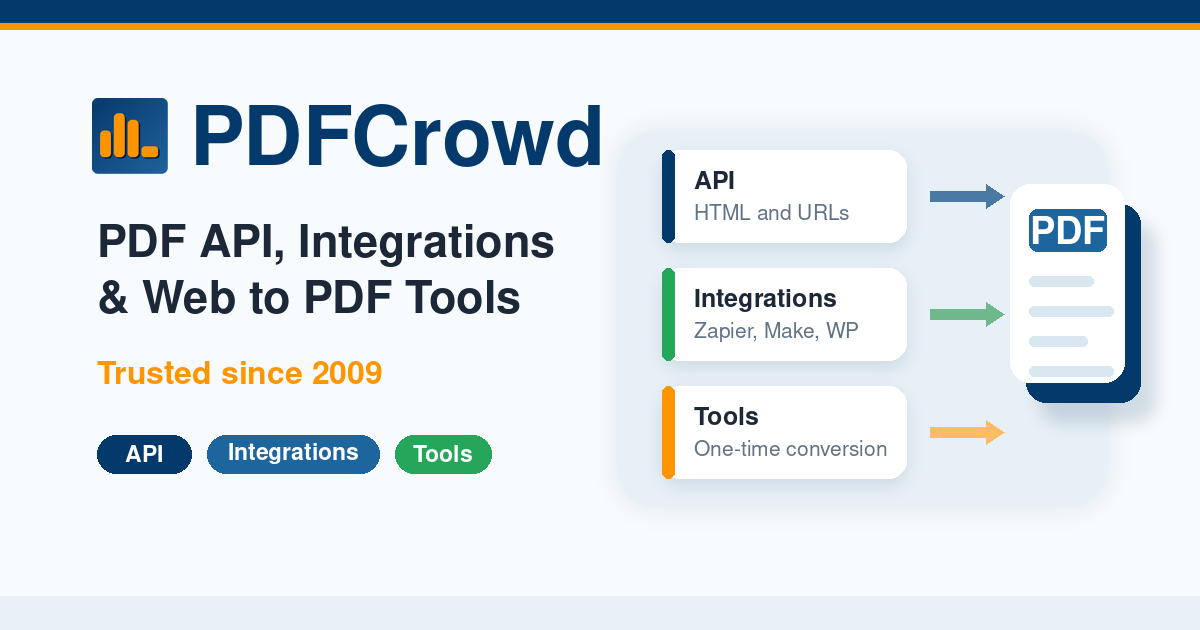
PDFCrowd is a PDF generation service that converts HTML, URLs, and web pages into PDF documents. It has been in production since 2009 and supports several ways to create PDFs: a developer API, a website button called WebSave, automation integrations like Zapier and Make, a WordPress plugin, and free online conversion tools for one-off use.
The service is aimed at a wide range of users rather than a single audience:
- Developers who want to build PDF generation into an application via an HTTP API or SDKs.
- Website owners who want a "Save as PDF" button on their pages without writing backend code.
- Automation users connecting PDF creation to workflows in Zapier or Make.
- Businesses generating documents such as invoices, receipts, or quotes from structured data.
- WordPress users who want a PDF export option on their site.
- Individuals who just need to convert a single web page occasionally.
A practical way to decide whether it fits your case is to ask what triggers the PDF. If a person clicks a button once in a while, the free online converter or WebSave is the simplest route. If a system or workflow needs to produce PDFs repeatedly and automatically, the API or an automation integration is the better fit. The main trade-off is between setup effort and volume: the API requires some development work but scales, while the online tools need no setup but are meant for one-time conversions rather than high volume.
To see which option matches your situation, start from the PDFCrowd site and pick the path that describes your use case — developer, website button, automation, business documents, WordPress, or one-time conversion.
How do I convert an HTML page to PDF using PDFCrowd?
You convert an HTML page to PDF with PDFCrowd by sending the page's HTML or URL to its conversion service and receiving a PDF back. There are several routes, depending on whether you are a developer, a website owner, or just need a one-off file.
Choose the route that matches your situation
| Route | Best for | What you do |
|---|---|---|
| HTML to PDF API | Developers embedding PDF generation in an app | Send HTML or a URL to the API; your code receives the PDF |
| WebSave | Adding a "Save as PDF" button to a website | Place a button on the page; visitors convert the current page themselves |
| WordPress plugin | WordPress site owners | Install the plugin and expose PDF export from your site |
| Zapier / Make | No-code automation users | Add PDF creation as a step in an existing workflow |
| Online converter | One-time or occasional conversion | Paste a URL or HTML into the web tool and download the result |
For a single page you just want to keep, the online HTML to PDF converter is the shortest path: give it the page's URL or its HTML, convert, and download. No account setup or code is needed for that use case.
If you are building this into an application
Use the HTML to PDF API. Your application submits HTML markup or a page URL, and the service returns a PDF you can save, stream to a user, or attach to an email. This is the right choice when conversion has to happen automatically — for example, generating a customer invoice, a receipt, or a report from structured data. PDFCrowd also lists an invoice PDF API aimed at exactly that kind of business document.
Practical points worth deciding before you start:
- HTML string vs. URL: sending markup gives you full control over styling and lets you inject live data; sending a URL is simpler but the result depends on that page rendering correctly.
- When conversion runs: for user-facing downloads, convert on demand; for bulk output, batch the work so you are not blocking a request.
- Where credentials live: API keys belong on your server, not in client-side code.
If you own the website
WebSave adds a PDF button so visitors convert the page themselves, and the WordPress plugin does the same for WordPress sites. Both avoid custom development, but you have less control over layout than with the API. If your pages are already print-friendly, browser printing is a free fallback — the trade-off is inconsistent headers, footers, and page breaks across browsers.
A concrete example
A small SaaS team wants customers to download an invoice. They build the invoice as an HTML template, fill it with order data, and send that HTML to the API when the customer clicks "Download invoice." The same template can be reused for receipts and quotes. Compare that with a marketing site that only needs a "Save this page as PDF" button — there, WebSave or the WordPress plugin is far less work than writing API code.
Next step
Decide whether conversion is one-time, visitor-triggered, or programmatic; that single question picks your route. Then check PDFCrowd for the API documentation or the specific integration you need, and confirm current limits and pricing on its pricing page before committing.
Is PDFCrowd free to use or how much does it cost?
PDFCrowd is not entirely free, but it does offer a free starting point. The site invites you to "Start for Free," and its online conversion tools can be used without paying. For ongoing or higher-volume use—such as embedding PDF generation in an application, adding a save-as-PDF button to a website, or automating documents—you should expect a paid plan. The exact prices are not stated in the supplied information, so check the official PDFCrowd pricing page for current numbers.
H3 What "free" likely covers
- One-time or occasional conversions through the online HTML-to-PDF converter.
- A trial or limited free usage to test the API, plugins and integrations before committing.
- Evaluating the service without a sales conversation, since it is self-serve.
H3 Where cost enters
- Production API use that generates PDFs from your application.
- WebSave buttons that let visitors download your pages as PDFs.
- Automation workflows through Zapier or Make.
- The WordPress save-as-PDF plugin.
- Business documents such as invoices, receipts and quotes generated from structured data.
H3 How to decide If you only need to convert a page now and then, start with the free online tool. If PDFs become part of a product, a customer-facing site, or a recurring business process, move to a paid plan and compare it against your expected monthly volume. The service claims to scale from a single PDF to millions a month, so the main question is not capability but which tier fits your usage.
A practical next step: open the pricing page, identify the smallest paid tier that matches your monthly document count, and test it with one real document—an invoice or a page from your site—before rolling it out.
How do I integrate PDFCrowd's API into my application?
Start by picking the PDFCrowd integration path that matches your stack, then call the API from your server. PDFCrowd exposes an HTTP API plus SDKs, so you can convert HTML, a URL, or a web page to PDF with a single request from your backend. The page itself lists "HTML to PDF API" as the developer route, alongside WebSave for website buttons, Zapier/Make for automation, a WordPress plugin, and an online converter for one-time use.
H3 Practical integration steps
- Choose your input type: raw HTML string, a public URL, or a page you render yourself. Raw HTML gives you the most control over layout and is the usual choice for invoices, receipts, and quotes from structured data.
- Send the request from your server, not the browser, so your API credentials stay private.
- Capture the returned PDF bytes and either stream them to the user or write them to storage.
- Add error handling for timeouts and failed conversions, and log the request ID if the API returns one.
- Test with a small HTML fixture before wiring in real templates.
A minimal shape in most languages looks like: build the request body with your HTML and options, POST it to the PDFCrowd endpoint with your credentials, and read the response as binary. The SDKs wrap this so you pass HTML and options as arguments and get back a PDF stream or file.
H3 Matching the method to your situation
| Situation | Better fit | Why |
|---|---|---|
| App generates invoices server-side | HTML to PDF API | Full control over markup, no browser needed |
| Marketing site wants a "Save as PDF" button | WebSave | No backend code, drop-in button |
| Recurring job in Zapier or Make | Automation integrations | No code, triggers on events |
| WordPress site needs PDF export | Save as PDF plugin | Config through the admin, no API calls |
H3 Decision criteria
- If you need dynamic, data-driven documents, use the API and generate HTML from your template engine.
- If you only need occasional conversions, the online converter avoids any setup.
- If your team is non-technical, the WordPress plugin or Zapier/Make route removes the coding step entirely.
- If volume may grow from a few PDFs to millions a month, the API is the path that scales without capacity planning.
Next step: check the official documentation and pricing at PDFCrowd to confirm current endpoints, SDK languages, and free-tier limits before you build.
Can PDFCrowd generate invoices or other business documents from structured data?
Yes — PDFCrowd treats invoice and business-document generation as a distinct use case. Its own site lists "Business Documents" alongside developer, website-button, automation, and WordPress paths, and points that path at an Invoice PDF API for producing invoices, receipts, or quotes from structured data. The underlying engine converts HTML, URLs, and web pages to PDF, so the usual pattern is: your application assembles the invoice as HTML (or a template engine fills one in), then sends that markup to the API and receives a PDF back.
Who this suits
- Backend developers who already generate HTML invoices, receipts, or quotes and want the PDF step handled by an external service.
- Teams that would rather template documents in HTML/CSS than build layout code against a PDF drawing library.
- Operations staff who need recurring documents produced from data in a CRM, spreadsheet, or accounting system, often routed through Zapier or Make rather than custom code.
Practical notes
- Structured data does not go in directly: you or your template layer turn records into HTML first. That is a design choice, not a limitation — it means your invoice layout lives in familiar markup and CSS, including headers, footers, page breaks, and repeated table rows.
- Because the same engine also converts live URLs, you can generate a document from an existing web page or report view instead of duplicating the layout.
- For one-off needs, the online HTML-to-PDF converter avoids writing any code, but it will not scale to a billing pipeline.
Choosing between paths
| Situation | Sensible route |
|---|---|
| App generates invoices on every order | API, called from your backend |
| Non-developers trigger documents from a workflow | Zapier or Make integration |
| Documents produced inside WordPress | Save as PDF plugin |
| Occasional single document | Online converter |
Next step: build one sample invoice as an HTML file, convert it, and check how page breaks and repeated line items behave before committing to a template design. If your invoices must be machine-readable for tax or e-invoicing rules, confirm that requirement separately — a rendered PDF is a visual document, not a structured data file.
What is the difference between PDFCrowd's API, WebSave, and WordPress plugin options?
PDFCrowd offers three distinct ways to produce PDFs, each aimed at a different user and integration point. The core conversion engine is shared; the difference is where the PDF generation is triggered and who maintains it.
| Option | What it is | Who it suits | How it is triggered |
|---|---|---|---|
| API | A programmatic interface (HTTP API plus SDKs) for generating PDFs from HTML, URLs or structured data | Developers building PDF output into an application | Your own code calls the API |
| WebSave | A ready-made "Save as PDF" button for a website | Site owners who want visitors to download a page as PDF without writing code | A visitor clicks the button on the page |
| WordPress plugin | A plugin that adds PDF export to a WordPress site | WordPress administrators and content publishers | From within WordPress, e.g. exporting a post or page |
API is the most flexible and the most work. You control the input, the layout and the moment of generation, which is what you want for invoices, receipts, quotes or reports built from structured data. It also scales from occasional documents to high volume without capacity planning, per the site's claims.
WebSave is the low-effort path for a public-facing website. You get a PDF button without building an integration, but you trade away control over exactly when and how the document is produced.
WordPress plugin is the right choice if your content already lives in WordPress. It keeps everything inside the CMS, so editors can export pages or posts without touching code or an API.
A practical way to decide: if the PDF must be generated by your software in response to an event, choose the API. If a human visitor should be able to save a page, choose WebSave. If the content is managed in WordPress and the person exporting it is an editor, choose the plugin. You can also combine them — for example, the plugin for editorial exports and the API for automated customer documents.
Next step: list the trigger for each PDF you need (user click, code event, or CMS action) and match each one to the option above. For pricing and plan limits, check PDFCrowd.
 Hosting and Email
 Hosting
 Akamai Connected Cloud
 Google Workspace
 Location
 Cedar Knolls, New Jersey, United States
 Pages, Search and Sharing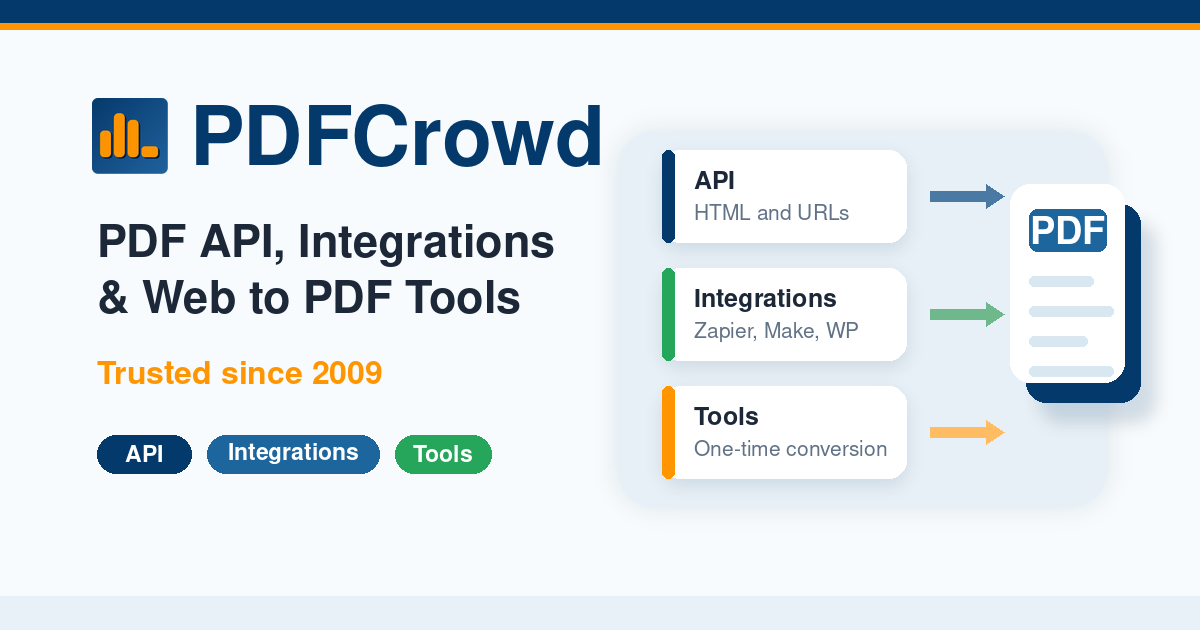



 All bots
 Registration details

 Identified technologies
User reviews (0)