
 简体中文
简体中文 English
Website review
This review may include AI-generated content and is not individually verified. Domain, certificate and other facts come from the observed data on this page.
What is PhotoRestore.ai?
PhotoRestore.ai is a web tool for restoring old or damaged photos with AI. You upload a scanned image, and it repairs scratches, creases and stains, sharpens details, colorizes black-and-white pictures and enhances faces, then lets you download the result. The site presents this as a no-sign-up, browser-based alternative to hiring a professional restorer, which the page describes as taking days to weeks and costing far more per photo.
What it does, concretely
- Damage repair: fills in tears, creases, mold and stains by analyzing surrounding pixels, aiming to leave no visible trace.
- Colorization: reconstructs colors from era, lighting and texture rather than applying flat tints, with the stated goal of lifelike skin tones.
- Face enhancement: reconstructs facial detail, illustrated on the page with the 1927 Solvay Conference photo of Einstein and Curie.
- Simple workflow: upload (JPG, PNG, WEBP, plus HEIC, TIFF and BMP per the page), let the AI process, preview and download.
Who it suits
Families digitizing shoeboxes of faded snapshots are the clearest fit: you scan the original, keep it safe, and work on a copy. People who want a quick preview before committing to professional restoration also benefit. For archival or museum-grade work where provenance and exact fidelity matter, treat AI output as an interpretation, not a record — reconstructed faces and colors can invent detail that wasn't there.
Practical next step
Start with one representative photo — a scratched, faded portrait is a good test — and compare the result against the original at full size, especially around eyes, hands and text. If faces look off, try a version without face enhancement. For a second opinion on a difficult image, Photopea offers manual retouching in the browser, and MyHeritage provides its own photo enhancement tools.
How much does it cost to restore a photo with PhotoRestore.ai, and is it really free?
PhotoRestore.ai advertises a free trial with no sign-up, no credit card and no watermarks, and its own comparison table lists paid restoration "starting at $0.20/photo." So the honest answer is: you can try a restoration for free, but ongoing or higher-volume use is positioned as a paid service. The site links to a separate Pricing page for current rates, and prices there can change, so check it before relying on any figure.
What "free" likely means here
- Free trial: the upload-and-restore step is presented as free to start, which suits someone testing one or two family photos.
- Paid tier: the per-photo figure in the comparison table implies a credit- or volume-based model for regular use.
- No hidden gate at signup: the page states no account or card is needed to begin, which lowers the barrier for a quick check.
Who should care about the difference
A person digitizing a shoebox of 1950s snapshots will hit the paid tier quickly, so the per-photo rate matters more than the free trial. Someone restoring a single damaged portrait of a grandparent can judge quality on the free attempt first and only pay if the result is convincing.
A practical next step
Upload your most damaged photo first, not your best one. Compare the before/after on scratches, missing corners and skin tones; the site claims context-aware filling and era-accurate colorization, but your own eyes are the real test. If the free result holds up, check the Pricing page for the per-photo cost at your likely volume before committing.
For context on alternatives, MyHeritage and Ancestry offer photo tools within broader genealogy subscriptions, which may suit people already archiving family history rather than paying per image.
Can PhotoRestore.ai fix badly damaged photos with tears, scratches, or missing pieces?
Yes. PhotoRestore.ai is built for exactly that kind of damage. Its page describes "context-aware" filling, where the AI analyzes the surrounding pixels to reconstruct missing patterns and textures, and it lists tears, creases, mold, and stains as the kinds of damage it targets. The workflow is upload, one-click restore, then download, with no sign-up required to try it.
What to expect, and where to be careful
- Tears and scratches: These are the strongest fit. The tool is designed to fill gaps using nearby image content, which suits linear damage like creases and scratches.
- Missing pieces: Results depend on how much is gone. A small corner or a thin tear is usually reconstructed plausibly; a large missing region (say, half a face) means the AI is inventing detail, so treat the output as an interpretation, not a record.
- Faces: The page emphasizes face reconstruction trained on many faces. This helps badly blurred or damaged portraits but can also make a face look slightly different from the original person.
- Colorization: The site claims era-aware, lifelike color rather than cartoonish tones. Color is a guess, so keep an uncolorized copy if accuracy matters.
A practical next step
Scan at the highest resolution you can and keep the untouched original. Run the restoration, then compare side by side and check faces and any filled areas closely. If a photo has severe loss in a key area, a specialist service such as Photo Restoration or a local conservator is a better fit, since human judgment handles reconstruction choices that AI tends to smooth over.
How does AI colorization of black-and-white photos compare to cartoonish filters, and will skin tones look natural?
AI colorization on PhotoRestore.ai is presented as reconstruction rather than tinting: the page says the tool analyzes "the era, lighting, and physical texture" to rebuild historically plausible colors, explicitly positioning itself against "cartoonish tones" and promising "lifelike skin tones and ambient lighting." That is a meaningful difference in approach, though it is the site's own description of its output, not an independent test.
What separates reconstruction from a filter
| Aspect | Cartoonish filter | Reconstruction-style colorization |
|---|---|---|
| Color choice | Fixed palette applied uniformly | Inferred from scene context, era and lighting |
| Skin tones | Often flat, oversaturated, orange or gray | Aim to follow lighting direction and shadows |
| Backgrounds | Colors can bleed across edges | Boundaries respected more carefully |
| Failure mode | Looks obviously processed | Plausible but sometimes historically wrong |
Filters are predictable and fast but treat every photo the same way. Reconstruction tries to reason about the image, which usually gives more natural faces but can still guess wrong on clothing, uniforms or period-specific objects.
Will skin tones look natural?
Often closer to natural, with caveats. Faces are where viewers notice errors first, and the page emphasizes face reconstruction trained on large face datasets. Expect good results on clear, evenly lit portraits; expect weaker results on heavy shadow, motion blur or badly faded emulsions, where any tool has little signal to work from.
A practical test: colorize one portrait, then check whether the light on the face matches the light in the rest of the scene. If a window-lit face comes back lit from the front, the result is decorative rather than faithful.
Next step
Start with a single sharp, well-scanned portrait rather than a group photo. The page notes support for JPG, PNG, WEBP, HEIC, TIFF and BMP, so a high-resolution TIFF scan preserves the most detail going in. If you need archival accuracy for a historical collection, compare results against MyHeritage's colorization, which is widely used for genealogy work, and treat any colorized version as an interpretation rather than a record.
What file formats can I upload, and do I need to sign up or enter a credit card before restoring a photo?
PhotoRestore.ai lists JPG, PNG, WEBP, HEIC, TIFF and BMP as upload formats, though its step-by-step guide mentions only JPG, PNG and WEBP, so the wider list is the safer reference. No sign-up or credit card is needed to start a free trial, and the site says results carry no watermarks.
What to expect in practice
- Free trial first: Upload a scan and preview the restoration before paying anything. This suits someone testing one or two family photos.
- Paid use beyond the trial: The pricing page is the place to confirm what the trial covers and what paid credits cost.
- No account: Because there is no login, keep your own copies of both the original scan and the downloaded result.
A quick workflow
- Scan at the highest resolution you have and save as TIFF or PNG to avoid repeated compression.
- Upload, restore, and download the result.
- Compare the restored face against the original before sharing; AI face reconstruction can smooth features, so check that likenesses still look right.
For a second opinion on a difficult photo, a dedicated restoration community such as Reddit or a preservation-oriented resource can help you judge whether AI output is faithful enough for archiving.
How does PhotoRestore.ai's speed and cost compare to hiring a professional photo restoration service?
PhotoRestore.ai is built for speed: the page describes restoring a photo in seconds after upload, with no sign-up, no software install and a simple upload–restore–download flow. Professional restoration is a different kind of purchase — a restorer works on one image at a time over days to weeks, and the page itself frames that route as costing from roughly $50 to $500+ per photo. On the site's own comparison, its AI service starts at about $0.20 per photo. Treat those figures as the site's claims rather than independently verified rates, and check the PhotoRestore.ai pricing page for current plans before relying on them.
Where the speed and cost difference actually matters
- Large family collections: If you have a shoebox of faded snapshots and want to see which ones are worth keeping, the AI route lets you process many images quickly and cheaply. A professional restorer would be a per-image commission, so the cost scales with every photo.
- A single heirloom portrait with major damage: Here the trade-off reverses. A skilled restorer can make judgment calls about torn areas, historically correct clothing colours and family likenesses. The page claims context-aware filling and era-aware colourisation, but that is the product's own description, not a guarantee for a badly damaged original.
- Face reconstruction: The site advertises AI face enhancement trained on many faces, illustrated with the 1927 Solvay Conference photo. This is useful for blurred group shots, but reconstructed faces can drift from the real person — worth comparing against a known photo of the same relative.
A practical way to decide
Scan your originals (both routes need a scan, and the site notes originals stay safe when you upload a copy). Run the free trial on your two or three hardest photos first. If the results preserve likeness and plausible colour, batch the rest through the AI service. If a key portrait comes back with an unfamiliar face or smeared texture, commission that one image from a professional and keep the AI pass for the bulk of the collection.
For a second opinion on AI restoration quality, MyHeritage offers its own photo enhancement tools you can compare against.
 Cloudflare
 Vercel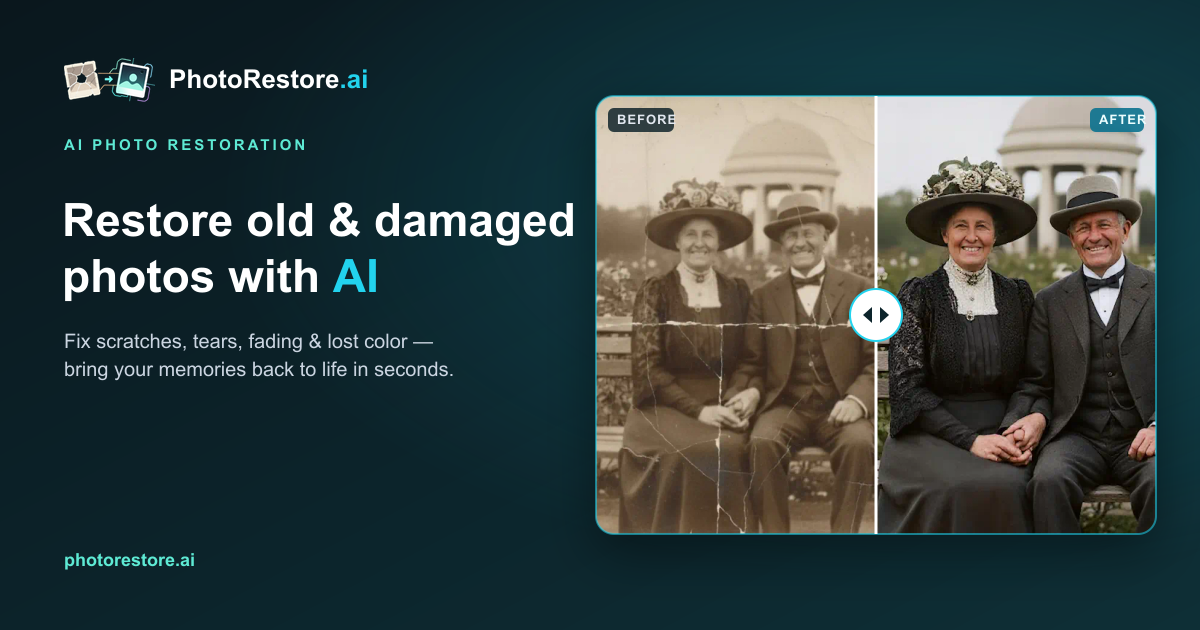

User reviews (0)