
 简体中文
简体中文 English
Website review
This review may include AI-generated content and is not individually verified. Domain, certificate and other facts come from the observed data on this page.
What is PodcastToMp3?
PodcastToMp3 is a free, open-source web tool for turning podcast episodes into downloadable MP3 files. You search for a show, pick an episode (or a batch of episodes), and save the audio for offline listening — no account, paywall, or app required, according to the site. Its own description emphasizes Spotify and Apple Podcasts discovery plus direct episode downloads.
The practical value is format freedom. Podcast apps keep audio inside their own ecosystem; MP3 files can go anywhere — an old phone, a USB stick, a car stereo, or a music library. That's exactly the use case several supporters describe on the page: one downloads episodes for an old iPhone used purely for offline media, another for an elderly father who listens via USB in the car. Those are user-reported experiences from the site's supporter wall, not independent testing.
H3 What it offers
- Search by show name and download single episodes or full seasons in bulk.
- Files come from the podcast's original host, which the site frames as more reliable than third-party mirrors.
- No ads, tracking, or upsells, per the site.
H3 Trade-offs to weigh
- You manage the files yourself: no sync, no playback progress, no automatic new-episode delivery.
- Bulk season downloads can mean large storage use and slower transfers.
- Availability depends on the show's feed; some exclusive or DRM-protected content may not be downloadable.
H3 A quick test Pick one episode you already listen to in an app, download it here, and play the file in a plain music player. If it opens and sounds right, the tool fits your workflow. For broader listening, compare with a standard podcast app like Apple Podcasts or Spotify, which handle streaming and subscriptions but don't hand you MP3 files.
How do I download a Spotify podcast as an MP3?
Search for the show in PodcastToMp3, pick the episode, and download it as an MP3 file. The tool is built for exactly this: PodcastToMp3 describes searching any show, saving single episodes, or bulk-downloading full seasons, and says downloads come directly from the podcast's original source.
A practical two-step flow, based on how the site says it works:
- Search. Type the podcast name into the search bar and select the correct result. Names repeat across networks, so check the artwork and publisher before choosing.
- Download. Open the episode and use the download option, or use the three-dot menu to grab several episodes at once.
What to check before you commit
- Spotify-only exclusives. Some shows are hosted exclusively on Spotify and have no public audio file to fetch. If a show doesn't appear in the search, that's usually why — not a fault in your process.
- Bulk vs. single. Bulk season downloads are convenient for archiving a back catalogue, but they eat disk space and take time. Pull one episode first to confirm the audio quality and file naming suit your player.
- Where the file goes next. MP3s are ideal for devices that don't run podcast apps well — an old phone used purely as a music player, a USB stick for a car stereo, or a folder synced to a dedicated MP3 player. One reviewer on the site, Tom Prior, describes loading episodes onto an old iPhone kept for offline listening; another, Em, downloads history episodes for an elderly father to play in the car via USB stick. Both are good illustrations of the real strength here: the file is yours to move anywhere, rather than tied to one app's library.
If the show isn't found
Try the podcast's own website or its RSS feed first — many publishers offer direct episode downloads there. For shows distributed through Apple Podcasts, Apple Podcasts pages list the publisher and often link to the show's site. If you're working from a Spotify link, Spotify shows the publisher name, which is the detail you need to track down the original source.
As a general rule: if the podcast is publicly distributed, an MP3 route usually exists; if it's a platform exclusive, it usually doesn't.
Can I bulk download entire seasons of a podcast at once?
Yes — bulk downloading full seasons or multi-episode batches is one of the stated capabilities of PodcastToMp3. The site lists "Bulk Downloads" as a core reason to use it, describing the ability to "grab full seasons or multi-episode batches in one go when you need a lot fast." Its workflow is search-first: you type a show name, pick the correct result, then download single episodes with one click or use the three-dot menu for batch options. Downloads are described as coming directly from the podcast's original source.
H3 Practical considerations for bulk grabbing
- Storage adds up fast. A long-running interview or history show can run dozens of hours per season; check free space before starting a large batch.
- Batch jobs take time and bandwidth. Pulling a whole season is closer to a background task than an instant save, so start it when you don't need the connection.
- Naming and sorting matter. If your player relies on filenames or tags, verify the first few files before committing to the full season.
- Source availability varies. Since files come from the original host, an episode that has been pulled or made exclusive elsewhere may not be retrievable.
H3 A concrete scenario Someone setting up an old iPhone as a dedicated offline player, or loading a USB stick for a car, benefits most from bulk downloads: you gather a full season once, then never depend on a live connection or an app account. That matches the supporter feedback on the page, where listeners describe exactly these setups — Tom Prior mentions filling an old iPhone, and Em describes downloading history episodes to a USB stick for an elderly parent. Those are users' own accounts; my read is that the real advantage isn't speed but decoupling playback from streaming apps and logins.
H3 When bulk is the wrong choice If you only want a few episodes from a guest you like, single-episode downloads are simpler and avoid clutter. If you need automatic syncing across devices, a podcast app's subscription model handles that better than downloaded files.
Next step: search the show, download one episode first, confirm the file plays and is named sensibly in your player, then run the season batch. If you want to compare approaches, PodcastToMp3 is the tool in question, while general-purpose downloaders like yt-dlp suit users comfortable with command-line tools.
How do I transfer downloaded podcast MP3s to an old iPhone or USB stick?
Download the MP3s first, then treat the old iPhone or USB stick as a plain file-transfer target. PodcastToMp3's own page describes searching a show and saving single episodes or bulk-downloading seasons as MP3 files, with no ads or tracking, so the files you get are standard audio files rather than something locked inside an app. That is what makes both workflows below possible.
For an old iPhone
The iPhone's Music app does not browse files the way a USB stick does, so you need to sync rather than copy.
- Download the episodes as MP3s on your computer.
- Add them to your computer's music library (iTunes or the modern Apple Music/Finder setup, depending on your OS version).
- Connect the old iPhone by cable and sync only the playlist or album you created for those episodes.
- If the phone is too old to run current software, use the Finder/iTunes version that still supports it, or drag files into a dedicated playlist before syncing.
A reviewer on the site, Tom Prior, describes exactly this use case: putting downloaded episodes onto an old iPhone used purely as an offline player. That is a sensible pattern because it keeps your main phone free of storage pressure and gives the old device a clear job.
If you would rather skip syncing, a third-party player that reads local files can work, but on iOS that usually means importing through a file-sharing app or cloud drive rather than plugging in a stick.
For a USB stick
This is the simpler route and the one another reviewer, Em, describes: downloading history episodes for an elderly father to play in the car from a USB stick.
- Download the MP3s to your computer.
- Format the stick as FAT32 or exFAT if you want it to work across car stereos, Windows and Mac.
- Create a folder per show or season, then copy the files in.
- Name files so they sort in listening order, for example
01 - Episode title.mp3. - Eject safely, then test in the car before you hand it over.
Two practical points: many car head units ignore folder structure and just play everything in the order the files sit on the drive, so numbering matters more than folders. And some older stereos cap the number of files or folders they will read, so split a very large library across two sticks.
Choosing between them
| Situation | Better target | Why |
|---|---|---|
| Car with a USB port, older relative | USB stick | No syncing, no account, works with basic head units |
| Spare iPhone as a dedicated player | Old iPhone | Playlists, resume position, no cable in the car |
| You want to keep your main phone's storage free | Either | Both keep files off your daily device |
A quick decision rule
If the listener will press play in a car, use a USB stick. If they want to pause, resume and skip between episodes, use the old iPhone. Either way, download the MP3s to a computer first rather than trying to move them phone-to-phone, and keep a master folder on the computer so you can rebuild a stick or re-sync a phone later without re-downloading.
Is PodcastToMp3 really free, and what's the catch?
Yes, PodcastToMp3 presents itself as completely free, with no paywalls, ads, trackers, or upsells, according to its own page. The "catch," if you want to call it that, is that it's a small open-source project funded by voluntary supporter donations through BuyMeACoffee, rather than by subscriptions or advertising.
What that means in practice
- You can search for a show, download single episodes, or bulk-download full seasons without paying.
- Downloads come directly from the podcast's original source, not from a re-hosted copy.
- There's no account requirement implied by the page, and no ad-supported tier to upsell you into.
- Because it runs on donations, its long-term reliability depends on continued support and on the underlying podcast sources staying accessible. That's the real trade-off: no cost to you, but no commercial service-level guarantee either.
Whose experience this reflects
The testimonials on the page come from supporters via BuyMeACoffee, so they're self-selected and positive by nature. Still, they describe concrete use cases worth noting: one listener (Tom Prior) wanted files for an old iPhone used purely for offline media; another (Em) downloads history episodes onto a USB stick for an elderly father to play in the car. My read: this tool fits people who want plain MP3 files they can move between devices, not people who want in-app streaming, syncing, or recommendations.
A practical next step
If your goal is offline listening on a device that doesn't run a podcast app, download one episode first and check the file plays and is tagged the way you expect before bulk-downloading a season. For discovery and streaming on a phone, a standard podcast app is usually simpler; for archiving or car-USB playback, a converter like this is the more direct route. You can compare general options at PodcastToMp3.
How does PodcastToMp3 handle ads, tracking, and my privacy?
PodcastToMp3 states that it runs with no ads, no tracking, and no paywalls. The site describes itself as "completely free and open source," and its listed benefits say you can download "without ads, trackers, or upsells." In other words, the page positions the tool as a clean download utility rather than an ad-supported service that monetizes your attention or data.
What that means in practice
- No account is suggested by the page evidence. You search for a show, then download episodes; there is no mention of signup, login, or a user profile.
- Downloads are described as coming "directly from the podcast's original source," so the file transfer goes between you and the podcast host rather than through an extra intermediary step.
- The site says it is funded by voluntary support ("Loved by 240+ supporters" and a "Support the project" section), not by advertising. That is the model that makes an ad-free claim plausible: donations instead of ad revenue.
Where to stay skeptical
"No tracking" is a strong claim, and the page evidence does not show the underlying analytics setup, server logs, or third-party scripts. A site can avoid ad networks and still keep standard server logs, or embed a font or script that contacts another domain. Open source helps here: if the code is public, you or someone technical can check what the app actually loads. That is a meaningful difference from a closed tool that simply promises privacy.
A concrete scenario
Suppose you want history episodes for an elderly parent to play in the car from a USB stick. You search the show, download the episodes as MP3 files, and copy them over. In that workflow, the privacy question is mostly about the download step: no account, no ad profile, and files that live on your own device afterward. The trade-off is that you manage storage and transfers yourself instead of streaming.
Practical next step
If privacy is your main concern, open the site with your browser's developer tools or a tracker-blocking extension and watch which domains load while you search and download. Then compare the result with the open-source repository if one is linked. For a broader look at how podcast apps handle privacy, you can also check Podcast Index, which catalogs open podcast tooling.
 vercel-dns.com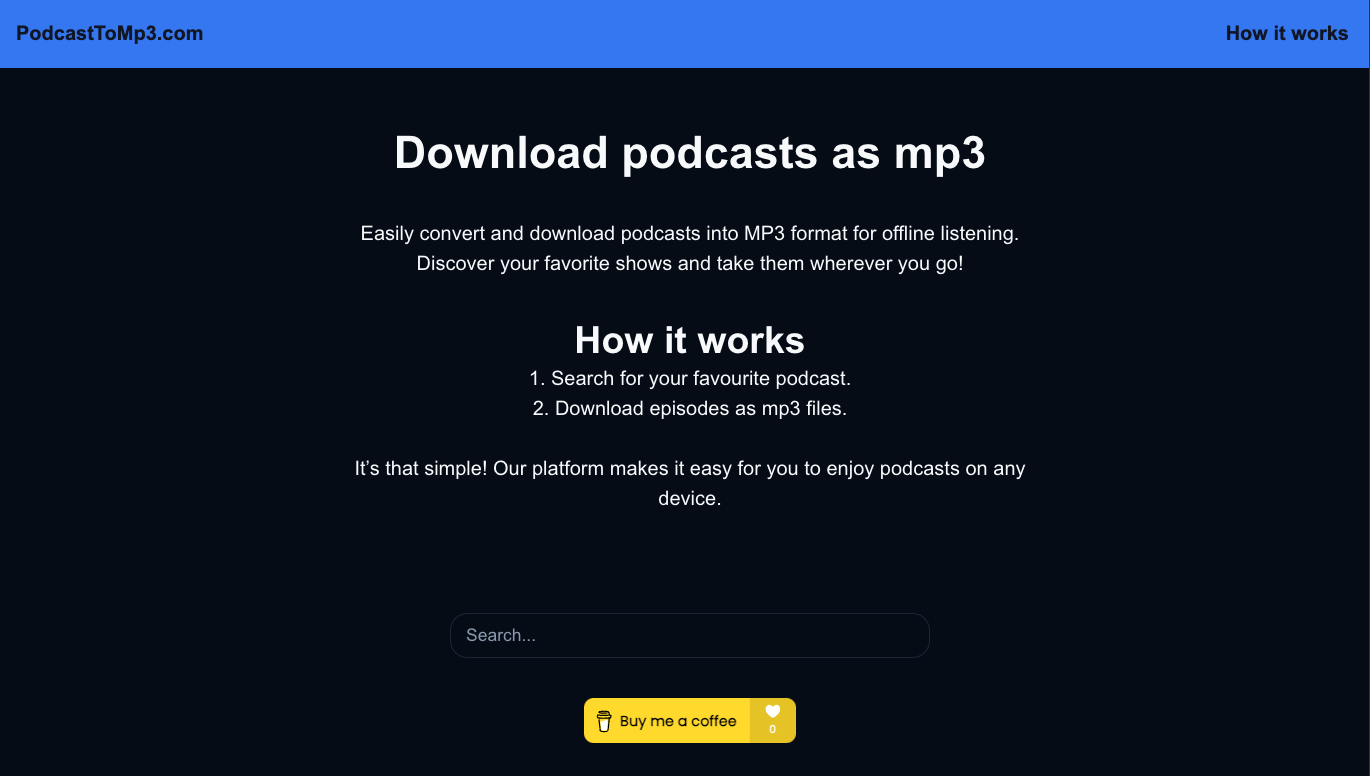

User reviews (0)