
 简体中文
简体中文 English
Website review
This review may include AI-generated content and is not individually verified. Domain, certificate and other facts come from the observed data on this page.
What is rmpc?
rmpc is a terminal-based client for MPD (Music Player Daemon), described as "a beautiful and configurable TUI client for MPD." In practice, that means it gives you a keyboard-driven interface inside your terminal for browsing and controlling music that an MPD server is already serving, rather than a graphical desktop app or a standalone player with its own library management.
It suits people who already run MPD—perhaps on a home server, a Raspberry Pi, or the same machine—and want a fast, low-overhead way to control playback without leaving the terminal. The emphasis on configurability suggests it is aimed at users who like to tune keybindings, layout, and appearance rather than accept a fixed interface.
A few things the project points you toward:
- Get Started and Install for setup instructions
- Try without installing if you want to evaluate it first
- Configure for adjusting rmpc to your preferences
- Reference for looking up specific configuration options
- Themes, including predefined and user-submitted ones, for changing its look
One practical caveat from the page itself: the documentation covers the development version, so you should confirm that your installed version matches the docs you are reading.
If you are deciding whether to try it, start with the "Try without installing" route and point it at an existing MPD instance. If you do not already run MPD, rmpc is not a complete replacement for a music player—you would need to set up and manage MPD separately.
How do I install rmpc on my system?
Install rmpc through your system's package manager or by building it from source; the official documentation points to an installation page and notes it covers the development version, so match your version to the right docs.
rmpc is a terminal (TUI) client for MPD, so you also need a running MPD server. The client connects to it; installing rmpc alone won't give you music playback.
Practical routes
- Package manager: Check your distro's repositories first (e.g.
pacman,apt,dnf,brew). This is the least effort and easiest to update. - Prebuilt binaries: Look for a release archive for your OS/architecture if the project publishes them.
- Build from source: Requires a Rust toolchain (
cargo). Use this when you want the newest version or your platform isn't packaged. - Try without installing: The docs offer a "Try without installing" path, useful for a quick look before committing.
A concrete scenario
On Arch, sudo pacman -S rmpc (if available) plus mpd and mpd-mpc-style setup gets you running fastest. On macOS, brew install rmpc is the equivalent shortcut. If neither has it, install Rust via rustup, then cargo install rmpc.
Decision criterion
Choose the package manager if you value stability and easy upgrades; choose source or binaries if you need a newer release or your distro lags.
Next step: open the official Installation page at rmpc and confirm the command matches your OS and the version you intend to run.
Can I try rmpc without installing it first?
Yes. rmpc's own documentation includes a "Try without installing" path alongside the standard install and configuration guides, so you can evaluate the interface before committing to a local setup.
rmpc
H3 What "trying it" actually gets you A no-install trial is most useful for judging the parts of a music player that are hard to describe: how the queue and library panes are laid out, how much of the screen goes to album art or metadata, and whether the keybindings feel natural for your hands. rmpc is a terminal client for MPD, so the trial shows you the client experience — the look, the navigation and the configuration surface — rather than a self-contained player with its own audio engine.
H3 When a trial is enough, and when it isn't
- Enough: you want to see whether a TUI fits your workflow, compare it against other MPD clients, or check that the theme and layout options match your taste.
- Not enough: you need to confirm it connects to your existing MPD server, handles a very large library, or behaves correctly with your local audio output and network setup. Those depend on your own machine.
H3 A practical way to decide If the trial looks promising, the natural next step is to install it and point it at your MPD instance, then work through the configuration reference to adjust keybindings and appearance. If you don't already run MPD, note that rmpc is a client, not a server — you'll need MPD (or a compatible daemon) available first. One caution from the project's own docs: the page you're reading documents the development version, so match the documentation to the version you actually install to avoid chasing options that differ.
How do I configure rmpc to match my preferences?
Configuration for rmpc happens through its own config file, and the documentation splits the work into three parts: installing it, configuring it, and looking up specific options. Start by opening the Configure page, since that is where the settings that shape the interface and behavior live. The Reference page is the lookup table for individual options when you already know what you want to change.
A practical order
- Install rmpc and confirm the version you are running, because the docs cover a development version and options may differ from a released build.
- Try it without installing if you want to see the default look before committing to a setup.
- Edit the configuration file to set your preferences, then restart to apply changes.
- Use the Reference when a setting name or accepted value is unclear.
What "matching your preferences" usually means
- Layout and visible panels: how much of the screen goes to the queue, library, or now-playing view.
- Keybindings: remapping controls to keys you already use in a terminal or editor.
- Colors and theme: rmpc ships predefined themes and accepts user-submitted ones, so you can either pick an existing theme or build on one.
- Behavior details: the smaller toggles that decide how the player responds to your input.
If you mainly care about looks, themes are the fastest route. If you care about feel, keybindings and layout matter more. If you want a specific behavior, search the Reference for that term rather than reading the whole config top to bottom.
Concrete scenario
Suppose you run MPD on a home server and connect from a laptop terminal. You would keep the connection settings as they are, then spend your time on the queue layout and a theme that stays readable in a dark terminal. Someone using rmpc on the same machine as MPD has less to configure and can focus almost entirely on keybindings and appearance.
Decision criterion
Change one category at a time — theme first, then layout, then keybindings — and check the result after each. Mixing all three at once makes it hard to tell which edit caused a problem.
Next step
Open the Configure page at rmpc and make a single edit to your config file. If the option you want is not listed there, check the Reference section on the same site.
Where can I find themes for rmpc?
Themes for rmpc are available through the project's own theme gallery, which is linked from the rmpc documentation site under "Themes." That page collects both predefined themes and user-submitted ones, so it's the natural starting point before you write your own.
rmpc
How to approach it
- Start with the built-in gallery if you want something that works immediately: pick a theme, drop it into your rmpc configuration, and adjust from there.
- Check the version note first. The documentation site covers a development version, so confirm your installed rmpc matches the docs you're reading. Theme formats and config keys can shift between versions, and a theme written for a different release may not load cleanly.
- Use a theme as a template rather than a final answer. Since rmpc is explicitly configurable, the practical move is to take a submitted theme, then edit the colors and layout options to suit your terminal's palette and font.
A concrete scenario
Suppose you run MPD on a home server and control it from a laptop terminal over SSH. You'd browse the gallery, copy a dark theme that reads well against your terminal background, paste it into your rmpc config, and tweak the accent color so now-playing text stands out. If nothing in the gallery fits, the same config reference that documents theme options is where you'd build one from scratch.
Decision criterion
Choose a gallery theme when you want speed and don't care about exact colors; write your own when your terminal palette is unusual (very low contrast, unusual background) or when you want the interface to match other TUI tools you already use.
What should I do after getting started with rmpc?
After you finish the getting-started steps, the main path is: install rmpc properly, then configure it, then tune the look with themes. The documentation itself frames these as the next steps, so treat them as the intended progression rather than optional extras.
A sensible order
- Install it. Move from the try-it-out stage to a real installation so your setup persists and you can update it normally. This matters most if you tried the no-install route first, since that version may not carry your settings forward.
- Configure it. rmpc is described as configurable, so this is where you make it fit your habits: keybindings, layout, and how it connects to your MPD server. Start small — get it connecting and behaving predictably before adding refinements.
- Apply a theme. Predefined and user-submitted themes are available, so you can change the appearance without building a config from scratch. Pick a predefined one first; switch to a submitted theme only if it matches your terminal's colours.
- Check the reference when stuck. If you want a specific option and can't find it, the reference section is the lookup point rather than the guides.
A concrete scenario
Suppose you run MPD on a home server and want to control it from a laptop terminal. After getting started, install rmpc on the laptop, point its configuration at the server's MPD host and port, confirm playback and queue controls work, then add a theme so the interface is readable against your terminal background. Only after that is it worth fine-tuning keybindings, because you'll know which actions you actually repeat.
One thing to watch
The documentation notes it covers the development version, and warns that your version should match the selected documentation. If an option you read about doesn't work, check whether you're reading docs for a version newer than your installed one before assuming a mistake.
For background on the player it controls, see Music Player Daemon.
 Cloudflare
 Fastly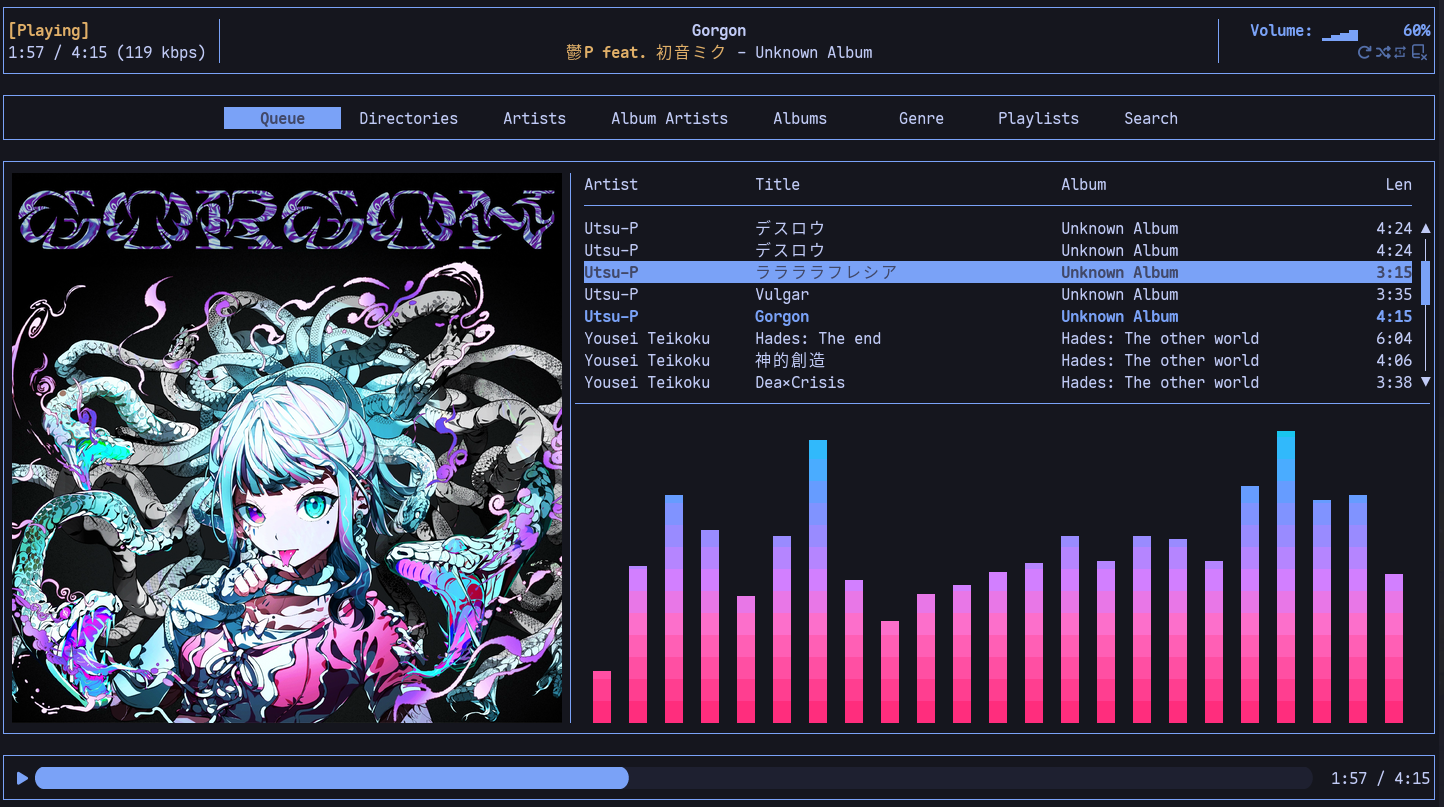
User reviews (0)