
 简体中文
简体中文 English
Website review
This review may include AI-generated content and is not individually verified. Domain, certificate and other facts come from the observed data on this page.
What is Runcell?
Runcell is an AI agent that runs inside Jupyter notebooks. Instead of only suggesting code in a side panel, it works through the notebook itself: it reads the cells and outputs around your question, plans the steps, writes and executes Python, fixes errors, and interprets the results so the analysis can continue.
What it actually does
- Autonomous workflow: describe the result you want, and Runcell plans notebook steps, writes the code, runs the cells, and recovers from errors without you leaving Jupyter.
- In-context help: ask about a specific transformation, result, or error, and it uses the surrounding cells and outputs to apply a fix.
- Learning by experiment: try analytical approaches side by side with real outputs, then judge which direction fits your data.
The underlying loop is: inspect context, plan and execute, read the outputs, then carry the result into the next step.
Who it suits
It fits data analysts, scientists, and students who already work in notebooks and want the tedious middle part — wiring up cells, chasing errors, re-running — handled for them. If your work lives in scripts, dashboards, or production pipelines rather than exploratory notebooks, the benefit is smaller.
A practical next step: install it with pip install runcell, open a notebook with a dataset you know well, and ask for one concrete result, such as a clustering analysis. Compare the agent's cells and outputs against how you would have done it — that tells you quickly whether its judgment matches yours. Pricing details are on Runcell.
How does Runcell automate writing and executing code in a Jupyter notebook?
Runcell works as an agent inside the notebook rather than as a code-completion tool beside it. You describe the result you need, and it inspects the notebook's existing cells, data and outputs, plans the steps, writes Python into cells and executes them. When a cell errors, it reads the traceback and adjusts before continuing. The distinguishing part is the loop: after execution it reads the outputs — tables, charts, statistics — and uses those results to decide the next step, so the analysis advances from what actually happened rather than from what was predicted.
The working cycle
- Inspect context — reads the notebook, data, prior code and your question before choosing a next action.
- Plan and execute — breaks the task into notebook steps, writes the Python and runs the cells.
- Read outputs — interprets cell results so the following decision is grounded in real output.
- Continue — carries the result forward into another executed, inspectable cell.
Two narrower modes sit alongside the autonomous one: in-context assistance, where you ask about a specific transformation, result or error and Runcell reads surrounding cells to apply a fix; and exploratory work, where you compare analytical approaches side by side using real outputs as evidence.
What this changes in practice
A concrete case: you load a customer dataset and ask for segmentation. Rather than receiving a block of clustering code to paste and debug, you get cells that load and inspect the data, run a clustering approach, and then report what the output shows — cluster sizes, separability, obvious outliers — with the code visible and editable at each stage. If the first approach produces degenerate clusters, the agent can see that in the output and try another.
The trade-off is the usual one for agentic notebook tools: you gain speed on multi-step, iterative analysis, and you take on the job of checking that generated code matches your intent, your data assumptions and any reproducibility requirements. Cells are executed in your notebook, so anything with side effects — file writes, API calls, expensive compute — runs for real.
If you want to judge fit, start with a question you already know the answer to and watch whether the agent's intermediate steps and error recovery match how you would have worked. For teams standardising on notebooks, Project Jupyter covers the underlying environment, and Runcell documents the agent itself.
Can Runcell debug and fix errors in my notebook cells automatically?
Yes. Runcell is designed to run cells, read their outputs, and fix errors as work develops, so a failing cell does not have to end your session. The page describes this as part of its agent loop: inspect the notebook context, plan and execute steps, read outputs, then carry the result forward. Error recovery is listed alongside writing and running Python, not as a separate manual debugging feature.
What automatic fixing looks like in practice
If you have a notebook where a cell raises a KeyError because a column name changed, the practical flow is: ask Runcell about the error or the transformation you want, and it reads the surrounding cells and outputs, applies a fix, and keeps the analysis moving. The same applies when a chart fails to render or a merge produces unexpected nulls, because Runcell interprets cell outputs rather than only the code text.
A useful way to think about the division of labor:
| Situation | Runcell's role | Your role |
|---|---|---|
| Obvious runtime error in one cell | Reads context, rewrites and reruns the cell | Confirm the fix matches your intent |
| Silent wrong result (no exception) | Inspects outputs and suggests the next experiment | Validate against domain knowledge |
| Multi-step pipeline breaks midway | Recovers without leaving Jupyter | Decide whether to continue or change approach |
Where to be careful
Automatic fixes are only as good as the context they can see. If your notebook depends on external state, credentials, a database, or files not visible in the notebook, a fix may run successfully while still being wrong. Treat repaired cells as drafts: check the output, not just the absence of a traceback.
If you want to test this, install with pip install runcell, open a notebook with a deliberately broken cell, and ask about the error. Runcell's site is Runcell. For broader notebook workflow context, see Project Jupyter.
How does Runcell help me interpret data analysis results from notebook outputs?
Runcell helps you interpret notebook results by reading the outputs your cells produce—tables, charts, statistics—and using them to decide the next step, rather than stopping at code suggestions. According to the product's own description, it works in a loop: inspect the notebook context, plan and execute cells, read the outputs, then carry the result forward into another runnable step.
What that looks like in practice
If you run a clustering analysis and get a scatter plot, Runcell can look at the plot and the underlying cell outputs, then propose what to check next—cluster sizes, a different number of groups, or a feature that might be driving separation. You stay in Jupyter and see the evidence as executed cells, not as a written summary detached from the data.
A useful way to think about the difference:
| Typical AI code assistant | Runcell as described |
|---|---|
| Suggests the next function or line | Works through understand → plan → run → inspect → continue |
| Often reasons from your prompt alone | Reads surrounding cells and their outputs |
| Leaves execution and debugging to you | Executes cells and fixes errors in the notebook |
| Explains code | Explains concepts through runnable cells you can check |
Where it fits and where it doesn't
This suits notebook-driven work where the answer depends on what the data actually shows—exploratory analysis, clustering, statistics, machine learning experiments. It is less about generating a polished report and more about keeping an investigation moving. The trade-off is that interpretation is only as good as the outputs you produce: if a cell returns a misleading table or an unlabeled chart, the agent's reading inherits that ambiguity.
A concrete next step: take one analysis where you were unsure how to read a result—an unexpected distribution, a cluster that looks wrong, a statistic you did not trust—and ask Runcell about that cell in context. Compare its suggested next experiment against what you would have tried, then run it and inspect the output yourself. That keeps you as the judge of the interpretation while the agent handles the execution loop.
For a fuller picture of the workflow, see Runcell.
Is Runcell suitable for machine learning workflows and experiments?
Yes. Runcell is explicitly aimed at notebook-driven work, and machine learning experimentation is largely notebook-driven: loading data, iterating on features, training and comparing models, and inspecting metrics. Runcell's own description of its agent loop — inspect the notebook context, plan and execute cells, read outputs such as tables and statistics, then carry the result forward — maps closely onto that cycle.
Where it fits an ML workflow
- Exploratory data work. Clustering analysis is shown as a demo on the site, and the agent is described as writing and running code, then reading the outputs. That suits the messy early phase where you try several approaches and let results decide the next step.
- Iterative experimentation. Because Runcell is described as recovering from errors without leaving Jupyter and continuing from what actually happened, it is better matched to multi-step experiments than to one-off code suggestions.
- Understanding existing notebooks. The "in-context assist" mode is described as reading surrounding cells and outputs, which is useful when you inherit an ML notebook and need to understand a transformation, a metric, or a failing cell.
- Learning methods. The "learn by doing" mode is described as letting you explore analytical approaches side by side with real outputs, which fits comparing model families or preprocessing choices.
Where to be cautious
Model training that is long-running, GPU-heavy, or dependent on distributed infrastructure sits awkwardly in a notebook agent loop — the value of Runcell comes from fast execute-inspect-continue cycles, not from managing training jobs. Similarly, reproducibility and experiment tracking are not described as part of the product, so treat those as your own responsibility: keep data versions, seeds, and metrics logged outside the notebook.
A practical way to decide
Pick one bounded experiment you already need to run — for example, comparing two feature-engineering variants on a small dataset — and run it with Runcell alongside your normal workflow. Judge it on whether the executed cells and interpreted outputs actually save you steps, and whether you can still follow and reproduce what it did afterwards. Installation is shown as pip install runcell, and there is a free starting point plus a Pricing page if you want to check limits before committing.
How much does Runcell cost and what are the pricing plans?
Runcell's own site does not publish plan tiers or prices. The page evidence includes a "Pricing" link and a "Get started free" call to action alongside a pip install runcell command, which indicates a free entry point and a separate pricing page — but no dollar figures, seat counts or usage limits are stated in the material available here. Anyone budgeting for it should treat the current pricing page as the authoritative source rather than relying on secondhand summaries.
What the evidence does support
- A free starting path exists. The install line and "Get started free" wording suggest you can evaluate the agent without a sales conversation.
- Pricing is handled on a dedicated page, not the landing page — typical of tools that meter usage rather than charge a flat rate.
- No payment platforms are named, so billing mechanics (card, invoicing, team seats) are unconfirmed.
How to decide without a published number
Cost only matters relative to what the agent replaces. If Runcell plans notebook steps, writes Python, executes cells and reads outputs, it is competing with your own iteration time — the minutes spent writing boilerplate, chasing a failing cell, or re-reading a DataFrame.
A concrete test: take one analysis you already know the answer to, such as a clustering run on a dataset you have clustered before. Install it, ask the question in plain language, and watch how many cells it writes, how it handles the first error, and whether its interpretation of the output matches yours. That single session tells you more about value than a pricing table does.
Then compare the pricing page against two reference points: what you currently pay for a general coding assistant, and what an hour of your own time is worth. If Runcell's advantage is working inside the notebook loop rather than suggesting the next function, that is the difference you are paying for — and the free tier is where you verify it.
For adjacent options, general assistants such as GitHub Copilot and notebook-native environments like Google Colab are useful baselines, though neither is a like-for-like substitute for an in-notebook agent.
 vercel-dns.com
 Feishu Mail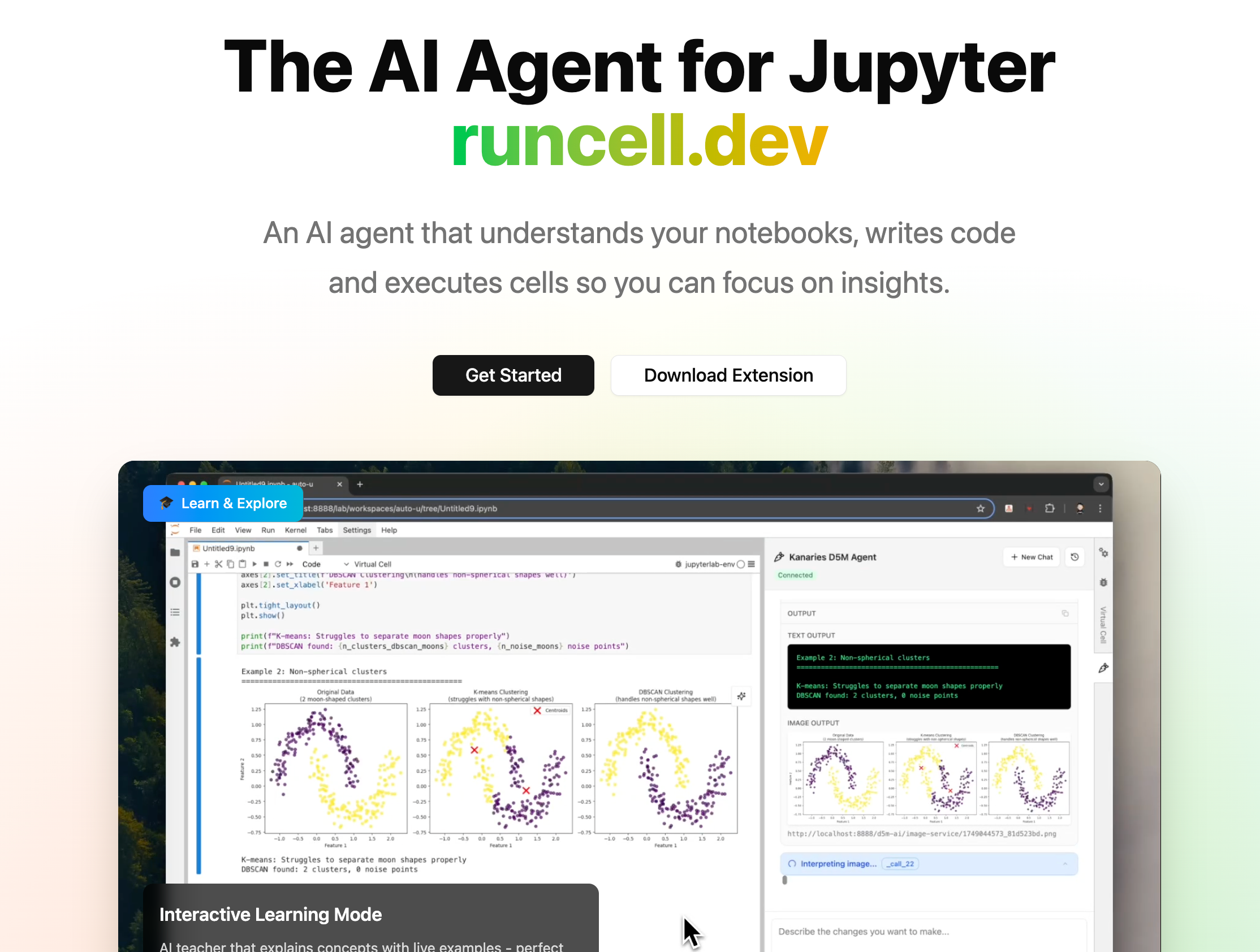

User reviews (0)