Website profiles · Technology insights · Alternatives

svgexport.io

Free browser extension to extract and download SVG icons, logos, and illustrations from any website. Bulk export to SVG, PNG, or JPG. For Chrome, Firefox, and Edge.

No paid content found Multilingual
Visit website
Profile views 12 Outbound visits 6 Normal
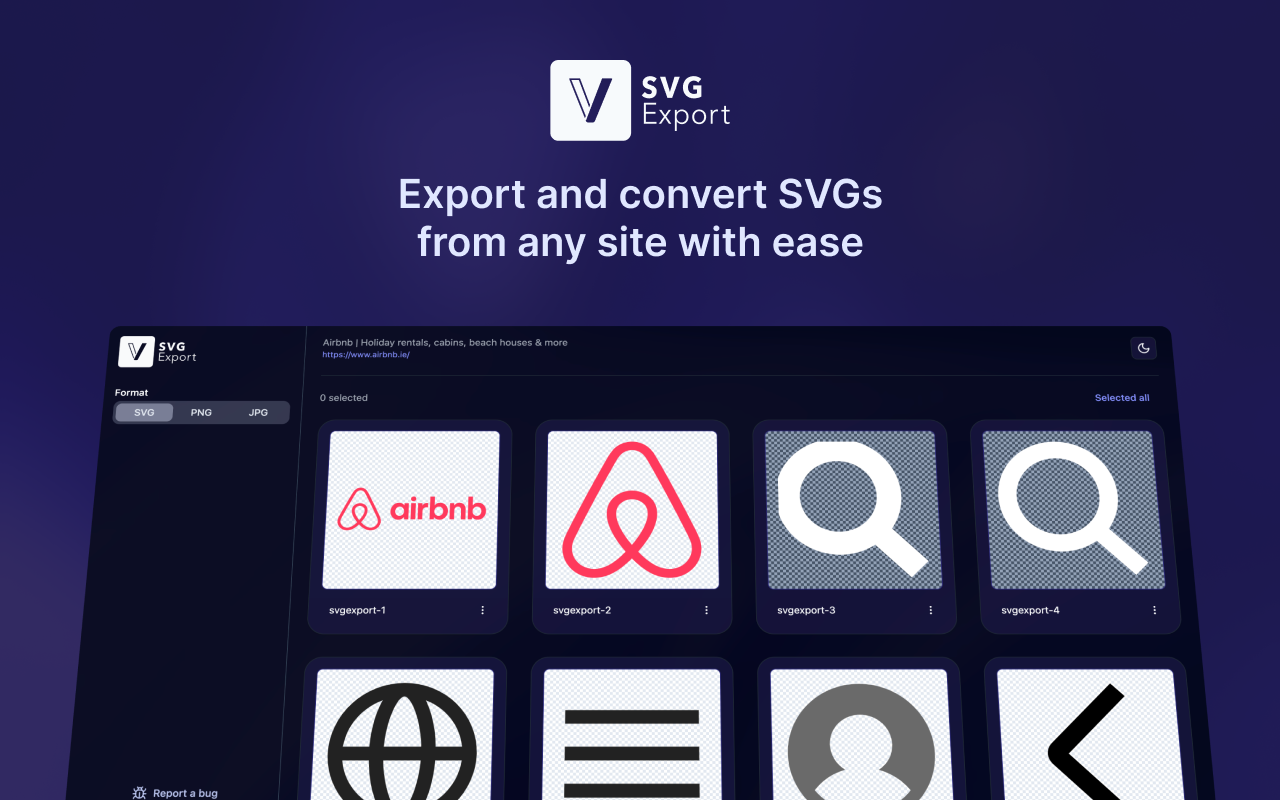
SVG Export Full homepage screenshot

At a glance

Category
Design & Creativity
Language
English
Paid-content signal
No paid content foundObserved
Registered
2020
Hosting
CloudflareInferred
HTTPS certificate trusted
PassedObserved
Last updated

Website review

This review may include AI-generated content and is not individually verified. Domain, certificate and other facts come from the observed data on this page.

What is SVG Export?

SVG Export is a browser extension that finds the SVG images embedded in a web page and lets you download them — individually or in bulk. It runs on Chrome, Firefox and Edge, and is aimed at designers and developers who want vector icons, logos or illustrations without recreating them by hand.

Its workflow is straightforward: open a page, activate the extension, and it lists every SVG it can detect. From there you can pick the ones you want, rename or resize them, choose an output format (SVG, PNG or JPG), and download everything together as a zip file. It also copies SVG code to the clipboard and inlines externally applied CSS styles so the artwork still looks correct once it leaves the original page.

Who it suits

  • Designers collecting icons or logos for mockups and client work
  • Developers grabbing vector assets for a codebase or design tool such as Figma or Sketch
  • Anyone who would otherwise right-click and save files one at a time

Trade-offs to weigh

  • It only works inside a supported browser, so it is not a standalone converter or editor.
  • Extracting assets does not grant you rights to reuse them; check the source site's licence before publishing anything.
  • Pages that render graphics via canvas, or that load SVGs only after interaction, may not expose everything to the extension.

A practical next step

Install it, open a page with icons you need, and export a single small SVG first. Open that file in a browser and in your design tool to confirm it renders correctly before you run a large bulk export. If you want to compare options, SVG Export is the tool described here; general-purpose vector editors handle editing and optimisation once the files are on your machine.

How do I install and activate the SVG Export browser extension?

Install SVG Export from your browser's official extension store, then pin it to your toolbar and click the icon on any page to reveal the SVGs it can see. Activation is per-page rather than a one-time setup: the extension works when you open it on a site, not by running in the background.

Installation steps

  1. Open the Chrome Web Store, Firefox Add-ons, or Microsoft Edge Add-ons and search for SVG Export — the listing is the same product described on SVG Export.
  2. Click Add to Chrome (or the equivalent button) and confirm the permissions prompt.
  3. Pin the extension: click the puzzle-piece icon in your toolbar, then the pin next to SVG Export so the button stays visible.

Activating it on a page

  • Load the page whose vectors you want, then click the SVG Export icon. Every SVG on the page appears in the panel.
  • Select the assets you want, optionally rename, resize, or convert them to PNG or JPG, then export — or copy the SVG code straight to your clipboard.

Practical notes

  • Some sites load icons lazily as you scroll, so open the extension after the page has settled rather than during loading.
  • Browser-internal pages, the extension stores themselves, and local file URLs generally won't work; try the live site instead.
  • If the panel comes up empty on a page that clearly shows icons, the graphics may be drawn on a canvas or delivered as a font rather than as SVG elements.

A good first test: pick a site you use daily, export one icon as SVG and one as PNG, and confirm both open correctly in your design tool before relying on bulk export for a larger job.

Can I extract SVGs from websites that use external CSS for styling?

Yes — that is one of the specific problems SVG Export is built to handle. When an SVG's colors, strokes, or sizes come from the page's stylesheet rather than attributes inside the SVG file itself, the raw markup often looks broken once it leaves the page. According to the product's feature list, the extension inlines those external styles before export, so the asset keeps its intended appearance outside the browser.

Why this matters in practice

An inlined copy is a self-contained copy. If you are a designer pulling a client's logo into a mockup, or a developer dropping an icon into a codebase, you want a file that renders correctly on its own — not one that depends on a stylesheet you do not control.

What the extension offers around that

  • Export as SVG, PNG, or JPG, depending on whether you need editable vectors or a flat raster image
  • Rename, resize, and preview assets before saving
  • Copy SVG code to the clipboard for pasting into Figma, Sketch, or source files
  • Bulk select and download everything as a zip instead of saving icons one by one

A quick way to verify

Pick a site whose icons are clearly styled by a shared stylesheet — many marketing sites and design systems work this way. Export one icon, open the SVG in a browser or editor, and confirm the colors and strokes match what you saw on the page. If they do, the inlining worked; if not, that is the case worth reporting as a bug.

For a second opinion on general extraction approaches, MDN Web Docs explains how SVG styling and presentation attributes interact, which helps you judge whether an exported file is truly self-contained.

How do I bulk download multiple SVGs as a zip file?

Use SVG Export's bulk export to select several SVGs at once and download them together as a single zip file. Open a page, activate the extension so all vectors on the page appear, tick the icons or illustrations you want, then choose the bulk export action to package them into one zip. You can also rename, resize, and convert each asset to PNG or JPG before downloading, so the zip can arrive ready to drop into a project.

Practical steps

  1. Install SVG Export in Chrome, Firefox, or Edge via SVG Export.
  2. Open the page containing the SVGs you need.
  3. Activate the extension and let it list every SVG on the page.
  4. Select multiple assets, optionally rename/resize/convert them.
  5. Trigger bulk export and save the zip.

When this fits

  • A designer collecting a set of brand icons from a client's partner site.
  • A developer grabbing many UI icons in one pass instead of saving one by one.
  • Anyone who needs the same vector in several formats without re-exporting manually.

Trade-offs to weigh

  • Bulk export is fastest when you want many assets, but you still review each one if licensing or brand use matters.
  • Converting to PNG or JPG loses vector scalability; keep SVG when you may resize later.
  • Inline styles help SVGs look correct outside the page, yet they can differ from the site's original styling.

One reviewer, Valerie Williams, noted the ease of seeing all SVGs in use and saving as plain code; that matters if you plan to paste assets into Figma, Sketch, or a codebase rather than only downloading files. As a next step, test bulk export on a page with a known icon set, confirm the zip contents, then decide whether you need SVG, PNG, or JPG for that project.

What image formats can I convert extracted SVGs into before downloading?

SVG Export lets you convert extracted SVGs into SVG, PNG, or JPG before downloading. According to the site's feature list, you can also rename and resize assets during that step, so the format choice is part of a small pre-download editing workflow rather than a separate converter.

H3 Practical differences

Format Best for Trade-off
SVG Editing in Figma, Sketch, or code; scaling without quality loss Not ideal for contexts that reject vector files
PNG Transparent backgrounds, UI mockups, quick previews Raster, so it won't scale infinitely
JPG Smaller files for photos or opaque previews No transparency and lossy compression

A concrete scenario: a designer gathering a client's partner logos might keep the originals as SVG for future edits, export PNG versions for a slide deck, and use JPG only if a platform refuses transparency. The site also notes that SVGs styled by external CSS get their styles inlined, which matters if a converted file looks unstyled after leaving the page.

Next step: open the extension on a page with the assets you need, select the SVGs, and set each asset's format before exporting. If you're unsure, default to SVG and convert to PNG or JPG later. For browser-based work, SVG Export is available for Chrome, Firefox, and Edge; comparable official tools include Figma for editing and CloudConvert for standalone format conversion.

Is SVG Export free to use, and does it work on Chrome, Firefox, and Edge?

Yes. SVG Export is described as a free browser extension, and it is listed for Chrome, Firefox, and Edge. The page presents it as a tool for extracting and downloading SVG icons, logos, and illustrations from websites, with bulk export to SVG, PNG, or JPG.

What “free” means here

The site does not show subscription tiers or paid plans in the supplied information. It does include a “Buy me a coffee” link, which is a voluntary tip option rather than a required purchase. So for practical purposes, you can expect to install it and start extracting without paying, while the developer accepts optional support.

Browser support at a glance

Browser Supported according to the site
Chrome Yes
Firefox Yes
Edge Yes

Who this suits

  • Designers who spot an icon or logo on a site and want the vector file quickly.
  • Developers who need SVG code to paste into a project, Figma, Sketch, or a codebase.
  • Teams doing bulk work — the extension can select multiple SVGs and download them as one zip instead of saving files one by one.

A practical next step

If you are evaluating it, install it in the browser you already use, open a page with several icons, and test two things: whether the SVGs you need appear in its list, and whether the exported files look correct outside the original page. The “inline styles” feature matters here, because SVGs that rely on external CSS can otherwise lose their appearance once downloaded. For a quick real-world test, try a site with a mix of simple icons and a detailed illustration, then compare the exported PNG or JPG against what you saw on the page.

If you want alternatives to compare against, SVG Export is the product discussed here; general-purpose vector editors such as Figma or Inkscape are useful once you have the file and need to edit it further.

Related questions

More questions →
What Can an Amazon Seller Browser Extension Actually Do for Your Listings?

An Amazon seller browser extension is a small piece of software that runs inside Chrome, Edge, or Firefox and adds information or shortcuts directly onto Amazon pages you already visit. In practice, it can overlay demand and competition data on a product page, pull quick numbers while you browse a niche, flag missing or weak listing elements, and save you from switching between tabs. What it cannot do is replace a full listing engineering or growth platform: extensions are lightweight, page-level helpers, while serious listing work — keyword architecture, AI-readiness, bulk optimization, and performance tracking over time — needs a dedicated toolset. The useful question is not "extension or platform" but "which jobs belong to each."

What a browser extension typically does well

Most seller extensions cluster around a few repeatable, on-page tasks. If your workflow involves a lot of browsing, these are where the time savings are real.

On-page data overlays

While you're on a product detail page, the extension can display estimated sales, revenue, review velocity, seller count, and price history in a panel next to the listing. This turns "open a separate research tab and paste the ASIN" into "read the number where you already are." For quick sanity checks on a competitor or a potential product, that's a genuine speed gain.

Quick product and niche research

Extensions often let you scan a search results page and see metrics for every listing at once, or export a batch of ASINs. This is useful for early filtering: you can spot which results have thin review counts, unstable pricing, or a dominant seller, and decide which few are worth deeper analysis.

Listing checks and basic audits

Some extensions highlight on-page elements — title length, bullet presence, image count, whether A+ content appears, whether key fields look empty. This is a fast visual audit, not a scoring system. It tells you what's there, not whether your listing is engineered to match how Amazon discovery works now.

Convenience features

Coupon and deal finders, price-drop alerts, review-request shortcuts, and quick links to seller tools fall into this bucket. They're small quality-of-life wins rather than strategy.

Where extensions fall short

This is the part sellers most often underestimate. An extension sees the page in front of you; it doesn't hold your catalog, your history, or your strategy.

Job Browser extension Full listing/growth platform
On-page competitor snapshot Yes, fast Yes, often deeper
Keyword architecture across a listing No Yes
AI-readiness / discovery optimization Rarely Core function
Bulk edits across many ASINs No Yes
Tracking your own listings over time Limited Yes
Historical trend and seasonality Usually shallow Yes
Team workflows and permissions No Yes

The pattern: extensions are read-and-react tools for pages you're already on. Platforms are build-and-manage tools for your own catalog. If your bottleneck is "I need to know if this niche is worth entering," an extension helps. If your bottleneck is "my listings aren't converting or aren't being surfaced the way Amazon discovery now works," an extension won't fix that — you need listing engineering, not a data overlay.

Scenarios: when an extension earns its place

  • Early product research. You're scanning dozens of search pages a day. An overlay that shows demand and competition inline saves hours of tab-switching. Worth it.
  • Competitor spot-checks. You want a fast read on a rival's pricing and review momentum before a pricing decision. An extension gives you that in seconds.
  • Quick listing sanity checks. You're about to publish and want to confirm images, bullets, and title are all present. A visual audit extension is handy.
  • Ongoing listing optimization. You need to align titles, bullets, and backend terms with how Amazon's discovery systems interpret intent, and to keep that consistent across a catalog. This is platform territory — an extension can't hold or apply that structure.
  • Scaling a catalog. Once you're managing many ASINs, bulk operations, version history, and team access matter more than any single-page overlay.

What to check before installing any extension

Extensions can read the pages you visit, and some request broad permissions. Before you install:

  1. Read the permission list. Does it need access to all sites, or only Amazon domains? Broader access than the job requires is a yellow flag.
  2. Check what data leaves your browser. Does it send your browsing or seller data to a server? Is that disclosed?
  3. Confirm the vendor. Prefer extensions from established sellers/tool providers with a real product behind them, not anonymous one-off add-ons.
  4. Test on a non-critical account first. If it touches your Seller Central session, verify behavior before relying on it.
  5. Know the exit. Can you disable it cleanly, and does uninstalling remove stored data?

How to decide if it fits your stage

Ask three questions:

  • Is my main pain "I browse a lot and want data inline"? An extension is likely worth it.
  • Is my main pain "my listings underperform and I need to engineer them properly"? Skip the extension-first mindset; look at a listing/growth platform.
  • Am I managing more than a handful of ASINs? You'll outgrow page-level tools quickly; extensions become a supplement, not the system.

A practical setup for many sellers is both: an extension for fast on-page research, and a dedicated platform for the listing work that actually moves rankings and conversion. ZonGuru, for example, positions its toolset around listing engineering and AI-readiness rather than page overlays — the kind of work an extension structurally can't do. If you want to see where a full platform picks up, its pricing page outlines the options, and there's a free trial to test the workflow before committing.

The short version: a browser extension is a fast, cheap way to see more while you browse. It is not a listing strategy. Use it for the browsing jobs, and bring in a real platform for the engineering jobs — that division is what keeps your time and your listings both working.

What Is SVG Export and What Does It Do?

SVG Export is a browser extension for Chrome, Firefox, and Edge that finds the SVG icons, logos, and illustrations on a web page and lets you download them. It is aimed at designers and developers who need vector assets quickly, and it supports bulk export plus conversion to SVG, PNG, or JPG. If you only need one graphic occasionally, the built-in browser save options may be enough; this tool makes more sense when you regularly pull multiple vectors from sites you don't control.

How the extraction workflow works

The extension follows a three-step pattern described on its own site as "See it. Select it. Export it."

  1. Activate and discover. Open any website and start SVG Export. Every vector on the page appears in the extension's list.
  2. Rename, resize, and convert. Choose SVG, PNG, or JPG, then rename or resize assets before they reach your downloads folder.
  3. Bulk export. Select the SVGs you need and download them together as a zip file instead of saving one at a time.

The input is the page you are already viewing; the action is selecting and optionally editing assets; the expected result is a set of files in your chosen format. Because the tool reads what the page renders, it works on sites where the SVG markup is embedded or referenced rather than offered as a download link.

What you get beyond a basic download

Capability What it does
Bulk export Select all or some SVGs and download them as one zip
Format freedom Export as SVG, PNG, or JPG
Edit before export Rename, resize, and preview each asset before saving
Inline styles SVGs styled by external CSS are inlined so they render correctly outside the original page
Copy to clipboard Copy SVG code directly for pasting into Figma, Sketch, or a codebase
Lossless extraction Vectors stay pixel-perfect rather than being rasterized on capture

The inline-styles feature matters in practice: many sites style icons through a separate stylesheet, so a raw SVG file can look broken or invisible when opened on its own. Inlining the styles keeps the appearance intact after export.

Who it is for

  • Designers collecting icons, logos, or illustrations for mockups and client work.
  • Developers who want SVG source code to paste into a project rather than recreate a graphic by hand.
  • Anyone doing repeat extraction, where saving files individually would be slow.

The site reports 4.5 out of 5 from 273 ratings and says the extension is used by more than 340,000 users across the three browsers. User comments quoted on the page highlight speed, a simple interface, and the ability to save plain code; one reviewer mentions grabbing an icon for a client's partner, and another notes the tool is not stuffed with ads.

Practical things to check before relying on it

  • Availability: the extension is listed for Chrome, Firefox, and Edge. Confirm your browser and version are supported on the install page.
  • Licensing: extracting an SVG does not grant rights to use it. Check the source site's terms and any trademark or copyright restrictions, especially for logos.
  • Page dependence: the tool surfaces vectors present on the rendered page. Assets loaded only after interaction, or blocked entirely, may not appear until you trigger them.
  • Cost: the site describes the extension as free and includes a "Buy me a coffee" link, which suggests optional support rather than a required purchase. Treat any paid tier or account requirement as unconfirmed unless the install page states it.

If your task is "pull every icon off this page and hand them to a developer," SVG Export fits directly. If your task is "download one image I already have the URL for," a right-click save is simpler.

How to Use SVG Export to Download SVGs from a Website

SVG Export is a browser extension for Chrome, Firefox, and Edge that scans any web page for vector graphics and lets you download them as SVG, PNG, or JPG — individually or in bulk as a zip. It's aimed at designers and developers who need to grab icons, logos, or illustrations without digging through page source or developer tools. The workflow is three steps: activate the extension on a page, pick and adjust the assets you want, then export.

Before you start

  • A Chromium-based browser (Chrome, Edge) or Firefox.
  • The SVG Export extension installed from your browser's extension store. The site lists "Add to Chrome" as the primary install path and states support for Chrome, Firefox, and Edge.
  • A page that actually contains SVGs. The extension reveals vectors already present on the page — it doesn't generate or fetch assets that aren't there.

Step 1: Activate and discover

Open the website containing the graphics you want, then launch SVG Export from your browser toolbar. According to the site, every vector on the page appears instantly in the extension's panel.

What to expect: a list or grid of all SVGs detected on the current page, including icons and illustrations that may be rendered small or hidden in the layout.

If nothing shows up: the graphics on that page are likely raster images (PNG, JPG, WebP) or CSS background images rather than inline SVGs. The extension only surfaces SVG elements, so a page built entirely from raster assets will come up empty.

Step 2: Rename, resize, and choose a format

Before anything reaches your downloads folder, you can adjust each asset:

Action What it does
Rename Sets the filename for the exported file
Resize Changes dimensions before export
Format Choose SVG, PNG, or JPG
Preview View the asset before saving

Two details worth knowing:

  • Inline styles. If an SVG is styled by external CSS on the page, the extension inlines those styles so the file looks correct once it's off the page. This matters for icons that appear colored or sized only because of the site's stylesheet.
  • Copy to clipboard. Instead of downloading, you can copy the SVG code directly and paste it into Figma, Sketch, or your codebase.

Step 3: Bulk export

Select the SVGs you need — or select all — and download them together as a single zip. This replaces saving files one at a time, which is the main time cost when pulling a full icon set from a design system or documentation site.

Common snags

  • Empty results on image-heavy pages. As noted above, raster images aren't SVGs. Check whether the graphic is an <svg> element or an <img> pointing to a PNG/JPG.
  • Icons that look wrong after export. This is usually an external-CSS issue; the extension's inline-styles feature is designed to handle it, but complex cases (animations, CSS variables, fonts inside SVG text) may still render differently outside the original page.
  • Canvas-drawn or icon-font graphics. Vectors drawn to a <canvas> or delivered as an icon font aren't SVG elements and won't be detected.

What you get

The extension's stated feature set covers bulk export to zip, format choice (SVG/PNG/JPG), pre-export editing, style inlining, clipboard copy, and lossless vector extraction. The site reports 4.5 stars from 273 ratings and 340,000+ users across the three browsers. It also links to guides, a bug-report page, and a "Buy me a coffee" support page — the presence of a voluntary support link doesn't tell you whether any part of the tool is paid, so treat pricing as unconfirmed unless you see it stated at install time.

Why Do SVGs Extracted from a Website Look Different After Export?

An extracted SVG often looks different outside its original page because the page's CSS was styling it, not the SVG file itself. SVG Export addresses this by inlining styles during extraction, so the asset keeps its appearance when you open it in a design tool, paste it into code, or view it in a browser. If you exported an SVG with another method — or saved the raw file directly — the missing styles are the most likely cause.

Why the appearance changes

An SVG file on a website is rarely self-contained. Its colors, stroke widths, and fills are frequently set by rules in the page's stylesheet, applied through classes, IDs, or inherited properties. The .svg file itself may contain no color information at all.

When you save that file without the surrounding CSS, the browser or editor falls back to defaults: black fills, no strokes, wrong sizes. The vector data is intact — only the presentation is gone.

Common sources of the mismatch:

  • External CSS classes — fill and stroke defined in a <style> block or linked stylesheet
  • CSS custom properties — colors passed in through variables like --icon-color
  • Inherited styles — currentColor resolving to a parent element's text color
  • Presentation attributes overridden by CSS — the file says one thing, the page's CSS says another

How SVG Export handles it

According to the site, SVG Export inlines styles so extracted assets look right outside the page. That means the relevant CSS values are written into the SVG markup itself, making the file self-contained.

The workflow described on the site is:

  1. Activate and discover — open a page and start the extension; every vector on the page appears.
  2. Rename, resize, and convert — choose SVG, PNG, or JPG, and adjust the asset before it reaches your downloads folder.
  3. Bulk export — select what you need and download everything as a zip.

Two features matter for this specific problem:

  • Inline styles — the mechanism that preserves appearance after export.
  • Preview before export — lets you confirm the asset looks correct before saving, rather than discovering the problem later in Figma or your codebase.

What to check if an export still looks wrong

Symptom Likely cause What to try
Black fill where the page showed color External CSS not applied Re-export with SVG Export so styles are inlined
Icon renders at the wrong size Width/height came from page layout Resize during export, or set dimensions in your tool
currentColor renders as black Color was inherited from page text Set an explicit fill after export
Strokes missing Stroke defined in page CSS Re-export, or add stroke manually
Looks right in browser, wrong in Figma Editor ignores some CSS Use the copy-to-clipboard SVG code and paste directly

Choosing the right format for the job

The format decision affects whether styling problems appear at all:

  • SVG — keeps vector data and, with inlined styles, the original appearance. Best when you need to edit or scale.
  • PNG — flattens to pixels. Styling is baked in at export, so it can't break later, but you lose editability.
  • JPG — same trade-off as PNG, without transparency.

If your goal is simply to use the asset as-is, PNG or JPG sidesteps the styling question entirely. If you need to modify it, export as SVG and verify the preview before downloading.

A practical check

Before exporting a batch, preview one asset and compare it against the page. If the preview matches, the inlined styles worked and the rest of the batch should behave the same way. If it doesn't match, the styling likely comes from a source the extension can't resolve — in that case, copy the SVG code to your clipboard and inspect it, or set the fill and stroke manually in your design tool.

Can I copy SVG code from SVG Export instead of downloading a file?

Yes. SVG Export includes a Copy to Clipboard feature that copies the SVG markup itself, so you can paste it straight into Figma, Sketch, or a codebase instead of saving a file. Use it when you need the code, not an asset file — for example, dropping an icon directly into a component or design file. If you need a standalone file, a different format, or many assets at once, the download and bulk export paths are the better fit.

What the copy option actually gives you

The extension's Copy to Clipboard feature places the SVG code on your clipboard. According to the site, that code is meant to be pasted into Figma, Sketch, or your codebase — so it's the markup, not a file path or a download link.

That matters because the two outputs behave differently:

What you need Copy to Clipboard Download / Bulk Export
SVG markup to paste into code or a design tool Yes No — you get a file
A standalone file to store or hand off No Yes
PNG or JPG output No Yes
Many assets at once No Yes — bulk export as a zip
Rename or resize before saving No Yes

So copying and downloading aren't competing features; they cover different moments in the same workflow.

When copying beats downloading

Copying is the shorter path whenever the SVG is going straight into something you're already editing:

  • Pasting into a codebase. You get the markup directly, with no file to open, read, or convert first.
  • Pasting into Figma or Sketch. The site lists both as destinations for copied code, so you can drop a vector into a design file without an intermediate download step.
  • Grabbing one icon quickly. If you only need a single asset and you're already in an editor, copying avoids a trip through your downloads folder.

Downloading makes more sense when the asset needs to exist as a file — for storage, for handoff to someone else, or when you want PNG or JPG instead of SVG.

A practical workflow

  1. Open the page containing the SVG you want.
  2. Activate SVG Export. The site says every vector on the page appears instantly, so you can see what's available before choosing.
  3. Select the SVG you need and use Copy to Clipboard.
  4. Paste into Figma, Sketch, or your code.

If you'd rather have a file, the same selection can go through the export path instead: pick SVG, PNG, or JPG, optionally rename or resize, then download. For multiple assets, bulk export collects everything into a single zip.

The styling caveat worth knowing

One detail from the site's feature list is easy to overlook: some SVGs are styled by external CSS rather than inline attributes. SVG Export inlines those styles so the vector looks right outside the original page.

This is exactly why a copied SVG can look different once pasted elsewhere — the markup may depend on styles that lived in the page, not in the SVG itself. The extension's inlining step is designed to prevent that. If a pasted SVG still looks off, the styling is the first thing to check, since the visual result depends on styles being carried along with the code.

What to keep in mind

  • Copying gives you code; downloading gives you a file. Neither replaces the other.
  • The copy feature is aimed at Figma, Sketch, and codebases, per the site.
  • Inline styles are handled by the extension, which is what keeps pasted SVGs looking correct.
  • The extension runs on Chrome, Firefox, and Edge, so the copy option is available across those browsers.

For a single icon headed into an editor, copy. For anything you need to keep, convert, or batch, export.

Website Overview

An advisory match combined with missing browser safeguards may increase exposure if the affected component is active. Deployment-specific verification and remediation deserve priority. Identifiable technologies and additional version or configuration signals make the service easier to fingerprint, which may help targeted scanners narrow their checks.

Domain and Registration

Registered in 2020, this domain has about 6 years of history. That suggests continuity, although ownership and purpose may have changed. Transfer-protection status is present, helping reduce the risk of unauthorized domain transfers. The registrar is Cloudflare, Inc, a widely used domain service provider. The domain uses the common .io extension, which is not an independent safety signal.

DNS and Email

Nameservers are provided by Cloudflare, indicating managed DNS hosting. No CNAME was found; the observed records resolve directly to addresses. No MX record was found. A conventional explicit inbound-mail route is not configured. TXT records include verification markers for Google. Such markers may also remain after a service stops being used. DNSSEC signatures were not detected, so this additional DNS authenticity protection is not confirmed.

TLS and Certificates

The public key uses EC with 256 bits. The server supplied a complete certificate chain. No organization name is present in the certificate; the available fields are consistent with domain validation. The certificate was issued within the Google Trust Services cloud or CDN ecosystem. The certificate's total validity is about 90 days, consistent with a short renewal cycle.

HTTP and Browser Security

The checked browser-security headers were not detected, leaving fewer explicit browser-side safeguards. No X-Powered-By header was found, reducing one common source of backend fingerprinting information. The cf-ray response header indicates a CDN or caching proxy in the delivery path. No obvious internal addresses or debug information were found in the headers. The Server header identifies cloudflare without an exact version.

Technology Stack Analysis

The public page identifies Astro 6.0.4, Cloudflare, with exact versions exposed for 1 technologies. These details can narrow vulnerability checks, although exposure alone is not a vulnerability. The advisory source OSV places Astro 6.0.4 in the affected range of GHSA-26w7-cxv4-gfx2, GHSA-2pvr-wf23-7pc7, GHSA-376h-93r7-7g6f, GHSA-4g3v-8h47-v7g6, GHSA-7pw4-f3q4-r2p2 等 10 项. Verify the deployed version and relevant configuration before drawing conclusions about exploitability. Updating affected components should be a priority.

Search and Social Sharing

The meta description has 164 characters and may be shortened in search results. The Generator tag identifies Astro v6.0.4, making the publishing system easier to fingerprint. Twitter Card metadata is configured. JSON-LD includes Product or Offer data, potentially supporting eligible product search features. The page declares 6 language or regional alternatives using hreflang.

Hosting and Email

DNSCloudflare
HostingCloudflare
EmailUnknown
Approximate IP geolocation (inferred; a CDN or proxy may differ from the origin server) Location unknown Inferred 104.21.96.146

Registration details

RDAP / WHOIS

RegistrarCloudflare, Inc
Registered2020-05-05
Expires2027-05-05
Domain statusclientTransferProhibited https://icann.org/epp#clientTransferProhibited
Nameserversdana.ns.cloudflare.com、ishaan.ns.cloudflare.com
DNSSECunsigned

DNS records

DNS

TypeNameValueTTLPriority
Asvgexport.io104.21.96.146300—
Asvgexport.io172.67.182.212300—
AAAAsvgexport.io2606:4700:3033::6815:6092300—
AAAAsvgexport.io2606:4700:3036::ac43:b6d4300—
NSsvgexport.iodana.ns.cloudflare.com86400—
NSsvgexport.ioishaan.ns.cloudflare.com86400—
TXTsvgexport.iogoogle-site-verification=jW4ktHc0I4aXzWDzAhE-4qhO3F-MsJgzdiWPBKzpVEk300—

TLS and certificates

TLS / SSL

AssessmentNormal configuration
Supported protocolsTLSv1.2、TLSv1.3
Negotiated protocolTLSv1.3
Certificate subjectsvgexport.io
IssuerGoogle Trust Services
Valid until2026-12-08T21:43 · Remaining when checked: 64 days
Verification detailsCertificate trust: Passed · Hostname match: Passed

HTTP response headers

HTTP

HeaderValue
content-typetext/html
cache-controlpublic, max-age=0, must-revalidate
servercloudflare

Identified technologies

Astro 6.0.4Cloudflare

Pages, Search and Sharing

Meta descriptionFree browser extension to extract and download SVG icons, logos, and illustrations from any website. Bulk export to SVG, PNG, or JPG. For Chrome, Firefox, and Edge.
Canonical URLhttps://svgexport.io/
LanguageEnglish (default) · Multilingual
Twitter Cardsummary_large_image
All bots 1 allowed · 0 disallowed
  • Allow/

User reviews (0)

  • No reviews yet.