
 简体中文
简体中文
csspeeper.com
Join 500K+ professionals using CSS Peeper Chrome extension to inspect website styles effortlessly. Supercharge your workflow with advanced design tools and save hours. No more digging in a code.
At a glance
- Category
- Design & Creativity
- Language
- English
- Paid-content signal
- Paid contentObserved
- Registered
- 2016
- Hosting
- VercelInferred
- HTTPS certificate trusted
- PassedObserved
- Last updated
Related questions
More questions →What Is a Browser Extension and How Do You Install One Safely?
A browser extension is a small software package that adds features or changes how your browser behaves — for example, blocking ads, managing passwords, or translating pages. You install one by adding it from your browser's official store (Chrome Web Store, Firefox Add-ons, or Safari Extensions), then reviewing the permissions it requests before confirming. The term "extension" is now the standard word across major browsers, though "addon" is still common in Firefox and "plugin" refers to something older and different.
Extension, addon, plugin: what's the difference?
These three words get used loosely, but they describe different things:
| Term | What it means | Where you'll see it |
|---|---|---|
| Extension | A package that adds features or modifies browser behavior | Chrome, Edge, Safari, Firefox (also called add-ons) |
| Addon / add-on | Firefox's umbrella term for extensions, themes, and similar add-ons | Firefox Add-ons site |
| Plugin | Older technology (like Flash or Java) that ran external content inside the browser | Mostly obsolete; browsers have dropped support |
The practical takeaway: when a site says "addon" or "extension," it usually means the same kind of installable package. When you see "plugin," it's often an outdated term — modern browsers have phased out the plugin model, so most things you install today are extensions.
MyBrowserAddon describes itself as a community for open-source projects, housing documentation, tutorials, FAQs, and bug-report forms for browser-based projects (add-ons, plug-ins, and similar). That makes it a useful reference point if you want to understand how these projects are documented and maintained — but it is not itself a browser store, so you still install extensions through your browser's official channel.
How to find and check an extension before installing
- Search the official store. Use your browser's built-in store — Chrome Web Store, Firefox Add-ons, Microsoft Edge Add-ons, or Safari Extensions. Avoid random download sites, which are a common source of bundled malware.
- Read the listing, not just the name. Check the developer, the number of users, the last-updated date, and the description. A popular extension that hasn't been updated in years is a risk.
- Look at the permissions. This is the most important step. The listing shows what the extension can access. Ask whether each permission makes sense for what it claims to do.
- Check reviews critically. Look for patterns in negative reviews (e.g., "started injecting ads," "slowed my browser") rather than trusting the star rating alone.
Reading permissions: what to watch for
- "Read and change all your data on all websites" — very broad. Fine for an ad blocker or password manager, suspicious for a simple calculator or theme.
- "Read your browsing history" — only some extensions genuinely need this.
- Access to specific sites — narrower and generally safer than all-sites access.
- Clipboard, downloads, or form data access — question whether the feature requires it.
If a permission seems unrelated to the extension's purpose, that's a reason to skip it.
Installing and managing an extension
The exact clicks differ by browser, but the flow is the same:
- Open the extension's page in your browser's official store.
- Click the install button (labeled "Add to Chrome," "Add to Firefox," etc.).
- A prompt appears listing the permissions. Read it, then confirm.
- The extension icon usually appears in your toolbar. Some run silently in the background.
To verify it's working: check the toolbar icon, or open the extension's own settings page. If nothing seems to happen, the extension may need you to configure it first, or it may only activate on certain sites.
To manage or remove it:
- Chrome/Edge: go to the extensions page (
chrome://extensionsoredge://extensions), where you can toggle, update, or remove each one. - Firefox: open
about:addonsto enable, disable, or remove add-ons. - Safari: manage extensions in Safari's settings under the Extensions tab.
Disabling is a good first test if your browser slows down or behaves oddly — if the problem stops, the extension was likely the cause.
Warning signs of an unsafe extension
- It asks for far more permissions than its purpose requires.
- It was recently sold or changed owners (common with extensions that later turn malicious).
- It injects ads, changes your search engine, or redirects you without asking.
- It has no privacy policy, or the developer is anonymous with no track record.
- It's only available from a third-party download site, not an official store.
If you suspect an extension is malicious, remove it immediately, then check your browser's search and homepage settings — some extensions change these and they can persist after removal.
A note on open-source extensions
Open-source extensions publish their source code, which means anyone can inspect what the code actually does. MyBrowserAddon frames this transparency as a core benefit: because the code is viewable, it can build trust and make it easier to understand how the software functions. If you're choosing between two extensions that do the same job, an open-source one with an active community is often the safer bet — not because closed-source is automatically unsafe, but because the code can be independently checked.
FAQ
Is an addon the same as an extension? In Firefox, "add-on" is the general term that includes extensions. In practice, when people say addon they usually mean extension.
Are browser extensions free? Many are, but not all — some require payment or a subscription. Check the store listing for pricing; don't assume free.
Can an extension see my passwords? Only if it has permission to read page data or form fields. That's why you should only grant such access to extensions you trust, ideally from known developers.
How do I know an extension is safe? Install from the official store, check the permissions against the stated purpose, prefer actively maintained and (ideally) open-source projects, and remove anything that starts behaving unexpectedly.
What Does Design Mean in Stainless Steel Fabrication?
In stainless steel fabrication, design means engineering the part so it can actually be made: setting dimensions, material grade, joint and weld details, finish and tolerances, then checking that the workshop can cut, form, weld and finish it as drawn. It is not graphic design or product styling. This stage matters whenever you need a bespoke stainless item — a frame, tank, duct, pipework run or enclosure — and it usually starts from your sketch, sample or drawing rather than a finished CAD model.
What the design stage covers
Design work in a fabrication shop turns an idea into instructions the workshop can follow. That normally includes:
- Geometry and dimensions — overall sizes, bend radii, hole positions, and how parts fit together.
- Material grade — which stainless grade suits the environment (for example a grade chosen for corrosion resistance or for weldability). The fabricator should confirm the grade rather than assume it.
- Joint and weld details — where seams run, whether welds are visible or dressed, and how access is provided for the welder.
- Finish — the surface treatment required, such as a brushed, polished or other finish, and which faces are cosmetic.
- Tolerances — how accurate the finished part must be, since tighter tolerances generally mean more work.
How design decisions affect manufacture and cost
Most cost and lead-time differences between two apparently similar parts come from design choices, not from the amount of steel:
| Design choice | Effect on fabrication |
|---|---|
| Complex geometry with many bends | More forming steps, more chances of distortion |
| Welds in hard-to-reach positions | Slower welding, higher risk of defects |
| Visible, dressed welds | Extra finishing time |
| Tight tolerances | More checking and rework |
| Cosmetic finish on all faces | More handling and protection during work |
A design that is easy to weld and finish is usually cheaper and faster than one that only looks simple on paper.
Typical design-to-manufacture workflow
- Brief or sketch — you provide a drawing, sketch, photo or sample, plus what the part must do.
- Design review — the fabricator checks feasibility, suggests changes, and confirms grade, finish and tolerances.
- Agreed drawing — a dimensioned drawing or model is signed off before cutting starts.
- Fabrication — cutting, forming, welding and finishing to the agreed drawing.
- Inspection — the finished part is checked against the drawing and finish specification.
The design review step is where most problems are caught cheaply, before any material is cut.
Common design mistakes that cause delays
- Missing dimensions, or dimensions that do not add up.
- No material grade specified, or a grade that is hard to weld or form.
- Finish left undefined, so the workshop guesses.
- No tolerance stated, leading to disagreement at inspection.
- No allowance for weld distortion on large or thin panels.
- Cosmetic faces not marked, so they get scratched during handling.
Questions to ask a fabricator at the design stage
- Which grade do you recommend for this environment, and why?
- Can this be made as drawn, or would a small change reduce cost or lead time?
- Which faces are cosmetic, and how will you protect them?
- What tolerance can you hold, and how will it be checked?
- Will welds be visible, dressed or hidden?
- What do you need from me before you can quote and start?
Getting clear answers to these before fabrication begins is the practical way to avoid rework and unexpected cost.
What Can an Amazon Seller Browser Extension Actually Do for Your Listings?
An Amazon seller browser extension is a small piece of software that runs inside Chrome, Edge, or Firefox and adds information or shortcuts directly onto Amazon pages you already visit. In practice, it can overlay demand and competition data on a product page, pull quick numbers while you browse a niche, flag missing or weak listing elements, and save you from switching between tabs. What it cannot do is replace a full listing engineering or growth platform: extensions are lightweight, page-level helpers, while serious listing work — keyword architecture, AI-readiness, bulk optimization, and performance tracking over time — needs a dedicated toolset. The useful question is not "extension or platform" but "which jobs belong to each."
What a browser extension typically does well
Most seller extensions cluster around a few repeatable, on-page tasks. If your workflow involves a lot of browsing, these are where the time savings are real.
On-page data overlays
While you're on a product detail page, the extension can display estimated sales, revenue, review velocity, seller count, and price history in a panel next to the listing. This turns "open a separate research tab and paste the ASIN" into "read the number where you already are." For quick sanity checks on a competitor or a potential product, that's a genuine speed gain.
Quick product and niche research
Extensions often let you scan a search results page and see metrics for every listing at once, or export a batch of ASINs. This is useful for early filtering: you can spot which results have thin review counts, unstable pricing, or a dominant seller, and decide which few are worth deeper analysis.
Listing checks and basic audits
Some extensions highlight on-page elements — title length, bullet presence, image count, whether A+ content appears, whether key fields look empty. This is a fast visual audit, not a scoring system. It tells you what's there, not whether your listing is engineered to match how Amazon discovery works now.
Convenience features
Coupon and deal finders, price-drop alerts, review-request shortcuts, and quick links to seller tools fall into this bucket. They're small quality-of-life wins rather than strategy.
Where extensions fall short
This is the part sellers most often underestimate. An extension sees the page in front of you; it doesn't hold your catalog, your history, or your strategy.
| Job | Browser extension | Full listing/growth platform |
|---|---|---|
| On-page competitor snapshot | Yes, fast | Yes, often deeper |
| Keyword architecture across a listing | No | Yes |
| AI-readiness / discovery optimization | Rarely | Core function |
| Bulk edits across many ASINs | No | Yes |
| Tracking your own listings over time | Limited | Yes |
| Historical trend and seasonality | Usually shallow | Yes |
| Team workflows and permissions | No | Yes |
The pattern: extensions are read-and-react tools for pages you're already on. Platforms are build-and-manage tools for your own catalog. If your bottleneck is "I need to know if this niche is worth entering," an extension helps. If your bottleneck is "my listings aren't converting or aren't being surfaced the way Amazon discovery now works," an extension won't fix that — you need listing engineering, not a data overlay.
Scenarios: when an extension earns its place
- Early product research. You're scanning dozens of search pages a day. An overlay that shows demand and competition inline saves hours of tab-switching. Worth it.
- Competitor spot-checks. You want a fast read on a rival's pricing and review momentum before a pricing decision. An extension gives you that in seconds.
- Quick listing sanity checks. You're about to publish and want to confirm images, bullets, and title are all present. A visual audit extension is handy.
- Ongoing listing optimization. You need to align titles, bullets, and backend terms with how Amazon's discovery systems interpret intent, and to keep that consistent across a catalog. This is platform territory — an extension can't hold or apply that structure.
- Scaling a catalog. Once you're managing many ASINs, bulk operations, version history, and team access matter more than any single-page overlay.
What to check before installing any extension
Extensions can read the pages you visit, and some request broad permissions. Before you install:
- Read the permission list. Does it need access to all sites, or only Amazon domains? Broader access than the job requires is a yellow flag.
- Check what data leaves your browser. Does it send your browsing or seller data to a server? Is that disclosed?
- Confirm the vendor. Prefer extensions from established sellers/tool providers with a real product behind them, not anonymous one-off add-ons.
- Test on a non-critical account first. If it touches your Seller Central session, verify behavior before relying on it.
- Know the exit. Can you disable it cleanly, and does uninstalling remove stored data?
How to decide if it fits your stage
Ask three questions:
- Is my main pain "I browse a lot and want data inline"? An extension is likely worth it.
- Is my main pain "my listings underperform and I need to engineer them properly"? Skip the extension-first mindset; look at a listing/growth platform.
- Am I managing more than a handful of ASINs? You'll outgrow page-level tools quickly; extensions become a supplement, not the system.
A practical setup for many sellers is both: an extension for fast on-page research, and a dedicated platform for the listing work that actually moves rankings and conversion. ZonGuru, for example, positions its toolset around listing engineering and AI-readiness rather than page overlays — the kind of work an extension structurally can't do. If you want to see where a full platform picks up, its pricing page outlines the options, and there's a free trial to test the workflow before committing.
The short version: a browser extension is a fast, cheap way to see more while you browse. It is not a listing strategy. Use it for the browsing jobs, and bring in a real platform for the engineering jobs — that division is what keeps your time and your listings both working.
What Is a Data Parsing Tool and How Do You Choose One for Your Data Format?
A data parsing tool is software that reads raw, often messy input—delimited text, log files, fixed-width records, or semi-structured documents—and converts it into structured data you can analyze, store, or feed into another program. Choosing one comes down to three questions: does it handle your specific input format, can you express your extraction rules without fighting the tool, and does its output fit where the data needs to go next? Everything below is a practical way to answer those questions before you commit to a purchase.
What "parsing" actually means in practice
Parsing is the step between having a file and having usable fields. A parser identifies boundaries (where one record ends and the next begins), extracts values (columns, key-value pairs, nested blocks), and normalizes them (dates, numbers, whitespace, encodings).
The input usually falls into one of these families:
| Input type | Typical example | Main parsing challenge |
|---|---|---|
| Delimited text | CSV, TSV, pipe-separated exports | Quoted fields, embedded delimiters, inconsistent line endings |
| Fixed-width | Legacy mainframe or instrument output | Column positions shift between file versions |
| Log files | Application, server, or device logs | Variable message bodies, multi-line entries |
| Semi-structured | JSON, XML, INI, HTML tables | Nesting, optional fields, schema drift |
| Free-form / irregular | Reports, PDFs converted to text | No reliable delimiters; needs pattern rules |
Knowing which family your data belongs to narrows the field immediately. A tool that excels at CSV may be the wrong choice for nested JSON, and a regex-heavy log parser may be overkill for clean tabular exports.
Core capabilities to look for
Configurable extraction rules
You want rules you can define, save, and re-run—not a one-time manual cleanup. Good signs: named fields, reusable rule sets, the ability to preview results against a sample before applying them to a whole batch.
Format handling breadth
Check whether the tool supports your format natively or only through workarounds. If your data is fixed-width, confirm it handles column definitions. If it's delimited, confirm it handles quoting and escaping correctly.
Output options
The parser's output should match your downstream tool. Common targets: CSV or tabular files, JSON, database inserts, or in-memory structures passed to a programming language. If you plan to post-process in Visual Basic or MATLAB, confirm the tool can emit data in a form those environments read easily—plain text, CSV, or a documented API.
Error handling and validation
Ask what happens when a record doesn't match the rules. Does the tool skip it, flag it, or fail the whole run? For production use, you want visibility into failures, not silent data loss.
Repeatability
The real test of a parsing tool is the second run: can you apply the same rules to next month's file with no manual rework? If the answer depends on the file looking identical, your rules are brittle.
Common use cases
- Converting raw exports into analysis-ready tables. A delimited or fixed-width file becomes a clean CSV you can load into a spreadsheet or statistics package.
- Preparing data for programming workflows. Parsed fields feed into scripts written in Visual Basic, MATLAB, Python, or similar, replacing hand-written string-splitting code.
- Log and telemetry extraction. Pulling timestamps, IDs, and status codes out of high-volume text for monitoring or reporting.
- Format migration. Moving data out of a legacy fixed-width system into a modern structured format.
Evaluation criteria: a practical checklist
Before buying or adopting any tool, run it against your own data—not a demo file.
- Format fit. Does it parse your actual file, including its quirks (odd encodings, blank lines, trailing delimiters)?
- Rule expressiveness. Can you describe your extraction logic clearly, or are you writing fragile patterns that break on the next sample?
- Integration. Does the output connect to your language or database without a conversion step you'll have to maintain?
- Learning curve. Estimate the time to get your first correct parse. A powerful tool you can't configure is worse than a simple one you can.
- Licensing and purchase terms. Understand what you're buying: per-seat, per-server, perpetual, or subscription. Check whether updates and support are included. If pricing isn't published, request a quote and ask specifically about deployment limits and renewal terms.
- Support and documentation. For a tool you'll depend on, documentation quality and vendor responsiveness matter as much as features.
A quick test protocol
Take three real samples: a typical file, an edge case, and a file from a different time period. Parse all three with the same rules. If the tool handles the edge case and the older file without rule changes, it's a strong candidate. If it needs a new rule per file, keep looking.
Common pitfalls
- Brittle rules for irregular data. Rules tuned to one sample often fail on the next. Prefer rules based on stable structure (field order, key names) over incidental formatting.
- Skipping real-sample testing. Demo data is clean by design. Always test with your messiest production file.
- Ignoring encoding. Character encoding mismatches silently corrupt text. Verify the tool handles your file's encoding.
- Overlooking the output stage. A parser that produces data your next tool can't read just moves the problem.
- Underestimating maintenance. Every parsing rule is code you'll maintain. Fewer, more general rules age better than many specific ones.
How to decide
If your data is clean and tabular, a lightweight delimited-text parser is enough. If it's fixed-width or log-based, prioritize configurable column or pattern rules and clear error reporting. If you'll post-process in a programming environment, weight integration and output format heavily. And whatever you choose, validate it against your own files and confirm the licensing terms in writing before purchase—especially if the vendor doesn't publish pricing.
The right parsing tool isn't the most feature-rich one; it's the one that turns your specific raw files into structured data reliably, repeatably, and with the least ongoing effort.
Website Overview
An established domain and managed infrastructure suggest continuity of operations and may support dependable delivery, although neither guarantees service quality. Several search or sharing settings need attention. Together they may make snippets, preview images or preferred URLs less consistent across platforms.
Domain and Registration
Registered in 2016, this domain has about 10 years of history. That suggests continuity, although ownership and purpose may have changed. The domain uses the common .com extension, which is not an independent safety signal.
DNS and Email
The lowest TTL is 60 seconds, supporting rapid record changes at the cost of more frequent lookups. Nameservers are provided by vercel-dns.com, indicating managed DNS hosting. MX records point to the Google Workspace email service. CAA records restrict which certificate authorities are authorized to issue certificates. No CNAME was found; the observed records resolve directly to addresses.
TLS and Certificates
The certificate uses an RSA 2048-bit public key, offering broad client compatibility. The server supplied a complete certificate chain. No organization name is present in the certificate; the available fields are consistent with domain validation. The certificate was issued by Let's Encrypt, commonly associated with automated certificate services. The certificate's total validity is about 89 days, consistent with a short renewal cycle.
HTTP and Browser Security
X-Powered-By exposes backend information: Next.js, Payload. The response lacks these common security headers: X-Content-Type-Options, Referrer-Policy, Permissions-Policy. No obvious internal addresses or debug information were found in the headers. The Server header contains the custom value Vercel. No explicit CDN or WAF marker was found in the response headers.
Technology Stack Analysis
The public page identifies Next.js, Google Tag Manager, Vercel without precise versions, leaving fewer clues for version-specific scanning.
Search and Social Sharing
The meta description has 194 characters and may be shortened in search results. No homepage canonical URL was detected. If duplicate URLs exist, consolidation may be less explicit. Open Graph is partially configured; og:type is missing. Twitter Card metadata is configured. The title has 47 characters, within a common display range.
Hosting and Email
 vercel-dns.com
 Google Workspace
 United States
Inferred
216.150.1.1
United States
Inferred
216.150.1.1
Registration details
| Registrar | Domain.com - Network Solutions, LLC |
|---|---|
| Registered | 2016-03-11 |
| Expires | 2027-03-11 |
| Domain status | active |
| Nameservers | ns1.vercel-dns.com、ns2.vercel-dns.com |
| DNSSEC | unsigned |
DNS records
| Type | Name | Value | TTL | Priority |
|---|---|---|---|---|
| A | csspeeper.com | 216.150.1.1 | 1800 | — |
| A | csspeeper.com | 216.150.16.129 | 1800 | — |
| MX | csspeeper.com | smtp.google.com | 60 | 1 |
| NS | csspeeper.com | ns1.vercel-dns.com | 86400 | — |
| NS | csspeeper.com | ns2.vercel-dns.com | 86400 | — |
| TXT | csspeeper.com | firebase=css-peeper | 60 | — |
| TXT | csspeeper.com | v=spf1 include:_spf.google.com include:_spf.firebasemail.com ~all | 60 | — |
| CAA | csspeeper.com | 0 issue "letsencrypt.org" | 60 | — |
| CAA | csspeeper.com | 0 issue "pki.goog" | 60 | — |
| CAA | csspeeper.com | 0 issue "sectigo.com" | 60 | — |
| DMARC | _dmarc.csspeeper.com | v=DMARC1; p=none | 60 | — |
TLS and certificates
HTTP response headers
| Header | Value |
|---|---|
| content-type | text/html; charset=utf-8 |
| cache-control | public, max-age=0, must-revalidate |
| server | Vercel |
| strict-transport-security | max-age=63072000 |
| content-security-policy | default-src 'self' region1.google-analytics.com identitytoolkit.googleapis.com js.stripe.com css-peeper.firebaseapp.com css-peeper.firebaseio.com *.firebaseio.com firebaseio.com wss://*.firebaseio.com firebasestorage.googleapis.com v1.api.service.cmp.usercentrics.eu securetoken.googleapis.com https://*.media.strapiapp.com https://*.public.blob.vercel-storage.com; script-src 'self' 'unsafe-eval' 'unsafe-inline' www.googletagmanager.com js.stripe.com apis.google.com web.cmp.usercentrics.eu css-peeper.firebaseio.com *.firebaseio.com firebaseio.com; style-src 'self' 'unsafe-inline' fonts.googleapis.com; img-src 'self' blob: data: www.googletagmanager.com app.usercentrics.eu https://www.gravatar.com https://*.gravatar.com https://*.media.strapiapp.com https://*.public.blob.vercel-storage.com; font-src 'self'; object-src 'none'; base-uri 'self'; form-action 'self'; frame-src 'self' https://www.youtube.com https://www.youtube-nocookie.com https://css-peeper.firebaseapp.com https://accounts.google.com https://www.google.com https://web.cmp.usercentrics.eu https://app.usercentrics.eu https://js.stripe.com https://www.googletagmanager.com; frame-ancestors 'none'; upgrade-insecure-requests; |
| x-frame-options | DENY |
Identified technologies
Pages, Search and Sharing
| Meta description | Join 500K+ professionals using CSS Peeper Chrome extension to inspect website styles effortlessly. Supercharge your workflow with advanced design tools and save hours. No more digging in a code. |
|---|---|
| Canonical URL | Not detected |
| Language | English (default) |
| Twitter Card | summary_large_image |
Social Sharing Preview
8 fields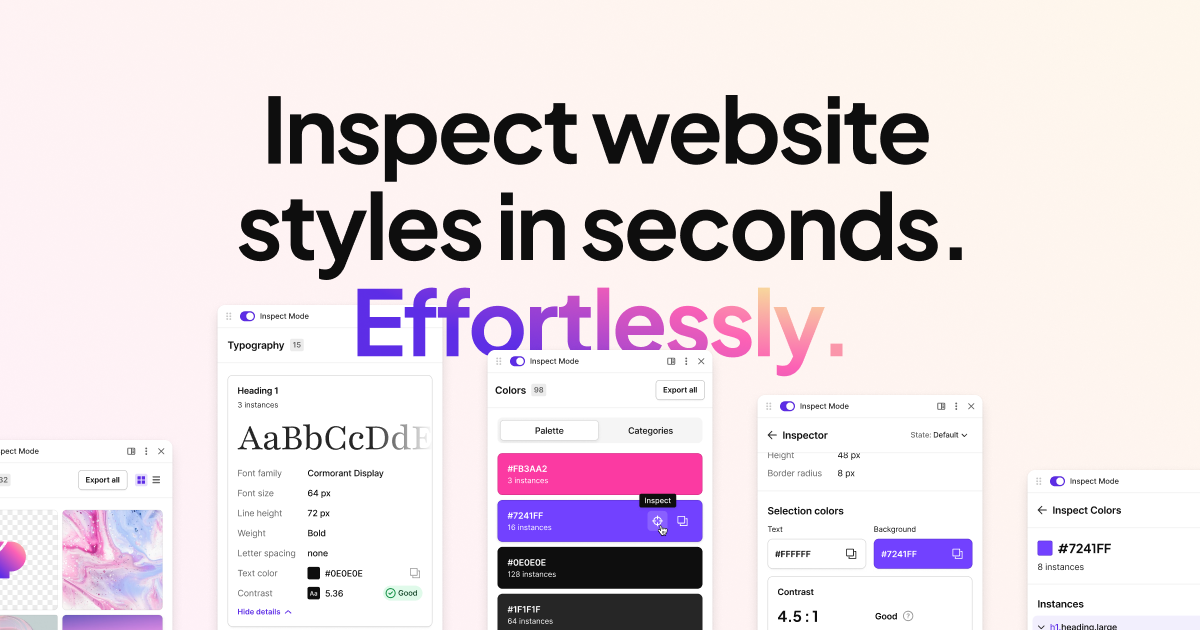

robots.txt (opens in a new tab)
7 rulesAll bots 3 allowed · 4 disallowed
- Allow
/blog - Allow
/docs - Allow
/ - Disallow
/api/ - Disallow
/cms - Disallow
/account - Disallow
/user-panel
No matching rules.
User reviews (0)