
 简体中文
简体中文 English
Website review
This review may include AI-generated content and is not individually verified. Domain, certificate and other facts come from the observed data on this page.
What is temper?
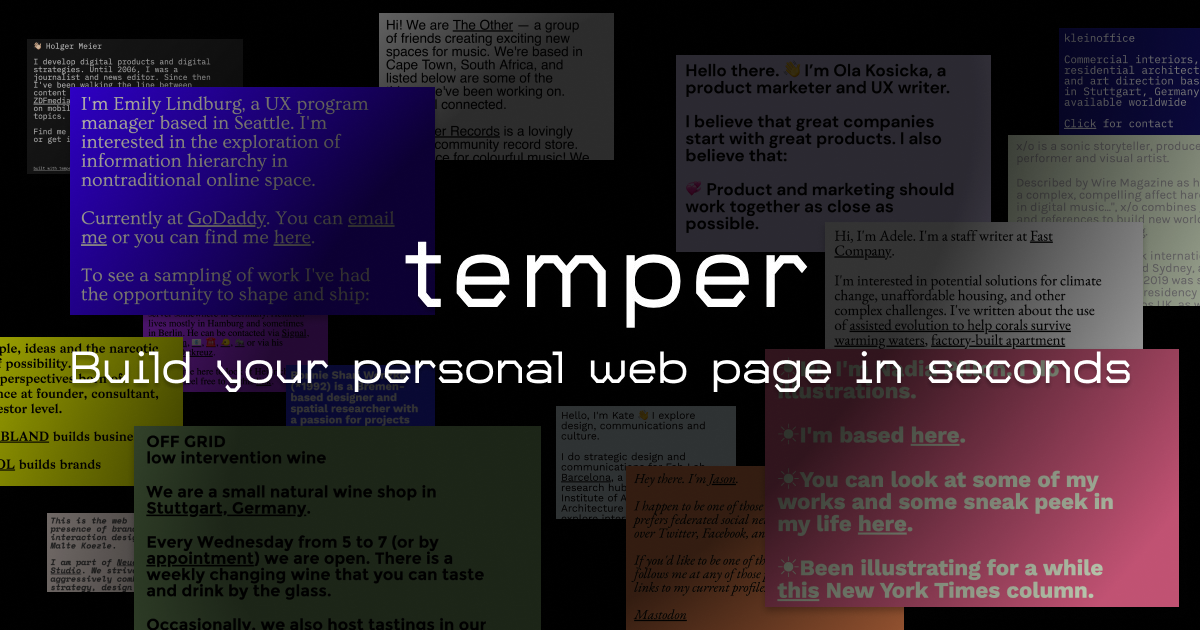
temper is a browser-based tool for building a simple personal web page and downloading it as a standalone HTML file. You start typing directly on the page, add your key links, adjust colors and typography, then export the file and upload it to whatever hosting you already use. The tagline is "Build your personal web page in seconds," and the editing model matches that: paragraphs are selected and typed over, with buttons to add or remove them.
What you actually get
The output is a free HTML file, not a hosted site. According to the page, the download button in the settings panel generates your personalized HTML file, which you then upload to your own hosting. That distinction matters: temper handles the writing and styling, while domain, hosting and deployment stay with you.
Editing is deliberately minimal. The first paragraph cannot be removed. Links are added by typing link text, selecting it, and using the link button that appears — and the link text must be unique within that paragraph. The settings panel covers the site title, text color, background, fonts and font size, plus meta data.
Who it suits
- Someone who wants a single-page introduction with a handful of links, and would rather not touch a page builder or a static-site generator.
- People who already have hosting or a domain and just need a clean HTML file to drop in.
- Anyone who wants to avoid an account, a subscription or a platform that keeps their page locked in.
It is a poor fit if you need multiple pages, a blog, forms, analytics dashboards or ongoing content updates through a CMS. Since you own the exported file, later edits mean going back to temper or editing the HTML yourself.
The slideFrame option
temper includes an experimental "slideFrame" feature that embeds an external page inside your own. The page states it works only with external HTTPS links that allow iFrame embedding, and it is labeled beta. Treat it as a nice touch for linking to a project or demo, not as a reliable way to embed arbitrary sites — many sites block framing.
Practical decision criterion
Choose temper if your goal is one static page you fully own, and you are comfortable uploading a file to hosting. If you want a live URL without touching hosting, or expect the page to grow, look at a hosted option instead, such as Neocities for free static hosting or GitHub Pages for a file-based workflow. A reasonable next step: open temper, write the first paragraph as a one-line introduction, add three links, download the HTML, and open it locally in a browser before uploading it anywhere.
How do I create and download my personal web page with temper?
Open temper in your browser and start typing directly into the first paragraph. The editor is the page: you click anywhere to begin, then type over the placeholder text. When you are done, open the settings button in the top right corner and use the download button there to generate your HTML file.
The basic workflow
- Introduce yourself. The first paragraph cannot be deleted, so treat it as your opening line. Select the placeholder text and type your own.
- Add or remove paragraphs. Buttons in the bottom right corner of the editor add paragraphs; each one can be removed except the first.
- Add links. Type the link text, select it, and a link button appears in the bottom right corner. The link text must be unique within its paragraph, so avoid repeating the same words as separate links.
- Adjust appearance in settings. The settings panel covers your site's title, text color, background, and font. Font choices include broad families (sans serif, serif, monospace, system UI) plus a long list of specific typefaces, with bold and italic options and a font size control. You can also toggle temper branding on or off.
- Add metadata. The same settings panel is where you fill in metadata before exporting.
- Download. The download button in settings creates your personalized HTML file.
What you get, and what you still need
The download is a single HTML file, not a hosted site. You still need somewhere to put it. The intended path is uploading that file to your own hosting, which means temper suits people who already have a host, a domain, or a server they are comfortable with. If you want a page that is live the moment you finish editing, this is the wrong shape of tool.
The trade-off is control versus convenience. You get a clean, self-contained file you own and can move anywhere, and you give up automatic publishing, a CMS, analytics, and anything that updates without you re-downloading and re-uploading. Editing later means returning to temper, making changes, and exporting again.
A concrete scenario
Suppose you are a freelancer who wants one page with a short bio and links to your portfolio, email, and social profiles. You type the bio, select each link label and attach the URL, set a text color and a serif font, add a page title in metadata, download the file, and drop it into your existing host's public folder. Total effort is minutes, and the result loads fast because it is one small file. Now suppose you want a blog with dated posts. You would be fighting the tool, since paragraphs are the only content unit and there is no post structure.
One extra feature worth knowing: links can be set to open in a new window, and there is a beta "slideFrame" option that embeds an external page inside your own. It only works with external HTTPS links that permit iFrame embedding, so many sites will refuse to load inside it. Test any link you plan to embed before relying on it.
Choosing whether to use it
- Good fit: a one-page personal introduction, a link hub, a simple landing page, and you have hosting or are willing to get it.
- Poor fit: multi-page sites, blogs, forms, e-commerce, or anything you want to edit without re-exporting.
- Deciding factor: if owning a portable HTML file matters more than instant publishing, temper's export model is the point rather than a limitation.
Your next step: open the editor, write one paragraph and one link, then use the settings download button to see the exported file before investing time in styling.
Can I customize the colors and fonts of my temper page?
Yes. Temper’s editor includes controls for both colors and typography. In the settings area, you can choose text color and background, and you can select from a range of fonts rather than being locked into one preset.
What you can adjust
- Colors: text color and background color.
- Fonts: a font picker with several families, including sans serif, serif, monospace and system UI options, plus named typefaces.
- Type styling: bold, italic and font size.
- Related layout feel: the font list includes narrow and wide variants, so typography can shift the page’s character even without changing colors.
- Branding: there is an option to show or hide Temper branding.
How this works in practice
Temper is a lightweight personal-page builder: you edit paragraphs and links directly on the page, then download a free HTML file to upload to your own hosting. Customization is therefore baked into the file you export, not applied by a separate hosted platform. That suits someone who wants a simple one-page introduction with a few key links and a distinct visual style, and who is comfortable uploading a file to hosting.
The trade-off is scope. You are choosing from provided font options and adjusting color, size and emphasis, not writing custom CSS or installing arbitrary web fonts. If you need a highly bespoke design system, a general-purpose site builder or hand-coded HTML will give you more control. If you want a personal page that looks intentional in a few minutes, Temper’s built-in controls are likely enough.
A useful next step: open the settings, set your background and text color first, then choose a font and size that keeps the page readable on both phone and desktop. Export the HTML and check it on a small screen before uploading. For a comparable approach to simple personal pages, see About.me or Carrd.
How do I add links to my temper page?
Type the link text in a paragraph, then select it. A link button appears in the bottom-right corner of the editor; click it, enter the destination URL, and choose whether it opens in a new window. Each link text must be unique within its paragraph, so avoid repeating the same words as two separate links in one block.
Practical steps
- Click anywhere in a paragraph and type the words you want to act as the link.
- Select exactly those words with your cursor.
- Click the link button that appears in the bottom-right corner.
- Paste the URL and confirm. Enable "Open in new window" if you want visitors to keep your page open behind the new tab.
- Repeat for other links, using different link text each time within the same paragraph.
What to know before you build
Links are stored inside the paragraph text, not in a separate menu, so the sentence around them carries the context. That suits a personal page where you point to a portfolio, a profile or a contact address in plain prose. If you need a tidy row of many destinations, a paragraph with one link per sentence usually reads better than a long line of stacked links.
The editor also offers a "slideFrame" option that embeds an external page inside your own. It is marked beta and only works with external HTTPS links that permit iFrame embedding, so many sites will refuse to load this way. Treat it as an extra for pages you control or that you know allow embedding, and use an ordinary link as the default.
A quick example
Suppose you want to introduce yourself and point to three places. Write a short opening paragraph with your name and role, then a second paragraph such as: "I write at [my newsletter], share photos on [my gallery], and reply fastest by [email]." Select each bracketed phrase in turn and attach its URL. Because the three link texts differ, the editor accepts them without complaint, and a visitor sees where each one leads from the surrounding words.
Choosing between a link and an embed
| Situation | Better choice | Why |
|---|---|---|
| Sending visitors to a profile, shop or article | Standard link | Works everywhere and loads instantly |
| Showing a page you control inside your own | slideFrame (beta) | Keeps visitors on your page, but needs HTTPS and embedding allowed |
| Directing someone to email or a booking form | Standard link | No embedding restrictions to worry about |
When you are done, open the settings button in the top-right corner to add your site title and metadata, adjust colors and typography, and download the finished HTML file to upload to your own hosting. Check every link after uploading, since a mistyped URL is the most common problem on a hand-built page. For a working example of the same lightweight approach, see Neocities.
What is slideFrame and how does it work?
slideFrame is a feature inside the temper page builder that lets a link open as an embedded frame on your page instead of sending visitors to another tab. It is marked "beta" in the interface, so expect occasional rough edges.
How it works in practice
When you add a link in temper, the link dialog offers an "Open in slideFrame beta" option alongside the standard "Open in new window" choice. Selecting slideFrame means the linked content is displayed inside an iframe embedded in your page. The interface notes two conditions:
- The link must be an external HTTPS URL.
- The target site must allow iFrame embedding (it must not block framing through headers such as
X-Frame-Optionsor a restrictiveContent-Security-Policy).
If either condition fails, the frame will not load. This is why the feature is best treated as a bonus for links you control or have tested, rather than something to rely on for arbitrary third-party sites.
When it is worth using
A concrete scenario: you run a personal page with a portfolio, and you want visitors to preview a live project without leaving your site. If the project is hosted on your own domain over HTTPS, slideFrame keeps the visitor on your page while showing the working site. Similarly, an embedded demo video or an interactive document from a service that permits framing can sit inline next to your description.
The trade-off is control. You cannot force a site to be frameable, and some services deliberately block embedding for security or advertising reasons. For links to sites you do not control, the ordinary new-window link is the safer default; use slideFrame only where you have confirmed the embed works.
A quick decision rule
Use slideFrame when the target is HTTPS, you have tested that it renders in a frame, and keeping the visitor on your page matters. Use a normal link otherwise. Since temper generates a downloadable HTML file that you host yourself, you can test slideFrame links in the downloaded page before publishing, which is the most reliable way to catch embedding failures early.
Can I remove the temper branding from my page?
Yes. The settings panel includes a “Show temper branding” option, so you can turn that off before downloading your page. The branding is controlled by a toggle rather than being locked into the template, which means the HTML file you export can be clean of it.
What to check before you download
- Open the settings button in the top right corner.
- Find “Show temper branding” and switch it off.
- Then use the download button in the same settings area to generate your personalized HTML file.
Why this matters
If you are using temper as a quick personal landing page — a short introduction plus your key links — a visible “built with temper” line may be fine or even useful. If you are handing the page to a client, embedding it in a portfolio, or hosting it on your own domain, removing it gives you a more neutral result. The trade-off is simple: keeping the branding credits the tool, while removing it makes the page feel fully yours. Since the file is downloaded and uploaded to your own hosting, the choice is yours to make each time you export.
A practical next step: make your edits and styling choices first, toggle the branding off, then download and open the HTML file locally to confirm the footer looks the way you want before uploading it to your host.
 Germany

User reviews (0)