
 简体中文
简体中文 English
Website review
This review may include AI-generated content and is not individually verified. Domain, certificate and other facts come from the observed data on this page.
What is Tom's Editor?
Tom's Editor is a free, browser-based image editor: you open it on the website and work on photos without installing any software. According to the site, it loads images in more than 500 formats (including JPEG, PNG, GIF, SVG, PDF and the unusual ITHMB), lets you resize, rotate and apply filters and effects such as sepia, grayscale and Instagram-style looks, and save the result as JPG, PNG, GIF, WEBP, PSD, PDF, SVG and other listed formats. A built-in library of free royalty-free photos is also offered as a starting point.
The same site hosts related tools with different jobs:
| Tool | What it does | Best for |
|---|---|---|
| Tom's Editor | Online editing, filters, resizing, saving to many formats | Quick touch-ups on any computer, including a borrowed one |
| Tom's Editor: Converter | Batch-converts images across 500+ formats via drag-and-drop | Turning a folder of mixed files into one format |
| Tom's Viewer | Portable Windows program (about 1 MB) that views 300 formats, or 1000+ with plugins, and edits, takes screenshots and converts GIF/AVI | Offline work, obscure formats, GIF-to-video tasks |
For a concrete case: if a colleague sends you a folder of scanned images in assorted formats and you only need them as JPGs, the converter is the faster route; if you need to crop one photo and add a filter before posting it, the editor is enough.
As a next step, decide by task: single-image editing and effects point to Tom's Editor, bulk format changes to the converter, and repeat offline use or very rare formats to the portable Windows viewer.
How do I convert ITHMB or other unusual formats to JPG using the online converter?
Use the online converter at Tom's Editor: drag your ITHMB (or other unusual-format) files into the page and click "Convert Now!", then choose JPG as the output format. The page states the converter handles more than 500 formats, including ITHMB, JPEG, PNG, GIF, SVG and PDF, and that it can process multiple images in one go — so a folder of iPhone thumbnail files can be batched rather than converted one at a time. Nothing needs to be installed.
A practical workflow
- Gather the ITHMB files in one folder first; batch drag-and-drop is faster than repeated single uploads.
- Convert to JPG and check a couple of results before deleting originals — ITHMB files are small thumbnails, so the JPGs will inherit that low resolution.
- Keep the source files until you've confirmed the output opens correctly in your usual image viewer.
When this fits, and when it doesn't
| Situation | Online converter | Desktop alternative |
|---|---|---|
| A handful of files, quick one-off | Good fit — no install, drag and drop | Unnecessary overhead |
| Large batches of mixed formats | Works, since multiple images convert at once | Better if you need repeatable, scripted runs |
| Sensitive or private photos | Consider whether uploading is acceptable | Local processing keeps files on your machine |
| Recovering full-size photos from ITHMB | Not applicable — thumbnails stay small | Same limitation |
If you'd rather keep files offline, the same site offers Tom's Viewer, a portable Windows viewer/editor (about 1 MB, with plugins extending format support past 1000 formats). That's the better choice when privacy or volume matters more than convenience.
As a next step: convert one ITHMB file first and open the JPG to confirm the result meets your needs before running the whole batch.
Can I batch-convert multiple images at once without installing software?
Yes. The site describes two separate browser-based tools, and batch conversion is handled by Tom's Editor: Converter rather than the main editor. According to the page, the converter supports over 500 formats (including JPEG, PNG, GIF, ITHMB, SVG and PDF), requires no installation, and can convert multiple images at once—so it fits the "lots of images to convert" case. The workflow described is drag-and-drop, then "Convert Now!"
The trade-off is scope: the page presents the converter as a straightforward drag-and-drop tool, not a full editing suite. If you need to resize, rotate or apply filters before converting, that's the separate editor's job, and the page doesn't say the two are combined into one batch step. So plan on two passes if your images need edits first.
Choosing between them
| Need | Tool the page points to |
|---|---|
| Convert many files to a new format, no install | Tom's Editor: Converter (online) |
| Edit, resize, rotate, apply filters, then save | Tom's Editor (online) |
| Offline viewing/editing of unusual formats, portable | Tom's Viewer (Windows, ~1 MB, 300 formats; 1000+ with plugins) |
A practical example: a designer handed a folder of mixed PNG and ITHMB files could batch-convert them to JPG in the browser, then open only the ones needing crops or filters in the editor. Someone working regularly with obscure formats, or wanting GIF-to-AVI conversion, would get more from the portable Windows viewer, which the page says handles video conversions too.
Next step: check that your target output format is among those the page lists for saving (JPG, PNG, GIF, DDS, PCX, TGA, FLIF, WEBP, PSD, PDF, PNM, SVG) before uploading a large batch, and test with a couple of files first. For royalty-free source images, the site also mentions a built-in photo database.
What filters and effects can I apply to photos online, and how do they compare to Instagram?
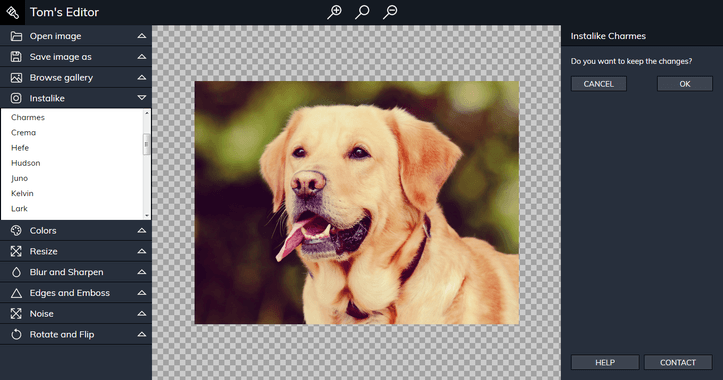
Tom's Editor offers three named filter/effect types: Sepia, Grayscale, and "Instagram-like" filters, plus resizing and rotation as editing operations. The site describes the filters as a way to "stylize your photos with nice filters and effects," but it does not list the individual Instagram-style presets, so the exact set of looks isn't something you can plan around from the page alone.
How it compares to Instagram
| Aspect | Tom's Editor (as described) | |
|---|---|---|
| Filter choice | Sepia, Grayscale, and Instagram-like filters; individual presets not itemized | Large preset library plus manual adjustment sliders |
| Other edits | Resize, rotate, save to a new file | Crop, straighten, brightness/contrast, color tools, text, stickers |
| Output formats | JPG, PNG, GIF, DDS, PCX, TGA, FLIF, WEBP, PSD, PDF, PNM, SVG | Primarily app-based sharing formats |
| Install needed | None; runs in the browser | Mobile app (or web interface) |
| Main purpose | Editing and converting files on your computer | Editing and publishing to a social feed |
The practical difference is intent. Instagram's filters are built to make a photo look good in a feed and publish it there. Tom's Editor's filters are one step in a file-editing workflow—you apply a look, then save the result as a specific format such as WEBP or PDF for use elsewhere. If you need a quick sepia or grayscale version of a photo for a document or website, that's the fit. If you want fine-grained color control or many distinct looks to choose from, Instagram's adjustment tools go further.
A concrete scenario
Suppose you have a folder of JPEGs for a small site and want them all in a consistent muted style. You could open each in Tom's Editor, apply Sepia or a grayscale effect, resize, and save as WEBP. For bulk work, the site's separate Converter handles many images at once, though it's described as a format converter rather than a filter tool. Other free browser editors with broader adjustment sliders include Photopea and Pixlr, which are worth comparing if filter variety matters more than format support.
Decision criterion: choose Tom's Editor when output format and no-install convenience matter most; choose Instagram or a slider-based editor when you need many distinct looks and precise color tuning.
How can I download and use Tom's Viewer as a portable Windows app to convert GIFs to AVI?
Tom's Viewer is offered as a portable Windows download: the page describes it as free, usable without installation, and around 1 MB in size. That makes it a practical fit if you want a small tool you can keep in a folder or carry on a USB drive rather than install system-wide. It also includes GIF-to-AVI and AVI-to-GIF conversion, plus GIF-to-separate-images and image-to-GIF options, with a compression choice when converting GIF animations to AVI.
A practical way to use it
- Download Tom's Viewer from Tom's Editor and place the program in a folder you control, such as one on a USB drive.
- Open the GIF-to-AVI conversion option, load your animated GIF, and choose the compression setting that suits your target player or editor.
- Run the conversion and check the resulting AVI plays correctly before deleting the original GIF.
- If you later need still frames instead, use the GIF-to-separate-images option rather than re-exporting from the AVI.
Who this suits
This is a good choice for someone on a locked-down or shared Windows machine who cannot install software, or for occasional conversions where a lightweight portable tool is enough. If you need batch processing of many GIFs at once, the separate online converter on the same site is described as handling multiple images in one go, which may be faster than repeating single-file conversions. For editing still images alongside conversion, the same program also covers resizing, filters and screenshots.
The trade-off is scope: a 1 MB portable viewer is built for straightforward viewing and conversion, not for fine control over video encoding. If frame timing, audio tracks or precise codec settings matter for your AVI, expect to check results carefully or use a dedicated video converter instead.
Where can I find free royalty-free photos or retro computer art for my projects?
For free royalty-free photos and retro computer art, start with Tom's Editor. Its built-in photo database links to thousands of free royalty-free images, and the same site hosts a Retro Gallery with art from Commodore 64, Amiga, Atari, ZX Spectrum, MSX, Amstrad CPC, SAM Coupe and other old machines, plus demo-scene productions and image converters.
Which part to use
- Royalty-free photos: use the built-in photo database when you need generic imagery—backgrounds, textures, blog headers, mockups. It is the fastest route because you pick a photo and go straight into the editor to resize, crop or apply filters, then save as JPG, PNG, GIF, WEBP, PDF, PSD or SVG.
- Retro computer art: use the Retro Gallery when the look itself matters—pixel art for a game jam, chiptune-scene visuals, a zine or poster with an 8-bit aesthetic, or research into how artists worked within tight palette and resolution limits. The gallery also points to converters and emulators, which is useful if you want to open original-format files rather than just view screenshots.
Practical workflow
For a mixed project, gather photos from the database and retro pieces from the gallery, then bring them together in one place. Tom's Editor accepts over 500 formats, so odd retro file types and standard photos can be handled in the same session; the separate Converter handles batch jobs when you have a whole folder to convert, and the Windows viewer is a lightweight option if you prefer a desktop tool.
Decision criteria
| Need | Better fit |
|---|---|
| Generic stock-like photos, quick edits | Tom's Editor photo database and editor |
| Authentic 8-bit/16-bit visuals | Retro Gallery |
| Bulk format conversion | Tom's Editor Converter |
| Offline, portable desktop use | Tom's Viewer for Windows |
One caution
"Royalty-free" is not the same as "no conditions." Before publishing, check the terms attached to each image—some free collections ask for credit or restrict resale of the image itself. Keep a simple list of the source and any credit line for every asset you use, especially for client work.
 OVH SAS
 France
User reviews (0)