
 简体中文
简体中文 English
Website review
This review may include AI-generated content and is not individually verified. Domain, certificate and other facts come from the observed data on this page.
What is Ribbet?
Ribbet is a browser-based photo editor for quick, everyday editing and design work. You can start from a blank canvas or a template, then add effects, text, stickers, frames and collages. It also runs on iOS, Android, Windows, Mac and Fire devices, so the same kind of editing is available beyond the web.
What you can do with it
- Basic fixes: crop, resize, rotate and apply straightforward adjustments.
- Creative extras: fonts, special effects, frames, stickers and touch-up tools.
- Collages: drag and drop photos into grids, useful for family albums or social posts.
- Reusable templates: save project layouts you want to use again.
- Product and print work: the site presents it for fine-tuning product photos, art prints and T-shirt designs.
- Stock imagery: the page says you can use more than 2.7 million free stock photos without leaving the editor.
Who it suits
Ribbet fits people who want a friendly editor without a steep learning curve: phone photographers, small sellers preparing product shots, and casual creators making collages or social graphics. The page also mentions pro-style tools such as Clone and Curves, which gives more room to refine images than a purely filter-based app.
It is less clearly aimed at people who need advanced layered compositing or precise print-production control. For that kind of work, a dedicated desktop editor is usually the better fit.
A practical next step
If you mostly make social posts or collages, open a template first and test whether the layout and text tools match your style. If you edit product photos, try a single image with Curves and Clone before committing to a plan; the site has a separate pricing page to compare options.
How does Ribbet compare to Photoshop for everyday photo editing?
Ribbet is the easier choice for quick, everyday edits, while Photoshop is built for precise, layered work. For routine tasks—cropping, resizing, adding text or stickers, applying filters, making a collage—Ribbet runs in a browser and is designed to be fast and approachable. Photoshop rewards users who need detailed control, layer-heavy compositing or consistent professional output.
Where each fits
| Typical task | Ribbet | Photoshop |
|---|---|---|
| Crop, resize, rotate, light touch-ups | Straightforward, quick | Capable but more steps |
| Text, stickers, frames, filters | Large built-in library | Possible, less template-driven |
| Collages and grids | Drag-and-drop, template-based | Manual layout work |
| Clone, Curves and finer retouching | Available as pro-style tools | Deeper, more precise control |
| Reusing project templates | Supported | Via saved files and presets |
| Working across devices | Web, plus iOS, Android, Fire, Windows and Mac apps | Desktop-first |
Ribbet's own feature list highlights an ultra-fast editing experience on any device, Clone and Curves tools, a large font library, over 2.7 million free stock photos inside the app, and reusable project templates. That combination suits casual photographers, social media posters, small sellers polishing product or T-shirt photos, and anyone who wants a result without learning a complex interface. Photoshop suits people who need layered documents, advanced masking, colour management or repeatable professional workflows.
A practical way to decide
Ask what your edit actually requires. If it is one photo, a caption and a shareable size, Ribbet's template-and-effects approach will usually get you there faster. If you are combining many elements, matching brand colours precisely, or preparing files for print, Photoshop's depth is worth the learning curve. Many people use both: quick edits in a browser tool, heavier work in a desktop editor.
As a next step, take one real photo you would normally edit—say a product shot for an online listing—and run it through both tools. Time how long it takes to reach a result you would publish, and note whether you missed any control. That single test tells you more than feature lists.
Can I use Ribbet without paying, and what do the paid plans add?
Yes. Ribbet can be used without paying: the site presents a free online photo editor with core tools such as cropping, resizing, rotating, basic edits, effects, frames, stickers, text, collages and templates, plus a library of free stock photos. The exact limits of the free tier and the features reserved for subscribers are set out on Ribbet's own pricing page, so check that before relying on a specific tool for a project.
The paid plans are where you should expect the extras to sit: the site promotes a comparison of plans and a "Ready To Monetize" section aimed at people fine-tuning product photos, art prints and T-shirt designs. In practice, that suggests the paid tiers are aimed at regular or commercial users who need more headroom and fewer restrictions than occasional editors. Treat the precise list of paid features as something to confirm on the pricing page rather than assume.
Who each option suits
- Free use: a quick crop, a collage for a family album or a social post, or adding text and stickers to a phone photo. Good for trying the editor before committing.
- Paid plans: repeated editing for a shop, print-on-demand designs or client work, where consistent output and fewer limits matter more than cost.
A sensible next step is to open the pricing page, list the two or three tools you actually need — for example Clone, Curves or template reuse — and check whether each is free or paid. If your work is occasional, start free and upgrade only when you hit a limit. If you sell images, compare the subscription cost against the value of one product shoot before deciding.
How do I make a photo collage in Ribbet?
Ribbet's page describes collage-making as a drag-and-drop process: you choose the collage tool, drop photos into a grid layout, then adjust the arrangement and finish with effects, text, frames or stickers. The same page lists collage creation alongside its other editing tools, so you can move a finished collage into further editing if needed.
A practical workflow
- Open the collage option from the main editing area rather than starting with a single-photo edit.
- Pick a grid layout based on how many photos you have and whether you want equal or mixed sizes.
- Drag and drop your images into the cells, then swap or reorder them to get the strongest photo in the largest or first position.
- Crop each cell so faces and key details aren't cut off by the grid.
- Add text, stickers, frames or effects only after the layout is settled, since changing the grid later can undo careful placement.
- Save or export, then check the result at the size it will actually be viewed — a phone screen for social posts, or a larger preview for a print or family album.
Choosing a layout for your purpose
The page frames collages as useful for everything from family albums to social media posts, and the layout should follow that goal:
| Use | Layout approach |
|---|---|
| Social media post | Fewer photos, one dominant image, minimal text |
| Family album page | More cells, even spacing, captions under or beside photos |
| Product or design showcase | Consistent crops, clean background, no decorative stickers |
Ribbet also mentions reusable project templates, which suits anyone making a recurring format such as a weekly roundup or a standard product sheet.
Next step: gather and pre-select your photos before opening the collage tool. Choosing the final set first makes the grid decision much faster than adding images one at a time and rearranging afterwards.
Is Ribbet available on mobile devices and desktop, and how do I access it?
Ribbet is available both in the browser and as apps: the page lists web, iOS, Android and Fire devices, plus separate Windows and Mac apps. You can start from the site's "Start Editing" or "Start Creating" button in a desktop browser, or install the iOS/Android/Fire app for phone and tablet editing.
Which access route fits which use
- Desktop browser: best for collages, template work and precise tools like Clone and Curves, since a larger screen and mouse make fine adjustments easier.
- iOS, Android or Fire app: convenient for quick crops, filters, text and stickers on phone photos; expect tighter controls than on desktop.
- Windows or Mac app: a dedicated option if you prefer working outside a browser tab, though the page gives no detail on differences from the web editor.
A practical test: open the same photo in the browser and on your phone, then try a text overlay and a collage. Whichever route lets you finish those two tasks comfortably is the one to use for regular editing; keep the other for quick touch-ups. If you want a second browser-based option to compare, PicMonkey is a well-known alternative, though its current free-tier limits are worth checking yourself.
How can I use Ribbet to edit product photos for selling online?
Ribbet is a reasonable fit for a small seller who wants quick, template-driven product photo edits without learning a full desktop editor. Its page evidence points to the tasks online sellers usually need: basic crop/resize/rotate, touch-up tools, effects and frames, text and stickers, drag-and-drop collage grids, and reusable project templates. For product listings, the most valuable of these are consistent cropping, clean backgrounds via touch-up, and batch-style templates that keep every listing looking alike.
A practical workflow for a single product shot:
- Crop to a consistent aspect ratio (often square for marketplaces, 4:5 or 16:9 for social) so your store grid looks uniform.
- Straighten and resize to the pixel dimensions your marketplace recommends, rather than uploading oversized files.
- Use touch-up tools sparingly to remove small distractions or blemishes; heavy retouching can misrepresent the item.
- Add text or a callout only where it helps—e.g., a size label or "new" tag—and keep fonts consistent across listings.
- Build a collage when you need a multi-angle or "what's in the box" image in one frame.
- Save the layout as a template and reuse it for the next product, so your catalog stays visually coherent.
Where it fits, and where it doesn't
| Need | Ribbet's apparent strength | Trade-off to weigh |
|---|---|---|
| Fast edits on any device | Browser-based, described as ultra-fast across devices | You depend on your connection and browser session |
| Consistent catalog look | Reusable templates, collage grids | Template discipline is on you; no guarantee of pixel-perfect batch automation |
| Advanced correction | Pro-style tools like Clone and Curves are listed | Not a substitute for a dedicated retoucher if you shoot complex reflective or apparel products |
| Sourcing imagery | Large library of free stock photos inside the app | Stock images can't replace accurate photos of the actual item you ship |
If your priority is marketplace-compliant, repeatable edits at volume, test Ribbet on two or three listings first and check how the exported files look in your storefront before committing your whole catalog. Sellers who need heavier color management or RAW workflows may prefer pairing Ribbet for layout and text with a dedicated raw converter; for broader comparisons of online editors, see PicMonkey and Canva, though neither is a like-for-like substitute.
 Cloudflare
 Google Workspace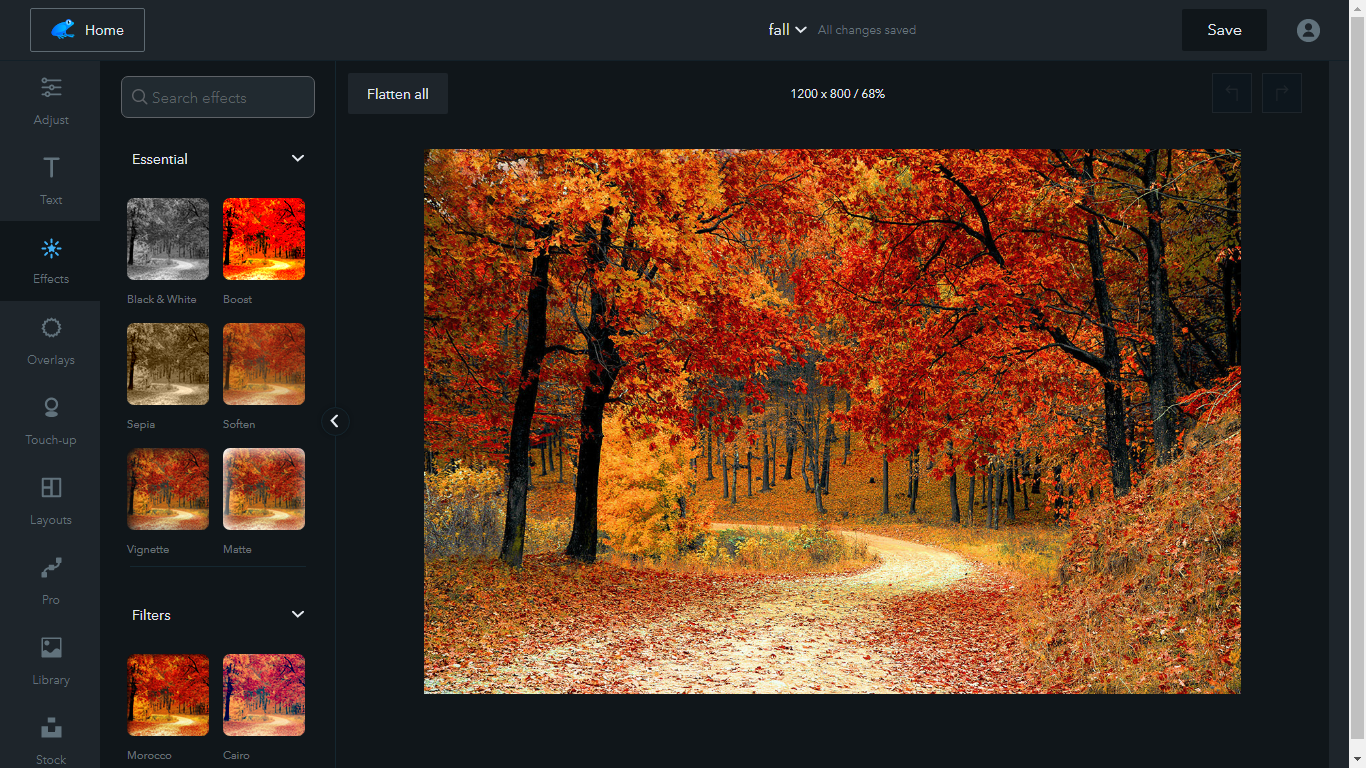

User reviews (0)