Website profiles · Technology insights · Alternatives

trangram.com

Create and animate vector graphics online for free. Browser-based vector editor with no installation, login, or sign-up required.

No paid content found
Visit website
Profile views 9 Outbound visits 14 Normal
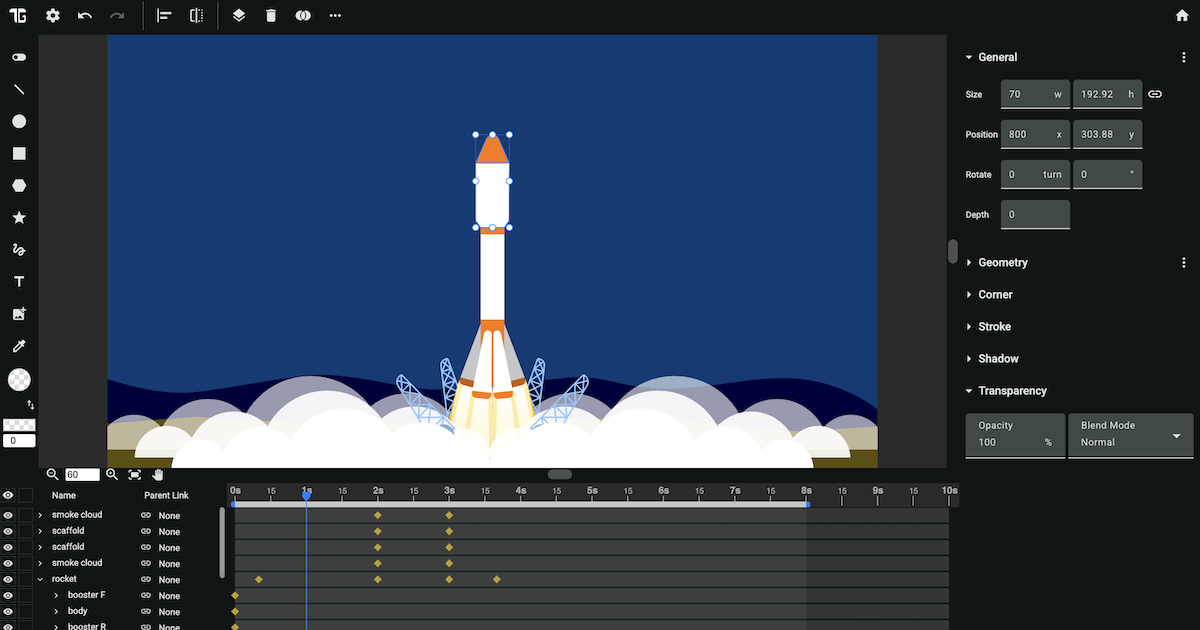
Trangram Full homepage screenshot

At a glance

Category
Design & Creativity
Language
English
Paid-content signal
No paid content foundObserved
Registered
2020
Hosting
FastlyInferred
HTTPS certificate trusted
PassedObserved
Last updated

Website review

This review may include AI-generated content and is not individually verified. Domain, certificate and other facts come from the observed data on this page.

What is Trangram?

Trangram is a browser-based vector graphics editor with animation tools, accessible at Trangram. According to its site, it runs online with no installation, login, or sign-up required, and its tagline is "Design. Animate. Iterate." — positioning it as an all-in-one free vector editor for creating and animating vector artwork.

What you can do with it

Based on the features listed on the site, Trangram covers both static vector drawing and motion:

  • Shape morphing — transition one shape into another, such as a square into a circle or a star into a heart.
  • Shape building — Boolean operations (unite, subtract, intersect, exclude) to combine shapes, plus corner styles including Round, Inverted Round, and Chamfer.
  • Path-based animation — trim paths for self-drawing line effects, and motion paths to guide objects along a route.
  • Hierarchy and control — parent links so child objects follow a parent's transforms, and groups (including nested groups) for animating objects together.
  • Timing controls — easing options (Ease In, Ease Out, Ease In Out, Step) and looping modes (Cycle, Ping Pong, Continue).
  • Masking and data — clipping masks to reveal only part of an object, and number animation with formats like commas, decimals, and leading zeros.

Who it suits

It fits people who want quick vector animation without installing software or creating an account: students, educators, social media creators, or developers prototyping a small animated graphic. The trade-off is that a browser tool is typically lighter than a full desktop animation suite, so complex rigging, heavy asset pipelines, or large-team collaboration may be better served elsewhere. The site also notes scheduled maintenance on May 1, 2026, from 2:00 PM to 6:00 PM AEST — a reminder that an online-only tool depends on the service being available.

Next step

Open the editor and try one small task end to end: draw two shapes, apply a Boolean operation, then animate a morph between them. If that workflow feels natural, the easing, looping, and parent-link features are where the tool's animation depth shows up.

How do I create and animate vector graphics in Trangram without signing up?

Open Trangram in a modern browser, choose Create from the menu, and start drawing on the canvas. The page states the editor is browser-based with no installation, login, or sign-up required, so your work begins immediately. Use the vector tools to draw or combine shapes, then switch to animation controls to add motion.

A practical first project

  1. Draw a simple shape, such as a circle or star.
  2. Add a keyframe or animation track for that shape.
  3. Apply a transform, such as moving it across the canvas or scaling it up.
  4. Add easing to smooth the movement, or a motion path to guide it along a curve.
  5. Preview and adjust the timing until it feels right.

Features worth trying early

The page lists several animation tools that are useful for beginners:

  • Morph shapes — transition one shape into another, such as a square into a circle.
  • Motion path — make an object follow a specific route instead of a straight line.
  • Trim path — reveal or erase a line gradually for self-drawing effects.
  • Parent link — move a parent object and have linked child objects follow.
  • Looping — choose Cycle, Ping Pong, or Continue for repeated motion.
  • Easing — use Ease In, Ease Out, Ease In Out, or step functions for natural timing.
  • Clipping mask — reveal only part of an object, like a stencil.
  • Number animation — animate numbers with formats such as commas or decimals.
  • Group animation — organize objects into groups and animate them together.

What to expect

Because there is no account requirement, you can test the editor quickly without commitment. The trade-off is that browser-based tools depend on your connection and browser performance, and you should check whether your work is saved locally or exportable before relying on it for a long project. For a quick explainer graphic, animated icon, or simple motion test, the workflow is direct: design, animate, iterate.

Next step: open the Showcase for finished examples, then try the Morph shapes or Motion path tutorial to learn one feature at a time.

Can I use Trangram to morph shapes and create smooth transitions between objects?

Yes. Trangram includes a morph feature that transitions one shape into another — for example, a square into a circle or a star into a heart — and it also offers easing controls so those transitions can be smoothed, sped up, or slowed down rather than played linearly.

For a quick test, open the editor, draw two shapes, apply morph between them, then add an Ease In Out to the transition and preview the loop.

H3 Useful related features

  • Easing: Ease In, Ease Out, Ease In Out, and Step functions control pacing.
  • Looping: Cycle, Ping Pong, and Continue set how repeats behave.
  • Motion Path and Parent Link: Move objects along a route or make child objects follow a parent's transforms.
  • Trim Path: Reveal or erase lines progressively for self-drawing effects.

H3 When morphing fits — and when it doesn't Morphing works best for simple silhouettes with a similar structure, such as icons, blobs, or logo marks. If two shapes have very different outlines or many separate parts, the in-between frames can look tangled; in that case, animate position, scale, or opacity instead, or break the change into stages.

A practical scenario: a small product team needs an animated logo transition for a landing page. Morph handles the shape change, Ping Pong keeps it looping, and Ease In Out prevents a mechanical feel — all without installing software.

If you want to see finished examples before building your own, browse Trangram's Showcase, then compare the workflow with a general-purpose tool such as Figma if you need collaborative design files alongside animation.

What are the key animation features in Trangram, such as trim paths and motion paths?

Trangram's animation toolkit centers on motion techniques that are usually reserved for desktop vector software. The page lists trim paths, motion paths, parent links, looping, easing, clipping masks and number animation as built-in capabilities of the browser editor. In practice, these fall into three groups: path-based motion (trim paths, motion paths), relationship-based motion (parent links, groups), and timing or presentation controls (looping, easing, clipping masks, number animation).

Path-based motion

  • Trim Path reveals or erases a line gradually, which is how self-drawing line animations are made. A practical use is an animated signature or an icon whose outline draws itself on screen.
  • Motion Path moves an object along a defined route rather than in a straight line. A simple example is a delivery van icon following a winding road across a map.

Relationship-based motion

  • Parent Link makes child objects follow whatever transforms the parent receives, so moving one object can move a whole set in a coordinated way. This suits characters or grouped interface elements.
  • Group Animation and nested groups let you animate collections together, with nested groups useful when different parts need separate transformations.

Timing and presentation

  • Looping offers Cycle (replay from the start), Ping Pong (forward then reverse) and Continue (finish the cycle, then carry on from where it stopped).
  • Easing includes Ease In, Ease Out, Ease In Out and step functions, controlling whether motion accelerates, decelerates or snaps.
  • Clipping Mask acts like a stencil, showing only the part of an object inside the mask shape.
  • Number Animation animates figures as easily as text, with formats such as commas, decimals and leading zeros — useful for counters, statistics or countdowns.

A sensible next step is to pick the technique that matches your goal: use trim paths for line reveals, motion paths for travel, parent links for coordinated movement, and easing or looping to refine the feel. If you want to see these effects in finished work before building your own, browse the Trangram showcase.

How do I use Trangram's Boolean operations to combine or subtract shapes?

Boolean operations in Trangram let you build one new shape from two or more overlapping ones. Select the shapes you want to work with, then choose the operation that matches the result you need: Unite (merge into one outline), Subtract (cut the top shape out of the one below), Intersect (keep only the overlapping area), or Exclude (keep everything except the overlap). The result is a single editable shape you can then round, animate, or combine again.

H3 Practical ways to use each operation

  • Unite — join a circle and a rectangle into a single rounded keyhole or pill shape, then animate it as one object.
  • Subtract — cut a hole in a filled shape, such as punching a circle out of a square to make a ring or a window.
  • Intersect — keep only where two shapes cross, useful for creating a lens, a leaf, or a custom overlap region.
  • Exclude — produce a shape with the overlap removed, giving a stencil or interlocking look.

H3 A concrete workflow

  1. Draw your base shape first; this is the shape that stays when you subtract.
  2. Draw the shape you want to add or remove on top, overlapping the base.
  3. Select both shapes, then apply the Boolean operation.
  4. Adjust the result with Round corners (Round, Inverted Round, or Chamfer) if you want softer edges.
  5. Animate the combined shape with Morph, Trim Path, or Motion Path, since it now behaves as one object.

H3 Choosing between them

Goal Operation
Merge two shapes into one Unite
Cut a hole or notch Subtract
Keep only the overlap Intersect
Remove the overlap Exclude

If the result looks wrong, the usual cause is stacking order: Subtract removes the upper shape from the lower one, so try reordering and applying it again. Because Trangram runs in the browser without installation or sign-up, you can test combinations quickly and undo freely. For broader vector work outside this tool, Inkscape offers similar path operations on the desktop.

Is Trangram free to use and what are its limitations compared to paid vector editors?

Yes — Trangram is free to use. Its own description states it is a browser-based vector editor with no installation, login, or sign-up required, and the page headline is "Design. Animate. Iterate. All in one free vector editor." Nothing on the page signals paid tiers, subscriptions or payment platforms, so the free access appears to be the whole product rather than a trial.

The more useful question is what kind of work it is built for. Trangram combines static vector drawing with motion features in one browser tab, which is unusual: most free tools do one or the other, and most paid editors assume you will export into a separate animation program.

What the free tool actually covers

From the features listed on the page, you get a fairly complete set for shape-based motion work:

  • Shape morphing – transition one shape into another (a square into a circle, a star into a heart).
  • Corner controls – round, inverted round and chamfer styles on any shape.
  • Boolean operations – unite, subtract, intersect and exclude to build new shapes.
  • Trim paths – reveal or erase a line gradually for self-drawing animations.
  • Motion paths – make objects travel along a defined track.
  • Parent links – child objects follow the transforms of a parent.
  • Looping modes – cycle, ping pong and continue.
  • Easing – ease in, ease out, ease in out and step functions.
  • Clipping masks – stencil one object inside another.
  • Number animation – animate counters with commas, decimals and leading zeros.
  • Groups and nested groups – organise and animate objects together.

Where paid editors usually pull ahead

This is general advice rather than a claim about Trangram's roadmap. Paid vector suites typically differentiate on:

Area Typical paid-editor advantage Why it matters
Export formats Native project files, print-ready PDF, SVG/CSS pipelines Handoff to developers, printers or other apps
Precision tools Advanced typography, colour management, symbol libraries Brand and print work
Collaboration Shared libraries, version history, comments, roles Team workflows
Ecosystem Plugin marketplaces, third-party integrations Extending the tool without leaving it
Support Guaranteed SLAs, onboarding, training Business-critical deadlines

A free browser tool also carries practical trade-offs that have nothing to do with features: your work lives in a tab, so you depend on the service staying up (the page itself notes scheduled maintenance on 1 May 2026, 2:00 PM–6:00 PM AEST), and long-term file portability is worth testing before you commit a big project.

Who should use it

  • Beginners and students learning animation principles — morphing, easing, trim paths and looping are exactly the concepts worth practising, and there is no cost barrier.
  • Marketers and social creators making short shape-based motion graphics, counters or logo reveals.
  • Developers and designers prototyping an interaction or icon animation before rebuilding it in code.

If your work depends on print output, shared asset libraries or a formal support contract, a paid editor is likely the better home for it — and you can still use Trangram for quick motion experiments.

Next step: pick one real asset you need — say, an animated number counter for a landing page — and rebuild it in Trangram. If the export and fidelity hold up, keep it in your toolkit; if you hit a wall, that wall tells you which paid feature you actually need. For a fuller sense of what others build with it, the site's own Showcase section is the place to look: Trangram.

Related questions

More questions →
What Features Does Trangram Offer for Vector Design and Animation?

Trangram is a browser-based vector editor for creating and animating graphics, and its feature set covers both sides of that workflow: shape construction and motion. Based on the site's own feature descriptions, you can morph and combine shapes, round corners, build self-drawing line effects, move objects along paths, link objects so they animate together, control looping and easing, mask layers, animate numbers, and organize everything into groups. It runs in the browser, and the site states no installation, login, or sign-up is required to use it. The sections below break down what each feature does so you can judge whether it fits your project.

Shape design tools

These are the building blocks you use before animating anything.

Morph shapes

Morphing smoothly transitions one shape into another over time. The site gives examples like turning a square into a circle or a star into a heart, but the mechanism applies to any two shapes you draw. This is the feature to reach for when you want a transformation rather than a cut or a fade.

Round corners

Any shape's corners can be rounded, and Trangram offers three styles: Round, Inverted Round, and Chamfer. The distinction matters visually — a standard round softens the corner outward, an inverted round curves it inward, and a chamfer cuts a flat angled edge instead of a curve.

Combine shapes (Boolean operations)

Boolean operations let you build new shapes from existing ones by uniting, subtracting, intersecting, and excluding them. This is how you produce compound shapes — for example, subtracting a circle from a rectangle to make a hole — without drawing the result by hand.

Animation features

Trim path

Trim paths create self-drawing animations by gradually erasing or revealing parts of a line, so it appears or disappears smoothly. This is the standard technique for a line that looks like it's being drawn as the animation plays.

Motion path

A motion path acts as a guiding track: the object moves from one place to another along a specific route. The site's analogy is a car moving along a road — useful when you want controlled movement rather than a straight-line tween.

Parent link

Linking objects with parent links means any movement or transform applied to the parent object causes the child objects to follow or respond in a coordinated way. Set up the parent once, animate it, and the children inherit the motion.

Looping

Looping controls how an animation repeats, with three modes:

Mode Behavior
Cycle Replays from the start once it reaches the end
Ping Pong Plays forward, then reverses, and repeats
Continue Finishes the current cycle, then continues from where it left off

Easing

Easing functions control how movement is timed — smooth, fast-starting, or gently slowing. Available options include Ease In, Ease Out, Ease In Out, and Step Functions. Step functions are the choice when you want abrupt, non-interpolated changes rather than smooth motion.

Masking, number animation, and groups

Clipping mask

A clipping mask works like a stencil: it reveals only a specific part of an image or object and hides the rest, similar to placing a cutout over a photo. Use it to confine a layer's visibility to a shape you define.

Number animation

Numbers are animated the same way you create text — specify a start and end number plus formatting such as commas, decimals, or leading zeros. This suits counters, statistics, and any figure that needs to count up or down.

Group animation and nested groups

Groups organize objects so they animate together. Nested groups are specifically useful for animating multiple transformations at once, since each level of nesting can carry its own animation while still moving as part of the larger group.

How to decide if these features fit your task

Match the feature to the effect you need:

  • Transforming one shape into another → Morph shapes
  • Building a complex shape from simple ones → Boolean operations
  • A line that draws itself → Trim path
  • Movement along a custom route → Motion path
  • Many objects moving as one unit → Parent link or groups
  • Repeating or back-and-forth motion → Looping modes
  • Smooth vs. abrupt timing → Easing, including step functions
  • Revealing only part of a layer → Clipping mask
  • Counting or changing figures → Number animation

If your project needs several of these at once — say a morphing shape that follows a motion path while a number counts up inside a mask — Trangram's feature set covers that combination within a single browser-based editor, with no installation or account required according to the site.

How to Start Using Trangram

Open trangram.com in a browser and click Create to enter the vector editor — no installation, login, or sign-up is required. From there, the fastest way to get productive is to pick one feature (like morphing shapes or motion paths) and follow its built-in tutorial rather than trying to learn everything at once.

Step 1: Open the editor

Go to trangram.com and select Create. The editor runs in the browser, so there is nothing to download and no account step standing between you and a blank canvas. If you want to see what the tool can produce before committing time, browse the Showcase first.

Step 2: Learn one feature at a time

Trangram's homepage links a "Watch tutorial" video for each core capability. Working through them individually is more effective than jumping between tools. The main ones are:

Feature What it does
Morph shapes Smoothly transitions one shape into another (e.g., square to circle, star to heart)
Round corners Rounds shape corners in Round, Inverted Round, or Chamfer styles
Combine shapes Boolean operations — unite, subtract, intersect, exclude
Trim Path Creates self-drawing animations by gradually revealing or erasing a line
Motion Path Moves an object along a defined track from one place to another
Parent Link Makes child objects follow a parent object's movements and transforms
Looping Controls repetition: Cycle, Ping Pong, or Continue
Easing Sets motion feel: Ease In, Ease Out, Ease In Out, Step Functions
Clipping Mask Reveals only part of an object, like a stencil or cutout
Number Animation Animates numbers with formats such as commas, decimals, or leading zeros
Group Animation Organizes objects so they animate together, including nested groups

A practical starting order

  1. Combine shapes and Round corners — these build the static artwork you'll animate.
  2. Group Animation — organize that artwork into groups before adding motion.
  3. Motion Path, Easing, and Looping — give objects movement and control how it repeats.
  4. Morph shapes and Trim Path — add the more distinctive transitions once the basics feel comfortable.

Step 3: Check the Showcase and FAQs

The Showcase gives you finished examples to reverse-engineer or use as a target for your own work. The FAQs page covers common questions, and the Change Log shows what has recently been added or adjusted — useful if a tutorial looks slightly different from your current editor.

Things to know before you start

  • Maintenance window: Trangram has a scheduled maintenance period on May 1, 2026, from 2:00 PM to 6:00 PM (AEST). The editor may be unavailable during that time, so plan longer sessions around it.
  • No account means no cloud sync expectation: since no login is required, don't assume your work is saved to an account — export or download anything you want to keep.
  • Tutorials are per-feature, not a single course: expect to watch several short videos rather than one long walkthrough.

What to do next

Start with a single simple goal — for example, morph a square into a circle and loop it — and use only the tutorials that goal requires. Once that works end to end, add one more feature. This keeps the learning curve flat and gives you a finished result at each stage.

Is Trangram free, and does it require login or installation?

Trangram is described as a free, browser-based vector editor that requires no installation, login, or sign-up. That means you can open it in a web browser and start creating or animating vector graphics without creating an account or downloading software. The only caveat in the available information is a scheduled maintenance window on May 1, 2026, from 2:00 PM to 6:00 PM (AEST), during which the site may be unavailable. No pricing page, payment platform, or paid tier is mentioned in the source material, so there is no evidence of a paid plan — but the absence of pricing details is not a guarantee that no paid option will ever be introduced.

What “free” and “no login” mean here

  • Free: The site’s own description calls it a free vector editor. No subscription, license key, or payment step is referenced.
  • No installation: It runs in the browser, so there is no desktop app, plugin, or mobile install required.
  • No login or sign-up: You are not asked to create an account before using the editor.

These three points together mean the barrier to entry is essentially just having a modern browser and an internet connection.

What you can do once you open it

The editor is built around vector design and animation. Features highlighted on the site include:

Feature What it does
Morph shapes Smoothly transition one shape into another (e.g., square to circle)
Round corners Apply Round, Inverted Round, or Chamfer corner styles
Combine shapes Use Boolean operations: unite, subtract, intersect, exclude
Trim path Create self-drawing animations by revealing or erasing parts of a line
Motion path Move objects along a defined path
Parent link Make child objects follow a parent object’s transforms
Looping Repeat animations with Cycle, Ping Pong, or Continue modes
Easing Control motion with Ease In, Ease Out, Ease In Out, and Step functions
Clipping mask Reveal only part of an object using a stencil-like shape
Number animation Animate numbers with formats like commas, decimals, or leading zeros
Group animation Organize and animate objects together, including nested groups

Practical things to keep in mind

  • Browser access only: Since it is browser-based, your work depends on the site being reachable. The announced maintenance window is a concrete example of when access can be interrupted.
  • No account means no cloud sync promise: The source does not describe account-based storage or syncing. If you need to keep your work, check how the editor handles saving or exporting before relying on it.
  • Check the site for changes: Access terms and pricing can change. The current description says free with no login, but that is a snapshot, not a permanent contract.

Quick answer

If your question is simply “Can I try Trangram without paying, signing up, or installing anything?” — the answer from the available information is yes. Open the site in a browser, and you can start designing and animating. Just be aware of the May 1, 2026 maintenance window and verify current terms on the site if uninterrupted or long-term access matters to you.

What Animation Effects Can I Create with Trangram?

Trangram is a browser-based vector editor that runs without installation, login, or sign-up, and its animation toolset covers shape transitions, self-drawing lines, guided motion, repetition, timing, and number or group animation. You can produce these effects directly in the editor: morph one shape into another, reveal or erase a line with trim paths, move objects along a motion path, repeat animations with Cycle, Ping Pong, or Continue, adjust motion with easing functions, and animate numbers or grouped objects. The sections below describe what each effect does and when to reach for it.

Shape and path effects

Morph shapes

Morphing smoothly transitions one shape into another — for example, a square into a circle or a star into a heart. Use it when you want a single object to change identity over time rather than swapping two separate objects on and off screen.

Trim path

A trim path creates self-drawing animations by gradually erasing or revealing parts of a line, so the line appears or disappears smoothly. This is the effect to use for handwriting-style reveals, progress lines, or any stroke that should draw itself.

Motion path

A motion path acts like a guiding track for an object, moving it smoothly from one place to another along a specific route — much like a car following a road. Choose it when an object needs to travel a curved or non-linear route instead of a straight interpolation between two positions.

Repetition and timing

Looping

Looping controls how an animation repeats, with three modes:

Mode Behavior
Cycle Replays from the start once it reaches the end
Ping Pong Plays forward, then reverses, and repeats for a back-and-forth effect
Continue Finishes the current cycle and then continues from where it left off

Pick Cycle for a clean restart, Ping Pong for oscillating motion, and Continue when the animation should carry forward rather than reset.

Easing

Easing functions control how animations move — smoothing motion, speeding it up quickly, or slowing it down gently. Available options include Ease In, Ease Out, Ease In Out, and Step Functions. Use Step Functions when you want discrete, non-interpolated changes rather than gradual movement.

Object-level animation

Number animation

Numbers animate as simply as creating text: specify start and end numbers plus formats such as commas, decimals, or leading zeros. This suits counters, statistics, and any numeric readout that should count up or down.

Group animation

Groups organize objects so they animate together, and nested groups are especially handy for animating various transformations. Use groups when several objects should share a single transform instead of being keyframed individually.

Parent link

Parent links coordinate objects: any movement or transform applied to the parent causes child objects to follow or respond in a coordinated way. This is useful for rig-like setups where one control should drive several attached elements.

Related shape tools

Two non-animation features often pair with the effects above. Round corners rounds any shape's corners with Round, Inverted Round, or Chamfer styles, and Boolean Operations combine shapes by uniting, subtracting, intersecting, and excluding. A clipping mask works like a stencil, revealing only a specific part of an image or object while hiding the rest.

Choosing the right effect

  • Object changes form over time → Morph shapes
  • Line should draw or erase itself → Trim path
  • Object follows a route → Motion path
  • Animation must repeat → Looping (Cycle, Ping Pong, or Continue)
  • Motion feels mechanical → Easing
  • Numeric value should count → Number animation
  • Multiple objects move as one → Group animation or Parent link

Note that Trangram's page lists a scheduled maintenance window on May 1, 2026, from 2:00 PM to 6:00 PM (AEST), so plan work around that period.

What is Trangram?

Trangram is a browser-based vector graphics editor for creating and animating vector graphics online. According to the site, it requires no installation, login, or sign-up, and it is described as free. It is aimed at people who want to design, animate, and iterate on vector artwork in one tool, rather than switching between separate drawing and animation applications.

What you can do with it

Trangram combines vector design and animation features in a single editor. The homepage highlights a range of tools for shaping, combining, and animating objects:

  • Shape morphing — smoothly transition one shape into another, such as a square into a circle or a star into a heart.
  • Corner rounding — round the corners of shapes using different styles: Round, Inverted Round, and Chamfer.
  • Boolean operations — create new shapes by uniting, subtracting, intersecting, and excluding existing shapes.
  • Trim paths — create self-drawing animations by gradually erasing or revealing parts of a line.
  • Motion paths — move objects smoothly along a specific path, like a car following a road.
  • Parent links — link objects so that transforms applied to a parent object cause child objects to follow in a coordinated way.
  • Looping — control how animations repeat, with Cycle, Ping Pong, and Continue modes.
  • Easing — control animation movement with Ease In, Ease Out, Ease In Out, and Step Functions.
  • Clipping masks — reveal only a specific part of an image or object while hiding the rest, like a stencil.
  • Number animation — animate numbers as easily as creating text, with formats such as commas, decimals, or leading zeros.
  • Group animation — organize objects into groups and animate them together, with nested groups useful for multiple transformations.

Who it is for

Trangram suits users who want a lightweight, browser-based way to produce vector graphics and motion without installing desktop software or creating an account. The combination of design and animation tools in one place makes it relevant for simple shape-based animation, explainer-style graphics, and iterative vector work.

Because the site states that no login or sign-up is required, you can start working directly in the browser. The presence of a Showcase suggests you can review example work before deciding whether the tool fits your needs.

How to get started

  1. Open trangram.com in a browser.
  2. Use the Create or Editor entry point to begin a new vector project.
  3. Draw or import vector shapes, then apply design tools such as corner rounding or Boolean operations.
  4. Add animation using morphing, motion paths, trim paths, easing, and looping.
  5. Preview and iterate on the result in the same editor.

The site also provides tutorials for individual features, plus FAQs and a Change Log for learning more about the tool and its updates.

Practical notes

  • Access: Browser-based, with no installation, login, or sign-up required according to the site.
  • Cost: Described as free on the site; no pricing links or payment platforms were found in the available page evidence.
  • Maintenance: The site notes scheduled maintenance on May 1, 2026, from 2:00 PM to 6:00 PM (AEST), during which the service may be unavailable.
  • Learning resources: Tutorials, a Showcase, FAQs, and a Change Log are available on the site.

If you need a no-install vector editor that also handles animation, Trangram is worth trying directly in your browser. If you require account-based collaboration, cloud storage guarantees, or documented pricing details, those specifics are not established by the available information and should be verified on the site.

Website Overview

An established domain and managed infrastructure suggest continuity of operations and may support dependable delivery, although neither guarantees service quality. An active inbound-mail setup with incomplete authentication may leave the domain more open to impersonation. Provider hosting alone does not close that gap.

Domain and Registration

Registered in 2020, this domain has about 6 years of history. That suggests continuity, although ownership and purpose may have changed. Transfer-protection status is present, helping reduce the risk of unauthorized domain transfers. The registrar is NameCheap, Inc., a widely used domain service provider. The domain uses the common .com extension, which is not an independent safety signal.

DNS and Email

The observed email authentication setup is incomplete: DMARC is missing. Nameservers are provided by Namecheap, indicating managed DNS hosting. MX records point to the registrar-servers.com email service. The CNAME points to trangrammotion.github.io, associated with GitHub Pages. TXT records include verification markers for Google. Such markers may also remain after a service stops being used.

TLS and Certificates

The certificate uses an RSA 2048-bit public key, offering broad client compatibility. The server supplied a complete certificate chain. No organization name is present in the certificate; the available fields are consistent with domain validation. The certificate was issued by Let's Encrypt, commonly associated with automated certificate services. The certificate's total validity is about 89 days, consistent with a short renewal cycle.

HTTP and Browser Security

The checked browser-security headers were not detected, leaving fewer explicit browser-side safeguards. CORS permits any origin to read this response. This is common for public resources; sensitive responses need narrower handling. No X-Powered-By header was found, reducing one common source of backend fingerprinting information. The x-cache, x-served-by, via response header indicates a CDN or caching proxy in the delivery path. No obvious internal addresses or debug information were found in the headers.

Technology Stack Analysis

The public page identifies Angular, Google Tag Manager, Fastly without precise versions, leaving fewer clues for version-specific scanning.

Search and Social Sharing

No homepage canonical URL was detected. If duplicate URLs exist, consolidation may be less explicit. Twitter Card metadata is configured. The title has 8 characters, within a common display range. A meta description is present, with 129 characters. The observed directives allow indexing and link following.

Hosting and Email

DNSNamecheap
HostingFastly
Emailregistrar-servers.com
Approximate IP geolocation (inferred; a CDN or proxy may differ from the origin server) United States flagUnited States Inferred 185.199.108.153

Registration details

RDAP / WHOIS

RegistrarNameCheap, Inc.
Registered2020-03-30
Expires2027-03-30
Domain statusclient transfer prohibited
Nameserversdns1.registrar-servers.com、dns2.registrar-servers.com
DNSSECunsigned

DNS records

DNS

TypeNameValueTTLPriority
Atrangrammotion.github.io185.199.108.1533600—
Atrangrammotion.github.io185.199.109.1533600—
Atrangrammotion.github.io185.199.110.1533600—
Atrangrammotion.github.io185.199.111.1533600—
AAAAtrangrammotion.github.io2606:50c0:8000::1533600—
AAAAtrangrammotion.github.io2606:50c0:8001::1533600—
AAAAtrangrammotion.github.io2606:50c0:8002::1533600—
AAAAtrangrammotion.github.io2606:50c0:8003::1533600—
MXtrangram.comeforward1.registrar-servers.com180010
MXtrangram.comeforward2.registrar-servers.com180010
MXtrangram.comeforward3.registrar-servers.com180010
MXtrangram.comeforward4.registrar-servers.com180015
MXtrangram.comeforward5.registrar-servers.com180020
NStrangram.comdns1.registrar-servers.com1800—
NStrangram.comdns2.registrar-servers.com1800—
TXTtrangram.comgoogle-site-verification=g362xZ0gIStkOE2obuQlFKb-hiDTsXsOLTg1foeQeVU1799—
TXTtrangram.comv=spf1 include:spf.efwd.registrar-servers.com ~all1799—
CNAMEwww.trangram.comtrangrammotion.github.io1799—

TLS and certificates

TLS / SSL

AssessmentNormal configuration
Supported protocolsTLSv1.2、TLSv1.3
Negotiated protocolTLSv1.3
Certificate subjectwww.trangram.com
IssuerLet's Encrypt
Valid until2026-11-27T10:00 · Remaining when checked: 58 days
Verification detailsCertificate trust: Passed · Hostname match: Passed

HTTP response headers

HTTP

HeaderValue
content-typetext/html; charset=utf-8
cache-controlmax-age=600
serverGitHub.com
access-control-allow-origin*

Identified technologies

AngularGoogle Tag ManagerFastly

Pages, Search and Sharing

Meta descriptionCreate and animate vector graphics online for free. Browser-based vector editor with no installation, login, or sign-up required.
Canonical URLNot detected
LanguageEnglish (default)
Twitter Cardsummary_large_image

No robots.txt found

No sitemaps found

Recent Updates

  • Website images
  • Screenshots
  • Network details
  • Website Technologies
  • Pages and Search Information
  • TLS and certificates
  • DNS Information
  • Domain Registration

User reviews (0)

  • No reviews yet.