
 简体中文
简体中文 English
Website review
This review may include AI-generated content and is not individually verified. Domain, certificate and other facts come from the observed data on this page.
What is Use Contrast?
Use Contrast is a Figma plugin and macOS app built to check WCAG color contrast ratios while you work on interface designs. Its page describes the plugin as a way to get "quick access to WCAG color contrast ratios," with a contrast guide and a separate Mac app alongside its design and development sections.
What it actually does
The core job is contrast checking: comparing a foreground color (text, icons, UI elements) against a background color and reporting whether the pair meets WCAG thresholds. A designer working on a button, form label or navigation bar can test the pairing directly in the design file instead of switching to a separate checker.
Two delivery formats matter:
| Format | Typical use |
|---|---|
| Figma plugin | Checking colors inside a design file, close to where the work happens |
| macOS app | Checking colors outside Figma, on the desktop |
Who it suits
- Product designers who need to validate text and component colors before handoff.
- Design-system maintainers defining color tokens that must pass accessibility checks.
- Front-end developers who want a fast second opinion on a color pair without writing test code.
A practical next step
Pick a real screen you are working on and test your three most common text-on-background pairs: body text, small labels, and text on primary buttons. If any fail the AA threshold you are targeting, adjust the token rather than the individual instance, so the fix carries through the whole system. For broader accessibility guidance, W3C publishes the WCAG documentation that these ratios come from.
How do I check WCAG color contrast ratios in Figma?
Use the Use Contrast Figma plugin to check WCAG color contrast ratios directly on your designs. It is built for quick access to contrast ratios inside Figma, so you can test text and background color pairs without leaving your working file.
How the plugin fits a Figma workflow
A practical routine:
- Select a text layer and its background (or note the two colors).
- Run the Use Contrast plugin from Figma's plugin menu.
- Read the contrast ratio it reports for that pair.
- Compare it against the WCAG threshold that matches your text size and weight.
- Adjust the foreground or background color, then re-check.
The plugin's stated purpose is fast access to WCAG color contrast ratios, which makes it most useful during iteration — checking a palette, a button style, or a hero headline before you commit to it.
What the WCAG thresholds mean in practice
| Text type | Minimum ratio (AA) | Enhanced (AAA) |
|---|---|---|
| Normal body text | 4.5:1 | 7:1 |
| Large text (roughly 18pt+, or 14pt+ bold) | 3:1 | 4.5:1 |
| Non-text UI elements and graphics | 3:1 | — |
So a light grey caption on white often fails at 4.5:1 even when it looks fine on your monitor, while a bold 24px heading can pass at 3:1. Checking the ratio tells you which side of the line you are on; it does not tell you whether the design still looks the way you intended.
Where this matters most
- Design systems work: verifying that your defined color tokens pass before they spread across screens.
- Marketing pages: catching low-contrast text over photographic or gradient backgrounds.
- Accessibility reviews: producing concrete numbers to justify a color change to a stakeholder.
A concrete next step
Take one screen from your current file, list every text/background pair on it, and run each through the plugin. Fix the failures by darkening or lightening the color rather than changing the font size — resizing text to reach a lower threshold is a legitimate but often visually disruptive shortcut.
If you want a second opinion or need to check contrast outside Figma, WebAIM publishes a widely used contrast checker, and the WCAG guidance itself is maintained by the W3C at W3C. For a broader look at the tool, see Use Contrast.
Is Use Contrast available as a macOS app?
Yes. Use Contrast exists both as a Figma plugin and as a macOS app, so you can check WCAG color contrast ratios without leaving your desktop workflow.
Which version fits your work
| Your situation | Better fit |
|---|---|
| You design mainly in Figma and want to test colors while editing | Figma plugin |
| You need contrast checks outside Figma, or while working across apps | macOS app |
| You want one consistent method for both design and review | Use both; the underlying check is the same |
What it does
Use Contrast is built around quick access to WCAG color contrast ratios. The plugin is positioned for checking colors directly in Figma, while the macOS app brings the same checking into a standalone desktop tool. That matters if you review color choices in screenshots, exported assets, or code rather than only inside a Figma file.
Practical next step
If you already work in Figma, start with the plugin and add the macOS app when you need checks outside the canvas. A useful decision rule: choose the plugin for in-file design decisions and the macOS app for review, handoff and cross-application work.
The official site is Use Contrast.
How do I install the Use Contrast Figma plugin?
Open the Use Contrast plugin listing in the Figma Community and select Install. In the Figma desktop app or in the browser, you can also search for “Use Contrast” in the Community tab, open the plugin page, and click Install. After installation, run it from the Figma menu under Plugins → Use Contrast (or use the quick-action search with Ctrl/Cmd + / and type the plugin name). If you are using a team library workflow, you may need to run it once in a file where you have edit access before it appears in your recent plugins.
Practical next step
Create a test frame with a text layer and a background fill, then run the plugin to check the WCAG contrast ratio. Adjust the text or background color until the ratio meets the level you need for your project.
What to expect in the plugin
The page evidence describes it as a Figma plugin for quick access to WCAG color contrast ratios, with a separate macOS app and a contrast guide. That suggests the plugin is the fastest route for checking colors while you design, while the Mac app may suit checking colors outside Figma. The plugin itself does not replace a full accessibility audit; it helps you evaluate color contrast decisions as you work.
When to use it
- UI designers: check text and background pairs before handing off components.
- Design system maintainers: verify color tokens against WCAG targets.
- Developers: confirm a proposed color pair before implementing it.
For broader guidance, the W3C’s Web Content Accessibility Guidelines explain the contrast requirements behind the ratios: W3C. If you also want to check contrast outside Figma, the macOS app from the same site is worth considering: Use Contrast.
What are the WCAG contrast requirements for accessible text?
WCAG asks you to meet one of two thresholds depending on the text: 4.5:1 for normal text, or 3:1 for large text. Large means roughly 18pt (24px) regular or 14pt (18.5px) bold. For non-text elements that carry meaning — icons, input borders, focus rings — the usual target is 3:1 against adjacent colors.
The three levels in practice
- AA is the baseline most laws and procurement policies reference: 4.5:1 normal, 3:1 large.
- AAA raises normal text to 7:1 and large text to 4.5:1. It is realistic for body copy in high-contrast palettes, but hard to hold across a whole brand system.
- AA for UI components and graphics covers the parts of an interface that aren't text but still need to be perceivable.
Common mistakes
- Checking the text color against white when the real background is a light gray card or an image.
- Forgetting hover, disabled and placeholder states, which are still text.
- Treating a passing ratio as proof of readability: contrast is necessary, not sufficient. Small, thin, or widely letter-spaced text still strains the eye at 4.5:1.
Where a checker fits
Tools like Use Contrast put the ratio in front of you while you work — its page describes a Figma plugin for quick access to WCAG color contrast ratios, plus a macOS app and a contrast guide. That matters because the fastest fix is the one you make before the design is handed off, not a bug filed after a manual audit.
A practical next step: pick your two or three most-used text/background pairs, measure them, and record the results next to the tokens in your design system. Then anyone choosing a color later can see which combinations are already safe.
How can I fix color combinations that fail contrast checks?
You fix a failing color pair by changing lightness, not hue. Contrast ratio is driven almost entirely by how light or dark each color is; shifting a blue toward navy or a yellow toward cream keeps your palette recognizable while moving the ratio. Adjust the lighter color first when the pair sits on a white or near-white background, and the darker color first on dark backgrounds.
A practical workflow
- Measure the pair in place. Check the actual foreground and background as rendered, including any opacity, overlay or image behind the text. A color that passes in isolation often fails once a translucent card sits over a photo.
- Decide the target by text type. WCAG sets a lower bar for large text than for body text, so a headline may pass at a ratio where body copy still fails. Fix the smallest, most critical text first.
- Move lightness in small steps. Nudge in even increments and re-check rather than jumping to pure black or white, which flattens brand character.
- Re-check every state. Hover, focus, disabled, visited and placeholder text all need to hold up, and so do charts, icons and form borders, not just paragraphs.
Choosing between fixing the text and fixing the background
| Situation | Better lever | Why |
|---|---|---|
| Brand color must stay exact | Change the background behind it | Keeps the signature color intact |
| Background is fixed by photography or a dark theme | Change the text color | Text is cheaper to shift than imagery |
| Both are locked by a design system | Add a scrim, panel or outline | Preserves both colors while creating separation |
| Large display type only | Accept a lower ratio | Large text tolerates less contrast |
Tools and habits
A contrast checker that lives inside your design tool saves the round trip of copying hex values into a browser tab. Use Contrast is a Figma plugin and macOS app for checking WCAG color contrast ratios, which suits designers who want to test pairs without leaving the canvas. For a second opinion in the browser, WebAIM hosts a long-standing contrast checker, and the WCAG guidance itself is documented by the W3C.
Two habits prevent most failures: define text colors as tokens tied to a background token so a change propagates everywhere, and test with real content rather than lorem ipsum, since thin fonts and small sizes expose problems that bold placeholder text hides. If a pair still fails after several attempts, treat it as a signal that the palette needs a dedicated text color rather than forcing an accent color to do a job it was never suited for.
 vercel-dns.com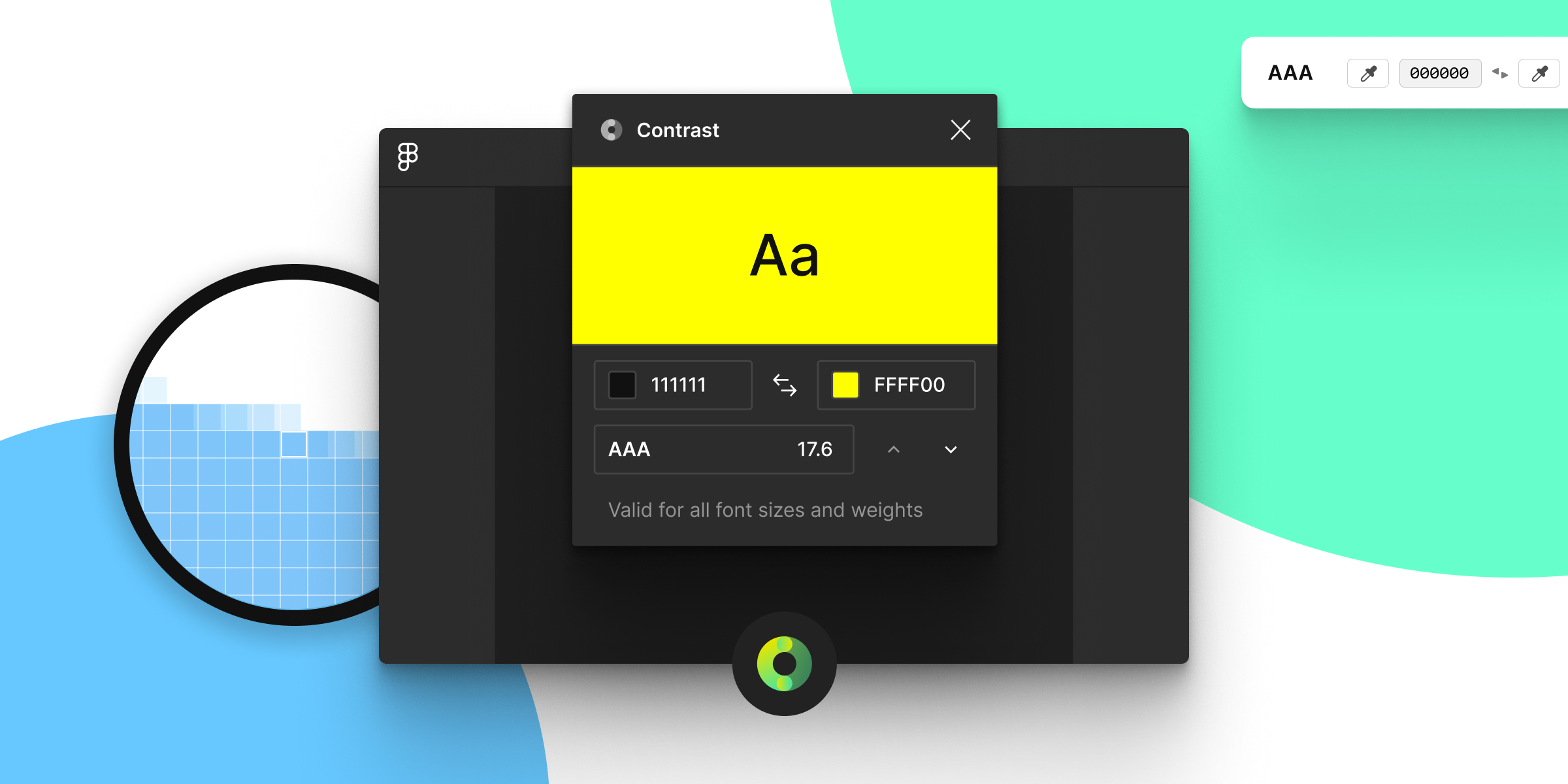
User reviews (0)