Website profiles · Technology insights · Alternatives

vertex.im

With this plugin, you can create 3D scenes directly in Figma. Library of pre-made models, a variety of materials, upload SVG and convert it to 3D, 3D text tool. Adjust the lighting, camera, and image size.

No paid content found
Visit website
Profile views 11 Outbound visits 21 Normal
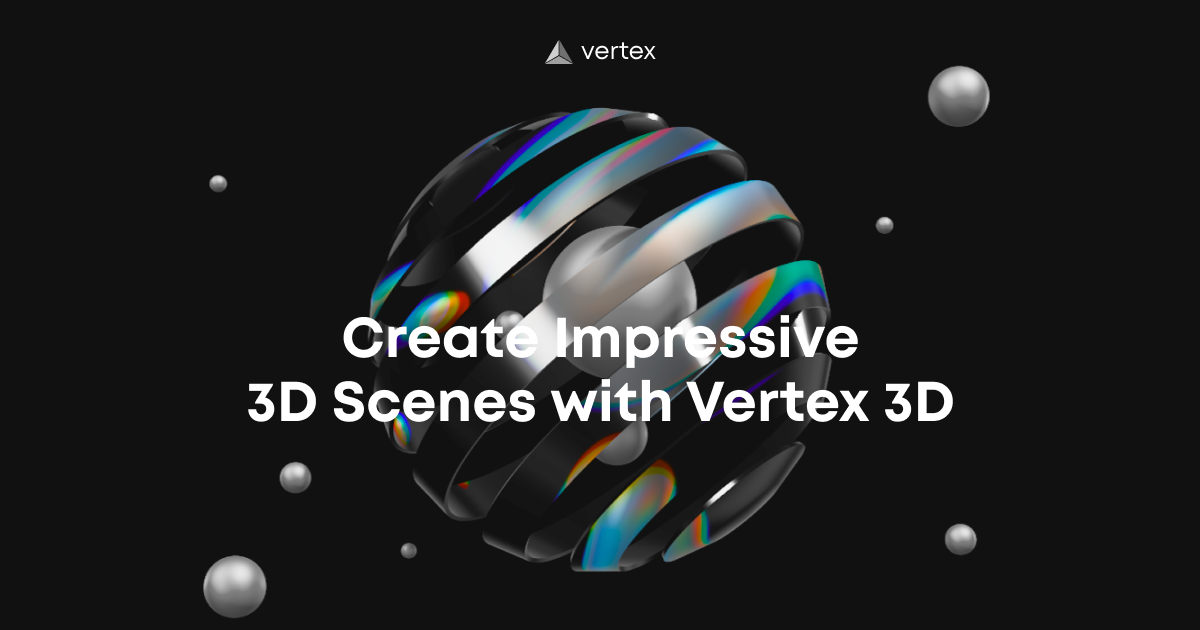
Vertex 3D. Create Impressive 3D Scenes online Full homepage screenshot

At a glance

Category
Design & Creativity
Language
English
Paid-content signal
No paid content foundObserved
Registered
Unknown
Hosting
Timeweb, LLPInferred
HTTPS certificate trusted
PassedObserved
Last updated

Website review

This review may include AI-generated content and is not individually verified. Domain, certificate and other facts come from the observed data on this page.

What is Vertex 3D?

Vertex 3D is a Figma plugin for building 3D scenes without leaving your design file. Based on its own description, it provides a library of pre-made models, a range of materials, an SVG upload-and-convert-to-3D path, a 3D text tool, and controls for lighting, camera and image size.

Who it suits

  • Figma-first designers who want 3D visuals inside a mockup, landing page or presentation without switching to Blender or Cinema 4D.
  • Product and marketing teams that need quick, on-brand 3D props or extruded text rather than photoreal renders.
  • Anyone with existing vector assets, since SVG import lets flat artwork become three-dimensional geometry.

What to expect in practice

The workflow is scene assembly rather than modelling: you pick or import objects, apply materials, place lights and a camera, then export at the size you need. That makes it fast for hero images, icon sets and social assets, but it is not a substitute for a full 3D suite if you need rigging, simulation, or high-poly sculpting.

A useful first step: open a new Figma file, run the plugin, drop in one pre-made model and one SVG, then compare how each handles materials and lighting before committing to a larger scene. If your goal is a single polished render, a dedicated 3D tool may still be the better route; if it is many small 3D elements that must stay consistent with your Figma layout, this fits well.

How do I create 3D scenes in Figma with Vertex 3D?

Vertex 3D is a Figma plugin for building 3D scenes without leaving your design file. You install it from the Figma plugin directory, then open it from the canvas. Inside the plugin you assemble a scene from a library of pre-made models, apply materials, and adjust lighting, camera angle and image size. It also lets you upload an SVG and convert it to 3D, and includes a 3D text tool. The official site is Vertex 3D.

A practical starting workflow:

  1. Open your Figma file and run the Vertex 3D plugin.
  2. Drop in a pre-made model or convert an SVG or text into 3D geometry.
  3. Set materials, then position the camera and lighting.
  4. Choose the output image size and render into your frame.

Who it suits

  • Designers who need hero images, product mockups or social assets in a Figma-based workflow.
  • Teams that want simple 3D without learning Blender or a separate render pipeline.
  • Anyone converting flat SVG logos or icons into dimensional elements.

Trade-offs to weigh

  • It is a plugin, so the scene lives inside Figma rather than a full 3D suite; complex animation and heavy simulation are likely out of scope.
  • Pre-made models and materials speed things up but limit how unique a scene can look compared with modelling from scratch.
  • Renders are still images, so interactive or animated 3D on the web needs another tool.

If your goal is a clean static 3D visual for a landing page or presentation, start with one pre-made model and one material, set the camera first, then add lighting. If you need rigged characters or motion, look at dedicated 3D software instead.

Can I convert SVG files to 3D models with Vertex 3D?

Yes. Vertex 3D is designed to run inside Figma as a plugin, and its toolkit includes an option to upload an SVG and convert it into a 3D object. That is one of several ways the plugin helps you build scenes without leaving your design file.

H3 What that actually means in practice

  • You bring in a flat vector shape, and Vertex turns it into a three-dimensional form you can position and style.
  • You can then combine it with the plugin's pre-made model library, apply materials, and adjust lighting, camera and image size.
  • There is also a 3D text tool, so SVG conversion is one part of a broader scene-building workflow rather than a standalone converter.

H3 A concrete scenario Suppose you are designing a product landing page in Figma and want a custom 3D icon based on a logo mark. Instead of modelling it in separate 3D software, you could export the mark as SVG, upload it in Vertex, extrude it into 3D, set a material and lighting to match the page, then place the rendered result into your layout.

H3 Decision criteria

  • Choose Vertex 3D if your priority is staying inside Figma and producing relatively simple extruded or stylised 3D visuals quickly.
  • Look elsewhere if you need precise mesh editing, complex topology, rigging or animation, which general-purpose 3D tools handle better.
  • Check the result quality on your own SVG first: very intricate paths, thin strokes or open shapes can behave differently from solid, closed outlines.

Next step: open the plugin in Figma and test it with a simple closed SVG shape before committing a complex logo to it. If you want to compare a dedicated browser-based option, Spline is worth a look.

What pre-made 3D models and materials are available in the Vertex 3D library?

The page itself doesn’t list individual model or material names; it only says Vertex 3D includes a library of pre-made models and a variety of materials. So the exact catalog isn’t visible from the available page content.

What is clear is how the library fits into the workflow: Vertex 3D is a Figma plugin for building 3D scenes directly in Figma, with pre-made models, materials, SVG-to-3D conversion, a 3D text tool, and controls for lighting, camera, and image size.

If you need to know whether a specific model or material is included, the practical next step is to open the plugin in Figma and browse the library categories directly, or check the official site: Vertex 3D.

For a quick decision: if your scene depends on a precise branded model or an exact material finish, verify it inside the plugin before committing. If you mainly need generic objects, text, and adjustable materials for concept visuals, the built-in library is likely enough.

How do I adjust lighting, camera, and image size in Vertex 3D?

Vertex 3D is a Figma plugin, so its lighting, camera and image-size controls live inside the plugin panel while you work on a Figma frame. According to the product description, the plugin lets you "adjust the lighting, camera, and image size" alongside its model library, materials, SVG-to-3D conversion and 3D text tool. The page evidence itself only shows a JavaScript-required app shell, so the exact slider names and menu positions aren't visible here — treat the steps below as the general workflow for this kind of Figma 3D plugin.

Lighting

  • Open the plugin from Figma's plugin menu and select the scene or object you want to relight.
  • Look for a lighting section in the plugin panel; add or choose a light source, then adjust its intensity and direction.
  • Move the light by dragging its handle in the preview, or by changing angle and position values if the panel exposes them.
  • Check the result in the plugin preview before applying, since lighting changes usually need a re-render to appear.

Camera

  • Switch to the camera view or camera controls in the panel.
  • Orbit, pan and zoom to frame the shot, or set the camera angle and focal length numerically if available.
  • Save or apply the camera when the composition looks right; in Figma, the plugin output typically lands as an image or layer on your canvas.

Image size

  • Set the output width and height, or choose a preset ratio, before exporting.
  • Match the size to the Figma frame where the render will be placed, so you don't have to rescale a raster image afterwards.
  • If you need a larger final asset, increase the output size rather than upscaling in Figma.

A practical order of work

  1. Build or import the scene (model, SVG-to-3D, or 3D text).
  2. Set materials.
  3. Position the camera.
  4. Adjust lighting.
  5. Set the image size and render/insert into Figma.

A useful decision criterion: if the render looks flat, fix lighting before touching the camera; if the subject is poorly framed, fix the camera before fine-tuning light intensity. For a concrete scenario, a designer making a hero image for a landing page would set a wide output size, frame the product with the camera, then add a key light and a softer fill so the edges read clearly.

For Figma-specific plugin behaviour and current UI details, check Figma documentation and the plugin's own listing, since panel layouts change between versions.

Is Vertex 3D a free plugin or does it require a paid subscription?

The available information for Vertex 3D does not state whether it is free or requires a paid subscription. The page evidence is limited to a JavaScript-required notice, and no pricing signals, subscription terms or payment details are present. So any claim about its cost would be guesswork.

How to decide before installing

Treat it as unverified on price and check inside the tool itself:

  • Open the plugin listing in Figma and look for a price label, "Free", "Paid" or "Try" button before adding it.
  • After launching, watch for a paywall on export, watermarking, model library access or resolution limits; these often separate free use from paid tiers.
  • Check whether billing runs through Figma's own payment system or an external account, since that affects cancellation and refunds.

Practical scenario

If you only need a quick 3D text mockup or a single SVG-to-3D conversion for a client presentation, a free tier with export limits may be enough. If you plan to build reusable scene libraries or need higher-resolution renders, assume a subscription may be required and budget for it until you confirm otherwise.

For official details, check the developer's site at Vertex 3D.

Related questions

More questions →
What Is Vertex 3D and What Can You Do With It?

Vertex 3D is a Figma plugin for building 3D scenes without leaving your design file. According to the plugin's own description, it lets you create 3D scenes directly in Figma, work from a library of pre-made models, apply a variety of materials, upload SVG files and convert them to 3D, add 3D text, and adjust lighting, camera, and image size. If your goal is to produce a 3D visual — a hero image, a product mockup, a stylized scene — and you'd rather stay inside Figma than learn a separate 3D application, this is the problem it addresses.

What Vertex 3D actually is

It's a Figma plugin, not a standalone 3D program. That distinction matters: your scene lives in the same file as the rest of your design work, so you can place a rendered 3D visual next to UI screens, type, and brand assets without exporting between tools.

The description frames the output as "impressive 3D scenes," and the feature list points to a scene-assembly workflow rather than precision modeling. You're composing from existing parts and adjusting presentation, not sculpting geometry from scratch.

Core capabilities

Capability What it means in practice
Pre-made model library Start from existing 3D models instead of building objects yourself
Multiple materials Change how surfaces look — finish, texture, reflectivity
SVG upload → 3D Bring a vector shape in and convert it into a 3D form
3D text tool Create dimensional type rather than flat lettering
Lighting controls Set how the scene is lit
Camera controls Choose the viewpoint and framing
Image size adjustment Control the dimensions of the resulting image

Where each feature is useful

Pre-made models + materials suit scenes where the objects are generic — abstract shapes, common props, decorative elements. You pick a model, assign a material, and move on.

SVG-to-3D is the most distinctive item on the list. If you already have a logo, icon, or custom shape as a vector, converting it to 3D means your own artwork becomes the geometry rather than something you have to rebuild. For example, a brand mark extruded into a dimensional object for a landing page header.

3D text covers headlines, titles, and labels that need depth. Useful for presentation covers, promotional graphics, or any layout where flat type feels too plain.

Lighting and camera are what separate a flat-looking object from a convincing scene. The same model reads completely differently depending on where the light sits and where the camera points, so treat these as the main creative controls, not afterthoughts.

Image size is the output step — set the dimensions you need for the final placement.

When this fits your workflow

Vertex 3D makes sense if:

  • You already work in Figma and want 3D elements in the same file
  • Your scene is built from existing models and materials rather than custom geometry
  • You need dimensional versions of your own vector artwork
  • You want to iterate on lighting and camera angle quickly

It's a weaker fit if you need precise, engineering-grade modeling, or if your 3D work has to integrate with a larger pipeline outside Figma.

A practical starting sequence

  1. Open the plugin inside Figma.
  2. Choose a model from the library, or upload an SVG to convert into 3D.
  3. Apply materials to the surfaces.
  4. Add 3D text if the scene needs type.
  5. Adjust lighting and camera until the framing works.
  6. Set the image size and place the result in your design.

Note that the plugin page requires JavaScript to run, so the interactive app won't load with scripting disabled. Pricing and account requirements aren't specified in the available information — check the plugin listing in Figma for current terms before committing.

What 3D Features Does Vertex 3D Offer Inside Figma?

Vertex 3D is a Figma plugin for building 3D scenes without leaving your design file. Based on the product's own description, it offers four core capabilities: a library of pre-made models, a range of materials, SVG-to-3D conversion, and a 3D text tool — plus controls for lighting, camera, and image size. It is aimed at designers who want 3D visuals inside Figma rather than in a separate 3D application.

The core feature set

Pre-made model library

Instead of modeling from scratch, you start from a library of ready-made 3D models and place them into your scene. This is the fastest path to a composition when you need a recognizable object rather than a custom shape.

Materials

A variety of materials let you change how a model looks — surface appearance, finish, and overall style. Materials are the main lever for matching a 3D object to an existing brand or UI palette.

SVG upload and 3D conversion

You can upload an SVG and convert it into a 3D object. This matters when your starting point is a logo, icon, or vector illustration: rather than rebuilding it in 3D, you bring the vector in and give it depth.

3D text tool

The 3D text tool turns type into three-dimensional lettering, so headlines and labels can sit inside the scene instead of being overlaid flat.

Lighting, camera, and image size

Three scene-level controls shape the final result:

  • Lighting — changes how surfaces are lit, which affects mood and readability.
  • Camera — sets the viewing angle and framing of the scene.
  • Image size — controls the output dimensions of the rendered image.

What this means in practice

If your goal is… The feature to reach for
Assemble a scene quickly Pre-made model library
Match an existing visual style Materials
Turn a logo or icon into 3D SVG upload and conversion
Add dimensional headlines 3D text tool
Control mood and framing Lighting and camera
Export at a specific dimension Image size setting

A realistic workflow

A typical task — for example, creating a hero image for a landing page — would combine these features: place a model from the library, apply a material that fits the page's palette, add a 3D headline with the text tool, set the camera angle, adjust lighting, then set the image size before rendering. The SVG conversion path is the alternative when the central object is a vector asset you already own.

What to check before committing

The plugin runs inside Figma, so a Figma environment is the prerequisite for using it. The available material and model options, and any limits on SVG conversion or export, are best confirmed directly in the plugin, since the public description does not enumerate them. If your work depends on a specific model category or a precise material look, verify that the library covers it before building your workflow around it.

Do I Need Figma to Use Vertex 3D?

Yes. Vertex 3D runs as a Figma plugin, so you need a working Figma environment before you can use it. The product description states plainly that "with this plugin, you can create 3D scenes directly in Figma" — the 3D work happens inside Figma, not in a separate standalone app. If you don't use Figma, this tool isn't a fit for your workflow.

What "needing Figma" actually means

It's not just that Figma is a nice-to-have companion. The plugin model determines where your work lives:

  • Figma is the host. The plugin loads into a Figma file, and the 3D scene you build is created within that Figma context.
  • Your output stays in the design file. Because it's a plugin rather than an export tool, the scenes you make are part of your Figma work, not a separate project you manage elsewhere.
  • No Figma account, no plugin. Plugin access is tied to being in Figma, so the prerequisite is simply having a Figma environment to open it in.

What you can do once you're inside

According to the product description, the plugin covers:

  • A library of pre-made models you can drop into a scene
  • A variety of materials to apply
  • SVG upload with conversion to 3D
  • A 3D text tool
  • Controls for lighting, camera, and image size

So the value proposition is aimed at people already designing in Figma who want 3D visuals without leaving the tool — not at people looking for a standalone 3D application.

Who this is for

Vertex 3D suits you if:

  • You already design in Figma and want to add 3D scenes to that work
  • You'd rather build 3D visuals inside your existing design file than switch to separate 3D software
  • You want pre-made models and materials rather than modeling from scratch

It's a poor fit if you don't use Figma at all, or if you need a full standalone 3D suite with its own file management and rendering pipeline.

One practical thing to check

The site itself notes: "You need to enable JavaScript to run this app." That's about the Vertex 3D web presence, but it's a reminder that the tool depends on a browser/JavaScript-capable environment. Make sure JavaScript is enabled in the browser you use with Figma, or the app won't run.

Bottom line

If you have Figma, you have what you need to try Vertex 3D — install it as a plugin and open it inside a file. If you don't use Figma, this tool won't work for you, since it's built to run inside Figma rather than on its own.

How to Create a 3D Scene in Vertex 3D Step by Step

Vertex 3D is a Figma plugin for building 3D scenes without leaving your design file. You can start from a library of pre-made models, apply materials, convert SVG artwork or text into 3D, then adjust lighting, camera, and image size before exporting. This walkthrough covers that full sequence. The one condition to note up front: it runs inside Figma, so you need Figma to use it.

Before You Start

  • A Figma account with a file open where you can run plugins.
  • The Vertex 3D plugin installed from the Figma plugin directory.
  • Any SVG assets you plan to convert, ready to upload.

The plugin loads as an app inside Figma, so if you only see a blank panel or a JavaScript notice, the plugin interface hasn't finished loading — reopen it from the Figma plugin menu.

Step 1: Start Your Scene From a Model

  1. Open the Vertex 3D plugin in your Figma file.
  2. Browse the built-in library of pre-made models.
  3. Place a model onto the scene canvas as your starting object.

Starting from a library model is the fastest route to a composed scene. If you'd rather build from your own artwork, skip to the SVG conversion step below and use that as your base object instead.

Step 2: Add and Switch Materials

  1. Select the object in your scene.
  2. Open the material options and apply a material to it.
  3. Swap between materials to compare looks — the change applies to the selected object, so you can iterate without rebuilding the scene.

Materials are the main lever for making a scene read as a specific style (metal, matte, glossy, and so on). Test a couple before committing, since lighting in the next step will change how each one appears.

Step 3: Bring In SVG Artwork or 3D Text

To convert an SVG:

  1. Upload your SVG file through the plugin.
  2. Let the plugin convert it into a 3D object.
  3. Position and scale the result within the scene.

To add 3D text:

  1. Use the 3D text tool.
  2. Enter your text and place it in the scene.
  3. Adjust its position relative to your other objects.

Both routes give you custom geometry without modeling it yourself — useful for logos, headlines, or brand shapes that need to sit in 3D space.

Step 4: Adjust Lighting and Camera

  1. Open the lighting controls and change the light setup until the scene's shadows and highlights look right.
  2. Switch to the camera controls and set the viewing angle.
  3. Reframe until the composition matches what you want to show.

Lighting and camera are the two settings that most change the final image, so treat them as a pair: a camera angle that hides your key object is worth changing even if the lighting is already good.

Step 5: Set Image Size and Export

  1. Set the output image size for the final render.
  2. Export the scene as an image.

Check the size against where the image will be used before exporting — a scene framed for a wide banner won't crop well into a square thumbnail, and re-exporting means re-checking the camera.

Quick Reference

Stage What you do What you get
Start Pick a library model or upload an SVG A base object in the scene
Materials Apply and switch materials The surface look of each object
Custom geometry Convert SVG or use 3D text Your own shapes and lettering in 3D
Lighting & camera Adjust both, then reframe The final composition
Output Set image size, export A finished image

Common Snags

  • Blank plugin panel: The interface needs JavaScript to run. If it doesn't load, close and relaunch the plugin from Figma.
  • SVG converts but looks wrong: Complex SVG paths can produce unexpected geometry. Simplify the source file and re-upload.
  • Scene looks flat after adding materials: Lighting is doing most of the work here — revisit the light controls before changing materials again.
  • Export doesn't match the canvas view: Confirm the camera angle and image size are set the way you want before exporting, since the export reflects those settings.
What to Check Before Using Vertex 3D in Figma

Vertex 3D is a Figma plugin for building 3D scenes inside a Figma file: it ships a library of pre-made models, a range of materials, SVG-to-3D conversion, a 3D text tool, and controls for lighting, camera, and image size. Before you commit to it, verify four things: whether pricing or licensing terms are published, how the plugin is obtained and authorized inside Figma, whether your browser environment supports it, and whether the model library, materials, and export options actually cover your project. The sections below cover each check and what to do if the information isn't available.

Check 1: Pricing and licensing terms

The site's public page provides no pricing keywords, pricing links, or payment platform references. That means there is no published price, plan tier, or license statement to read on the page itself.

What to do instead:

  • Open the plugin's Figma Community listing and read the description and any "Paid" or "Free" label there, since Figma plugin listings are where purchase and trial terms usually appear.
  • Look for a license or terms link inside the plugin after installing it, not just on the marketing site.
  • If you need a commercial-use or team-seat answer before starting, ask the vendor directly rather than assuming the plugin is free because no price is shown.

Do not treat the absence of a price as confirmation that it costs nothing. It only means the terms aren't stated on the page you're reading.

Check 2: How you get and authorize the plugin

Vertex 3D is distributed as a Figma plugin, so access runs through Figma rather than a standalone download. The practical checks:

Check Why it matters
Figma account required The plugin runs inside Figma, so you need a Figma account and a file to open it in
Plugin install/permission step Installing grants the plugin access to your Figma file; review what it requests
Team or org restrictions If you work in a shared Figma organization, an admin may need to approve third-party plugins
Seat scope Confirm whether the plugin is tied to your personal account or usable across a team

If you're evaluating it for a team, confirm the approval path before designing around it.

Check 3: Browser and JavaScript requirements

The page returns only: "You need to enable JavaScript to run this app." That tells you the app is a JavaScript-dependent web application — it will not render or function with JavaScript disabled, and it needs a browser environment that runs modern JavaScript.

Practical implications:

  • Use a current version of a mainstream browser; older or script-restricted environments may fail to load the app.
  • If you're on a locked-down corporate browser profile that blocks scripts or third-party embeds, test loading the app before relying on it.
  • Since the plugin operates inside Figma, your Figma environment (desktop app or browser) also needs to be working normally.

Check 4: Whether the feature set fits your project

Match the advertised capabilities against what your scene actually needs:

  • Model library — confirm the pre-made models cover your subject matter; a library that's strong in one category may not have what your scene requires.
  • Materials — check the variety and whether the material types suit your intended look.
  • SVG to 3D — relevant if you plan to convert vector artwork into 3D geometry; test with one of your own SVGs.
  • 3D text tool — relevant for typographic scenes; verify font and styling control meets your needs.
  • Lighting and camera controls — confirm you can set the lighting mood and camera angle you want.
  • Image size / export — check the output resolution and format options, since these determine whether the result is usable in your final deliverable.

A quick way to validate all of this: build one small test scene that mirrors your real use case — one model, one material, one SVG or text element, and one export — before committing a full project to it.

Quick pre-use checklist

  • [ ] Found the actual pricing/license terms (Figma listing or in-plugin), not just the marketing page
  • [ ] Confirmed you have the Figma account and permissions needed to install it
  • [ ] Verified the app loads in your browser with JavaScript enabled
  • [ ] Tested the model library, materials, SVG conversion, text tool, and export against your real requirements
  • [ ] Confirmed team/org approval if used in a shared Figma workspace

If any of these can't be confirmed from public information, get the answer from the vendor or the Figma listing before you build your workflow around Vertex 3D.

Website Overview

Identifiable technologies and additional version or configuration signals make the service easier to fingerprint, which may help targeted scanners narrow their checks. Several search or sharing settings need attention. Together they may make snippets, preview images or preferred URLs less consistent across platforms.

Domain and Registration

The domain uses the common .im extension, which is not an independent safety signal.

DNS and Email

Nameservers are provided by timeweb.ru, indicating managed DNS hosting. MX records point to the timeweb.ru email service. No CNAME was found; the observed records resolve directly to addresses. SPF and DMARC are configured. DKIM status is unknown. The lowest observed DNS TTL is 600 seconds.

TLS and Certificates

The certificate uses an RSA 2048-bit public key, offering broad client compatibility. The server supplied a complete certificate chain. No organization name is present in the certificate; the available fields are consistent with domain validation. The certificate was issued by Let's Encrypt, commonly associated with automated certificate services. The certificate's total validity is about 89 days, consistent with a short renewal cycle.

HTTP and Browser Security

The Server header exposes the software version: nginx/1.18.0 (Ubuntu). This makes version-targeted checks easier, but is not proof of an exploitable vulnerability. The checked browser-security headers were not detected, leaving fewer explicit browser-side safeguards. No X-Powered-By header was found, reducing one common source of backend fingerprinting information. No obvious internal addresses or debug information were found in the headers. No explicit CDN or WAF marker was found in the response headers.

Technology Stack Analysis

The public page identifies nginx 1.18.0, with exact versions exposed for 1 technologies. These details can narrow vulnerability checks, although exposure alone is not a vulnerability.

Search and Social Sharing

The meta description has 205 characters and may be shortened in search results. No homepage canonical URL was detected. If duplicate URLs exist, consolidation may be less explicit. The title has 45 characters, within a common display range. The observed directives allow indexing and link following. No Generator meta tag is publicly exposed.

Hosting and Email

DNStimeweb.ru
HostingTimeweb, LLP
Emailtimeweb.ru
Approximate IP geolocation (inferred; a CDN or proxy may differ from the origin server) Germany flagFrankfurt am Main, Hesse, Germany Inferred 72.56.107.98

Registration details

RDAP / WHOIS

RegistrarUnknown
RegisteredUnknown
ExpiresUnknown
Domain statusUnknown
Nameserversns1.timeweb.ru、ns2.timeweb.ru
DNSSECunknown

DNS records

DNS

TypeNameValueTTLPriority
Avertex.im72.56.107.98600—
MXvertex.immx1.timeweb.ru60010
MXvertex.immx2.timeweb.ru60020
NSvertex.imns1.timeweb.ru600—
NSvertex.imns2.timeweb.ru600—
NSvertex.imns3.timeweb.org600—
NSvertex.imns4.timeweb.org600—
TXTvertex.imv=spf1 include:rsndr.ru include:_spf.timeweb.ru ~all600—
DMARC_dmarc.vertex.imv=DMARC1; p=none; rua=mailto:[email protected]600—

TLS and certificates

TLS / SSL

AssessmentNormal configuration
Supported protocolsTLSv1.2、TLSv1.3
Negotiated protocolTLSv1.3
Certificate subjectvertex.im
IssuerLet's Encrypt
Valid until2026-12-18T12:10 · Remaining when checked: 74 days
Verification detailsCertificate trust: Passed · Hostname match: Passed

HTTP response headers

HTTP

HeaderValue
content-typetext/html
servernginx/1.18.0 (Ubuntu)

Identified technologies

nginx 1.18.0

Pages, Search and Sharing

Meta descriptionWith this plugin, you can create 3D scenes directly in Figma. Library of pre-made models, a variety of materials, upload SVG and convert it to 3D, 3D text tool. Adjust the lighting, camera, and image size.
Canonical URLNot detected
LanguageEnglish (default)
Twitter CardNot detected
All bots 0 allowed · 0 disallowed

User reviews (0)

  • No reviews yet.