
 简体中文
简体中文 English
Website review
This review may include AI-generated content and is not individually verified. Domain, certificate and other facts come from the observed data on this page.
What is wayscriber?
wayscriber is a free, open-source screen annotation and presentation tool for Linux, built specifically for Wayland desktops. Pressing a single keybind places a live drawing layer over whatever is on screen, so you can mark up any application without switching windows. When you're done, the same key (or Esc) hides the layer and you're back to normal.
It's written in Rust as a single native binary — no Electron or webview — and its stated focus is low-latency ink that keeps up with your hand. The page cites 8–9 ms p95/p99 input-to-commit at 120 FPS as a local measurement, with the frame cap configurable higher.
What you can actually do with it
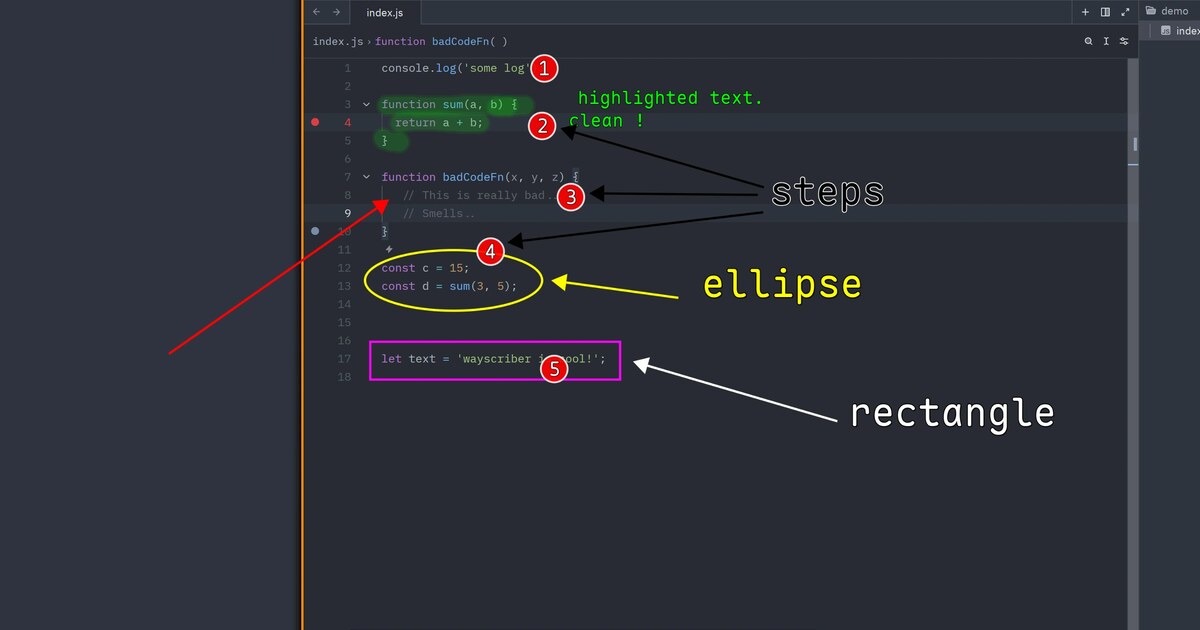
- Annotate live: pen, highlighter, eraser, lines, rectangles, ellipses, fillable polygons, arrows with auto-numbered labels, step markers, and blur.
- Add text: multiline text, sticky notes, and an eyedropper with a magnified pixel loupe.
- Present: zoom, boards, and pages, with backgrounds such as transparent overlay, whiteboard, blackboard, blueprint, or corkboard.
- Stay fast with the keyboard: a searchable command palette (Ctrl+K / Ctrl+Shift+P), a radial menu at the cursor on middle-click, and roughly 130 rebindable actions in one TOML file.
- Capture and move on: capture the screen, then hide the overlay.
Who it suits
The natural audience is anyone who explains things on screen: developers demoing code, teachers and trainers, people running design reviews or remote standups, and support staff walking a user through a problem. If you already use ZoomIt on Windows, this is the closest equivalent for a Wayland Linux setup. It's a weaker fit if you're on X11, on a desktop environment where Wayland support is partial, or if you need a cross-platform tool that also runs on macOS and Windows.
Trade-offs worth knowing before you install
- It's Linux- and Wayland-first. The page lists Hyprland, Sway, River, Wayfire, Niri, COSMIC, and KDE Plasma as supported, with GNOME described as working "with limits" — check your compositor before committing.
- Setup is slightly more involved than a normal app: you install a package, run a daemon (there's a systemd user service), and bind a global shortcut. The configurator can handle both steps.
- It's annotation, not screen recording or a full whiteboard suite. There are no plugins and no accounts, which keeps it simple but also means no ecosystem to extend.
A concrete next step
If you're on a supported compositor, install from your distro's native repository (or the AUR, Nix flake, or a .deb/.rpm), then run wayscriber --daemon-toggle from a terminal once to confirm the overlay appears before wiring it to a global shortcut. Try it first over a browser window or a code editor during a real task — that tells you quickly whether the latency and the tool set match how you actually present.
How do I install wayscriber on my Linux distribution?
wayscriber installs as a native package for your distribution, then runs as a background daemon that you trigger with one global shortcut. Package availability covers Debian, Ubuntu and Fedora repositories, the AUR for Arch, a Nix flake, and one-off .deb and .rpm downloads, so most users can install from their normal package manager rather than building from source.
Typical install path
- Install the package for your distro (native repo, AUR, Nix flake, or .deb/.rpm).
- Start the daemon — the project documents
systemctl --user enable --now wayscriber.service. - Bind
wayscriber --daemon-toggleto a global shortcut in your compositor. The configurator can perform the daemon and keybind steps for you. - Press your key to show the overlay, F1 for help, Esc to hide it.
Choosing your route
| Situation | Sensible route |
|---|---|
| Debian, Ubuntu, Fedora | Use the native repository package |
| Arch | Use the AUR package |
| NixOS or Nix users | Use the flake |
| Unsupported or older distro | Try the .deb or .rpm, or build from source |
Wayland compositor caveat
The project lists Hyprland, Sway, River, Wayfire, Niri, COSMIC and KDE Plasma as supported, with GNOME noted as working "with limits." If you use GNOME, check the project's own notes before relying on it for a live presentation, since global shortcut handling and overlay behavior vary by compositor.
A practical next step: install the package, run the configurator, and bind the toggle to a key you already reach without looking — then test it over a browser window and a slide deck before you need it in front of an audience. If your compositor is GNOME, test the shortcut and overlay first; if it misbehaves, that is the point to consult the project's documentation rather than assume a packaging problem.
Which Wayland compositors does wayscriber support, and what are the limitations on GNOME?
wayscriber is built for Wayland and lists Hyprland, Sway, River, Wayfire, Niri, COSMIC, and KDE Plasma as supported compositors. GNOME is supported "with limits"—the page names it alongside the others but flags that it doesn't work as fully as the rest.
The reason is architectural rather than a bug in wayscriber: GNOME's Mutter compositor does not implement the same set of Wayland protocols that wlroots-based compositors (Hyprland, Sway, River, Wayfire, Niri) and KDE Plasma expose for global shortcuts, screen capture, and overlay surfaces. So the practical limitation on GNOME is that some of the one-keybind behaviors—particularly global shortcut binding and the always-on-top drawing layer over arbitrary windows—may not activate reliably, or may require workarounds, compared with a wlroots compositor where the daemon and wayscriber --daemon-toggle binding work as documented.
If you're choosing a setup:
- Want the intended experience? Use Hyprland, Sway, or KDE Plasma—these are the most commonly exercised paths.
- Already on GNOME? Test the keybind and overlay first before relying on it for a live presentation; keep a fallback.
- On COSMIC, Niri, River, or Wayfire? Listed as supported, but these are smaller projects, so verify your specific version.
Next step: check the project's own performance and compatibility notes before committing, and try the overlay over a full-screen app on your compositor—that's the scenario most likely to expose a limitation.
How does wayscriber perform with low input latency and high refresh rates?
wayscriber targets low input-to-commit latency and high refresh rates as core design goals. The page reports 8–9 ms p95/p99 input-to-commit at 120 FPS on local hardware, with a default 120 FPS cap and configurable 144/240+ FPS when vsync is off. It is a single native Rust binary with no Electron or webview, which reduces the overhead between a pen or pointer event and what you see on screen.
What this means in practice
- Presenting or teaching: annotations appear close to your hand movement, so a cursor or pen stroke does not visibly trail behind.
- High-refresh monitors: you can raise the cap beyond 120 FPS if your display and compositor support it, rather than being locked to a lower rate.
- Wayland compositors: the page lists Hyprland, Sway, River, Wayfire, Niri, COSMIC, and KDE Plasma, with GNOME noted as having limits. Actual latency will still depend on your compositor, GPU, and display.
How to judge it for your setup
Latency figures measured on one machine are a useful signal, not a guarantee. Test with your own hardware: run a high-refresh display, draw fast strokes in a demanding app, and check whether the ink keeps pace. If you need the lowest possible delay, keep vsync off and raise the FPS cap, then compare against the default 120 FPS cap.
For a concrete comparison, try a quick annotation over a video call or a code editor at 120 FPS, then at 240 FPS, and note whether the difference matters for your use. If you want a ZoomIt-style workflow on Linux/Wayland, wayscriber is built around exactly that use case: wayscriber.
How do I rebind keys and customize wayscriber's actions in the TOML config?
Rebinding in wayscriber happens in a single TOML file, and the page describes roughly 130 rebindable actions, so the practical approach is to change a few bindings at a time rather than rewrite the whole file. The configurator can handle the initial setup (running the daemon and binding the global toggle), but ongoing key customization lives in that TOML file.
What to expect in the config
- Each action is a named command (for example, toggling the overlay, opening the command palette, undo/redo, switching boards and pages, or changing tools like pen, highlighter, eraser, shapes, arrows, text, and blur).
- Bindings map a key or mouse input to one of those actions.
- Because the same actions are also reachable from the command palette (Ctrl+K or Ctrl+Shift+P), you can look up an action's exact name there before binding it.
A practical workflow
- Open the command palette and fuzzy-search for the action you want to move. Note its name.
- Open the TOML file and find that action's binding.
- Change the key, save, and reload or restart the daemon (
systemctl --user restart wayscriber.service). - Test the new binding on a throwaway board before relying on it during a presentation.
Things worth deciding first
- Conflict risk. The overlay already uses keys like Esc to hide, F1 for help, Space + drag to pan solid boards, Ctrl+Shift+1..9 for jump slots, and Ctrl+K / Ctrl+Shift+P for the palette. Avoid reassigning these unless you also move their actions.
- Mouse vs keyboard. The radial menu is triggered by holding Middle-click, so if you rebind mouse buttons, check that you are not breaking the compass menu.
- Portability. Keeping your bindings in one TOML file makes it easy to copy the same layout to another machine or into a dotfiles repo.
If you tell me which specific action you want to move (for example, the pen tool or the zoom toggle), I can suggest a sensible replacement key and what to watch out for. The project is at wayscriber.
Can wayscriber replace ZoomIt for live presentations and screen annotations on Linux?
Yes, for most Linux/Wayland users wayscriber covers the core ZoomIt jobs — live annotation over any app, zoom, and capture — and it is built natively for that environment rather than ported. Whether it fully replaces ZoomIt depends less on features than on your desktop session and how much you rely on ZoomIt's Windows-only extras.
What maps well from ZoomIt
- One global keybind puts a drawing layer over whatever is on screen, then hides it again — the same "press key, annotate, press key, dismiss" rhythm.
- The toolkit is broad: pen, highlighter, eraser, lines, rectangles, ellipses, fillable polygons, arrows with auto-numbered labels, step markers, and blur.
- Text annotations, sticky notes, and a screen eyedropper with a magnified loupe are included, with undo/redo across all of them.
- Zoom and screen capture are part of the same overlay, so you don't switch tools mid-presentation.
- Everything ships in one binary with no plugins and no accounts, which matters on locked-down or offline machines.
Where the fit gets narrower
- It targets Wayland specifically. The page lists Hyprland, Sway, River, Wayfire, Niri, COSMIC, and KDE Plasma as supported, and notes GNOME works "with limits" — so GNOME users should test before committing.
- ZoomIt is a Windows tool; if your talks happen on Windows machines, wayscriber isn't the answer there.
- ZoomIt's specific break-timer and recording workflows aren't described here, so don't assume parity beyond annotation, zoom, and capture.
Practical scenario
You're giving a live code walkthrough on a Sway or Hyprland laptop, sharing your screen into a call. You bind wayscriber --daemon-toggle to a global shortcut, press it when a reviewer asks about a line of code, circle it with the pen, drop a numbered arrow on the next issue, then press Esc. Boards and pages let you keep a whiteboard or blackboard layer separate from the transparent overlay, and the command palette (Ctrl+K or Ctrl+Shift+P) plus the middle-click radial menu mean you rarely leave the keyboard.
Decision criterion
Choose wayscriber if you present on Wayland and want annotation, zoom, and capture in one native binary. Stay with ZoomIt-style workflows if you're on Windows, or if you need features beyond what's listed here. On GNOME, verify the overlay behaves before you rely on it in a live session.
Next step: install from your distro's repo or the AUR/Nix flake, bind the toggle key, and rehearse one full talk with the overlay on. If you want context on the Wayland compositors involved, see Hyprland and Sway.
 hetzner.de
 Nuremberg, Bavaria, Germany

User reviews (0)