Website profiles · Technology insights · Alternatives

woozlit.com

Woozlit — free AI chat, image gen, and more.

No paid content found
Visit website
Profile views 0 Outbound visits 0 Normal
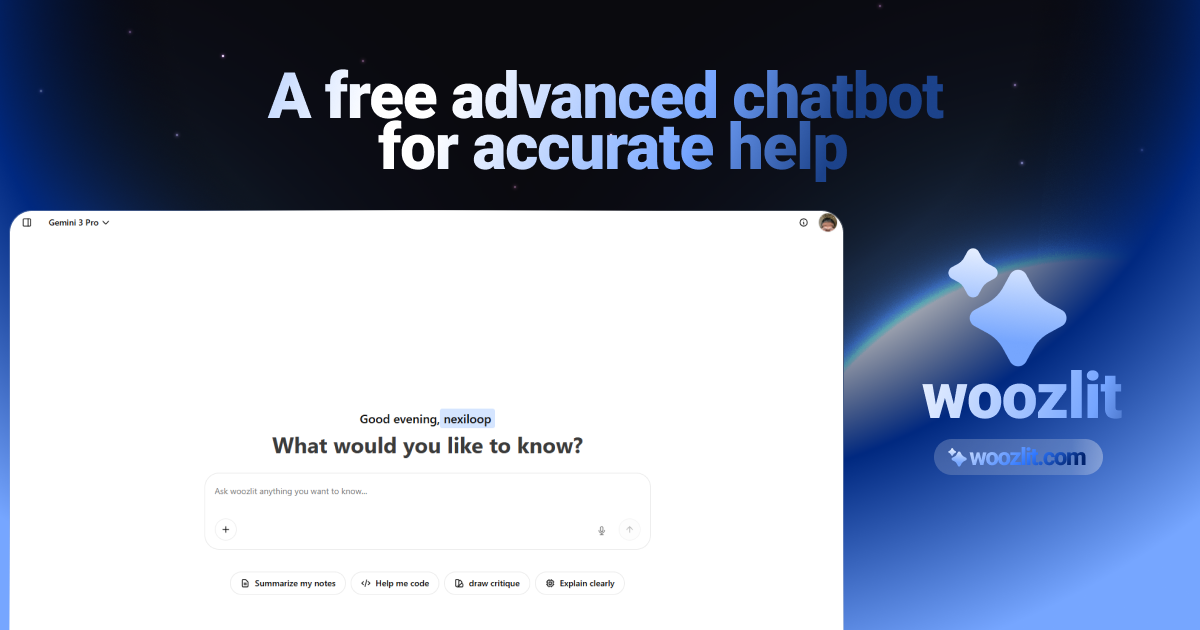
Woozlit Full homepage screenshot

At a glance

Category
Artificial Intelligence
Language
English
Paid-content signal
No paid content foundObserved
Registered
2025
Hosting
CloudflareInferred
HTTPS certificate trusted
PassedObserved
Last updated

Website review

This review may include AI-generated content and is not individually verified. Domain, certificate and other facts come from the observed data on this page.

What is Woozlit?

Woozlit is a free AI web tool that combines chat, image generation and other AI utilities in one place, per its own description at Woozlit. In practice, that means you can open a single site for a quick conversational answer and for creating an image, instead of signing up for separate chat and image services.

Who it suits

  • Casual users who want a no-cost assistant for everyday questions, drafting short text or brainstorming.
  • People experimenting with image generation who want a simple, low-commitment way to try prompts.
  • Readers who prefer one hub over juggling multiple free AI sites.

What to expect, and trade-offs

Free, multi-purpose AI tools typically trade depth for convenience: expect general-purpose answers rather than specialist output, possible usage limits or queues during busy periods, and less control over model choice than dedicated platforms offer. Treat outputs as a starting point and verify anything factual or important.

A concrete scenario

A student needs a short summary of a topic and a simple illustration for a slide. Woozlit's combined chat and image features can cover both in one session; for heavier editing or higher-fidelity images, a dedicated tool may serve better.

Next step: open the site, test one chat prompt and one image prompt to see whether the quality and speed meet your needs before relying on it regularly.

Is Woozlit really free, and are there usage limits or hidden costs?

Woozlit presents itself as a free AI service offering chat and image generation, and there is no indication on the supplied page information of paid tiers, subscriptions or payment platforms. That points to it being genuinely free to use at the entry level rather than a trial that converts to a paid plan. What the page information does not show is any stated usage cap, so treat "free" as "free to start" rather than "unlimited."

What to check yourself

Because no quota or pricing detail is documented here, confirm the current terms directly on Woozlit before relying on it for regular work:

  • Daily or per-session message limits for chat, and whether image generations are counted separately.
  • Queue priority or speed caps — free tiers often throttle during peak demand.
  • Watermarks or resolution limits on generated images.
  • Data use — whether inputs may be used to improve models, which matters for anything confidential.
  • Account requirements — whether an email or login is needed, and what happens to your history.

A practical way to decide

If you need occasional help drafting text or making a quick image, a free tool with modest caps is usually enough. If you plan to use it daily for client work, test it for a week against your real volume: note how often you hit a limit and whether output quality holds up. If limits interrupt you more than once or twice, a tool with a transparent paid tier is the safer bet — hidden costs in free AI tools usually appear as lost time and rework, not as surprise charges.

How does Woozlit's AI chat compare to using ChatGPT or other AI chatbots?

Woozlit is best understood as a free, all-in-one entry point to AI: chat plus image generation in one place, without a subscription. Compared with ChatGPT, the difference is focus rather than depth. Woozlit bundles a chatbot and an image generator under a "free AI" banner, which suits people who want to try several kinds of AI tasks casually. ChatGPT, Gemini and Claude are broader assistant platforms with deeper tooling and ecosystem integration, which matters more for sustained, work-critical use.

Where the trade-offs land

Consideration Woozlit-style free hub Mainstream chatbots (ChatGPT, Gemini, Claude)
Cost to start Free entry, no payment details implied Free tiers exist; advanced features usually paid
Scope Chat and image generation side by side Chat plus wider tool and integration ecosystems
Best for Quick experiments, casual image prompts, light Q&A Long projects, document work, coding, team workflows
Main risk Fewer published details on limits and data handling Usage caps on free tiers; account required

A concrete scenario

Suppose you run a small Etsy shop and need a product description plus a matching promo image. A hub like Woozlit lets you draft the text and generate the image in one session without signing up for two services. If you later need to refine copy across a whole catalogue, keep brand context, or plug the assistant into other tools, a mainstream chatbot will serve you better.

Decision criteria

  • Volume and repetition: heavy daily use favors platforms with documented limits and stable accounts.
  • Sensitive content: check privacy and data-retention terms before pasting anything confidential.
  • Image needs: compare output quality and usage rights on generated images, not just availability.
  • Consistency: a single-purpose assistant usually gives more predictable results than a multi-tool hub.

As a next step, test the same three prompts (a factual question, a short rewrite, and an image request) on Woozlit and one mainstream chatbot, then judge which output you would actually publish. For official details on the alternatives, see ChatGPT and Gemini.

What can I create with Woozlit's image generator, and what image styles does it support?

Woozlit's own site gives no usable detail on either point: the page evidence contains no heading, excerpt or style list, so the specific outputs and image styles it supports cannot be confirmed from the supplied information. What the site does signal is its positioning as a free, all-in-one AI tool covering chat, image generation and "more," which suggests a general-purpose generator rather than one built around a single visual niche. Treat any style list you see quoted elsewhere as unverified until you check it on the site itself.

How to judge it for your own use

The practical question is whether the generator covers the kind of image you actually need. Free, general-purpose tools usually handle the common cases well and the specialist cases less so:

  • Everyday visuals — social posts, blog headers, simple concept sketches and quick mockups are the typical strengths of a general generator.
  • Style range — look for explicit support for photorealism, illustration, 3D/render, anime and line art. If a style isn't named, assume it's approximate.
  • Text in images — most generators still struggle with legible lettering; plan to add text in a separate editor.
  • Control — aspect ratio, reference images and negative prompts matter more than style names once you move past casual use.

A concrete test

Pick one real task, such as a square product teaser for a small shop, and run the same prompt in three styles: photoreal, flat illustration and 3D render. Compare how consistently each style holds composition and whether the results are usable without heavy retouching. That tells you more about fit than any feature list.

If style breadth is the deciding factor, compare against dedicated image tools whose official sites document their style options, such as OpenAI for DALL·E or Adobe for Firefly, and check Woozlit's own pages for its current style menu before committing.

Do I need to sign up or create an account to use Woozlit?

Woozlit is positioned as a free AI chat and image-generation site, and the source material does not indicate that an account is required. Treat that as a starting assumption rather than a guarantee: open the site in a private browser window and try a chat prompt and an image prompt before relying on it for anything important.

How to check quickly

  • Load the tool and look for a usable input box. If you can type a prompt and get a response without a login wall, guest use is available.
  • Try one image generation. Image tools are more often gated than text chat, so test both if you need both.
  • Test in a private window. This shows what a first-time visitor sees, without saved cookies or sessions.
  • Check whether history persists. If past chats survive a reload, the site is storing a session; if not, expect to lose your work when you close the tab.

What the trade-off means in practice

Signing up usually buys continuity: saved conversation history, access to earlier generations, and a stable identity if usage limits apply. Guest access usually means starting fresh each visit and possibly stricter caps during busy periods. For a one-off task — drafting a short email, generating a quick concept image — guest use is fine. For a multi-session project, such as iterating on a set of product images or building out a document over several days, an account is the more practical choice if one is offered.

If account-free use matters to you, compare against tools that state their policy plainly, such as ChatGPT or Claude, both of which require an account, or Perplexity, which allows limited use before prompting for one.

Which tasks is Woozlit best suited for, such as writing, brainstorming, or quick image generation?

Woozlit is positioned as a general-purpose free AI workspace, so it fits best where you want one place for everyday chat-style help plus occasional image generation rather than a specialist tool for a single job. Based on how the site presents itself, its strongest fits are:

  • Brainstorming and idea generation — quick lists, angles, names, or outlines where speed matters more than polish.
  • Drafting and rewriting text — emails, short posts, summaries, and cleanup passes on existing copy.
  • Quick image generation — simple visuals for a moodboard, a rough concept, or a social post where you need something fast, not production-grade art.
  • Casual Q&A and learning — explaining a concept or working through a problem conversationally.

Where it is a weaker fit

For work with strict accuracy, citations, or brand-critical tone, treat chat output as a first draft to verify. For detailed, style-controlled imagery, a dedicated image tool usually gives more control. And for very long documents or heavy code work, a tool built around those workflows will be less frustrating.

A practical way to decide

Match the tool to the cost of being wrong. If a wrong answer costs you two minutes of editing, a free all-in-one assistant like Woozlit is a sensible default. If it costs a client meeting or a published error, use it for the early messy stage and finish elsewhere.

Example: a small business owner could use Woozlit to brainstorm promo angles, draft three caption variants, and generate a rough image concept — then hand the final visual to a designer. That split plays to its breadth without asking it to be a specialist.

Related questions

More questions →
What Is an AI Chatbot and What Can It Actually Do for You?

An AI chatbot is a program that takes your written message and generates a reply in natural language, and you can use one for free to answer questions, draft and rewrite text, summarize material you paste in, brainstorm ideas, or get help with code. The catch is that it predicts plausible wording rather than verifying facts, so anything important needs checking, and you should keep sensitive personal or business information out of the chat unless you know how that service handles data.

How an AI chatbot works

A chatbot built on a large language model has been trained on huge amounts of text to predict what comes next in a sequence. When you send a message, the model reads your whole prompt as context and produces a response word by word. That single mechanism explains both its strengths and its weaknesses:

  • Strengths: it is fast, flexible, and handles open-ended language tasks — explaining a concept, restructuring a paragraph, or suggesting approaches to a problem.
  • Weaknesses: it has no built-in fact-checking, no live awareness of events unless the product adds a search or browsing feature, and no memory of your conversation beyond what the session or product design allows.

A useful mental model: treat it like a well-read collaborator who types quickly and confidently but never shows sources unless you ask.

What you can actually do with it

Task Example prompt What to expect
Q&A and explanations "Explain how compound interest works in plain terms." Clear explanations; verify numbers and definitions
Writing and rewriting "Rewrite this paragraph for a professional email." Fast drafts; tone control works well
Summarizing Paste an article, ask for five bullet points Good at compression; may drop nuance
Brainstorming "Give me ten names for a budgeting app." Volume and variety; filter for quality
Code assistance "Why does this loop run forever?" Often helpful; test every suggestion
Learning and tutoring "Quiz me on basic Spanish verbs." Interactive practice; check accuracy

For a specific task, give the chatbot context: who the answer is for, the desired length, and any format you need. "Summarize this for a non-technical manager in under 150 words" produces far better output than "summarize this."

Free vs. paid: what actually changes

Many services, including Woozlit, present themselves as free AI chat and image tools. Free tiers typically differ from paid ones in a few predictable ways:

  • Usage limits: message caps, slower responses at peak times, or restricted access to the newest models.
  • Capabilities: longer context windows, file uploads, image generation, or web search may be limited or absent on free plans.
  • Priority and features: paid plans often add faster processing and advanced options.

The practical rule: start free to test whether the tool fits your workflow, and only consider paying if you hit a limit that blocks real work. Check the provider's own pages for current terms rather than assuming a free tier has no restrictions.

Limits you should plan around

  1. Hallucination. The chatbot can state wrong facts, invent citations, or misattribute quotes with complete confidence. Ask for sources and verify them independently.
  2. Staleness. Without a browsing feature, knowledge has a cutoff date. For current prices, laws, or news, confirm elsewhere.
  3. Arithmetic and logic. Simple calculations are usually fine, but multi-step reasoning can slip. For anything consequential, redo the math or logic yourself.
  4. Overconfidence in advice. It will answer medical, legal, or financial questions fluently; that fluency is not expertise. Use it to understand terminology and prepare questions, not to make decisions.
  5. Bias and tone. Output reflects patterns in training data. Review drafts for assumptions you did not intend.

Privacy before you start

Before pasting anything into a chatbot, decide whether you are comfortable with it leaving your device:

  • Avoid entering passwords, ID numbers, financial account details, or confidential work documents unless your organization has approved that tool.
  • Read the provider's privacy or data-use page to learn whether conversations may be stored or used to improve the service.
  • Use a separate account or a work-approved tool for anything sensitive.

Getting started

Open the chatbot, type a specific request, and iterate: ask it to shorten, simplify, or take a different angle. Treat the first reply as a draft, not an answer. If you are evaluating a free tool like Woozlit, test it on a real task you already know the answer to — that is the quickest way to see where it helps and where it needs checking.

Which Free AI Tools Should Developers Actually Use for Building Applications?

Pick tools by the job you're doing, not by the label "free." For most developers building real applications, the practical stack is one LLM API for inference, one AI-native IDE or CLI for daily coding, a local model for offline or unlimited use, and a RAG stack plus agent framework only if your app needs retrieval or autonomous workflows. The directory at freeaitoolslist.vercel.app curates 550+ tools across these categories, and its featured listings show the free-tier limits you'll actually hit.

The six categories, and what each one is for

The site organizes tools into these groups, each with a different role in a build:

Category Tools listed Use it when
LLM APIs 20 You need hosted inference for an app, prototype, or agent
AI IDEs 12 You want AI assistance inside your editor
CLI Tools 15 You work in the terminal and want AI-assisted coding there
Local Models 8 You need offline, unlimited, or private inference
RAG Stack 12 You're building document Q&A or retrieval over your own data
Agent Frameworks 10 You're building autonomous workflows or multi-step agents

These aren't competing choices. A typical build uses one from the API group, one from the IDE or CLI group, and pulls in RAG or agent tooling only when the application requires it.

Free LLM APIs: compare the actual limits

This is where "free" varies most, and where the directory's featured tools give concrete numbers. All five listed below are marked as no credit card required.

Provider Free-tier limit Notable constraint
OpenRouter 20 RPM, 50 requests/day (1,000/day with $10+ credits) 29 free models behind one API
Groq 1,000–14,400 requests/day depending on model Ultra-fast inference
Google AI Studio 250 RPD (Tier 1) for most models, 1,500 RPD for Gemini 3 Flash Free Gemini API
Cerebras 1.5M tokens/day, 30 req/min 8,192 context limit
OpenCode Zen Zen free tier with 8 exclusive models Includes "Big Pickle"

How to choose between them:

  • Prototyping something you'll demo or iterate on fast — OpenRouter's unified API lets you swap across 29 free models without rewriting integration code, but 50 requests/day runs out quickly. The $10 credit threshold raising it to 1,000/day is the cheapest upgrade path if you outgrow it.
  • Latency-sensitive apps — Groq and Cerebras both emphasize speed. Cerebras gives the largest daily token budget (1.5M) but caps context at 8,192 tokens, so it fits short-prompt, high-volume workloads rather than long-document processing.
  • Longer context or Gemini-specific features — Google AI Studio, with 1,500 RPD on Gemini 3 Flash.
  • Access to models you can't get elsewhere — OpenCode Zen's 8 exclusive models.

The common failure mode here is quota exhaustion mid-development. Check the daily request cap against your test loop before committing: a 50 RPD limit means roughly 50 API calls per day total, which a single debugging session can consume.

AI IDEs and CLI tools: pick by where you work

Cursor is the featured AI-native IDE: free tier, no credit card, with limited agent requests, limited Tab completions per month, and a one-week Pro trial. That structure tells you what to expect — the free tier is enough to evaluate whether agent-style editing fits your workflow, but the monthly caps on agent requests and completions will bind if you adopt it as your primary editor.

The directory lists 15 CLI tools separately. If your work already lives in the terminal, a CLI assistant avoids adding an editor to your stack. If you want inline completions and agent-driven edits in a GUI, an AI IDE is the better fit. There's no reason to run both unless you genuinely split time between terminal and editor.

Local models: the only truly unlimited option

Running open-weight frontier models locally is the one category where "free" means no quota at all — unlimited offline coding, no per-request limits, no data leaving your machine. The tradeoff is hardware: you supply the compute, and capability depends on what your machine can run.

Choose local models when you need offline work, privacy, or volume that would blow through any hosted free tier. Choose a hosted API when you need frontier-model quality you can't run locally, or when you don't want to manage model weights and inference.

RAG and agent frameworks: add only when the app needs them

RAG stack tools (12 listed) are for document Q&A and retrieval over your own data. Agent frameworks (10 listed) are for autonomous workflows. Neither belongs in a stack that doesn't need retrieval or agency — adding them early just adds moving parts. Bring in RAG when your app must answer questions over private documents, and an agent framework when the app must take multi-step actions on its own.

Building a stack without paying for ten subscriptions

The directory's stated purpose is exactly this: stop paying for 10 different AI subscriptions and find the best free stack faster. A workable combination:

  1. One LLM API for hosted inference, chosen by your binding constraint (daily requests, context length, or speed).
  2. One IDE or CLI tool matching where you actually write code.
  3. A local model as fallback for offline work or when hosted quotas run out.
  4. RAG or agent tooling only if the application's requirements demand it.

Each layer is substitutable. If OpenRouter's 50 RPD is too tight, Groq's 1,000–14,400 RPD or Cerebras's 1.5M tokens/day may fit better — but verify the context limit and per-minute rate against your workload before switching.

Where free tiers actually break

  • Daily request caps — 50 RPD (OpenRouter) or 250 RPD (Google AI Studio Tier 1) are evaluation budgets, not production budgets.
  • Context limits — Cerebras's 8,192-token context rules out long-document tasks regardless of its generous token-per-day allowance.
  • Feature caps rather than request caps — Cursor's limited agent requests and Tab completions per month constrain how much of your editing the free tier can cover.
  • Model availability — some free tiers expose a subset of models; check that the model you need is in the free set before designing around it.

The directory's category counts and featured limits are the fastest way to compare these before committing. Start with the constraint that binds your project hardest — requests per day, context length, or offline requirement — and pick the tool that satisfies it.

What Is an Image Generator and How Do You Use One?

An image generator is a tool that turns a written description into a picture. You type what you want — "a playful, colorful logo for a candy shop called Sugar Rush" — and the software produces an image matching that description, handling color, style, and layout for you. On a platform like Playground, this works with no design experience, and you can start for free before deciding whether to pay. The approach below fits anyone who needs a logo, sticker, poster, or social graphic but doesn't want to learn professional design software.

Text-to-image vs. editing tools

These are two different jobs, and most platforms now offer both.

  • Text-to-image creates something from nothing. You supply a prompt; the generator supplies the image.
  • Editing tools change an image you already have. Playground lists tools like Swap style, Remove object, Add to mockup, and Smart layers, and notes that every fix is non-destructive — meaning you can keep tweaking without destroying the original.

If your goal is a brand-new graphic, start with text-to-image. If you have a design and want to adjust it, reach for the editing tools.

The basic workflow

  1. Write a prompt. Describe the subject, then the style and mood. "A playful, colorful logo for a candy shop called Sugar Rush" tells the generator both what and how.
  2. Generate. The AI fills in color, style, and layout. Playground's own framing is "what you type is what you get" — you describe, it handles the rest.
  3. Refine. Use the editing tools to swap styles, remove unwanted objects, or place the result into a mockup. Because edits are non-destructive, you can iterate.
  4. Export and use. Move the finished image into the format you need — a shirt graphic, a poster, a social post.

How prompt wording shapes the result

The prompt is your main control. A few practical habits:

  • Name the object first, then the style: "elegant wedding envelope card with calligraphy" is clearer than a long, vague sentence.
  • Use plain style words — playful, minimal, elegant, bold — rather than trying to specify exact hex colors or pixel layouts.
  • Match the tool to the text. Playground describes GPT Image 2 as "the wordsmith," suited to crisp headlines and legible body copy for posters, packaging, invites, and ads. If your design depends on readable text, that's the model to reach for.

Common real uses

Playground organizes its templates across 24 categories, which maps well to everyday needs:

Use case Example
Logos A candy-shop logo from a one-line prompt
Stickers & merch Sticker sets, T-shirt art
Print & promo Posters, cards & invites, eBook covers
Social & mobile Social media posts, mobile wallpapers, memes
Product presentation Mockups

Starting from a template is often faster than a blank prompt — the platform describes its templates as "designed to customize, not just copy."

Typical limits to expect

  • Text rendering is the classic weak spot of image generators. Some models handle it far better than others, so check the output if your design relies on words.
  • Resolution and format vary by tool and aren't guaranteed for every use — verify before committing to print.
  • Free-tier restrictions exist. Playground says you get its AI models "free to start," which implies a paid tier beyond that; check the pricing page for current terms rather than assuming unlimited free use.

How to pick a tool

Match the tool to your output and skill level:

  • No experience, general design needs → a template-driven studio like Playground, which bundles multiple models (GPT Image 2, Nano Banana Pro, Nano Banana, Seedream) in one place.
  • Text-heavy designs (posters, packaging, invites) → prioritize a model known for typography.
  • Editing an existing image → confirm the platform offers non-destructive editing tools.
  • Budget-conscious → start on the free tier, then compare paid plans once you know your volume.

The fastest way to decide is to run one real task — a logo or a sticker — through a free tier and judge the result against what you actually need.

What Can You Actually Do With Free AI Chat, and What Are the Limits?

Free AI chat generally gives you a working text assistant at no cost: you can ask questions, draft and rewrite text, explain concepts, and generate simple code. The catch is that "free" usually means a quota, a lighter model, or both. You can start without a credit card on most services, but you should expect daily message caps, slower responses at peak times, and some features held back for paid tiers. Whether it is enough depends on how often you chat and how sensitive your inputs are.

What free AI chat typically includes

Most free tiers cover the core chat loop:

  • General Q&A and explanations — definitions, summaries, step-by-step how-tos.
  • Writing help — drafting emails, tightening paragraphs, changing tone.
  • Basic coding help — snippets, error explanations, small refactors.
  • Short document work — pasting text to summarize or restructure.

What varies is the model behind the chat. Free plans often route you to a smaller or older model, which is fine for everyday tasks but weaker on long reasoning chains, niche technical questions, or very long inputs.

The limits you will actually hit

Limit What it looks like Workaround
Message or token cap A daily or per-conversation limit; long pastes get cut off Split long documents into sections; save important answers locally
Weaker model Shallower answers on hard problems Rephrase with more context; ask it to show its reasoning steps
Queueing Slower replies at busy hours Use it off-peak or keep a second free tool as backup
History and file uploads Chat history may be short-lived; file or image upload locked Copy key outputs into your own notes; describe files in text instead
Sign-up friction Email verification, CAPTCHA, occasional region blocks Try a different provider; avoid tools that demand payment details upfront

None of these make free chat unusable — they mostly mean you should not rely on it as your only tool for long or high-stakes work.

How to start using it

  1. Pick one tool and one backup. Choose a general chat assistant, and keep a second free option in case you hit a cap.
  2. Sign up without payment details. If a "free" tool asks for a card before you can chat, treat that as a paid trial, not a free tier.
  3. Run a test prompt that matches your real use. For example, paste a paragraph you actually need rewritten and check whether the output is usable without heavy editing. This tells you more than any feature list.
  4. Check the privacy terms before pasting anything sensitive. Look for whether conversations may be used for training and whether you can delete history. If the answer is unclear, keep confidential material out.
  5. Set your own usage habit. Save good outputs as you go, since free history can be limited or reset.

Deciding whether free is enough

Ask yourself three questions:

  • Frequency: A few questions a day fits most free quotas; all-day use will hit caps.
  • Difficulty: Routine writing and explanations are fine on lighter models; complex multi-step reasoning may need a paid model.
  • Sensitivity: Do not put personal, client, or confidential data into a free chat unless its terms clearly say your data is not used for training and can be deleted.

If two of these point the wrong way, a paid tier or a self-hosted option is the more honest choice. If none do, free chat will likely cover you.

Common snags and what to do

  • Quota runs out mid-task: finish the current step, then switch to your backup tool and paste the context you need.
  • CAPTCHA or verification loop: try a different browser or provider rather than fighting the same gate.
  • Region restrictions: availability varies by country; a provider that works for a colleague may not work for you.
  • Answers feel thin: add specifics — audience, length, format, and an example of what "good" looks like — before concluding the tool is weak.

Free AI chat is a genuine working tool for everyday text tasks. Treat the quota and the model tier as the real boundary, and keep sensitive data out until the terms say otherwise.

What Is an AI Assistant and What Can It Do for Your Meetings and Work?

An AI assistant is software that doesn't just answer questions but takes action on your behalf across the tools you already use—joining meetings, writing notes, tracking tasks, and updating records. In the meeting context specifically, it records and transcribes calls, produces summaries and action items, and makes every past conversation searchable. It differs from a plain chatbot in that it connects to your calendar, conferencing apps, CRM, and files rather than waiting for you to paste in text. It's worth adopting if your team loses decisions in meetings, spends time on manual notes, or can't remember what was agreed months ago.

How an AI assistant differs from a chatbot or search tool

A chatbot responds to prompts. A search tool retrieves what already exists. An AI assistant sits in the workflow and produces output without being asked each time:

  • It attends the event. A bot joins your live meeting or auto-joins calendar invites, so capture happens whether or not anyone remembers to hit record.
  • It generates structured output. Notes, bullet-point overviews, action items, and custom summary formats appear after the meeting, not a raw transcript dump.
  • It retains context over time. Past conversations become a searchable knowledge base you can query later.
  • It acts across apps. Tasks, contacts, and CRM records get updated from what was said, not from manual entry.

The practical difference: a chatbot helps you think; an assistant helps you finish.

Core meeting tasks it handles

Transcription and recording

Fireflies positions itself on transcription accuracy (it claims 95% and describes itself as the industry leader), with speaker recognition that labels who said what, support for 100+ languages, and auto-language detection that switches between meetings. Speaker recognition also applies to uploaded audio files, not just live calls.

Summaries and action items

After each meeting you get detailed notes, action items, and customizable summary formats—overview, bullet points, action items, or custom notes. This is the part most teams actually use: the summary is the deliverable, the transcript is the backup.

Searchable memory

Meeting search lets you find what was discussed months ago down to the specific sentence and timestamp. A separate feature, AskFred, lets you ask questions and have the assistant review your meetings to return answers. This is the capability that changes behavior over time—once past conversations are queryable, "didn't we decide this already?" stops being a recurring argument.

Ways to capture conversations

Different situations need different capture methods, and a mature assistant covers more than one:

Method How it works Best for
Note taker bot Invite the bot to a live meeting, or let it auto-join calendar meetings Scheduled video calls
Chrome extension Automatically records Google Meet calls with real-time transcripts Browser-based calls without inviting a bot
Mobile app Transcribes and summarizes in-person conversation In-person meetings and hallway conversations
Desktop app Transcribes and summarizes calls Calls that don't run through a browser
Dialers & API Transcribes calls from Aircall, RingCentral, and other dialers; API processes audio files Phone-heavy sales and support teams
Audio & video files Upload MP3, MP4, WAV, M4A for transcription and summaries Recordings you already have

If your meetings happen in one place only, a single method is enough. If your team mixes video calls, phone dialers, and in-person conversations, check that the assistant covers all three before committing—otherwise you'll end up with a searchable archive that has holes in it.

Beyond notes: tasks, contacts, and workflows

The "assistant" label usually implies work that continues after the meeting ends. Fireflies describes tasks, contacts, and a feed in one place, plus 200+ AI Skills that automatically extract key details and generate follow-up output. Conversation intelligence adds analytics across calls: speaker talk-time tracking, sentiment analysis, topic trackers, and AI filters.

For teams that live in a CRM, the value is in the update happening automatically rather than a rep reconstructing the call from memory on Friday afternoon.

Real-time help during the meeting

Live Assist provides real-time suggestions, coaching, and answers while the meeting is still running. This is a different job from post-meeting notes—it's aimed at influencing the conversation as it happens, useful for coaching newer reps or handling objections live. Treat it as a separate capability when evaluating tools: strong transcription doesn't guarantee useful real-time coaching.

What to check before adopting one

  • Accuracy on your audio. Published accuracy figures are measured under specific conditions. Test with your own recordings—accents, crosstalk, and poor connections are where transcription breaks down.
  • Language coverage. Confirm the specific languages your team speaks are supported, not just the total count.
  • Capture coverage. Does it handle your video platform, your dialer, and in-person conversations?
  • Integration depth. "Integrates with your CRM" can mean anything from a link to a full record update. Ask what actually gets written and where.
  • Privacy and compliance. Fireflies lists GDPR and SOC2 compliance. Check what your own legal or security requirements demand, especially for recorded calls with customers.
  • Pricing and seats. Fireflies has a pricing page; confirm which features sit on which tier before assuming the capabilities above are all included.

The honest test: pick one recurring meeting, run the assistant on it for two weeks, and check whether the summaries and action items are accurate enough that you'd skip writing your own. That answers more than any feature list.

Website Overview

Page metadata, canonical configuration and social previews work together to provide more consistent search and sharing presentation. An active inbound-mail setup with incomplete authentication may leave the domain more open to impersonation. Provider hosting alone does not close that gap.

Domain and Registration

The domain was registered less than a year ago and has limited historical evidence to assess. Transfer-protection status is present, helping reduce the risk of unauthorized domain transfers. The domain uses the common .com extension, which is not an independent safety signal.

DNS and Email

The observed email authentication setup is incomplete: DMARC is missing. Nameservers are provided by Cloudflare, indicating managed DNS hosting. MX records point to the Zoho Mail email service. No CNAME was found; the observed records resolve directly to addresses. TXT records include verification markers for Google. Such markers may also remain after a service stops being used.

TLS and Certificates

The public key uses EC with 256 bits. The server supplied a complete certificate chain. No organization name is present in the certificate; the available fields are consistent with domain validation. The certificate was issued within the Google Trust Services cloud or CDN ecosystem. The certificate's total validity is about 90 days, consistent with a short renewal cycle.

HTTP and Browser Security

X-Powered-By exposes backend information: Next.js. The checked browser-security headers were not detected, leaving fewer explicit browser-side safeguards. The cf-ray response header indicates a CDN or caching proxy in the delivery path. No obvious internal addresses or debug information were found in the headers. The Server header identifies cloudflare without an exact version.

Technology Stack Analysis

The public page identifies Next.js, Cloudflare without precise versions, leaving fewer clues for version-specific scanning.

Search and Social Sharing

Twitter Card metadata is configured. JSON-LD includes Organization data, helping describe the organization as an entity. The title has 17 characters, within a common display range. A meta description is present, with 44 characters. The observed directives allow indexing and link following.

Hosting and Email

DNSCloudflare
HostingCloudflare
EmailZoho Mail
Approximate IP geolocation (inferred; a CDN or proxy may differ from the origin server) Location unknown Inferred 104.21.4.151

Registration details

RDAP / WHOIS

RegistrarIONOS SE
Registered2025-10-23
Expires2026-10-23
Domain statusclient transfer prohibited
Nameserversdalary.ns.cloudflare.com、khalid.ns.cloudflare.com
DNSSECunsigned

DNS records

DNS

TypeNameValueTTLPriority
Awoozlit.com104.21.4.151300—
Awoozlit.com172.67.154.51300—
AAAAwoozlit.com2606:4700:3033::6815:497300—
AAAAwoozlit.com2606:4700:3034::ac43:9a33300—
MXwoozlit.commx.zoho.com60010
MXwoozlit.commx2.zoho.com60020
MXwoozlit.commx3.zoho.com60050
NSwoozlit.comdalary.ns.cloudflare.com86400—
NSwoozlit.comkhalid.ns.cloudflare.com86400—
TXTwoozlit.comdub-domain-verification=da9d1f65-36b2-48ce-bb6c-ad6ca02d91d9300—
TXTwoozlit.comgoogle-site-verification=sk07xjvk5uMWV4oTjvmxq9ko6lg0-iglIm3o9Bggm-M300—
TXTwoozlit.comtrustpilot-one-time-verification-id=f1e43cd0-5745-4a2d-8e73-55e83a9b26df300—
TXTwoozlit.comv=spf1 include:_spf-us.ionos.com include:zohomail.com ~all300—
TXTwoozlit.comzoho-verification=zb75410162.zmverify.zoho.com300—

TLS and certificates

TLS / SSL

AssessmentNormal configuration
Supported protocolsTLSv1.2、TLSv1.3
Negotiated protocolTLSv1.3
Certificate subjectwoozlit.com
IssuerGoogle Trust Services
Valid until2027-01-13T23:31 · Remaining when checked: 87 days
Verification detailsCertificate trust: Passed · Hostname match: Passed

HTTP response headers

HTTP

HeaderValue
content-typetext/html; charset=utf-8
cache-controls-maxage=31536000
servercloudflare

Identified technologies

Next.jsCloudflare

Pages, Search and Sharing

Meta descriptionWoozlit — free AI chat, image gen, and more.
Canonical URLhttps://woozlit.com
LanguageEnglish (default)
Twitter Cardsummary_large_image
All bots 10 allowed · 4 disallowed
  • Allow/
  • Allow/favicon.ico
  • Allow/manifest.json
  • Allow/*.css
  • Allow/*.js
  • Allow/*.png
  • Allow/*.jpg
  • Allow/*.jpeg
  • Allow/*.svg
  • Allow/*.webp
  • Disallow/api/
  • Disallow/admin/
  • Disallow/_next/
  • Disallow/settings/
  • IntervalCrawl delay 1 seconds
googlebot 1 allowed · 0 disallowed
  • Allow/
  • IntervalCrawl delay 0 seconds
bingbot 1 allowed · 0 disallowed
  • Allow/
  • IntervalCrawl delay 0 seconds
slurp 1 allowed · 0 disallowed
  • Allow/
  • IntervalCrawl delay 1 seconds
duckduckbot 1 allowed · 0 disallowed
  • Allow/
  • IntervalCrawl delay 1 seconds
baiduspider 1 allowed · 0 disallowed
  • Allow/
  • IntervalCrawl delay 2 seconds
yandexbot 1 allowed · 0 disallowed
  • Allow/
  • IntervalCrawl delay 1 seconds

User reviews (0)

  • No reviews yet.