Website profiles · Technology insights · Alternatives

auditzap.io

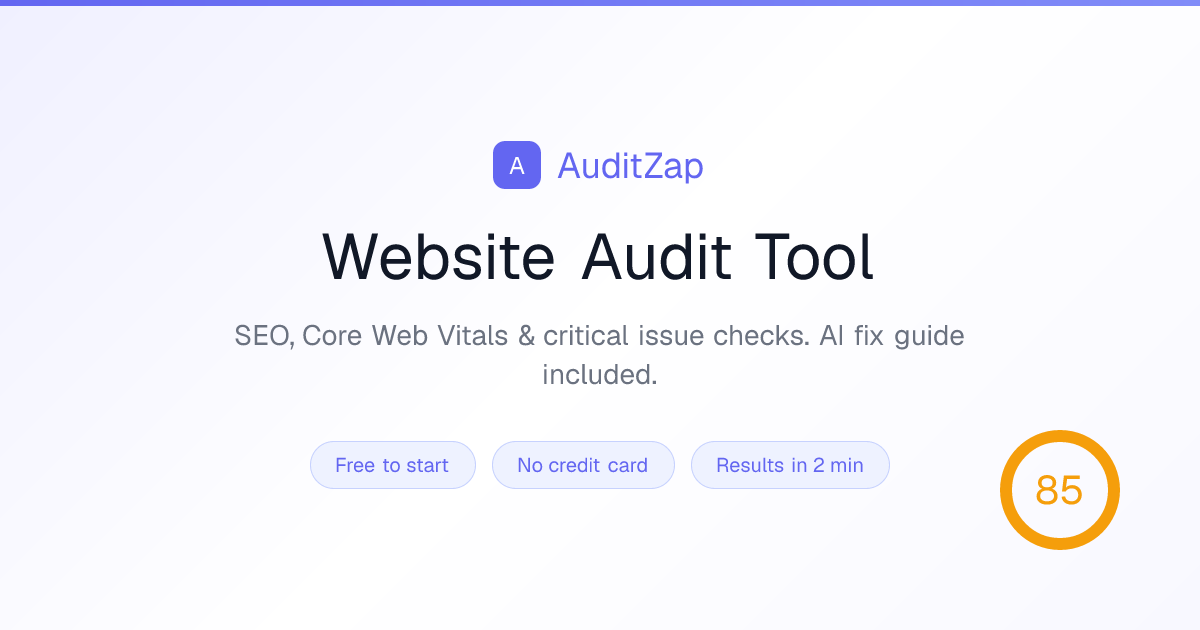
Run SEO, performance, and AI search visibility (AEO/GEO) checks on any website. Get AI fix instructions prioritised by estimated revenue impact. Free to start.

No paid content found
Visit website
Profile views 6 Outbound visits 2 Normal
Website Audit Tool - SEO & Performance Full homepage screenshot

At a glance

Category
Marketing
Language
English
Paid-content signal
No paid content foundObserved
Registered
2026
Hosting
CloudflareInferred
HTTPS certificate trusted
PassedObserved
Last updated

Website review

This review may include AI-generated content and is not individually verified. Domain, certificate and other facts come from the observed data on this page.

What is Website Audit Tool - SEO & Performance?

Website Audit Tool - SEO & Performance is a web-based auditing service from auditzap.io that crawls a site, runs a fixed set of checks, and returns a prioritised list of fixes. Its angle is the output format: rather than handing you a dashboard of raw metrics, it writes platform-specific fix instructions and ranks them by estimated revenue impact, so a non-specialist can act on the top item without translating jargon first.

What it actually does, per the page

  • Crawls up to 100 pages per audit and simulates mobile and desktop visitors.
  • Runs 40 checks spanning performance, SEO, security headers, email authentication, TLS, and nine AI search visibility (AEO/GEO) checks that roll into a single AI Visibility score.
  • Groups findings as Critical, Warnings, Passed, and Quick wins, each with an impact score out of 10.
  • Produces written fixes aimed at specific platforms, including WordPress, Shopify, and Webflow.
  • Exports: a PDF report and a "Copy for AI" .txt file.
  • Free tier allows three audits a month, with results in about two minutes and no credit card. The page also references a Pro plan with AI fixes on every issue, full detail, watermark-free PDFs, and weekly monitoring of up to five sites.

Who it suits

A small marketing or ops team without a dedicated SEO engineer is the clearest fit. The example on the page is telling: a Largest Contentful Paint of 5.2s on a pricing page, with the fix written as "preload the hero image and give it fetchpriority high, then defer the jQuery bundle." That is a task a developer can execute directly, and the estimated impact (roughly 2.1s paint) gives them a reason to prioritise it over cosmetic warnings.

Where the trade-off sits

Prioritising by estimated revenue impact is a judgement call, not a measurement — treat the percentages as directional. If you need deep crawl-log analysis, backlink data, or rank tracking, this is a complement to a larger suite rather than a replacement. For a first-pass health check on a small site, the two-minute turnaround is the main draw.

A practical next step: run the free audit on your highest-traffic landing page, then hand the top three Critical items to whoever owns the codebase and see whether they can act on the instructions without asking follow-up questions. That tells you quickly whether the fix-writing is genuinely useful for your team. For context on the standards behind the checks, web.dev covers Core Web Vitals and Google Search Central documents SEO guidance.

How does the audit prioritize which issues to fix first?

AuditZap prioritizes issues by estimated revenue impact, not by severity label alone. Each finding gets an impact score (the "AI FIX · IMPACT" figure in its audit view) and a category tag — Critical, Warning, Quick win, Performance, SEO, or AI Visibility — so the ordered list reflects what is likely to move traffic and money rather than what merely looks alarming.

What drives the order

  • Estimated revenue impact is the stated ranking signal. The sample audit shows an LCP problem on /pricing scoring 10/10 and sitting at the top, with a written estimate attached ("recover an estimated 18% of lost organic clicks").
  • Category and status add context: FAIL, WARN, or Quick win, so a cheap fix with real upside can outrank a harder one.
  • Page-level detail matters too — the slow /pricing page is flagged with its actual value (5.2s) against a target (2.5s), which makes the priority concrete.

How to use that ordering

Treat the top of the list as a short work queue, not a to-do dump. A practical sequence for a small site owner:

  1. Fix the highest-impact FAIL items first, especially anything on money pages (pricing, product, checkout).
  2. Batch Quick wins — alt text across nine images is one sitting, not nine.
  3. Re-audit after changes; the sample shows score movement (+8) so you can confirm the fix landed.

Where the trade-off sits

Revenue-weighted ordering is useful when you cannot fix everything, but it is an estimate, not a measurement. If a fix is cheap and the impact estimate is uncertain, do it anyway; if a high-impact fix needs developer time, confirm the estimate against your own analytics before committing a sprint. For a broader second opinion on the same URLs, PageSpeed Insights covers Core Web Vitals measurement, and Google Search Central explains the underlying guidance.

Next step: run one audit, take the top three items, and schedule them — then re-audit the same URL to see whether the score and the flagged pages actually changed.

What specific fixes does the AI provide for WordPress, Shopify, and Webflow?

The AI fix instructions are written per platform, but the page doesn't enumerate a separate fix catalogue for WordPress, Shopify and Webflow. What it shows is the style of fix: concrete, copy-paste-level steps tied to a specific failing check, written for the CMS the crawler detects.

What the evidence actually demonstrates

  • A Largest Contentful Paint failure on /pricing (5.2s vs a 2.5s target) produces: preload the hero image, add fetchpriority="high" to the LCP image, then defer the jQuery bundle — estimated to bring paint down to about 2.1s.
  • Fixes are labelled with a platform scope ("AI fix instructions for WordPress, Shopify, Webflow & more") and an impact score, so you can see which change is worth doing first.
  • Missing meta descriptions across 12 pages is framed as a bulk fix, with an estimated recovery of roughly 18% of lost organic clicks in the sample summary.
  • Each issue carries a "Copy fix" action and a "Mark resolved" state, so the output is meant to be pasted into your theme, app or page settings rather than read as a report.

How that plays out per platform (practical reading)

Platform Where a fix like the LCP example usually lands What to expect from an AI instruction
WordPress Theme header/functions.php, a caching or optimisation plugin, or the block editor for meta fields Named file or plugin setting, plus the code snippet to add
Shopify Theme liquid files, image settings, or app configuration; meta fields via the SEO section Theme-editor-level steps, since you rarely touch raw hosting config
Webflow Page settings, custom code embed in head/body, or the asset panel Where to paste the snippet and which page or collection it applies to

The trade-off: platform-specific wording is genuinely more useful than generic advice, but it still assumes you can edit the relevant layer. On Shopify, some performance wins sit behind the theme rather than in your control; on Webflow, custom code placement is limited to project and page level. Treat each instruction as a starting point and check it against your actual access level before promising a timeline to anyone.

Next step

Run one audit on your live URL and look at the Critical list first — those are the items the tool scores as highest impact. Before acting, confirm you can reach the file or setting each fix names; if you can't, that fix belongs with whoever manages your theme or hosting. For a second opinion on the same pages, PageSpeed Insights reports field data that complements a crawl-based audit, and Google Developers documents Core Web Vitals thresholds if you want to judge the targets yourself.

How does the AI search visibility (AEO/GEO) check work?

The AEO/GEO check is a set of nine automated tests that estimate how easily AI answer engines and generative search tools can find, read and cite a page. It rolls the results into a single AI Visibility score shown alongside the usual performance and SEO findings, rather than as a separate report.

What it looks at

  • Whether crawlers used by AI systems can access the page at all (robots rules, blocking, redirects).
  • How cleanly the main content is exposed in the HTML: headings, question-and-answer phrasing, lists, and short self-contained passages that can be quoted without surrounding context.
  • Structured data and metadata that help a machine confirm what the page is about and who published it.
  • Signals of authority and freshness, such as dates, author or organisation details, and internal links to related pages.

How it fits the workflow You enter a URL, the tool crawls up to 100 pages, runs the full check set, and lists issues by estimated revenue impact. AI visibility issues appear as their own category next to performance, SEO and quick wins, each with a plain-language fix instruction. The example in the page evidence pairs a failing Largest Contentful Paint on /pricing with a specific code-level fix and a projected improvement, and the AI summary links slow paint and thin metadata to an estimated share of lost organic clicks.

Practical limits A high score means your content is technically easy for AI systems to ingest and quote. It does not guarantee that any assistant will cite you, and it does not measure what competitors are doing. Treat it as a readiness check, not a ranking.

Who benefits most Site owners publishing explanatory content, comparisons or product pages that people ask assistants about. If your traffic depends on being the answer rather than the link, the AEO/GEO checks are the part worth acting on first; if you mainly need speed and indexing fixes, the performance and SEO categories matter more.

Next step After a scan, open the AI Visibility section and fix the structural items before the content ones: unblock crawler access, then rewrite your key pages as direct question-and-answer sections with clear headings.

What is included in the free plan versus the Pro plan?

The free plan covers the full audit itself: up to 100 pages crawled, 40 checks, and results in about two minutes. The site's own copy says you get three free audits a month with no credit card required.

Pro is where the output changes from "here's the list" to "here's the fix, in full." Based on the page evidence, the Pro plan adds:

  • AI fix instructions on every issue, not just a subset
  • Full detail on each finding (the free view appears to show a condensed version)
  • Watermark-free PDF reports
  • Weekly monitoring for up to 5 sites

The free audit still surfaces the core scoring — an overall audit score, critical/warning/passed counts, and prioritised issues like Largest Contentful Paint failures or missing meta descriptions — so you can see what is broken without paying. What Pro appears to gate is the depth of the remediation guidance and the ability to re-check automatically over time.

A practical way to decide: if you're auditing a single site once to hand a fix list to a developer, run the free audit and see whether the fix instructions are complete enough to act on. If you manage several client sites and need recurring reports you can send without a watermark, Pro's monitoring and export features are the parts that matter.

One caveat: the page mentions "Simple pricing" and a Pro plan but doesn't state a price, so check the pricing section directly before committing.

Can I monitor multiple websites and track changes over time?

Yes. AuditZap is built for recurring monitoring, not just one-off scans. The page describes monitoring up to 5 sites weekly on its Pro plan, and the audit view shows change tracking against a previous run (for example, a score of 62 with "+8 from last audit"). Each issue also carries a status you can act on — Critical, Warning, Passed — plus a "Mark resolved" control, so you can see whether a fix actually took effect on the next crawl.

What monitoring looks like in practice

  • Baseline, then compare. Your first audit sets the reference score. Later audits show deltas, so a drop in Largest Contentful Paint on one template is visible instead of buried.
  • Issue lifecycle. New criticals appear, resolved items drop off, and persistent warnings stay flagged. That is more useful than a raw score, because a score can rise while a specific page gets worse.
  • Prioritisation by impact. Fixes are ranked by estimated revenue impact, which matters when you are watching several sites and can only work on one thing this week.

Who this suits

A freelancer or small agency running a handful of client sites gets the clearest fit: weekly checks across up to 5 properties, with platform-specific fix instructions for WordPress, Shopify, Webflow and similar. A single-site owner can use the free tier (3 audits a month) for occasional checks, but weekly change tracking is the paid behaviour.

A practical next step

Pick your two highest-traffic sites, run a baseline audit on each, and note the three worst issues per site. Re-run after your fixes and compare the deltas rather than the headline scores. If you need deeper crawling than 100 pages, or monitoring across more than 5 sites, check whether that fits your portfolio before committing — the page's stated crawl and monitoring limits are the deciding constraints.

For related tooling, PageSpeed Insights is useful for confirming Core Web Vitals numbers independently, and Google Search Console shows whether organic clicks actually recover after a fix.

Related questions

More questions →
How AuditZap Prioritizes Fixes by Estimated Revenue Impact

AuditZap ranks every issue it finds with an Impact score (shown as a value out of 10, like 10/10 or 4/10), and sorts your fix list so the highest-impact problems come first. You act on that order: fix the top-scored issues before working down to lower-impact warnings and quick wins. This applies to any audit you run on a URL — the prioritization is built into the results, not something you configure.

What the Impact score represents

Each issue in the audit carries an Impact rating alongside its category and status. In the example audit shown on the site, the list looks like this:

Issue Category Status Impact
Largest Contentful Paint (/pricing · 5.2s · target 2.5s) Performance FAIL 10/10
Missing meta descriptions (12 pages) SEO FAIL 8/10
Render-blocking resources (jQuery 3.6 · analytics.js) Performance WARN 7/10
Images missing alt text (9 images) Quick win WARN 4/10

The score is the tool's estimate of how much a given fix matters — the site describes the ordering as "prioritised by what'll actually move revenue." A 10/10 issue sits at the top; a 4/10 quick win sits lower even though it may be easy to fix.

How to read and use the priority order

  1. Start at the top. The highest Impact score is the first thing to address. In the sample, that's the slow Largest Contentful Paint on /pricing.
  2. Read the AI fix instruction. Each issue comes with a written fix, not just a flag. For the LCP problem, the instruction is to preload the hero image, add fetchpriority="high" to it so the browser fetches it first, then defer the jQuery bundle — with the stated result of cutting LCP on /pricing from 5.2s to about 2.1s.
  3. Check the AI Summary for the big picture. The summary explains why the site scored what it did and estimates the upside. In the example: the site "scores 62 — held back by slow paint on /pricing and thin metadata," and fixing the preload plus adding descriptions across 12 pages is estimated to "recover an estimated 18% of lost organic clicks."
  4. Work down through Warnings and Quick wins. Lower-impact items (like the 4/10 alt-text warning) are still listed, but they come after the high-impact failures.

What each part of the output gives you

  • Impact score — the ranking signal that decides fix order.
  • AI fix instruction — the concrete change to make, written per platform (the site names WordPress, Shopify, Webflow and others), with a before/after target where relevant.
  • AI Summary — a plain-language reason for the score plus an estimated recovery figure (e.g. 18% of lost organic clicks).
  • Status labels — FAIL, WARN, and Quick win tell you whether something is broken, worth watching, or a cheap improvement.

Practical notes

  • The audit runs 40 checks across performance, SEO, security headers, email auth, TLS, and AI search visibility (AEO/GEO), and crawls up to 100 pages. Results are described as arriving in about 2 minutes.
  • The site states you can run 3 free audits a month with no credit card, and that a Pro plan adds AI fixes on every issue, full detail, watermark-free PDF reports, and weekly monitoring up to 5 sites. Treat pricing and plan limits as things to confirm on the site itself before relying on them.
  • Because the ordering is by estimated impact, resist the urge to knock out easy low-score items first — that's the opposite of what the ranking is telling you.
AuditZap Free vs Pro: What You Get and Who Should Upgrade

AuditZap's free plan gives you 3 audits per month with no credit card required, covering the full 40-check scan (SEO, performance, Core Web Vitals, security headers, email auth, TLS, and AI search visibility). Pro adds AI fix instructions on every issue, full detail views, watermark-free PDF reports, and weekly monitoring for up to 5 sites. If you audit one site occasionally, free is enough. If you manage multiple sites, need to hand reports to clients or stakeholders, or want to track changes over time, Pro is the plan designed for that.

What the free plan includes

The free tier is not a stripped-down teaser scan. Based on the site's own description, a free audit runs the same core engine:

  • Up to 100 pages crawled per audit, with mobile and desktop simulation
  • 40 checks across performance, SEO, security headers, email authentication, TLS, and AI search visibility (AEO/GEO)
  • 3 audits per month
  • No credit card required to start
  • Results in about 2 minutes, presented as a prioritised list rather than a raw spreadsheet

The output is an audit score (for example, 62/100) with issues sorted by estimated revenue impact, so you can see which fixes matter most before touching anything.

What Pro adds

Pro keeps everything above and layers on the parts that matter for repeat or client-facing work:

Capability Free Pro
Audits per month 3 Not specified on the page
AI fix instructions Not stated as included On every issue
Full issue detail Limited Full detail
PDF reports Not stated Watermark-free
Monitoring Not stated Up to 5 sites, weekly
Credit card to start Not required —

The three Pro features that change how you work:

  1. AI fixes on every issue. Instead of just flagging "Largest Contentful Paint /pricing · 5.2s · target 2.5s," Pro writes the platform-specific instruction — for example, preload the hero image, add fetchpriority="high" to the LCP image, and defer the jQuery bundle to cut paint to roughly 2.1s. Fix instructions are written for WordPress, Shopify, Webflow, and other platforms.
  2. Watermark-free PDF reports. Useful when the audit goes to a client, a manager, or a developer who wasn't in the tool.
  3. Weekly monitoring for up to 5 sites. Re-audits run on a schedule, so you see score movement (the sample dashboard shows "+8 from last audit") rather than a one-time snapshot.

Who should stay on free

  • You run a single site and want a periodic health check
  • You're evaluating the tool before committing
  • You only need the issue list and score, and you'll write your own fixes
  • You audit different sites occasionally rather than the same ones repeatedly

Three audits a month covers a monthly check on one site with room to spare.

Who should upgrade to Pro

  • Agencies or freelancers auditing client sites and delivering reports — the watermark-free PDF and AI fix text save the most time here
  • Anyone managing 2–5 sites who wants weekly monitoring instead of remembering to re-run audits
  • Teams without a dedicated developer who need fixes written out in plain, platform-specific steps rather than diagnosed and left
  • Sites where AI search visibility matters — the AEO/GEO checks roll into an AI Visibility score, and Pro's full detail makes that score actionable

What the page does not tell you

The site has a "Simple pricing" section, but the input material does not include actual price figures, billing periods, or whether Pro is monthly or annual. It also doesn't specify the Pro audit limit or whether monitoring counts against it. Check the pricing page directly before deciding — don't assume Pro is free or that the free tier has no limits beyond the 3-audit cap.

A practical way to decide

Run your 3 free audits first. Audit your main site, then re-audit it after making the top-priority fix to confirm the score moves. If you find yourself wanting the fix instructions written out, needing a clean PDF for someone else, or wishing the next audit would run automatically, that's the signal to move to Pro. If the free output already tells you everything you need to act on, there's no reason to pay for features you won't use.

How to Run a Free Website Audit with AuditZap

AuditZap audits any URL in about two minutes: you submit a URL, it crawls up to 100 pages while simulating real users on mobile and desktop, and it runs 40 checks covering performance, SEO, security, and AI search visibility. Results come back as a prioritised list of issues with platform-specific fix instructions. Free accounts can run 3 audits per month, and no credit card is required to start.

What you need before starting

  • A publicly reachable URL (the tool audits live pages, so staging sites behind a login won't work).
  • A free AuditZap account, which covers 3 audits per month.
  • A rough idea of which pages matter most — pricing, landing pages, and top entry pages are the ones whose fixes usually move the most.

Step 1: Submit the URL

Enter the site address in the audit field and start the run. AuditZap begins crawling immediately, up to a 100-page limit, and reports progress as it goes (for example, "Crawling 96 / 100 pages" with the current page and its HTTP status).

If your site has more than 100 pages, the crawl stops at the limit. Point the audit at a section or subdomain if you want coverage of a specific area rather than the whole site.

Step 2: Let the scan run

The scan applies 40 checks across every crawled page. Based on the tool's own description, these include:

Category Examples from the audit output
Performance Largest Contentful Paint, render-blocking resources
SEO Missing meta descriptions, thin metadata
Quick wins Images missing alt text
AI visibility 9 AEO/GEO checks that roll up into an AI Visibility score
Security & infrastructure Security headers, email auth, TLS

Each issue is tagged Critical, Warning, or Passed, and carries an impact weight — the sample output shows a 10/10 impact score on a slow Largest Contentful Paint. That weighting is what turns a long list into a priority order.

Step 3: Read the results page

The results page opens with a summary block:

  • Audit score out of 100, with a change indicator against the previous audit (e.g. 62 / 100, up 8 points).
  • Counts for Critical, Warnings, and Passed issues.
  • An AI Summary in plain language — for example, that a site "scores 62 — held back by slow paint on /pricing and thin metadata," with an estimate of the organic clicks recoverable by fixing it.
  • An issue table listing each problem with its category, status, and impact score.

Work top-down. The list is already ordered by estimated revenue impact, so the first two or three items are usually where the effort pays off.

Step 4: Act on each issue

Open any issue to get the fix. AuditZap writes platform-specific instructions — the sample output names WordPress, Shopify, and Webflow among supported platforms — and includes the expected result. A representative entry:

Largest Contentful Paint — /pricing · 5.2s · target 2.5s Preload the hero image and give it fetchpriority="high" so the browser fetches it first, then defer the jQuery bundle. That cuts LCP on /pricing from 5.2s to about 2.1s.

From there you have three ways to hand the work off:

  1. Copy fix — paste the instruction into a ticket, chat, or AI coding tool.
  2. Copy for AI (.txt) — export the whole audit as a text file formatted for AI tools.
  3. Export PDF — a shareable report for a client or stakeholder. Note that watermark-free PDF reports are listed as a Pro feature.

Mark issues resolved as you go, then re-audit to confirm the score moved.

Common snags

  • The crawl hits the 100-page cap. You'll see partial coverage. Audit a subdirectory or subdomain to get depth on the pages you care about.
  • A fix doesn't change the score. Some checks depend on third-party scripts or hosting configuration you may not control. Check whether the issue is marked as a warning rather than a failure before spending more time on it.
  • You've used your 3 free audits. The free tier resets monthly. Pro adds AI fixes on every issue, full detail, watermark-free PDFs, and weekly monitoring for up to 5 sites — worth it only if you're auditing regularly or reporting to clients.
  • You need a baseline. Run the audit before making changes so the "+8 from last audit" comparison means something.

When this workflow fits

AuditZap suits a fast first pass: you want a prioritised, plain-language list you can hand to a developer or act on yourself within an afternoon. It's less suited to deep crawl analysis of very large sites, since the crawl caps at 100 pages. For a single site with a handful of key pages, the three-step flow — submit, scan, fix — is enough to get from "something's wrong" to a specific change with an expected outcome.

What Does AuditZap Check in a Website Audit?

AuditZap runs 40 checks against a site you submit, covering performance, SEO, security headers, email authentication, TLS, and AI search visibility (AEO/GEO), then returns a 0–100 audit score with issues sorted into Critical, Warnings, and Passed. Each issue comes with an AI-written fix instruction and an impact score, ordered by estimated revenue impact. It's aimed at site owners and marketers who want a prioritised fix list rather than a raw data dump — the crawl covers up to 100 pages and simulates real users on mobile and desktop.

The 40 checks, by category

The audit groups its checks into these areas:

Category What it looks at
Performance Core Web Vitals and rendering issues, e.g. Largest Contentful Paint, render-blocking resources
SEO Metadata and on-page signals, e.g. missing meta descriptions
Quick wins Low-effort fixes, e.g. images missing alt text
Security Security headers
Email auth Email authentication records
TLS Transport layer security
AI Visibility 9 AEO/GEO checks that roll up into a separate AI Visibility score

The AI Visibility checks are the part that distinguishes this from a conventional SEO crawler: they assess how visible a site is to AI search and answer engines, and produce their own score alongside the overall audit score.

How results are presented

A completed audit shows:

  • An overall score out of 100, with a delta against the previous audit (for example, "62 / 100 ↑ +8 from last audit").
  • Issue counts split by severity — Critical, Warnings, Passed — and by category (Performance, SEO, Quick wins, AI Visibility).
  • A per-issue impact score out of 10, used to rank the list.
  • A status per issue — FAIL or WARN — with a link to the detail.
  • An AI Summary describing what is holding the score back and what recovering it is estimated to be worth, e.g. an estimated 18% of lost organic clicks.

Example of a single issue

A failing Largest Contentful Paint on /pricing is reported with the measured value, the page, and the target:

Largest Contentful Paint — /pricing · 5.2s · target 2.5s — Perf — FAIL — impact 10/10

The attached AI fix reads: preload the hero image and give it fetchpriority="high" so the browser fetches it first, then defer the jQuery bundle — cutting LCP on /pricing from 5.2s to about 2.1s. Fixes are written per platform (WordPress, Shopify, Webflow and others), so the instruction matches the stack the site runs on.

Other issues in the same audit follow the same shape: missing meta descriptions across 12 pages (SEO, FAIL, impact 8/10), render-blocking resources such as jQuery 3.6 and analytics.js (Performance, WARN, impact 7/10), and 9 images missing alt text (Quick win, WARN, impact 4/10).

What you get after the scan

Each audit can be exported as a PDF, copied as a .txt for AI tools, or re-run later. Issues can be marked resolved and shared. On the Pro plan, AI fixes appear on every issue, full detail is unlocked, PDF reports are watermark-free, and monitoring covers up to 5 sites weekly.

Practical notes before you run one

  • Input: a single URL. The crawler follows up to 100 pages, so very large sites are sampled rather than fully covered.
  • Time: results in about 2 minutes.
  • Access: 3 free audits a month, no credit card required to start. The page lists "Simple pricing" but does not state amounts, so check the pricing page for current figures.
  • Interpreting the score: treat the impact score, not the raw count of failures, as the ordering signal — a 10/10 LCP failure and a 4/10 alt-text warning are not equivalent work.
  • Verification: after applying a fix, re-run the audit and compare the score delta and the specific metric (for example, LCP against its 2.5s target) rather than relying on the overall score alone.
What is AuditZap and what does it do?

AuditZap is a website audit tool that scans any URL and returns a prioritised list of fixes across SEO, performance, and AI search visibility. You give it a URL, it crawls up to 100 pages, runs 40 checks, and writes platform-specific fix instructions ordered by estimated revenue impact. It's aimed at site owners and marketers who want a concrete to-do list rather than a dashboard of raw metrics — the free tier covers 3 audits a month with no credit card required.

What an audit actually produces

The output is a single prioritised list, not a report you have to interpret. Each issue carries an impact score, a category, and a status (Critical, Warning, Passed, or Quick win).

From the tool's own example audit of acme.com:

Issue Category Status Impact
Largest Contentful Paint /pricing · 5.2s · target 2.5s Performance FAIL 10/10
Missing meta descriptions (12 pages) SEO FAIL 8/10
Render-blocking resources (jQuery 3.6, analytics.js) Performance WARN 7/10
Images missing alt text (9 images) Quick win WARN 4/10

The audit score rolls these up — the sample site scored 62/100, with 3 critical issues, 9 warnings, and 28 passes.

The three-step flow

  1. Crawl — enter a URL. AuditZap crawls up to 100 pages and simulates real users on mobile and desktop.
  2. Scan — 40 checks run across critical issues, Core Web Vitals, SEO, security headers, email authentication, TLS, and 9 AI search visibility (AEO/GEO) checks that combine into an AI Visibility score.
  3. Fix — each issue gets an AI-written instruction specific to your platform, with the estimated impact attached.

The whole run is described as taking about two minutes.

What the fix instructions look like

The fixes are written as steps, not diagnoses. For the LCP failure above, the instruction is to preload the hero image with fetchpriority="high" so the browser fetches it first, then defer the jQuery bundle — cutting LCP on /pricing from 5.2s to roughly 2.1s.

Fixes are platform-specific and cover WordPress, Shopify, Webflow, and others, so the instruction matches the CMS you're actually editing rather than describing a generic change.

Who it fits

AuditZap suits you if:

  • You want a ranked action list tied to revenue impact, not a metrics dashboard.
  • You manage a site on a common platform (WordPress, Shopify, Webflow) and want fixes phrased for that platform.
  • You care about AI search visibility alongside conventional SEO — the AEO/GEO checks are a distinct part of the scan.
  • You want to trial before committing: 3 free audits a month, no credit card.

It's a weaker fit if you need deep crawl analysis across thousands of pages (the cap is 100 pages per audit) or if you only want raw Core Web Vitals data without remediation steps.

Practical notes

  • The free tier is limited to 3 audits per month — enough to check a small site or spot-check a few key URLs, not to monitor a large property continuously.
  • The example shows a re-audit comparison (↑ +8 from last audit), so scores are trackable over time.
  • Results can be exported as PDF or copied as an AI-readable .txt file.
  • A Pro plan exists and covers AI fixes on every issue, full detail, watermark-free PDF reports, and weekly monitoring of up to 5 sites. Pricing figures aren't specified in the available material, so check the site's pricing page before assuming a cost.

Website Overview

Page metadata, canonical configuration and social previews work together to provide more consistent search and sharing presentation.

Domain and Registration

The domain was registered less than a year ago and has limited historical evidence to assess. Transfer-protection status is present, helping reduce the risk of unauthorized domain transfers. The registrar is Cloudflare, Inc, a widely used domain service provider. The domain uses the common .io extension, which is not an independent safety signal.

DNS and Email

Nameservers are provided by Cloudflare, indicating managed DNS hosting. MX records point to the Proton Mail email service. No CNAME was found; the observed records resolve directly to addresses. SPF and DMARC are configured. DKIM status is unknown. TXT records include verification markers for Google. Such markers may also remain after a service stops being used.

TLS and Certificates

The public key uses EC with 256 bits. The server supplied a complete certificate chain. No organization name is present in the certificate; the available fields are consistent with domain validation. The certificate was issued by Let's Encrypt, commonly associated with automated certificate services. The certificate's total validity is about 89 days, consistent with a short renewal cycle.

HTTP and Browser Security

X-Powered-By exposes backend information: Next.js. The response lacks these common security headers: X-Content-Type-Options. The cf-ray response header indicates a CDN or caching proxy in the delivery path. No obvious internal addresses or debug information were found in the headers. The Server header identifies cloudflare without an exact version.

Technology Stack Analysis

The public page identifies Next.js, Google Tag Manager, Cloudflare without precise versions, leaving fewer clues for version-specific scanning.

Search and Social Sharing

Twitter Card metadata is configured. JSON-LD includes Organization data, helping describe the organization as an entity. The title has 38 characters, within a common display range. A meta description is present, with 159 characters. The observed directives allow indexing and link following.

Hosting and Email

DNSCloudflare
HostingCloudflare
EmailProton Mail
Approximate IP geolocation (inferred; a CDN or proxy may differ from the origin server) Location unknown Inferred 104.21.10.94

Registration details

RDAP / WHOIS

RegistrarCloudflare, Inc
Registered2026-03-22
Expires2027-03-22
Domain statusclientTransferProhibited https://icann.org/epp#clientTransferProhibited
Nameserverskayleigh.ns.cloudflare.com、sergi.ns.cloudflare.com
DNSSECunsigned

DNS records

DNS

TypeNameValueTTLPriority
Aauditzap.io104.21.10.94300—
Aauditzap.io172.67.162.196300—
AAAAauditzap.io2606:4700:3034::ac43:a2c4300—
AAAAauditzap.io2606:4700:3035::6815:a5e300—
MXauditzap.iomail.protonmail.ch30010
MXauditzap.iomailsec.protonmail.ch30020
NSauditzap.iokayleigh.ns.cloudflare.com86400—
NSauditzap.iosergi.ns.cloudflare.com86400—
TXTauditzap.iogoogle-site-verification=skDL2kVgyAcGzaP57QVyG69Bm7j1mFsv01sbJDdM8bs300—
TXTauditzap.ioprotonmail-verification=9134fcd3e54930366a7ede5349791a34a7f704d4300—
TXTauditzap.iov=spf1 include:_spf.protonmail.ch ~all300—
DMARC_dmarc.auditzap.iov=DMARC1; p=quarantine; sp=none; rua=mailto:[email protected]300—

TLS and certificates

TLS / SSL

AssessmentNormal configuration
Supported protocolsTLSv1.2、TLSv1.3
Negotiated protocolTLSv1.3
Certificate subjectauditzap.io
IssuerLet's Encrypt
Valid until2026-12-14T20:24 · Remaining when checked: 75 days
Verification detailsCertificate trust: Passed · Hostname match: Passed

HTTP response headers

HTTP

HeaderValue
content-typetext/html; charset=utf-8
cache-controlprivate, no-cache, no-store, max-age=0, must-revalidate
servercloudflare
strict-transport-securitymax-age=31536000; includeSubDomains; preload
content-security-policydefault-src 'none'; script-src 'nonce-M2UwYTgzOGEtZWRlNy00NTAzLWI4YzYtODdkMmQxNjFhNTZm' 'strict-dynamic' https://challenges.cloudflare.com https://www.googletagmanager.com https://cdn.jsdelivr.net; style-src 'self' 'unsafe-inline' https://cdn.jsdelivr.net; img-src 'self' data: blob: https://www.googletagmanager.com; font-src 'self'; frame-src 'self' https://challenges.cloudflare.com https://www.googletagmanager.com; connect-src 'self' https://challenges.cloudflare.com https://www.googletagmanager.com https://www.google-analytics.com https://region1.google-analytics.com https://*.clarity.ms; object-src 'none'; base-uri 'self'; form-action 'self'; frame-ancestors 'self'; upgrade-insecure-requests
x-frame-optionsSAMEORIGIN
x-content-type-optionsnosniff, nosniff
referrer-policystrict-origin-when-cross-origin, strict-origin-when-cross-origin
permissions-policycamera=(), microphone=(), geolocation=(), camera=(), microphone=(), geolocation=()

Identified technologies

Next.jsGoogle Tag ManagerCloudflare

Pages, Search and Sharing

Meta descriptionRun SEO, performance, and AI search visibility (AEO/GEO) checks on any website. Get AI fix instructions prioritised by estimated revenue impact. Free to start.
Canonical URLhttps://auditzap.io
LanguageEnglish (default)
Twitter Cardsummary_large_image
All bots 1 allowed · 12 disallowed
  • Allow/
  • Disallow/admin
  • Disallow/admin/
  • Disallow/api/
  • Disallow/api/admin/
  • Disallow/dashboard
  • Disallow/settings
  • Disallow/audits/
  • Disallow/login
  • Disallow/signup
  • Disallow/forgot-password
  • Disallow/reset-password
  • Disallow/two-factor

User reviews (0)

  • No reviews yet.