
 简体中文
简体中文 English
Website review
This review may include AI-generated content and is not individually verified. Domain, certificate and other facts come from the observed data on this page.
What is AutoCropper?
AutoCropper is a browser-based tool that takes a scanned page containing several photos—an album page, a pile of loose prints, or a sheet of trading cards—and automatically detects, crops, and straightens each photo into its own separate file. Instead of manually cutting out each image, you upload the scan and the AI draws a numbered box around every photo, which you can adjust before exporting. Each photo is then downloaded as a full-resolution file named after the original page (for example, album_04.jpg becomes album_04_1, _2, and so on). It accepts JPEG, PNG, TIFF, PDF, and HEIC, works without installing anything, and offers five free scans a day with no signup.
Who it suits
- People digitizing family albums or loose prints who want one file per photo rather than a single crowded page scan.
- Card collectors splitting binder pages of baseball or trading cards into individual images.
- Anyone batch-processing phone or flatbed scans who would otherwise crop each photo by hand.
Where it fits and where it doesn't
It's a focused tool: its strength is detection and splitting on pages that already contain multiple photos. It isn't a photo editor or organizer, so if your goal is retouching, color correction, or cataloging, you'd pair it with other software. The five-scans-a-day free limit also makes it better for occasional or moderate batches than for large one-off archive projects, where a paid tier or a desktop batch tool may be more practical.
A concrete next step
Try it on one representative page first—say, a full album page with four photos at slight angles. Check that the detection boxes capture each photo cleanly and that the exported files keep the resolution you need. If that sample works well, scale up to the rest of your scans; if edges are clipped, use the drag-and-resize controls on the boxes before exporting.
How do I split a scanned photo album page into separate image files?
Upload the album-page scan to a tool that detects each photo and exports it as a separate file. On AutoCropper, that means dropping in the JPEG, PNG, TIFF, PDF or HEIC scan, checking the numbered boxes the AI draws around each photo, adjusting any box that is off, and downloading one full-resolution file per photo. The site states the free tier allows 5 scans a day without signup, and that exports are named after the source page (for example, album_04_1.jpg through album_04_4.jpg).
A practical sequence
- Scan the whole album page flat. Keep the page square to the scanner edges so no photo is clipped, and use the highest resolution your scanner offers — you can always downsize later, but you cannot recover detail lost at scan time.
- Upload and review the detected boxes. Automatic detection is the time-saver, but album pages with overlapping prints, white borders or captions can produce a missed or merged box. Drag, resize or rotate any box before exporting.
- Export, then spot-check. Open two or three of the output files at full size to confirm edges are clean and nothing important was trimmed. Straightening is applied automatically, so check that horizons and building lines look level.
- Rename and file by date or album. Sequential filenames are convenient but not descriptive; a quick batch rename to something like
1987-summer-beach-01.jpgwill matter more in ten years than it does today.
When this approach fits, and when it doesn't
| Situation | Auto-cropping works well | Manual cropping is better |
|---|---|---|
| Page with several clearly separated prints | Yes — detection is quick and consistent | — |
| Photos overlapping or touching each other | — | Yes, boxes may merge or clip edges |
| Dozens of album pages | Yes — batch processing saves the most time | — |
| One or two photos, or a single portrait | — | Yes, not worth the setup |
| Scans with heavy shadows, curls or skew | Partly — check every box | Yes, if edges are ambiguous |
For a reader digitising a family album, the realistic workflow is to scan a stack of pages in one sitting, run them through the cropper in batches across a few days (given the daily free limit), and review boxes page by page rather than trusting the output blind. If you would rather keep everything on your own machine, desktop photo editors with batch crop features are a reasonable alternative, at the cost of more manual box-drawing per page.
Can I crop multiple photos from a single scan at once without installing software?
Yes. AutoCropper is built for exactly that: upload one scanned page containing several photos, and its detection outlines each photo as a separate box, which you can drag, resize or rotate before exporting. Each photo is then downloaded as its own full-resolution file, named after the source page (for example, one page comes back as separate numbered files). It runs in the browser with no install, and the page states a free tier of five scans a day without signup. Supported inputs listed on the page include JPEG, PNG, TIFF, PDF and HEIC.
What this suits, and what to check
- Good fit: album pages, loose photo piles on a flatbed, or binder sheets of trading cards where you want one file per item rather than one big page.
- Straightening: the page says detected photos are also straightened, which matters for phone shots of pages taken at a slight angle.
- Accuracy still needs a look: automatic detection is a starting point, not a guarantee. Plan to scan the numbered boxes quickly before export, especially on pages with overlapping photos, white borders on white backgrounds, or very small images.
- Quality trade-off: the page claims full-resolution, uncompressed exports. If archival quality matters, compare one exported file against your original scan at 100% zoom before processing a whole batch.
Practical next step
Run a single representative page first—ideally your messiest one—and count how many photos it detects versus how many are actually there. If the boxes land correctly, batch the rest; if not, the manual box adjustment is still faster than cropping each photo by hand.
Does AutoCropper work with scanned trading cards or binder pages?
Yes. AutoCropper is built for exactly that use case: you scan or photograph a binder page or a pile of cards, upload the page, and its detection draws a numbered box around each card so every one exports as a separate full-resolution file. The page explicitly names "a binder page of baseball or trading cards" as a supported starting point, alongside album pages and loose photo piles, and accepts JPEG, PNG, TIFF, PDF and HEIC input from either a flatbed scanner or a phone.
What to expect in practice
- Detection, then manual correction. Boxes appear in seconds, and you can drag, resize or rotate any box before exporting — useful when a card sits slightly askew in a pocket or a dark card edge blends into a black binder page.
- Naming and output. Files come back named after the source page (e.g.
album_04_1.jpgthroughalbum_04_4.jpg), which keeps a multi-page binder organized without renaming by hand. - No compression on export, per the site, so card images stay at scan resolution — relevant if you plan to list cards or inspect corners and centering.
- Free tier: 5 scans per day with no signup, which suits a single binder page or two at a time rather than a whole collection in one sitting.
A realistic workflow
Photograph each binder page flat and evenly lit (avoid flash glare on plastic pockets), then upload pages one at a time and check the boxes before exporting. For a large collection, batch your work by binder rather than by card so the page-based filenames stay meaningful.
If you need a second opinion on results before committing a big batch, run one representative page first — a page with mixed orientations and a dark background is the toughest test. For general scanning technique, see AutoCropper's own guidance, and for scanning hardware and photo-workflow context, ScanTips and DPBestflow cover capture and file-organization basics.
Is AutoCropper free, and what limits apply to the free plan?
Yes. AutoCropper is free to use in the browser, and the free tier is capped at 5 scans per day with no signup required. A "scan" here means one uploaded page containing multiple photos, so a single scan can yield several cropped files. The site also states that exports are full-resolution and uncompressed, so the daily scan count—not image quality—is the main constraint.
What the free plan covers
- Batch detection and cropping of every photo on a scanned page, with automatic straightening.
- Manual adjustment of detected boxes (drag, resize, rotate) before export.
- Separate files per photo, named after the source page (e.g.,
album_04_1.jpgthrough_4). - Common input formats, including JPEG, PNG, TIFF, PDF and HEIC.
Where the limit bites
The 5-per-day cap suits occasional jobs: a few album pages, a binder sheet of trading cards, or a pile of loose prints shot on a phone. It becomes tight for anyone digitizing a large collection in one sitting—say, dozens of album pages—where the work would need to be spread across several days or moved to a paid tier. The site lists a Pricing page, but plan details and any paid limits should be checked there directly.
Next step: if you have a big batch, test one representative page first and count how many photos it yields per scan. That tells you whether 5 scans a day matches your pace or whether you should plan the project across multiple sessions.
Which file formats like PDF, HEIC, or TIFF can I upload to AutoCropper?
AutoCropper accepts JPEG, PNG, TIFF, PDF and HEIC uploads, based on the format list shown on the page. So a multi-page PDF or a HEIC shot from a phone can go straight in without converting first.
What that means in practice:
- PDF and TIFF suit flatbed scans, where one file often holds a whole album page or several photos.
- HEIC suits phone photos of loose prints or album pages, so you can skip the export-to-JPEG step.
- JPEG and PNG cover most existing digital files and screenshots.
The page does not say whether multi-page PDFs are handled page by page, or what size or resolution limits apply. If you plan to upload a long PDF, test one page first and confirm each photo comes back as its own full-resolution file.
A useful next step: start with a single scanned page in the format you actually use, check that every photo is detected and straightened, then batch the rest. The free tier is described as five scans a day with no signup, which makes a test run low-risk.
 Google Cloud DNS
 Vercel
 Google Workspace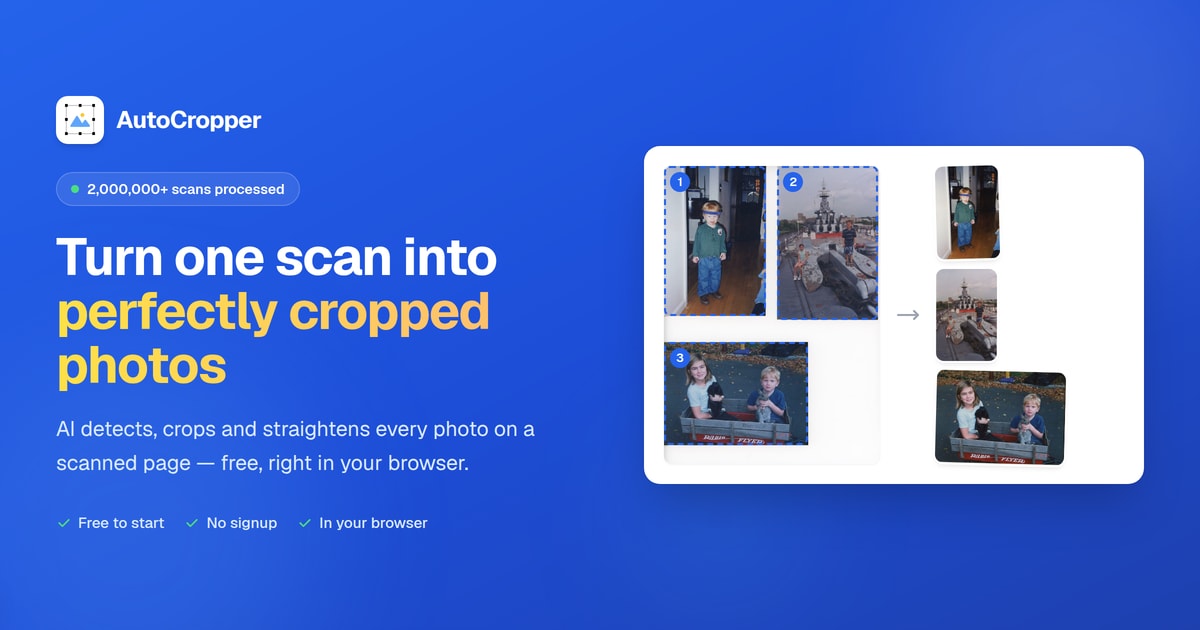
User reviews (0)