Website profiles · Technology insights · Alternatives

coolshap.es

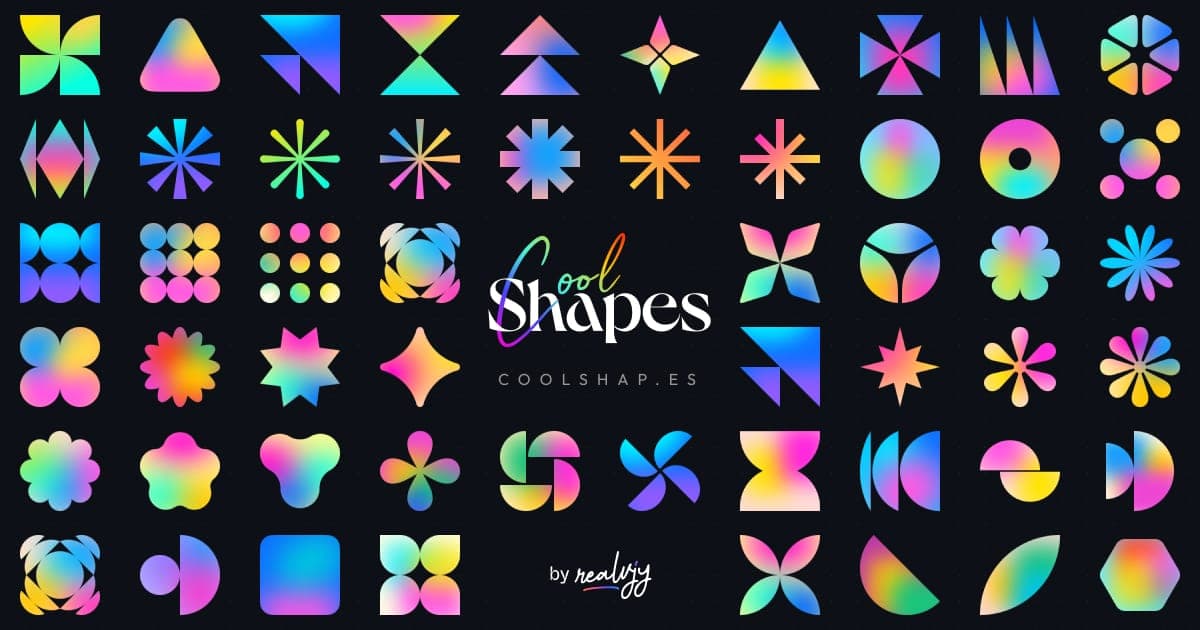
100+ Abstract shapes with cool grainy gradient. Ready to use with any design dev project.

No paid content found
Visit website
Profile views 0 Outbound visits 0 Normal
coolshapes Full homepage screenshot

At a glance

Category
Design & Creativity
Language
English
Paid-content signal
No paid content foundObserved
Registered
Unknown
Hosting
VercelInferred
HTTPS certificate trusted
PassedObserved
Last updated

Website review

This review may include AI-generated content and is not individually verified. Domain, certificate and other facts come from the observed data on this page.

What is coolshapes?

coolshapes is an open-source collection of more than 100 abstract shapes with grainy gradient styling, offered in SVG, JSX and PNG formats and packaged for use in React projects. The site describes it as ready to drop into any design or development project, and it is released under the MIT License, which permits both personal and commercial use.

What you get

  • A library of abstract blob- and form-like shapes rather than conventional icons or geometric primitives.
  • The same shapes exported several ways: raw SVG, React-ready JSX, and PNG.
  • A Figma file for designers, plus an installable package for developers.
  • A noise/grain treatment baked into the gradient look, which is the main visual signature.

Who it suits

  • Frontend developers who want decorative background art, hero accents or card imagery without commissioning illustrations. The documented workflow is: install the package, import it into React, then render shapes.
  • Product designers who want consistent abstract artwork in Figma mockups before handing off.
  • Small teams and solo builders who need license-clean assets for client or commercial work.

Trade-offs to weigh

The grain is the appeal and the limitation: shapes read as soft and atmospheric, so they work well behind text or as section dividers but poorly where crisp, legible iconography is needed. Because the set is deliberately abstract, you are choosing variety of form over semantic meaning—there is no "arrow" or "user" shape to reach for. Using the React package ties you to that ecosystem; for static sites, plain SVG or PNG files are the simpler route.

A practical next step

Open the demo, pick two or three shapes that match your brand palette, and test them at both small and large sizes—grainy gradients can muddy at thumbnail scale. If you need complementary icon-style or illustration assets, compare with Heroicons for interface icons or unDraw for editable flat illustrations; coolshapes fills the abstract-decoration gap those sets don't.

How do I install and import coolshapes into a React project?

Install the package, then import the shape components you need. According to the coolshapes site (Coolshapes), the workflow is three steps: install the package, import it into your React app, and use the provided examples. The set is open-source under the MIT license and is offered as React components as well as SVG/JSX and PNG assets.

Practical setup

  1. Install the package in your project directory using your package manager (for example, npm install with the package name shown on the site's install step).
  2. Import the component into the React file where you want the shape, following the import path in the site's "Import it to Your React" section.
  3. Render it like any other React component, using the site's example code as a starting point.

Choosing between the formats

Format Best for Trade-off
React package Apps already using React; consistent props and reuse Adds a dependency; tied to the React component API
SVG / JSX Copying a single shape into any framework or plain HTML Manual placement; you manage sizing and styling
PNG Quick mockups, slides, or non-code tools Raster, so it can blur when scaled

For a typical React landing page, importing a few components from the package is the fastest route and keeps shapes consistent across sections. If you only need one decorative shape, downloading the SVG or JSX from the site avoids adding a dependency. The grainy gradient look is the main draw, so check how each shape sits on your background color before committing to a set.

Can I use coolshapes in commercial projects, and what license applies?

Yes. coolshapes is released as open source under the MIT License, and the site states the shapes are free for both commercial and personal projects. That means you can use the 100+ abstract shapes with grainy gradients in client work, products, marketing pages and apps without paying a fee, while keeping the MIT terms in mind.

What the MIT License means in practice

  • Permitted: commercial and personal use, modification, and redistribution as part of your own work.
  • Required: keep the copyright and license notice when you redistribute the shapes or a substantial portion of them.
  • Not required: you do not need to credit the creator on every page, though attribution is a reasonable courtesy.
  • Watch out: MIT covers the shape assets, not third-party fonts, brand marks or other material you combine with them. Check those separately.

Choosing between the formats

The page lists React package, SVG, JSX and PNG versions of each shape. For a commercial web product, the React package or SVG/JSX is usually the better fit: assets stay crisp at any size and are easy to restyle. PNG is convenient for slides, social posts or quick mockups, but fixed-resolution and heavier.

A concrete scenario

If you are building a SaaS landing page, install the package, import a handful of shapes, and use them sparingly behind hero text or as section dividers. Confirm the license file ships with your repository, then adjust gradient colors to match your brand.

For the exact terms, read the license in the project's repository, linked from coolshapes.

What file formats (SVG, JSX, PNG) are available for the shapes, and which should I choose?

Coolshapes provides each shape in three forms: SVG, React/JSX, and PNG. The page shows these as download/format options alongside a Figma file, plus a React package you can install and import into a React project.

Which format to choose

Format Best for Trade-offs
SVG Websites, apps, design tools (Figma, Illustrator), anything that needs clean scaling Vector, scales without blur; grainy gradients may render slightly differently across tools, so preview in context
JSX / React React projects where you want the shape as a component Convenient if you already use the package; adds a dependency and is tied to React rather than plain HTML
PNG Quick mockups, slide decks, social posts, email where SVG support is unreliable Raster: fixed resolution, can look soft when enlarged, larger file size at high resolution

Practical guidance

  • Building a React site or app: use the JSX/React option or the package, since the page documents installing it and importing it into React. It keeps shapes as components you can drop in and style.
  • Using plain HTML/CSS, Vue, or another framework: take the SVG. You can embed it inline or as an image and control size with CSS.
  • Designing in Figma or Illustrator: use the Figma file or the SVG so shapes stay editable and crisp.
  • Sending to a client, pasting into email, or dropping into a tool without SVG support: use PNG, but pick a large enough export for the final display size.

A sensible default: start with SVG for anything web-facing, switch to JSX only if you're in React and want component convenience, and reserve PNG for contexts that can't handle vectors. If you need a concrete next step, download one shape in both SVG and PNG, place each at the same on-screen size, and compare the grain and edges before committing to a format for the whole set.

How do I download the Figma file or access the full shape library?

The Figma file and the full 100+ shape library are both accessed from the coolshapes site itself. The page offers a "figma file" link alongside the shape gallery, and the same gallery is where you browse every shape and grab it as SVG, JSX or PNG. For code projects, the page's "How to use?" section walks through installing the package and importing it into React.

Practical routes

  • Designers (Figma): Use the on-page Figma file link to open the library in Figma, then duplicate it to your own drafts. This is the fastest path if you want to recolor, resize or mix shapes into mockups before handing off.
  • Developers (React): Follow the three steps on the page—install the package, import it into your React project, then use the example as a starting point. Each shape is also listed with SVG, JSX and PNG options, so you can copy a single asset without the package if that suits a one-off landing page.
  • Non-React or no-code use: Download individual PNGs or SVGs directly from the gallery and drop them into Webflow, Framer, Figma, slides or print layouts.

Choosing between the routes

Need Best route Trade-off
Editing shapes, building a moodboard Figma file Manual updates; you re-download if the library changes
Consistent shapes across a React app Package import Ties the assets to your build; less flexible for non-devs
One-off asset for any tool SVG/PNG from the gallery No central updates; you manage files yourself

The site notes the set is open-source under the MIT License, which matters if you plan to use shapes in client work or commercial products—check the license terms on the project's GitHub page before shipping. A sensible next step: open the gallery, pick two or three shapes that match your brand's geometry, and test them in your actual layout before committing to the full set. If you need a broader style reference, Figma hosts community files, though the coolshapes file itself is the direct source here.

Where can I report issues or get support for coolshapes?

Report issues on the project's GitHub repository, and for quick questions or suggestions, reach the creator on X at @realvjy. The site itself points to both channels under its "How to use?" section.

Which channel to use

  • Bugs, broken components, feature requests: open an issue on GitHub. This keeps the problem visible to other users and creates a record if others hit the same problem. The site links to the repository from its "Github" link, so start there rather than guessing a URL.
  • Short questions, feedback, ideas, or a quick "does this exist?" check: message @realvjy on X. This suits informal suggestions; it is less useful for tracking a reproducible bug.

Practical example

Suppose a React import from the package fails after an update. Open a GitHub issue with the shape name or component, the package version, your React version, and a minimal snippet or screenshot. Other users can confirm the same failure, and a fix stays discoverable. For something like "could you add more rounded shapes?", a brief message to @realvjy is enough.

Decision criterion

Ask one question: does the problem need to be tracked and reproduced? If yes, use GitHub issues. If it is a suggestion or one-off question, use the creator's social handle. Before posting, check the site's existing documentation section, since setup questions are often already covered there.

For broader design references while you work, coolshapes is the project's own home, and the open-source license means you can adapt the assets for both personal and commercial projects.

Related questions

More questions →
How to Use CoolShapes Abstract Shapes in a React or Design Project

CoolShapes is an open-source set of 100+ abstract shapes with grainy gradients, released under the MIT License for both commercial and personal projects. To use it, install the package and import shapes into your React project, or download the Figma file or individual SVG/PNG assets for design work. The site provides React package, SVG, JSX, and PNG options, so your choice depends on whether you're building in code or designing in a tool.

What CoolShapes Provides

The project, crafted by realvjy, offers a library of abstract shapes with a grainy gradient style. According to the site, each shape is available in multiple formats:

Format Best For
React package Developers adding shapes directly to a React app
SVG Design tools and web use where you want scalable vector assets
JSX React projects that prefer inline component code
PNG Quick mockups or tools that don't handle vectors well

The site also offers a Figma file download, which is useful if you want to browse all shapes visually and drop them into a design file.

Using CoolShapes in a React Project

The site's "How to use?" section outlines three steps.

1. Install the package

Install the CoolShapes package through your package manager. The site lists this as the first step under "Install package"; check the GitHub repository or detailed documentation linked from the site for the exact package name and command, since the excerpt doesn't spell it out.

2. Import it into your React project

After installing, import the shapes into your React component. The site's second step is "Import it to Your React." The expected result is that the shape components become available in your JSX.

3. Use the example as a starting point

The site includes a "Here some example" section showing usage. Start from that example and swap in the shapes you want. If you prefer not to add a dependency, you can instead copy the JSX or SVG for an individual shape from the site and paste it into your component.

Choosing Between SVG, JSX, and PNG

  • Use JSX or the React package when the shapes live inside a React codebase and you want them as components you can style and reuse.
  • Use SVG when you're working in a design tool, a non-React site, or any workflow that accepts vector files. SVG stays sharp at any size.
  • Use PNG when you need a quick raster image for a mockup, slide, or a tool that doesn't support vectors. PNG won't scale as cleanly.

For design-first work, download the Figma file to see the full set, then export what you need.

Licensing and Reuse

CoolShapes is described as completely open-source under the MIT License, free for commercial and personal projects. That means you can use the shapes in client work and products without a separate license purchase, though you should keep the license terms in mind if you redistribute the assets themselves.

Common Snags

  • Can't find the install command: The excerpt names the step but not the exact package. Use the GitHub link or detailed documentation on the site for the current command.
  • Shape looks different from the preview: The grainy gradient effect may depend on the format. If a PNG looks flat or blurry, try the SVG or JSX version.
  • Import errors in React: Confirm you're importing from the correct package path shown in the site's example, and that your build setup handles the file type you chose.
  • Need help: The site points to @realvjy or the GitHub issues page for questions and suggestions.

Quick Decision Guide

If you're a developer, install the package and follow the three-step example. If you're a designer, download the Figma file or grab individual SVGs. If you just need a one-off image, use a PNG. In all cases, the MIT License covers commercial and personal use.

What Does UI Mean in Web and App Development?

UI (user interface) is the visual and interactive layer of a product: the screens, buttons, forms, menus, and feedback a person sees and operates. It is separate from backend logic, which handles data, rules, and storage behind the scenes. In modern development, UI is rarely built from scratch; it is assembled from reusable components and larger blocks, often drawn from a library such as shadcn/ui. This explanation covers what UI includes, how component-based UI changes the build process, how UI differs from UX, and how to choose a component set for a project.

What UI Covers

UI is everything a user directly perceives and manipulates:

  • Layout and structure — where elements sit on a page or screen.
  • Visual styling — color, typography, spacing, icons, and imagery.
  • Interactive controls — buttons, inputs, toggles, dropdowns, modals.
  • State and feedback — loading indicators, validation messages, hover and focus states, empty states.
  • Responsive behavior — how the interface adapts across screen sizes.

Backend logic decides what data exists and what is allowed; UI decides how that data and those actions are presented and triggered. A login form is UI; password hashing and session validation are backend.

How UI Is Built Today: Components and Blocks

Instead of writing every button, card, and dialog from scratch, teams compose UI from reusable pieces. Two levels matter:

Level What it is Example use
Component A single reusable element with defined props and states A button, input, or badge
Block A pre-assembled group of components forming a section A pricing table, dashboard header, or auth form

Component libraries standardize styling and behavior so a team does not re-solve the same problems on every page. Block collections go further by shipping complete sections that can be dropped into a page and adjusted.

Creative Tim's platform illustrates this model: it offers 360+ shadcn/ui blocks, described as blocks for AI code generators like v0 and Lovable, completed with a Registry and MCP. That framing matters because it shows where blocks now fit: they are inputs to AI-assisted generation as much as hand-assembled page sections. A developer or maker can describe an interface, have a generator produce it, and use blocks to keep the output consistent and production-ready.

Where UI libraries fit in a workflow

A typical component-based workflow looks like this:

  1. Define the screen and states — list what the user sees and does on each screen, including loading, error, and empty states.
  2. Map to existing components and blocks — check whether the library already covers the element or section before building custom.
  3. Compose the page — assemble blocks, then wire in data and events.
  4. Customize styling — apply the project's tokens (color, spacing, type scale) so the result matches the brand.
  5. Verify behavior — test interactive states, keyboard access, and responsiveness.

The expected result is a working interface built mostly from tested pieces, with custom code reserved for what is genuinely unique to the product.

UI vs. UX: Related but Not the Same

  • UX (user experience) is the overall quality of a person's journey through the product: whether tasks are easy, flows make sense, and friction is low.
  • UI is the concrete surface through which that journey happens.

A product can have a polished UI and still deliver poor UX if the flow is confusing, and a well-planned UX can be undermined by a clumsy UI. Both matter because users judge the product on the combination: clear paths and clear screens.

Criteria for Choosing a UI Component Set

When picking a library or block collection, compare options on the same dimensions:

  • Framework fit — does it target your stack (React, Vue, Angular, plain HTML, Tailwind CSS)?
  • Coverage — how many of your needed components and sections exist out of the box?
  • Customizability — can you change styling without fighting the library?
  • Accessibility — are keyboard navigation and screen-reader behavior handled?
  • Maintenance — is the set actively updated, and how large is its user base?
  • Generator compatibility — if you use AI code generators, does the set integrate with them (for example, via a registry or MCP)?

Creative Tim's audience description is a useful signal for matching tool to role: developers use reusable UI blocks and templates to ship faster; no-coders and makers generate sites and workflows without writing code; founders and marketers launch pages and experiments in minutes. If your work is mostly assembling standard screens, a large block collection saves the most time; if your product has unusual interactions, prioritize customizability over coverage.

Practical Takeaway

Treat UI as a layer you compose, not a layer you invent each time. Start by listing screens and states, map them to existing components and blocks, and only then write custom UI for what remains. That approach keeps the interface consistent, shortens build time, and leaves your effort for the parts of the product that are actually unique.

How to Use Ahrefs for Your First SEO Audit: A Step-by-Step Tutorial

If you're new to Ahrefs and want to run your first SEO audit, the fastest path is: open Site Explorer, enter your target URL, review the Overview for a health snapshot, then dig into Organic Keywords, Top Pages, and Site Audit to find specific problems. From there, build a short prioritized to-do list instead of trying to fix everything at once.

This tutorial walks through that workflow using a realistic starting scenario, explains what the numbers mean, and shows how to turn findings into actions.

Before You Start: Pick a Narrow Scope

A common beginner mistake is auditing an entire large website on day one. The reports become overwhelming, and you can't tell which issues matter.

Instead, choose one of these starting points:

  • A single important page (your homepage or a key product/service page)
  • A small site (under ~50 pages, e.g., a personal blog or small business site)
  • One section of a bigger site (e.g., /blog/)

For this tutorial, assume you're auditing a small business site with about 30 pages. The same steps scale up later.

You'll need an Ahrefs account to follow along. Ahrefs offers paid plans, and pricing and feature limits change over time, so check the current Pricing page for what's included in each tier before committing.

Step 1: Enter Your Target in Site Explorer

Site Explorer is Ahrefs' core tool for analyzing any website or URL.

  1. Open Site Explorer from the top navigation.
  2. In the search box, paste your domain (e.g., example.com).
  3. Choose the Exact URL or Domain mode depending on scope. For a full-site view, use Domain or Prefix; for a single page, use Exact URL.
  4. Press Enter.

You'll land on the Overview report. Don't try to absorb everything — focus on four numbers first.

Reading the Overview Snapshot

Metric What it tells you How to use it
Ahrefs Rank (AR) Relative strength of the site's backlink profile vs. others in the database Useful for comparing against competitors, not as a standalone goal
Organic traffic Estimated monthly visits from search A rough trend indicator, not exact analytics
Organic keywords Estimated number of keywords the site ranks for Shows breadth of visibility
Backlinks / Referring domains Total links and unique sites linking to you Referring domains matter more than raw backlink count

Important caveat: Ahrefs' traffic and keyword numbers are estimates based on its own data. They won't match Google Search Console or your analytics exactly. Treat them as directional, not absolute.

Step 2: See What You Already Rank For

Go to Organic Keywords in the left sidebar. This shows queries where your site appears in search results.

Sort by Traffic (descending) to see which pages bring the most estimated visitors. Then look for:

  • Keywords ranking in positions 4–15 — these are often the easiest wins. A small content or on-page improvement can push them onto page one.
  • Keywords with high volume but low position — potential opportunities if the topic is relevant.
  • Irrelevant keywords — if you rank for something off-topic, it may signal thin or mismatched content.

Write down 5–10 of the position 4–15 keywords. These become your first optimization targets.

Step 3: Find Your Best and Weakest Pages

Open Top Pages. This ranks your URLs by estimated organic traffic.

Look for two things:

  1. Your top performers — understand what topics and formats work. Can you create more content like this?
  2. Pages with traffic but poor rankings — these may need on-page fixes (title, headings, internal links).

If a page gets zero traffic and targets a topic you care about, it's a candidate for a rewrite or consolidation.

Step 4: Run a Technical Site Audit

Now move to Site Audit. This crawls your site and flags technical and on-page issues.

  1. Click Site Audit → New project.
  2. Enter your domain and set crawl settings (default is usually fine for a small site).
  3. Start the crawl and wait for it to finish.

Once complete, you'll see a Health Score and a list of issues grouped by category.

Which Issues to Fix First

Not all issues are equal. Prioritize in this order:

Priority Issue type Why it matters
1 Broken links (404s) Bad for users and crawl efficiency
2 Pages blocked from indexing They can't rank at all
3 Missing or duplicate title tags Directly affects click-through and relevance
4 Slow-loading pages Affects experience and rankings
5 Thin content Low value to users and search engines

Ignore low-impact warnings (like minor meta description length) until the big items are handled.

Step 5: Turn Findings Into a To-Do List

You now have raw data. Convert it into a short, actionable list. Example:

  1. Fix 3 broken links found in Site Audit.
  2. Rewrite title tags on 5 pages with duplicate titles.
  3. Improve 4 pages ranking in positions 6–12 by adding missing subtopics and internal links.
  4. Remove or update 2 thin pages with no traffic.

Keep the list to 5–10 items max for your first audit. Finishing a short list beats starting a long one.

Common Beginner Mistakes

  • Chasing every red flag. Site Audit flags many minor issues. Fix what affects rankings and users first.
  • Trusting estimates as exact numbers. Ahrefs data is modeled, not measured from your analytics.
  • Auditing a huge site too early. Start small to learn the interface.
  • Ignoring search intent. A page can be technically perfect but still fail if it doesn't match what searchers want.
  • Forgetting to re-crawl. After fixes, run Site Audit again to confirm improvements.

Where to Go Next

Once your first audit is done:

  • Compare with competitors using Site Explorer's Competing Domains and Content Gap reports.
  • Track keyword rankings over time with Rank Tracker.
  • Explore backlink opportunities in the Backlinks and Link Intersect reports.
  • Set up recurring Site Audit crawls so new issues surface automatically.

Your first audit isn't about perfection — it's about building a repeatable habit: enter a target, read the key reports, pick the highest-impact fixes, and act. Do that once a month and your site's health compounds.

What Does Design Mean in Stainless Steel Fabrication?

In stainless steel fabrication, design means engineering the part so it can actually be made: setting dimensions, material grade, joint and weld details, finish and tolerances, then checking that the workshop can cut, form, weld and finish it as drawn. It is not graphic design or product styling. This stage matters whenever you need a bespoke stainless item — a frame, tank, duct, pipework run or enclosure — and it usually starts from your sketch, sample or drawing rather than a finished CAD model.

What the design stage covers

Design work in a fabrication shop turns an idea into instructions the workshop can follow. That normally includes:

  • Geometry and dimensions — overall sizes, bend radii, hole positions, and how parts fit together.
  • Material grade — which stainless grade suits the environment (for example a grade chosen for corrosion resistance or for weldability). The fabricator should confirm the grade rather than assume it.
  • Joint and weld details — where seams run, whether welds are visible or dressed, and how access is provided for the welder.
  • Finish — the surface treatment required, such as a brushed, polished or other finish, and which faces are cosmetic.
  • Tolerances — how accurate the finished part must be, since tighter tolerances generally mean more work.

How design decisions affect manufacture and cost

Most cost and lead-time differences between two apparently similar parts come from design choices, not from the amount of steel:

Design choice Effect on fabrication
Complex geometry with many bends More forming steps, more chances of distortion
Welds in hard-to-reach positions Slower welding, higher risk of defects
Visible, dressed welds Extra finishing time
Tight tolerances More checking and rework
Cosmetic finish on all faces More handling and protection during work

A design that is easy to weld and finish is usually cheaper and faster than one that only looks simple on paper.

Typical design-to-manufacture workflow

  1. Brief or sketch — you provide a drawing, sketch, photo or sample, plus what the part must do.
  2. Design review — the fabricator checks feasibility, suggests changes, and confirms grade, finish and tolerances.
  3. Agreed drawing — a dimensioned drawing or model is signed off before cutting starts.
  4. Fabrication — cutting, forming, welding and finishing to the agreed drawing.
  5. Inspection — the finished part is checked against the drawing and finish specification.

The design review step is where most problems are caught cheaply, before any material is cut.

Common design mistakes that cause delays

  • Missing dimensions, or dimensions that do not add up.
  • No material grade specified, or a grade that is hard to weld or form.
  • Finish left undefined, so the workshop guesses.
  • No tolerance stated, leading to disagreement at inspection.
  • No allowance for weld distortion on large or thin panels.
  • Cosmetic faces not marked, so they get scratched during handling.

Questions to ask a fabricator at the design stage

  • Which grade do you recommend for this environment, and why?
  • Can this be made as drawn, or would a small change reduce cost or lead time?
  • Which faces are cosmetic, and how will you protect them?
  • What tolerance can you hold, and how will it be checked?
  • Will welds be visible, dressed or hidden?
  • What do you need from me before you can quote and start?

Getting clear answers to these before fabrication begins is the practical way to avoid rework and unexpected cost.

What Is Illustration and How Does It Differ from Comics and Other Drawing Art?

Illustration is purpose-driven image-making: a drawing, painting, or digital artwork created to communicate a specific idea, story, or message for a client, publication, or product. It differs from comics in structure (illustration is usually a single image or a set of standalone images, while comics use sequential panels to tell a story over time) and differs from fine art in intent (illustration serves an external brief, while fine art is typically driven by the artist's own expression). If you are trying to decide which label fits your work — or which workflow tool to use — the deciding factor is usually function, not medium or style.

The Core Definition of Illustration

An illustration is an image made to do a job. That job can be:

  • Explain something (a diagram in a textbook, an infographic, a medical drawing)
  • Narrate a moment (a scene in a novel, a story beat in a children's book)
  • Persuade or sell (advertising art, packaging, poster design)
  • Decorate or brand (editorial spot art, album covers, editorial headers)

The key word is brief. Illustration usually answers a question someone else asked: "Show what this article is about," "Depict this character," "Make this product look desirable." That external purpose is what separates it from a drawing made purely for the artist's own exploration.

Common Types of Illustration

Type Typical use What drives it
Editorial illustration Magazines, news sites, blogs Commenting on or summarizing an article
Book illustration Children's books, covers, chapter art Supporting a written narrative
Concept illustration Film, games, animation pre-production Exploring designs before final production
Commercial/advertising Packaging, campaigns, posters Selling a product or idea
Technical/scientific Manuals, textbooks, medical art Accuracy and clarity over style
Character illustration Comics, games, merch Establishing a repeatable, recognizable design

Many illustrators work across several of these. A manga artist, for example, may do character illustration for merchandise while also drawing sequential pages.

Illustration vs. Comics: The Structural Difference

The cleanest distinction is sequence.

  • An illustration is a single image, or a set of images that each stand alone. You can look at one and get the full message.
  • A comic is a sequence of images — usually in panels — where meaning is built between images through reading order, timing, and continuity.

A comic page can contain illustrations, and an illustrator can draw comic-style art, but the moment the work depends on the reader moving from panel to panel to understand what happens, it is functioning as comics. A single splash page of a superhero standing dramatically is closer to illustration; the same character across six panels reacting to an explosion is comics.

This matters practically. ComicsFlow, for instance, is built around project models such as manga and American comics, and its stated focus is organizing and scheduling a creative workflow — planning, tracking progress, and previewing activity images. That framing assumes multi-stage, multi-page projects, which is the comics side of the line rather than the single-image illustration side.

Illustration vs. Fine Art / Drawing

Drawing is a technique; illustration is a role. You can draw with a pencil, a tablet, or charcoal and be doing either.

  • Fine art is generally made for exhibition, collection, or personal expression. The artist sets the brief.
  • Illustration is generally made to be reproduced and used — printed in a book, posted on a site, applied to a product. Someone else usually sets the brief.

A gallery charcoal portrait and a charcoal portrait commissioned for a magazine cover may look identical. The difference is the context and the constraint: the magazine version had a deadline, a size, a message to hit, and an editor to satisfy.

Where Illustration Shows Up in Comics and Related Fields

Illustration is not a separate universe from comics — it overlaps constantly:

  • Covers and promo art for comics and manga are illustration.
  • Character sheets used by a mangaka to keep a character consistent are illustration.
  • Webcomics often start as a single illustrated image or concept before becoming a sequential strip.
  • Manhwa, manga, and American comics all rely on illustrators for covers, posters, and merchandise even when the interior pages are sequential.

If your project is a single striking image, you are illustrating. If it is a story told across pages, you are making comics — and that is the kind of project where a scheduling and progress-tracking tool like ComicsFlow is aimed, since it lets you pick a model (manga, American comics, or your own) and follow progress across the work.

How to Tell Which One You Are Making

Ask three questions:

  1. Does it stand alone? If one image carries the whole message, it is illustration.
  2. Does it need sequence? If the meaning only lands after the reader moves through panels, it is comics.
  3. Who set the brief? If a client, editor, or product goal set it, it is illustration. If you set it for your own body of work, it is closer to fine art.

Most artists do not need to pick a permanent label. The useful move is recognizing which mode you are in for a given project, because that determines how you plan it: a single illustration is a one-off task, while a comic is a pipeline of script, thumbnails, pencils, inks, and lettering that benefits from tracking.

Website Overview

The available information shows a mix of normal operation and configuration gaps. Depending on how the website is used, these gaps may affect secure access or the consistency of its public presentation.

Domain and Registration

Unknown

DNS and Email

Nameservers are provided by dns-parking.com, indicating managed DNS hosting. No CNAME was found; the observed records resolve directly to addresses. No MX record was found. A conventional explicit inbound-mail route is not configured. TXT records include verification markers for Google. Such markers may also remain after a service stops being used. The lowest observed DNS TTL is 1800 seconds.

TLS and Certificates

The certificate uses an RSA 2048-bit public key, offering broad client compatibility. The server supplied a complete certificate chain. No organization name is present in the certificate; the available fields are consistent with domain validation. The certificate was issued by Let's Encrypt, commonly associated with automated certificate services. The certificate's total validity is about 89 days, consistent with a short renewal cycle.

HTTP and Browser Security

The response lacks these common security headers: CSP, X-Content-Type-Options, Referrer-Policy, Permissions-Policy, clickjacking protection. CORS permits any origin to read this response. This is common for public resources; sensitive responses need narrower handling. No X-Powered-By header was found, reducing one common source of backend fingerprinting information. No obvious internal addresses or debug information were found in the headers. The Server header contains the custom value Vercel.

Technology Stack Analysis

The public page identifies Next.js, Google Tag Manager, Vercel without precise versions, leaving fewer clues for version-specific scanning.

Search and Social Sharing

No homepage canonical URL was detected. If duplicate URLs exist, consolidation may be less explicit. Twitter Card metadata is configured. The title has 10 characters, within a common display range. A meta description is present, with 89 characters. The observed directives allow indexing and link following.

Hosting and Email

DNSdns-parking.com
HostingVercel
EmailUnknown
Approximate IP geolocation (inferred; a CDN or proxy may differ from the origin server) United States flagWalnut, California, United States Inferred 76.76.21.21

Registration details

RDAP / WHOIS

Unknown

DNS records

DNS

TypeNameValueTTLPriority
Acoolshap.es76.76.21.211800—
NScoolshap.esns1.dns-parking.com86400—
NScoolshap.esns2.dns-parking.com86400—
TXTcoolshap.esgoogle-site-verification=BJ84jssPbkYhFXBjUAEPmfIYJva8YCq65vhx0OZZyOs14400—

TLS and certificates

TLS / SSL

AssessmentNormal configuration
Supported protocolsTLSv1.2、TLSv1.3
Negotiated protocolTLSv1.3
Certificate subjectcoolshap.es
IssuerLet's Encrypt
Valid until2027-01-21T15:17 · Remaining when checked: 87 days
Verification detailsCertificate trust: Passed · Hostname match: Passed

HTTP response headers

HTTP

HeaderValue
content-typetext/html; charset=utf-8
cache-controlpublic, max-age=0, must-revalidate
serverVercel
strict-transport-securitymax-age=63072000
access-control-allow-origin*

Identified technologies

Next.jsGoogle Tag ManagerVercel

Pages, Search and Sharing

Meta description100+ Abstract shapes with cool grainy gradient. Ready to use with any design dev project.
Canonical URLNot detected
LanguageEnglish (default)
Twitter Cardsummary_large_image

No robots.txt found

No sitemaps found

User reviews (0)

  • No reviews yet.