Website profiles · Technology insights · Alternatives

sketchappsources.com

The largest collection of free and premium resources for web apps, mobile, UI, UX designers working with Sketch, Figma, Adobe XD. All vector .sketch files and .svg files are editable in Sketch, Figma, Adobe XD.

Paid content
Visit website
Profile views 0 Outbound visits 0 Normal
Sketch App Sources Full homepage screenshot

At a glance

Category
Design & Creativity
Language
English
Paid-content signal
Paid contentObserved
Registered
2013
Hosting
OVH SASInferred
HTTPS certificate trusted
PassedObserved
Last updated

Website review

This review may include AI-generated content and is not individually verified. Domain, certificate and other facts come from the observed data on this page.

What is Sketch App Sources?

Sketch App Sources is a curated library of UI/UX design resources—free and premium—aimed at people building interfaces in Sketch, with files that also open in Figma and Adobe XD. Since 2012 it has gathered thousands of assets from contributing designers, organized by category so you can find a starting point instead of drawing every screen from scratch.

What you'll find there

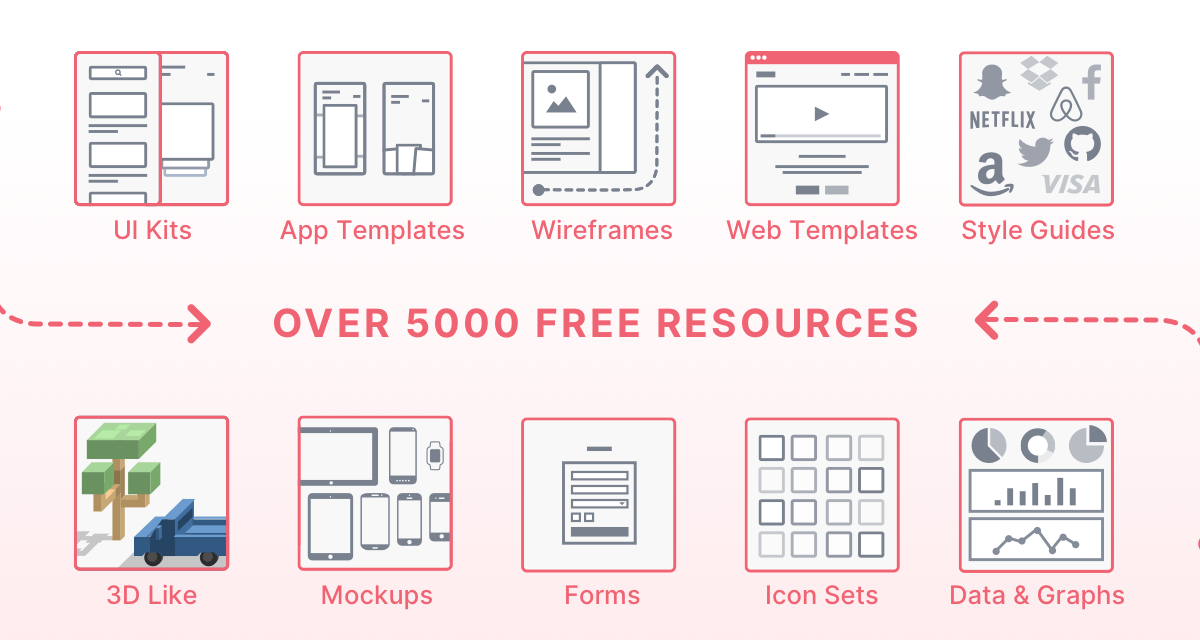
  • UI kits: separate collections for iOS (1,007 items listed), Android (338), web (1,123) and mobile (1,325).
  • Wireframes and flows: 242 wireframe resources for early-stage layout work.
  • Icons and illustrations: 1,125 icon sets and 368 illustration packs.
  • Supporting assets: device mockups (362), data and chart components (248), forms (153), buttons (141) and ecommerce patterns (279).
  • Premium kits: paid, more complete systems such as Root (wireframe and design starter kit), Reuse Mobile and Plaster (iOS/Android kits), Reuse (dashboards and web apps), Frames (websites) and Slice (modular design system).
  • Learning material: articles, tutorials, plugin notes, shortcuts and a Sketch 101 section.

Who it suits

A solo designer prototyping a booking app can pull a mobile UI kit, swap in an icon set and drop screens into device mockups in an afternoon. A small product team standardizing its component library is better served by a premium system like Slice or Reuse, where the pieces are designed to fit together. Beginners get the most from the free tier plus the tutorial content; the trade-off is that free files vary in quality and completeness because they come from many different contributors.

How it compares

Resource type Best for Trade-off
Free UI kits and icons Quick mockups, learning, side projects Inconsistent depth and file hygiene
Premium kits Production work needing a coherent system Cost, and you inherit the designer's conventions
Wireframes Early structure and stakeholder reviews Not visual enough for final presentations

Next step

Decide whether you need a single asset or a whole system. If it's one icon set or mockup, browse the free categories first. If you're building a product's design language, compare two or three premium kits against your platform mix (iOS, Android, web) before committing. For broader free libraries beyond this site, Figma Community and Dribbble are common complements.

What types of design resources are available on Sketch App Sources?

Sketch App Sources is a resource library for UI/UX designers, offering a large catalog of downloadable UI kits, icons, wireframes, mockups and illustrations, with a mix of free and premium items. All files are vector-based (.sketch or .svg), so they can be opened and edited in Sketch, Figma or Adobe XD.

Main resource categories

The site's navigation lists these sections (counts as shown on the page):

  • UIs (2,916) – general interface kits
  • Icons (1,125)
  • Web (1,123) and Mobile (1,325) designs
  • iOS UI Kits (1,007) and Android UI Kits (338)
  • Device Mockups (362)
  • Illustrations (368)
  • Concepts (476)
  • Data & Charts (248)
  • Wireframes (242)
  • Ecommerce (279)
  • Forms (153), Buttons (141), Logos (128), Social (168), Desktop (334), Watch (83), Bootstrap Based (53), Realistic (322), Collections (362)

There is also an SVG entry in the menu and a Top Downloads section for popular items.

Free vs. premium

Free resources make up the bulk of the catalog. The Premium section lists paid design kits, such as Root (wireframe and design starter kit), Reuse (dashboards and web apps), Reuse Mobile and Plaster (iOS and Android kits), Frames (websites) and Slice (modular design system). A Coded Templates category with a promotion is also advertised.

Beyond downloads, the site carries supporting content: articles, tutorials, Sketch libraries, shortcuts, data files, plugin listings and a getting-started guide.

Practical next step: if you are starting a mobile project, browse the iOS or Android UI Kit categories first to find a base kit, then pull individual icons or charts from those sections to fill gaps. If you need a consistent system across screens, a premium kit like Slice or Reuse is the more coherent starting point than assembling free pieces.

Which free UI kits are best for designing an iOS app?

For free iOS UI kits, start with Sketch App Sources' iOS UI Kits category (around 1,000 items) and filter by recency and download counts rather than browsing the full library. Its files are editable in Sketch, Figma and Adobe XD, which matters if your team doesn't standardize on Sketch. The trade-off is breadth over curation: many kits are single-screen concepts or older iOS versions, so check the last-updated date and whether the kit includes the components you'll actually reuse (navigation bars, tab bars, sheets, form fields).

How to choose between kit types

  • Full app kits: best when you're prototyping several screens quickly; risk is a strong visual style you'll fight later.
  • Component libraries: better for building a real design system; expect less screen-level inspiration.
  • Single-concept kits (booking, ecommerce, dashboards): useful for a pitch or a specific flow, not as a base for a whole app.

Practical next step

Pick two kits: one broad iOS kit for screens and one icon set. Rebuild one real screen from your app in each, then decide which file structure you can hand to a developer. If your team uses Figma, also look at Figma's community files, which import natively; Sketch App Sources files may need conversion and can lose layer naming. Apple's Apple Developer Human Interface Guidelines are the reference to check any kit against, since community kits often drift from current iOS conventions.

For a small team shipping one iOS app, a recent, well-organized kit plus the HIG will get you further than collecting many freebies.

How do I find and download free icons for a web project?

On Sketch App Sources, icons are one of the largest free categories: the site lists 1,125 icon resources alongside 2,916 UI kits, and downloads are editable .sketch or .svg files that open in Sketch, Figma or Adobe XD. For a web project, start with the Icons section, filter to what fits your stack, and prefer SVG so icons stay sharp and can be recolored with CSS.

A practical way to choose

  • Match the output format to your build. SVG suits inline web icons and theming; a Sketch or Figma file is better when you need to edit a whole set before export.
  • Check the set's scope before committing. A small pack of 20–50 icons won't cover navigation, forms, empty states and social links; a broad set saves mixing styles later.
  • Confirm the license for commercial use, especially if the resource page mentions premium or bundled terms.
  • Test at real sizes. Preview icons at 16px and 24px, not just large, since thin strokes blur at small sizes.

Example scenario

If you're building a dashboard, you need consistent outline icons for the sidebar, status indicators and actions. Download one coherent set rather than assembling singles, then export the SVGs into a sprite or component library so every icon inherits the same color and size variables.

Where else to look

For larger, framework-ready sets, compare with Font Awesome for broad coverage, Heroicons for Tailwind-friendly SVGs, Material Design for Google's icon system, or Feather for minimal stroke icons.

Next step: shortlist two sets, place both in a mock header and sidebar at actual size, and pick the one that stays legible and stylistically consistent with your typography.

What is the difference between the free and premium resources on Sketch App Sources?

The free section is the site's core catalogue: thousands of downloadable UI kits, wireframes, icon sets, illustrations, mockups and form layouts, browsable by category (for example iOS UI Kits, Android UI Kits, Web, Mobile, Data & Charts). The premium section is a much smaller, curated set of paid products — named kits such as Root (wireframe and design starter kit), Reuse Mobile, Reuse (dashboards and web apps), Plaster, Frames and Slice (a modular design system) — presented as tools to speed up a creative workflow rather than as a broad library.

How they differ in practice

Free resources Premium resources
Scope Large, varied catalogue from many contributing designers; categories run into the hundreds or thousands of items A short list of named, branded kits
Typical use Grabbing a specific asset — an icon set, a single screen, a mockup — for one project Adopting a consistent starting system across several screens or a whole product
Consistency Varies by contributor; mixing kits can mean clashing styles Designed as coherent kits, so components and styles match
Cost and licensing Free to download; check each contributor's terms Paid; review the licence before commercial use

The practical trade-off is breadth versus coherence. A designer prototyping a single booking screen might find a free hotel-booking concept or icon set sufficient. A team building a multi-screen dashboard or a cross-platform app will usually spend less time reconciling styles by starting from one premium kit.

Next step

Decide based on how many screens you need to keep consistent. If it's one or two, filter the free categories (Web, Mobile, Icons) and download individual assets. If it's a full flow, compare two or three premium kits against your platform and product type before buying. For broader inspiration alongside either choice, Dribbble and Figma's community files are common complements.

Can I open and edit Sketch App Sources files in Figma or Adobe XD?

Yes. Sketch App Sources describes its vector .sketch and .svg files as editable in Sketch, Figma and Adobe XD, so you are not locked into Sketch. In practice, .svg files tend to transfer most cleanly, while .sketch files may need a re-check of layers, text styles, symbols and effects after import.

What to expect by format

File type Typical use Import consideration
.svg Icons, illustrations, simple UI elements Usually the safest cross-tool format; verify strokes, clipping and text converted to outlines
.sketch UI kits, wireframes, full app templates Often importable into Figma and Adobe XD, but complex symbols, shared styles and Smart Layout may not map exactly

Practical decision guide

  • Choosing Figma for a team project: start with icon sets and simple components as SVG, then test one representative .sketch UI kit before committing to a large library.
  • Choosing Adobe XD for an existing workflow: treat imported kits as a starting point, not a finished design system; rebuild repeatable components locally.
  • Mixing tools across a team: standardize on one format for handoff and keep the original files as the reference.

A sensible next step is to download one small free resource, import it into your target tool, and inspect text, layer naming and component behavior before building on it. The site's free catalogue includes categories such as UI kits, icons, wireframes and device mockups, which makes this kind of trial inexpensive. For comparison, Figma and Adobe document their own import behavior; those official resources are the right place to confirm format-specific limits.

Related questions

More questions →
What Is a Freebie in UI/UX Design and How Do You Find and Use Free Design Resources?

A freebie is a downloadable design asset—a UI kit, icon set, wireframe, illustration, mockup, or template—offered at no cost for use in design work. On a resource site like Sketch App Sources, freebies sit alongside premium items, so the practical skill is telling them apart, checking what file formats and license you get, and adapting the file in Sketch, Figma, or Adobe XD. Use this guide when you need a starting point for a project without building every screen or icon from scratch.

Where freebies live on a resource site

Sketch App Sources organizes its library by asset type rather than by price alone. The site reports 4,852 total resources, split into categories you can browse directly:

Category Count Typical freebie use
UIs 2,916 Full screen layouts to adapt
Icons 1,125 Navigation, toolbar, and feature icons
Web 1,123 Landing pages, dashboards, forms
iOS UI Kits 1,007 Native-feeling mobile screens
Concepts 476 Early-stage visual exploration
Illustrations 368 Empty states, onboarding art
Device Mockups 362 Presenting screens in context
Android UI Kits 338 Material-style mobile screens
Wireframes 242 Low-fidelity structure before visual design
Data & Charts 248 Graphs, tables, analytics panels

The site's own description states it hosts "free and premium resources," and the navigation separates Free Resources from Premium. A "Premium" link and a set of named premium kits (Root, Reuse Mobile, Reuse, Plaster, Frames, Slice) appear in the page evidence, which tells you the catalog is mixed. Treat any item as free only when it is listed under Free Resources or explicitly marked free—do not assume a download button means no cost.

Check format and license before you download

The site states that its vector .sketch files and .svg files are editable in Sketch, Figma, and Adobe XD. That matters because a freebie is only useful if it opens in your tool:

  • .sketch — opens natively in Sketch; Figma and XD can import it, but complex symbols and Smart Layout may not translate perfectly.
  • .svg — vector, editable in all three tools; best for icons and simple shapes.
  • Figma files — the site notes Sketch can open local .fig files via File > Open Local Document, so cross-tool handoff is possible in that direction.

Before committing a freebie to a client project, confirm the license terms on the item page. The provided site material does not spell out per-item licensing, so read the page for each download rather than assuming reuse rights. For commercial work, this is the single most common place designers get caught out.

Evaluate whether a freebie is good enough for a real project

A free download can be polished and still unusable. Run these checks:

  1. Completeness — does the kit cover the states you need (empty, loading, error), or only the happy path? A 40-screen kit with no form validation states will cost you more time than it saves.
  2. Layer hygiene — open the file and look at the layer panel. Named, grouped layers mean the designer intended it to be edited; a flat pile of "Rectangle 47" copies means cleanup work.
  3. Style fit — check typography scale, corner radii, and color tokens against your brand. Restyling a mismatched kit is often slower than starting fresh.
  4. Resolution and grid — confirm the artboards match your target (e.g., 375pt mobile, 1440px web) and sit on a consistent grid.
  5. Recency — the site's "Recent" and "What's New" sections surface newer items; older kits may predate current platform conventions.

For example, if you need a booking flow, a hotel booking concept or booking UI kit from the recent list gives you realistic screen structure, but you should still verify it includes date pickers, confirmation, and error states before adopting it.

Download, open, and adapt a freebie

The general workflow, using Sketch as the reference tool:

  1. Find the item — browse Free Resources by category (e.g., iOS UI Kits) or search the library.
  2. Read the item page — note file format, what's included, and any stated license or attribution requirement.
  3. Download and unzip — most kits arrive as a compressed folder with the .sketch file plus any fonts or preview images.
  4. Install missing fonts first — open the file and check for font substitution warnings; missing typefaces silently break the layout.
  5. Open in your tool — in Sketch, open the .sketch file directly; in Figma or XD, use their import/open options for Sketch files.
  6. Audit before editing — duplicate the file, then check symbols/components, text styles, and color styles. Convert repeated elements into your own components rather than editing copies.
  7. Restyle to your system — replace colors and type with your tokens, then adjust spacing to your grid.
  8. Verify — preview at target device sizes and test interactive states if the kit includes prototyping links.

Common sticking points: fonts that aren't bundled, symbols that break on import into Figma, and Smart Layout behavior that doesn't survive conversion. Budget time for these rather than assuming a one-click handoff.

Free vs premium: how to choose

The site mixes both, so decide by project stakes rather than by price alone:

  • Choose a freebie for exploration, internal prototypes, learning a tool, or low-stakes marketing pages where a slightly generic look is acceptable.
  • Consider premium when you need a complete, maintained system (the site lists kits like Root, Reuse, and Slice as premium design systems) and the time saved on completeness and consistency outweighs the cost. The page evidence does not list prices, so check each premium page for current terms.
  • In both cases, confirm the license covers your intended use—especially for client or commercial work.

The site also notes a "Coded Templates (80% OFF Promotion)" section, which is a reminder that promotional pricing exists and should be verified on the page rather than assumed.

Quick checklist

  • Free means listed under Free Resources or explicitly marked free—not just downloadable.
  • Confirm .sketch or .svg opens cleanly in your tool before relying on it.
  • Read the license on the item page for any commercial use.
  • Audit layers, states, fonts, and grid before editing.
  • Restyle to your own tokens and test at target sizes.
What Are Vector Graphics and When Should You Use Them?

Vector graphics are images built from mathematical paths—points, lines, curves, and shapes defined by coordinates—rather than a grid of colored pixels. That single difference determines almost everything else: vector files scale to any size without blurring, stay editable as discrete objects, and usually remain small for simple artwork. Use vector graphics for logos, icons, illustrations, diagrams, and print-ready designs where clean edges and resizing matter. Use raster images instead for photographs and highly detailed, pixel-level textures.

How vector graphics actually work

A vector image is a set of instructions. Each shape is a path made of anchor points (nodes) connected by straight segments or curves, with attributes like fill color, stroke width, and opacity attached to it. The software recalculates and redraws those instructions at whatever size you request.

A practical example: a circle is stored as "center at this coordinate, this radius, this fill." Zoom to 10,000% or print it on a billboard, and the renderer simply draws a bigger, equally smooth circle. A raster circle is stored as a grid of pixels approximating a circle, so enlarging it means stretching those pixels into visible blocks.

Because objects stay separate, you can select one shape, move it, recolor it, or reshape a single node without touching the rest. That object-level editability is the core reason vector tools exist.

Vector vs. raster: the trade-offs

Dimension Vector Raster
Structure Math-based paths, nodes, shapes Grid of pixels
Scaling Resolution-independent; sharp at any size Loses quality when enlarged beyond native resolution
File size Small for simple shapes; grows with complexity Grows with pixel dimensions and detail
Editability Objects, nodes, and attributes remain editable Edits affect pixels; reshaping is destructive or approximate
Best for Logos, icons, illustrations, type, diagrams, print layouts Photos, scans, painted textures, detailed imagery
Weakness Poor fit for photographic detail; node editing has a learning curve Poor fit for clean edges and repeated resizing

Neither format wins universally. Many real projects combine them—for instance, a poster with a vector logo and headline over a raster photograph.

Common vector file formats and what they are good for

  • SVG (Scalable Vector Graphics) — an open, XML-based format. Ideal for web graphics, icons, and UI assets because it is text-based, styleable, and animatable. It is the native working format in Inkscape.
  • PDF — a page-description format that can contain vector paths, text, and raster images. Common for print-ready documents and sharing layouts that must look identical across systems.
  • EPS — a legacy but still widely accepted format for print and professional design handoff. Often used when a printer or client specifically requests it.

If you are unsure, SVG is the most flexible choice for screen work, and PDF is the safest for print delivery.

Typical use cases

  • Logos and brand marks — must stay crisp from a favicon to a building sign.
  • Icons and UI elements — small, clean, and easy to recolor or restyle.
  • Illustrations and diagrams — flat or stylized artwork with defined shapes and lines.
  • Posters and print-ready designs — text and shapes that need to scale to a specific physical size.
  • Cutting, engraving, and plotting — machines that follow paths rather than read pixels.

Practical limits to know before you start

  • Not for detailed photos. Converting a photograph to vector (tracing) produces many paths and rarely matches the original's subtlety. Raster remains the right tool for photographic content.
  • Complexity has a cost. Thousands of nodes make files heavy and slow to edit, even though the format is resolution-independent.
  • Node editing has a learning curve. Understanding anchors, handles, and path operations takes practice; simple shape and text work is much quicker to pick up.
  • Conversion is not lossless. Moving between vector and raster formats usually loses either editability or detail.

Where Inkscape fits

Inkscape is professional vector graphics software that runs on Linux, macOS, and Windows desktop computers, and it works natively with SVG. That makes it a reasonable choice if you want to create or edit vector graphics—logos, icons, illustrations, posters—without committing to a proprietary format, and if you value an open, XML-based document you can inspect and hand off. If your work is mainly photographic retouching, a raster editor will serve you better; if it is path-based design, Inkscape covers the core workflow.

What Is SVG and How Do You Open, Edit, and Use SVG Files?

SVG (Scalable Vector Graphics) is an XML-based vector image format: instead of storing a grid of pixels, an SVG file stores shapes, paths, text, and colors as markup that a renderer draws on demand. That means it scales to any size without pixelation, and it can be opened in a browser, edited as code, or edited visually in a vector editor such as Inkscape. Choose SVG when you need crisp scaling, small file sizes for geometric artwork, or images that must be styled and scripted on the web; choose a raster format like PNG or JPEG when the image is photographic or made of fine continuous tone.

What "XML-based vector" actually means

An SVG is a text document. A circle is not a cluster of colored pixels — it is an element with a center and a radius, and the renderer computes the pixels at whatever size you ask for.

This has three practical consequences:

  • Resolution independence. The same file renders sharply as a 16 px favicon or a billboard. There is no "native resolution" to exceed.
  • Small files for the right content. A logo made of a few curves can be a few kilobytes, while the equivalent PNG at high resolution may be far larger. The reverse is also true: a complex illustration with thousands of paths can be heavier than a compressed photo.
  • Editable structure. Because the file is markup, you can change a color, move a shape, or add an animation by editing text or using a tool — no repainting required.

SVG vs. raster formats (PNG, JPEG)

Dimension SVG PNG / JPEG
Data model Shapes, paths, text as markup Fixed grid of pixels
Scaling Sharp at any size Blurs or pixelates when enlarged
Typical best use Icons, logos, diagrams, charts, UI, simple illustrations Photos, scans, complex continuous-tone images
Editability Edit shapes, text, and code Edit pixels
Text Real, selectable, searchable text Rendered as pixels
Animation/interaction Can be styled and scripted in a page Static (or separate format)

A useful rule: if the image is built from distinct shapes and lines, SVG is usually the better container. If it is built from millions of subtly varying colors, raster is usually better.

How to open and view an SVG file

You rarely need special software just to look at one.

  • Web browser. Drag the file into a browser window, or open it directly. Browsers render SVG natively. This is the fastest way to check that a file displays correctly.
  • Image viewer. Many desktop viewers open SVG, though support varies; some rasterize it at a fixed size, which can hide scaling problems.
  • Vector editor. Opening in a tool like Inkscape shows the actual objects, layers, and paths rather than just the rendered result. This is what you want if you intend to change anything.
  • Text editor. Since SVG is XML, a plain text editor opens it and shows the underlying structure. Useful for small fixes and for understanding what a file contains.

How to edit an SVG file

There are two complementary ways to edit, and knowing which to use saves time.

Editing visually in a vector editor

Use this when you are changing appearance: moving objects, recoloring, reshaping paths, adjusting text, or combining elements. Inkscape is a professional vector graphics application for Linux, macOS, and Windows that works directly with SVG as its native document format, so what you draw is what the file contains. The general workflow is:

  1. Open the SVG in the editor.
  2. Select and transform objects, or use path tools to reshape curves.
  3. Adjust fills, strokes, and text as needed.
  4. Save back to SVG.

Because SVG is the editor's native format, round-tripping generally preserves the structure rather than flattening it.

Editing the XML directly

Use this when you need a precise or programmatic change: setting an exact coordinate, changing a single fill value, removing metadata, or generating files from a script. Open the file in a text editor, locate the relevant element, change the attribute, and save. The expected result is an immediate change in how the file renders — but a malformed tag will break rendering entirely, so keep a backup and validate after editing.

A practical division of labor: do structural and visual work in a vector tool, and reserve hand-editing for surgical changes or automation.

Common uses and pitfalls to check

SVG is the standard choice for:

  • Icons and UI elements on websites and in applications.
  • Logos and brand marks that must stay sharp across sizes.
  • Illustrations and diagrams built from shapes and lines.
  • Charts and data graphics that need to scale or be styled dynamically.
  • Text-bearing graphics, since text stays as text.

Pitfalls worth checking before you ship a file:

  • Text that depends on fonts. If a font is not available where the SVG is displayed, text may reflow or substitute. Converting critical text to paths removes that dependency but also removes selectability and editability.
  • Embedded raster images. An SVG can contain a raster image inside it. The file is still SVG, but that part will not scale cleanly — check whether the artwork is genuinely vector.
  • Unoptimized editor output. Tools often write extra metadata, unused definitions, and verbose coordinates. Cleaning these up can shrink the file substantially.
  • External references. Some SVGs point to external resources; if those are missing, parts of the image may not render.
  • Viewport and viewBox settings. These control how the artwork maps to the display area. A mismatch is a common cause of unexpected cropping or scaling.

If you want to inspect or fix any of these, opening the file in a text editor alongside a visual editor gives you both views of the same document.

Template vs Custom Website: Which Should a Small Business Choose?

For most small businesses on a limited budget, a responsive website template is the faster and cheaper route to launch, while a fully custom build makes sense only when you need distinctive branding, unusual functionality, or long-term scalability that a template can't stretch to cover. The deciding factors are rarely about prestige — they're about budget, timeline, how unique your business needs to look, and how much you expect the site to grow.

What You're Actually Comparing

A website template is a pre-designed, pre-coded layout you adapt by swapping in your own text, images, and colours. A custom website is designed and built from scratch around your specific requirements.

The gap between them isn't binary. Many small businesses start with a template and later commission custom work on top. Treat this as a spectrum, not a fork in the road.

Side-by-Side Comparison

Factor Responsive Template Custom Website
Upfront cost Low — often a one-off fee or small monthly charge High — design, development, and content work billed separately
Time to launch Days to a couple of weeks Weeks to several months
Design uniqueness Shared structure; limited to the template's layout options Fully bespoke to your brand
Flexibility Constrained by what the template supports Effectively unlimited
Ongoing costs Hosting, domain, occasional licence or support fees Hosting, domain, plus maintenance and developer time
Mobile responsiveness Usually built in and tested Built in, but only as good as the developer's testing
Basic SEO Depends on clean markup, page speed, and your ability to edit titles and headings Fully controllable, but only if SEO is scoped into the build
Editing after launch Often a visual editor you can use yourself Depends entirely on how it's built — ask before you commit
Best for Brochure sites, service businesses, tight budgets, fast launches Complex features, strong brand identity, growth plans

Cost: Upfront and Ongoing

Templates win clearly on upfront cost. You're paying for a design that's already been built and tested, so the price reflects a share of that work rather than the whole of it. Some providers bundle hosting, support, and a trial period into a single recurring fee, which keeps budgeting simple.

Custom builds cost more because you're paying for someone's time: discovery, design concepts, revisions, development, testing. That's not waste — it's work a template simply doesn't do for you.

Watch the ongoing side, which is where budgets often surprise people:

  • Templates: hosting, domain renewal, any licence or support fee, and the cost of your own time making edits.
  • Custom: hosting, domain, security updates, dependency upgrades, and developer hours for any change — unless you negotiate a maintenance arrangement or a self-editable setup.

A cheap template with expensive ongoing support can cost more over three years than a well-scoped custom build. Ask for the total cost of ownership, not just the launch price.

Design and Content Flexibility

Templates give you a fixed set of page layouts. You can change colours, fonts, images, and text, and usually reorder sections — but you can't invent a layout the template doesn't include. For a simple brochure site, that's rarely a limitation.

Custom builds let you shape the structure around how customers actually behave: a booking flow, a product configurator, a members' area, a multi-step quote form. If your business model depends on an unusual interaction, a template will fight you.

A practical middle path: choose a template whose structure already matches your content, then invest your budget in good photography and clear copy. Those two things lift a template site further than a redesign usually would.

Timeline to Launch

  • Template: often live within days, assuming you have your text and images ready. The bottleneck is almost always content, not the template.
  • Custom: typically several weeks minimum, and longer if there are multiple approval rounds or integrations.

If you need to be online before a season, a launch, or a campaign, the template route is usually the only realistic one.

Mobile Responsiveness and Basic SEO

Both paths can be mobile-friendly and search-friendly — neither guarantees it.

For templates, check:

  • Does it adapt cleanly at phone, tablet, and desktop widths?
  • Are images compressed and pages fast to load?
  • Can you edit page titles, meta descriptions, and heading structure yourself?
  • Is the underlying markup clean, or bloated with unused features?

For custom builds, these same questions apply, plus one more: is SEO scoped into the project, or is it an afterthought? A bespoke site with poor structure will underperform a well-built template.

On both paths, the biggest SEO lever is usually content quality and page speed — not which route you chose.

When a Template Is Enough

  • You run a simple brochure or service site: home, about, services, contact.
  • Your budget is tight and you'd rather spend on marketing than development.
  • You need to launch quickly.
  • Your brand is expressed mainly through logo, colour, and photography rather than layout.
  • You're comfortable editing content yourself in a visual editor.

When Custom Work Pays Off

  • Your brand identity genuinely depends on a distinctive layout or interaction.
  • You need features a template can't provide: bookings, quoting, memberships, integrations, e-commerce with unusual rules.
  • You expect substantial growth and want a structure that won't need replacing in a year.
  • You have ongoing content or product changes that need a tailored editing experience.
  • Compliance, accessibility, or performance requirements are strict.

Questions to Ask Any Provider Before You Commit

  1. Ownership: Do I own the site, the content, and the domain? What happens if I leave?
  2. Editability: Can I update text and images myself? How, and is training included?
  3. Support: What's covered, for how long, and what costs extra?
  4. Licensing: If it's a template, is the licence perpetual or subscription-based? Can I use it on more than one site?
  5. Hosting and portability: Can I move the site elsewhere later, and how hard is that?
  6. Responsiveness: How is mobile performance tested, and can I see it before I pay?
  7. SEO basics: Who sets page titles, descriptions, and heading structure?
  8. Timeline and revisions: How many rounds of changes are included, and what triggers extra charges?
  9. Total cost: What will this cost over the first twelve months, including everything?

A Workable Decision Rule

If your site's job is to explain what you do, show that you're credible, and make it easy to get in touch — and your budget is limited — start with a responsive template. Put the money you save into copy, photography, and marketing.

If your site is part of your product, or your brand depends on looking unlike everyone else, budget for custom work and scope it carefully.

Either way, get the answers to the nine questions above in writing before you pay. The choice between template and custom matters far less than choosing a provider who is clear about ownership, support, and what happens next.

Preeclampsia Foundation 提供哪些资源以及如何使用?

Preeclampsia Foundation 的资源按受众分为四类:面向女性与家庭的健康信息与支持、面向医疗提供者的临床资源、面向研究人员的数据与资助信息,以及面向公众的倡导与参与材料。所有内容都可通过网站导航直接访问,无需注册即可阅读健康信息;参与研究登记、加入社区或获取支持则通常需要额外填写表单或联系对应项目。以下按“你想解决什么问题”来组织,方便你直接跳到对应入口。

如果你想了解疾病本身:健康信息类资源

这是网站最核心、也最容易上手的部分,覆盖妊娠期高血压疾病的主要类型:

  • Signs & Symptoms:症状与体征指南,帮助你判断何时需要就医。
  • What is Preeclampsia / What is Eclampsia / HELLP Syndrome:分别解释子痫前期、子痫和 HELLP 综合征的定义与区别。
  • Postpartum Preeclampsia:专门讲产后发生的子痫前期,这是容易被忽视的时间窗口。
  • Preeclampsia Tests:介绍相关检测手段。
  • Taking Your Blood Pressure:如何正确测量血压的操作说明。
  • Aspirin:关于阿司匹林在预防中的用途说明。
  • COVID & Preeclampsia:新冠与子痫前期的关联信息。
  • FAQs:常见问题汇总。

使用方式:从主导航的 Women & Families → Health Information 进入,按上述条目逐层点开。适合在产检前后快速查阅,也适合用来向家人解释病情。这些页面是教育性内容,不能替代医生的个体化判断,具体用药或检测决定仍需与临床医生确认。

如果你需要情感与同伴支持:Get Support 类资源

网站把“支持”单独列为一个板块,包含:

  • Birth Trauma Resources:分娩创伤相关资源。
  • Our Stories:患者亲身经历分享。
  • Ask a Support Question:向基金会提交支持性问题。
  • The Patient Journey:患者从诊断到产后的完整历程梳理。
  • Support Articles:支持类文章合集。

使用方式:如果你刚被诊断、或产后仍在恢复,可以先读 The Patient Journey 建立整体预期,再看 Our Stories 减少孤立感。需要具体回应时使用 Ask a Support Question 提交问题。注意这是同伴与教育支持渠道,不构成急诊通道——出现严重症状应立即联系医疗机构。

如果你是医疗提供者:Healthcare Providers 资源

这一板块面向临床人员,内容包括:

  • Best Practices:最佳实践。
  • The Cuff Kit®:血压测量相关工具包。
  • Current Guidelines:现行指南。
  • Prenatal Aspirin:产前阿司匹林使用。
  • Blood Pressure / Postpartum Care:血压管理与产后照护。
  • Educating Patients / Engaging Patients:患者教育方法。
  • Expert Directory:专家名录。
  • Nurse Resources / Doula Resources:护士与导乐专项资源。

使用方式:临床人员可从主导航 Healthcare Providers 进入,按指南、工具包、患者教育三条线取用。网站提到已培训超过 115,000 名医疗提供者,并分发了 350 万份患者教育材料,说明这些材料被设计为可直接用于临床场景。

如果你想参与研究:Research 类资源

  • Participate In Research:参与研究的入口。
  • Preeclampsia Registry:子痫前期登记库,含 About the Registry、Registry Privacy Policy、Registry FAQs、Registry Advisory Board 等说明页。
  • Take 10 for Preeclampsia Research:面向研究参与者的专项入口。
  • For Researchers:研究者专区,含 Research Funding、Vision Grant recipients、Peter J. Pappas recipients、Research Results、Research News、Research Roundup。
  • Ask an Expert:向专家提问。

使用方式:想贡献数据或样本的患者,先读 Registry FAQs 和隐私政策,再决定是否登记;研究者则从 For Researchers 查看资助与成果信息。网站披露已投入 250 万美元用于研究,可作为判断其研究项目规模的参考。

如果你想行动或获取资讯:倡导、活动与新闻

  • Get Involved:Participate in Research、Share your Story、Legislative Advocacy、Policy Priorities、Materials for Advocates、Advocacy History。
  • Support the Foundation:Corporate Partners、Ways to Give、Do It Yourself Fundraising、Shop for the Cause、Volunteer、Become a Trained Advocate。
  • News & Events:Press Releases、Library、Events、Video Library、Awareness Month、Press Room。
  • Long-Term Impact Beyond Pregnancy:Heart Disease & Stroke、Find A Provider。
  • Promise Walk:可加入或主办(Start a Promise Walk / Host a fundraiser),页面显示加拿大也设有相关活动。

使用方式:想参加线下活动可从 Promise Walk 入手;想推动政策变化看 Legislative Advocacy 与 Policy Priorities;想系统学习可查 Video Library 和 Library。网站还提供 newsletter 订阅入口,用于接收更新。

如何快速定位到你要的资源

你的身份/需求 建议入口
刚被诊断,想搞清是什么病 Women & Families → Health Information
产后出现症状,想确认是否相关 Postpartum Preeclampsia
需要情感支持或想听他人经历 Get Support → Our Stories / The Patient Journey
有具体问题想得到回应 Ask a Support Question / Ask an Expert
临床人员想找指南和工具 Healthcare Providers
想加入登记库或参与研究 Research → Preeclampsia Registry
想捐款、志愿服务或参加步行活动 Get Involved / Support the Foundation / Promise Walk

一个实用顺序是:先用 Health Information 建立基本认知,再用 Get Support 处理情绪与实际困难,最后视情况进入 Research 或 Get Involved。网站未提及任何付费墙或登录限制,但研究登记、活动报名和捐赠等环节会涉及表单提交,具体以页面实际要求为准。

Website Overview

An established domain and managed infrastructure suggest continuity of operations and may support dependable delivery, although neither guarantees service quality. Several search or sharing settings need attention. Together they may make snippets, preview images or preferred URLs less consistent across platforms.

Domain and Registration

Registered in 2013, this domain has about 13 years of history. That suggests continuity, although ownership and purpose may have changed. Transfer-protection status is present, helping reduce the risk of unauthorized domain transfers. The domain uses the common .com extension, which is not an independent safety signal.

DNS and Email

The observed email authentication setup is incomplete: DMARC is missing. Nameservers are provided by anycast.me, indicating managed DNS hosting. MX records point to the ovh.net email service. DNSSEC is enabled, allowing validating resolvers to authenticate signed DNS data. No CNAME was found; the observed records resolve directly to addresses.

TLS and Certificates

The public key uses EC with 256 bits. The server supplied a complete certificate chain. No organization name is present in the certificate; the available fields are consistent with domain validation. The certificate was issued by Let's Encrypt, commonly associated with automated certificate services. The certificate's total validity is about 89 days, consistent with a short renewal cycle.

HTTP and Browser Security

The response lacks these common security headers: HSTS, CSP, Referrer-Policy, Permissions-Policy. No X-Powered-By header was found, reducing one common source of backend fingerprinting information. No obvious internal addresses or debug information were found in the headers. The Server header identifies Apache without an exact version. No explicit CDN or WAF marker was found in the response headers.

Technology Stack Analysis

The public page identifies jQuery, Google Analytics, Apache without precise versions, leaving fewer clues for version-specific scanning.

Search and Social Sharing

The title has 99 characters and may be truncated in search results. The meta description has 210 characters and may be shortened in search results. No homepage canonical URL was detected. If duplicate URLs exist, consolidation may be less explicit. Open Graph is partially configured; og:type is missing. The observed directives allow indexing and link following.

Hosting and Email

DNSanycast.me
HostingOVH SAS
Emailovh.net
Approximate IP geolocation (inferred; a CDN or proxy may differ from the origin server) France flagSaran, Loiret, France Inferred 213.186.33.87

Registration details

RDAP / WHOIS

RegistrarOVH sas
Registered2013-05-13
Expires2027-05-13
Domain statusclient delete prohibited、client transfer prohibited
Nameserversdns200.anycast.me、ns200.anycast.me
DNSSECsigned

DNS records

DNS

TypeNameValueTTLPriority
Awww.sketchappsources.com213.186.33.8786400—
AAAAwww.sketchappsources.com2001:41d0:1:1b00:213:186:33:8786400—
MXsketchappsources.commx1.ovh.net864001
MXsketchappsources.commx2.ovh.net864005
MXsketchappsources.commxb.ovh.net86400100
NSsketchappsources.comdns200.anycast.me86400—
NSsketchappsources.comns200.anycast.me86400—
TXTsketchappsources.comgoogle-site-verification=Up-zqR9lRFsNluoXs7la5wA01QtSwgmryzuMwo8Tx1E600—
TXTsketchappsources.comv=spf1 include:_spf.google.com include:spf.mailjet.com include:spf.mandrillapp.com include:mx.ovh.com include:servers.mcsv.net ?all600—
DSsketchappsources.com32186 8 2 56ea786c76911b4ff19de224aa009c4ae2d8a53c63d874863db2df0306058b6886400—

TLS and certificates

TLS / SSL

AssessmentNormal configuration
Supported protocolsTLSv1.2、TLSv1.3
Negotiated protocolTLSv1.3
Certificate subjectwww.sketchappsources.com
IssuerLet's Encrypt
Valid until2026-11-25T13:02 · Remaining when checked: 37 days
Verification detailsCertificate trust: Passed · Hostname match: Passed

HTTP response headers

HTTP

HeaderValue
content-typetext/html
cache-controlmax-age=86400
serverApache
x-frame-optionsSAMEORIGIN
x-content-type-optionsnosniff

Identified technologies

jQueryGoogle AnalyticsApache

Pages, Search and Sharing

Meta descriptionThe largest collection of free and premium resources for web apps, mobile, UI, UX designers working with Sketch, Figma, Adobe XD. All vector .sketch files and .svg files are editable in Sketch, Figma, Adobe XD.
Canonical URLNot detected
LanguageEnglish (default)
Twitter CardNot detected
All bots 0 allowed · 1 disallowed
  • Disallow/tools/
go-http-client 0 allowed · 1 disallowed
  • Disallow/
axios/0.18.0 0 allowed · 1 disallowed
  • Disallow/
ahrefsbot 0 allowed · 1 disallowed
  • Disallow/

User reviews (0)

  • No reviews yet.