Website profiles · Technology insights · Alternatives

customresolutionutility.dev

Free download the latest Custom Resolution Utility to set custom screen resolutions on Windows, improving display visuals and optimizing screen settings.

No paid content found
Visit website
Profile views 0 Outbound visits 0 Normal
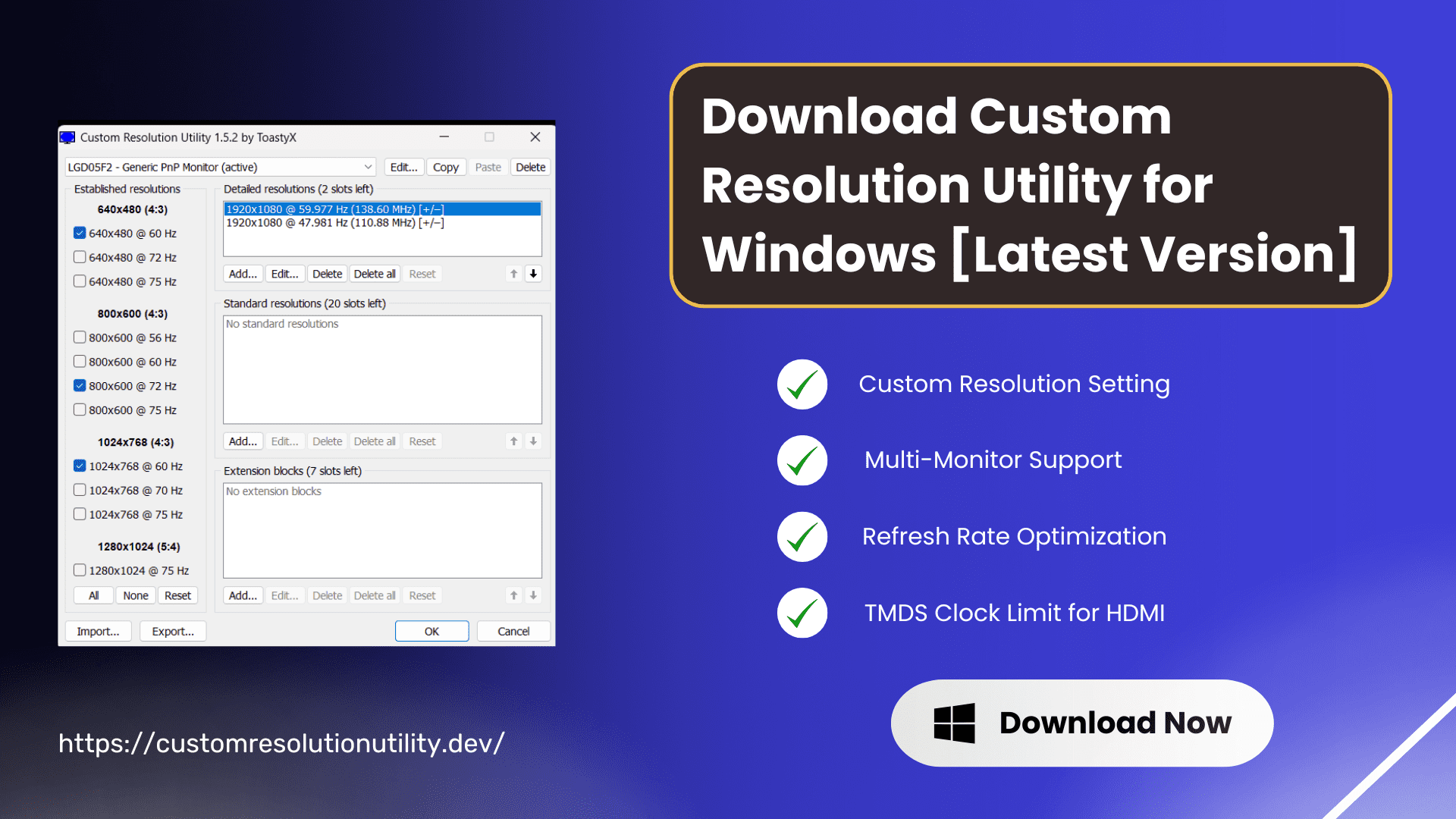
Custom Resolution Utility (CRU by ToastyX) » Download Now Full homepage screenshot

At a glance

Category
Resources & Utilities
Language
English
Paid-content signal
No paid content foundObserved
Registered
2025
Hosting
CloudflareInferred
HTTPS certificate trusted
PassedObserved
Last updated

Website review

This review may include AI-generated content and is not individually verified. Domain, certificate and other facts come from the observed data on this page.

What is Custom Resolution Utility (CRU)?

Custom Resolution Utility (CRU) is a small Windows tool by ToastyX for editing a monitor's Extended Display Identification Data (EDID)—the information a display reports about which resolutions and refresh rates it supports. Rather than being limited to the modes Windows exposes in its display settings, you use CRU to add, remove or adjust entries, so a monitor can be driven at a resolution or refresh rate that its hardware supports but that Windows does not list by default. It also lets you adjust FreeSync-related settings and address common display problems such as flickering, an incorrect screen size, or issues tied to certain graphics cards.

Who it is for

  • Gamers pushing a monitor to a higher refresh rate or an unusual resolution than the standard list offers.
  • Ultra-wide and high-resolution display owners whose preferred mode does not appear in Windows.
  • People troubleshooting persistent display glitches where the reported EDID seems to be the cause.

What it does in practice

The page describes it as an EDID editor that shows how a monitor's resolutions are configured, with options to add new ones, delete unneeded ones, and tune FreeSync settings. It lists multi-monitor support, refresh-rate optimization, TMDS clock limits for HDMI, and handling of DisplayPort-to-HDMI adapters among its features.

Compatibility to check first

CRU depends on a proper graphics driver. The page states it works with AMD/ATI and NVIDIA cards with the correct driver installed, and that the Microsoft Basic Display Adapter driver will not work. Intel GPUs and laptops with switchable graphics are supported only with the right drivers—the latest for newer Intel chips, and specific older Intel graphics drivers for 6th-generation (Skylake) and 4th/5th-generation (Haswell/Broadwell) hardware. Windows Vista through Windows 11 is listed; Windows XP does not support EDID overrides.

A practical next step

Before changing anything, note your monitor's native resolution and refresh rate, then open CRU and look at the existing entries so you understand the baseline. Make one change at a time and keep a way to revert it, since a bad EDID override can leave a display blank until you reset it. If you would rather avoid editing EDID directly, standard driver control panels from AMD and NVIDIA offer simpler custom-resolution options for many common cases.

How do I safely create and apply a custom resolution or refresh rate in CRU without leaving my monitor with a black screen?

Test each new timing with the F8/VGA-mode fallback ready and change one setting at a time. CRU edits your monitor's EDID—the list of modes Windows reads—so a bad entry can produce a black screen or an out-of-range signal. The safe workflow is to keep a way back into a usable display before you commit.

Safe workflow

  1. Note your current values. Open CRU, select your monitor under the active display, and look at the existing detailed resolutions and refresh rates. Write down or screenshot them so you can restore them.
  2. Prefer small steps. Add one detailed resolution or one refresh rate at a time. Keep within what your monitor's specs say it supports (check the manual for maximum resolution and refresh rate). A modest increase, such as a slightly higher refresh rate at a resolution you already use, is far safer than jumping to an extreme mode.
  3. Watch the pixel clock. CRU's page notes a TMDS clock limit for HDMI and separate handling for DisplayPort-to-HDMI adapters. If you exceed the link's bandwidth, the signal may simply not appear. Lower the refresh rate or reduce blanking if a mode is rejected.
  4. Restart the graphics driver rather than the PC. CRU's standard method is to run restart64.exe (or restart.exe on 32-bit Windows) from the CRU folder, which reloads the driver and applies the EDID. If the screen goes black, wait a few seconds—Windows often reverts to a default mode. If it doesn't, reboot.
  5. Know the recovery path. If you're locked out, boot into Safe Mode or use Windows' low-resolution video mode (F8 at startup on older systems; on Windows 10/11 use Advanced Startup → Startup Settings → Enable low-resolution video). Then run the CRU reset tool (reset-all.exe) to clear overrides, or delete the CRU entries and restart the driver.
  6. Test before trusting it. Once applied, check the mode in Windows display settings and run a short stability test—a game or a refresh-rate test pattern—to confirm no flicker or dropouts. CRU's page also mentions using it to fix flickering or incorrect screen size, so if a mode misbehaves, revert rather than stacking more changes.

Decision points

Situation Safer choice
Laptop with switchable graphics or Intel GPU Confirm the correct Intel driver first; CRU's page notes specific driver versions for older Intel generations
HDMI connection Respect the TMDS clock limit; try DisplayPort if available
Unsure the monitor supports the mode Add it, test, and remove it immediately if the screen blanks
Multi-monitor setup Change one display at a time so you can recover on the other

For background on EDID and driver-level overrides, the official documentation for AMD and NVIDIA driver tools is a useful cross-check, since CRU's page states it depends on a proper AMD or NVIDIA driver being installed.

Next step: before adding anything, open CRU, screenshot your current monitor entry, and confirm you can launch restart64.exe and reset-all.exe from the same folder. That two-minute check is what turns a black-screen risk into a recoverable experiment.

Can CRU help fix problems like flickering, incorrect screen size, or a resolution that Windows won't offer on my monitor?

Yes. CRU is built for exactly those situations: it edits the monitor's EDID so Windows and the graphics driver see resolutions, refresh rates and timing details that standard display settings hide. The page describes adding new resolutions, removing unwanted ones and adjusting FreeSync settings, and it specifically names flickering, incorrect screen size and certain graphics-card display problems as things CRU can address by changing how the monitor reports itself.

What it can realistically fix

  • Missing resolution: your panel supports a mode that Windows never lists; CRU lets you add it as a custom profile.
  • Incorrect screen size or overscan: scaling or timing details can be adjusted so the image fills the panel properly.
  • Flickering or unstable modes: often caused by timings or refresh rates the driver handles poorly; adjusting or removing those entries can help.
  • Refresh-rate limits: useful for high-refresh or ultra-wide monitors where the desired mode isn't exposed.

Practical cautions

  • Driver dependency: the page states it works with AMD and NVIDIA cards, and with Intel GPUs only with the correct drivers (not the Microsoft Basic Display Adapter). Check your driver first.
  • Recovery plan: a bad EDID override can leave you with a black screen. Know how to boot into safe mode or reset the display before you start.
  • Not a hardware fix: if flickering comes from a failing cable, backlight or panel, CRU won't cure it.

For step-by-step guidance and version notes, the official source is Custom Resolution Utility (CRU by ToastyX). As a next step, note your monitor's native resolution and refresh rate, then change one setting at a time so you can tell which edit actually solved the problem.

Is CRU compatible with my graphics card and Windows version, including Intel integrated graphics or laptops with switchable graphics?

CRU is compatible with most Windows systems and the three major GPU brands, but Intel integrated graphics and laptops with switchable graphics carry the most conditions.

Compatibility at a glance

Setup Supported? What to know
Windows Vista–11 Yes Windows XP is not supported because it lacks EDID override support
AMD/ATI or NVIDIA card Yes Requires the proper vendor driver; the Microsoft Basic Display Adapter driver will not work
Newer Intel GPUs Yes, with conditions Needs the latest Intel graphics driver
6th-gen Intel (Skylake) Yes, with conditions Requires the Intel Graphics Driver for Windows 15.45 specifically
4th/5th-gen Intel (Haswell/Broadwell) Yes, with conditions Requires the appropriate Intel driver for those generations
Laptops with switchable graphics Yes, with conditions Supported only when the correct drivers are installed

The pattern is that CRU edits the monitor's EDID, so the graphics driver must be able to apply those overrides. A generic or missing driver blocks that, which is why Intel support depends on driver version rather than the chip alone.

A practical example: if you have a Skylake laptop with switchable graphics and want to add a custom refresh rate, check the Intel driver version first. If it is a generic Windows driver, install the correct Intel driver before opening CRU, or your changes may not take effect.

For a definitive check, confirm your exact GPU model and installed driver version against the requirements above before making changes.

How do I remove an unwanted resolution or reset EDID overrides if a custom setting causes display issues?

Use CRU to delete the unwanted entry from the monitor's EDID in the utility, then restart the graphics driver so Windows re-reads the display data. If the screen is unusable, boot into Safe Mode (or use another display) and run the "reset-all.exe" file that ships with CRU to clear all EDID overrides, then reboot normally.

Removing one resolution

  1. Open CRU and pick the correct monitor from the dropdown at the top — with multiple displays, each has its own EDID block.
  2. Under "Detailed Resolutions," select the custom entry you added and delete it. If you added it under "Standard Resolutions" or as an extension block, remove it from that list instead.
  3. Click OK, then run "restart64.exe" (or "restart.exe" on 32-bit Windows) from the CRU folder to restart the graphics driver. A full reboot also works.
  4. Check Windows display settings to confirm the resolution is gone.

Resetting everything

If a bad setting leaves you with a black screen, corrupted image, or no signal, the reset-all.exe utility removes every EDID override CRU has written. Run it from Safe Mode or from a second monitor, then reboot. This is the fastest recovery path and is worth knowing before you experiment.

Practical cautions

  • Keep a note of your original resolution and refresh rate before editing, so you can restore them if a change misfires.
  • Laptop panels with switchable graphics and Intel GPUs are the most likely to behave unpredictably; per the site, they need specific driver versions to work with EDID overrides at all.
  • Removing a resolution does not change the monitor's physical capabilities — if a mode caused flickering or overscan, the panel or cable may simply not support it.

If you want a simpler route

For a single custom mode, the GPU vendor's own control panel is less invasive than editing EDID: AMD Software's custom resolution options and NVIDIA Control Panel's "Change resolution" page both let you add and delete modes without touching the monitor's EDID, and deleting the mode there is a one-click undo. CRU remains the better choice when Windows hides a mode the display actually supports, or when you need to fix an incorrect EDID reported by a monitor or adapter.

As a rule of thumb: use CRU for persistent, system-wide EDID corrections; use the driver panel for quick per-mode experiments you may want to revert.

Does CRU work with FreeSync, HDMI, and DisplayPort-to-HDMI adapters when setting up a high refresh rate or ultra-wide display?

Yes—CRU is built for exactly that kind of setup, but each of the three areas has its own limits.

FreeSync

CRU can edit the monitor's EDID to adjust FreeSync-related settings, so it is a legitimate tool when a FreeSync range or flag is missing or misreported. The practical caveat is that FreeSync behavior is ultimately enforced by the GPU driver and the monitor's firmware; CRU changes what the system believes the display supports, not what the panel can physically do. If you widen a FreeSync range beyond the panel's real capability, you may get flickering or blackouts rather than a better experience. Use it to restore or correct a range, not to invent one.

HDMI

CRU explicitly lists a TMDS clock limit option for HDMI, which matters when pushing high refresh rates or resolutions over HDMI: many displays report a lower pixel-clock ceiling than they can actually handle, and raising the limit is how people unlock modes like high refresh at 1440p or 1080p over HDMI. The trade-off is cable and port quality—if the link can't sustain the clock, you get no signal or intermittent dropouts, so test with a known-good cable before blaming the setting.

DisplayPort-to-HDMI adapters

CRU lists adapter handling among its features, which is useful because adapters often pass through or rewrite EDID in ways that hide modes. Editing the EDID can expose resolutions and refresh rates the adapter chain was suppressing. The catch: cheap adapters may not actually support the bandwidth of the mode you enable, so a mode that appears in Windows can still fail to display. Prefer active, rated adapters and verify one change at a time.

Ultra-wide and high refresh in practice

For an ultra-wide or high-refresh panel, the typical workflow is: read the existing EDID, add or adjust a detailed resolution and refresh rate, raise the HDMI TMDS limit if needed, then restart the graphics driver and test. Keep a recovery path—booting into safe mode or using the reset option—because a bad EDID override can leave you with a blank screen.

A reasonable decision rule: use CRU when a mode your monitor and cable can genuinely handle is missing from Windows; don't use it to force modes beyond the panel's or adapter's real limits. For driver-side alternatives, NVIDIA and AMD both offer custom resolution tools, documented at NVIDIA and AMD.

Related questions

More questions →
Custom Resolution Utility (CRU) System Requirements: What Your PC Needs

CRU runs on Windows Vista through Windows 11, but the deciding factor is your graphics driver, not your Windows version. You need an AMD/ATI or NVIDIA card with its proper driver installed, or an Intel GPU with a specific driver version depending on generation. Windows XP is not supported at all, and the Microsoft Basic Display Adapter driver will not work.

Supported Windows Versions

Windows Version Supported
Windows 11 Yes
Windows 10 Yes
Windows 8 / 8.1 Yes
Windows 7 Yes
Windows Vista Yes
Windows XP No — EDID overrides are not supported

The tool edits EDID (Extended Display Identification Data), the block of information a monitor reports about its supported resolutions and refresh rates. That mechanism is why XP is excluded: the override path CRU relies on does not exist there.

Graphics Card and Driver Requirements

CRU depends on the graphics driver to apply EDID overrides, so an installed, vendor-supplied driver is mandatory.

AMD/ATI and NVIDIA

Any AMD/ATI or NVIDIA graphics card works provided the correct driver is installed. The Microsoft Basic Display Adapter driver — the generic fallback Windows uses when no vendor driver is present — will not work. If Device Manager shows your display adapter as "Microsoft Basic Display Adapter," install the driver from AMD or NVIDIA first.

Intel GPUs

Intel support is conditional on driver generation:

  • Newer Intel GPUs: use the latest Intel drivers.
  • 6th generation (Skylake): use the Intel Graphics Driver for Windows [15.45].
  • 4th/5th generation (Haswell/Broadwell): a matching older driver is required (the source page's requirement list is cut off at this point, so confirm the exact version on Intel's driver archive before proceeding).

Laptops with Switchable Graphics

Intel-based laptops with switchable graphics are supported when the right drivers are installed. Because the display output may route through either the integrated or discrete GPU, make sure both adapters have current vendor drivers.

Quick Compatibility Check

Before downloading, confirm three things:

  1. OS: Windows Vista or newer (not XP).
  2. GPU vendor: AMD/ATI, NVIDIA, or Intel.
  3. Driver status: open Device Manager → Display adapters. If you see a named vendor GPU rather than "Microsoft Basic Display Adapter," you meet the driver condition. For Intel, verify your generation and match the driver version above.

If all three pass, CRU's EDID editing — adding resolutions, removing unused ones, adjusting refresh rates and FreeSync settings — should be available to you. If the driver check fails, resolve that first; the download itself (v1.5.3, 533 KB per the site) is small, but it cannot compensate for a missing driver.

What Is Custom Resolution Utility (CRU) and What Is This Website For?

Custom Resolution Utility (CRU) is a small Windows tool by ToastyX that edits a monitor's EDID—the data block in which the display declares which resolutions and refresh rates it supports. By changing that data, you can add resolutions or refresh rates Windows does not normally offer, remove unwanted modes, or adjust FreeSync settings. The site customresolutionutility.dev is a download and installation guide page for CRU, currently listing version 1.5.3 (533 KB). It is aimed at users who want to unlock hidden modes on a monitor or GPU, tune an ultrawide or high-refresh display, or fix problems such as flickering, incorrect screen size, or graphics-card-specific display issues.

What CRU actually changes

CRU is an EDID editor, not a control panel for the graphics driver. It shows how the connected monitor's resolutions are currently defined and lets you add, edit, or delete those definitions, then apply the override so Windows and the driver see the modified display data.

  • Works with: AMD and NVIDIA graphics cards, and Intel GPUs when the correct driver is installed.
  • Typical uses: adding a resolution or refresh rate the monitor supports but Windows hides, removing modes you never use, adjusting FreeSync settings, and correcting flicker or wrong screen sizing.
  • Not a fix-all: because it edits display data rather than rendering settings, results depend on what the monitor and GPU can actually handle.

Who it is for

CRU suits users who have a specific display goal and are comfortable with a low-level utility:

  • You have an ultrawide or high-refresh monitor and want a mode Windows does not list.
  • You want to trim the mode list to the ones you use.
  • You are troubleshooting flicker, incorrect screen size, or display behavior tied to a particular graphics card.
  • You use DisplayPort-to-HDMI adapters and need to manage HDMI handling or the TMDS clock limit.

If you only want to change brightness, scaling, or color in normal use, the standard Windows and GPU control panels are the simpler route.

System requirements listed on the site

Requirement Detail
Operating system Windows Vista to Windows 11 (Windows XP does not support EDID overrides)
Graphics card AMD/ATI or NVIDIA with the correct driver installed; the Microsoft Basic Display Adapter driver will not work
Intel graphics Supported with the right drivers; newer Intel GPUs need the latest drivers, 6th-gen (Skylake) uses Intel Graphics Driver for Windows [15.45], and 4th/5th-gen (Haswell/Broadwell) need the corresponding Intel driver

Laptops with switchable graphics are listed as supported when the correct drivers are present.

How to get it

The site provides a direct download of the latest version plus links to older versions, followed by a step-by-step install guide. The page describes CRU as safe, free, and easy to use, but it does not publish pricing terms or account/login requirements—treat the download as the documented route and check the version number (1.5.3 at the time of the page) before installing.

Practical caveats

  • Keep a way to revert: an EDID override that the monitor cannot handle can leave you with a blank or unstable picture, so know how to reset the display data before applying changes.
  • Driver matters: the tool depends on a proper AMD, NVIDIA, or Intel driver, so update or reinstall the driver first if CRU does not detect your display correctly.
  • Expect monitor limits: CRU exposes modes; it does not create capability the panel or GPU lacks.
How to Download and Install Custom Resolution Utility (CRU) on Windows

Custom Resolution Utility (CRU) is a free EDID editor from ToastyX that lets you add custom resolutions, adjust refresh rates, and change FreeSync settings on Windows. To use it, download the latest version (v1.5.3, about 533 KB) from customresolutionutility.dev, extract the archive, run the executable as administrator, edit your monitor's EDID configuration, and then restart the graphics driver (or reboot) so the changes take effect. It requires Windows Vista through Windows 11 and a working AMD, NVIDIA, or supported Intel graphics driver — the Microsoft Basic Display Adapter driver will not work.

Before You Start: Check Your System

CRU edits the display data your monitor reports to Windows, so the graphics driver must be able to apply EDID overrides.

Requirement What you need
Operating system Windows Vista to Windows 11 (Windows XP does not support EDID overrides)
Graphics card AMD/ATI or NVIDIA GPU with the correct driver installed
Intel graphics Supported with the right driver: latest drivers for newer Intel GPUs; Intel Graphics Driver for Windows [15.45] for 6th-gen (Skylake); the appropriate Haswell/Broadwell driver for 4th/5th-gen
Laptops Switchable-graphics laptops are supported when the correct drivers are installed
Not supported Microsoft Basic Display Adapter driver

If you are unsure which GPU driver you have, check Device Manager before proceeding — CRU cannot override EDID without a proper vendor driver.

Step 1: Download CRU

  1. Go to customresolutionutility.dev.
  2. On the download section, confirm the version listed is v1.5.3 (file size roughly 533 KB).
  3. Click Download Now to get the archive. Older versions are also listed on the same page if you need them for a specific setup.

The site describes CRU as safe, free, and easy to use; the download is a small utility package rather than a full installer.

Step 2: Extract and Run

  1. Extract the downloaded archive to a folder you can find again (for example, a dedicated tools folder). Keep the files together — the utility relies on its bundled components.
  2. Run the CRU executable. Because it modifies display configuration, launch it with administrator rights (right-click → Run as administrator) so the changes can be written.
  3. CRU opens showing your connected monitors and how their resolutions are currently configured. From here you can add new resolutions, remove ones you don't need, and adjust FreeSync settings.

Step 3: Make Your Changes

Use the editor to modify the active monitor's configuration:

  • Add a resolution or refresh rate you want but that Windows doesn't list.
  • Remove entries you don't use to simplify the list.
  • Adjust FreeSync settings if your display supports it.
  • Fix common issues such as flickering, incorrect screen size, or problems tied to certain graphics cards.

Work on one monitor at a time, especially in multi-monitor setups, so you can tell which change caused an effect.

Step 4: Apply the Changes

EDID overrides are not active until the graphics driver reloads the display data. After editing:

  1. Use the restart utility included with CRU to restart the graphics driver, or reboot Windows.
  2. Reopen Windows display settings and confirm the new resolution or refresh rate appears and can be selected.
  3. If the screen goes blank or shows an unsupported mode, reboot into a safe configuration and revert the change in CRU.

Common Snags

  • Changes don't appear: the driver wasn't restarted — use the restart tool or reboot.
  • Nothing works at all: you're likely on the Microsoft Basic Display Adapter driver; install the correct AMD, NVIDIA, or Intel driver first.
  • Intel laptop issues: verify you're on the driver version matching your GPU generation (see the table above).
  • HDMI connections: CRU exposes TMDS clock limit settings for HDMI, which matter when pushing higher resolutions or refresh rates over HDMI; DisplayPort-to-HDMI adapters are also handled by the tool.
  • Multi-monitor confusion: edit the correct monitor entry — CRU lists each connected display separately.

Once the new mode is selectable in Windows and displays stably, the setup is complete. Keep the extracted CRU folder so you can revert or fine-tune settings later.

Can Custom Resolution Utility (CRU) Fix Flickering, Wrong Screen Size, or Graphics Card Display Issues?

Custom Resolution Utility (CRU) can help with some display problems — flickering, incorrect screen size, and certain graphics card–related display issues — because it edits the monitor's EDID (Extended Display Identification Data) to change which resolutions and refresh rates Windows offers. It is not a universal fix: it works only when the problem comes from resolution/refresh-rate/EDID handling, and it requires a supported AMD or NVIDIA GPU (or a supported Intel GPU with the right driver). Before changing anything, plan how you will recover, since a bad EDID override can leave you with a blank or out-of-range screen.

What CRU actually changes

CRU is an EDID editor developed by ToastyX. It shows how your monitor's resolutions are configured and lets you add new resolutions, remove unneeded ones, and adjust FreeSync settings. By creating custom profiles, you can expose resolutions or refresh rates that the monitor and GPU support but that standard Windows settings don't show.

That mechanism explains both its usefulness and its limits:

  • It changes what Windows is told the display supports, not the physical panel or cable.
  • It can stabilize output when the mismatch between reported and actual display capabilities causes flicker or scaling problems.
  • It cannot repair hardware — a failing cable, damaged port, or defective panel will still misbehave.

Problems CRU is positioned to address

The tool's own documentation lists common screen issues it is used for: flickering, incorrect screen size, and problems with certain graphics cards. In practice, these map to a few scenarios:

Symptom Why CRU may help When it won't
Flickering at a refresh rate Windows offers Removing or adjusting the problematic mode/refresh rate in EDID Flicker from a bad cable, failing backlight, or unstable GPU
Wrong screen size / overscan or underscan Adding a correctly timed resolution so the image maps 1:1 Scaling forced by the monitor's own OSD settings
Missing resolution or refresh rate Adding a custom detailed resolution Modes the panel physically cannot display
FreeSync behavior issues Adjusting FreeSync settings in the EDID Driver-level or game-level frame pacing problems

If your issue is "the resolution I want isn't listed," CRU is the right category of tool. If your issue is "the picture tears, stutters, or flickers regardless of resolution," check cables, ports, and driver versions first — CRU is a later step, not the first one.

System requirements and compatibility

The download page states these minimum requirements:

  • OS: Windows Vista to Windows 11 (Windows XP does not support EDID overrides).
  • GPU: An AMD/ATI or NVIDIA graphics card with the correct driver installed. The Microsoft Basic Display Adapter driver will not work.
  • Intel: Intel GPUs and laptops with switchable graphics are supported with the right drivers — latest drivers for newer Intel GPUs, the Intel Graphics Driver for Windows [15.45] for 6th-generation (Skylake), and the appropriate driver for 4th/5th-generation (Haswell/Broadwell) parts.

Two practical implications: a machine running only the basic Microsoft display driver can't use CRU at all, and laptops with switchable graphics depend on the Intel driver being correct before CRU will behave.

How to apply a fix safely

  1. Confirm the driver. Verify in Device Manager that your AMD/NVIDIA/Intel driver is installed — not the Microsoft Basic Display Adapter.
  2. Record your current state. Note the active resolution and refresh rate, and keep a way to boot into Safe Mode or use a second display, so you can undo an override that produces no image.
  3. Make one change at a time. Add or remove a single resolution or refresh rate, apply it, and test. Isolating changes tells you which edit caused a problem.
  4. Verify the result. Check the resolution and refresh rate in Windows display settings and confirm the flicker or sizing issue is gone at that setting.
  5. Roll back if needed. If the screen goes out of range or blank, revert the EDID change (via Safe Mode or the second display) rather than layering more edits on top.

The download page lists CRU v1.5.3 (533 KB) as the current version, with older versions also available. The page describes the tool as safe, free, and easy to use, but that describes the software itself — the risk sits in the settings you apply, which is why the rollback step matters.

Bottom line

CRU is a reasonable tool when a display problem traces back to which resolutions or refresh rates Windows believes the monitor supports — missing modes, flicker tied to a specific mode, or sizing that comes from a timing mismatch. It is the wrong tool for cable, port, panel, or driver-installation faults, and it only runs on supported AMD/NVIDIA hardware or Intel GPUs with the correct driver. Change one setting at a time and keep a recovery path open; that discipline, more than the tool itself, determines whether an EDID edit fixes your screen or leaves you troubleshooting a blank one.

What Display Settings Can Custom Resolution Utility (CRU) Change?

Custom Resolution Utility (CRU) is an EDID editor for Windows that lets you add or remove resolutions and refresh rates, adjust FreeSync settings, raise the HDMI TMDS clock limit, and manage settings per monitor in multi-display setups. It works with AMD and NVIDIA graphics cards, and with Intel GPUs when the correct driver is installed. It runs on Windows Vista through Windows 11; Windows XP does not support EDID overrides.

Core capability: editing the monitor's EDID

CRU doesn't just apply a software filter on top of Windows display settings. It edits the Extended Display Identification Data (EDID) that the monitor reports to the system — the list of resolutions, refresh rates, and timing details Windows and the GPU driver read when they build the available display modes. That is why CRU can expose modes that the monitor or GPU supports but that never appear in the standard Windows resolution list, and why changes can persist at the driver level rather than only inside one application.

The practical consequence: you are changing what the system believes the display can do, so a mode you add must actually be within the monitor's and cable's capability, or the screen may go blank or show an out-of-range error.

What you can change

Resolutions and refresh rates

  • Add custom resolutions that the monitor supports but Windows doesn't list — useful for unusual panel sizes, ultra-wide monitors, or native modes hidden by the default EDID.
  • Remove resolutions you don't need, which shortens the mode list and can simplify switching.
  • Add or adjust refresh rates, including higher rates for gaming or lower rates to reduce eye strain during long sessions.

FreeSync settings

CRU exposes FreeSync-related entries in the EDID, so you can adjust the variable refresh rate range the display reports. This matters when a monitor's FreeSync range is narrower than the panel can handle, or when you want the driver to treat the display differently.

HDMI TMDS clock limit

The TMDS clock limit governs how much bandwidth the HDMI link is allowed to use. Raising it lets the system attempt higher-resolution or higher-refresh HDMI modes that would otherwise be rejected as exceeding the limit — a common blocker when pushing high-bandwidth modes over HDMI.

Multi-monitor and adapter handling

  • Multi-monitor support: CRU lists each connected display separately, so you edit one monitor's EDID without disturbing the others.
  • DisplayPort-to-HDMI adapters: CRU includes handling for these adapters, which often report incomplete or incorrect EDID and cause missing resolutions or wrong refresh rates.
  • Detailed resolutions and HDMI handling: you can work at the level of individual detailed resolution entries rather than only the summary mode list.

What CRU does not do

CRU is not a color calibration tool, a scaling or HDR control panel, or a replacement for the GPU vendor's control panel. It edits the display's reported capabilities; the actual mode is then applied through Windows display settings or the graphics driver. It also depends on a proper graphics driver — the Microsoft Basic Display Adapter driver will not work, and Intel GPUs (including laptops with switchable graphics) need the right driver version: the latest drivers for newer Intel GPUs, the Intel Graphics Driver for Windows [15.45] for 6th-generation (Skylake), and the appropriate driver for 4th/5th-generation (Haswell/Broadwell) parts.

Deciding whether it fits your case

Your goal CRU relevant? Condition
Unlock a resolution or refresh rate the monitor supports but Windows hides Yes Mode must be within monitor and cable limits
Fix flickering, wrong screen size, or missing modes caused by bad EDID Yes Often tied to adapters or driver-reported EDID
Adjust FreeSync range Yes Display and GPU must support variable refresh
Push high-bandwidth modes over HDMI Yes Requires raising the TMDS clock limit; cable must handle it
Change color, brightness, or HDR settings No Use GPU control panel or monitor OSD
Use on Windows XP No EDID overrides are unsupported

If your situation matches a "Yes" row, CRU is worth trying — the current version listed is v1.5.3 (533 KB), with older versions also available. If you only need a one-off resolution change, check the GPU vendor's control panel first; CRU is the better fit when the mode isn't offered there at all or when the EDID itself is the problem.

Website Overview

Identifiable technologies and additional version or configuration signals make the service easier to fingerprint, which may help targeted scanners narrow their checks. Page metadata, canonical configuration and social previews work together to provide more consistent search and sharing presentation.

Domain and Registration

Transfer-protection status is present, helping reduce the risk of unauthorized domain transfers. The domain has about 1 years of registration history; its current configuration provides more context than age alone. The domain uses the common .dev extension, which is not an independent safety signal.

DNS and Email

Nameservers are provided by Cloudflare, indicating managed DNS hosting. No CNAME was found; the observed records resolve directly to addresses. No MX record was found. A conventional explicit inbound-mail route is not configured. DNSSEC signatures were not detected, so this additional DNS authenticity protection is not confirmed. The lowest observed DNS TTL is 300 seconds.

TLS and Certificates

The public key uses EC with 256 bits. The server supplied a complete certificate chain. No organization name is present in the certificate; the available fields are consistent with domain validation. The certificate was issued within the Google Trust Services cloud or CDN ecosystem. The certificate's total validity is about 90 days, consistent with a short renewal cycle.

HTTP and Browser Security

The response lacks these common security headers: HSTS, CSP, Permissions-Policy, clickjacking protection. CORS permits any origin to read this response. This is common for public resources; sensitive responses need narrower handling. No X-Powered-By header was found, reducing one common source of backend fingerprinting information. The cf-ray response header indicates a CDN or caching proxy in the delivery path. No obvious internal addresses or debug information were found in the headers.

Technology Stack Analysis

The public page identifies WordPress 7.0, Cloudflare, with exact versions exposed for 1 technologies. These details can narrow vulnerability checks, although exposure alone is not a vulnerability.

Search and Social Sharing

The Generator tag identifies WordPress 7.0, making the publishing system easier to fingerprint. Twitter Card metadata is configured. JSON-LD includes Organization data, helping describe the organization as an entity. The title has 57 characters, within a common display range. A meta description is present, with 153 characters.

Hosting and Email

DNSCloudflare
HostingCloudflare
EmailUnknown
Approximate IP geolocation (inferred; a CDN or proxy may differ from the origin server) Location unknown Inferred 104.21.1.147

Registration details

RDAP / WHOIS

RegistrarSpaceship, Inc.
Registered2025-04-07
Expires2027-04-07
Domain statusclient transfer prohibited
Nameserversalexia.ns.cloudflare.com、giancarlo.ns.cloudflare.com
DNSSECunsigned

DNS records

DNS

TypeNameValueTTLPriority
Acustomresolutionutility.dev104.21.1.147300—
Acustomresolutionutility.dev172.67.129.110300—
AAAAcustomresolutionutility.dev2606:4700:3030::ac43:816e300—
AAAAcustomresolutionutility.dev2606:4700:3034::6815:193300—
NScustomresolutionutility.devalexia.ns.cloudflare.com86400—
NScustomresolutionutility.devgiancarlo.ns.cloudflare.com86400—

TLS and certificates

TLS / SSL

AssessmentNormal configuration
Supported protocolsTLSv1.2、TLSv1.3
Negotiated protocolTLSv1.3
Certificate subjectcustomresolutionutility.dev
IssuerGoogle Trust Services
Valid until2027-01-17T11:12 · Remaining when checked: 79 days
Verification detailsCertificate trust: Passed · Hostname match: Passed

HTTP response headers

HTTP

HeaderValue
content-typetext/html; charset=utf-8
cache-controlpublic, max-age=0, must-revalidate
servercloudflare
x-content-type-optionsnosniff
referrer-policystrict-origin-when-cross-origin
access-control-allow-origin*

Identified technologies

WordPress 7.0Cloudflare

Pages, Search and Sharing

Meta descriptionFree download the latest Custom Resolution Utility to set custom screen resolutions on Windows, improving display visuals and optimizing screen settings.
Canonical URLhttps://customresolutionutility.dev/
LanguageEnglish (default)
Twitter Cardsummary_large_image
All bots 11 allowed · 1 disallowed
  • Allow/*.css*
  • Allow/*.js*
  • Allow/*.png*
  • Allow/*.jpg*
  • Allow/*.jpeg*
  • Allow/*.gif*
  • Allow/*.webp*
  • Allow/*.svg*
  • Allow/*.ico*
  • Allow/*.woff*
  • Allow/*.woff2*
  • Disallow/*?*

User reviews (0)

  • No reviews yet.