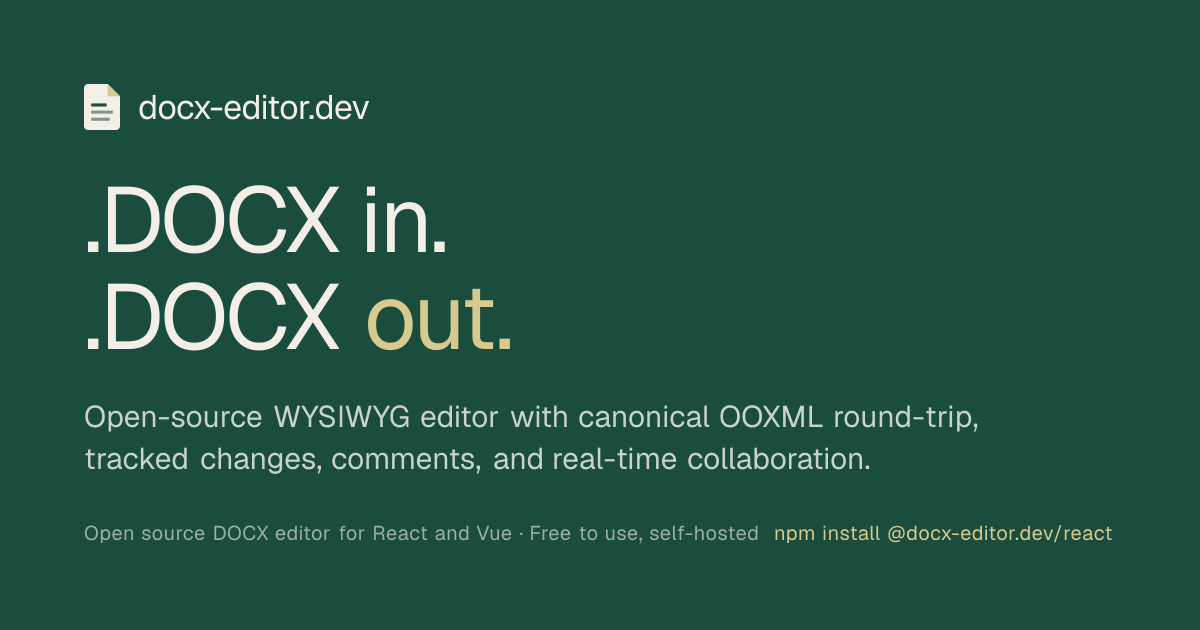
DOCX Editor for React and Vue Full homepage screenshot

At a glance

Category
Development
Language
English
Paid-content signal
Paid contentObserved
Registered
2026
Hosting
VercelInferred
HTTPS certificate trusted
PassedObserved
Last updated

Website review

This review may include AI-generated content and is not individually verified. Domain, certificate and other facts come from the observed data on this page.

What is DOCX Editor for React and Vue?

DOCX Editor for React and Vue is an open-source, embeddable Word (.docx) editor component for React and Vue 3, distributed as JavaScript packages (@docx-editor.dev/react and @docx-editor.dev/vue, both paired with @docx-editor.dev/core). Parsing, rendering, and editing run client-side in the browser, so you don't need a document-processing server to let users open and edit Word files inside your app.

What it does

  • In-browser .docx editing: A WYSIWYG editor that reads and writes canonical OOXML, so documents round-trip to Word-compatible files.
  • Review workflow: A "suggesting" mode wraps edits in revision markup with author attribution, and threaded comments anchor to text ranges. Users accept, reject, reply, and resolve from a sidebar, similar to Word's review pane. This is described as commercially licensed.
  • Editor API / automation: The document can be edited by code, either headless over file bytes or against a document a user already has open. The site also shows an "agent" pattern for letting a model call tools that create structured content and tracked changes.
  • Word fidelity: Layout support across Latin, right-to-left, and CJK text, including fonts, paragraph direction, tables, and floating images.
  • Customizable UI: Live demos include a fully custom editor ("Igloo") and a contract-redlining example that reviews an NDA with a scripted assistant and exports to Word.

Who it's for

Teams building React or Vue products that need real Word document editing inside the app — contract review tools, document automation pipelines, or internal editors — rather than a plain rich-text field. The Office.js-compatible API is a practical draw if you already have Word add-in code.

Trade-offs to weigh

Consideration What it means for you
Open source vs. paid features Core editing is open source; tracked changes and collaboration are commercially licensed, so budget for the pro package if review workflows matter.
Client-side model No server dependency simplifies deployment, but very large documents lean on the user's browser.
Framework scope First-class React and Vue 3 support (including Nuxt); other frameworks would need more integration work.

Next step: If your team already writes Word add-ins, start with the Office.js compatibility claim — port a small add-in function and confirm it behaves the same in the embedded editor before committing. Otherwise, open the contract-redlining demo to judge whether the review UX matches how your users work.

How do I add the DOCX editor to a React app versus a Vue 3 app?

Both integrations follow the same pattern: install a framework package plus the shared core, then mount the editor component and point it at a .docx file. The page's quickstart shows two install commands:

  • React: npm install @docx-editor.dev/react @docx-editor.dev/core
  • Vue 3: npm install @docx-editor.dev/vue @docx-editor.dev/core

@docx-editor.dev/core is the common dependency in both cases, so parsing, rendering and editing run client-side in either framework. The difference is only the wrapper you import and the component API you use (props/events in React, props/emits or slots in Vue). For Nuxt, the Vue package is the one to reach for.

Choosing between them

Situation Start with Why
Existing React SPA or Next app @docx-editor.dev/react Fits your component tree and state management
Vue 3 or Nuxt project @docx-editor.dev/vue Native Vue 3 component, works in Nuxt
Mixed or framework-agnostic codebase Core package, wrapped yourself One integration to maintain

Practical next step

Install the packages for your framework, mount the editor against a sample .docx, and confirm that saving produces a file Word opens cleanly — that round-trip is where fidelity problems usually surface. If you also need tracked changes, comments or suggesting mode, check the licensing terms before building them into your UI, since the page describes those as commercially licensed. For a concrete reference implementation, open the live examples linked from the site: an ice-themed custom-UI editor and an NDA redlining demo with a scripted assistant, both at DOCX Editor for React and Vue.

Can I edit Word documents entirely in the browser without a document-processing server?

Yes. This editor is built to parse, render and edit .docx files client-side, so the document never has to be sent to a document-processing server. You install the React or Vue 3 component, load the file in the page, and the editing happens in the browser with OOXML as the output format.

The practical implications for a reader building this into an app:

  • Deployment: a static frontend plus your own backend for file storage and auth is enough; there is no separate rendering or conversion service to host.
  • Data handling: for contracts, HR records or internal memos, the document stays on the client until you choose to save it, which simplifies privacy reviews.
  • Offline and latency: no round trip per keystroke, so typing and scrolling respond like a local editor.
  • Trade-offs: very large documents and complex floating layouts still consume browser memory and CPU, so test with your heaviest real files rather than a sample memo. Cross-browser behaviour needs checking too.

For example, a Vue 3 team building an internal NDA review tool could embed the editor, let reviewers apply suggestions and accept or reject tracked changes in a sidebar, then export to Word — all without a server-side document pipeline. The tracked-changes and comments workflow is a commercially licensed part of the product, so confirm which tier you need before committing; the open-source core and the paid review features are separate.

A sensible next step is to open the live demos on DOCX Editor for React and Vue — the custom-UI Igloo example and the contract-redlining example — and load one of your own .docx files to judge fidelity and speed before wiring it into your build.

How do tracked changes and comments work for reviewing a document?

Tracked changes and comments are the review layer of the editor: edits become visible, attributable suggestions, and feedback is anchored to specific text. Per the product page, Suggesting mode wraps every edit in revision markup with author attribution, and threaded comments anchor to text ranges. Accept, reject, reply, and resolve happen from a sidebar, following Word's model. The page also notes that this review workflow (tracked changes, comments) is part of the commercially licensed "pro" package rather than the open-source core, so budget for a license if review is central to your use case.

What a reviewer actually does

  • Edit in Suggesting mode. Typing, deleting, or reformatting produces a marked revision tagged with the author's name instead of silently changing the text.
  • Comment on a range. A comment attaches to selected text, and replies thread underneath it; resolving closes the thread without deleting the history.
  • Decide. Accept or reject per change from the sidebar. The page's Contract redlining demo walks this path on an NDA — a scripted assistant proposes suggestions, and the reviewer accepts or rejects them before exporting to Word.

Where this fits, and the trade-off

Scenario Fit Consider
Legal or procurement review in your own React/Vue app Strong: revisions and comments stay inside your product You pay for the pro review module
AI or scripted suggestions a human approves Strong: the page describes an agent API that emits tracked changes You define the tool schema and approval flow yourself
Simple "edit and save" with no audit trail Overkill The open-source core may be enough

Next step: open the Contract redlining demo and make one edit in Suggesting mode, then accept it — that single loop tells you whether the sidebar and revision display match how your reviewers already work in Word. If your reviewers expect Word's exact Review pane, compare against Microsoft's own tooling at Microsoft before committing.

What does the commercial Pro license add on top of the open-source editor?

The Pro license adds the review-workflow layer and the agent-oriented editing APIs that the open-source core does not include. The open-source editor handles client-side parsing, rendering and editing of .docx files in React and Vue 3, with canonical OOXML output; Pro builds on that with the features a team needs once documents are shared, reviewed or generated by code.

What Pro adds

  • Tracked changes (suggesting mode). Every edit is wrapped in revision markup with author attribution, so reviewers see who changed what. The open-source editor does not carry this.
  • Threaded comments. Comments anchor to text ranges, with accept, reject, reply and resolve from a sidebar — the Word-style review loop.
  • The agent tooling. The "build a DOCX automation agent" path lets a model call defined tools to create structured content and tracked changes, which is what the contract-redlining demo shows: a scripted assistant proposes edits, a human accepts or rejects them, and the file exports to Word.
  • Custom nodes. Extend the document model beyond standard Word constructs for domain-specific content.

The practical split: the open-source component is enough when you need users to open, edit and save a Word file in the browser. Pro matters when edits must be attributable and reviewable, or when software rather than a person is writing into the document.

Choosing

If you are building a contract or policy tool where legal or compliance staff must see and approve each change, the tracked-changes and comment layer is the deciding feature — without it you would be diffing versions yourself. If you are building an internal report generator where an LLM drafts sections, the agent tools plus revision markup let a human sign off on machine-written text rather than trusting it silently.

The live demos are the fastest way to judge fit: the ice-themed custom-UI example shows how far the interface can be reshaped, and the contract-redlining example shows the review-and-automation loop end to end. See DOCX Editor for React and Vue for the feature-by-feature fidelity notes and the Pro documentation before committing, since licensing terms and the exact boundary between free and Pro features are set there.

How can I build an automation agent that creates DOCX content and tracked changes programmatically?

Build the agent around a document model the library already understands: your model calls tools that emit structured content and revision markup, and the editor renders and saves it as OOXML. The site describes this directly—"Define tools your model can call to create structured DOCX content and tracked changes"—and offers a headless mode that works "over bytes on a server, or in a page against a document your user already has open." Its editor API is also described as Office.js-compatible, so code written for a Word add-in can run in this environment.

A practical build order

  1. Decide where the document lives. For batch generation (contracts, memos, reports), run headless on the server over a .docx buffer. For "edit what the user has open," embed the React or Vue 3 component and let the agent act on the live document.
  2. Define a small tool surface, not free text. Expose tools like insertParagraph, replaceRange, insertTable, and suggestRevision with explicit arguments (anchor, style, author). Returning structured operations keeps output valid and auditable.
  3. Route all edits through suggesting mode. The site says suggesting mode "wraps every edit in revision markup with author attribution," so the agent's changes arrive as tracked changes a human can accept or reject—rather than silent overwrites.
  4. Anchor comments to ranges. Threaded comments tie to text ranges, which lets the agent explain a change ("making the GA date explicit") next to the edit itself.
  5. Close the loop. A reviewer accepts or rejects in the sidebar, and the result exports to Word.

Design trade-offs

Approach Best for Cost
Headless over bytes Batch generation, pipelines, no UI You build review UI or hand off files
Embedded editor + agent Human-in-the-loop redlining Needs a React/Vue front end
Office.js-style add-in code Reusing existing Word add-in logic Verify each API you depend on

Tracked changes, comments, and custom nodes are described as commercially licensed, while the core editor is open source—so budget for the review-workflow tier if the agent must produce revision markup. Check the pricing page rather than assuming.

Concrete scenario

A legal-ops team wants an NDA reviewed before signature. The agent loads the uploaded .docx headless, proposes clause edits as tracked changes authored "agent," attaches a comment to each, and returns the file. A lawyer opens it in the embedded editor, accepts three suggestions, rejects one, and exports. The site's Contract redlining demo shows this exact flow with a scripted assistant.

Next step: start from the quickstart (@docx-editor.dev/core plus the React or Vue package), then prototype one tool—suggestRevision—against a sample document before expanding the tool set. See DOCX Editor for React and Vue for the agent and review-workflow docs.

Related questions

More questions →
What Is an Embeddable DOCX Editor and How Do You Add One to a React or Vue App?

An embeddable DOCX editor is a client-side component that parses, renders, and edits .docx files directly in the browser, so you don't need a document-processing server. On docx-editor.dev, this takes the form of an open-source WYSIWYG editor for React and Vue 3, installed via npm (@docx-editor.dev/react or @docx-editor.dev/vue, plus @docx-editor.dev/core), mounted as a component, and used to load a Word file, edit it, and save canonical OOXML back out. Choose this approach when your users already work with Word documents and you want editing inside your own UI; plan for a commercial license if you need tracked-changes review workflows or collaboration.

How an embeddable DOCX editor differs from a server-side converter

A converter takes a .docx on the server and returns HTML or PDF. An embeddable editor keeps the document in the page: parsing, rendering, and editing all run client-side, and the output is OOXML rather than a flattened preview. That matters for round-trip fidelity — fonts, paragraph direction, tables, and floating images are preserved so the file still opens correctly in Word.

The site describes the component as "open source .docx editing, made embeddable," with "canonical OOXML out" and no document-processing server required.

Integration paths for React and Vue 3

Both frameworks follow the same shape: install a framework package plus the core package, then mount the editor component.

Framework Install command What you get
React npm install @docx-editor.dev/react @docx-editor.dev/core React editor component
Vue 3 npm install @docx-editor.dev/vue @docx-editor.dev/core Vue 3 editor component

The site also lists Nuxt among its keywords, so Vue 3 setups including Nuxt are the intended target for the Vue package. The published package is at version 2.33.0 with roughly 361.4k monthly npm downloads and 529 GitHub stars, which gives you a sense of adoption before you commit.

Basic integration flow

  1. Install the framework package and core package with the commands above.
  2. Mount the editor component in your page or route.
  3. Load a .docx — the demo UI shows explicit Upload .docx and Save .docx actions, so expect a load step and a save/export step in your own UI.
  4. Edit in the WYSIWYG surface; changes render in place.
  5. Save or export the result as OOXML so it reopens in Word.

The exact prop and event names aren't in the material provided, so check the package docs for the component API before wiring state.

Capabilities worth evaluating before you choose

  • Word fidelity — layout across Latin, right-to-left, and CJK text; fonts, paragraph direction, tables, and floating images retained. The site publishes feature-by-feature support with live examples, which is the right place to check the specific constructs your documents use (nested tables and footnote references are called out as OOXML edge cases).
  • Review workflow — a Suggesting mode wraps every edit in revision markup with author attribution, and threaded comments anchor to text ranges. Accept, reject, reply, and resolve from a sidebar, Word-style.
  • Editor API — headless operation over bytes on a server, or in-page against a document the user already has open. It's described as Office.js-compatible, so code written for a Word add-in runs here.
  • Automation — the site frames a "DOCX automation agent" path where you define tools a model can call to create structured content and tracked changes.

Open source vs. commercially licensed features

This is the decision point most teams hit. The editor is open source, but the review workflow (suggesting mode, tracked changes, comments) and collaboration are commercial: the site's pricing page and the @docx-editor.dev/pro package are referenced for these. So:

  • If you need plain in-browser editing and export, start with the open-source packages.
  • If your product depends on tracked changes, comments, or multi-user collaboration, budget for the pro license and confirm terms on the pricing page before building around them.

The material doesn't state prices, so don't assume the pro tier is free or that login is unnecessary — check the pricing page directly.

When this is the right fit — and when it isn't

Good fit: a React or Vue app where users open existing Word documents, make edits, and expect the file to survive a round trip to Word; or an agent/automation flow that needs to emit structured .docx with revision markup.

Weaker fit: you only need to display or convert documents (a renderer or converter is lighter), or you need heavy real-time co-editing without a commercial license.

To judge the editing experience before integrating, the site offers two live demos: Igloo (a custom toolbar, menus, and workspace) and Contract redlining (review an NDA with a scripted assistant, apply suggestions, accept or reject tracked changes, and export to Word). Trying both shows you the fidelity and review behavior you'd be building on.

How Do You Choose a JavaScript DOCX Editor Component for React or Vue?

Choose a client-side DOCX editor component when you need users to open, edit, and save Word files directly in the browser without a document-processing server. For React or Vue 3 apps, the main decision points are framework fit, OOXML fidelity, whether tracked changes and comments are required (these are commercially licensed in the DOCX Editor for React and Vue), and whether you also need a headless API for automation. Validate fit by running the live demos and installing the package before committing.

What a JavaScript DOCX editor component does

A DOCX editor component parses, renders, and edits .docx files in the browser. In the DOCX Editor for React and Vue, parsing, rendering, and editing all run client-side, and the output is canonical OOXML, so you do not need a document-processing server. That differs from server-side conversion pipelines, where uploads are processed remotely and returned as HTML or PDF.

The trade-off: client-side editing keeps the document in the page (good for latency and privacy-sensitive flows), but fidelity depends on how completely the component implements OOXML features such as tables, floating images, footnotes, and right-to-left or CJK layout.

Selection criteria that actually change the decision

Criterion What to check Why it matters
Framework support React package vs Vue 3 package, both on @docx-editor.dev/core Determines install path and component API
OOXML fidelity Tables, floating images, fonts, paragraph direction, Latin/RTL/CJK layout Round-trip edits that Word still opens correctly
Tracked changes Suggesting mode with author attribution; accept/reject Required for review and redlining workflows
Comments Threaded comments anchored to text ranges; reply and resolve Needed for collaborative review
Custom nodes Extend the document model Needed for domain-specific content
Automation / headless Edit .docx bytes by code, on a server or in a page Needed for document generation agents
Office.js compatibility Whether existing Word add-in code runs unchanged Reuse of prior investment
Licensing Open-source core vs commercially licensed pro features Cost and legal fit

Open-source core vs commercially licensed features

The editor is described as an open-source WYSIWYG .docx editor for React and Vue, with tracked changes, collaboration, and customizable UI. The site separates a core from pro functionality: the review workflow (suggesting mode that wraps edits in revision markup with author attribution, plus threaded comments) and collaboration are documented under the pro package (@docx-editor.dev/pro). Treat tracked changes and comments as licensed capabilities and confirm terms on the pricing page before you design a review workflow around them.

React vs Vue 3: how the choice plays out

Both frameworks use the same core, so fidelity and licensing behave identically. The difference is the wrapper package and component conventions:

  • React: npm install @docx-editor.dev/react @docx-editor.dev/core
  • Vue 3: npm install @docx-editor.dev/vue @docx-editor.dev/core

If you use Nuxt, the Vue 3 package is the relevant one. Pick based on your existing app; there is no fidelity reason to switch frameworks for this component.

Evaluating automation and Office.js compatibility

If your use case is generating or modifying documents programmatically (for example, an agent that drafts a memo and applies tracked changes), check the headless editor API: it operates over .docx bytes either on a server or against a document already open in the page. The site also states Office.js compatibility, meaning code written for a Word add-in runs in this editor—worth verifying against the specific APIs your add-in uses.

Steps to validate fit before committing

  1. Run the live demos. Open the Igloo demo for a custom toolbar and workspace, and the Contract redlining demo to apply suggestions and accept or reject tracked changes on an NDA. Expected result: you see how review markup and export to Word behave.
  2. Install the package for your framework using the commands above, and mount the editor against a sample .docx your users actually work with.
  3. Test round-trip fidelity. Edit and save, then reopen in Microsoft Word. Check the features you rely on: nested tables, footnotes, floating images, RTL or CJK text.
  4. Test the review workflow if you need it: make an edit in suggesting mode, confirm author attribution, add a comment, then accept and reject.
  5. Confirm licensing for pro features on the pricing page before building dependent features.
  6. Prototype automation if relevant: feed .docx bytes to the headless API and inspect the OOXML output.

Common sticking points: assuming tracked changes are part of the open-source core, and testing only simple documents so OOXML edge cases (nested tables, footnote references) surface after launch.

How Do You Choose a DOCX Editor Component for React?

Choose a React DOCX editor component when you need users to open, edit, and save Word documents directly in the browser, and pick one that parses and renders OOXML client-side so you don't have to run a document-processing server. For most teams the deciding factors are React integration quality, Word fidelity (tables, floating images, RTL and CJK text), and whether tracked changes, comments, and collaboration are included or sold separately. The open-source DOCX Editor for React and Vue 3 (@docx-editor.dev/react with @docx-editor.dev/core) is a concrete option to evaluate against those criteria.

What an embeddable DOCX editor component does

An embeddable editor is a UI component you drop into your React app. It takes a .docx file, parses the OOXML, renders it as an editable WYSIWYG document, and writes canonical OOXML back on save. Parsing, rendering, and editing all run client-side, so there is no document-processing server in the loop.

That differs from a server-side document pipeline, where you upload a file, convert or manipulate it on a backend, and return a result. The component model suits apps where the user already has a document open and expects Word-like editing: memos, contracts, internal drafts.

The same component also exposes an editor API, so code can act on the document — headless over bytes on a server, or in the page against the open document. The project states its API is Office.js-compatible, meaning code written for a Word add-in can run in this editor.

Selection criteria for a React DOCX editor

Client-side parsing and rendering

Confirm the editor does the work in the browser. If parsing or layout requires a server round-trip, you inherit backend infrastructure, latency, and a data-handling surface you may not want. Client-side rendering also means the editor works against a document the user already has open.

React integration

Check that there is a first-class React package rather than a generic wrapper. The reference package here is @docx-editor.dev/react, installed alongside @docx-editor.dev/core:

npm install @docx-editor.dev/react @docx-editor.dev/core

A Vue 3 equivalent exists (@docx-editor.dev/vue), which matters if you share components across React and Vue codebases.

OOXML fidelity

Fidelity is where DOCX editors diverge most. Test the features your documents actually contain: nested tables, footnote references, floating images, paragraph direction for right-to-left text, and CJK layout. The project advertises layout support across Latin, RTL, and CJK text, preserving fonts, paragraph direction, tables, and floating images, with feature-by-feature support documented and live examples. Treat that as a checklist to verify against your own files, not an assumption.

Open-source core versus paid features

The editor is open-source, but tracked changes, comments, custom nodes, and document automation are described as commercially licensed. Plan for this in two steps:

  1. Prototype with the open-source core to validate editing and export fidelity.
  2. Decide whether your product needs review workflow (suggesting mode with author attribution, threaded comments anchored to text ranges, accept/reject/reply/resolve) and collaboration, and budget for the commercial license if so.

The review workflow is modeled on Word: suggesting mode wraps every edit in revision markup with an author, and comments are threaded and anchored to ranges. Collaboration is delivered through a separate @docx-editor.dev/pro package. Pricing and license terms are on the project's pricing page — read them before committing, since the source description does not state terms.

Export fidelity and round-tripping

The output is canonical OOXML, and the project describes its round-trip as lossless. Verify this yourself: open a representative document, edit it, save, and reopen in Microsoft Word. Pay attention to the edge cases the project itself flags — OOXML quirks in nested tables and footnote references — because those are the likeliest places for drift.

How to evaluate options side by side

Use the same dimensions for every candidate so the comparison is fair:

Criterion What to check Why it decides the choice
Parsing/rendering location Client-side vs. server round-trip Server dependency adds infrastructure and latency
React package Native package and install path Wrapper quality affects maintenance burden
Word fidelity Tables, floating images, RTL, CJK, footnotes Determines whether users trust the editor
Review workflow Tracked changes, comments, accept/reject Often the reason teams need a DOCX editor at all
Collaboration Real-time or threaded, and licensing Separate paid package in this project
Automation API Headless editing, Office.js compatibility Enables agents and scripted document generation
Export Canonical OOXML, lossless round-trip Broken export defeats the purpose
Licensing Open-source core vs. commercial features Cost and legal fit for your product

What to check before committing

  • Run your own documents through it. Fidelity claims are feature-by-feature; your files are the real test.
  • Confirm the review workflow license. Tracked changes and comments are commercially licensed here, so confirm terms and cost on the pricing page.
  • Test Office.js compatibility if you already have Word add-in code you want to reuse.
  • Check collaboration packaging — it ships as @docx-editor.dev/pro, a separate dependency.
  • Verify export in Word, especially nested tables and footnote references.
  • Try the live demos before building: the Igloo demo shows a custom editor UI with its own toolbar and menus, and the contract redlining demo shows a scripted assistant applying suggestions, accepting or rejecting tracked changes, and exporting to Word. Both are useful for judging the editing experience and the review workflow without writing code.

If your app needs browser-based Word editing with a React component and you can live with a commercially licensed review layer, this project fits the criteria above. If you need fully open-source tracked changes or a server-side conversion pipeline instead, keep evaluating against the same table.

What Are Open-Source UI Element Libraries and How Do They Differ From UI Frameworks?

An open-source UI element library is a collection of individual, ready-made interface pieces—buttons, cards, inputs, toggles, loaders—that you copy into your own project and adapt. A UI framework, by contrast, is a structured system of components, conventions, and often a theming layer that governs how your whole interface is built. The practical difference: an element library gives you a snippet; a framework gives you a way of working. If you need a polished button in ten minutes, reach for the element library. If you're building a 40-screen product with a team, you probably want the framework.

What "open-source UI element library" actually means

The term gets used loosely, so it helps to separate the parts:

  • Open-source: the code is publicly available, and the license tells you what you may do with it—copy, modify, redistribute, or use commercially.
  • UI element: a single, self-contained piece of interface, usually small enough to read in one sitting. A button with hover states, a pricing card, a search field.
  • Library: a browsable, searchable collection of those elements, typically contributed by many different people.

On a site like Uiverse, elements are shared by a community and written in plain CSS or Tailwind. You find one you like, copy the markup and styles, paste them into your project, and adjust colors, spacing, and text to fit. There's no package to install and no build step required—which is exactly the appeal, and also the source of most of the confusion.

Element library vs. UI framework: the core differences

Dimension Open-source UI element library UI framework / design system
Unit of reuse A single snippet you copy A component you import or call
Installation None; paste into your code Package install, config, sometimes a provider
Consistency Depends on you; each element may look different Enforced by shared tokens and APIs
Theming Manual edits per element Central theme/config file
Updates You own the copy; no upstream updates Version bumps bring fixes and changes
Accessibility Varies per contributor; must be checked Usually tested and documented
Best for Prototypes, landing pages, small sites, one-off needs Multi-page apps, teams, long-lived products
Learning curve Low—read the CSS Higher—learn the API and conventions

The table isn't a verdict. It's a map of trade-offs. Element libraries win on speed and freedom; frameworks win on consistency and maintenance.

Licensing and attribution: what to check before you paste

This is where people get into trouble, and it's worth slowing down for.

  1. Find the license. Every element or collection should state one. Common open-source licenses include MIT, Apache-2.0, and BSD. Some projects use copyleft licenses like GPL, which can impose obligations if you redistribute your code.
  2. Understand what the license permits. MIT and Apache-2.0 are permissive: you can typically use the code in commercial and closed-source projects. Copyleft licenses may require you to release derivative source under the same terms.
  3. Check attribution requirements. Permissive licenses usually require you to keep the copyright notice and license text somewhere in your project. That's a real obligation, not a formality.
  4. Look for per-element terms. On community sites, the site's overall terms and the individual contributor's stated wishes may differ. If a contributor asks for credit, honor it.
  5. When in doubt, ask or avoid. If a snippet has no license at all, you don't have clear permission to reuse it. Treat "no license" as "not open source," even if the code is publicly visible.

This article is general information, not legal advice. For commercial products with real exposure, have someone qualified review the licenses you're relying on.

How to use a community element in your project: a practical workflow

Here's a repeatable process that avoids most of the usual mess.

1. Start from a real need, not a browsing session

Decide what you need first—"a compact primary button with a loading state"—then search. Browsing aimlessly produces a pile of pretty snippets that don't fit together.

2. Copy the smallest version that works

Take the markup and the styles. Strip anything you don't need: demo wrappers, extra animations, decorative layers. Less code means fewer surprises.

3. Convert it to your conventions

If your project uses design tokens or CSS variables, replace hard-coded values:

/* Before: hard-coded */
.button { background: #4f46e5; border-radius: 8px; }

/* After: token-based */
.button { background: var(--color-primary); border-radius: var(--radius-md); }

This one step is what keeps a copied element from looking like a foreign object in your UI.

4. Check accessibility before you ship

Community elements vary widely here. Verify at minimum:

  • Keyboard focus is visible and the element is reachable by Tab.
  • Color contrast meets WCAG AA (4.5:1 for normal text).
  • Interactive elements use semantic HTML (<button>, not a clickable <div>).
  • Form inputs have associated labels.
  • Motion respects prefers-reduced-motion.

5. Test in context

Paste it into a real page with real content. Long labels, small screens, and dark mode break more copied elements than anything else.

6. Note where it came from

Keep a short comment or an internal credits file: source, license, date. Future you—and your legal reviewer—will be grateful.

Where element libraries genuinely shine

  • Prototypes and demos: you need something clickable today, not a design system.
  • Landing pages and marketing sites: a handful of distinctive elements, each custom.
  • Filling gaps: your framework lacks one specific component, and you don't want to build it from scratch.
  • Learning: reading well-made CSS is one of the fastest ways to improve.
  • Small projects: a personal site doesn't need a theming architecture.

Where they fall short

  • Consistency at scale: ten elements from ten contributors rarely look like one product.
  • Maintenance: you own every copy. When your design changes, you edit each one.
  • Accessibility debt: you inherit whatever the contributor did or didn't do.
  • No upstream fixes: a bug fixed in the original won't reach your copy.
  • Integration friction: different naming conventions, different units, different assumptions about resets.

When to choose which

Choose an element library when the scope is small, the timeline is short, or you need a few distinctive pieces rather than a whole system.

Choose a framework or design system when multiple people build multiple screens over months, when consistency is a product requirement, or when accessibility and theming need to be guaranteed rather than checked.

A hybrid works well for many teams: adopt a framework for the structural components—forms, navigation, layout—and borrow individual elements for the places where you want personality. Just route every borrowed element through the same token and accessibility checks, so it lands as part of your system rather than beside it.

The short version: open-source UI element libraries are a fast, flexible way to get good-looking interface pieces into a project. They are not a substitute for a design system, and the license and accessibility details are the part worth reading carefully.

Website Overview

The available information shows a mix of normal operation and configuration gaps. Depending on how the website is used, these gaps may affect secure access or the consistency of its public presentation.

Domain and Registration

The domain was registered less than a year ago and has limited historical evidence to assess. Transfer-protection status is present, helping reduce the risk of unauthorized domain transfers. The domain uses the common .dev extension, which is not an independent safety signal.

DNS and Email

The lowest TTL is 60 seconds, supporting rapid record changes at the cost of more frequent lookups. Nameservers are provided by vercel-dns.com, indicating managed DNS hosting. CAA records restrict which certificate authorities are authorized to issue certificates. No CNAME was found; the observed records resolve directly to addresses. No MX record was found. A conventional explicit inbound-mail route is not configured.

TLS and Certificates

The certificate uses an RSA 2048-bit public key, offering broad client compatibility. The server supplied a complete certificate chain. No organization name is present in the certificate; the available fields are consistent with domain validation. The certificate was issued by Let's Encrypt, commonly associated with automated certificate services. The certificate's total validity is about 89 days, consistent with a short renewal cycle.

HTTP and Browser Security

X-Powered-By exposes backend information: Next.js. The response lacks these common security headers: Permissions-Policy. No obvious internal addresses or debug information were found in the headers. The Server header contains the custom value Vercel. No explicit CDN or WAF marker was found in the response headers.

Technology Stack Analysis

The public page identifies Next.js, Vercel without precise versions, leaving fewer clues for version-specific scanning.

Search and Social Sharing

The meta description has 219 characters and may be shortened in search results. Twitter Card metadata is configured. JSON-LD includes Organization data, helping describe the organization as an entity. The title has 55 characters, within a common display range. The observed directives allow indexing and link following.

Hosting and Email

DNSvercel-dns.com
HostingVercel
EmailUnknown
Approximate IP geolocation (inferred; a CDN or proxy may differ from the origin server) United States flagUnited States Inferred 216.150.16.1

Registration details

RDAP / WHOIS

RegistrarName.com, Inc.
Registered2026-03-11
Expires2027-03-11
Domain statusclient transfer prohibited
Nameserversns1.vercel-dns.com、ns2.vercel-dns.com
DNSSECunsigned

DNS records

DNS

TypeNameValueTTLPriority
Awww.docx-editor.dev216.150.16.11800—
Awww.docx-editor.dev216.150.16.1931800—
NSdocx-editor.devns1.vercel-dns.com86400—
NSdocx-editor.devns2.vercel-dns.com86400—
TXTdocx-editor.devgoogle-site-verification=txmwsIivogPpUzWGc2BclDTrQTIIJAd60FjVBPKqmKE60—
CAAdocx-editor.dev0 issue "letsencrypt.org"60—
CAAdocx-editor.dev0 issue "pki.goog"60—
CAAdocx-editor.dev0 issue "sectigo.com"60—
DMARC_dmarc.docx-editor.devv=DMARC1; p=none; rua=mailto:[email protected]60—

TLS and certificates

TLS / SSL

AssessmentNormal configuration
Supported protocolsTLSv1.2、TLSv1.3
Negotiated protocolTLSv1.3
Certificate subject*.docx-editor.dev
IssuerLet's Encrypt
Valid until2026-12-13T20:50 · Remaining when checked: 45 days
Verification detailsCertificate trust: Passed · Hostname match: Passed

HTTP response headers

HTTP

HeaderValue
content-typetext/html; charset=utf-8
cache-controlpublic, max-age=0, must-revalidate
serverVercel
strict-transport-securitymax-age=31536000; includeSubDomains; preload
content-security-policydefault-src 'self'; script-src 'self' 'unsafe-inline' 'unsafe-eval' https://www.googletagmanager.com https://www.google-analytics.com; style-src 'self' 'unsafe-inline' https://fonts.googleapis.com; img-src 'self' data: blob: https://www.google-analytics.com https://www.googletagmanager.com https://*.g.doubleclick.net https://*.google.ad https://*.google.ae https://*.google.al https://*.google.am https://*.google.as https://*.google.at https://*.google.az https://*.google.ba https://*.google.be https://*.google.bf https://*.google.bg https://*.google.bi https://*.google.bj https://*.google.bs https://*.google.bt https://*.google.by https://*.google.ca https://*.google.cat https://*.google.cd https://*.google.cf https://*.google.cg https://*.google.ch https://*.google.ci https://*.google.cl https://*.google.cm https://*.google.cn https://*.google.co.ao https://*.google.co.bw https://*.google.co.ck https://*.google.co.cr https://*.google.co.id https://*.google.co.il https://*.google.co.in https://*.google.co.jp https://*.google.co.ke https://*.google.co.kr https://*.google.co.ls https://*.google.co.ma https://*.google.co.mz https://*.google.co.nz https://*.google.co.th https://*.google.co.tz https://*.google.co.ug https://*.google.co.uk https://*.google.co.uz https://*.google.co.ve https://*.google.co.vi https://*.google.co.za https://*.google.co.zm https://*.google.co.zw https://*.google.com https://*.google.com.af https://*.google.com.ag https://*.google.com.ar https://*.google.com.au https://*.google.com.bd https://*.google.com.bh https://*.google.com.bn https://*.google.com.bo https://*.google.com.br https://*.google.com.bz https://*.google.com.co https://*.google.com.cu https://*.google.com.cy https://*.google.com.do https://*.google.com.ec https://*.google.com.eg https://*.google.com.et https://*.google.com.fj https://*.google.com.gh https://*.google.com.gi https://*.google.com.gt https://*.google.com.hk https://*.google.com.jm https://*.google.com.kh https://*.google.com.kw https://*.google.com.lb https://*.google.com.ly https://*.google.com.mm https://*.google.com.mt https://*.google.com.mx https://*.google.com.my https://*.google.com.na https://*.google.com.ng https://*.google.com.ni https://*.google.com.np https://*.google.com.om https://*.google.com.pa https://*.google.com.pe https://*.google.com.pg https://*.google.com.ph https://*.google.com.pk https://*.google.com.pr https://*.google.com.py https://*.google.com.qa https://*.google.com.sa https://*.google.com.sb https://*.google.com.sg https://*.google.com.sl https://*.google.com.sv https://*.google.com.tj https://*.google.com.tr https://*.google.com.tw https://*.google.com.ua https://*.google.com.uy https://*.google.com.vc https://*.google.com.vn https://*.google.cv https://*.google.cz https://*.google.de https://*.google.dj https://*.google.dk https://*.google.dm https://*.google.dz https://*.google.ee https://*.google.es https://*.google.fi https://*.google.fm https://*.google.fr https://*.google.ga https://*.google.ge https://*.google.gg https://*.google.gl https://*.google.gm https://*.google.gr https://*.google.gy https://*.google.hn https://*.google.hr https://*.google.ht https://*.google.hu https://*.google.ie https://*.google.im https://*.google.iq https://*.google.is https://*.google.it https://*.google.je https://*.google.jo https://*.google.kg https://*.google.ki https://*.google.kz https://*.google.la https://*.google.li https://*.google.lk https://*.google.lt https://*.google.lu https://*.google.lv https://*.google.md https://*.google.me https://*.google.mg https://*.google.mk https://*.google.ml https://*.google.mn https://*.google.mu https://*.google.mv https://*.google.mw https://*.google.ne https://*.google.nl https://*.google.no https://*.google.nr https://*.google.nu https://*.google.pl https://*.google.pn https://*.google.ps https://*.google.pt https://*.google.ro https://*.google.rs https://*.google.ru https://*.google.rw https://*.google.sc htt
x-frame-optionsDENY
x-content-type-optionsnosniff
referrer-policystrict-origin-when-cross-origin

Identified technologies

Next.jsVercel

Pages, Search and Sharing

Meta descriptionOpen-source DOCX editor for React and Vue 3. Edit Word documents in the browser, with commercially licensed tracked changes, comments, custom nodes, and document automation. You do not need a document-processing server.
Canonical URLhttps://www.docx-editor.dev
LanguageEnglish (default)
Twitter Cardsummary_large_image
All bots 1 allowed · 5 disallowed
  • Allow/
  • Disallow/license/
  • Disallow/admin
  • Disallow/portal
  • Disallow/customer
  • Disallow/api/customer-auth/

User reviews (0)

  • No reviews yet.