
 简体中文
简体中文 English
Website review
This review may include AI-generated content and is not individually verified. Domain, certificate and other facts come from the observed data on this page.
What is HeSuVi?
HeSuVi (Headphone Surround Virtualization) is a free Windows tool that turns ordinary stereo headphones into a virtual 7.1 surround system. It takes multichannel audio and converts it into binaural stereo using HRIR (Head-Related Impulse Response) profiles, so games, films and mixes produce positional sound through regular headphones.
What it actually does
- Virtual surround from real profiles. It draws on HRIR profiles from Dolby Atmos for Headphones, DTS Headphone:X, Windows Sonic, Creative SBX Pro Studio, Sennheiser GSX and more than a dozen other engines, and lets you switch between them to hear which suits your headphones.
- Headphone correction EQ. Over 1,000 headphone-specific presets (AutoEq, oratory1990, Innerfidelity measurements) flatten your headphones' frequency response before spatialization. This matters in practice: bass-heavy headphones often sound muddy under virtual surround, and bright ones can get fatiguing, so correction is the step that makes the profiles behave.
- Runs through Equalizer APO. It applies profiles via Equalizer APO's convolution engine, so Equalizer APO is a prerequisite, not an optional add-on.
- Windows only. The page lists Windows 7–11, a Free Pascal codebase by developer jak33, hosted on SourceForge since 2018.
Who it suits
The clearest fit is a PC gamer or film watcher with good stereo headphones and no surround hardware who wants positional cues without buying a commercial spatial-audio license. A secondary audience is someone comparing spatial engines: the instant profile switching is the practical way to judge which one flatters your particular headphones. It is less appealing if you want a set-and-forget driver-level solution, since it depends on Equalizer APO configuration and on picking a profile and EQ preset yourself.
First step
Install Equalizer APO, confirm it is processing your output device, then install HeSuVi and start with one profile (Dolby Atmos or Windows Sonic) plus the EQ preset matching your headphone model. Compare two or three profiles on the same game or film scene before settling on one. For background and setup discussion, the project's SourceForge page and the Equalizer APO community are the natural references.
Do I need Equalizer APO installed to use HeSuVi, and how do I set it up?
Yes. HeSuVi does not process audio on its own: it relies on Equalizer APO's convolution engine to apply its HRIR profiles, so Equalizer APO must be installed and working before HeSuVi can do anything. The HeSuVi page describes this directly, listing Equalizer APO as the mechanism through which the surround profiles are applied.
Setup order that avoids the usual dead ends
- Install Equalizer APO first, and during setup select the playback device you actually use for headphones (the device picker in the installer is easy to miss).
- Reboot, then confirm Equalizer APO is active on that device before going further. If you hear no change when you toggle a simple EQ band, HeSuVi will not work either.
- Install HeSuVi and point it at the same output device.
- Pick an HRIR profile — the page names profiles such as Dolby Atmos, DTS Headphone:X, Windows Sonic, Creative SBX and Sennheiser GSX — and switch between them on the same track or game scene to compare.
- Add a headphone correction preset for your model from the built-in EQ list, then re-compare profiles, since correction changes which profile suits your headphones.
Practical notes
The correction step matters more than it sounds. The page's own explanation is that HRIR accuracy depends on a neutral frequency curve, so bass-heavy headphones tend to sound muddy with virtualization and bright ones can get fatiguing. If your first profile sounds bloated or harsh, try the EQ preset before blaming the profile.
For a concrete case: someone gaming on a closed-back headphone with boosted bass will usually get better positional cues by applying their model's correction preset and then choosing a profile, rather than cycling through dozens of profiles on an uncorrected curve.
Two things to check if setup fails: Windows sound enhancements or third-party audio panels (vendor control software) sometimes conflict with Equalizer APO's APO chain, and the selected device in Equalizer APO's config must match the one HeSuVi targets. The project is distributed via SourceForge, and the page notes it runs on Windows 7 through 11.
For background on the underlying tool, see Equalizer APO on SourceForge.
How do I choose the right HRIR profile for my headphones among Dolby Atmos, DTS Headphone:X, and the others?
Start with the profile that matches how you'll use the headphones, then fine-tune by ear: there is no single "best" HRIR, because the right one depends on your ears, your headphones and the content. HeSuVi's value here is that it lets you switch instantly between profiles from Dolby Atmos, DTS Headphone:X, Windows Sonic, Creative SBX, Sennheiser GSX and others, so comparison is cheap.
A practical way to choose
- Apply headphone correction first. Load the EQ preset for your model before judging any HRIR. HeSuVi's built-in equalizer includes over 1,000 headphone-specific presets from AutoEq, oratory1990 and Innerfidelity measurements, and the page notes that without correction, bass-heavy headphones tend to sound muddy and bright ones fatiguing with virtualization. Comparing profiles on an uncorrected curve mostly tells you which one compensates for your headphone's flaws, not which one suits you.
- Use one fixed test clip per profile. Pick a scene with clear directional cues — footsteps circling behind you, a car passing left to right — and a music track you know well. Switch profiles without changing anything else.
- Judge on three things: front/back distinction (can you tell a sound is behind rather than just to the side?), center-image stability (does dialogue stay anchored, or smear?), and fatigue over 20–30 minutes. A profile that sounds impressively wide for two minutes but tiring after twenty is the wrong choice.
- Save the winner as a profile. HeSuVi's profile manager lets you store setups like "Gaming" or a headphone model name, so you can keep one profile for competitive games and another for films.
How the common profiles tend to differ
These are general tendencies reported by users, not specifications of this product:
| Profile family | Typical character | Often chosen for |
|---|---|---|
| Dolby Atmos | Polished, cinematic, strong front image | Films, single-player games |
| DTS Headphone:X | Wide, pronounced rear cues | Action games, immersion |
| Windows Sonic | Lighter, less colored | Long sessions, mixed use |
| Creative SBX | Punchier, more processed | Games where impact matters |
| Sennheiser GSX | Restrained, natural | Music and critical listening |
Decision criteria
- Competitive shooters: prioritize accurate rear and front cues over width; try DTS Headphone:X and SBX first, then verify with in-game audio.
- Film and atmosphere: Dolby Atmos profiles are the usual starting point.
- Music and mixing: the least colored profile wins; GSX-style profiles and a neutral EQ are safer.
- Comfort over time: if you wear headphones for hours, favor the profile that fatigues least, even if it sounds less dramatic at first.
As a next step, set up two saved profiles — one "competitive" and one "cinematic" — using the same corrected EQ, and A/B them across a week of real use rather than a single session. For background on the tool itself, see HeSuVi.
Is HeSuVi safe and truly free to download, and where should I get it?
Yes—HeSuVi is genuinely free to download and generally safe to install, with one important condition: get it from the official source and understand exactly what it installs. The page describes it as "100% Free," developed by jak33 and hosted on SourceForge since 2018, running on Windows 7–11. There is no paid tier or license fee described. "Safe" here means no cost and no bundled adware if you use the official channel—not that the software is risk-free in every respect.
What "free" actually means here
HeSuVi is a Free Pascal application distributed at no charge. Its core value is a library of HRIR profiles modeled on commercial spatial-audio engines (Dolby Atmos, DTS Headphone:X, Creative SBX, Sennheiser GSX, Windows Sonic and others), plus over 1,000 headphone EQ presets drawn from AutoEq, oratory1990 and Innerfidelity measurements. You are not paying for the profiles or the app.
Where to get it
Download it from the project's official SourceForge page, which the site identifies as its host. Avoid mirror sites, "cracked" repacks, or third-party download portals—these are the usual vector for bundled installers. If you want to compare against other free audio tools, only use official domains, e.g. SourceForge for the project listing and Equalizer APO for the convolution host it depends on.
The real safety consideration
HeSuVi does not work standalone: it applies HRIR profiles through Equalizer APO's convolution engine. That means you are installing a system-level audio processing component (Equalizer APO) that hooks into Windows audio. Practical implications:
- Install Equalizer APO first, point it at your playback device, then add HeSuVi.
- System-level audio APOs can cause audio glitches or, rarely, instability if misconfigured—keep a note of how to disable or uninstall it.
- Antivirus tools sometimes flag unsigned or niche audio utilities; verify the file comes from the official project page before overriding any warning.
- Because it modifies how all system audio is rendered, test with one output device before committing.
A concrete check before installing
If you mainly want surround for games and movies on one pair of headphones, this is a low-risk, zero-cost experiment: install Equalizer APO, add HeSuVi, load a profile such as dolby_atmos.wav or win_sonic.wav, and compare against plain stereo. If you need bit-perfect or low-latency monitoring for music production, weigh that against the extra processing layer. Either way, the deciding factor is the source you download from—official project page, nothing else.
How does HeSuVi compare to paid virtual surround options like Dolby Atmos for Headphones or DTS Headphone:X?
HeSuVi is not a rival to Dolby Atmos for Headphones or DTS Headphone:X so much as a free front end that borrows their spatial profiles. According to the site, it applies HRIR (head-related impulse response) profiles through Equalizer APO's convolution engine, and its profile library includes Dolby Atmos, DTS Headphone:X, Windows Sonic, Creative SBX and Sennheiser GSX, among others. So the practical difference is packaging and control, not a wholly different spatial algorithm: paid options are licensed, app-managed experiences, while HeSuVi lets you load, switch and compare those profiles yourself inside one Windows tool.
| Aspect | HeSuVi (per site) | Paid Dolby/DTS options (general) |
|---|---|---|
| Cost model | Free | Licensed, typically tied to an app, device or subscription |
| Profile choice | Many HRIR profiles switchable in one place | Usually the vendor's own processing |
| Setup | Requires Equalizer APO; manual profile and EQ work | Usually install-and-enable |
| Headphone correction | Built-in EQ with 1,000+ presets from AutoEq, oratory1990 and Innerfidelity | Limited or absent |
| Platform | Windows 7–11 | Varies by app, console or headset |
| Support | Community project | Vendor support and updates |
The headphone EQ is the most concrete advantage for a reader with, say, bass-heavy closed-back headphones: flattening the response before spatialization keeps the surround effect from turning muddy, which the site explicitly notes. The trade-off is that HeSuVi is a Free Pascal project hosted on SourceForge since 2018, so you are configuring a chain (Equalizer APO plus profiles) rather than pressing one switch, and you depend on the project's maintenance rather than a vendor's.
A sensible next step: if you already use Equalizer APO and want to A/B Dolby, DTS and Sonic profiles on your own headphones, start with HeSuVi at HeSuVi. If you want zero configuration or need spatial audio on a console or phone, a paid vendor option is the more direct fit.
Can I use HeSuVi for gaming positional audio and music mixing, and what are its system requirements?
Yes. HeSuVi is built for both: it takes 7.1-channel audio and converts it to binaural stereo through HRIR profiles, so games get directional cues and multichannel mixes can be monitored on ordinary headphones.
Gaming
Load a profile that matches your taste — the page lists Dolby Atmos, DTS Headphone:X, Windows Sonic, Creative SBX and Sennheiser GSX among the options — and switch between them to hear which gives the most believable front/back and left/right placement in your games. Because the profiles differ, the same headphone can sound wide and diffuse with one and tighter with another; test in a game where you know the map layout rather than judging by a single explosion.
Music mixing
The practical use is checking how a surround or multichannel mix translates to headphones, not replacing studio monitors for stereo work. The built-in EQ is the more relevant feature here: HeSuVi includes over 1,000 headphone correction presets (drawn from AutoEq, oratory1990 and Innerfidelity measurements per the page). Applying your model's preset first flattens the response, which the page notes matters because HRIR accuracy depends on a neutral curve — bass-heavy headphones otherwise sound muddy with virtualization. Treat that as the sensible workflow: correct the headphone, then virtualize.
System requirements
Per the page: Windows 7–11, version 2.0.0.1, about 27.3 MB, free. The key dependency is Equalizer APO — HeSuVi applies its profiles through APO's convolution engine, so Equalizer APO must be installed and attached to your playback device before HeSuVi does anything. It is a Windows-only Free Pascal application.
Next step
Install Equalizer APO on your output device first, then HeSuVi, load your headphone's EQ preset, and A/B two or three HRIR profiles in one game and one multichannel track. If you want a second reference point on virtual surround for headphones, HeSuVi is the project's own site; general EQ guidance is also available from AutoEq if you want to compare correction curves.
 Cloudflare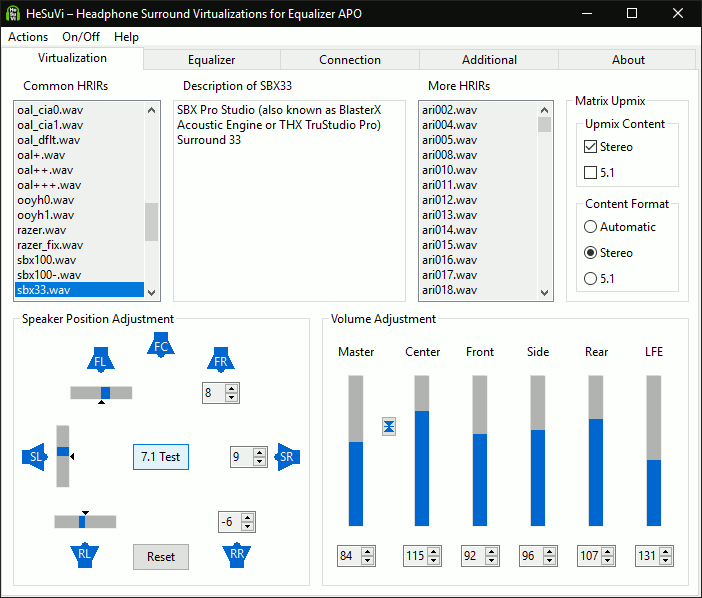
User reviews (0)