
 简体中文
简体中文 English
Website review
This review may include AI-generated content and is not individually verified. Domain, certificate and other facts come from the observed data on this page.
What is JSKIDPIX?
JSKIDPIX is a browser-based tribute to the classic Kid Pix drawing program, rebuilt in JavaScript. The page presents itself as "JS KidPix for the web," with a playful, minimal interface built around emoji-style controls (arrows, a floppy disk, a palette) rather than a traditional menu. It is aimed at people who remember the original Kid Pix and want a quick, nostalgic drawing session without installing anything.
What to expect in practice
- Familiar creative play: The intent is clearly to recreate the spirit of Kid Pix — simple, playful drawing and stamping — in a modern browser tab.
- Lightweight access: Because it runs on the web, it suits a quick session on a laptop or classroom machine rather than a full-featured art tool.
- Nostalgia-first audience: It appeals most to adults revisiting childhood software, and secondarily to kids trying a simplified drawing environment.
Trade-offs to weigh
If you need precise drawing tools, layers, or export options for real design work, a dedicated illustration app will serve you better. JSKIDPIX is best treated as a fun, retro experiment: open it when you want the Kid Pix feel, not when you need production-grade output.
A useful next step is to open the page and try a single drawing with the stamp and palette controls to see whether the recreation matches your memory of the original before relying on it for anything beyond casual play.
Can I run KidPix in my browser without installing anything?
Yes. JSKIDPIX at JSKIDPIX runs in the browser as a web app, so there is nothing to download or install before you start drawing.
The practical catch is that it is a browser re-creation of the classic KidPix experience, not the original desktop program. Expect the familiar spirit — simple drawing tools aimed at quick, playful picture-making — rather than a full archival copy with every historical feature. If you need the exact original menus or file formats, this will likely feel like a tribute rather than a substitute.
A useful next step: open it in a current browser on the device you plan to use, try one drawing and one save or export, and confirm that the result is easy to retrieve afterwards. That quick test tells you whether it suits a classroom, a child's tablet session, or a nostalgic five-minute doodle.
What drawing tools and stamps does JSKIDPIX include?
The page itself gives only a bare interface (a heading, a few symbols and a sad-face glyph), so it does not document a tool list. What can be said from the evidence is limited: JSKIDPIX presents itself as a web version of KidPix, and its visible page content is an icon-based canvas shell rather than a written feature inventory.
What to expect from a KidPix-style web tool
KidPix's identity rests on a small set of playful drawing behaviors, and a web remake typically aims at these:
- Freehand brushes with varying widths and colors, often with textured or "wacky" variants.
- Stamps, the signature feature: click-to-place images (animals, shapes, faces) that can be scaled or mirrored.
- Fill/bucket for flooding regions with color.
- Erasers and undo, essential because stamps encourage experimentation.
- A saved canvas or export, so a drawing can leave the browser.
Treat that list as general expectation for this genre, not as a confirmed feature set for this site.
How to check quickly
Open the app and probe four things in the first minute: whether the stamp palette is populated, whether brush size changes visibly, whether undo works after a misplaced stamp, and whether there is any way to save the image. A remake that fails the save test is a toy for a single sitting; one that passes it can be used for actual classroom or family activities.
Who it suits
A parent or teacher wanting a zero-install, low-friction drawing toy for young children is the natural audience. An illustrator needing layered, precise work should look elsewhere; stamp-and-brush play is a different job. For comparison, Aggie.io targets collaborative freehand drawing, and Kleki offers a lightweight layered paint workspace — both are built for different intentions than a KidPix homage.
How does JSKIDPIX compare to the original KidPix desktop software?
JSKIDPIX is best understood as a browser-based tribute to the original KidPix rather than a full replacement for it. The page presents it as "JS KidPix for the web," and the visible interface is extremely sparse—an arrow, a disk icon, a palette icon, and a return symbol—which suggests a deliberately stripped-down, retro-style drawing toy rather than a complete recreation of the desktop program's menus, stamps, and tool set. Anyone expecting the original's full feature depth, saved-file workflow, or classroom extras should treat JSKIDPIX as a quick, nostalgic sketchpad instead.
Where the two differ in practice
| Aspect | Original KidPix (desktop) | JSKIDPIX (web) |
|---|---|---|
| Access | Installed software | Opens in a browser, no install |
| Interface | Full menus, toolbars, stamp libraries | Minimal icon-based controls |
| Typical use | Classroom projects, longer sessions | Quick doodles, nostalgia, demos |
| Feature depth | Broad creative toolkit | Lightweight drawing experience |
A concrete scenario
A parent who remembers KidPix from school might open JSKIDPIX to show a child the "feel" of the old program for five minutes on a laptop—no setup, no account. That works well. The same parent planning a rainy-afternoon art session with stamps, backgrounds, and printable output would find the original desktop software better suited, because JSKIDPIX's visible controls imply a much smaller toolset.
How to decide
Choose JSKIDPIX when convenience and a retro vibe matter more than features; choose the original when you need its fuller creative options. As a next step, open JSKIDPIX and try a single drawing to see whether its minimal controls cover what you actually want to make before comparing it further to the desktop version.
Can I save or export my artwork from JSKIDPIX?
JSKIDPIX is a browser-based tribute to the classic Kid Pix, and the page itself gives no clear indication that saving or exporting finished artwork is supported. The visible interface is extremely sparse, and there is no documented export or file-save flow described on the site.
What this means in practice
- Assume artwork is session-only unless you verify otherwise. If you draw something you want to keep, treat it as temporary until you have confirmed a save or export option actually works in your browser.
- Check the interface directly. Look for a disk, download, or export control while you are drawing. The page uses a disk-style icon in its interface, but its function is not described, so test it with a quick scribble before committing to a longer piece.
- Plan a fallback. A practical approach is to take a screenshot of the canvas when you finish. This preserves the image even if no export exists, though it captures only what is visible on screen.
Decision criterion
If keeping the artwork matters, test the save path first with a throwaway drawing: draw a mark, try the likely save or download control, then check your downloads folder or reopen the page. If nothing is produced, rely on screenshots and keep sessions short.
For a more fully featured browser drawing tool with dependable export, compare with established options such as JS Paint, which is modeled on MS Paint and is widely used for quick image saving.
Is JSKIDPIX suitable for young children to use on their own?
Yes, with a caveat: JSKIDPIX is designed as a browser-based recreation of the classic KidPix drawing experience, so its core activity—stamping, painting, and doodling—suits young children. The page itself is minimal, showing only navigation symbols (← → 💽 🎨 ↪) and a small ":(" state, which suggests a deliberately simple, icon-driven interface rather than text-heavy menus. That is a good sign for pre-readers.
What to weigh
- Age fit: The activity type (freeform drawing with stamps and brushes) matches roughly ages 4–8. Older children may find it limited.
- Independence: Icon-only controls reduce reading demands, but a child still needs to recognize what each symbol does. A short first session with an adult helps.
- Supervision trade-off: Browser tools generally benefit from a grown-up nearby for the first use—closing tabs, handling the save/download icon (💽), and recovering from the ":(" state if something fails.
- Safety: It is a single-purpose drawing page, so the main risk is navigating away rather than in-app contact with others.
Practical next step: Sit with your child for one five-minute trial. If they can pick a tool, draw, and use the 💽 icon without help, they can likely use it alone afterward. If the icons confuse them, treat it as a supervised activity.
 Cloudflare
 Fastly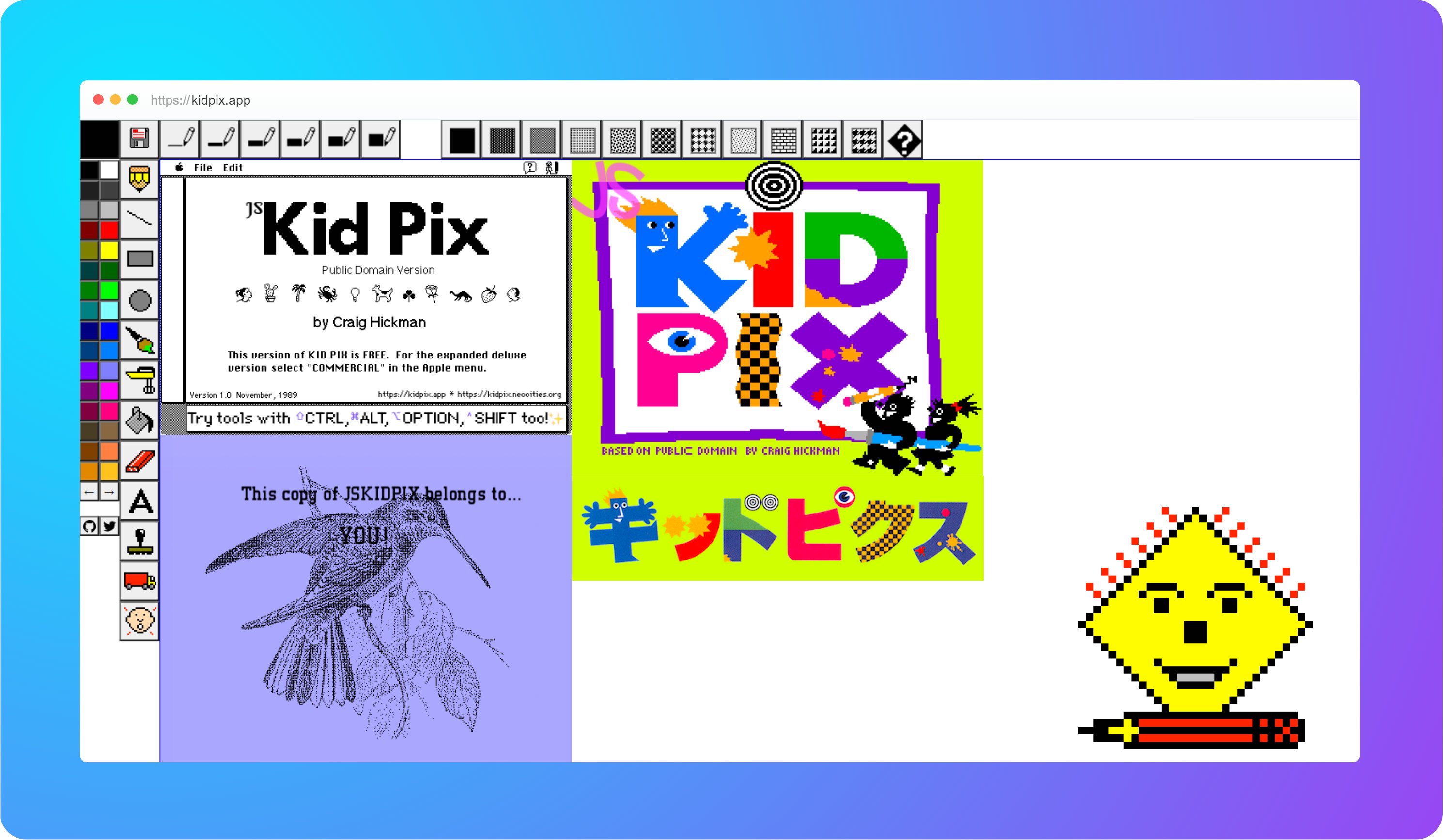

User reviews (0)