
 简体中文
简体中文 English
Website review
This review may include AI-generated content and is not individually verified. Domain, certificate and other facts come from the observed data on this page.
What is Linksort?
Linksort is a bookmarking tool for saving web links and keeping them organized so you can close browser tabs without losing them. Links are saved with a one-click browser extension, then managed through search, filters, sorting, grouping and favorites. The page describes three display modes (tiled, comfy and condensed), automatic machine-learning tagging that sorts links into categories, a graph view for exploring relationships between links and topics, folders, and private notes on what you read. Data is described as encrypted in storage and not shared with anyone, and the service is presented as free, with the promise that signing up now keeps it free for you.
The practical use case is research buildup: someone collecting sources for a project or purchase decision can tag and group links instead of leaving dozens of tabs open. The trade-off is that automatic tagging is convenient but imperfect, so folders and notes still matter for anything you'll rely on later. If you mainly need plain bookmark syncing across browsers, a built-in bookmark manager may be enough; Linksort's edge is the combination of auto-categorization, graph view and notes. As a next step, save a week's worth of links and check whether the automatic categories match how you actually look for things before committing your whole collection.
How does Linksort's auto-tagging organize my saved links?
Linksort uses machine learning to sort saved links into categories automatically, so you do not have to assign a tag to every item yourself. According to the product page, the feature "magically" groups your links by topic, with the company noting that the mechanism is machine learning rather than literal magic. In practice, that means after you save a link with the browser extension, Linksort proposes a category based on the page's content, giving you a starting structure you can then refine.
What this means day to day
- Faster capture: You can save a link and close the tab without stopping to decide where it belongs; the auto-tag supplies a first pass.
- A browsable starting point: Auto-generated categories make a new, unsorted collection easier to scan than a flat list of raw URLs.
- Support for discovery: The page pairs auto tags with a graph view that shows relationships among links and their topics, which is most useful when tags are consistent enough to reveal clusters.
Where it fits and where it doesn't
Auto-tagging suits people who save a high volume of mixed reading—articles, references, tools—and want rough order without manual filing. It is less suited to collections that depend on precise, personal naming schemes, such as project-specific labels or client folders. Because the categories come from machine learning, expect some misclassification and plan to correct or merge tags as your collection grows.
A practical next step
Save a batch of ten to twenty links from different topics, then review the suggested categories before adding your own folders or notes. Treat auto tags as a first draft: keep the ones that match how you actually search, rename the rest, and use folders for the few areas where exact organization matters. That combination—automatic grouping for breadth, manual folders for precision—gets the most from the feature without fighting it.
What are the differences between tiled, comfy, and condensed views in Linksort?
Linksort offers three display modes for your saved links, and the differences are mainly about how much space each link takes up and how much visual detail you see at a glance.
How the views differ
- Tiled view shows links as larger visual cards, so each item gets more space and stands out individually. This suits browsing or rediscovering links when you care about recognizing them quickly.
- Comfy view sits in the middle: a more relaxed, less compressed layout than condensed but denser than tiled. It works well as a default for everyday reading and scanning.
- Condensed view packs more links onto the screen with less per-item detail. It's the practical choice when you have a large collection and want to scan many items or compare titles fast.
Choosing between them
| View | Space per link | Best for |
|---|---|---|
| Tiled | Most | Visual browsing, small collections, spotting favorites |
| Comfy | Moderate | Everyday use and general scanning |
| Condensed | Least | Large libraries, quick searching and filtering |
A useful next step: pick one view for daily browsing and switch to condensed whenever you're hunting for a specific link in a big collection.
How does the graph view in Linksort help me explore relationships between links?
The graph view turns your saved links and their assigned topics into a network, so you can see which subjects cluster together and which links act as bridges between them. Rather than scrolling a flat list, you get a visual map: links that share topics sit near each other, and connections between topics become visible as lines between nodes. Linksort describes it as a way to "explore relationships among your links and their topics."
What it's useful for
- Spotting clusters you didn't plan. If you've saved a run of articles on, say, pricing strategy and a separate run on hiring, the graph may reveal a topic they share, showing an overlap your folders hid.
- Finding hub links. A link connected to many topics is often the one worth rereading or turning into notes.
- Deciding what to prune. Isolated nodes are links that don't connect to anything else you've saved — candidates for deletion or refiling.
Where it fits against other views
Linksort offers folders, search and filtering, favorites, and three display modes (tiled, comfy, condensed). Those are best for retrieval — you know roughly what you want and go get it. The graph is better for discovery, when you want to see the shape of your collection. The auto-tagging feature feeds it: because links are categorized automatically, the graph has topic structure to work with even if you never organized anything by hand.
A practical test
Pick a topic you've saved at least ten links on. Open the graph and ask two questions: which links connect to topics outside that group, and which sit alone? The first set is your cross-disciplinary material; the second is either misfiled or not worth keeping. Add notes to the bridges as you go, since notes stay private and travel with the link.
If you want to compare approaches, Pinboard favors fast tagging and search over visualization, and Raindrop.io offers collections with its own organizational tools — useful reference points if graph-style browsing matters less to you than retrieval speed.
Can I use folders and notes together in Linksort to organize research?
Yes. Linksort combines folders with per-link notes, so a research workflow can use folders for broad project structure and notes for the reasoning that a folder name can't hold.
How the two fit together
Folders in Linksort are described as straightforward, familiar organization: "Sometimes you just need a good old folder." Notes are described as a place to "jot down your thoughts as you read," private to you. Used together, a folder becomes a project shelf, and each saved link carries its own annotation.
A concrete example: a folder called "Housing policy" holds saved articles, reports and datasets. Each link gets a note such as why it was kept, the key figure cited, whether the source is primary or secondary, and what still needs checking. Later, the folder limits the search space, and the note tells you whether a link is worth reopening — without loading the page again.
What Linksort adds around that pairing
- Auto tags group links into categories using machine learning, which works alongside manual folders rather than replacing them. Tags are useful for cross-cutting themes that span several project folders.
- Graph view shows relationships among links and their topics, which suits mapping how sources connect within a research area.
- Search, filter, sort, group and favorite apply across saved links, so a folder plus a filter can narrow a large collection quickly.
- Three display modes — tiled, comfy and condensed — let you switch between visual browsing and dense scanning of a long reading list.
- A browser extension saves links in one click while browsing, which matters when research happens in many open tabs.
- Encrypted storage is stated on the site, with data not shared with others.
Trade-offs to weigh
Notes in Linksort are attached to links, so they suit source-level annotation — a thought about one article — more than long-form drafting. If your research output is a structured document with citations, expect to move notes into a writing tool eventually. Folders also impose a single hierarchy: a source relevant to two projects lives in one folder, with tags or search covering the overlap. That is workable, but plan your folder scheme before a collection grows large.
Practical next step
Start with one real project rather than a test folder. Create a folder for it, save five to ten sources through the extension, and write a note on each covering why it matters and what you still need from it. Then try finding a specific claim using only search and your notes. If that works, scale the same pattern to other projects; if it feels clumsy, adjust whether folders follow topics, projects or source types before adding more links.
The site notes that Linksort is under active development and that signing up now keeps it free for that account, so features may change over time. If folders and notes are central to your workflow, confirm current behavior in the app before committing a large archive.
Is Linksort free to use, and will it stay free if I sign up now?
Yes. Linksort says it is free to use, and that if you sign up now it will always be free for you. That promise is tied to signing up during the current development period, so the practical reading is: create your account now if you want that status, rather than waiting until the product's pricing changes.
What "free" covers, based on the page
The page presents the core product as the free offering: saving links with a browser extension, searching, filtering, sorting, grouping and favoriting, auto-tagging, folders, notes, three display views (tiled, comfy, condensed), and a graph view. It does not list paid tiers, limits or a pricing page, so there is no stated cap on saved links or features in the supplied information.
What the promise does and doesn't tell you
- It is a forward-looking commitment from the site, not a guarantee written into a plan comparison. The wording "it will always be free for you" is personal to people who sign up now.
- It doesn't say whether later sign-ups will pay. New features arriving "at a rapid clip" could plausibly sit behind a future paid tier for new users while early accounts stay free.
- It doesn't specify account limits, export options or data retention. If you plan to store years of research links, check whether you can export your data before committing heavily.
A sensible next step
Sign up and import or save a small, representative batch of links — say 50 from a project you're actively working on — then test search, auto-tags and folders against how you actually retrieve things. If retrieval feels right, keep using it as your main link library while the free-for-early-users terms stand. As a hedge, keep a periodic export or a parallel list in a general bookmarking tool such as Pinboard or a notes app, so your collection isn't locked into one service whose future pricing is still being decided.
 Amazon Route 53
 Zoho Mail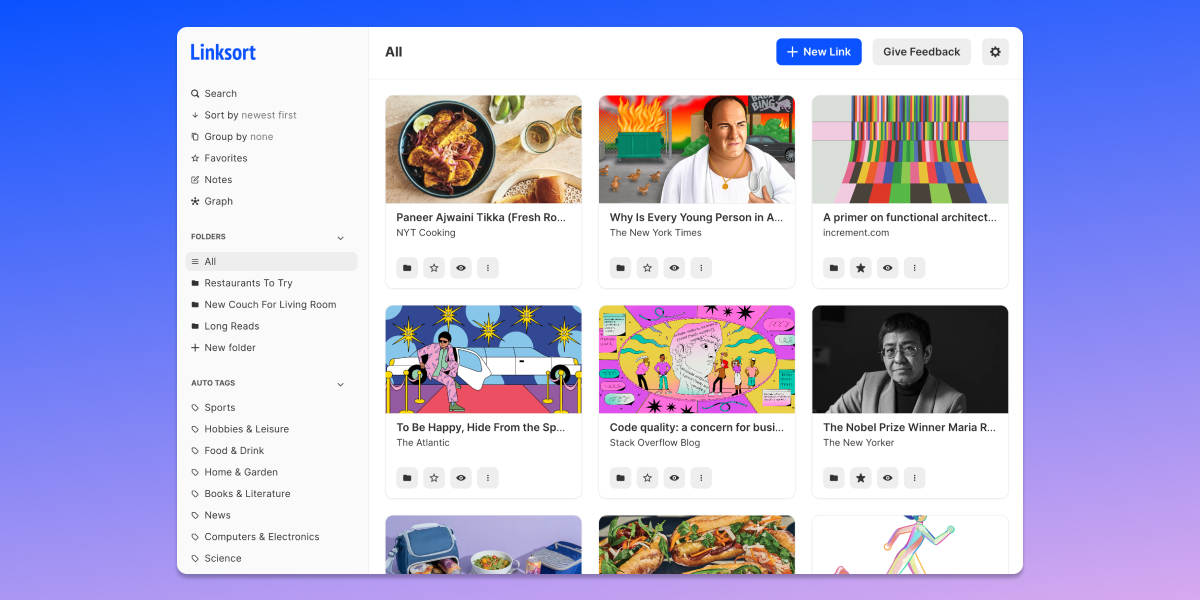

User reviews (0)