
 简体中文
简体中文 English
Website review
This review may include AI-generated content and is not individually verified. Domain, certificate and other facts come from the observed data on this page.
What is Zellij?
Zellij is a free, open-source terminal workspace and multiplexer written in Rust, positioned as a "terminal workspace with batteries included." It runs on Linux, macOS and Windows, and you can try it without installing via a launch script for bash/zsh, fish or PowerShell.
Its practical role is to let you run several shells, editors and long-running processes inside one terminal window, typically as tiled panes and tabs, so you can watch logs beside a REPL or keep a build running while you edit. The "batteries included" framing points to built-in conveniences rather than a bare pane splitter; the site directs readers to a features page for specifics. The maintainers also run a paid hosted session-sharing service, currently in beta, which matters if you want others to join a live session rather than just work locally.
Choosing between it and alternatives
A reasonable decision criterion is how much you value discoverability versus minimalism. If you are new to multiplexers and want visible keybinding hints and layouts without hand-writing a large config, Zellij is the more approachable starting point. If you want the most established ecosystem and years of community configurations, tmux is the conventional choice; GitHub hosts both projects' source and issue trackers for comparing activity. For a concrete test, open a project with a dev server, a test watcher and a log tail in three panes, then judge whether the layout and shortcut model feel natural after a week.
How does Zellij compare to tmux for terminal multiplexing?
Zellij and tmux both split a terminal into panes, tabs and sessions that survive disconnects, but they target different habits. Zellij is a Rust-written multiplexer that ships with visible UI chrome—a status bar and keybinding hints—so new users can discover layouts, panes and tabs without memorizing a config file first. tmux is the long-established standard: minimal by default, configured through .tmux.conf, and widely assumed to exist on remote servers and in tutorials.
Where the difference shows up
| Aspect | Zellij | tmux |
|---|---|---|
| Discoverability | On-screen hints and a built-in layout system | Keys learned from docs or config |
| Configuration | Works with defaults; layout files | Deeply scriptable via config file |
| Availability | Install separately (Linux, macOS, Windows builds offered) | Often preinstalled on servers |
| Extras | Plugins, session sharing (a paid hosted service is in beta; the tool itself is free and open source) | Mature ecosystem of scripts and plugins |
A concrete scenario: if you SSH into a fresh cloud VM and want a session that persists, tmux is usually already there, so a tmux new -s work habit pays off immediately. If you are pairing locally, juggling several project layouts, or onboarding a colleague who has never used a multiplexer, Zellij's visible hints and named layouts reduce the ramp-up.
How to decide
Pick tmux when portability across unknown servers, existing configs, or team conventions matter most. Pick Zellij when you want a friendlier default experience and are willing to install it on each machine you use. Trying Zellij without committing is easy—the site offers a launch script for bash/zsh, fish and PowerShell—so run it alongside your current tmux setup for a week and compare how often you reach for hints versus muscle memory. For reference on the alternative, see tmux on GitHub.
How do I install Zellij on Linux, macOS, or Windows?
Zellij's own download page points you to platform downloads for Linux, macOS and Windows, and also offers a way to try it without installing anything. The quickest zero-commitment route is the launch script they publish for bash/zsh, fish, and PowerShell, which runs Zellij without a permanent install. For a lasting setup, use the download link for your OS from Zellij.
Practical options
- Linux and macOS (bash/zsh): run the published launch command to try it immediately; for a permanent install, use your system package manager (for example, a distro package or Homebrew on macOS) rather than the trial script.
- fish shell: Zellij provides a fish-specific variant of the launch command, since fish handles process substitution differently.
- Windows: use the Windows download or the PowerShell launch command. If you work mainly in WSL, installing inside the Linux environment is often smoother than a native Windows install.
- Try-before-install: the launch script is the right choice when you're evaluating Zellij against tmux or screen and don't want to change your system yet.
Decision criteria
Choose the launch script if you want a five-minute trial; choose a package-manager install if you want updates handled for you and Zellij available in every session. On shared or locked-down machines, prefer the trial script so nothing persists.
Next step
After installing, run zellij to start a session and check the built-in keybinding help to learn the default shortcuts. Zellij is free and open source; the maintainers also run a paid hosted session-sharing service, currently in beta, which is separate from installation.
How can I try Zellij without installing it?
You can try Zellij without a permanent install by running its launch script, which downloads and starts Zellij in one step. The site presents this as the primary "Try Zellij Without Installing" route, with a separate command for each shell.
Commands by shell
| Shell | Command |
|---|---|
| bash / zsh | bash <(curl -L https://zellij.dev/launch) |
| fish | bash (curl -L https://zellij.dev/launch | psub) |
| PowerShell | irm https://zellij.dev/launch.ps1 | iex |
Zellij's page also links to the script itself for Linux/Mac and Windows, so you can read what it does before running it—worth doing with any piped-to-shell command. The download links for Linux, macOS, and Windows are the alternative if you'd rather install.
What to expect and how to decide
This is a good fit if you want to evaluate Zellij's workspace features—panes, tabs, and the "batteries included" setup—before committing to an install, or if you're on a machine where you can't install software. A concrete scenario: you're on a shared or locked-down workstation and want to compare Zellij against tmux or a terminal emulator's split views during a short session.
Trade-offs: a launch script runs code fetched from the network, so review it first; and a trial session won't give you a configured, persistent setup the way an install would. If you decide to keep using it, move to the platform download for your OS. Zellij is free and open source; the maintainers also run a paid hosted session-sharing service in beta, which is separate from trying the terminal workspace itself.
What features does Zellij offer for managing terminal workspaces and panes?
Zellij is a terminal workspace and multiplexer, positioned around the idea of a workspace that works out of the box ("batteries included"). For managing workspaces and panes, its page evidence highlights a workspace model, downloadable builds for Linux, macOS and Windows, a no-install trial via a launch script for bash/zsh, fish and PowerShell, and a pointer to explore its feature set. The page summary also notes that Zellij is free and open source, with maintainers running a paid hosted session-sharing service in beta.
What this means in practice
- Workspaces as the organizing unit: Zellij frames itself as a "terminal workspace," so expect to think in terms of a workspace containing multiple panes rather than a single shell window. The page evidence supports the workspace concept but does not enumerate specific pane-management commands, so verify exact keybindings and layout behavior in the project's own documentation.
- Cross-platform availability: Separate downloads for Linux, macOS and Windows mean the same workspace approach can be used across those systems, which helps if you move between machines.
- Low-commitment evaluation: The launch script lets you try Zellij without installing it, which is the fastest way to judge whether its pane and workspace handling fits your habits before adopting it.
- Session sharing: The paid hosted session-sharing service (in beta) is relevant if you need to bring another person into a live terminal session rather than just manage panes locally.
Choosing between multiplexers
| Consideration | Zellij's stated angle | What to check for yourself |
|---|---|---|
| Onboarding | "Batteries included" workspace framing | Whether default keybindings and on-screen hints suit you without heavy configuration |
| Platforms | Linux, macOS, Windows builds | Whether your target OS build is current and stable enough for daily use |
| Trying it out | No-install launch script | Whether running a remote script fits your security policy |
| Collaboration | Paid hosted session sharing (beta) | Whether beta reliability and cost suit your team |
Next step
Run the no-install launch command for your shell, open a couple of panes, and test the workflows you actually repeat: splitting panes, switching between them, and detaching and reattaching a workspace. If those feel natural within a short session, install the build for your platform; if not, the trial cost you nothing. For deeper feature detail than the landing page provides, consult the project's own documentation at Zellij.
Is Zellij free, and what does the paid hosted session sharing service provide?
Zellij is free and open source. The project also runs a paid hosted session-sharing service, currently in beta; the site does not detail what that service includes.
What the free download covers
The site offers downloads for Linux, macOS and Windows, plus a no-install trial via a shell command for bash/zsh, fish and PowerShell. That trial runs a script fetched from zellij.dev, so review it before running if you are cautious about piping remote scripts into a shell.
Practical use
For a developer who wants to try a terminal multiplexer without changing their setup, the no-install route is the lowest-commitment option; installing the native build is the better choice for daily work. The paid service matters mainly if you need to share a live session with someone remotely, such as pairing on a debugging session or walking a colleague through a terminal workflow. Because the site gives no details on features, capacity or terms, treat the beta as something to evaluate directly rather than assume it replaces self-hosted options like SSH and tmux.
Next step
Start with the free build or the no-install trial to confirm Zellij fits your workflow, then check the hosted service's own documentation for what it actually provides before paying. For background on terminal multiplexers generally, see GitHub for tmux and Zellij project pages.
 Namecheap
 Fastly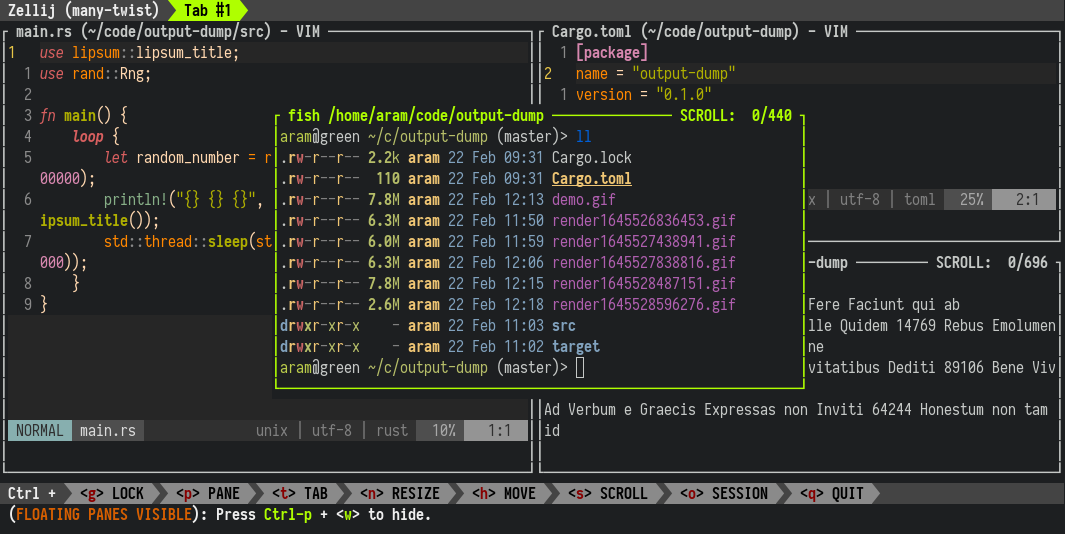

User reviews (0)