Website profiles · Technology insights · Alternatives

loras.dev

Generate AI Images with LoRAs in seconds.

No paid content found
Visit website
Profile views 0 Outbound visits 0 Normal
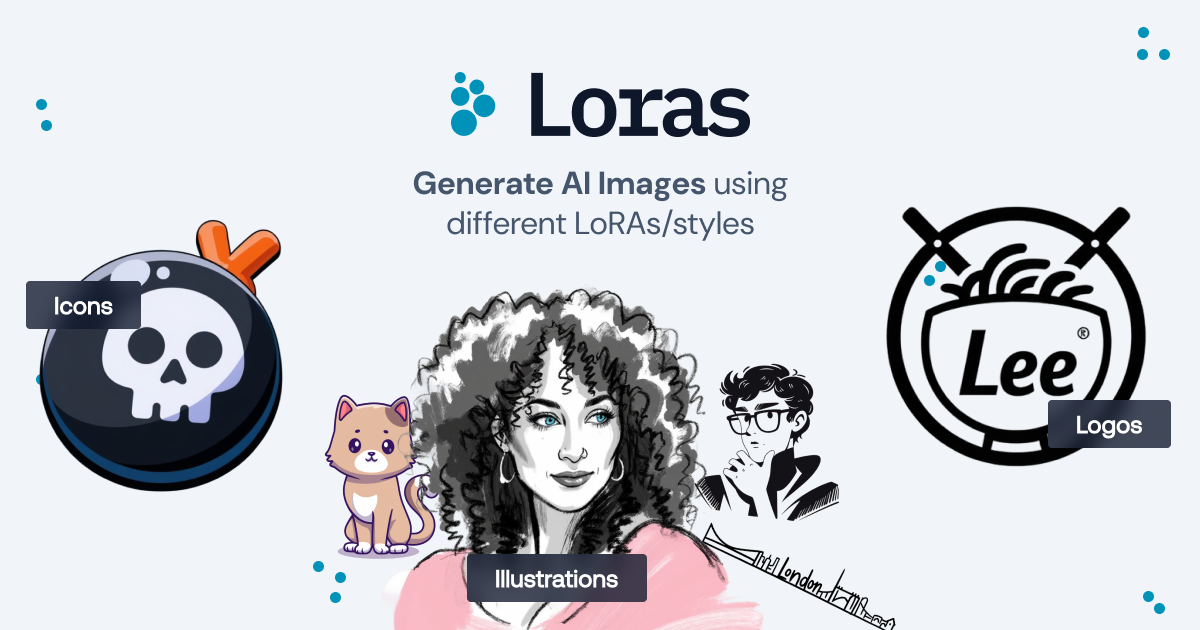
Loras Full homepage screenshot

At a glance

Category
Artificial Intelligence
Language
English
Paid-content signal
No paid content foundObserved
Registered
2025
Hosting
VercelInferred
HTTPS certificate trusted
PassedObserved
Last updated

Website review

This review may include AI-generated content and is not individually verified. Domain, certificate and other facts come from the observed data on this page.

What is Loras?

Loras is a web-based AI image generator built around LoRAs (Low-Rank Adaptations), small add-on models that steer a base image model toward a specific visual style. According to the site, you enter a text prompt, pick a LoRA from a preset list, and generate a stylized image in seconds. The listed styles include Icons, Logos, Midjourney, Tarot Card, Long Toon, Colored Sketch, Pencil Sketch, and Anime Sketch. Generation is described as powered by Together.ai, HuggingFace, and Flux, and the page provides a field for a Together AI API key.

What to expect in practice

The workflow is aimed at people who want a particular look without writing long style prompts: the LoRA does the styling work, and your prompt mainly describes the subject. That suits quick concept art, logo and icon drafts, social visuals, or sketch-style illustrations. Because an API key field is present, it appears intended for users who already have a Together AI account rather than a fully managed, sign-up-and-go service.

Note that the site currently shows a "We'll be back soon" notice stating it is being fixed, so availability may be intermittent.

Decision criterion

If you want fast, style-preset image drafts and are comfortable supplying an API key, Loras fits that use. If you need guaranteed uptime, billing clarity, or fine control over model weights, check the live status first and compare with a general-purpose generator such as BlinkShot (linked from the same page as another demo) before committing.

How do I generate an AI image with Loras using a LoRA and my Together AI API key?

The workflow shown on the page is: enter a prompt, pick a LoRA style, supply your Together AI API key, and press Generate Image. The page's own heading calls the result "stylized images in seconds," and it lists LoRA choices such as Icons, Logos, Midjourney, Tarot Card, Long Toon, Colored Sketch, Pencil Sketch and Anime Sketch.

Steps to follow

  1. Open the generator on Loras and check that the tool itself is live. The site currently displays "We'll be back soon" and says it is "currently working on fixing this site," so the form may not respond until that notice is removed.
  2. Choose a LoRA from the style list. This is the main creative decision: each option steers the output toward a different look, such as a logo treatment, a sketch style or a tarot-card aesthetic.
  3. Write a prompt describing the subject and any details you care about. The field is marked optional, but a specific prompt gives the style less room to invent content.
  4. Paste your Together AI API key into the key field. Treat it like a password: use a key you can rotate, and avoid pasting it into a page you don't trust.
  5. Generate and review. If the first result misses, change one variable at a time — usually the prompt — before switching LoRA.

A practical example

If you need a set of icons for a small app, choose the Icons LoRA and write a prompt naming the object, the line weight and the background. Run it once, then adjust the prompt rather than the style so the set stays consistent.

What to know before relying on it

The page says generation is "Powered by Together.ai, HuggingFace, & Flux," so your key is being used to call an external model service rather than a self-contained engine. That means your Together AI account terms and usage limits apply, and output quality depends on the selected LoRA plus the underlying model. Because the site is under repair, keep a fallback in mind: if the form stays down, the page itself points to other demos, including BlinkShot, for image generation in the meantime.

Which LoRA styles does Loras offer, such as icons, logos, tarot card, or anime sketch?

Loras lists eight selectable LoRA styles on its page: Icons, Logos, Midjourney, Tarot Card, Long Toon, Colored Sketch, Pencil Sketch and Anime Sketch. You pick one style from a selector, describe the image in a prompt, and generate.

What the styles suggest for different uses

  • Icons and Logos suit small graphic assets: app or site icons, favicon-style marks, and quick logo concepts. Expect concept exploration rather than production-ready vector files.
  • Tarot Card and Midjourney lean decorative and stylized. Tarot Card fits themed illustration sets or event artwork; Midjourney-style output suits moody, painterly visuals.
  • Long Toon, Colored Sketch, Pencil Sketch and Anime Sketch cover illustration and sketch looks, useful for character concepts, storyboards or social visuals where a drawn feel matters more than photorealism.

The trade-off is breadth versus control: a fixed set of presets is fast and predictable, but you cannot fine-tune a style beyond choosing one. If a project needs a very specific look, plan to iterate on prompts or combine the output with your own editing.

A practical next step: write one prompt describing your subject, then run it through two or three styles (for example Icons and Logos, or Anime Sketch and Colored Sketch) and compare which reads best at the size you will actually use. The site also points to another image demo, BlinkShot, if you want to try a different generation interface.

Is Loras free to use, or do I need to pay for Together AI API access?

Loras is not a paid subscription product—there's no pricing page—but it is not fully free either. The site's generator asks you to enter your own Together AI API key before creating an image, which means your usage is billed by Together AI under your own account, not by Loras. The page itself doesn't state any rates; check Together AI's current pricing for the model you'd be using.

What the page actually shows

  • A prompt field, a LoRA style picker (Icons, Logos, Midjourney, Tarot Card, Long Toon, Colored Sketch, Pencil Sketch, Anime Sketch), and an optional "Describe your image" field.
  • An input labeled "Together AI API Key" next to the Generate Image button.
  • A notice that the site is currently down: "We'll be back soon."

Practical implications

Because you bring your own key, costs scale with how much you generate, and you keep control of spend through Together AI's dashboard. The trade-off is setup friction: you need a Together AI account and a key before anything works, and you're responsible for keeping that key private—paste it only into sites you trust.

A concrete scenario

If you want a handful of icon or logo concepts for a side project, creating a Together AI account and generating a small batch is likely cheaper than a monthly subscription to a mainstream image tool. If you'd generate hundreds of images a week, compare your Together AI spend against a flat-rate service before committing.

Next step

Since the site is temporarily offline, start by checking Together AI's pricing for the Flux-based models referenced on the page, then return to Loras when it's back and test one LoRA with a short prompt to gauge output quality before generating at volume.

What is the current availability status of Loras, and where can I access alternative image demos while it is down?

Loras is currently unavailable. Its page shows a "We'll be back soon" notice stating the site is being fixed, so image generation through Loras cannot be used right now.

Where to go instead

The notice itself points visitors to the operator's other image demos, including BlinkShot.io and a general "All Demo Apps" page. For a practical next step, try BlinkShot for quick prompt-to-image experiments while Loras is down.

What Loras offered, for context

Based on the site's description, Loras was built around applying LoRA style presets—such as icons, logos, tarot cards, toon, colored sketch, pencil sketch and anime sketch—to a text prompt, with an optional Together AI API key for generation. That makes it a fit for people who want a specific visual style fast rather than full model control.

Choosing an alternative

  • If you need a particular style quickly: look for tools with ready-made style presets, similar to Loras's LoRA picker.
  • If you want more control: a general text-to-image service that accepts custom models or LoRAs will suit you better, at the cost of more setup.
  • If you just want to test prompts: a lightweight demo like BlinkShot is the lowest-friction option.

Check back on Loras periodically, since the notice indicates a temporary fix rather than a permanent shutdown.

How does Loras's LoRA-based generation differ from standard Flux image generation on Together.ai?

The page currently shows "We'll be back soon," so the live generator is unavailable and the comparison has to be drawn from what the page describes: Loras is a demo interface that lets you pick a pre-trained LoRA style and enter a prompt, then generates through Together.ai, HuggingFace and Flux. It does not describe a separate base model of its own.

What the page indicates

  • Style is chosen, not described. You select from a fixed list of LoRAs (Icons, Logos, Midjourney, Tarot Card, Long Toon, Colored Sketch, Pencil Sketch, Anime Sketch) rather than relying on prompt wording alone to steer the look.
  • Prompting is optional. The prompt field is marked optional, suggesting the chosen LoRA carries much of the visual direction.
  • Generation is delegated. The page credits Together.ai, HuggingFace and Flux, so the underlying image model is Flux-family rather than a custom Loras model.
  • You supply your own API key. An optional Together AI key field appears alongside the generate button.

How that differs from standard Flux on Together.ai

Standard Flux on Together.ai means you write a prompt and the base model interprets it directly; you control style through wording and parameters. Loras adds a curated style layer on top: the LoRA weights bias the output toward a specific aesthetic before your prompt is applied.

Aspect Standard Flux (Together.ai) Loras demo
Style control Prompt wording and settings Pick a named LoRA from a fixed list
Flexibility Broad, open-ended Limited to available styles
Prompt importance Central Optional; LoRA does much of the work
Consistency Varies with phrasing More repeatable for a given style
Setup Together.ai account and API Your own Together AI key entered on the page

Practical reading

For a designer who needs a repeatable sketch or icon look across a batch of images, the LoRA route trades flexibility for consistency: the same style selection should hold across prompts. For someone exploring an unusual concept, standard Flux prompting gives more room, because the fixed LoRA list constrains the aesthetic.

A concrete next step: draft three prompts for the same subject, then imagine running each through a Colored Sketch LoRA versus plain Flux prompting. If the LoRA outputs feel too similar to each other, use Flux directly; if prompt-only results drift in style, the LoRA layer is the better fit. Since the site is offline, treat these as expectations to verify once it returns.

Related questions

More questions →
What Are LoRAs and How Do They Shape AI Image Output on Loras?

A LoRA (Low-Rank Adaptation) is a small set of trained weights that adjusts how an existing image model behaves, usually to lock in a specific visual style. On Loras (loras.dev), you pick a LoRA from a list, type a prompt, and the site generates an image in that style. The site's own description is "Generate AI Images with LoRAs in seconds," and its interface asks you to "Enter your prompt, choose a LoRA, and generate beautiful images." Note that the site currently displays "We'll be back soon" and says it is "currently working on fixing this site," so the generator may not be usable at the moment.

How a LoRA changes the output

Think of the base model as the artist and the LoRA as a style brief. The base model (here, Flux, per the site's "Powered by Together.ai, HuggingFace, & Flux" line) supplies general image competence: composition, lighting, object shapes. The LoRA nudges the model's weights toward a narrower look, so the same prompt produces a visibly different result depending on which LoRA is active.

A concrete example: the prompt "a fox in a forest" run through the Pencil Sketch LoRA should read as graphite lines and shading, while the same prompt through Anime Sketch should read as anime-style linework and character rendering. The subject is identical; the LoRA changes the visual language.

The LoRA styles listed on Loras

The site's selector lists these options:

LoRA Expected visual direction
Icons Simplified, symbol-like graphics
Logos Clean, brand-mark-style graphics
Midjourney The polished, high-detail look associated with Midjourney output
Tarot Card Illustrated card art with decorative framing
Long Toon Cartoon styling
Colored Sketch Sketch lines with color applied
Pencil Sketch Graphite-style line and shading
Anime Sketch Anime-style linework and rendering

These names describe the intended look; the exact output depends on your prompt and the underlying model.

What the workflow involves

  1. Write a prompt describing the image you want. The site labels this field "Describe your image" and marks it optional, but a specific prompt is what steers subject and composition.
  2. Select a LoRA from the list above to set the style.
  3. Provide a Together AI API key, which the interface includes as an input. The site is powered by Together.ai, so generation runs through that service and you need your own key.
  4. Generate and review the result. If the style is too strong or too weak relative to your subject, adjust the prompt wording rather than expecting a style-strength slider, which the page does not describe.

Practical points to keep in mind

  • Style and subject are separate levers. Choose the LoRA for look, and use the prompt for content. Changing the LoRA is the fastest way to compare styles on the same idea.
  • Availability is uncertain right now. Because the site says it is being fixed, check whether the generator loads before planning around it. The page points to other demos (BlinkShot.io and an "All Demo Apps" link) as alternatives in the meantime.
  • The API key requirement matters. You cannot generate without a Together AI key, so set that up first if you intend to try the tool.

If your goal is simply to understand LoRAs, the key idea is that they are lightweight style adapters layered onto a general model, and on Loras you experience that directly by switching the selected LoRA while keeping your prompt fixed.

How to Compress Images for the Web Without Losing Visible Quality

You can cut most images to a fraction of their original file size without any visible quality loss by doing three things in the right order: resize the image to the dimensions it will actually display at, pick the right format for the content, then apply compression at a quality level that survives a side-by-side check. The single biggest mistake is skipping step one — an oversized image compressed at maximum quality is still far heavier than a correctly sized one.

Why file size and quality are a trade-off, not a fixed setting

Every compressed image is a negotiation between three variables: how many pixels you keep, how precisely each pixel is described, and how much the format is allowed to guess.

  • Dimensions decide how many pixels exist at all. Halving width and height removes 75% of the pixel data before any compression happens.
  • Quality level decides how aggressively the encoder discards detail it thinks you won't notice.
  • Format decides the kind of discarding allowed — some formats throw away color precision, others only remove redundancy.

Because these interact, "quality 80" means something different on a 4000px photo than on a 600px thumbnail. Tune dimensions first, then quality.

Pick the format before you touch the quality slider

Format Best for Compression type Transparency Notes
JPEG Photographs, gradients, complex scenes Lossy No Smallest for photos; artifacts appear around sharp edges and text
PNG Logos, icons, screenshots, flat color, anything needing transparency Lossless (or lossy via quantization) Yes Often 5–10× larger than JPEG for photos; excellent for flat graphics
WEBP Almost everything, as a modern default Both lossy and lossless Yes Typically 25–35% smaller than JPEG at comparable quality; broad browser support
SVG Logos, icons, diagrams, charts Vector (resolution-independent) Yes Stays crisp at any size; not suitable for photos
GIF Short simple animations only Lossless, 256 colors Yes (1-bit) Superseded by WEBP/MP4 for animation in nearly all cases

Practical rule: photos → JPEG or lossy WEBP; flat graphics and transparency → PNG or lossless WEBP; anything vector → SVG.

The four levers, in the order you should pull them

1. Resize to display size (biggest win, zero quality cost)

If your layout renders an image at 800px wide, serving a 2400px original wastes roughly 89% of the pixels. Resize to the largest size it will ever be displayed at, and add a 2× version only if you need retina sharpness.

2. Choose the format

Match the format to the content type using the table above. Converting a photographic PNG to JPEG or WEBP alone can shrink it by 80% or more.

3. Set the quality level

For JPEG and lossy WEBP, most photographs hold up well between quality 70 and 85. Below ~60, banding appears in skies and blur around text. Above ~90, file size climbs steeply for gains nobody can see.

4. Strip metadata

EXIF data, camera info, and embedded thumbnails can add tens of kilobytes. Remove them unless you specifically need copyright or orientation data — and note that stripping orientation can rotate an image, so verify after export.

When lossy compression is fine, and when it isn't

Lossy is acceptable when:

  • The image is a photograph or has natural texture.
  • It's decorative or below the fold.
  • Slight softening won't be noticed at final display size.

Use lossless or vector instead when:

  • The image contains text, UI elements, or thin lines (lossy creates ringing artifacts).
  • It's a logo, icon, or diagram — SVG or PNG keeps edges clean.
  • It will be edited again later; repeated lossy saves compound degradation.
  • It's a screenshot of code or a chart where color accuracy matters.

Compressing vs. resizing: don't confuse them

Compressing reduces the bytes needed to describe the same pixels. Resizing reduces the number of pixels. They're independent, and resizing usually delivers the larger saving. A 3000×2000 photo at quality 95 might be 2 MB; the same photo resized to 1200×800 at quality 80 might be 180 KB. Doing only the quality reduction gets you maybe 40% off; doing both gets you over 90%.

A repeatable workflow

  1. Determine the maximum display width in your layout (inspect the element or check your CSS).
  2. Export at that width (plus a 2× variant if needed).
  3. Convert to the right format — WEBP as a modern default, JPEG as a fallback, PNG/SVG for graphics.
  4. Apply quality 75–85 for lossy formats and compare against the original.
  5. Strip metadata and re-check orientation.
  6. Verify before publishing (see below).
  7. Serve the right file with srcset so small screens don't download the large variant.

How to verify quality before you publish

  • View at 100% at final display size, not zoomed in — artifacts you can't see at real size don't matter.
  • Toggle between original and compressed in a viewer or an online compressor's before/after preview.
  • Check the worst-case areas: skies, smooth gradients, sharp edges, and any text.
  • Compare file sizes and ask whether the extra kilobytes buy visible improvement. If not, go smaller.
  • Test on a mid-range phone, where banding and blur are often more obvious than on a desktop monitor.

Common mistakes

  • Compressing a full-resolution image and calling it optimized.
  • Using PNG for photographs.
  • Setting quality to 100 "to be safe" — it inflates size with no visible benefit.
  • Re-saving a JPEG repeatedly, stacking artifacts each time.
  • Forgetting that GIF animations are usually better as WEBP or video.
  • Ignoring metadata, which can silently add weight.

Quick reference

Goal Do this
Photo on a webpage Resize to display width → WEBP (fallback JPEG) → quality 75–85
Logo or icon SVG; fall back to PNG if vector isn't possible
Screenshot with text PNG or lossless WEBP
Transparent photo cutout Lossy WEBP or PNG
Short animation WEBP or MP4, not GIF

The order matters more than any single setting: resize, then choose format, then tune quality, then strip metadata, then verify at real display size. Follow that sequence and you'll routinely land at 10–20% of the original file size with no quality your visitors can detect.

How to Generate an Image with Loras (loras.dev)

To generate an image on Loras, you enter a text prompt, pick one LoRA style from the preset list, paste your Together AI API key, and click Generate Image. The site describes results as arriving "in seconds." One important caveat: as of the site's current page, loras.dev shows a "We'll be back soon" notice saying the team is fixing the site, so the generator may not be usable right now. The steps below reflect the interface described on the page and apply once the site is back.

What You Need Before Starting

  • A text prompt describing the image you want. The page labels this field optional, but it is the main way to control content.
  • A LoRA style selection from the built-in list.
  • A Together AI API key, which you paste into the form. The site does not describe creating an account or how billing works, so check Together AI's own documentation for that.

Step-by-Step

  1. Open loras.dev and confirm the generator is live (not showing the maintenance notice).
  2. Select a LoRA from the available styles. The page lists: Icons, Logos, Midjourney, Tarot Card, Long Toon, Colored Sketch, Pencil Sketch, and Anime Sketch.
  3. Describe your image in the prompt field. Be specific about subject, composition, and mood; the LoRA handles the visual style.
  4. Paste your Together AI API key into the key field.
  5. Click Generate Image and wait for the result, which the site says takes seconds.

Expected Result

You get a stylized image matching your prompt, rendered in the chosen LoRA's style. The site states generation is powered by Together.ai, HuggingFace, and Flux.

Choosing a LoRA Style

If you want… Pick
Flat graphic symbols Icons
Brand-style marks Logos
A polished, Midjourney-like aesthetic Midjourney
Mystical card art Tarot Card
Cartoon characters Long Toon
Loose color artwork Colored Sketch
Monochrome drawing look Pencil Sketch
Japanese animation style Anime Sketch

Style choice matters more than prompt wording for the overall look; use the prompt to control what appears, not how it's drawn.

Common Snags

  • Site unavailable: The maintenance notice means the form may not load. Check back later or use the site's linked demos (BlinkShot.io and "All Demo Apps") in the meantime.
  • Generation fails after clicking: The most likely cause is a missing or invalid Together AI API key. Re-paste the key and try again.
  • Style doesn't match expectations: Switch LoRAs rather than overloading the prompt with style words.

Related Background

A LoRA (Low-Rank Adaptation) is a small add-on model that steers a base image model toward a specific style or subject without retraining the whole model. On Loras, each preset is effectively a style switch layered on top of the underlying Flux-based generator, which is why the same prompt produces very different results across styles.

Is loras.dev Currently Available, and What Should You Use Instead?

No — as of the site's current page content, loras.dev is not usable. The page displays a "We'll be back soon" notice stating the team is "currently working on fixing this site." The image generator interface is still visible underneath, but the site itself is in maintenance, so you should not expect generations to succeed. The page points visitors to other image demos in the meantime: BlinkShot.io and an "All Demo Apps" page.

What the page shows right now

The live page mixes two states: a maintenance banner and the normal tool layout. That matters because it can look like the generator works when it may not.

Element What it says
Status message "We'll be back soon — We're currently working on fixing this site."
Suggested alternative BlinkShot.io
Broader alternative All Demo Apps page
Update channels GitHub and Twitter links
Tool interface Still rendered: LoRA picker, prompt field, API key field, Generate button

If you land on the page and only glance at the form, you might assume it's live. The banner is the reliable signal: treat the service as down until it's removed.

What Loras is meant to do (so you know what you're waiting for)

Loras is a browser-based demo for generating stylized AI images. Per the page, it works like this:

  1. Pick a LoRA style from the listed options: Icons, Logos, Midjourney, Tarot Card, Long Toon, Colored Sketch, Pencil Sketch, and Anime Sketch.
  2. Describe your image in a prompt field marked optional.
  3. Enter a Together AI API key.
  4. Click Generate Image.

The page describes the output as "stylized images in seconds" and credits Together.ai, HuggingFace, and Flux as the underlying stack. So the intended workflow is: choose a style adapter, optionally steer it with text, supply your own API credentials, and generate.

Why the API key is part of the flow

The key field is not incidental — the page states the tool is "Powered by Together.ai." In practice, that means the site is a front end that sends your prompt and selected LoRA to Together.ai's inference service, and you authenticate that call with your own key. This is a common pattern for demo apps: the site provides the interface and style presets, while the user's key covers the model compute. Because the page does not state any pricing, login requirement, or free tier, don't assume the key is optional or that usage is free — the only supported fact is that a key field exists and is labeled as required for generation.

What to do while the site is down

  • Try the suggested alternative. The page explicitly recommends BlinkShot.io, which is presented as another image demo from the same group.
  • Browse the demo index. The "All Demo Apps" link leads to a list of other demos, which is the fastest way to find a working tool if BlinkShot isn't what you need.
  • Check for status updates. The GitHub and Twitter links on the page are the channels the team points to; a fix announcement would likely appear there first.
  • Revisit later. The message frames the outage as temporary ("working on fixing this site"), so the reasonable expectation is that the generator returns — but the page gives no date, so there's nothing to plan around beyond checking back.

Quick answers to common questions

Can I still generate images on loras.dev? Not reliably. The maintenance notice is the current stated status; the visible form doesn't override it.

Do I need a Together AI API key? The interface includes a required-looking key field and the site is powered by Together.ai, so plan on having a key if you intend to use it once it's back. The page doesn't say whether keys are stored, so treat that as unknown.

Is there a cost? The page provides no pricing information. Any cost would come through your Together.ai account, not from anything stated on loras.dev.

What are the style options? Eight presets: Icons, Logos, Midjourney, Tarot Card, Long Toon, Colored Sketch, Pencil Sketch, and Anime Sketch.

Where do I go now? BlinkShot.io or the All Demo Apps page, both linked from the maintenance notice.

What is Loras (loras.dev)?

Loras (loras.dev) is a web tool for generating AI images with LoRA styles in seconds: you describe an image, pick a style, and generate. As of the site's current notice, however, it is not usable — the homepage displays "We'll be back soon" and states the team is "currently working on fixing this site." So treat it as a paused service, not something you can rely on today.

What the tool does

The site's own description is straightforward: "Generate AI Images with LoRAs." The workflow it presents is a single page with three inputs:

  • A prompt — a text description of the image you want ("Describe your image," marked optional in the interface).
  • A LoRA style — chosen from a preset list rather than uploaded by you.
  • A Together AI API key — entered on the page to run generation.

The available styles listed on the page are: Icons, Logos, Midjourney, Tarot Card, Long Toon, Colored Sketch, Pencil Sketch, and Anime Sketch. The page frames the output as "stylized images" and "beautiful images" produced "in seconds."

How it is built

The footer credits three components: Together.ai (the inference/API layer), HuggingFace (where LoRA models are typically hosted), and Flux (the base image model). This tells you the architecture: Flux generates the image, a LoRA adapts it toward a particular style, and Together.ai serves the request. The practical consequence for users is that generation depends on your own Together AI API key — the site does not appear to bundle inference for you.

Current status and what to do

The page evidence is unambiguous: the main heading area reads "We'll be back soon," with the explanation that the site is being fixed. There is no indication of a return date, and no pricing information is published on the page, so cost and access terms can't be confirmed from the site itself.

If you want to generate LoRA-styled images now, the page points to the operator's other demos, including BlinkShot.io and an "All Demo Apps" link, plus GitHub and Twitter links for following updates. Checking those channels is the most direct way to learn when loras.dev returns or where the same capability has moved.

Who it suits

Once live, the tool fits a narrow, low-friction use case: quick stylized image drafts where you already have a Together AI key and don't want to set up a local Flux + LoRA pipeline. It is not a fit for anyone who needs guaranteed uptime, documented pricing, custom LoRA uploads (none is described), or use without an API key. For those needs, look at the underlying stack directly — Flux with LoRAs via HuggingFace, or Together.ai's own API — rather than a front end that is currently offline.

Website Overview

An active inbound-mail setup with incomplete authentication may leave the domain more open to impersonation. Provider hosting alone does not close that gap.

Domain and Registration

Transfer-protection status is present, helping reduce the risk of unauthorized domain transfers. The domain has about 1 years of registration history; its current configuration provides more context than age alone. The registrar is Namecheap Inc., a widely used domain service provider. The domain uses the common .dev extension, which is not an independent safety signal.

DNS and Email

The observed email authentication setup is incomplete: DMARC is missing. Nameservers are provided by Namecheap, indicating managed DNS hosting. MX records point to the registrar-servers.com email service. DNSSEC signatures were not detected, so this additional DNS authenticity protection is not confirmed. The lowest observed DNS TTL is 300 seconds.

TLS and Certificates

The certificate uses an RSA 2048-bit public key, offering broad client compatibility. The server supplied a complete certificate chain. No organization name is present in the certificate; the available fields are consistent with domain validation. The certificate was issued by Let's Encrypt, commonly associated with automated certificate services. The certificate's total validity is about 89 days, consistent with a short renewal cycle.

HTTP and Browser Security

The response lacks these common security headers: CSP, X-Content-Type-Options, Referrer-Policy, Permissions-Policy, clickjacking protection. CORS permits any origin to read this response. This is common for public resources; sensitive responses need narrower handling. No X-Powered-By header was found, reducing one common source of backend fingerprinting information. No obvious internal addresses or debug information were found in the headers. The Server header contains the custom value Vercel.

Technology Stack Analysis

The public page identifies Next.js, Vercel without precise versions, leaving fewer clues for version-specific scanning.

Search and Social Sharing

No homepage canonical URL was detected. If duplicate URLs exist, consolidation may be less explicit. Twitter Card metadata is configured. The title has 37 characters, within a common display range. A meta description is present, with 41 characters. The observed directives allow indexing and link following.

Hosting and Email

DNSNamecheap
HostingVercel
Emailregistrar-servers.com
Approximate IP geolocation (inferred; a CDN or proxy may differ from the origin server) United States flagUnited States Inferred 66.33.60.66

Registration details

RDAP / WHOIS

RegistrarNamecheap Inc.
Registered2025-01-22
Expires2027-01-22
Domain statusclient transfer prohibited
Nameserversdns1.registrar-servers.com、dns2.registrar-servers.com
DNSSECunsigned

DNS records

DNS

TypeNameValueTTLPriority
Acname.vercel-dns.com66.33.60.66300—
Acname.vercel-dns.com76.76.21.142300—
MXloras.deveforward1.registrar-servers.com180010
MXloras.deveforward2.registrar-servers.com180010
MXloras.deveforward3.registrar-servers.com180010
MXloras.deveforward4.registrar-servers.com180015
MXloras.deveforward5.registrar-servers.com180020
NSloras.devdns1.registrar-servers.com1800—
NSloras.devdns2.registrar-servers.com1800—
TXTloras.devv=spf1 include:spf.efwd.registrar-servers.com ~all1800—
CNAMEwww.loras.devcname.vercel-dns.com1799—

TLS and certificates

TLS / SSL

AssessmentNormal configuration
Supported protocolsTLSv1.2、TLSv1.3
Negotiated protocolTLSv1.3
Certificate subjectwww.loras.dev
IssuerLet's Encrypt
Valid until2026-12-31T02:51 · Remaining when checked: 72 days
Verification detailsCertificate trust: Passed · Hostname match: Passed

HTTP response headers

HTTP

HeaderValue
content-typetext/html; charset=utf-8
cache-controlpublic, max-age=0, must-revalidate
serverVercel
strict-transport-securitymax-age=63072000
access-control-allow-origin*

Identified technologies

Next.jsVercel

Pages, Search and Sharing

Meta descriptionGenerate AI Images with LoRAs in seconds.
Canonical URLNot detected
LanguageEnglish (default)
Twitter Cardsummary_large_image

No robots.txt found

No sitemaps found

User reviews (0)

  • No reviews yet.