Website profiles · Technology insights · Alternatives

lycheeorg.dev

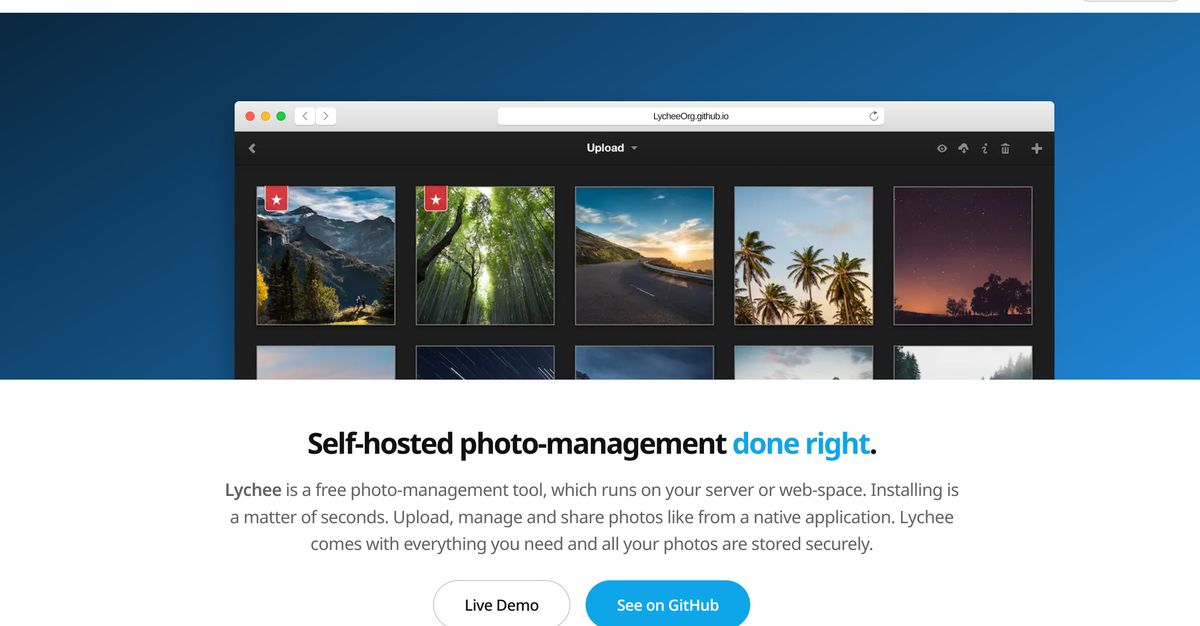
Lychee is a free photo-management tool, which runs on your server or web-space. Upload, manage and share photos like from a native application. Lychee comes with everything you need and all your photos are stored securely.

No paid content found
Visit website
Profile views 8 Outbound visits 1 Normal
LycheeOrg Full homepage screenshot

At a glance

Category
Development
Language
English
Paid-content signal
No paid content foundObserved
Registered
2025
Hosting
FastlyInferred
HTTPS certificate trusted
PassedObserved
Last updated

Website review

This review may include AI-generated content and is not individually verified. Domain, certificate and other facts come from the observed data on this page.

What is LycheeOrg?

LycheeOrg is the home of Lychee, a free, open-source photo-management tool that you install and run on your own server or web space. Instead of handing your library to a hosted service, you keep the files and control access yourself. The project describes itself as made for photographers, by photographers, and centers on browser-based uploading, organizing, and sharing.

What it does

  • Manage: Upload, move, rename, describe, delete, and search photos from the browser, with desktop-style multi-select for batch work.
  • Share: Publish photos or whole albums publicly in one click, and optionally protect albums with passwords.
  • View: Browse images full-screen and move between them with the keyboard.
  • Metadata: Displays EXIF and IPTC information alongside each photo.
  • Import: Bring photos in from a local computer, a server, a URL, or Dropbox.
  • Organize: Tag photos or mark them as important, individually or in bulk.

Who it suits

A photographer who wants a private, self-owned gallery without storage limits or recompression is the clearest fit. It also suits a hobbyist or small studio comfortable running a web app, since the project offers a Docker Compose setup and advertises deployment in seconds. Anyone unwilling to maintain a server, or who needs a fully managed service, will find the trade-off less attractive: self-hosting buys control and data ownership at the cost of administering the installation yourself.

Practical next step

If you already run Docker, the fastest way to judge fit is to stand up the provided Compose file on a spare machine and upload a test album. Check three things that matter most in daily use: whether the EXIF/IPTC panel shows what you expect, how comfortable batch selection feels with a few hundred images, and whether password-protected album sharing matches how you send work to clients.

The project is openly developed, with community contributions and feedback invited, so it is also worth browsing the repository if you want to gauge activity before committing.

How do I install Lychee on my own server using Docker?

Lychee publishes an official Docker path, and the intended workflow is to deploy from a Docker Compose file rather than installing PHP and a database by hand. The project describes this as a matter of seconds and points to a "Docker Compose Wizard" for generating the configuration — that wizard, not a hand-written file, is the safer starting point because it sets the image, database connection and storage paths together.

A practical sequence

  1. Confirm your server has Docker and the Compose plugin installed.
  2. Run the official Docker Compose Wizard from the Lychee site and answer its prompts for database credentials, an admin account and where photos should live.
  3. Download the generated docker-compose.yml to the server, then start it with docker compose up -d.
  4. Open the site in a browser and complete the first-run setup if the wizard has not already done so.
  5. Upload one test album, then check that the image files appear on disk and survive a docker compose restart.

Decisions that matter more than the commands

  • Where photos are stored. Point the photo volume at a mounted disk or array with room to grow, and back it up independently of the container. Containers are disposable; your library is not.
  • Database choice. The wizard will steer you toward a supported database. Whichever you pick, include its data volume in your backup routine, since albums, users and metadata live there.
  • Reverse proxy and TLS. If the instance will be reachable from outside your network, put it behind a proxy that terminates HTTPS. Lychee's password-protected albums are an access control, not a substitute for encrypted transport.
  • Updates. Because everything runs in containers, upgrading means pulling a newer image and recreating the containers. Read the release notes before doing this on a library you care about.

For a concrete scenario: a photographer with a home NAS can run Lychee in Docker, mount the existing photo share into the container, and keep the database on the NAS volume. The result is a browser-based library with EXIF and IPTC metadata displayed, no compression or storage cap imposed by the software, and public sharing or password-protected albums under the owner's control. The trade-off is that you now administer a server: patching, backups, disk monitoring and TLS are yours, and a misconfigured volume can expose or lose a library.

If you would rather not manage the stack yourself, the Docker image is also maintained for LinuxServer.io deployments, which some self-hosters prefer for its consistent volume and environment-variable conventions.

Next step: generate the compose file with the wizard, start the stack, and verify persistence by restarting the containers before you upload anything you cannot re-create.

Can I password-protect photo albums when sharing them publicly?

Yes. Lychee lets you make an album public and still gate it with a password, so the link can be shared while access stays controlled. The site describes this directly: "One click and every photo and album is ready for the public. You can also protect albums with passwords if you want. It's under your control."

What that means in practice

  • You share a single album link rather than sending files.
  • Recipients need the password you set; anyone without it shouldn't see the contents.
  • Because Lychee is self-hosted, the photos stay on your server or web space, and you control who can reach that server at all.

A realistic scenario

You photograph a wedding or a school event and want guests to view and download their photos without exposing them to search engines or casual visitors. You create an album, upload the selected images, mark it public, and set a password you give only to the families involved. Later, if the event is over, you can remove public access or change the password instead of deleting the album.

Trade-offs and decision criteria

Approach Best for Main limitation
Public album with password Sharing with a known group (clients, guests, family) Anyone who learns the password can view; password sharing is manual
Public album without password Portfolio or open gallery No access control, so unsuitable for private material
Keeping the album private Personal archive Others can't view it without an account on your instance

Choose the password-protected public album when the audience is known but you don't want to create accounts for each person. If the material is sensitive, treat the password as one layer only and also restrict who can reach the server.

Next step

Open the album's sharing settings, enable public sharing, then set the password and test the link in a private browser window while logged out to confirm the gate actually appears. If you're comparing options, Lychee's project site is LycheeOrg, and its source and issue tracker live on GitHub.

How does Lychee handle EXIF and IPTC metadata for my photos?

Lychee preserves and displays your photos' EXIF and IPTC metadata rather than stripping it. According to the site, it "supports and displays your EXIF and IPTC Metadata," and the metadata is "clearly listed next to all other information" for each photo, one click away. The stated intent is "no storage limit, no compression, no loss in data," so the metadata you shoot with stays attached to the file as stored.

What that means in practice:

  • Camera settings and capture data (EXIF) such as shutter speed, aperture, ISO and lens information remain readable in the photo view.
  • Descriptive and rights fields (IPTC) such as captions, keywords and credit lines are surfaced alongside the image.
  • Browsing stays visual — you can open an image full-screen and move between photos with the keyboard, then pull up the metadata panel when you need the details.

A concrete scenario

A photographer uploads a wedding or event shoot, then wants to check which lens and aperture a particular frame used, or confirm that a caption and copyright notice travelled with the file. In Lychee, that information sits in the same view as the image, so there is no separate sidecar file to hunt down. Album-level sharing and password protection then let the photographer publish a curated set without exposing the rest.

What to verify before committing

The site describes support and display, not editing. If your workflow depends on writing metadata back into files, correcting capture dates, or exporting metadata in bulk, test that specifically in the live demo rather than assuming it. The demo is the quickest way to confirm how your own camera's files render.

For installation, the project points to a Docker route: a docker-compose file and a "Docker Compose Wizard" are offered for deployment "in a matter of seconds." If you want to see how this compares with other self-hosted galleries, LycheeOrg is the project's own site, and its GitHub repository is linked from there for source-level detail.

What are the benefits of self-hosting my photo library instead of using cloud services?

Self-hosting gives you custody of the files and the rules for accessing them. Instead of renting space inside someone else's product, you run the photo library on hardware or web space you control. LycheeOrg describes Lychee as a self-hosted photo-management tool where "your server, your data, your rules" and photos are "stored securely" on your own system. That ownership is the main benefit; the trade-off is that backups, updates, uptime and access security become your responsibility.

What changes in practice

  • Storage and file handling: LycheeOrg says there is no storage limit, no compression and no data loss, and that EXIF and IPTC metadata are supported and displayed. With a cloud service, storage tiers, compression or format conversion can be part of the product. Self-hosting lets you keep originals at full size, provided your disk and backup plan can hold them.
  • Sharing on your terms: LycheeOrg says albums and photos can be made public with one click, and albums can be password-protected. You decide what is public, what stays private and who gets a password, rather than accepting a platform's default visibility settings.
  • Control over access and longevity: Because the library lives on your server, you are not dependent on a provider's account policy, pricing changes or shutdown. LycheeOrg frames this as never depending on someone else. The other side is that if your server goes down, your library may be unreachable until you fix it.
  • Management features that matter day to day: LycheeOrg lists upload, move, rename, describe, delete and search from the browser, batch selection, tagging and marking photos as important, full-screen viewing with keyboard navigation, and importing from a local computer, a server, a URL or Dropbox.
  • Open source: LycheeOrg states Lychee is completely open-source, so the code can be inspected, modified and improved, and suggestions or help are welcome. This matters if you want to avoid a closed product roadmap or want to adapt the tool.
  • Deployment: LycheeOrg highlights Docker deployment with a docker-compose file, and mentions a Docker Compose Wizard. Docker can make setup quicker, but you still need a host, storage, backups and a way to expose the service safely if you want remote access.

When self-hosting is the better fit

Choose self-hosting if you want full-resolution originals under your control, password-protected private albums, metadata preserved, and the ability to keep the library running even if a commercial service changes direction. Choose a cloud service instead if you would rather not maintain a server, handle backups, apply security updates or troubleshoot remote access.

A useful next step is to test the workflow before committing: run the live demo that LycheeOrg links to, then compare it with your current cloud service on three concrete points — whether originals stay uncompressed, how simple password-protected sharing is, and how you would restore the library after a disk failure. If you already use Docker, the docker-compose route is the shortest path to a trial. For background on the project, see LycheeOrg.

Can I import photos into Lychee from Dropbox or other external sources?

Yes. Lychee supports importing photos from several sources, including your local computer, a server, a URL, and Dropbox. The import options are part of what the project highlights as its feature set, so you are not limited to uploading files manually one by one.

LycheeOrg

Practical import paths

  • Local computer: The standard upload route for photos already on your machine.
  • Server: Useful when your images already live on the same machine or a mounted volume.
  • URL: Lets you pull in images from a direct web address rather than downloading them first.
  • Dropbox: The page explicitly lists Dropbox as an import source, which is helpful if your library currently sits in cloud storage.

Who this suits

If you are moving off a hosted photo service or consolidating scattered folders, the URL and Dropbox options reduce the friction of getting everything into one self-hosted library. Photographers with an existing archive on a server will likely prefer the server import to avoid re-uploading.

What to check before relying on it

The page does not detail how Dropbox authentication works, whether imports are one-time or sync continuously, or how large batches behave. If continuous two-way sync matters to you, verify that directly rather than assuming it. For a one-time migration, the listed sources are likely enough.

A sensible next step: run the live demo, try a small import from each source you care about, and confirm the resulting albums and EXIF/IPTC metadata appear as expected before moving your full library.

Related questions

More questions →
How does Lychee keep photos self-hosted and under my control?

Lychee is a self-hosted photo-management tool: you install it on your own server or web-space, and your photos are stored there rather than on a third-party cloud service. That means control over storage, access, and sharing stays with you. The trade-off is that you also supply and maintain the server it runs on.

What "self-hosted" means in practice

Lychee runs on infrastructure you control. The site describes it as a solution where "your server, your data, your rules," and states that you never depend on someone else for your photo library. Concretely, that changes three things:

  • Storage location — photos live on your server or web-space, not in a vendor's cloud account.
  • Access control — you decide who can reach the instance and which albums are visible.
  • Longevity — your library is not tied to a subscription or a company's continued operation of a service.

The project is also completely open-source, so the software itself can be inspected, modified, and improved by anyone.

How sharing works without giving up control

Self-hosting does not mean private-only. Lychee separates where photos are stored from who can see them:

  • One-click public sharing — an album or individual photo can be made public for an audience.
  • Password-protected albums — if you want a limited audience instead of a fully public album, you can protect it with a password.
  • Selective visibility — you choose per album or per photo whether it is public, protected, or private.

So the control model is: the files never leave your server, but you can still hand out a link or a password when you want someone to see them.

What you get for managing the library

Because the library is yours, Lychee focuses on giving you full management rather than storage upsells. The site highlights:

  • No storage limit, no compression, no loss in data — the tool does not downsample your originals to fit a quota.
  • EXIF and IPTC metadata support — camera and descriptive metadata is preserved and displayed alongside each photo.
  • Batch operations — desktop-like multi-select for tagging, marking as important, moving, renaming, describing, or deleting photos.
  • Import from multiple sources — local computer, server, URL, or Dropbox.
  • Full-screen viewing — keyboard navigation forward and backward through images.

Deploying it

Lychee is distributed for container-based deployment. The site provides a Docker Compose file and a "Docker Compose Wizard," and describes deployment as taking seconds. Docker pull counts on the site are listed as 23.9M for LinuxServer and LycheeOrg combined, which reflects how commonly it is run this way.

If you want to evaluate it before committing to a server, the site offers a live demo and links to the GitHub repository.

Who this fits

Choose Lychee if you want your photo library to live on hardware you control, you are comfortable running a server or web-space with Docker, and you want public or password-protected sharing without handing your originals to a cloud provider. If you would rather not operate any server at all, a hosted photo service will be less work — at the cost of the control described above.

What Are Open-Source UI Element Libraries and How Do They Differ From UI Frameworks?

An open-source UI element library is a collection of individual, ready-made interface pieces—buttons, cards, inputs, toggles, loaders—that you copy into your own project and adapt. A UI framework, by contrast, is a structured system of components, conventions, and often a theming layer that governs how your whole interface is built. The practical difference: an element library gives you a snippet; a framework gives you a way of working. If you need a polished button in ten minutes, reach for the element library. If you're building a 40-screen product with a team, you probably want the framework.

What "open-source UI element library" actually means

The term gets used loosely, so it helps to separate the parts:

  • Open-source: the code is publicly available, and the license tells you what you may do with it—copy, modify, redistribute, or use commercially.
  • UI element: a single, self-contained piece of interface, usually small enough to read in one sitting. A button with hover states, a pricing card, a search field.
  • Library: a browsable, searchable collection of those elements, typically contributed by many different people.

On a site like Uiverse, elements are shared by a community and written in plain CSS or Tailwind. You find one you like, copy the markup and styles, paste them into your project, and adjust colors, spacing, and text to fit. There's no package to install and no build step required—which is exactly the appeal, and also the source of most of the confusion.

Element library vs. UI framework: the core differences

Dimension Open-source UI element library UI framework / design system
Unit of reuse A single snippet you copy A component you import or call
Installation None; paste into your code Package install, config, sometimes a provider
Consistency Depends on you; each element may look different Enforced by shared tokens and APIs
Theming Manual edits per element Central theme/config file
Updates You own the copy; no upstream updates Version bumps bring fixes and changes
Accessibility Varies per contributor; must be checked Usually tested and documented
Best for Prototypes, landing pages, small sites, one-off needs Multi-page apps, teams, long-lived products
Learning curve Low—read the CSS Higher—learn the API and conventions

The table isn't a verdict. It's a map of trade-offs. Element libraries win on speed and freedom; frameworks win on consistency and maintenance.

Licensing and attribution: what to check before you paste

This is where people get into trouble, and it's worth slowing down for.

  1. Find the license. Every element or collection should state one. Common open-source licenses include MIT, Apache-2.0, and BSD. Some projects use copyleft licenses like GPL, which can impose obligations if you redistribute your code.
  2. Understand what the license permits. MIT and Apache-2.0 are permissive: you can typically use the code in commercial and closed-source projects. Copyleft licenses may require you to release derivative source under the same terms.
  3. Check attribution requirements. Permissive licenses usually require you to keep the copyright notice and license text somewhere in your project. That's a real obligation, not a formality.
  4. Look for per-element terms. On community sites, the site's overall terms and the individual contributor's stated wishes may differ. If a contributor asks for credit, honor it.
  5. When in doubt, ask or avoid. If a snippet has no license at all, you don't have clear permission to reuse it. Treat "no license" as "not open source," even if the code is publicly visible.

This article is general information, not legal advice. For commercial products with real exposure, have someone qualified review the licenses you're relying on.

How to use a community element in your project: a practical workflow

Here's a repeatable process that avoids most of the usual mess.

1. Start from a real need, not a browsing session

Decide what you need first—"a compact primary button with a loading state"—then search. Browsing aimlessly produces a pile of pretty snippets that don't fit together.

2. Copy the smallest version that works

Take the markup and the styles. Strip anything you don't need: demo wrappers, extra animations, decorative layers. Less code means fewer surprises.

3. Convert it to your conventions

If your project uses design tokens or CSS variables, replace hard-coded values:

/* Before: hard-coded */
.button { background: #4f46e5; border-radius: 8px; }

/* After: token-based */
.button { background: var(--color-primary); border-radius: var(--radius-md); }

This one step is what keeps a copied element from looking like a foreign object in your UI.

4. Check accessibility before you ship

Community elements vary widely here. Verify at minimum:

  • Keyboard focus is visible and the element is reachable by Tab.
  • Color contrast meets WCAG AA (4.5:1 for normal text).
  • Interactive elements use semantic HTML (<button>, not a clickable <div>).
  • Form inputs have associated labels.
  • Motion respects prefers-reduced-motion.

5. Test in context

Paste it into a real page with real content. Long labels, small screens, and dark mode break more copied elements than anything else.

6. Note where it came from

Keep a short comment or an internal credits file: source, license, date. Future you—and your legal reviewer—will be grateful.

Where element libraries genuinely shine

  • Prototypes and demos: you need something clickable today, not a design system.
  • Landing pages and marketing sites: a handful of distinctive elements, each custom.
  • Filling gaps: your framework lacks one specific component, and you don't want to build it from scratch.
  • Learning: reading well-made CSS is one of the fastest ways to improve.
  • Small projects: a personal site doesn't need a theming architecture.

Where they fall short

  • Consistency at scale: ten elements from ten contributors rarely look like one product.
  • Maintenance: you own every copy. When your design changes, you edit each one.
  • Accessibility debt: you inherit whatever the contributor did or didn't do.
  • No upstream fixes: a bug fixed in the original won't reach your copy.
  • Integration friction: different naming conventions, different units, different assumptions about resets.

When to choose which

Choose an element library when the scope is small, the timeline is short, or you need a few distinctive pieces rather than a whole system.

Choose a framework or design system when multiple people build multiple screens over months, when consistency is a product requirement, or when accessibility and theming need to be guaranteed rather than checked.

A hybrid works well for many teams: adopt a framework for the structural components—forms, navigation, layout—and borrow individual elements for the places where you want personality. Just route every borrowed element through the same token and accessibility checks, so it lands as part of your system rather than beside it.

The short version: open-source UI element libraries are a fast, flexible way to get good-looking interface pieces into a project. They are not a substitute for a design system, and the license and accessibility details are the part worth reading carefully.

What is LycheeOrg and what does it do?

LycheeOrg is the official home of Lychee, a free, open-source, self-hosted photo-management tool. You install it on your own server or web space, then upload, organize, share, and view photos through a browser interface. It suits photographers and anyone who wants full control of their image library instead of handing storage and access to a third-party cloud service. The site describes it as "self-hosted photo-management done right" and states that all photos are stored securely under your control.

What Lychee actually does

The site groups the core functions into four areas:

  • Manage — upload, move, rename, describe, delete, or search photos from the browser. Batch selection works like desktop multi-select.
  • Share — make a photo or album public in one click, or protect albums with passwords.
  • View — full-screen viewing with keyboard navigation forward and backward.
  • Organize — create albums, tag photos or mark them as important, individually or in bulk.

It also supports EXIF and IPTC metadata, displayed alongside each photo's other information, and can import from a local computer, a server, a URL, or Dropbox.

How it differs from a typical cloud photo service

The defining difference is where the data lives. Lychee is self-hosted, so the server, the data, and the rules are yours — the site's framing is "Never depend on someone else." The project also claims no storage limit, no compression, and no data loss, and it is completely open-source, so anyone can inspect or improve the code.

That contrasts with hosted services where storage tiers, compression, and account terms are set by the provider. If your priority is controlling the library and its access rules, self-hosting is the point; if you would rather not run a server, that same requirement becomes the main cost.

What you need to run it

You need a server or web space you control. The site says installation is "a matter of seconds" and offers a Docker path: a docker-compose file and a Docker Compose Wizard, with Docker images published by LinuxServer and LycheeOrg. The site reports 23.9M combined Docker pulls, alongside 45.9K downloads, 4.3K GitHub stars, and 381 forks.

The site does not state pricing beyond calling Lychee a "free photo-management tool," so treat "free" as the software's own description rather than a full statement about hosting, domain, or any other costs you may incur.

When it is a good fit

Choose Lychee if you are comfortable running your own server or web space and want a browser-based library with albums, password-protected sharing, metadata display, and multi-source import. Look elsewhere if you need a managed service with no server administration, or if you require specific compliance or support guarantees that the site does not describe.

To evaluate it before committing, the site provides a live demo and the GitHub repository, so you can try the interface and review the project directly.

Is Lychee Open-Source and Free to Use?

Yes. LycheeOrg describes Lychee as a free, fully open-source photo-management tool that you run on your own server or web space. The project states that "Lychee is completely open-source," that anyone can use and improve the existing work, and that the team is open to suggestions or help. The site also presents community activity signals — 4.3K GitHub stars, 381 forks, 45.9K downloads, and 23.9M Docker pulls (LinuxServer and LycheeOrg combined) — which you can use as a rough indicator of an active project.

What "free" and "open-source" mean here

The website's own wording is the basis for these points:

  • Free to use: Lychee is described as "a free photo-management tool, which runs on your server or web-space."
  • Open-source: The site states Lychee "is completely open-source" and that "everyone can take advantage of the work we have already done and improve it."
  • Open to contribution: The project says it is "open for every suggestion or help."

Note that the available page evidence does not list pricing plans, paid tiers, or payment platforms. "Free" here reflects the site's description of the software itself; it does not cover costs you may incur elsewhere, such as your own server, hosting, or domain.

What you actually get

Because it is self-hosted, the software runs on infrastructure you control. The site frames this as: "Your server, your data, your rules. Never depend on someone else."

Core capabilities listed on the page:

Area What the site says
Manage Upload, move, rename, describe, delete, or search photos from your browser
Share One-click public sharing for photos and albums; optional password protection
View Full-screen viewing with keyboard navigation
Metadata EXIF and IPTC metadata support, displayed alongside other photo info
Import From local computer, server, via URL, or from Dropbox
Organize Tag photos or mark them as important, individually or in batch
Storage "No storage limit, no compression, no loss in data" (as stated by the project)

Community activity as a signal

The homepage displays these figures:

  • 45.9K downloads
  • 4.3K GitHub stars
  • 381 forks
  • 23.9M Docker pulls (LinuxServer & LycheeOrg combined)

These numbers suggest the project has a real user base and ongoing interest. Treat them as directional rather than as a guarantee of support responsiveness — the page does not state service-level commitments.

How to verify and get started

  1. Check the source: The site links to GitHub ("See on GitHub"), where you can review the code, license, and issue activity directly.
  2. Try before installing: A "Live Demo" link is provided on the homepage.
  3. Deploy: The site offers a Docker route — "Deploy in a matter of seconds with our docker-compose file" — plus a Docker Compose Wizard. It also references a "Lychee on Docker" section.

If your priority is keeping photos on hardware you control while using open-source software, Lychee matches that description based on the project's own statements. If you need a vendor-backed SLA or managed hosting, that is outside what the page evidence covers.

How to Deploy Lychee with Docker

Lychee is a free, open-source, self-hosted photo management tool that runs on your own server or web space. According to the official site, it can be deployed with Docker in "a matter of seconds" using a provided docker-compose file, and there is a Docker Compose Wizard plus a "Deploy now" entry point to help you get started. This guide walks through the general Docker deployment flow, what to prepare, and how to verify it worked.

What Lychee Is and Why Self-Host It

Lychee is positioned as self-hosted photo management "made for photographers, by photographers." The site states:

  • Your server, your data, your rules — it is a self-hosted solution, so you keep full control of your photos.
  • No storage limit, no compression, no loss in data — it is designed as a place to store all your photos.
  • EXIF and IPTC metadata support — photo metadata is displayed and always one click away.
  • Open source — anyone can use and improve the work.

These points matter for the deployment decision: you are not signing up for a hosted service, you are running the application yourself.

Prerequisites

Before deploying, confirm you have:

  • A server or web space where you can run Docker (the official site presents Docker as a first-class deployment path).
  • Docker and Docker Compose installed on that machine.
  • A place to store your photo library (a mounted volume or directory) so data survives container restarts.
  • A domain or IP address if you want to reach the instance from outside your local network.

The site does not publish specific hardware requirements, minimum versions, or a fixed list of environment variables on the page evidence provided, so treat those as things to confirm against the project's own Docker documentation and compose file.

Deployment Steps

1. Get the docker-compose file

The official site points to a docker-compose file and a Docker Compose Wizard. Use the wizard to generate a compose configuration, or take the provided compose file as your starting point.

2. Review and adjust the compose file

Open the compose file and check the parts that are environment-specific:

  • Volume mounts — point the photo storage path at a directory on your host so your library persists.
  • Ports — decide which host port maps to the container's web port.
  • Database — if the compose file includes a database service, keep its credentials and volume in the same file so the stack starts together.

3. Start the stack

From the directory containing your compose file, run the standard Compose up command. The expected result is that the Lychee container (and any database container) start and stay running.

4. Complete first-run setup

Open the instance in your browser at the address and port you configured. The expected result is the Lychee web interface, where you can create albums and upload photos.

Verifying the Deployment

After the stack is up, confirm:

  • The web interface loads in your browser.
  • You can upload a photo and see it appear in an album.
  • The photo's EXIF/IPTC metadata is displayed, since the site states this is supported and shown next to other information.
  • Restarting the containers does not lose your uploaded photos (this confirms your volume mount is correct).

Managing and Sharing After Deployment

Once running, the site describes the day-to-day features you will use:

Area What the site says you can do
Manage Upload, move, rename, describe, delete, or search photos from your browser
Share One click to make a photo or album public; albums can be password-protected
View Full-screen viewing, keyboard navigation forward and backward
Import Import from a local computer, server, via URL, or from Dropbox
Tag Tag photos or mark them as important, individually or in batch
Batch Desktop-like multi-select for acting on many photos at once

Common Deployment Pitfalls

  • Losing photos on restart — usually a missing or incorrect volume mount. Verify persistence before uploading a large library.
  • Port conflicts — if the chosen host port is already in use, the container may start but be unreachable. Change the host port mapping.
  • Database not ready — if the stack includes a database, the app may fail on first start if it launches before the database is accepting connections. Restarting the app container after the database is up typically resolves this.
  • Metadata not showing — confirm the uploaded file actually contains EXIF/IPTC data; the site states Lychee supports and displays it, but it cannot display what is not in the file.

Adoption Signal

The official site reports 23.9M Docker pulls combined for LinuxServer and LycheeOrg images, alongside 45.9K downloads, 4.3K stars, and 381 forks. These figures indicate a widely used Docker deployment path, which is useful context if you are weighing whether the Docker route is well-trodden.

When Docker Is the Right Choice

Choose the Docker deployment if you want a reproducible, self-contained setup and are comfortable running containers. If you prefer not to manage containers, the site also describes running Lychee on your own server or web space generally, so Docker is one option rather than the only one. For the exact compose contents, environment variables, and current image tags, use the project's Docker Compose Wizard and compose file as the authoritative source.

Website Overview

An active inbound-mail setup with incomplete authentication may leave the domain more open to impersonation. Provider hosting alone does not close that gap.

Domain and Registration

Transfer-protection status is present, helping reduce the risk of unauthorized domain transfers. The domain has about 1 years of registration history; its current configuration provides more context than age alone. The domain uses the common .dev extension, which is not an independent safety signal.

DNS and Email

The observed email authentication setup is incomplete: DMARC is missing. Nameservers are provided by ovh.net, indicating managed DNS hosting. MX records point to the ovh.net email service. DNSSEC is enabled, allowing validating resolvers to authenticate signed DNS data. No CNAME was found; the observed records resolve directly to addresses.

TLS and Certificates

The certificate uses an RSA 4096-bit public key, offering broad client compatibility. The server supplied a complete certificate chain. No organization name is present in the certificate; the available fields are consistent with domain validation. The certificate was issued by Let's Encrypt, commonly associated with automated certificate services. The certificate's total validity is about 89 days, consistent with a short renewal cycle.

HTTP and Browser Security

The response lacks these common security headers: CSP, X-Content-Type-Options, Referrer-Policy, Permissions-Policy, clickjacking protection. CORS permits any origin to read this response. This is common for public resources; sensitive responses need narrower handling. No X-Powered-By header was found, reducing one common source of backend fingerprinting information. The x-cache, x-served-by, via response header indicates a CDN or caching proxy in the delivery path. No obvious internal addresses or debug information were found in the headers.

Technology Stack Analysis

The public page identifies Tailwind CSS without precise versions, leaving fewer clues for version-specific scanning.

Search and Social Sharing

The meta description has 222 characters and may be shortened in search results. Twitter Card metadata is configured. The title has 52 characters, within a common display range. The observed directives allow indexing and link following. No Generator meta tag is publicly exposed.

Hosting and Email

DNSovh.net
HostingFastly
Emailovh.net
Approximate IP geolocation (inferred; a CDN or proxy may differ from the origin server) France flagFrance Inferred 135.125.237.145

Registration details

RDAP / WHOIS

RegistrarOVH sas
Registered2025-01-09
Expires2027-01-09
Domain statusclient delete prohibited、client transfer prohibited
Nameserversdns101.ovh.net、ns101.ovh.net
DNSSECsigned

DNS records

DNS

TypeNameValueTTLPriority
Alycheeorg.dev135.125.237.1453600—
MXlycheeorg.devmx1.mail.ovh.net36001
MXlycheeorg.devmx2.mail.ovh.net36005
MXlycheeorg.devmx3.mail.ovh.net3600100
NSlycheeorg.devdns101.ovh.net3600—
NSlycheeorg.devns101.ovh.net3600—
TXTlycheeorg.dev1|www.lycheeorg.dev3600—
TXTlycheeorg.devv=spf1 include:mx.ovh.com -all3600—
DSlycheeorg.dev59506 8 2 e6945577fe483e01ef0f27fb5d87323949a512ab886d2afa928e23989b96eaf61800—

TLS and certificates

TLS / SSL

AssessmentNormal configuration
Supported protocolsTLSv1.2、TLSv1.3
Negotiated protocolTLSv1.3
Certificate subjectlycheeorg.dev
IssuerLet's Encrypt
Valid until2026-12-05T09:47 · Remaining when checked: 62 days
Verification detailsCertificate trust: Passed · Hostname match: Passed

HTTP response headers

HTTP

HeaderValue
content-typetext/html; charset=utf-8
cache-controlmax-age=600
serverGitHub.com
strict-transport-securitymax-age=31556952
access-control-allow-origin*

Identified technologies

Tailwind CSS

Pages, Search and Sharing

Meta descriptionLychee is a free photo-management tool, which runs on your server or web-space. Upload, manage and share photos like from a native application. Lychee comes with everything you need and all your photos are stored securely.
Canonical URLhttps://lycheeorg.dev/
LanguageEnglish (default)
Twitter Cardsummary_large_image
All bots 0 allowed · 0 disallowed

User reviews (0)

  • No reviews yet.