Website profiles · Technology insights · Alternatives

meetingbar.app

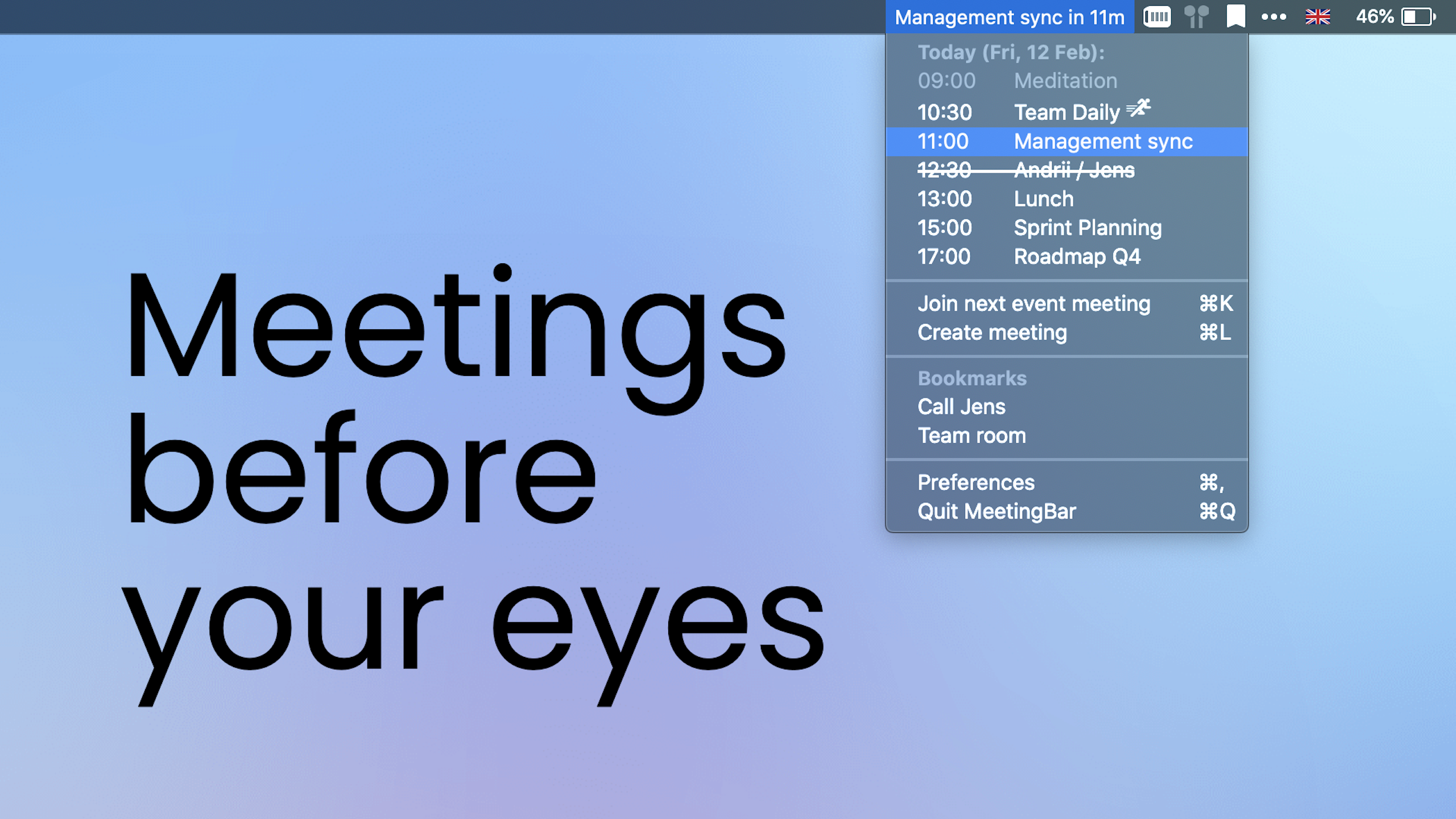
MeetingBar is a macOS menu bar app that lets you view and join upcoming meetings across 50+ services, including Zoom, Google Meet, Teams, and more. Stay organized and join meetings with a single click, without switching between apps.

No paid content found
Visit website
Profile views 2 Outbound visits 1 Normal
MeetingBar Full homepage screenshot

At a glance

Category
Development
Language
English
Paid-content signal
No paid content foundObserved
Registered
2023
Hosting
VercelInferred
HTTPS certificate trusted
PassedObserved
Last updated

Website review

This review may include AI-generated content and is not individually verified. Domain, certificate and other facts come from the observed data on this page.

What is MeetingBar?

MeetingBar is a free, open-source macOS menu bar app that shows your upcoming calendar meetings and lets you join them with one click. It reads your existing calendar, so you don't need to add events inside the app, and it supports more than 50 meeting services, including Zoom, Google Meet and Microsoft Teams. It also lets you create meetings, and it does not store your user data.

Who it suits

  • People who live in the menu bar. If you keep a calendar app open all day, MeetingBar's value is smaller. If you prefer a minimal desktop, a menu bar item that surfaces the next meeting and a join button is a clean fit.
  • Anyone juggling several video platforms. Because it recognises many services rather than one, you don't have to remember whether a given invite is Zoom, Meet or Teams.
  • Privacy-conscious and technical users. Open source, no stored user data, and installation via Homebrew (brew install meetingbar) are all part of the pitch.

Trade-offs to keep in mind

  • macOS only. There is no Windows or Linux version, so it won't help on a mixed-device setup.
  • It depends on your calendar being accurate. MeetingBar surfaces what your calendar already contains; it doesn't fix double-bookings or missing invites.
  • Menu bar apps can get crowded. If you already run several menu bar utilities, adding another takes space.

A practical next step

Install it, connect your main calendar, and use it for one week on meetings you'd normally join by digging through email. If the one-click join saves you a few minutes a day, keep it; if you find yourself opening your calendar app anyway, it isn't earning its menu bar slot. You can also compare it with calendar-native tools or alternatives such as Fantastical if you want a fuller calendar client rather than a lightweight menu bar helper.

How do I install MeetingBar on macOS?

Install MeetingBar with Homebrew, then grant it calendar access so it can read your upcoming events.

Homebrew install

  1. Open Terminal (Applications → Utilities → Terminal).
  2. Run:
    brew install meetingbar
    
  3. Launch it from Applications or Spotlight, then look for its icon in the menu bar.

If you prefer not to use Terminal, download the latest release from the official project page, open the .dmg or .zip, and drag MeetingBar into Applications. Because it is open-source, you can also build it yourself from source if you want to inspect or modify the code.

First-run setup

MeetingBar works with your macOS calendars, so the first launch is mostly about permissions:

  • Approve the calendar access prompt. Without it, MeetingBar has nothing to display.
  • Choose which calendars to show if you keep separate work and personal ones.
  • Set your preferred meeting service so links open in the right app.
  • Adjust preferences for how far ahead meetings appear in the menu bar.

Once configured, clicking the menu bar icon shows your next meetings; clicking a meeting joins it in one click rather than hunting through email or a browser tab.

Practical considerations

MeetingBar is macOS-only, so it is not an option on Windows or Linux. It supports a long list of meeting services, which matters if your organization mixes Zoom, Google Meet and Teams. It does not store your user data, and it is free, with optional support through Patreon, Buy Me a Coffee or App Store in-app purchases.

A useful next step: after installing, create a test calendar event starting in a few minutes and confirm it appears in the menu bar and joins correctly. That verifies calendar permissions and link handling before a real meeting depends on it.

For reference, see MeetingBar and, if you need Homebrew first, Homebrew.

Which calendar apps and meeting services does MeetingBar support?

MeetingBar is built around your existing macOS calendar rather than a calendar of its own. According to its page, it "works on macOS with your calendar" and can "work with all calendars," so any calendar account you have added to macOS Calendar — iCloud, Google, Exchange, and similar — should surface its events in the menu bar. It also states that you can join and create meetings in one click, so the calendar side and the meeting side are meant to work together rather than as separate tools.

Meeting services

The page claims support for "50+ meeting services" and names Zoom, Google Meet, and Microsoft Teams as examples. In practice, that means MeetingBar reads the video link out of a calendar event and turns it into a join button, so the service itself does not need a separate MeetingBar integration — it just needs a recognizable link in the event.

Calendar apps

The page does not list specific calendar apps one by one; it describes calendar access in general terms, including support for all calendars. That is a meaningful difference from apps that only sync with one provider. If your events live in a calendar you have already connected to macOS, they should appear; if you rely on a calendar that never reaches macOS Calendar, that is the case worth testing first.

Practical check

The fastest way to confirm your setup is to install it and look at tomorrow's events. The page gives a Homebrew command, $ brew install meetingbar, and notes it is fully free, open-source, and does not store user data. If your main calendar and meeting service both show up correctly in the menu bar, you are set. If not, check whether the event contains a join link and whether that calendar is actually visible in macOS Calendar — those two conditions matter more than the service name.

How does MeetingBar help me join meetings with one click?

MeetingBar puts your next meetings in the macOS menu bar and turns each one into a join button. Because it reads your existing calendar, you don't have to open a calendar app, find the event, dig out the video link, and launch the right service — you click the meeting in the menu bar and it opens the conferencing app or browser room for you.

What happens in practice

  • MeetingBar watches the calendar you already use, so its list reflects events you created elsewhere.
  • Each upcoming meeting appears with its join action, so the menu bar becomes a single place to see what's next and enter it.
  • It also supports creating meetings, not just joining them, according to the site.
  • The site lists support for 50+ meeting services, including Zoom, Google Meet and Teams, so the join behavior adapts to the service attached to the event.

A realistic scenario

You're finishing a document at 10:58 and your 11:00 stand-up starts in two minutes. Instead of switching to a calendar window, searching for the event and clicking through a meeting link, you open the MeetingBar menu, see the stand-up at the top, and click it. The correct app opens and you're in.

Trade-offs to weigh

  • It's macOS-only, so it won't help on Windows, Linux, iOS or Android.
  • It depends on your calendar being accurate and on meeting links being present in the event. An event with no conferencing details gives it nothing to join.
  • The site describes it as free, open-source and not storing user data, which matters if you're cautious about calendar access. You still grant it permission to read your calendars, so review that permission like any calendar-connected tool.

Next step

Install it, connect your main calendar, and check that your recurring meetings show join buttons. If a meeting doesn't, the usual cause is a missing video link in the calendar event rather than the app.

Is MeetingBar free and open source?

Yes. MeetingBar is both free and open source. Its own page states “Fully free” and “Open-source software,” and the project is distributed on GitHub, where the source code can be viewed and contributed to. The site also says it does not store user data, which matters if you are wary of handing calendar or meeting details to a third-party service.

What “free” means here

The app itself carries no stated price. The page mentions optional support through Patreon, Buy Me a Coffee, or App Store in-app purchases. Those are voluntary contributions or optional support channels, not a stated requirement to use the core app.

What open source gives you

Because the code is public, technically inclined users can inspect how it handles calendar data, verify claims about not storing user data, and build or modify it themselves. That is a meaningful difference from closed-source menu bar utilities that ask for broad calendar access.

Practical scenario

If you are a macOS user juggling Zoom, Google Meet, and Teams links, you can install MeetingBar, connect your calendar, and join from the menu bar without paying or creating a separate account. If you care about auditability, the open repository lets you check the implementation before granting calendar permissions.

Decision criterion

Choose MeetingBar if you want a no-cost, inspectable menu bar tool and are comfortable with an open-source project maintained by its community. If you need vendor-backed support contracts or guaranteed SLAs, an open-source side project may not fit, even though it is free. For a broader comparison of calendar menu bar tools, see MeetingBar.

How does MeetingBar handle my privacy and user data?

MeetingBar states that it does not store user data, and its source code is open for inspection. That combination is the core of its privacy story: rather than asking you to trust a policy page, it lets you (or a technically minded colleague) verify what the app actually does.

What that means in practice

  • Local calendar access. MeetingBar works with the calendar accounts you have already set up on your Mac. The app reads your events to show upcoming meetings in the menu bar; it does not require a separate MeetingBar account.
  • No user data storing. According to the product's own feature list, it keeps no user data. For a menu bar utility, that is the expected design: meeting titles, times and join links are pulled from your calendar, used to build the one-click join button, and not retained on a server.
  • Open source. The code is public, so privacy claims can be checked rather than taken on faith. If your organisation has security review requirements, this is a concrete advantage over closed-source alternatives.

Where the trade-off sits

The convenience of one-click joining depends on links and metadata already present in your calendar, which may be synced through Google, Microsoft or Apple. MeetingBar is not the party holding that data in those cases — your calendar provider is. So the meaningful privacy question is usually about your calendar account, not the menu bar app.

A practical test: open your calendar provider's privacy settings and review what third-party apps can see. If you are comfortable with that access, MeetingBar adds little new exposure. If you are not, no menu bar client will fix it.

For a concrete scenario, imagine a consultant who keeps client meetings in a work Google account and personal events in iCloud. MeetingBar can surface both in one menu bar list, and because it stores nothing itself, the client names never leave the machine beyond the normal calendar sync. That is the audience this design suits: people who want fast access without adding another cloud service.

Next step

If you want to verify the claim yourself, check the project's GitHub repository and search for network requests or analytics code. That takes a few minutes and tells you more than any summary.

Related questions

More questions →
Does MeetingBar Store User Data?

No. According to MeetingBar's own site, the app does not store user data. It is also open-source software, so the code behind that claim can be reviewed directly on GitHub. If your concern is whether a menu bar calendar tool is quietly uploading your meeting titles, attendees, or links, MeetingBar's stated design is to avoid that.

What the site says about data

MeetingBar's feature list includes "No user data storing" alongside "Open-source software." Those two points are the core of its privacy position:

  • No user data storing — the app is not presented as collecting or retaining your data.
  • Open-source software — the source is published on GitHub (the site cites 5K stars), so anyone can inspect how it handles calendar and meeting information.
  • Local-first framing — MeetingBar "works on macOS with your calendar," reading your existing calendar rather than requiring you to hand your data to a separate account.

Why this matters for a meeting app

A menu bar meeting tool needs access to your calendar to show upcoming events and give you a one-click join link. That access is exactly what makes the privacy question worth asking: the app can see meeting titles, times, and conferencing URLs. MeetingBar's answer is that it uses this information to display and join meetings, and does not store user data.

The open-source nature is the practical check here. A "we don't store your data" claim is hard to verify in a closed app; with published source code, you or a technical colleague can confirm what the app does with calendar data.

What the site does not specify

The available page content does not detail:

  • Exactly which permissions MeetingBar requests on macOS (for example, Calendar access).
  • Whether any data leaves your machine for features like analytics or crash reporting.
  • How calendar data is handled in memory versus on disk.

If these specifics matter to you, the source code on GitHub is the place to confirm them, since the site itself only states the no-storage and open-source points.

Practical takeaway

If your requirement is a macOS menu bar app that shows and joins meetings without storing your data, MeetingBar's stated design fits that need, and its open-source code lets you verify the claim rather than take it on faith. If you need documented details about permissions, analytics, or data handling beyond "no user data storing," check the GitHub repository before relying on it in a sensitive environment.

How MeetingBar Integrates with Calendars and Meeting Services

MeetingBar is a macOS menu bar app that reads your existing calendar events and turns their meeting links into one-click join buttons. It works with your calendar rather than replacing it, supports 50+ meeting services, and lets you join or create meetings without switching apps. This is for macOS users who already keep meetings in a calendar and want faster access to the join link.

How the calendar connection works

MeetingBar runs on macOS and works with your calendar, as stated on the site. That means the app depends on the calendars you have already connected to macOS — you don't add events inside MeetingBar itself. The menu bar then surfaces your upcoming meetings so you can act on them directly.

Key points from the site:

  • Works on macOS with your calendar — the calendar is the source of truth.
  • Work with all calendars — listed as a feature, so it isn't limited to one calendar provider.
  • No user data storing — the site lists this as a feature, alongside being open-source.

Because it reads from your calendar, the practical setup step is making sure the calendar account holding your meetings is added to macOS first. Once it is, MeetingBar can see those events.

How meeting links are detected and joined

The core behavior is link detection plus one-click joining. The site describes it as:

  • Join and create meetings in one click
  • One click to join
  • 50+ meeting services supported, including Zoom, Google Meet, and Teams

So the flow is: a calendar event contains a meeting link → MeetingBar recognizes it → you click once in the menu bar to join. You also get a create option, so MeetingBar isn't only for joining existing invites.

What "50+ services" covers

The site names Zoom, Google Meet, and Teams as examples within a set of 50+ meeting services. It does not publish the full list on the page, so if you rely on a niche or self-hosted conferencing tool, verify it appears in your own calendar events after setup rather than assuming coverage.

Setup: install and connect

The site provides a Homebrew command:

brew install meetingbar

Expected result: MeetingBar installs and appears in your macOS menu bar. From there it reads your macOS calendars, and upcoming meetings with recognized links become joinable in one click.

A quick verification path:

  1. Confirm your meeting calendar is visible in macOS Calendar.
  2. Open MeetingBar from the menu bar and check that your upcoming events appear.
  3. Click a known meeting event and confirm it offers a join action.

If events don't appear, the usual cause is that the calendar account isn't added to macOS yet — MeetingBar reflects your calendar, so an unconnected account won't show up.

What you get and what to weigh

Aspect Detail from the site
Platform macOS only
Calendar source Your existing macOS calendars
Meeting services 50+ (Zoom, Google Meet, Teams named)
Joining One click
Creating meetings Supported
Cost "Fully free" listed as a feature
Data No user data storing; open-source
Preferences "Powerful preferences"
Adoption signals 500K+ installations, 4.9 App Store rating, 5K GitHub stars

The site also notes optional support via Patreon, Buy Me a Coffee, or App Store in-app purchases. Those are framed as ways to support the app, not as a requirement to use it — the feature list explicitly says "fully free."

When this integration fits

Choose MeetingBar if you're on macOS, your meetings already live in a calendar connected to your Mac, and your main friction is opening the right app and finding the link. It fits best when your services are common ones like Zoom, Google Meet, or Teams.

Look elsewhere if you're not on macOS, if your meetings aren't in a calendar at all, or if you depend on a conferencing service outside the supported set and need guaranteed detection.

How to Install and Set Up MeetingBar on macOS

MeetingBar is a free, open-source macOS menu bar app that shows your upcoming meetings and lets you join them with one click, across 50+ meeting services like Zoom, Google Meet, and Teams. You can install it either through Homebrew with brew install meetingbar or from the App Store, then grant it calendar access so it can read your events. Setup is designed to be quick, but the app is only as useful as the calendar you connect it to — if your meetings aren't on a calendar macOS can read, MeetingBar won't see them.

Before you start

  • A Mac running macOS. MeetingBar is a macOS-only app; there is no Windows, Linux, iOS, or web version.
  • A calendar with your meetings on it. MeetingBar works with your calendar, so the events need to exist there first. The site lists "Work with all calendars" as a feature, which in practice means calendars you've added to macOS (iCloud, Google, Exchange, and so on).
  • A meeting link in the event. One-click joining depends on the event containing a recognized meeting URL. MeetingBar supports 50+ meeting services, so most common conferencing links are detected.
  • A way to install it: Homebrew, or the Mac App Store.

Install MeetingBar

Option 1: Homebrew (command line)

If you use Homebrew, the site gives the install command directly:

brew install meetingbar

Run that in Terminal. Homebrew downloads the app and links it into your Applications, after which you can launch it like any other app. This is the fastest path if you already manage software with Homebrew.

Option 2: Mac App Store

MeetingBar is also distributed through the App Store, where the site reports a 4.9 rating. Search for "MeetingBar" in the App Store and install it the normal way. This route handles updates through the App Store rather than Homebrew.

Either way, you end up with the same app: a menu bar item rather than a full window.

Set it up

  1. Launch MeetingBar. It appears in the macOS menu bar, not as a Dock window. That's expected — the whole point is that it stays out of the way.
  2. Grant calendar access when prompted. MeetingBar needs permission to read your calendar; without it, the app has nothing to display. macOS will show a permission dialog the first time. If you dismiss it, you can re-enable access later in System Settings → Privacy & Security → Calendars.
  3. Check that your meetings appear. Click the menu bar icon. Your upcoming events should be listed. If the list is empty, the problem is almost always calendar access or the wrong calendar being selected — not the app itself.
  4. Adjust preferences as needed. The site describes "powerful preferences," so this is where you tune behavior to your workflow — for example which calendars to show and how meetings are presented. Open the preferences from the menu bar item and work through the options that matter to you.
  5. Join a meeting with one click. When an upcoming event has a supported meeting link, clicking it in MeetingBar opens the meeting directly, without switching between apps or hunting for the link in your calendar.

Verify it's working

  • The menu bar icon shows your next meeting rather than an empty state.
  • Clicking a meeting with a Zoom/Meet/Teams link opens that meeting in the right app or browser.
  • Creating a meeting from MeetingBar works if you use that feature — the site lists "Join and create meetings in one click."

If meetings don't show up, recheck calendar permissions first, then confirm the events are on a calendar macOS is actually syncing.

Common snags

  • Nothing in the list: calendar permission was denied, or the calendar holding the events isn't enabled in macOS. Fix permissions in System Settings, then relaunch.
  • A meeting won't one-click join: the event may lack a recognized meeting URL, or use a service outside the supported set. You can still open the event and join manually.
  • You expected a window: MeetingBar lives in the menu bar by design. Look at the top-right of the screen, not the Dock.

What it costs and what it does with your data

MeetingBar is described as fully free and open-source, with source available on GitHub (5K stars). The site states it does not store user data. Optional support is available via Patreon, Buy Me a Coffee, or App Store in-app purchases — these are ways to support the project, not requirements to use it. The site reports 500K+ installations.

If you hit problems, the site points to a contact form with email and message fields, plus GitHub for source and issues.

What Is MeetingBar?

MeetingBar is a macOS menu bar app that shows your upcoming meetings and lets you join them with one click. It works with your existing calendar and supports 50+ meeting services, including Zoom, Google Meet, and Teams. Use it if you're on macOS and want to stop hunting through calendar invites or switching between apps to start a call.

What MeetingBar actually does

MeetingBar sits in the macOS menu bar and reads your calendar. Instead of opening a calendar app, finding the event, and clicking a link inside the invite, you open the menu bar item and click the meeting you want to join.

The site describes the core behavior as "Join and create meetings in one click," and lists these features:

  • Fully free
  • Quick and easy setup
  • One click to join
  • No user data storing
  • Open-source software
  • Powerful preferences
  • Works with all calendars
  • 50+ meeting services
  • Light and nice looking

The "works with all calendars" and "50+ meeting services" claims are the two that matter most when deciding whether it fits your setup.

Who it's for

MeetingBar is a reasonable fit if:

  • You use macOS and live in your menu bar rather than a full calendar app.
  • Your meetings span multiple services (Zoom, Google Meet, Teams, and others), so you don't want a separate app or extension per service.
  • You want to join a call without opening a browser tab or digging through email.

It's a weaker fit if you're not on macOS, since the app is macOS-only, or if you prefer a full calendar interface over a menu bar list.

How it fits into your day

The value is in removing steps. Without it, joining a meeting typically means: open calendar → find the event → open the invite → click the link → wait for the service to load. MeetingBar collapses that into: open the menu bar item → click the meeting.

The site frames this as "Meetings at your fingertips" and "Be on time," which points at the real benefit: less friction right before a call starts.

Installing it

The site gives a Homebrew command:

brew install meetingbar

It also lists an App Store presence (a 4.9 App Store rating is cited) and a GitHub repo (5K stars cited). If you don't use Homebrew, the App Store listing is the other documented route.

Adoption and support signals

The site cites 500K+ installations, a 4.9 App Store rating, and 5K GitHub stars. These are the project's own figures, so treat them as marketing signals rather than independent measurements.

On support: the site says the app is "fully free" and open-source, and points to Patreon, Buy Me a Coffee, and App Store in-app purchases as ways to support it. It also provides a contact form and links to GitHub, ProductHunt, Twitter, and Patreon. The site states no user data is stored, which is consistent with a calendar-reading menu bar utility.

The short version

MeetingBar is a free, open-source macOS menu bar app that surfaces your upcoming meetings and joins them in one click across 50+ services. If you're on macOS and juggle multiple meeting platforms, it removes the pre-call scramble. If you're not on macOS, it isn't an option.

Is MeetingBar Free? How to Support Its Development

MeetingBar is fully free to use. The official site lists "Fully free" as a feature and describes the app as open-source software, with no paid tier mentioned for the core meeting-joining functionality. If you want to give back, the developer accepts support through Patreon, Buy Me a Coffee, or in-app purchases on the App Store.

What "free" covers

According to the MeetingBar website, the free app includes:

  • One-click join and create meetings
  • Support for all calendars
  • Support for 50+ meeting services (Zoom, Google Meet, Teams, and others)
  • Powerful preferences
  • Light and dark themes

The site also highlights "No user data storing" and "Open-source software," so the free version isn't a limited trial — it's the full app.

How to support development

The site's "Love this app?" section lists three ways to contribute financially:

Method Where to go Notes
Patreon MeetingBar on Patreon Recurring support
Buy Me a Coffee Linked from the site One-time or recurring tip
App Store in-app purchases App Store listing Purchases made inside the app

The site does not state specific amounts, tiers, or what (if anything) supporters receive in return, so treat these as straightforward donations rather than paid upgrades.

Other ways to help without paying

  • Star the GitHub repo — the site notes 5K stars on GitHub, and starring helps visibility.
  • Report issues — the site provides a form plus email and message options for problems.
  • Leave an App Store rating — the app currently shows a 4.9 rating; a review helps others find it.

Quick context

MeetingBar is a macOS menu bar app that shows upcoming meetings from your calendar and lets you join them in one click. The site reports 500K+ installations, a 4.9 App Store rating, and 5K GitHub stars. Installation is available via Homebrew (brew install meetingbar) or the App Store.

Bottom line: you can use MeetingBar at no cost, and supporting it is optional — through Patreon, Buy Me a Coffee, or App Store in-app purchases.

Website Overview

An advisory match combined with missing browser safeguards may increase exposure if the affected component is active. Deployment-specific verification and remediation deserve priority. Identifiable technologies and additional version or configuration signals make the service easier to fingerprint, which may help targeted scanners narrow their checks.

Domain and Registration

Transfer-protection status is present, helping reduce the risk of unauthorized domain transfers. The domain has about 3 years of registration history; its current configuration provides more context than age alone. The registrar is Porkbun LLC, a widely used domain service provider. The domain uses the common .app extension, which is not an independent safety signal.

DNS and Email

Nameservers are provided by Cloudflare, indicating managed DNS hosting. No CNAME was found; the observed records resolve directly to addresses. No MX record was found. A conventional explicit inbound-mail route is not configured. TXT records include verification markers for Google. Such markers may also remain after a service stops being used. DNSSEC signatures were not detected, so this additional DNS authenticity protection is not confirmed.

TLS and Certificates

The public key uses EC with 256 bits. The server supplied a complete certificate chain. No organization name is present in the certificate; the available fields are consistent with domain validation. The certificate was issued within the Google Trust Services cloud or CDN ecosystem. The certificate's total validity is about 90 days, consistent with a short renewal cycle.

HTTP and Browser Security

The response lacks these common security headers: CSP, X-Content-Type-Options, Referrer-Policy, Permissions-Policy, clickjacking protection. CORS permits any origin to read this response. This is common for public resources; sensitive responses need narrower handling. No X-Powered-By header was found, reducing one common source of backend fingerprinting information. The cf-ray response header indicates a CDN or caching proxy in the delivery path. No obvious internal addresses or debug information were found in the headers.

Technology Stack Analysis

The public page identifies Astro 2.8.0, Cloudflare, Vercel, with exact versions exposed for 1 technologies. These details can narrow vulnerability checks, although exposure alone is not a vulnerability. The advisory source OSV places Astro 2.8.0 in the affected range of GHSA-26w7-cxv4-gfx2, GHSA-2pvr-wf23-7pc7, GHSA-376h-93r7-7g6f, GHSA-49w6-73cw-chjr, GHSA-5ff5-9fcw-vg88 等 10 项. Verify the deployed version and relevant configuration before drawing conclusions about exploitability. Updating affected components should be a priority.

Search and Social Sharing

The meta description has 233 characters and may be shortened in search results. The Generator tag identifies Astro v2.8.0, making the publishing system easier to fingerprint. No homepage canonical URL was detected. If duplicate URLs exist, consolidation may be less explicit. Twitter Card metadata is configured. JSON-LD includes Product or Offer data, potentially supporting eligible product search features.

Hosting and Email

DNSCloudflare
HostingVercel
EmailUnknown
Approximate IP geolocation (inferred; a CDN or proxy may differ from the origin server) Location unknown Inferred 104.21.68.175

Registration details

RDAP / WHOIS

RegistrarPorkbun LLC
Registered2023-07-22
Expires2027-07-22
Domain statusclient delete prohibited、client transfer prohibited
Nameserversapollo.ns.cloudflare.com、hope.ns.cloudflare.com
DNSSECunsigned

DNS records

DNS

TypeNameValueTTLPriority
Ameetingbar.app104.21.68.175300—
Ameetingbar.app172.67.197.134300—
AAAAmeetingbar.app2606:4700:3032::ac43:c586300—
AAAAmeetingbar.app2606:4700:3034::6815:44af300—
NSmeetingbar.appapollo.ns.cloudflare.com86400—
NSmeetingbar.apphope.ns.cloudflare.com86400—
TXTmeetingbar.appgoogle-site-verification=QJgf2FPM4V36XAk-9U-hl0TkxEfT8yzDUIB7y-Mlg3o300—

TLS and certificates

TLS / SSL

AssessmentNormal configuration
Supported protocolsTLSv1.2、TLSv1.3
Negotiated protocolTLSv1.3
Certificate subjectmeetingbar.app
IssuerGoogle Trust Services
Valid until2027-01-03T10:32 · Remaining when checked: 80 days
Verification detailsCertificate trust: Passed · Hostname match: Passed

HTTP response headers

HTTP

HeaderValue
content-typetext/html; charset=utf-8
cache-controlpublic, max-age=0, must-revalidate
servercloudflare
strict-transport-securitymax-age=63072000
access-control-allow-origin*

Identified technologies

Astro 2.8.0CloudflareVercel

Pages, Search and Sharing

Meta descriptionMeetingBar is a macOS menu bar app that lets you view and join upcoming meetings across 50+ services, including Zoom, Google Meet, Teams, and more. Stay organized and join meetings with a single click, without switching between apps.
Canonical URLNot detected
LanguageEnglish (default)
Twitter Cardsummary_large_image

No rules found

No sitemaps found

User reviews (0)

  • No reviews yet.