
 简体中文
简体中文 English
Website review
This review may include AI-generated content and is not individually verified. Domain, certificate and other facts come from the observed data on this page.
What is Modern for Hacker News?
Modern for Hacker News is a browser extension that gives Hacker News a redesigned interface without replacing the site itself. Once installed, it applies a cleaner, customizable look and extra features directly to existing HN pages, and you can switch back to the classic design with one click. It runs on Google Chrome, Firefox and Microsoft Edge, and it is desktop- and laptop-only — the site explicitly asks mobile visitors to return on a computer.
The pitch is enhancement rather than replacement: all standard HN account features still work, and the extension builds on the existing interface.
What the free version changes
- Themes — light, classic HN, slate, dark and black.
- Typography and layout — sans or serif fonts, adjustable font size, column width, line height and justified text.
- Navigation — a history view for stories you have already opened, plus a list/table index toggle with customizable columns.
- Comments — inline replies and other refinements.
- Profiles — a redesigned layout with tabs and clickable links.
Who it suits
It is most useful if you read HN regularly on a desktop and want less visual strain or a denser, more scannable feed. If you mostly browse on a phone, or you prefer the plain original interface, it adds little.
Free vs. Pro
The extension is free, and the page states the free version will always remain free. An optional Pro upgrade is listed at $10 and adds:
- Bookmarks — save stories, comments, highlights and users, stored privately in the browser with JSON backup and restore, no account required.
- New Replies — a badge for stories with replies since your last visit, with orange arrows to jump between new comments.
- Highlighter — select text and click the bookmark icon to save a highlight.
- User popup — hover a username to see account age, karma and the about section.
- Selection popup — highlight text to reply with a quote, copy, hear it read aloud or search HN.
- Control pad — keyboard-driven navigation (the page's description is cut off here).
A practical test: install the free version, try dark mode and the table-style index for a week. If you find yourself wanting to keep track of threads or specific comments, the Pro bookmarking and new-reply features are the parts worth paying for.
How do I install Modern for Hacker News on Chrome, Firefox, or Edge?
Install Modern for Hacker News by adding the extension from your browser's official add-on store, then opening Hacker News as usual. The extension applies its redesigned interface automatically to existing HN pages, so there is no setup step after installation. One important constraint from the product page: it only works on desktop or laptop computers, not mobile devices.
Chrome and Firefox
- Open Modern for Hacker News.
- Click Add to Chrome or Add to Firefox.
- Confirm the install prompt in your browser.
- Visit Hacker News; the new look should appear automatically.
Microsoft Edge Edge installs it through the Chrome Web Store, so the page gives a short workaround:
- Click Add to Edge to reach the Chrome Web Store listing.
- Choose Allow extensions from other stores.
- Click Allow when prompted.
- Click Add to Chrome to install.
- Open Hacker News to see the redesign.
If it does not appear
- Confirm you are on a desktop or laptop; the extension is not intended for phones or tablets.
- Check that the extension is enabled in your browser's extensions or add-ons page.
- Reload the Hacker News tab.
You can switch back to the original HN design with one click if you prefer it, so trying the extension is low-commitment. The free version covers the redesigned interface, themes, fonts, layout controls, history, inline replies and list/table index views; the optional Pro upgrade adds bookmarks, new-reply badges, highlighting and a user popup.
What extra features do I get with the Pro upgrade for $10?
The $10 Pro upgrade adds five main tools on top of the free extension, aimed at people who read Hacker News regularly rather than casually.
Pro features
- Bookmarks – Save stories, comments, highlights and users. No account is needed, and bookmarks are stored privately in your browser, with backup and restore to a JSON file.
- New Replies – A badge appears next to stories with new replies since your last visit, and orange arrows let you jump between new comments inside a story.
- Highlighter – Select any text and click the bookmark icon to create a highlight; highlights are saved into your bookmarks for later reading.
- User Popup – Hover over a username to see account age, karma and a scrollable about section, and save that user to your bookmarks.
- Control Pad – An additional control interface, described on the site as still being introduced.
The free version keeps the redesigned interface itself: themes, fonts, layout and column-width adjustments, viewing history, inline replies, list/table index views with customizable columns, redesigned profiles, and full support for normal HN account features. You can also switch back to the old design with one click.
How to decide
If you mostly skim the front page, the free extension covers the visual side and Pro adds little. If you follow long comment threads, save things to read later, or want to track replies to your own comments, the bookmarking and new-reply tools are the parts that change daily use. Note the extension is desktop/laptop only, so Pro features are unavailable on phones.
Next step: install the free version from Modern for Hacker News and use it for a week; if you find yourself wanting to save items or losing track of replies, the one-off $10 upgrade is the natural point to buy.
How can I switch back to the original Hacker News design if I don't like the new look?
Install Modern for Hacker News, then use its built-in option to switch back to the original design. The extension applies its new look to existing Hacker News pages, and the page evidence says you can "switch back to the old design (if needed) with one click." That toggle is the direct answer — you don't need to uninstall the extension just to see the classic interface.
If you can't find the toggle, check the extension's own controls (usually via its toolbar icon or a settings menu on the HN page) rather than Hacker News' own account settings, since HN itself has no "new design" to revert. As a fallback, disabling or removing the extension in your browser's extensions page will also restore the original look, because the redesign is applied by the extension rather than by Hacker News.
A practical way to decide: keep the extension installed and toggle between designs for a few days. Use the modern view for its themes, fonts, comment improvements and list/table index options, then switch back when you want the familiar layout. That way you get the features without committing to the redesign permanently. Note the extension is desktop/laptop only, so this choice applies when you're browsing HN on a computer.
Can I customize the themes, fonts, and layout of Modern for Hacker News?
Yes. Modern for Hacker News is built around customization: after installing the extension, it restyles existing HN pages automatically, and you can change the look and layout from its settings.
H3 What you can customize
- Themes – light, classic HN, slate, dark, black
- Fonts – sans or serif, plus adjustable font size
- Styles – column width, line height, justified text
- Index layout – switch between list and table view, and customize which columns appear
- Profiles – redesigned profile pages with tabs and clickable links
- History – quick access to stories you have already viewed
- Comments – inline reply and other comment improvements
- Reversal – switch back to the old design with one click
H3 Practical use
If you read HN for long stretches, a dark or black theme with a wider column and serif text is a common comfort setup. If you scan many submissions, the table view with chosen columns is more useful than the default list.
H3 Trade-offs and limits
- It works on desktop or laptop computers only; the site itself asks you to return on a desktop to install it.
- It is a free extension for Chrome, Firefox and Edge, and it layers on top of the existing HN interface rather than replacing the site.
- Some extras, such as bookmarks, new-reply badges, a highlighter and a user popup, sit behind an optional Pro upgrade. The free version remains free.
Next step: install it, open the settings, and start with one theme and one layout change rather than adjusting everything at once. If you want a different take on HN reading, compare with Hacker News itself or a client like HN Reader.
How does Modern for Hacker News handle my bookmarks and highlights privately?
Modern for Hacker News stores bookmarks and highlights locally in your browser rather than on a remote account. According to the extension's own description, the Pro version's Bookmark feature needs no account and saves items "privately in browser," with backup and restore handled through a JSON file you control. That means the data lives on your machine: clearing your browser profile or extension data can remove it, so the JSON export is the practical safety net.
H3 What you can save and how it stays local
- Items: stories, comments, highlights and users, per the page description.
- No account requirement: the description explicitly says no account is needed for bookmarks.
- Highlights: created by selecting text and clicking the bookmark icon, then stored alongside your bookmarks.
- Portability: export and import a JSON file to move or back up your saved items.
H3 Practical scenario
Suppose you read Hacker News on a work laptop and a home desktop. Because storage is browser-local, your bookmarks and highlights will not automatically follow you between machines or browsers. The JSON backup is the bridge: export on one machine, import on the other. If you share a computer, anyone using the same browser profile could open the extension and see your saved items, so treat local storage as private to the profile, not encrypted against someone with access to it.
H3 Trade-offs to weigh
| Approach | Privacy | Portability | Risk |
|---|---|---|---|
| Browser-local storage (as described) | Stays on your device; no account | Manual JSON export/import | Lost if profile or extension data is cleared |
| Account-based cloud sync (general alternative) | Data held by a service | Automatic across devices | Depends on that service's policies |
The page does not describe end-to-end encryption or a sync server, so don't assume either. For a concrete check: open the extension's settings or bookmark panel and look for the backup/restore option; if you rely on these saves, export a JSON copy before clearing browser data or switching machines. For Hacker News itself, see Hacker News.
 Namecheap
 Cloudflare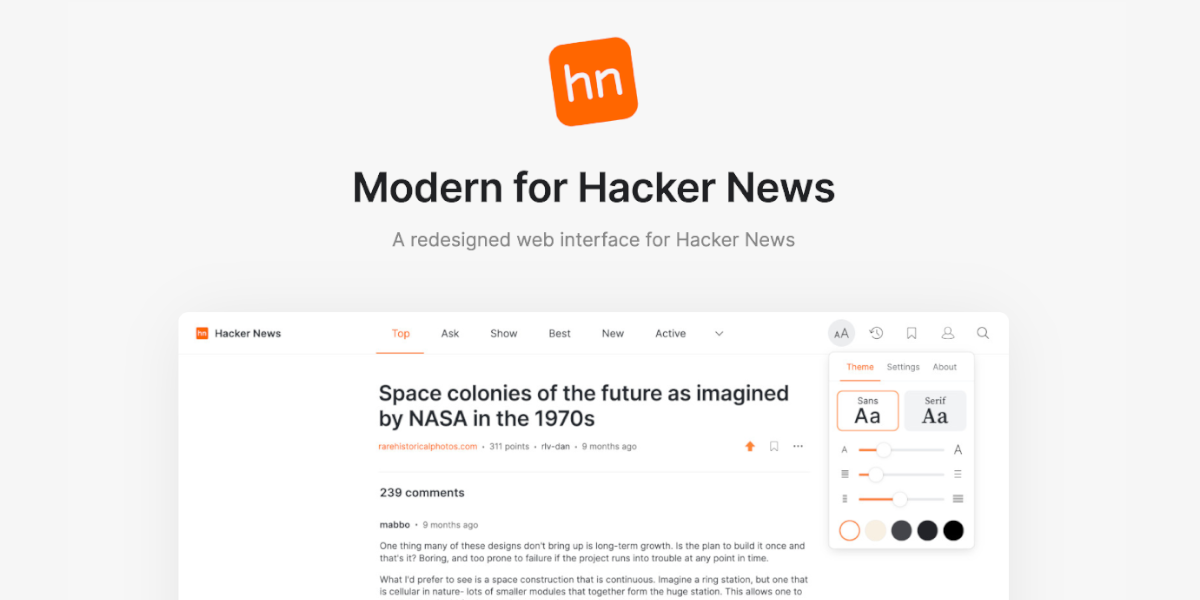

User reviews (0)