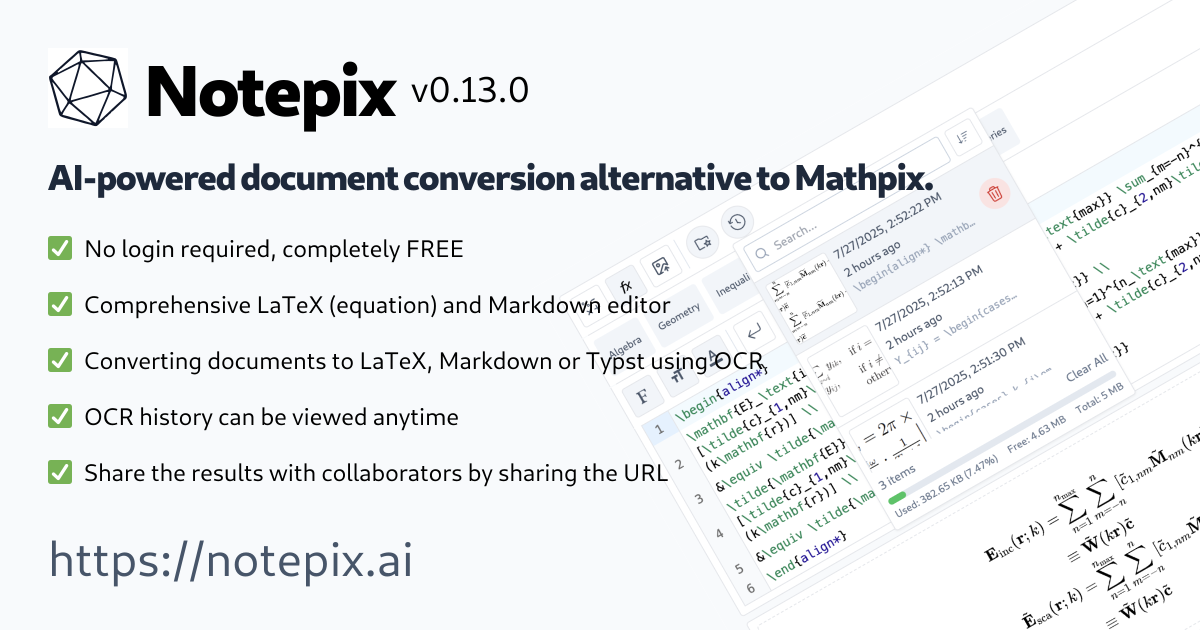
Notepix Full homepage screenshot

At a glance

Category
Artificial Intelligence
Language
English
Paid-content signal
No paid content foundObserved
Registered
2026
Hosting
VercelInferred
HTTPS certificate trusted
PassedObserved
Last updated

Website review

This review may include AI-generated content and is not individually verified. Domain, certificate and other facts come from the observed data on this page.

What is Notepix?

Notepix is an AI-powered document conversion tool positioned as an alternative to Mathpix. Based on its own description, it focuses on turning documents into structured, editable content, with OCR and math/LaTeX editing among its stated capabilities.

What it appears to do

  • Document conversion: Converts documents into usable formats, aimed at people who need to extract content rather than retype it.
  • Math and equation handling: Its keyword set points to a LaTeX editor, equation editor, formula editor, and Typst OCR, suggesting a focus on scientific and technical material where formulas matter.
  • OCR: Text recognition is part of the offering, which is the usual starting point for digitizing scanned or PDF content.

Who it suits

The likely audience is students, researchers, and technical writers dealing with papers, lecture notes, or textbooks full of equations. If your documents are mostly plain prose, a general-purpose OCR tool may be simpler; if formulas are central, a math-aware converter like this is the more relevant choice.

Practical next step

Test it on one representative document — ideally a page with mixed text and at least a few equations — and check how much cleanup the output needs before you can edit it. That single trial tells you more about fit than any feature list. For comparison, Mathpix is at Mathpix.

How does Notepix compare with Mathpix for converting math-heavy documents?

Notepix is positioned as an AI-powered document conversion tool and a direct alternative to Mathpix, aimed at people who need to turn math-heavy pages into editable equations and LaTeX or Typst output. The comparison that matters is less about brand and more about workflow fit: how clean your source documents are, which output format your downstream editor uses, and how much manual cleanup you can tolerate after conversion.

Where the difference usually shows up

Consideration What to check in Notepix What to check in Mathpix
Output format Whether it produces the LaTeX or Typst you actually edit in Whether its LaTeX/Markdown output drops into your toolchain
Source types Handwriting, scans, PDFs, screenshots Same categories, but test your own samples
Editing after conversion Whether there is a built-in editor for fixing errors Whether you correct in your own editor or theirs
Learning curve How quickly a new user gets a usable equation Familiarity if your team already uses it

For a concrete case: a student digitizing a stack of handwritten problem sets cares most about handwriting accuracy and fast correction, while a researcher converting published PDFs into a LaTeX manuscript cares more about preserving structure, tables, and multi-line equations. Those two users may reach different conclusions even on the same pair of tools.

The practical next step is a side-by-side test on five to ten of your own hardest pages—dense fractions, matrices, and multi-line derivations—and compare how many edits each result needs before it compiles. That cleanup count, not the feature list, is the clearest signal of which tool suits your documents.

Can I edit extracted equations in Notepix's LaTeX editor after OCR?

Yes. Notepix is positioned as an AI document conversion tool with a LaTeX editor, so the intended workflow is to run OCR on a document and then refine the extracted equations in the editor rather than treating the first pass as final. The OCR output is a starting point; the editor is where you correct recognition errors and adjust notation.

Practical ways to use that workflow

  • Fixing misread symbols. OCR commonly confuses similar glyphs — a lowercase l versus the digit 1, or a subscript that gets pulled into the baseline. Open the extracted equation and correct these before exporting.
  • Reconstructing multi-line derivations. Aligned equations and cases often come through as separate fragments. Use the editor to rejoin them into a single aligned environment so the numbering and spacing behave correctly.
  • Standardizing notation. If your document mixes \frac and inline slashes, or uses inconsistent vector notation, the editor is the place to normalize before the file goes to a publisher or co-author.

Who benefits most

Researchers and students converting lecture notes or scanned papers get the clearest gain: they need the mathematics to be structurally correct, not just visually similar. Editors preparing submissions also benefit, since journal templates are strict about equation environments.

Decision criterion

Judge the tool by how much editing remains after OCR, not by whether an editor exists. Test it on a page with dense subscripts, matrices and custom macros — if most equations need only small fixes, the round trip is worth it; if many need full retyping, manual entry may be faster.

As a next step, convert one representative page and count how many equations you can accept unchanged versus how many need edits. That ratio tells you whether Notepix fits your documents better than alternatives such as Mathpix, which is the product Notepix explicitly positions itself against.

Does Notepix support Typst OCR in addition to LaTeX conversion?

Yes. Notepix lists Typst OCR alongside its LaTeX conversion, so the same document-to-markup workflow covers both output formats rather than treating Typst as an afterthought.

What that means in practice

  • LaTeX path: suited to users submitting to LaTeX-based journals, editing in Overleaf-style tools, or maintaining formula-heavy notes in .tex form.
  • Typst path: suited to users writing in Typst's lighter syntax, who want OCR output they can paste into a Typst document without hand-converting LaTeX commands.

For a concrete case: a student scanning a printed problem set can choose LaTeX if their course template is LaTeX-based, or Typst if they are building a report in Typst and want equations that compile as-is. The trade-off is that each format has its own conventions, so pick the one matching your downstream tool rather than converting between them later.

Next step

Run one representative page—ideally with inline math, a displayed equation and a small table—through both output modes and compare how much cleanup each needs in your actual editor. That comparison tells you more about fit than the feature list does.

Is Notepix suitable for turning scanned lecture notes or textbooks into editable math documents?

Yes—Notepix is positioned for exactly that kind of task. Its stated purpose is AI-powered document conversion as an alternative to Mathpix, with OCR, a LaTeX editor, an equation/formula editor and Typst OCR among its listed capabilities. That combination points to a workflow where scanned pages are converted into editable math content, then corrected in an editor rather than retyped from scratch.

What matters in practice

  • Scanned lecture notes: handwritten or printed notes with mixed prose and equations are the harder case. Expect to fix ambiguous symbols, subscripts and multi-line derivations after conversion; the editor is where that cleanup happens.
  • Textbooks: dense layouts, multi-column pages, tables and figure captions are where conversion tools generally need the most review. Plan for page-by-page checking rather than a single pass.
  • Output format: LaTeX-oriented editing suits users who already work in LaTeX or need equations for papers and problem sets. Typst OCR support is relevant if you prefer Typst's syntax.
  • Audience: students and researchers converting material for study or reuse, and instructors rebuilding problem sets or handouts.

Decision criterion

If your main need is editable equations from scans and you are comfortable reviewing output in a math editor, Notepix fits the job. If you need faithful preservation of complex page layout and figures, test a few representative pages first and judge how much manual correction remains.

For comparison, Mathpix is the reference alternative named on the page: Mathpix. A practical next step is to run two or three pages of your own notes—one clean printed page, one handwritten page—through both and compare the correction time, not just the raw output.

What file formats can I upload to Notepix, and what formats does it output?

The supplied information for Notepix does not list specific upload or output file formats. The page describes it as an AI-powered document conversion tool and a Mathpix alternative, with keywords pointing to OCR, LaTeX editing, equation editing and Typst OCR — which suggests documents containing math or formulas are the intended input, and LaTeX or Typst-style markup the likely output. Treat that as inference, not a confirmed format list.

How to check before you commit

  1. Open Notepix and look for an upload dialog or "supported formats" note; the file picker usually shows accepted extensions.
  2. Test one small file in each format you actually use — a scanned PDF, a photo of handwritten equations, and a DOCX, for example — and compare the exported result.
  3. Confirm the export side separately: check whether you can copy LaTeX, download a .tex file, or get Typst source, since a converter can accept one format and still limit how you take results out.

Practical decision criterion

If your work is mostly printed or scanned math (textbooks, papers, lecture notes), format breadth matters less than accuracy on equations and how cleanly the output pastes into your editor. If you handle mixed office documents, verify DOCX and PDF handling explicitly before relying on it.

As a general comparison point, Mathpix publishes its own supported input and output formats, so checking both lists side by side is a quick way to see whether Notepix covers your files.

Related questions

More questions →
What Is the Notepix LaTeX Editor and How Do You Use It?

The Notepix LaTeX Editor is the math-writing surface within Notepix, an AI-powered document conversion tool positioned as an alternative to Mathpix. You use it to write and edit LaTeX math, preview the rendered output, and pair it with Notepix's OCR conversion so that content from images, PDFs, or pasted text can become editable LaTeX. It suits students, teachers, and researchers who need clean math typesetting without retyping formulas by hand. The exact menu layout and feature limits are not documented in the available site material, so treat the steps below as the general workflow and confirm specifics in the app.

Where the LaTeX Editor fits in Notepix

Notepix bundles several related tools under one product:

Tool What it is for
Notepix OCR Converts documents and math content into editable text and LaTeX
LaTeX Editor Writes, edits, and previews LaTeX math
Math / Equation / Formula Editor Math entry surfaces, including writing without LaTeX
Typst OCR Conversion for Typst-based documents

The LaTeX Editor is the place where you refine what OCR produces or compose math from scratch. The OCR step handles recognition; the editor handles correction and authoring.

Writing and editing LaTeX in the editor

A practical workflow looks like this:

  1. Open the editor and start a document or equation. Enter your LaTeX directly, for example \frac{a}{b} or \int_0^1 x^2\,dx.
  2. Watch the preview. The rendered output should update as you type. Use it to confirm that fractions, integrals, and subscripts appear as intended.
  3. Fix errors at the source. If the preview breaks, check for unmatched braces {}, missing \end{} for environments, or a command used outside math mode. Correcting the smallest unit first makes errors easier to isolate.
  4. Edit existing LaTeX. Paste in LaTeX from a paper, a colleague, or an OCR result, then adjust it in place rather than rewriting it.

If you prefer not to write LaTeX syntax, the related Math, Equation, and Formula Editor tools are the entry points for composing math without it.

Using OCR output with the editor

The editor's main practical advantage is combining it with conversion. A typical task: you have a photographed page of equations and need them as LaTeX.

  • Run the image or PDF through Notepix OCR to get converted content.
  • Move the converted math into the LaTeX Editor.
  • Check each formula against the original, since OCR can misread similar-looking symbols, superscripts, and multi-line structures.
  • Fix and preview until the output matches.

This is faster than typing long formulas manually, but the review step is not optional—conversion errors are easiest to catch by comparing rendered output to the source.

Practical tips

  • Keep one equation per edit when debugging; it narrows down where a syntax error lives.
  • Use the preview as your source of truth, not the raw code.
  • For documents mixing text and math, convert the whole document first, then refine the math in the editor.
  • Save or export your work before large edits, since the available material does not describe autosave behavior.

Pricing, login requirements, and exact feature limits for the Notepix LaTeX Editor are not specified in the available site information, so check the Notepix site directly before relying on any particular plan or access model.

What Is Notepix and How Does It Convert Documents and Math Content?

Notepix is an AI-powered document conversion tool positioned as an alternative to Mathpix. It is built for turning documents and math content into editable, structured output, and it pairs that conversion with editing support for LaTeX and Typst. Use it when you have a PDF, image, or other document containing formulas or technical notation and you want that content as text or markup you can edit, rather than retyping it by hand. If you only need to type a single equation from scratch, a general formula or equation editor is the simpler fit; Notepix's value shows up when the math is already embedded in a document.

What Notepix does

The core function is conversion: take source material that contains math or technical content and produce output you can work with. The site frames this around AI-driven recognition rather than manual transcription, and it explicitly compares itself to Mathpix, which is the established reference point for math OCR.

Its stated scope covers three related areas:

  • Document and math OCR — recognizing formulas and notation inside uploaded or submitted content.
  • LaTeX editing — working with the converted LaTeX output.
  • Typst OCR and editing — support for Typst, a newer typesetting language, alongside LaTeX.

That combination matters because most conversion tools stop at producing LaTeX. Having Typst in the mix gives you a second output path if your workflow is built on Typst rather than LaTeX.

How conversion differs from a formula editor

These are easy to confuse, so it helps to separate them by what you bring to the tool.

Formula / equation editor Notepix-style conversion
Starting point A blank canvas An existing document, image, or snippet
Main work Typing and structuring the math yourself Recognizing math that already exists
Output Markup or rendered equation Editable text/markup extracted from the source
Best for Writing new equations Digitizing existing documents

A formula editor assumes you know what you want to write and helps you write it without LaTeX syntax. A conversion tool assumes the content already exists somewhere and helps you get it out. Many real tasks need both: convert a page, then clean up the result in an editor.

The basic workflow

The general pattern for this class of tool is consistent, and Notepix follows it:

  1. Provide the source. Upload a document or image, or submit the content containing the math you want converted.
  2. Run recognition. The AI processes the source and identifies formulas, symbols, and structure.
  3. Review the output. You get editable markup — LaTeX or Typst — that you can inspect against the original.
  4. Edit and export. Correct anything the recognition missed, then move the result into your document, editor, or typesetting pipeline.

The step that deserves the most attention is step 3. Conversion is a starting point, not a finished product, and the quality of the output depends heavily on the source.

What to check when results are wrong

Conversion errors cluster around a few predictable causes. When output looks off, check these before assuming the tool failed:

  • Source quality. Low-resolution scans, skewed pages, and faint print are the most common reason formulas come out garbled. A cleaner image usually fixes more than any setting.
  • Ambiguous notation. Handwriting, unusual symbols, and notation specific to one field are harder to recognize than standard typeset math. Expect to correct these manually.
  • Lost structure. Multi-line equations, matrices, and aligned systems are where formatting most often breaks down. Verify line breaks and alignment in the output rather than assuming they carried over.
  • Mixed content. Pages that combine prose, tables, and formulas may convert unevenly — text may come through cleanly while a table loses its layout, or vice versa.
  • Language and font issues. Unusual fonts or non-Latin characters can affect recognition of surrounding text even when the math itself is fine.

A practical habit: convert a short representative sample first, compare it line by line with the original, and only then run the full document. That catches systematic problems before you have a large output to fix.

Choosing between Notepix and alternatives

The decision comes down to your output format and your source material.

  • Choose Notepix if you work with documents containing math and want LaTeX or Typst output, especially if Typst is part of your workflow — that is the clearest differentiator against Mathpix.
  • Choose a general formula editor if your task is writing new equations rather than extracting existing ones.
  • Compare on your own documents rather than on feature lists. Recognition accuracy varies by source type, and the only reliable test is running a page you actually need converted through each tool.

Before committing, confirm the specifics that matter to your use case — supported input formats, export options, and any account or usage terms — directly on the site, since those details determine whether the tool fits your pipeline.

What Is an Online Math Editor and How Do You Use One?

An online math editor is a browser-based tool for writing mathematical expressions, formulas, and diagrams without installing desktop software. Mathcha, for example, is a WYSIWYG (what-you-see-is-what-you-get) math editor that lets you input normal text, math symbols, and graphs or diagrams in a single editor, then export to LaTeX, TikZ, SVG, or image formats. It suits students, teachers, and researchers who need to write and share math documents but don't want to learn LaTeX syntax first — though LaTeX import/export is available if you already work that way.

What makes it different from plain text or LaTeX-only tools

A plain text editor can't render fractions, integrals, or matrices. A LaTeX-only tool renders them but requires you to type commands like \frac{a}{b} and compile before you see the result. An online WYSIWYG math editor sits in between:

  • You insert symbols and layouts visually, so the formula appears as you build it.
  • You don't need to know LaTeX to get started — symbols can be inserted by name, by category, or by drawing.
  • LaTeX is still supported for import and export, so you can move work in and out of LaTeX-based workflows.

How to input math symbols and layouts

Mathcha's editor offers several ways to insert math, so you can pick the one that matches how you think:

  • Suggestion Box — type a symbol's name and insert it without knowing LaTeX.
  • By category — browse organized sets of symbols and layouts.
  • By drawing — sketch the symbol or shape you want.
  • Brackets — brackets match automatically and their height adjusts to the content, or you can set a custom height.
  • Shortcuts — common font styles and symbols have keyboard shortcuts to speed up editing.

Standard editing features (copy, paste, undo, delete inside out, insert with selection) work as you'd expect, so you can revise a formula the same way you'd edit text.

Drawing graphs and diagrams

Beyond formulas, the editor includes tools to draw graphs or diagrams and export them to SVG or TikZ (LaTeX) format. This matters when your document needs a commutative diagram, a plotted function, or a labeled figure alongside the equations — you can build it in the same editor instead of switching to a separate drawing tool.

Importing, exporting, and sharing

Once your document is written, you have several output options:

Output Use case
LaTeX (math mode) Move formulas into a LaTeX document or paper
TikZ Include diagrams in LaTeX workflows
SVG Vector graphics for web or print
Image (PNG) Quick sharing in chats, slides, or notes
PDF (print) Printable documents

You can also share documents via a link, so collaborators can view your work in the browser. Saving a formula as an image, vector, or PDF covers most everyday sharing needs.

Practical benefits

  • Access from anywhere — works through a web browser, no installation required.
  • No LaTeX knowledge needed — the suggestion box and symbol categories let you build formulas visually.
  • Speed — shortcuts, automatic bracket sizing, and WYSIWYG editing reduce the back-and-forth of compile-and-check cycles.
  • One editor for text, math, and diagrams — keeps a document's prose, equations, and figures together.

Mathcha reports over 100,000 registered users and 450,000+ documents created, and offers a desktop (offline) version built for privacy if you prefer not to work in the browser. If you want to try it, the Open Editor is available directly from the site — no setup beyond opening the page.

What Is a Formula Editor and How Do You Write Math Formulas Without LaTeX?

A formula editor is a tool for building mathematical expressions visually, so you can insert symbols, fractions, roots, and layouts by choosing them from menus or suggestions instead of typing LaTeX commands. Mathcha is an online WYSIWYG mathematics editor that fits this description: it lets you input normal text and math symbols, draw graphs and diagrams, and export to LaTeX, TikZ, SVG, or image (PNG). You don't need to know LaTeX to start, though LaTeX import/export is available if you already have it.

How a formula editor differs from plain text or LaTeX-only input

Plain text has no structure for math: a fraction is just a slash, and an integral is just a word. LaTeX-only input gives you structure, but you have to remember command names and syntax before you see the result.

A WYSIWYG formula editor sits in between. You see the formula as it will appear while you build it. In Mathcha, this is supported by:

  • Suggestion Box — quickly insert math symbols without knowing LaTeX, searchable by name or by category.
  • Symbol and layout palettes — a rich set of symbols and layouts for mathematics editing.
  • Brackets that adjust — brackets match and change height automatically according to content, or you can set a custom height.
  • Shortcuts — for common font styles and common symbols, to speed up editing.
  • Standard editing features — copy, paste, undo, delete inside out, and insert with selection.

The practical difference: with a formula editor, the act of writing and the act of checking the result happen at the same time.

Writing math without LaTeX: the basic workflow

  1. Open the editor. Mathcha runs in your web browser, so you can access it from anywhere without installing anything. There is also a Notebook Desktop (offline) version.
  2. Insert a symbol. Use the Suggestion Box and search by name, or browse by category. This is the step that replaces typing \alpha, \sum, or \int.
  3. Build the layout. Choose structures like fractions, roots, and matrices from the layout options rather than writing \frac{}{}.
  4. Let brackets handle themselves. As you type inside brackets, they match and resize automatically. You only set a custom height when you need one.
  5. Add text alongside math. The same editor accepts normal text, so a document can mix prose and formulas.
  6. Draw if needed. Graphs and diagrams can be drawn in the same editor and exported to SVG or TikZ (LaTeX) format.
  7. Verify by looking. Because the display is WYSIWYG, the check is visual: does the formula read the way you intended?

Exporting and sharing what you write

Mathcha supports several output paths, which matters because different destinations need different formats:

Output Useful for
LaTeX (Math Mode) Submitting to LaTeX-based journals, theses, or collaborators who work in LaTeX
SVG Vector graphics in web pages or print layouts that need to scale cleanly
PNG (Image) Quick insertion into slides, chat, or documents that don't accept vector or LaTeX
PDF Printing or sharing a finished document
TikZ (LaTeX) Graphs and diagrams that need to live inside a LaTeX document

You can also share documents with other people via a link, such as https://www.mathcha.io/editor/TE7FgjlNJCbgUWx. LaTeX import works as well, so existing LaTeX math can be brought in and edited visually.

When this approach fits — and when it doesn't

Choose a visual formula editor when:

  • You need to produce math but don't want to learn or recall LaTeX syntax.
  • You want to see the formula as you write it, rather than compile and check.
  • You need to mix text, math, and diagrams in one document.
  • You want to export the same content to LaTeX, SVG, PNG, or PDF depending on the destination.

Stick with direct LaTeX input when:

  • Your entire workflow is already LaTeX-based and switching tools adds friction.
  • You need precise control over packages and document structure that a formula editor doesn't manage.
  • You're editing inside a LaTeX source file and don't want a round trip through another tool.

A middle path is common: write visually, then export to LaTeX for the final document. Mathcha's LaTeX import/export supports exactly this, so you're not locked into either mode.

Getting started

Mathcha reports over 100,000 registered users and more than 450,000 documents created, and it provides example documents you can open to see how formulas and diagrams are built. If you want to try the workflow described above, open the editor, insert one symbol through the Suggestion Box, build one fraction, and export the result to LaTeX and PNG. That single pass covers the core loop: insert visually, verify visually, export to the format your destination requires.

What Is Notepix OCR and How Does It Convert Documents and Math Content?

Notepix OCR is the document-conversion capability of Notepix, an AI-powered tool positioned as an alternative to Mathpix. It is built to turn documents and math content into editable output, including LaTeX and Typst. Use it when you have an image or PDF containing text or equations that you need to edit, reuse, or typeset rather than retype by hand. The exact supported input formats, export options, and any usage limits are not specified in the available site information, so confirm those in the product before relying on it for a specific file type.

What Notepix OCR does

Notepix is described as an AI-powered document conversion tool and a Mathpix alternative. Its stated focus is converting documents and math content into editable forms. The related tools named on the site—a LaTeX editor, math editor, equation editor, formula editor, online math editor, and Typst OCR—indicate that the output is meant to be edited and typeset, not just read.

In practical terms, Notepix OCR sits at the front of that workflow: you bring in a document or math-heavy image, and the conversion step produces text and math markup you can then refine in an editor.

How the conversion workflow works

The general OCR-to-editable-markup workflow looks like this:

  1. Input. Provide the source: an image or PDF containing text, equations, or a mix of both.
  2. Recognition. The AI identifies text regions and math regions, separating prose from formulas.
  3. Conversion. Recognized content is converted into editable output such as plain text, LaTeX, or Typst markup.
  4. Editing. Open the result in an editor (LaTeX, math, equation, or formula editor) to correct recognition errors and adjust formatting.
  5. Export or reuse. Copy the markup into your document, manuscript, or typesetting system.

The expected result at each stage is editable content rather than a static image. The main verification step is to compare the converted output against the source, especially for equations, subscripts, superscripts, fractions, and multi-line expressions, which are the most common places for recognition errors.

How math and equations are handled

Math is the part that distinguishes Notepix from generic OCR. Instead of returning equations as images or garbled text, the conversion aims to produce structured math markup—LaTeX or Typst—that an editor can render and you can modify.

A concrete example: a scanned page containing the expression for a quadratic formula should come back as editable LaTeX rather than a picture of the formula. You can then change a symbol, adjust a fraction, or reuse the expression in a larger document.

Because math recognition is error-prone, treat the first pass as a draft. Check:

  • Fraction and root boundaries
  • Subscript and superscript placement
  • Multi-line aligned equations
  • Symbols that look similar (for example, letters versus Greek characters)

Notepix compared with Mathpix

Both are aimed at converting documents and math into editable markup, and Notepix explicitly presents itself as an alternative to Mathpix. The meaningful comparison dimensions are:

Dimension What to check
Input types Which image and PDF formats each accepts
Output formats Whether LaTeX, Typst, plain text, or others are supported
Math accuracy How well each handles complex or multi-line equations
Editing tools Whether an integrated editor is included
Pricing and limits Cost, free-tier limits, and account requirements

The available site information does not include pricing, plan details, or specific accuracy figures for either tool, so those points should be verified directly rather than assumed. Choose Notepix when its output formats—particularly Typst alongside LaTeX—match your typesetting workflow; choose Mathpix when you need its specific integrations or a track record you have already validated.

Practical limits and when to use something else

OCR conversion is a starting point, not a finished product. Expect to spend time correcting math-heavy pages, and expect lower reliability on poor scans, handwriting, unusual notation, or dense multi-column layouts.

Consider a different approach when:

  • You need perfect typesetting immediately. For short formulas, typing directly into a LaTeX or equation editor may be faster than converting and correcting.
  • The source is handwritten or low quality. Recognition quality drops, and manual entry may be more reliable.
  • You need a format Notepix does not list. Confirm supported outputs before committing a large batch.
  • You only need plain text. A general-purpose OCR tool may be sufficient and simpler.

For math-heavy documents where you will edit the result anyway, Notepix OCR plus its editor is a reasonable fit; for one-off simple formulas, a direct editor is usually the quicker path.

Website Overview

The available information shows a mix of normal operation and configuration gaps. Depending on how the website is used, these gaps may affect secure access or the consistency of its public presentation.

Domain and Registration

The domain was registered less than a year ago and has limited historical evidence to assess. Transfer-protection status is present, helping reduce the risk of unauthorized domain transfers. The registrar is NameCheap, Inc., a widely used domain service provider. Registration contact information is publicly available through RDAP. The domain uses the common .ai extension, which is not an independent safety signal.

DNS and Email

Nameservers are provided by Cloudflare, indicating managed DNS hosting. MX records point to the Cloudflare Email Routing email service. No CNAME was found; the observed records resolve directly to addresses. SPF and DMARC are configured. DKIM status is unknown. TXT records include verification markers for Google. Such markers may also remain after a service stops being used.

TLS and Certificates

The certificate uses an RSA 2048-bit public key, offering broad client compatibility. The server supplied a complete certificate chain. No organization name is present in the certificate; the available fields are consistent with domain validation. The certificate was issued by Let's Encrypt, commonly associated with automated certificate services. The certificate's total validity is about 89 days, consistent with a short renewal cycle.

HTTP and Browser Security

The response lacks these common security headers: CSP, X-Content-Type-Options, Referrer-Policy, Permissions-Policy, clickjacking protection. CORS permits any origin to read this response. This is common for public resources; sensitive responses need narrower handling. No X-Powered-By header was found, reducing one common source of backend fingerprinting information. No obvious internal addresses or debug information were found in the headers. The Server header contains the custom value Vercel.

Technology Stack Analysis

The public page identifies Next.js, Vercel without precise versions, leaving fewer clues for version-specific scanning.

Search and Social Sharing

No homepage canonical URL was detected. If duplicate URLs exist, consolidation may be less explicit. Twitter Card metadata is configured. The title has 64 characters, within a common display range. A meta description is present, with 54 characters. The observed directives allow indexing and link following.

Hosting and Email

DNSCloudflare
HostingVercel
EmailCloudflare Email Routing
Approximate IP geolocation (inferred; a CDN or proxy may differ from the origin server) United States flagUnited States Inferred 216.198.79.65

Registration details

RDAP / WHOIS

RegistrarNameCheap, Inc.
Registered2026-08-18
Expires2028-08-18
Domain statusclient transfer prohibited
Nameserversnadia.ns.cloudflare.com、piers.ns.cloudflare.com
DNSSECunsigned

DNS records

DNS

TypeNameValueTTLPriority
Anotepix.ai216.198.79.65300—
Anotepix.ai64.29.17.65300—
MXnotepix.airoute1.mx.cloudflare.net30041
MXnotepix.airoute2.mx.cloudflare.net30060
MXnotepix.airoute3.mx.cloudflare.net30088
NSnotepix.ainadia.ns.cloudflare.com86400—
NSnotepix.aipiers.ns.cloudflare.com86400—
TXTnotepix.aigoogle-site-verification=9Q0I7dakE1psLsxU613K0w3GDucBNa92QD3ituy4-S0300—
TXTnotepix.aiv=spf1 include:_spf.mx.cloudflare.net ~all300—
DMARC_dmarc.notepix.aiv=DMARC1; p=none; rua=mailto:[email protected]300—

TLS and certificates

TLS / SSL

AssessmentNormal configuration
Supported protocolsTLSv1.2、TLSv1.3
Negotiated protocolTLSv1.3
Certificate subjectnotepix.ai
IssuerLet's Encrypt
Valid until2027-01-17T12:48 · Remaining when checked: 80 days
Verification detailsCertificate trust: Passed · Hostname match: Passed

HTTP response headers

HTTP

HeaderValue
content-typetext/html; charset=utf-8
cache-controlpublic, max-age=0, must-revalidate
serverVercel
strict-transport-securitymax-age=63072000
access-control-allow-origin*

Identified technologies

Next.jsVercel

Pages, Search and Sharing

Meta descriptionAI-powered document conversion alternative to Mathpix.
Canonical URLNot detected
LanguageEnglish (default)
Twitter Cardsummary_large_image
All bots 1 allowed · 1 disallowed
  • Allow/
  • Disallow/private/

User reviews (0)

  • No reviews yet.