
 简体中文
简体中文 English
Website review
This review may include AI-generated content and is not individually verified. Domain, certificate and other facts come from the observed data on this page.
What is Nsketch AI?
Nsketch AI is a web-based creative studio for generating and editing images and videos with AI. Its homepage centers on two entry points, "Generate Image" and "Generate Video," and it presents itself as a broader toolkit rather than a single-purpose generator: image and video creation, an enhancer/upscaler, a virtual try-on tool, and a lipsync/voice studio are all listed as products. It also ships with a large library of ready-made "templates" and "trends"—dance trends, soccer-themed clips, editorial and digicam-style image looks—which suggests it is aimed partly at people who want fast, social-media-ready results rather than fully manual control.
Who it suits
- Social creators and short-form video makers who want to jump off a trend template instead of building a prompt from scratch.
- Small brands and sellers interested in virtual try-on and upscaling existing photos into cleaner assets.
- Curious beginners—the landing page invites visitors to "start by generating a free image," a low-commitment way to test output quality.
- Less suited to teams needing precise, repeatable production pipelines or deep manual editing; the emphasis on templates and trends points toward convenience over granular control.
A practical next step
Pick one real task you already have—say, upscaling a product photo or producing a short trend-style clip—and run it through the free image generation first. Compare the result against what you'd get from a general-purpose tool such as Runway for video or Canva for template-driven design. If Nsketch's trend library or try-on features save you meaningful time on that task, the paid tiers (with HD video, voice cloning and access to the full model set) become worth evaluating; if not, the free entry point has already told you what you need to know.
Can I try Nsketch AI for free before paying?
Yes. Nsketch AI presents a free entry point: its homepage leads with "Start by generating a free image," with the same screen offering a Generate Video option. So you can test the core text-to-image and text-to-video workflow before deciding whether to pay.
What the free route lets you judge
- Image quality and style range. The homepage showcases trend-driven image templates (editorial portraits, film and digicam filters, poster styles), so you can check whether the default look suits your project.
- Video output. Video templates lean heavily on dance and social-media trends, which tells you the intended audience: short-form creators rather than long-form production.
- The wider toolkit. The site lists an enhancer/upscaler, a virtual try-on tool, and a lipsync and voice studio. Free access to these may differ from image generation, so test each one you actually need.
Where free usually stops
The pricing page advertises HD video generation, voice cloning and lipsync, and access to "all 150+ models" on a paid Starter tier. Treat that as a signal: free use is best for evaluating output, while HD video, voice features and the full model catalogue are likely gated. Check the pricing page for credit limits and watermarks before committing.
A practical test: pick one real task, such as a product shot or a 10-second social clip, run it free, and only pay if the result needs little or no rework. For comparison, Runway and OpenArt also offer free trial credits, which helps you benchmark quality before choosing a subscription.
How do I turn a photo into a virtual try-on look?
Use a virtual try-on tool: upload a clear photo of yourself, choose or upload the garment, and let the tool map the clothing onto your body and render a result. On Nsketch AI, this sits in its Virtual Try-On app alongside its image, video, enhancer and lipsync tools, so you can generate a look and then upscale or edit it in the same studio.
What makes a try-on work well
- A clear, front-facing photo: even lighting, minimal clutter, arms not crossing the torso. Full-body shots suit dresses, trousers and outerwear; waist-up shots suit tops and jackets.
- A clean garment image: a flat-lay or product shot on a plain background usually renders more faithfully than a photo of clothing on someone else.
- Realistic expectations: try-on predicts fit, drape and colour but won't guarantee true sizing. Treat it as a styling preview, not a fitting room.
A practical workflow
- Upload your photo and the garment.
- Generate a first look, then adjust the photo or garment if the result looks off.
- Upscale or lightly edit the output for a sharper, more presentable image.
- Compare two or three garment options side by side before deciding.
Who benefits most
Shoppers weighing a purchase, sellers producing lookbook images without a photoshoot, and creators testing outfit ideas for social content. If you need motion—say a short clip of the look—a text-to-video or image-to-video generator is the next step, though results there are less predictable than a still try-on.
Next step: start with one well-lit full-body photo and one garment, generate a single look, and judge the result before trying more. If fit accuracy matters for a real purchase, cross-check against the retailer's size guide.
Which trending templates can I use to make a viral dance video?
Nsketch AI's template library is organized around trend categories, and the dance section is the most direct route to a viral-style dance video. Based on the templates listed on Nsketch AI, you can pick from named dance trends (Rain Dance, Litvin Ravshan Dance Trend, Fetty Wap Template, Hotel Lobby Trend, Lamine Outside Dance, MJ Moon Walk, Gangster Dawg Candy Shop, Train Dance, Turn The Lights Off) as well as music/dance channel entries. There are also "trend" templates that aren't strictly dance but are used the same way—Bby Wow Vibe Trend, Tip Toeing Trend, Viral Street Video, Viral Brazilian Dance, Viral Pool Trend—plus a separate soccer-trends set (Rabona Assist, Aura Celebration, Wonder Goal) if your video leans sports-celebration instead of pure dance.
How to choose
- Match the template to your footage, not the other way around. Templates built around a specific move or setting (pool, street, hotel lobby) work best when your clip already has that framing or energy. Forcing a mismatched clip is the most common reason trend videos look off.
- Short, single-subject clips suit dance templates best, since the template needs room to apply its motion and style.
- Decide on audio early. The page also lists a Lipsync Studio and voice tools; if the trend depends on a specific sound or lip-sync moment, plan that step alongside the template choice rather than after.
Practical next step
Open the dance category and the "Other Trends" group side by side, shortlist two or three templates whose example clips resemble your footage, and generate a free image first (the homepage invites you to "start by generating a free image") to test the style before committing to a full video. Then check Nsketch AI's pricing page to see which plan covers HD video generation, since the listed tiers differ on video output and model access.
A concrete scenario
A creator filming a 10-second clip in a hotel corridor would start with the Hotel Lobby Trend template, keep the clip tightly framed on the dancer, and layer the trend's audio in Lipsync Studio. Someone with a street-dance clip would instead test Viral Street Video and Viral Brazilian Dance, comparing which preserves footwork most cleanly before exporting.
One trade-off worth noting: trend templates are fast and recognizable, but they tend to produce results that look similar across creators. If distinctiveness matters more than speed, the editorial and filter templates (4K Enhancer, VHS Filter Effect, Golden Hour Effect) can be combined with a dance template to differentiate the final look.
How do I upscale a low-resolution image to HD?
Open the Enhancer tool on Nsketch AI, upload your low-resolution image, and run the upscale — the site lists "Enhance & Upscale" and a 4K Enhancer among its tools, so the intended path is upload, choose an upscale option, then download the HD result.
A practical workflow
- Start from the largest, cleanest copy you have — a compressed thumbnail will upscale into soft, blocky detail.
- Pick the upscale target that matches where the image will live (screen or print), rather than the maximum setting by default.
- Inspect edges, text and faces after processing; these are where AI upscalers most often invent or smear detail.
- Keep the original file so you can redo the pass with different settings.
When it works well and when it doesn't
Upscaling recovers believable detail best on photos and artwork with smooth gradients. It struggles with fine text, logos and sharp geometric lines, where invented pixels look wrong. If your image contains lettering, compare the upscaled output against the original before using it in anything public.
Decision criterion
If you only need a larger file for a slide or social post, a single upscale pass is usually enough. If the image is going to print or a large display, test one pass, then judge at 100% zoom on the areas viewers will look at most — faces and any text — before committing.
A useful next step: run the same image through two different upscale strengths and compare them side by side, since the stronger setting is not automatically the better-looking one.
What is the difference between generating an image and generating a video on Nsketch?
On Nsketch, image generation and video generation are two separate starting paths on the same studio page. The homepage offers a "Generate Image" button and a "Generate Video" button side by side under the line "Start by generating a free image," so the main difference is what you're producing and which tools you reach for afterward.
Image generation
- What you get: a single still visual from a text prompt.
- Where it fits: quick concepts, portraits, posters, product or editorial-style shots, and style experiments.
- What the page shows: image-oriented presets such as Instagram Portrait Carousel, Streetwear Editorial Poster, Luxury Mirror Selfie, and various film/digicam looks (Polaroid, Disposable Camera, VHS, 8MM). These are starting styles, not guarantees of a specific result.
- Follow-on tools: the site lists an Enhancer/Upscaler for taking a still to higher resolution, plus an image editor.
Video generation
- What you get: a moving clip rather than a still.
- Where it fits: short social trends, dance clips, and character-driven scenes.
- What the page shows: video templates grouped by theme—dance trends (Rain Dance, MJ Moon Walk, Hotel Lobby Trend), soccer trends (Rabona Assist, Wonder Goal), and character mirror-selfie/poster styles. The page also mentions HD video generation, voice cloning and lipsync, and access to 150+ models on a paid tier.
- Follow-on tools: a Lipsync Studio and Voice tools, which make more sense once you have a clip to sync audio to.
Practical difference
| Image generation | Video generation | |
|---|---|---|
| Output | One still frame | A short clip |
| Best for | Fast iteration on look and style | Motion, performance, trend formats |
| Typical next step | Upscale or edit the still | Add voice or lipsync |
| Effort | Lower; quick to try variants | Higher; motion and audio add steps |
A concrete example: if you're mocking up a poster for a streetwear brand, start with image generation and an editorial preset, then upscale. If you're making a short dance clip for social, start with video generation and a dance template, then use Lipsync Studio for audio.
Next step: decide by end deliverable—if it needs to move, choose Generate Video; if it needs to be a polished still, choose Generate Image and plan on the upscaler. For a full feature-by-feature view, check Nsketch AI pricing.
 Cloudflare
 Vercel
 Google Workspace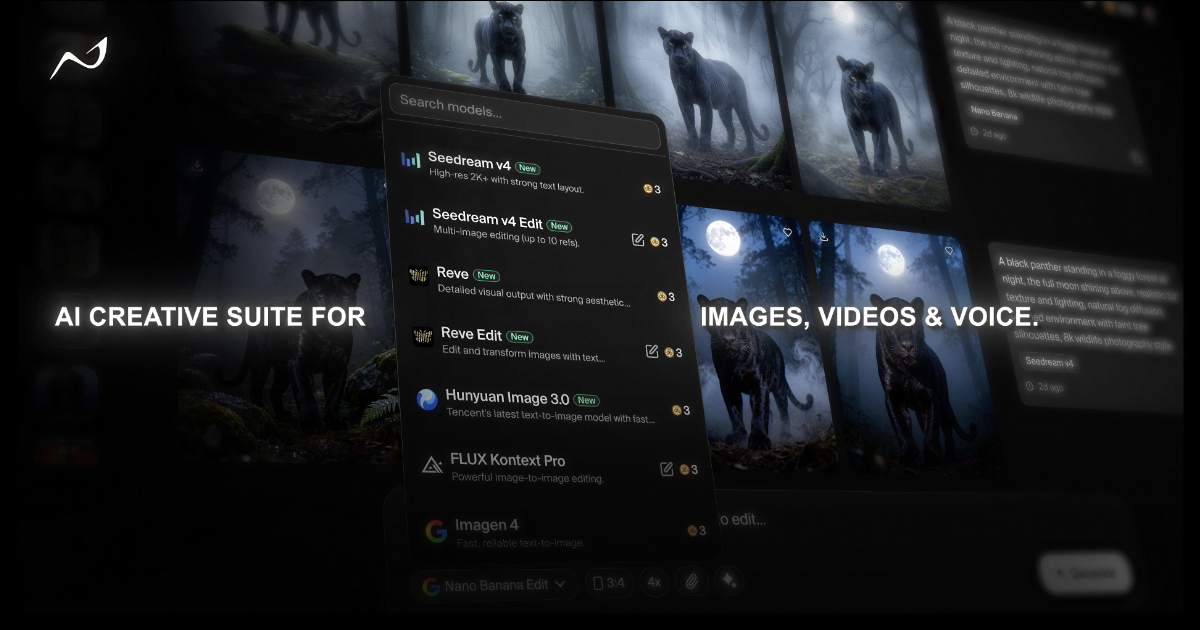

User reviews (0)