Website profiles · Technology insights · Alternatives

p2p.kiwi

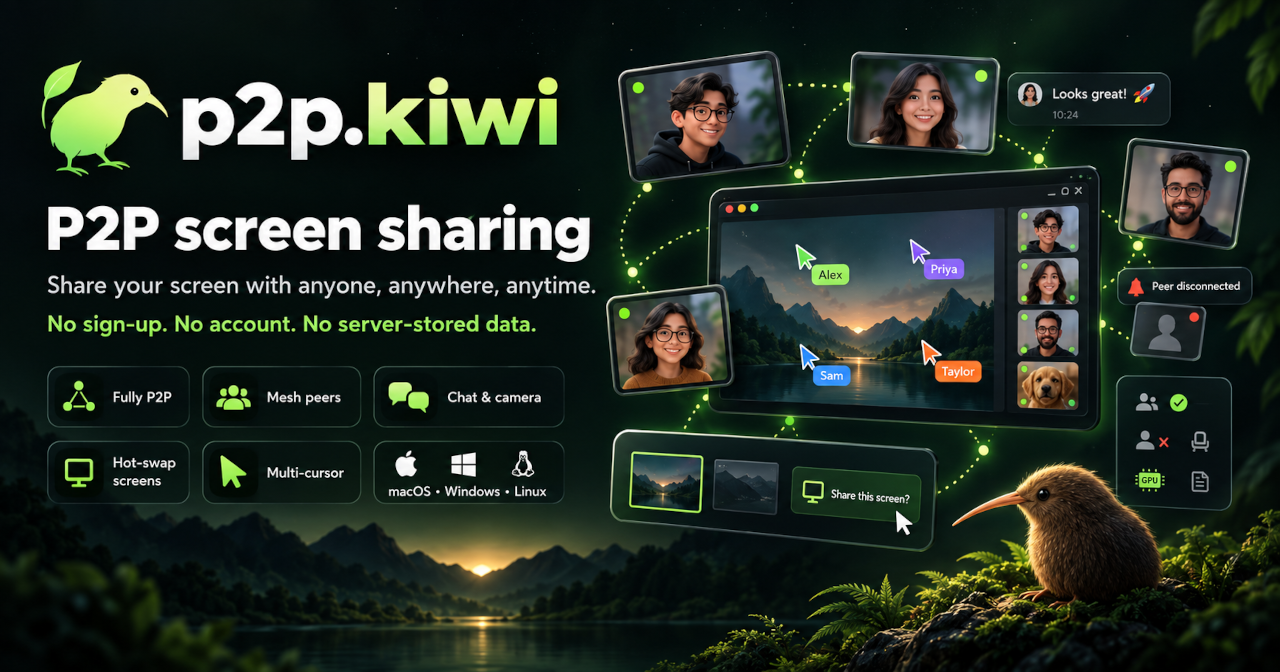
Full E2EE Cross-Platform (MacOS <-> Windows <-> Linux) P2P Mesh Remote Control (Mouse and/or Keyboard).

No paid content found
Visit website
Profile views 9 Outbound visits 12 Normal
p2p.kiwi Full homepage screenshot

At a glance

Category
Software & Apps
Language
English
Paid-content signal
No paid content foundObserved
Registered
2026
Hosting
FastlyInferred
HTTPS certificate trusted
PassedObserved
Last updated

Website review

This review may include AI-generated content and is not individually verified. Domain, certificate and other facts come from the observed data on this page.

What is p2p.kiwi?

p2p.kiwi is a free, open-source remote-control tool that connects machines directly to each other rather than through a company cloud. Its stated focus is full end-to-end encrypted (E2EE) peer-to-peer (P2P) mesh control of mouse and keyboard across macOS, Windows and Linux. The same page also lists E2EE chat, voice and screenshare, and it emphasizes that there is no p2p.kiwi cloud and no forced accounts.

What that means in practice

  • Cross-platform control: You can drive a Mac from Windows, Windows from Linux, and so on. Useful if you keep a mixed fleet at home or in a small office.
  • Mesh topology: Machines can connect to multiple peers instead of a single central server, which suits helping several people or controlling several computers in one session.
  • E2EE and no forced accounts: Encryption is end-to-end, and you are not required to create an account on a vendor service. That is attractive if you dislike yet another login and a third party holding your sessions.
  • Open source: The code can be inspected and self-hosted or modified if you have the skills.

Who it suits

A practical example: a developer with a Windows desktop, a Linux server and a MacBook wants to control any of them from the others without installing a commercial remote-desktop suite and without signing into a cloud account. If that describes you, p2p.kiwi is aimed at exactly that scenario. If you need enterprise management, audit logs, SSO or a support desk with guaranteed uptime, a commercial remote-support product will usually be a better fit.

Trade-offs to weigh

  • P2P mesh tools can be harder to set up than a simple hosted remote desktop, because connectivity depends on peers reaching each other.
  • "No cloud" is a privacy advantage but also means you are more responsible for troubleshooting connectivity and keeping the software updated.
  • Mouse and keyboard control is the core; chat, voice and screenshare are listed alongside it, but check the docs for how polished each feature is.

Next step: Visit p2p.kiwi and read the install and docs sections first. Confirm that your operating systems are supported and that you are comfortable with a P2P setup before replacing an existing remote-control tool.

How does p2p.kiwi work without a central cloud or forced accounts?

p2p.kiwi is built as a peer-to-peer mesh rather than a client–server service. Instead of routing your mouse, keyboard, chat, voice or screen through a company cloud, the software connects your machines directly to each other and encrypts the whole session end-to-end. Because there is no central account system, you are not signing in to a p2p.kiwi service; you install the client, pair your devices, and they talk to one another. The page describes it as "Skype's nerdy little sister" with chat, voice, screenshare, remote mouse/keyboard control, a P2P mesh network, and open-source code.

What "no cloud, no forced accounts" changes in practice

  • Control stays on your machines. Remote input events and screen data travel between paired peers, not through a vendor's relay by default.
  • No account recovery to worry about. There is no central password to reset or profile to delete, but also no cloud address book to sync for you.
  • You manage the network. Pairing, permissions and trust decisions are yours; the project does not hold a master list of your devices.
  • Open source matters here. You can inspect how connections and encryption are implemented rather than taking a privacy claim on faith.

How a real setup would look

Suppose you run a Windows desktop at home and a MacBook when travelling. You install p2p.kiwi on both, pair them once, then use the MacBook to control the desktop's mouse and keyboard or share its screen. The traffic is peer-to-peer and E2EE; there is no p2p.kiwi cloud account in the middle. If you later add a Linux box, it joins the same mesh, which is the point of the cross-platform MacOS ↔ Windows ↔ Linux design.

Trade-offs to weigh

Aspect What P2P/no-account gives you What it costs you
Privacy Direct E2EE connections, no vendor cloud You rely on your own pairing and key hygiene
Setup No signup, no subscription gate Initial device pairing and network config is on you
Availability Works between your own peers Both ends must be reachable; NAT/firewall issues can bite
Trust Open-source, inspectable No central support desk or managed uptime

Next step

Start with two devices on the same local network to confirm pairing, input control and screenshare work before adding remote or cross-platform peers. If connections fail across different networks, treat NAT traversal and firewall rules as the first thing to check, not the encryption.

For background on comparable direct-connection tools, see Syncthing and Tailscale; both illustrate the same peer-to-peer idea in adjacent problem spaces.

How do I set up and use p2p.kiwi to remotely control a computer's mouse and keyboard?

p2p.kiwi is a free, open-source remote-control tool that connects machines directly to each other rather than through a central cloud. Its stated purpose is full end-to-end encrypted (E2EE) peer-to-peer (P2P) mouse and keyboard control across macOS, Windows and Linux. The same project also advertises chat, voice and screenshare over its P2P mesh. Because there is no p2p.kiwi cloud and no forced accounts, the two computers need to find each other directly — so expect setup to center on installing the app on both ends and establishing a connection between them, not on creating an online login.

A realistic setup path

  1. Install p2p.kiwi on both the machine you will control (the host) and the machine you will control it from (the client). Cross-platform support means the pair can be any mix of macOS, Windows and Linux.
  2. Grant the host the permissions its operating system requires for synthetic mouse and keyboard input. On macOS this typically means Accessibility and Screen Recording permissions; on Windows and Linux, similar input-injection or desktop-portal permissions may apply. This is general remote-control advice, not a p2p.kiwi-specific checklist — consult the project's docs for the exact prompts.
  3. Establish the peer connection using whatever pairing or address method the app's docs describe. The "P2P mesh" wording suggests peers connect to each other directly, so both machines must be reachable — same LAN, a VPN, or a working NAT-traversal path.
  4. Verify control in a low-stakes way: move the pointer and type into a text field before relying on it for real work.

Who this suits

  • Someone controlling their own second machine on the same network, where direct P2P is fast and avoids a third party.
  • Privacy-conscious users who prefer E2EE and no mandatory account.
  • Tinkerers comfortable with open-source tools and occasional manual troubleshooting.

It suits less well anyone who needs a zero-configuration, "works through any firewall" experience, since direct connections can fail behind strict NATs or corporate networks — a relay-based commercial tool may be simpler there. For background on the trade-offs of remote access generally, see Wikipedia on remote desktop software.

A concrete scenario You run a Linux desktop as a media or build machine and want to drive it from a Windows laptop across the room. Install p2p.kiwi on both, grant the Linux side input permissions, pair the two peers over your LAN, and you can move the mouse and type without a cloud account. If you later need access from outside the network, you will likely need a VPN or port-forwarding arrangement, because a direct P2P link still has to be reachable.

Next step Read the official docs and screenshots linked from the project page before installing, since pairing steps and permission prompts vary by OS. If you want to compare approaches, GitHub hosts many open-source remote-control projects, and AlternativeTo lists alternatives — but for p2p.kiwi itself, start at p2p.kiwi.

Is p2p.kiwi end-to-end encrypted and how does it protect my data?

Yes. p2p.kiwi describes itself as full end-to-end encrypted (E2EE), and its headline use case is remote mouse/keyboard control across macOS, Windows and Linux over a peer-to-peer mesh. The page also states there is no p2p.kiwi cloud and no forced accounts, so the design intent is to keep sessions directly between the machines you connect rather than relaying them through a vendor-operated service.

What that means in practice

  • E2EE means the encryption endpoints are your devices, not a middle server. In a mesh remote-control tool, that matters because keystrokes and pointer events can reveal passwords, messages and on-screen data.
  • No cloud and no forced accounts removes a central place where a provider could hold your session data or identity. It also means you carry more responsibility for how you introduce and authenticate peers.
  • P2P mesh suggests devices connect to each other, which can reduce latency for remote control and avoid a single relay bottleneck. The trade-off is that NAT traversal, firewalls and network changes can make connections less predictable than a hosted relay.

A realistic scenario

You want to fix a setting on a parent's Windows laptop from your Mac. With a hosted remote-desktop service, the session often passes through that company's infrastructure. With an E2EE P2P tool, the goal is for your Mac and their Windows machine to be the only endpoints that can read the input and screen data. You would still need to verify you are connecting to the right machine, keep both devices updated, and use strong local device security.

Practical next step

Check the project's documentation and source code for the exact cryptography and peer-authentication model, since "E2EE" alone does not tell you whether peers are verified by keys, codes or another method. If you need a broader comparison, official project pages such as GitHub can host the repository and issue tracker, while RustDesk is another open-source remote-desktop option worth evaluating if you want a different architecture.

How does p2p.kiwi compare to TeamViewer or AnyDesk for remote control?

p2p.kiwi targets a narrower job than TeamViewer or AnyDesk: direct, encrypted mouse-and-keyboard control between MacOS, Windows and Linux machines on a peer-to-peer mesh, with chat, voice and screenshare alongside it. TeamViewer and AnyDesk are commercial remote-support suites built around managed access, large device fleets and helpdesk workflows. The practical difference is philosophy: p2p.kiwi is open-source, has no p2p.kiwi cloud and no forced accounts, while the commercial tools assume accounts, central coordination and admin consoles.

H3 Where each fits

  • p2p.kiwi: best when you control both ends, want no account or vendor cloud in the path, and value open-source code you can inspect. The page describes it as free and open-source, E2EE, with a P2P mesh network and remote control for mouse and keyboard.
  • TeamViewer / AnyDesk: better when you need to support people who are not technical, manage many machines, or satisfy an organisation that wants central policy and audit. Those are commercial products with their own terms, so check their current plans directly rather than assuming feature parity.

H3 A concrete scenario You run a Windows desktop and a Linux laptop on the same home network and want to drive one from the other without a relay account. p2p.kiwi's described model suits that: both machines are yours, the connection is peer-to-peer, and nothing forces you through a vendor cloud. If instead you support a client's PC across the internet and need them to grant access with a single code, a commercial tool's onboarding is usually smoother.

H3 Trade-offs to weigh

  • Trust model: open-source and no forced accounts favour p2p.kiwi for privacy-minded users; commercial suites offer vendor support and SLAs.
  • Scale: mesh peer-to-peer is great for a handful of your own devices, less obviously suited to managing hundreds of endpoints.
  • Maturity: TeamViewer and AnyDesk have long track records in remote support; p2p.kiwi is a smaller open-source project, so expect to verify platform behaviour yourself.

H3 Next step Install p2p.kiwi on two machines you own and test a session end to end before relying on it for anything important. If it works for your setup, keep it for personal cross-platform control; keep a commercial tool in reserve for supporting other people's computers. For the commercial options, compare their official pages, e.g. TeamViewer and AnyDesk, against your actual support needs.

Can I use p2p.kiwi for chat, voice, and screen sharing in addition to remote control?

Yes. p2p.kiwi is positioned as a combined communication and control tool, not just a remote-control utility. Its own description lists chat, voice, screenshare and remote mouse/keyboard control over a peer-to-peer mesh, so a single install is intended to cover all four.

What that means in practice

  • Chat — text messaging between connected peers.
  • Voice — audio calls over the same P2P connections.
  • Screenshare — viewing another participant's screen.
  • Remote control — sending mouse and keyboard input to a remote machine.
  • Mesh topology — peers connect to each other rather than through a central server, which suits small trusted groups.

Trade-offs to weigh

  • No cloud relay and no forced accounts mean setup and connectivity depend on the peers themselves; NAT traversal and firewall behaviour matter more than with a hosted service.
  • End-to-end encryption protects content in transit, but the trust model is peer-to-peer: you are trusting the people and machines in your mesh.
  • Cross-platform coverage is stated for macOS, Windows and Linux, so mixed-OS teams are the target audience.

Who it suits

A small team or a few friends who want one open-source tool for calls, screen sharing and helping each other fix machines — for example, a developer pair-debugging across macOS and Linux, or a family member giving remote support to a Windows PC.

Next step

Install it on two machines you control and test the four functions in order: chat first, then voice, then screenshare, then remote control. If screenshare or remote input fails, the problem is almost always network reachability rather than the feature itself. For comparison with a mainstream hosted alternative, see AnyDesk or RustDesk.

Related questions

More questions →
How Does p2p.kiwi Keep Remote Control Sessions Private?

p2p.kiwi keeps remote control sessions private by combining full end-to-end encryption (E2EE) with a peer-to-peer mesh network, so mouse and keyboard input travels directly between your devices instead of through a p2p.kiwi cloud. According to the project's own description, there is no p2p.kiwi cloud and no forced accounts, which means the operator does not sit in the middle of your session and you do not have to create an identity to use it. This applies to the remote-control feature as well as the chat, voice, and screenshare functions that ship alongside it.

The two mechanisms that do the work

1. End-to-end encryption across every session type

p2p.kiwi describes itself as "Full E2EE" and lists the encrypted surface as:

  • Remote control (mouse and/or keyboard)
  • Chat
  • Voice
  • Screenshare

Because the same E2EE claim covers all four, the privacy property is not limited to the remote-control channel. If you are typing on a remote machine, that input stream is protected the same way a chat message or a voice call is.

The practical meaning of E2EE here: the devices at each end hold the keys, and the content is encrypted between them. A relay or intermediary that only forwards packets does not get readable input, keystrokes, or screen data.

2. A P2P mesh instead of a central cloud

The project states there is no p2p.kiwi cloud. Instead, devices form a P2P mesh network and connect to each other. That design has three privacy consequences worth separating:

Design choice What it changes for privacy
No p2p.kiwi cloud Session data is not stored on or routed through an operator-run server
P2P mesh Devices connect directly, so the path is between your machines rather than through a central service
No forced accounts No account identity is required, so sessions are not tied to a registered profile

The "no cloud" and "no forced accounts" points are the ones most often confused. They are separate: one is about where data flows, the other is about whether you need an identity. p2p.kiwi claims neither a cloud nor mandatory accounts.

What this means in a real remote-control task

Say you need to control a Windows desktop from a MacBook on a different network. With a cloud-relayed remote-control tool, your keystrokes and screen frames typically pass through the vendor's infrastructure. With p2p.kiwi's stated model, the two machines are peers in a mesh and the session is E2EE, so the readable content stays at the endpoints.

That said, "no cloud" does not automatically mean "no server ever touches a packet." NAT traversal and mesh connectivity can still involve coordination infrastructure in many P2P systems. The p2p.kiwi page does not detail its connection-establishment path, so treat the strong claim — no p2p.kiwi cloud, E2EE, no forced accounts — as what the project asserts, and verify the connection details in its docs and source if that distinction matters to you.

What is and is not claimed

Supported by the project description:

  • Full E2EE
  • Cross-platform: macOS ↔ Windows ↔ Linux
  • P2P mesh network
  • Remote control of mouse and/or keyboard, plus chat, voice, and screenshare
  • No p2p.kiwi cloud
  • No forced accounts
  • Free and open-source

Not stated on the page, so do not assume it:

  • Pricing tiers or paid plans (the page says free and open-source, but no pricing page is referenced)
  • Whether any relay or signaling server is used for NAT traversal
  • Specific cryptographic algorithms or key-exchange methods
  • Login requirements beyond "no forced accounts"

How to check the privacy claims yourself

  1. Go to the p2p.kiwi site and open the Docs section referenced on the page.
  2. Look for how peers discover each other and whether any coordination server is involved in connection setup.
  3. Review the source code via the "View the code" link, since the project is open-source — this is the most direct way to confirm the E2EE and mesh behavior rather than relying on the summary.
  4. Install it on two of your own machines (for example macOS and Windows) and test a remote-control session to see the direct-connection behavior in practice.

The page provides Install, Screenshots, Docs, and Get involved entry points, and invites contributions, so the docs and repository are the intended places to verify details the landing page does not cover.

Is p2p.kiwi Open-Source and How Can I Contribute?

Yes. p2p.kiwi is described on its own site as "completely free and open-source," and the page explicitly states that contributions are welcome. The site provides two direct entry points for getting involved: a "Get involved" link and a "View the code" link. If you want to inspect the source, report issues, or contribute changes, those are the starting points the project itself points you to.

What the Project Says About Its Open-Source Status

The p2p.kiwi homepage makes three claims that matter for this question:

  • Open-source: The project describes itself as "completely free and open-source."
  • Contributions welcome: The page states, "p2p.kiwi is open-source and we welcome contributions."
  • Code is viewable: A "View the code" link is presented on the page, alongside a "Get involved" link.

There is no p2p.kiwi cloud and no forced accounts, according to the site. That matters for contributors because it means the project is not gated behind a hosted service — the software itself is the product.

How to Get Involved

The page gives you two named entry points rather than a detailed contributor guide. Based on what the site provides:

  1. Open the "Get involved" link on the p2p.kiwi homepage. This is the project's own pointer for people who want to participate.
  2. Open the "View the code" link to reach the source repository. This is where you would inspect the code, and typically where contribution workflows (issues, pull requests) live.
  3. Check the Docs link if you need to understand how the software works before contributing. The homepage lists "Install," "Screenshots," and "Docs" as its main navigation items.

The site does not spell out a contribution process beyond these links, so the repository itself is the place to look for contribution guidelines, issue trackers, and coding conventions.

What You'd Be Contributing To

Understanding the scope helps you decide whether your skills fit. According to the site description, p2p.kiwi is:

Aspect Detail
Type P2P mesh remote control (mouse and/or keyboard)
Platforms macOS ↔ Windows ↔ Linux (cross-platform)
Security Full E2EE (end-to-end encryption)
Features Chat, voice, screenshare, remote controls, P2P mesh network
Infrastructure No p2p.kiwi cloud, no forced accounts
Cost Described as completely free
License status Open-source (code viewable via "View the code")

So contributions could span cross-platform desktop code, networking/mesh logic, encryption, chat/voice/screenshare features, or documentation — depending on where the repository needs help.

Practical Notes Before You Contribute

  • Start from the project's own links. The homepage's "Get involved" and "View the code" links are the authoritative entry points; anything else is secondhand.
  • Read the Docs first if you are unfamiliar with the architecture. The site lists Docs as a primary resource.
  • No account is required to use the software, per the site, which also suggests there is no hosted contributor portal — contribution happens through the code repository.
  • Pricing is not a barrier. The project describes itself as completely free, and the page shows no pricing links or payment platforms.

If your goal is simply to use p2p.kiwi rather than contribute, the same homepage links (Install, Docs) cover that path. If your goal is to contribute, begin with "Get involved" and "View the code," then follow whatever process the repository defines.

How to Install and Start Using p2p.kiwi

p2p.kiwi is a free, open-source, end-to-end encrypted (E2EE) peer-to-peer tool for cross-platform remote control, chat, voice, and screenshare. You install a client on each machine you want to connect — macOS, Windows, or Linux — and the machines form a P2P mesh directly between themselves, with no p2p.kiwi cloud and no forced accounts. This guide covers how to get it installed and how to start a first session.

What you need before you start

  • Two or more machines running macOS, Windows, or Linux. The project describes itself as cross-platform across all three (MacOS ↔ Windows ↔ Linux).
  • Permission to install software on each machine.
  • A network path between the machines. Because it is a P2P mesh with no central cloud relay described on the site, the machines need to be able to reach each other directly — for example on the same LAN, or over a network that allows direct peer connections.
  • No account is required. The site states there are no forced accounts, so you should not expect a sign-up step.

Step 1: Get the installer

Go to the p2p.kiwi site and use the Install entry point. The homepage lists Install, Screenshots, and Docs as the primary links, so Install is the intended starting point for new users.

If you prefer to build or inspect it yourself, the site also links to the source code and states the project is open-source and welcomes contributions.

Step 2: Install on each machine

Run the installer on every machine you want in the mesh. Because the project is cross-platform, the same product covers macOS, Windows, and Linux — but you install the appropriate build for each operating system.

Repeat this on each device. A mesh needs at least two peers before anything can connect.

Step 3: Confirm the app launches

After installing, open the app on each machine. The site's Screenshots page is the best reference for what the interface should look like, and Docs covers the specifics of pairing and using each feature. Use those two pages rather than guessing at menu names, since the exact UI is documented there.

Step 4: Connect the machines and start a session

Once the app is running on two or more machines, use the app's pairing/connection flow (documented under Docs) to bring them into the same mesh. After they are connected, the features described by the project become available:

Feature What it does
Remote control Control mouse and/or keyboard on another machine
Chat Text messaging between peers
Voice Voice communication between peers
Screenshare Share a screen with another peer

For a first test, the simplest useful task is remote control: connect two machines, then try moving the mouse and typing on the remote machine from the local one. If that works, chat, voice, and screenshare use the same peer connection.

Why there is no cloud step

p2p.kiwi describes itself as having "no p2p.kiwi cloud and no forced accounts." That means there is no central service to log into and no account to create as part of setup. The trade-off is that connectivity depends on the peers reaching each other directly rather than on a relay the vendor operates — so if two machines cannot establish a direct path, that is the first thing to check.

Common sticking points

  • Only one machine installed. A mesh needs peers; install on at least two.
  • Wrong build for the OS. Match the installer to macOS, Windows, or Linux.
  • Peers can't see each other. Since the design is P2P without a described cloud relay, verify the machines have a direct network path (for example, same LAN) before troubleshooting the app itself.
  • Unsure what a screen should look like. Compare against the Screenshots page and follow Docs for the exact flow.

Where to go next

  • Install — download and set up the client.
  • Screenshots — see the interface before and after setup.
  • Docs — the authoritative reference for pairing and each feature.
  • Source code — read or contribute, since the project is open-source.
What Is p2p.kiwi?

p2p.kiwi is a free, open-source remote control tool that connects macOS, Windows, and Linux machines directly to each other over an end-to-end encrypted (E2EE) peer-to-peer mesh network. It lets you control another computer's mouse and keyboard, and it also bundles chat, voice, and screen sharing. There is no p2p.kiwi cloud and no forced accounts, so if you want cross-platform remote control without routing your input through a vendor's servers or signing up for a login, this is the model it offers.

What p2p.kiwi actually does

The project describes itself as "Skype's nerdy little sister, but E2EE" — a compact communication and control tool rather than a full remote-desktop suite. Its stated capabilities:

  • Remote control — mouse and/or keyboard input sent to another machine
  • Chat — text messaging between peers
  • Voice — audio calls
  • Screenshare — viewing another machine's screen
  • P2P mesh network — peers connect to each other rather than through a central relay

The headline use case is cross-platform remote control: MacOS ↔ Windows ↔ Linux in any direction, according to the project description.

The two design choices that matter most

End-to-end encryption

Traffic between peers is E2EE. Combined with the absence of a p2p.kiwi cloud, this means the project positions itself so that the operator does not hold your session content. That is the main reason someone would pick this over a mainstream remote-desktop product.

No cloud, no forced accounts

There is no p2p.kiwi-hosted backend and no mandatory sign-up. You are not creating an account with a company to move your own mouse between your own machines. The trade-off is implicit: without a vendor cloud, peer discovery and connectivity depend on the mesh itself, so your network environment matters more than it would with a relay-backed service.

Platform and licensing summary

Dimension What the project states
Platforms macOS, Windows, Linux
Direction Cross-platform, any-to-any (MacOS ↔ Windows ↔ Linux)
Core function Remote control of mouse and/or keyboard
Extra features Chat, voice, screenshare
Network model P2P mesh, no p2p.kiwi cloud
Accounts None forced
Encryption Full E2EE
Cost Described as completely free
Source Open-source, contributions welcomed

Who this fits, and who it doesn't

Reasonable fit if you:

  • Need to drive a Windows box from a Mac (or Linux, or the reverse) and want the input path encrypted end to end
  • Prefer not to create an account with a remote-access vendor
  • Want chat, voice, and screenshare in the same tool as remote control
  • Are comfortable with open-source software and, if needed, reading the code or docs

Look elsewhere if you:

  • Need a managed service with a support contract and an SLA — this is a community open-source project
  • Want zero setup and rely on a vendor's relay to punch through difficult networks
  • Need enterprise fleet management, audit logging, or centralized policy controls; nothing in the project description indicates those

Getting started

The project's own entry points are Install, Screenshots, and Docs, plus a View the code link for the source and a Get involved path for contributors. Start with Install for your platform, then check Docs for how peers are paired and connected — that pairing step is where a mesh tool typically differs most from a cloud service, so it is worth reading before you rely on it.

Because the project publishes no pricing page, payment platforms, or account tiers, treat "completely free" as the project's own description of its current state rather than a guarantee about future hosting or support arrangements.

How Is p2p.kiwi Different From Typical Remote Control or Chat Apps?

p2p.kiwi is a free, open-source, cross-platform tool that combines P2P mesh remote control (mouse and keyboard) with E2EE chat, voice, and screenshare. It differs from typical remote control or chat apps in three structural ways: there is no p2p.kiwi cloud, there are no forced accounts, and the connection is a peer-to-peer mesh rather than a client-to-server relay. If you need a hosted admin console, centralized user management, or a service that works without any direct peer connectivity, p2p.kiwi is not the right fit.

The core architectural difference: no cloud, no forced accounts

Most remote control and chat products route traffic through vendor infrastructure. That infrastructure typically also holds your account, device list, and session metadata.

p2p.kiwi inverts this. Per the project's own description, "There is no p2p.kiwi cloud and no forced accounts." That means:

  • No central server holding your sessions. The vendor does not operate a relay or broker that your traffic passes through.
  • No account requirement. You are not asked to register an identity with the project to use it.
  • Open source. The code is public and contributions are welcomed, so the privacy and encryption claims can be inspected rather than trusted.

The trade-off is direct: you give up the convenience of a web dashboard, centralized device management, and vendor-provided NAT traversal infrastructure.

What p2p.kiwi actually does

It is not only a remote control tool and not only a chat app. The project positions itself as a combination, described as "Skype's nerdy little sister, but E2EE."

Capability Included
Remote control (mouse and/or keyboard) Yes
Chat Yes
Voice Yes
Screenshare Yes
P2P mesh network Yes
End-to-end encryption Yes, across the above
Cross-platform macOS ↔ Windows ↔ Linux
Free and open-source Yes
Cloud service None
Forced accounts None

How it compares on the dimensions that matter

Encryption scope

Typical remote control apps often encrypt the transport (for example, TLS to a relay server) but terminate that encryption at the server. p2p.kiwi describes full E2EE covering remote control, chat, voice, and screenshare. The distinction is where encryption ends: at the vendor's server, or at the peer.

Network topology

Typical tools use a hub-and-spoke model: your device connects to the vendor's server, and the other device connects to the same server. p2p.kiwi uses a P2P mesh, so peers connect to each other rather than through a central hub.

Identity and onboarding

Typical tools require an account, often tied to email or a corporate directory. p2p.kiwi has no forced accounts, which removes a central identity store but also removes centralized access revocation and auditing.

Cost and licensing

p2p.kiwi is described as completely free and open-source. Typical commercial remote control and chat products usually gate features, device counts, or commercial use behind paid tiers.

When p2p.kiwi is the better choice

  • You want remote control and real-time communication in one tool rather than two.
  • You specifically do not want a vendor cloud or a mandatory account.
  • You want to verify privacy claims by reading the source.
  • You work across macOS, Windows, and Linux and need all three to interoperate.

When a typical remote control or chat app is the better choice

  • You need a web admin console, centralized device inventory, or SSO.
  • You need guaranteed connectivity in restrictive networks where direct peer connections fail and only a relay works.
  • You need compliance reporting, session recording with audit trails, or role-based access control managed by an IT department.
  • You need vendor support with an SLA.

How to evaluate it yourself

  1. Check the platform coverage against your own machines (macOS, Windows, Linux).
  2. Confirm your network allows direct peer connections; a P2P mesh depends on peers being reachable.
  3. Read the source if encryption and no-cloud claims are the reason you are switching.
  4. Test remote control, chat, voice, and screenshare as separate workflows, since each is a distinct feature even under one E2EE umbrella.

The project provides install instructions, screenshots, and documentation on its site, plus a public code repository for review.

Website Overview

Several search or sharing settings need attention. Together they may make snippets, preview images or preferred URLs less consistent across platforms. An active inbound-mail setup with incomplete authentication may leave the domain more open to impersonation. Provider hosting alone does not close that gap.

Domain and Registration

The domain was registered less than a year ago and has limited historical evidence to assess. Transfer-protection status is present, helping reduce the risk of unauthorized domain transfers. The registrar is Tucows, a widely used domain service provider. Registration contact information is publicly available through RDAP. The domain uses the common .kiwi extension, which is not an independent safety signal.

DNS and Email

MX records exist, but SPF, DKIM and DMARC were not detected. Protection against domain impersonation may be incomplete. Nameservers are provided by hover.com, indicating managed DNS hosting. MX records point to the hostedemail.com email service. No CNAME was found; the observed records resolve directly to addresses. TXT records include verification markers for Google. Such markers may also remain after a service stops being used.

TLS and Certificates

The certificate uses an RSA 2048-bit public key, offering broad client compatibility. The server supplied a complete certificate chain. No organization name is present in the certificate; the available fields are consistent with domain validation. The certificate was issued by Let's Encrypt, commonly associated with automated certificate services. The certificate's total validity is about 89 days, consistent with a short renewal cycle.

HTTP and Browser Security

The response lacks these common security headers: CSP, X-Content-Type-Options, Referrer-Policy, Permissions-Policy, clickjacking protection. CORS permits any origin to read this response. This is common for public resources; sensitive responses need narrower handling. No X-Powered-By header was found, reducing one common source of backend fingerprinting information. The x-cache, x-served-by, via response header indicates a CDN or caching proxy in the delivery path. No obvious internal addresses or debug information were found in the headers.

Technology Stack Analysis

The public page identifies SvelteKit, Fastly without precise versions, leaving fewer clues for version-specific scanning.

Search and Social Sharing

No homepage canonical URL was detected. If duplicate URLs exist, consolidation may be less explicit. Open Graph is partially configured; og:description, og:type is missing. The title has 8 characters, within a common display range. A meta description is present, with 103 characters. The observed directives allow indexing and link following.

Hosting and Email

DNShover.com
HostingFastly
Emailhostedemail.com
Approximate IP geolocation (inferred; a CDN or proxy may differ from the origin server) United States flagUnited States Inferred 185.199.108.153

Registration details

RDAP / WHOIS

RegistrarTucows
Registered2026-08-19
Expires2027-08-19
Domain statusclient transfer prohibited、client update prohibited、server transfer prohibited
Nameserversns1.hover.com、ns2.hover.com
DNSSECunsigned

DNS records

DNS

TypeNameValueTTLPriority
Ap2p.kiwi185.199.108.153900—
MXp2p.kiwimx.hover.com.cust.hostedemail.com90010
NSp2p.kiwins1.hover.com900—
NSp2p.kiwins2.hover.com900—
TXTp2p.kiwigoogle-site-verification=oq7FfAE1K1s2VzBZO8ZXTilgzs4jqKHb9uRruKDk8o0900—

TLS and certificates

TLS / SSL

AssessmentNormal configuration
Supported protocolsTLSv1.2、TLSv1.3
Negotiated protocolTLSv1.3
Certificate subjectp2p.kiwi
IssuerLet's Encrypt
Valid until2026-11-30T14:36 · Remaining when checked: 60 days
Verification detailsCertificate trust: Passed · Hostname match: Passed

HTTP response headers

HTTP

HeaderValue
content-typetext/html; charset=utf-8
cache-controlmax-age=600
serverGitHub.com
strict-transport-securitymax-age=31556952
access-control-allow-origin*

Identified technologies

SvelteKitFastly

Pages, Search and Sharing

Meta descriptionFull E2EE Cross-Platform (MacOS <-> Windows <-> Linux) P2P Mesh Remote Control (Mouse and/or Keyboard).
Canonical URLNot detected
LanguageEnglish (default)
Twitter CardNot detected

No robots.txt found

No sitemaps found

User reviews (0)

  • No reviews yet.